
Table of Contents
Creating custom product tabs in WooCommerce using Advanced Custom Fields (ACF) allows store owners to display additional product information in a clean, organized, and user-friendly way. Instead of hardcoding content, ACF enables you to manage tab titles, content, and order directly from the WordPress admin panel, making it easy to create unlimited, product-specific tabs without touching code repeatedly.
Step 1: Install Required Plugins
Make sure these plugins are active:
- WooCommerce
- Advanced Custom Fields (ACF) (Free or Pro)
Step 2: Create ACF Fields
Option A: Single Custom Tab
- Go to ACF → Field Groups → Add New
- Field Group Title: Product Custom Tabs
- Add Fields:
- Tab Title
- Field Type: Text
- Field Name: tab_title
- Tab Content
- Field Type: WYSIWYG Editor
- Field Name: tab_content
- Tab Title
- Location Rule:
- Post Type → is equal to → Product
- Publish the field group
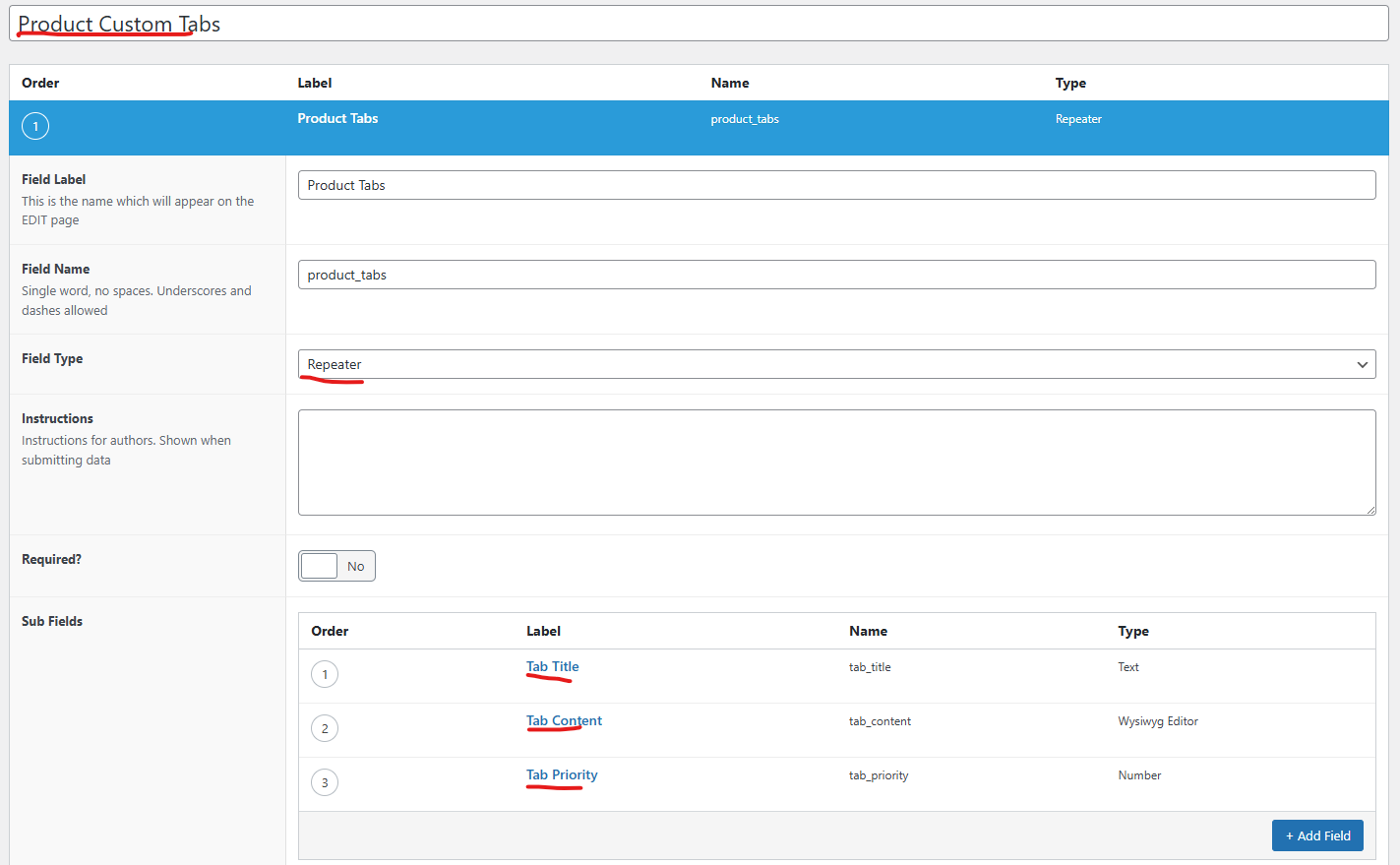
Option B: Multiple Tabs (Recommended – ACF Repeater)
- Add a field:
- Field Type: Repeater
- Field Label: Product Tabs
- Field Name: product_tabs
- Inside the repeater, add sub-fields:
- Tab Title
- Type: Text
- Name: tab_title
- Tab Content
- Type: WYSIWYG
- Name: tab_content
- Tab Priority (Optional)
- Type: Number
- Name: tab_priority
- Tab Title
- Location Rule:
- Post Type → is equal to → Product
- Publish
Step 3: Add PHP Code to Display ACF Tabs
Add this code to your child theme functions.php or a custom plugin.
add_filter( 'woocommerce_product_tabs', 'acf_product_tabs' );
function acf_product_tabs( $tabs ) {
    if ( have_rows( 'product_tabs' ) ) {
        $i = 1;
        while ( have_rows( 'product_tabs' ) ) {
            the_row();
            $title    = get_sub_field( 'tab_title' );
            $priority = get_sub_field( 'tab_priority' ) ?: (50 + $i);
            if ( $title ) {
                $tabs['acf_tab_' . $i] = array(
                    'title'    => esc_html( $title ),
                    'priority' => intval( $priority ),
                    'callback' => function() use ( $i ) {
                        acf_product_tab_content( $i );
                    }
                );
            }
            $i++;
        }
    }
    return $tabs;
}
Step 4: Add Callback Function for Tab Content
function acf_product_tab_content( $index ) {
    if ( have_rows( 'product_tabs' ) ) {
        $i = 1;
        while ( have_rows( 'product_tabs' ) ) {
            the_row();
            if ( $i === $index ) {
                echo '<div class="acf-product-tab-content">';
                the_sub_field( 'tab_content' );
                echo '</div>';
                break;
            }
            $i++;
        }
    }
}
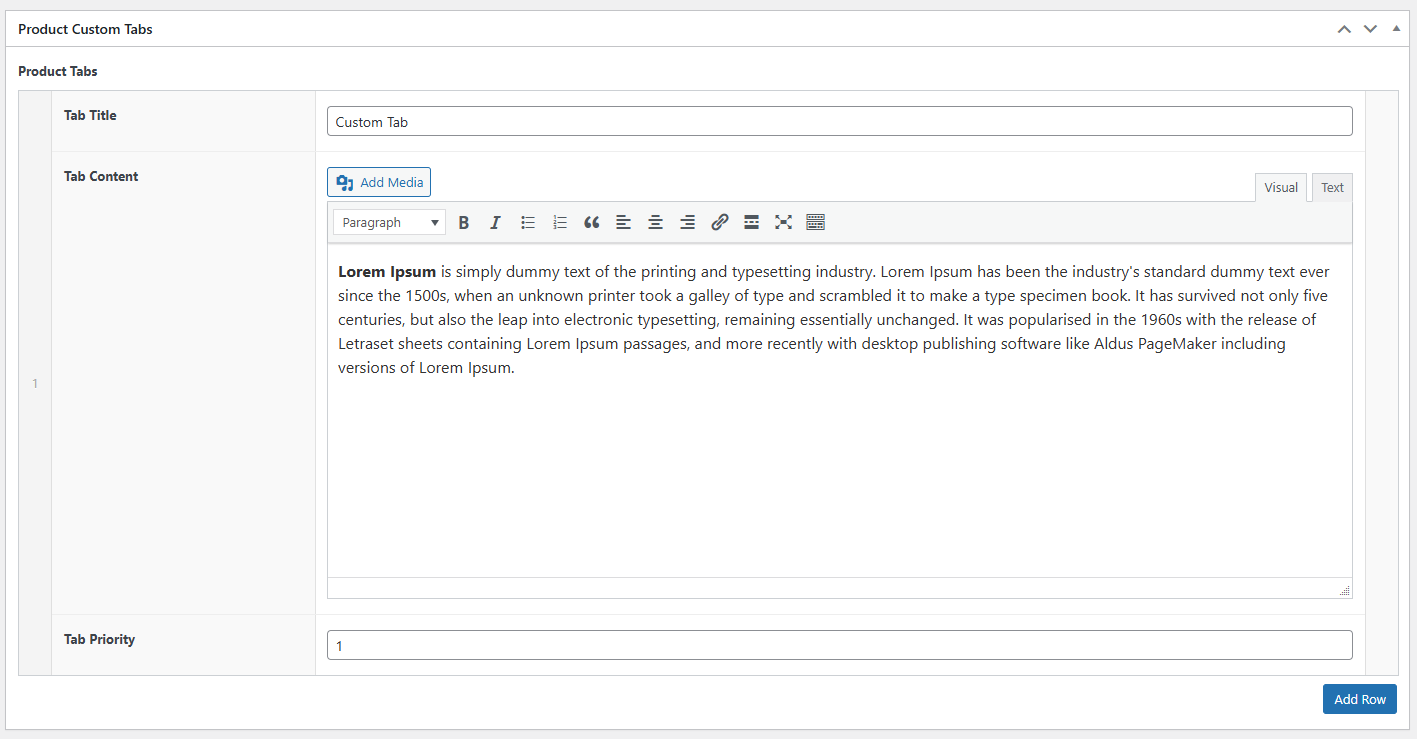
Step 5: Add Tabs from Product Edit Screen
- Edit any WooCommerce product
- Scroll to Product Tabs section
- Click Add Row
- Enter:
- Tab Title
- Tab Content
- Optional Priority
- Update the product
Tabs now appear automatically on the frontend.

Final Thoughts
Creating custom product tabs in WooCommerce using Advanced Custom Fields (ACF) is a powerful and flexible way to manage detailed product information without hardcoding content. By leveraging ACF repeater fields and WooCommerce hooks, you can add unlimited, product-specific tabs that are easy to maintain directly from the WordPress admin panel.
This approach improves content organization, enhances the user experience, and allows non-technical users to update product details effortlessly. Whether you’re adding FAQs, specifications, warranty information, or size guides, ACF-based product tabs provide a scalable solution that works seamlessly with any WooCommerce theme or page builder.
By implementing this method, you gain full control over tab structure, content, and display logic—making it an ideal choice for modern, content-rich WooCommerce stores.
Want custom WooCommerce product tabs and advanced features built the right way?
Let TechnoCrackers handle your full WordPress development needs — from custom builds to seamless integrations, contact us today.