Table of Contents
- Why Use Ultimate Member?
- Step 1: Install and Activate Ultimate Member
- Step 2: Create a Custom User Role (Member)
- Step 3: Set Default Registration Role
- Step 4: Add Login & Registration Form to Your Site
- Step 5: Create a Hidden Menu That Appears After Login
- Step 6: Hide Divi Sections and Columns Based on User Role
- You Can Also Hide:
- Real-World Use Cases
- Best Practices
- Final Thoughts
Sometimes you need to show specific menus or page sections only to logged-in users—or even more specifically, only to users with a certain role. This is common for:
- Member-only content
- Client dashboards
- Premium sections
- Internal pages
In this guide, you’ll learn how to hide menus and sections in a Divi site and show them only after login, using the Ultimate Member plugin.
This method works without custom code and integrates perfectly with Divi’s built-in visibility conditions.
Why Use Ultimate Member?
Ultimate Member is a powerful WordPress plugin designed for user registration, login, and membership control.
Key Reasons to Use Ultimate Member
- Front-end login, registration, and forgot password forms
- Ability to create custom user roles (like Member)
- Menu visibility conditions based on login status and roles
- Easy integration with WordPress and Divi
- No coding required
In this setup, Ultimate Member allows users to:
- Register and log in directly from your website
- Automatically receive a specific role
- See hidden menus and Divi sections after login
Step 1: Install and Activate Ultimate Member
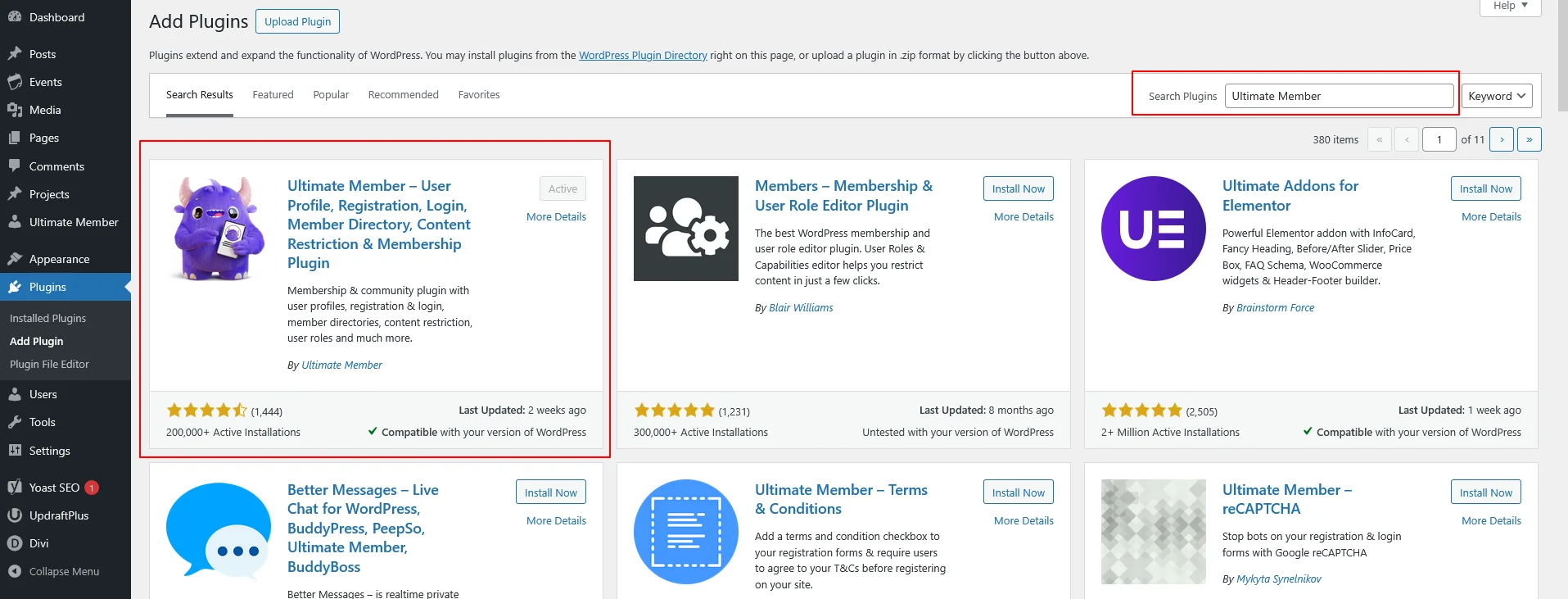
- Go to WordPress Dashboard → Plugins → Add New
- Search for Ultimate Member
- Install and activate the plugin
Plugin URL:
https://wordpress.org/plugins/ultimate-member/
Once activated, Ultimate Member will add new menu options to your WordPress dashboard.
Step 2: Create a Custom User Role (Member)
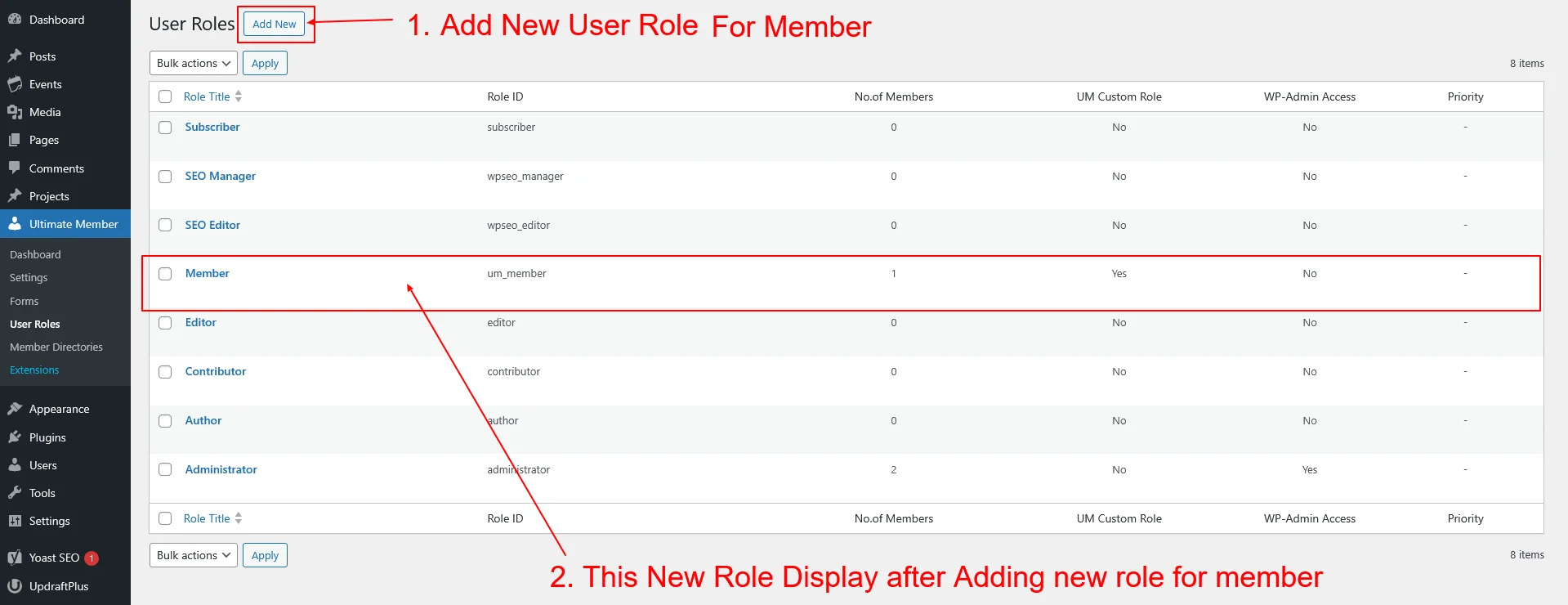
Since you want only specific users to see hidden content, you need a custom role.
- Go to Ultimate Member → User Roles
- Create a new role named Member
- Save the role
This role will be used to control:
- Menu visibility
- Section visibility inside Divi
Step 3: Set Default Registration Role
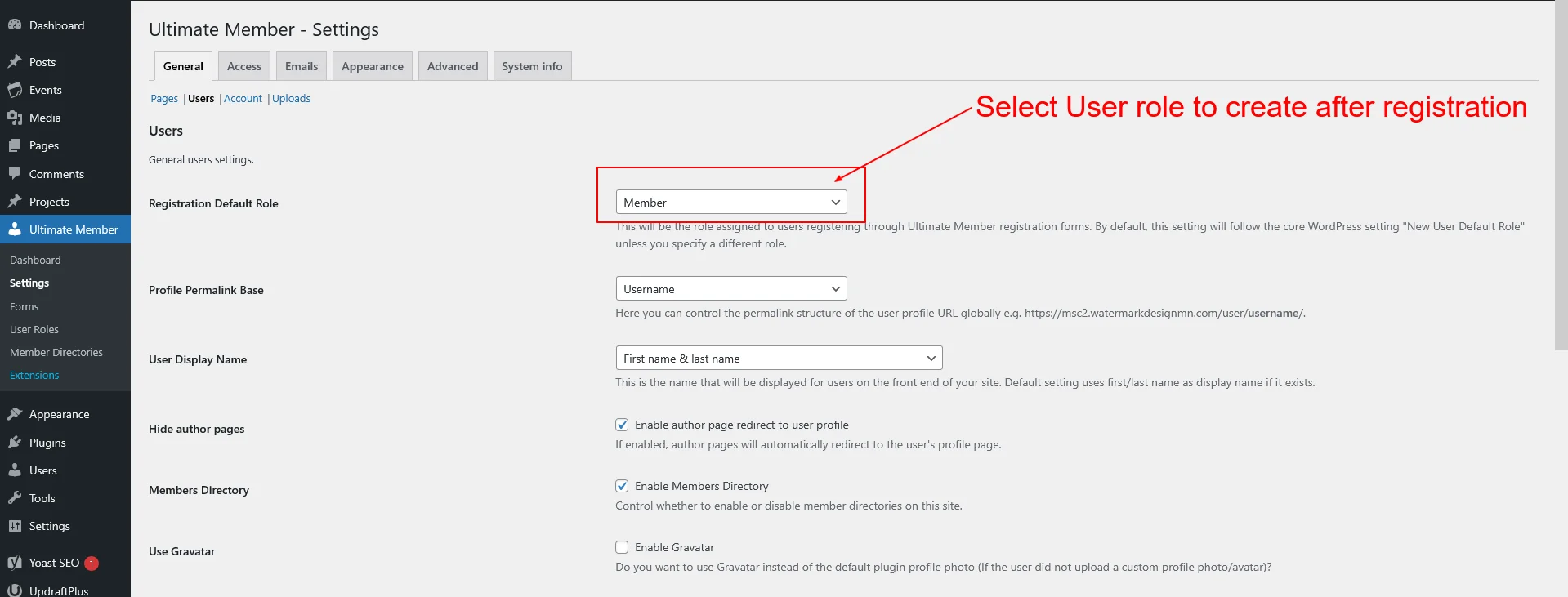
To ensure new users automatically get the correct role:
- Go to Ultimate Member → Settings → General → User
- Find Registration Default Role
- Select Member
- Save changes
Now, every new user who registers will automatically become a Member.
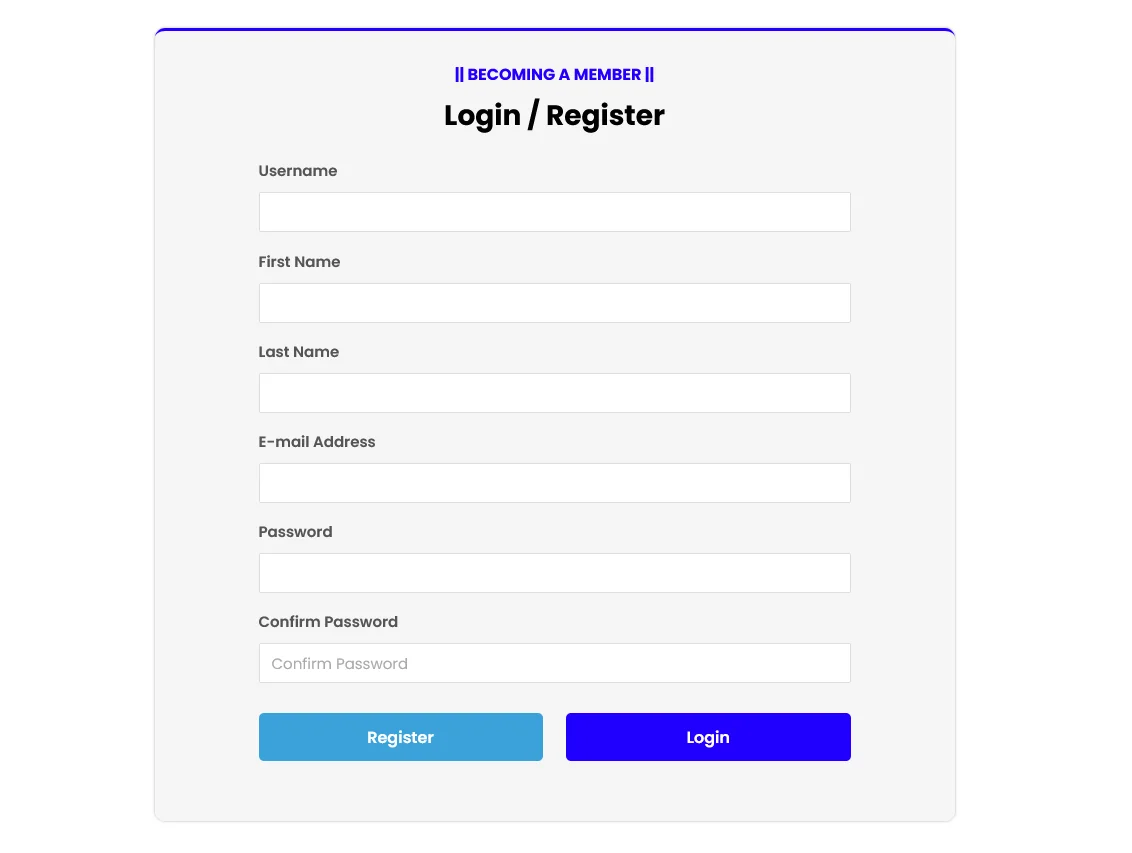
Step 4: Add Login & Registration Form to Your Site
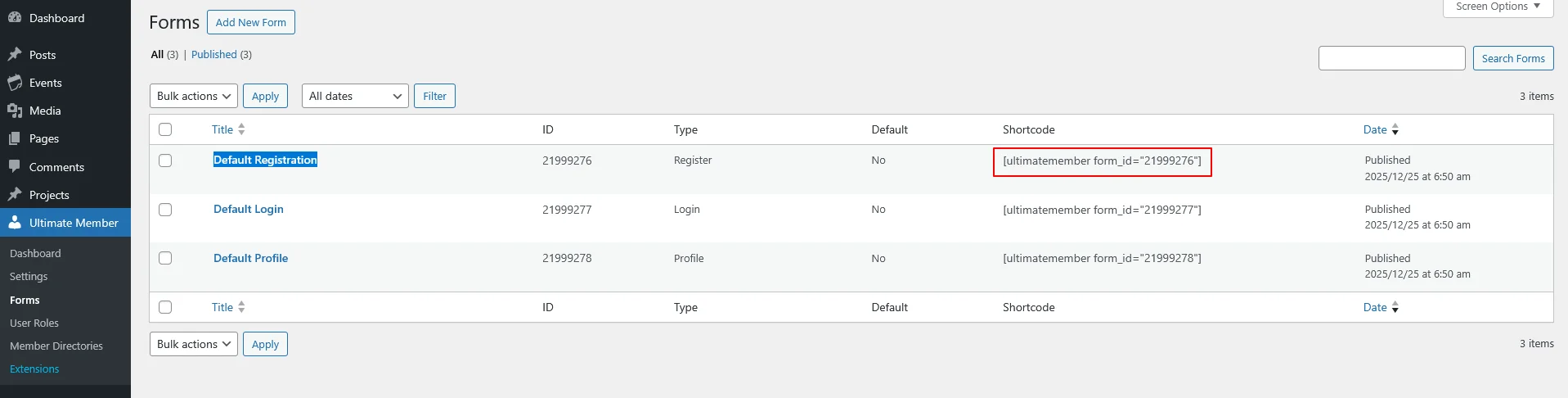
Copy your Login / Registration Form sortcode
Ultimate Member provides ready-made shortcodes for login and registration.
To ensure new users automatically get the correct role:
- Go to Ultimate Member → Forms
- Find Default Registration Form
- Copy Form sort code
Add Login / Registration Form
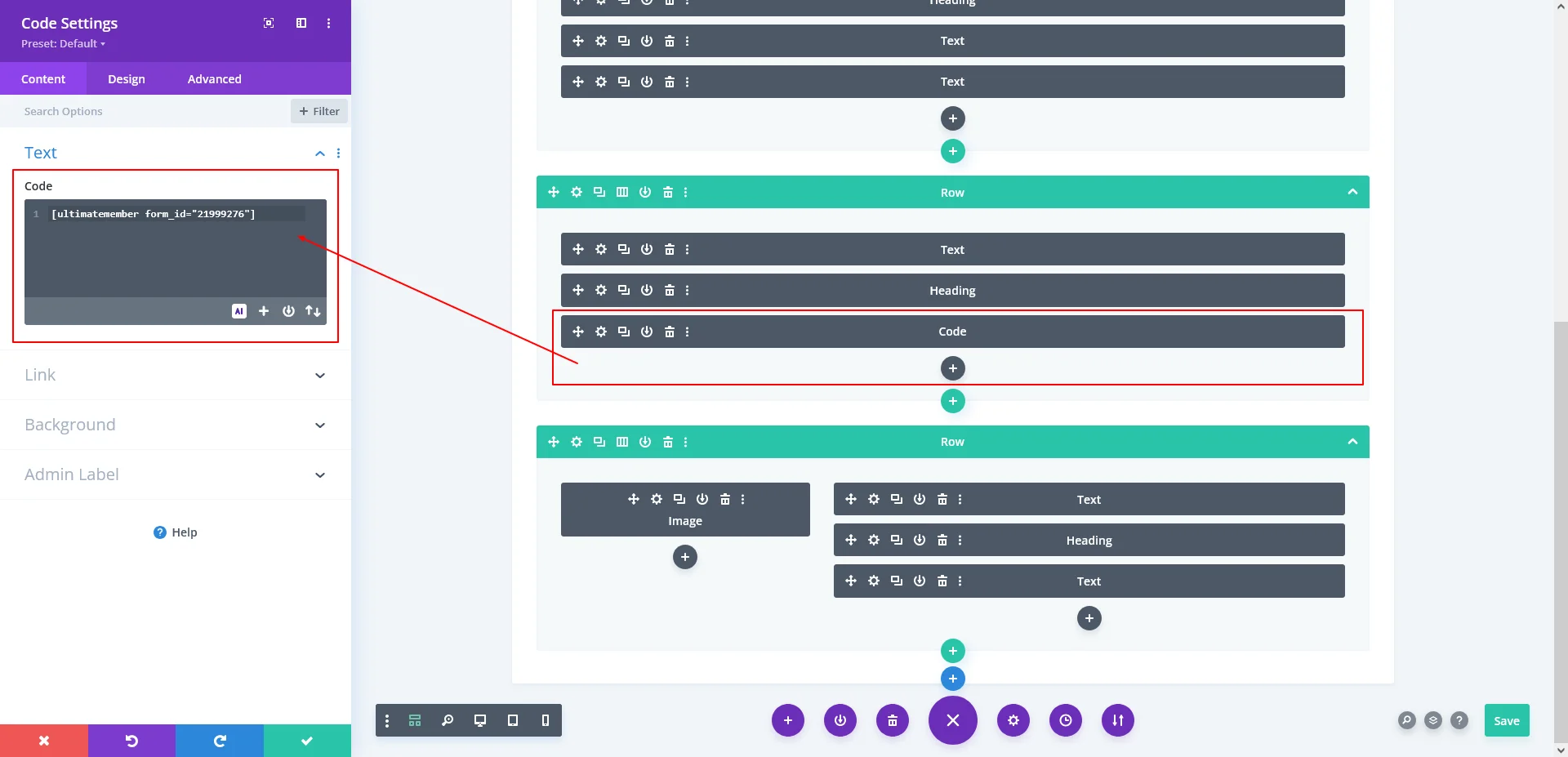
- Create a new page (e.g. Login or Register)
- Add your shortcode:
Eg like: [ultimatemember form_id=”21999276″] - Publish the page
Now users can:
- Register
- Log in
- Reset passwords
—all directly from your website.
Step 5: Create a Hidden Menu That Appears After Login
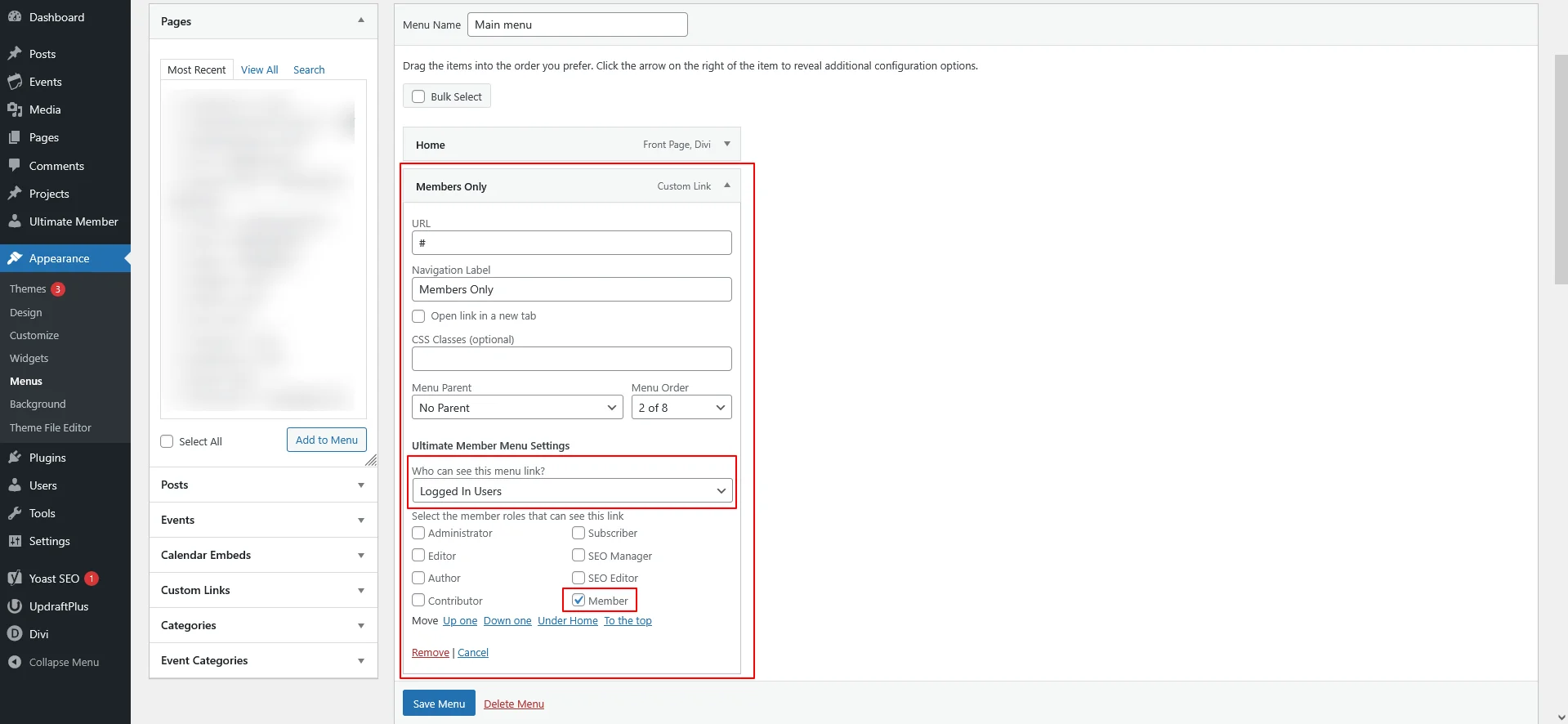
Ultimate Member allows menu-level visibility control, which is perfect for member-only navigation links.
How to Hide a Menu Item for Non-Logged-In Users
- Go to Appearance → Menus
- Add a menu item you want to hide
- Open the menu item settings
- Scroll to Ultimate Member Menu Settings
- Configure:
- Who can see this menu link? → Logged in users
- Select the member roles that can see this link → Member
- Save the menu
Result:
That menu item will only appear when a Member is logged in.
Step 6: Hide Divi Sections and Columns Based on User Role
Divi’s built-in Conditional Display works perfectly with user roles.
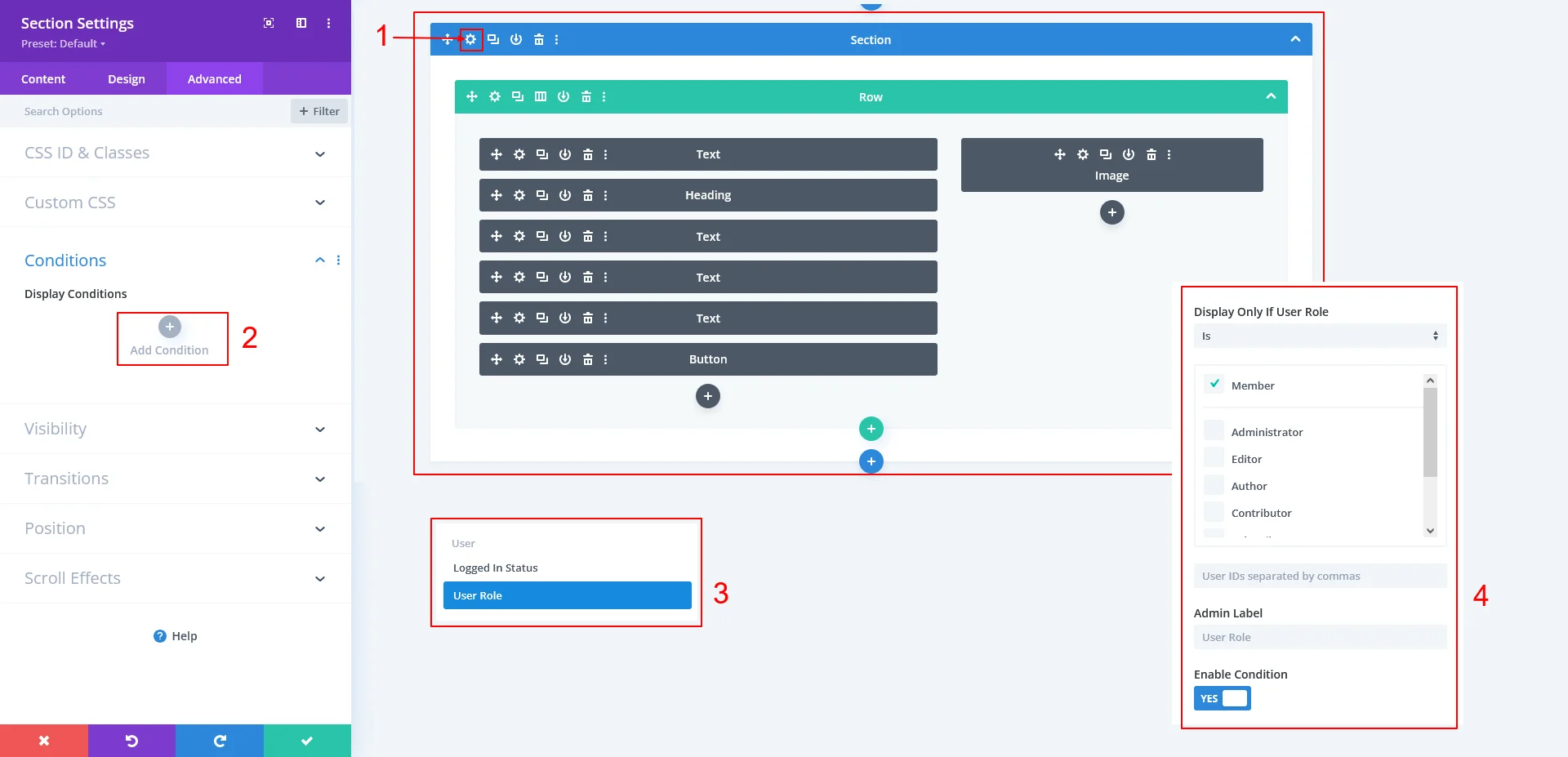
How to Hide a Divi Section Until Login
- Edit your page with Divi Builder
- Select the Section (or Row / Column)
- Go to Advanced → Conditions
- Click Add Condition
- Choose:
- User Role
- Display Only If User Role → Member
- Save changes
Result:
- Logged-in users with the Member role see the section
- Logged-out users and other roles cannot see it
You Can Also Hide:
- Rows
- Columns
- Individual modules
Using the same Advanced → Conditions option.
Real-World Use Cases
This setup is perfect for:
- Member dashboards
- Premium content sections
- Client-only pages
- Logged-in call-to-action buttons
- Role-based page layouts
And all without writing a single line of PHP.
Best Practices
- Use Ultimate Member roles instead of default WordPress roles
- Keep menu visibility simple (login + role)
- Use Divi conditions for layout control
- Avoid duplicating sections—use conditions instead
- Test with logged-in and logged-out users
Final Thoughts
By combining Ultimate Member with Divi’s conditional display, you can easily build role-based websites where menus and sections appear only after login.
This approach is:
- Beginner-friendly
- Scalable
- Secure
- Client-ready
If you’re building membership sites, dashboards, or premium areas in Divi, this method is one of the cleanest and most reliable solutions available.
Want help building hidden menus and sections in Divi that appear after user login?
Let TechnoCrackers implement secure, custom login-based displays for your site – Contact us today.