Table of Contents
- Why Use a WooCommerce Product Variation Table?
- What You Need to Create a Variation Table
- How to Create a WooCommerce Product Variation Table
- Step 1: Configure JetProductTables
- Step 2: Choose the Product Variations
- Step 3: Customize the Table Columns
- Step 4: Add Variation Selection and Add to Cart
- Step 5: Add Filters if Needed
- Step 6: Customize the Table Design
- Step 7: Save the Table as a Preset
- How to Display the Variation Table on a Single Product Page
- Creating a Variation Table Using a Shortcode
- Display Variation Tables for Specific Products
- Make WooCommerce Variations Easier to Compare
- Final Thoughts
WooCommerce variable products are useful for selling items with different sizes, colors, materials, or other options. However, displaying multiple variations through standard dropdowns can make it difficult for customers to compare available options quickly.
A WooCommerce product variation table provides a more structured way to display these options. Instead of requiring shoppers to select attributes one by one, you can present variations in rows with information such as product name, SKU, price, attributes, stock status, and an Add to Cart option.
With JetProductTables, you can create customizable variation tables and display them directly on WooCommerce single product pages. The plugin lets you configure table columns, filters, layouts, and presets without creating the table structure manually.
Why Use a WooCommerce Product Variation Table?
A variation table can make variable products easier to browse and compare. It is particularly useful when a product has many combinations of attributes.
For example, a clothing store could display:
| Size | Color | SKU | Price | Stock | Action |
|---|---|---|---|---|---|
| Small | Black | SH-001-S-B | $25 | In Stock | Add to Cart |
| Medium | Black | SH-001-M-B | $25 | In Stock | Add to Cart |
| Large | Black | SH-001-L-B | $27 | In Stock | Add to Cart |
Instead of opening multiple dropdowns, customers can see the available variations in one place and select the option they need.
JetProductTables is designed specifically for displaying WooCommerce products and variations in customizable table layouts.
What You Need to Create a Variation Table
Before creating the table, make sure you have:
- WordPress installed and configured;
- WooCommerce installed and activated;
- A variable WooCommerce product with variations;
- JetProductTables installed and activated.
Once these requirements are ready, you can start configuring the variation table.
How to Create a WooCommerce Product Variation Table
Step 1: Configure JetProductTables
From the WordPress dashboard, go to:
WooCommerce → Settings → Product Table
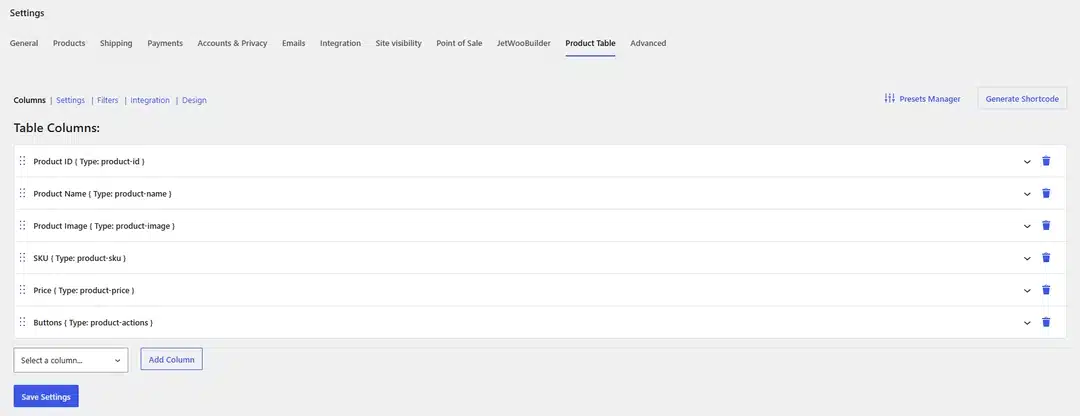
JetProductTables provides the settings required to create and customize your product tables. You can configure the columns, filters, design, and other table options from this area.
Step 2: Choose the Product Variations
When configuring the table, select Product Variations as the data type.
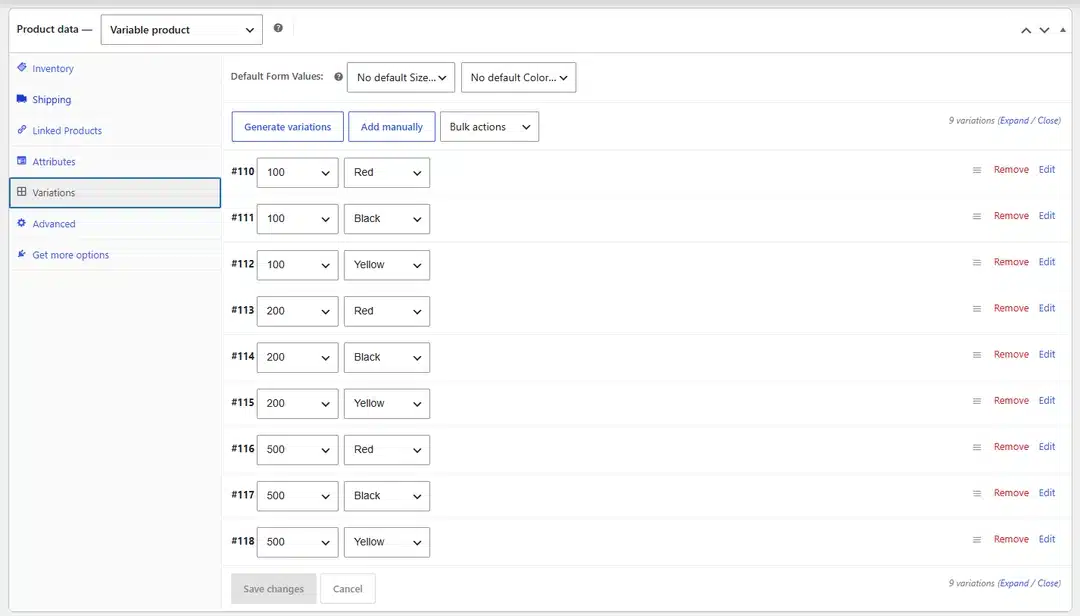
If the table will be displayed on a single product page, choose Current Product so that the table automatically displays the variations belonging to the product currently being viewed.
This is especially useful for variable products because the same table configuration can be reused across multiple products without manually specifying each product ID.
Step 3: Customize the Table Columns
The next step is to decide what information should appear in the table.
You can add or remove columns depending on the information your customers need. For example, a variation table could include:
- Product ID;
- Product Name;
- Product Image;
- SKU;
- Product Attributes;
- Price;
- Stock information;
- Quantity;
- Add to Cart button.
For a simple variation table, you might only need the variation attributes, price, stock status, and Add to Cart functionality.
For stores with detailed product information, additional product or custom meta fields can also be displayed. JetProductTables supports product meta columns, allowing additional WooCommerce or custom field data to be included in the table.
Step 4: Add Variation Selection and Add to Cart
One of the most useful options is allowing customers to select variation attributes and add the chosen variation to the cart directly from the table.
In the Buttons column, configure the variation selection and Add to Cart functionality.
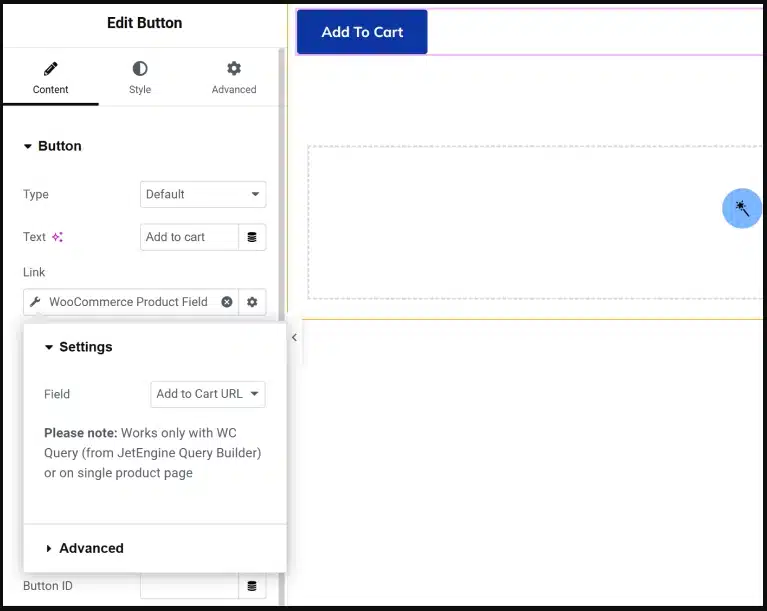
This allows customers to interact with the variations without navigating away from the product page.
For example, a customer could compare several sizes, choose the required attributes, set the quantity, and add the variation to the cart.
Step 5: Add Filters if Needed
If your product has a large number of variations, filters can make the table easier to navigate.
JetProductTables supports filtering options based on WooCommerce data, including taxonomy, attributes, search, and custom meta fields.
For example, you could allow customers to filter variations by:
- Color;
- Size;
- Product category;
- Product tags;
- Attributes;
- Search terms.
This is particularly helpful for products with dozens or hundreds of variations.
Step 6: Customize the Table Design
After configuring the content, adjust the appearance of the table.
You can customize elements such as:
- Table typography;
- Header and footer;
- Spacing;
- Column arrangement;
- Background and text styling;
- Sticky header;
- Horizontal or vertical scrolling;
- Mobile layout.
JetProductTables also provides options such as pagination, lazy loading, and a Load More button for managing larger tables.
The goal is to make the table easy to scan while keeping the variation selection process straightforward.
Step 7: Save the Table as a Preset
If you plan to use the same variation table configuration across multiple products, save the configuration as a preset.
A preset allows you to reuse the same table structure instead of configuring every product table separately. JetProductTables provides a Preset Manager for saving and reusing table configurations.
This can save considerable time when working with a large WooCommerce catalog.
How to Display the Variation Table on a Single Product Page
JetProductTables provides dedicated locations for displaying variation tables on WooCommerce single product pages.
You can display the table in the:
- Product Variations Tab
- Product Variations in Body
These locations allow you to choose where customers will interact with the variation table.
Go to:
WooCommerce → Settings → Product Tables → Integration
Then enable the appropriate variation table location and select the preset you created.
Save the settings and open a variable product on the front end.
The configured variation table should now appear in the selected location, showing the variations associated with that product.
Creating a Variation Table Using a Shortcode
Another option is to generate a shortcode for the variation table.
When generating the shortcode, select:
Product Variations → Current Product
This configuration tells JetProductTables to retrieve the variations associated with the product currently being displayed.
You can then place the generated shortcode inside a compatible template or page builder layout. This approach provides more flexibility when you want to control exactly where the variation table appears.
Display Variation Tables for Specific Products
Variation tables don’t have to be limited to the current product.
JetProductTables can also generate variation tables based on specific product IDs or SKUs. This can be useful when you want to display variations belonging to selected products on a custom page.
Keep in mind that this setup displays the individual variations rather than creating a parent-product table where customers select variations from each parent product.
Make WooCommerce Variations Easier to Compare
A WooCommerce variation table can provide a much clearer shopping experience for products with many options. Instead of forcing customers to repeatedly open dropdowns and select attributes, you can present the available variations in an organized table.
With JetProductTables, you can create these tables without building the functionality from scratch. You can configure columns, variation information, filters, Add to Cart controls, styling, and reusable presets, then display the table directly on WooCommerce single product pages.
For stores with complex variable products, this approach can make it easier for customers to compare options and quickly select the variation they want.
Final Thoughts
Creating a WooCommerce Product Variation Table with JetProductTables is a practical way to improve how variable products are presented.
Instead of relying solely on traditional variation dropdowns, you can provide customers with a structured view of available options, prices, attributes, and purchasing controls. With reusable presets and multiple display locations, the same table setup can also be applied across different WooCommerce products and templates.
If your WooCommerce store sells products with numerous sizes, colors, materials, or other combinations, a variation table can make the selection process faster and more convenient for shoppers.