Encountering a “Fatal Error: Maximum execution time exceeded” can be frustrating, especially after a major update like WordPress 6.9. This error occurs when a PHP script takes longer to process than the server allows.
Here are the proven methods to fix it, following the expert recommendations from Kinsta.
1. What the Error Looks Like
Before fixing it, you need to identify it. You will usually see a message in your WordPress dashboard or an email from WordPress.
Visual Guide:

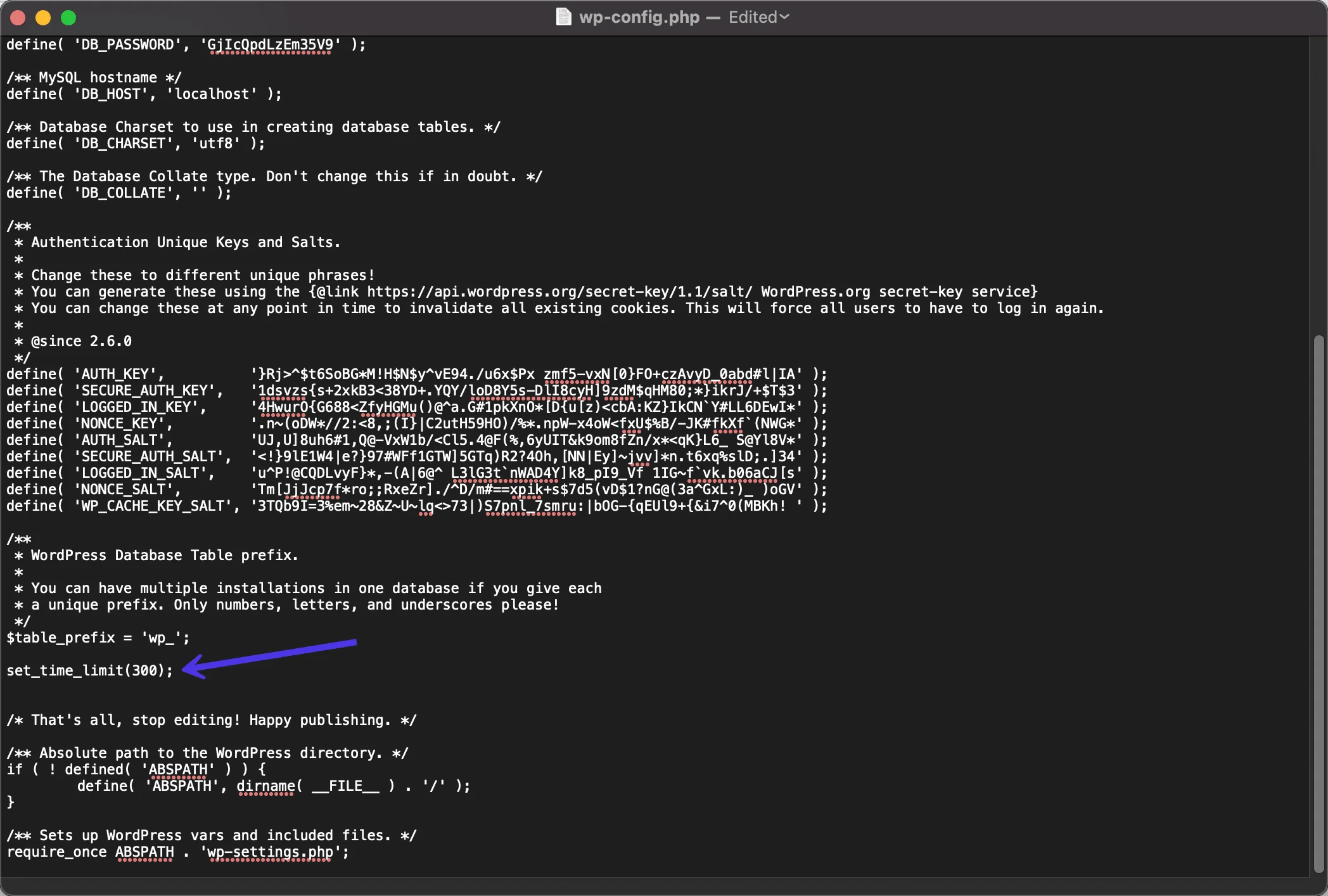
2. Increase Time Limit via wp-config.php (Recommended)
The wp-config.php file is the heart of your WordPress configuration. Adding a simple line of code here can solve the issue for most users.
Steps:
- Connect to your site via FTP or File Manager.
- Locate the wp-config.php file in your root folder.
- Add set_time_limit(300); before the line that says “/* That’s all, stop editing! Happy publishing. */”.
Visual Guide:
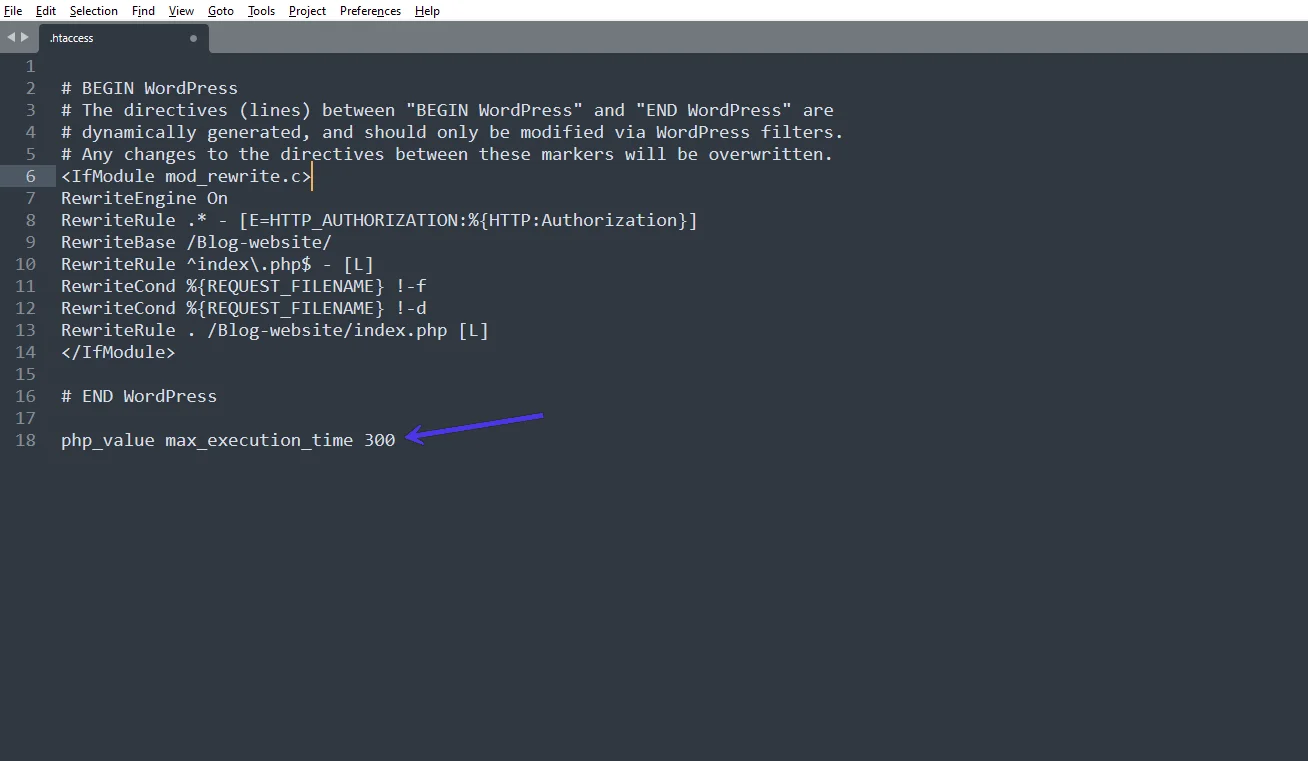
3. Modify the .htaccess File
If your host uses Apache (most shared hosts do), the .htaccess file is a powerful way to override server defaults.
Steps:
- Find the .htaccess file in your /public folder via FTP.
- Add the following line to the top of the file: php_value max_execution_time 300
Visual Guide:
4. Use the “WP Maximum Execution Time Exceeded” Plugin
If you are uncomfortable editing code files, Kinsta recommends using a dedicated plugin that automates the process for you.
Steps:
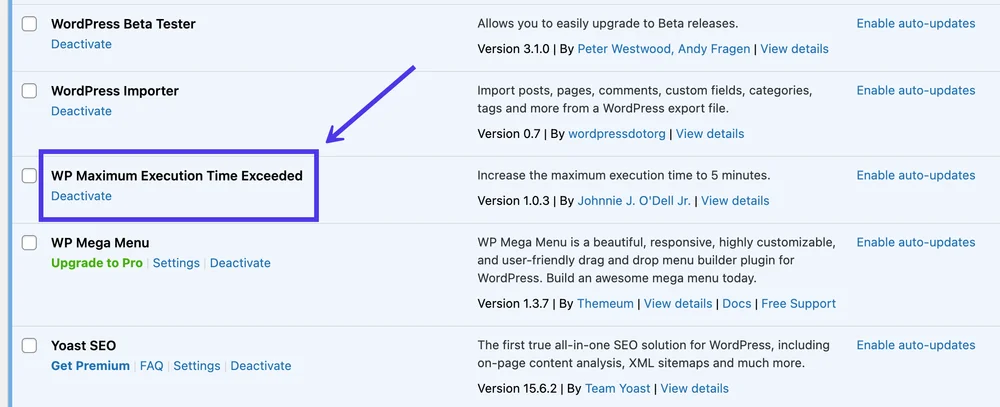
- Go to Plugins > Add New.
- Search for “WP Maximum Execution Time Exceeded.”
- Install and Activate. The plugin automatically increases the limit to 300 seconds.
Visual Guide:
5. Adjust via php.ini
For those on a VPS or with a host that allows custom PHP settings, editing the php.ini file is the most direct server-level fix.
Steps:
- Locate the ini file (often in the root or /etc/ folder).
- Find the line max_execution_time.
- Change the value to 300 (e.g., max_execution_time = 300).
Visual Guide:

6. Contact Your Hosting Provider
If none of the methods above work, your host may have hard-coded limits. Kinsta and other premium hosts can often adjust this for you via their support chat.
Final Thoughts
The maximum execution time error is one of the most common WordPress issues — but also one of the simplest to fix. Whether it’s a bad plugin, a low server limit, or heavy processes running after your update, you now have multiple ways to solve it.
By increasing the PHP execution limit and narrowing down problematic plugins, you can keep your site running smoothly and error-free on WordPress 6.9.
Still stuck with the WordPress max execution time fatal error after updating to 6.9?
Let TechnoCrackers fix it for you quickly and securely—Contact our WordPress experts today.