
Table of Contents
When building dynamic templates using Divi + Advanced Custom Fields (ACF), you may want certain sections or columns to appear only if the ACF field has a value.
For example:
- Show the “Contact Information” section only if the product has phone/email fields
- Hide empty specifications
- Hide columns that have no ACF content
Divi makes this very easy using Conditional Display Logic.
In this guide, I’ll show you how you can hide:
- Individual blurbs
- Columns
- Entire sections
…based on whether ACF fields contain data.
Step 1: Edit Your Template in Divi Builder
Open your template in:
Divi → Theme Builder → Product Template (or any template)
Here I created a Product Template and added multiple ACF fields to each product.
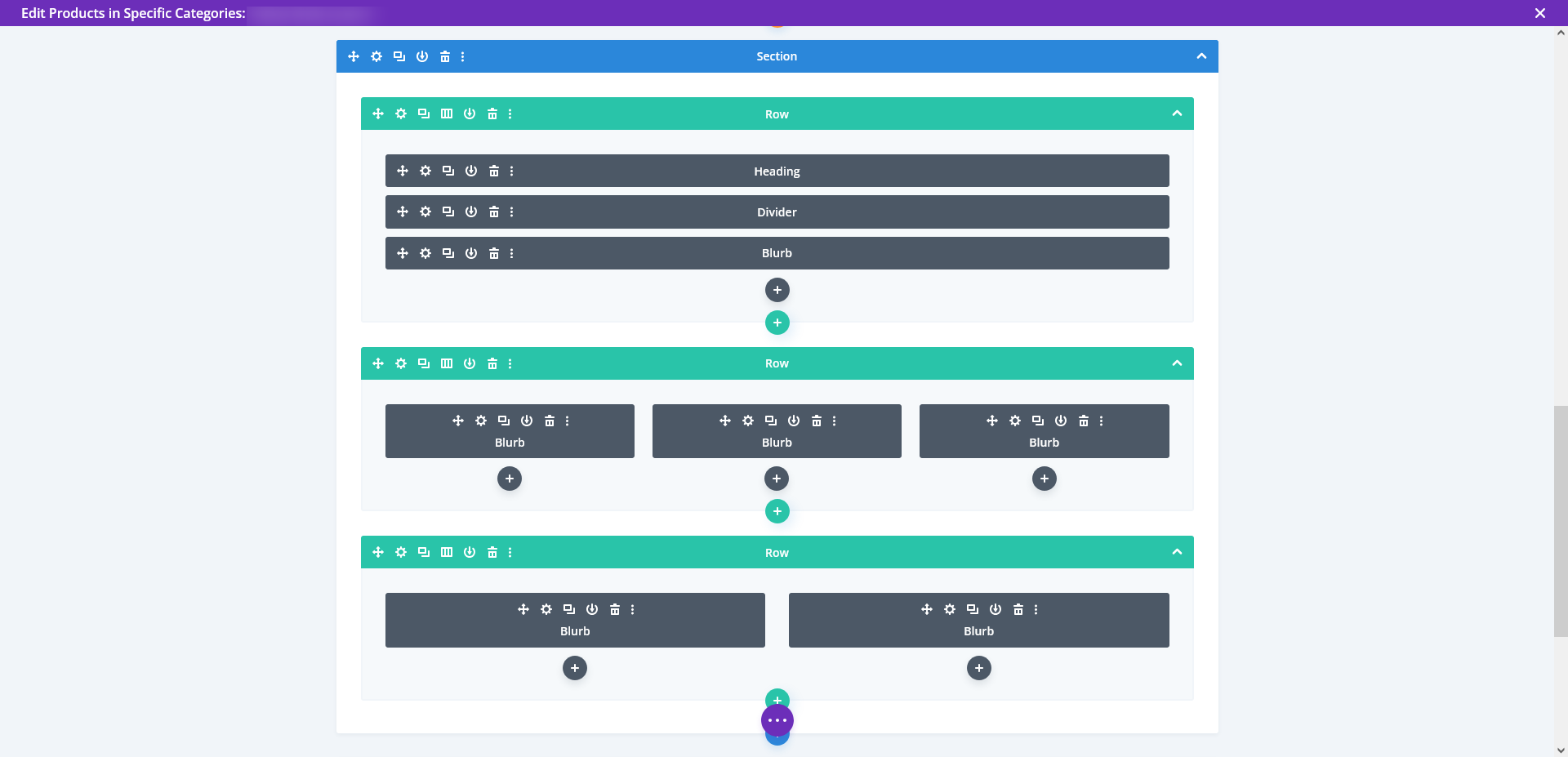
Step 2: Add ACF Fields Inside Blurbs
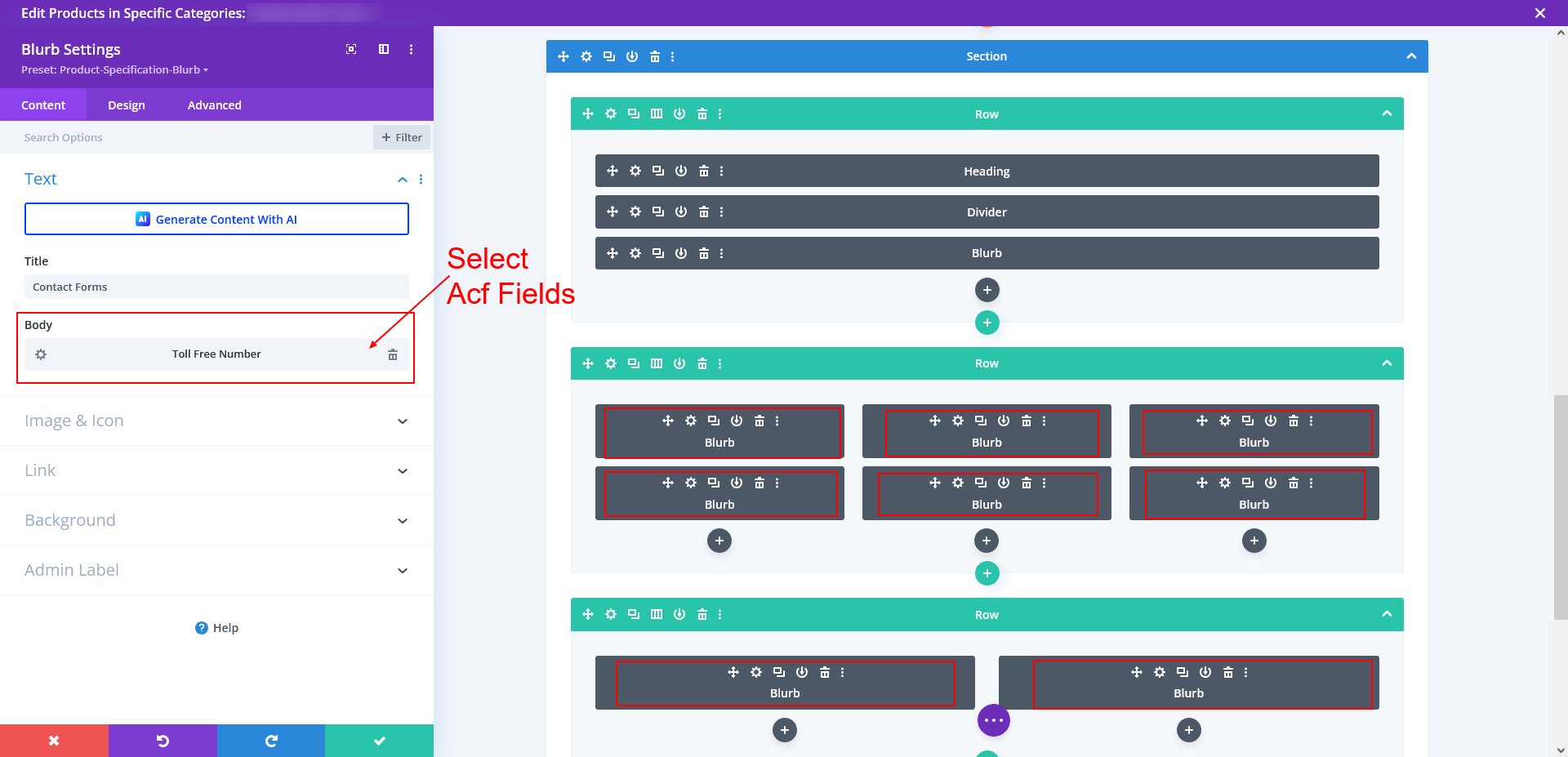
Now add your ACF content inside multiple Blurb Modules.
I added the ACF field value inside the Body of each blurb.
- Title = Your label (e.g., “Toll Free Number”)
- Body = Select ACF Field from Dynamic Content
This allows each blurb to show the product data dynamically.
Step 3: Apply Display Conditions on Each Column
Now, we want each column to appear only if its blurb has ACF data.
To do this:
- Open Column Settings
- Go to Advanced → Conditions
- Add condition:
- Custom Field
- Field Name → your ACF field key (example: toll_free_number)
- Display Only If → Is Any Value

This means:
- If that ACF field has ANY data → the column appears
- If the field is empty → the column hides automatically
Repeat this for all columns with ACF blurbs.
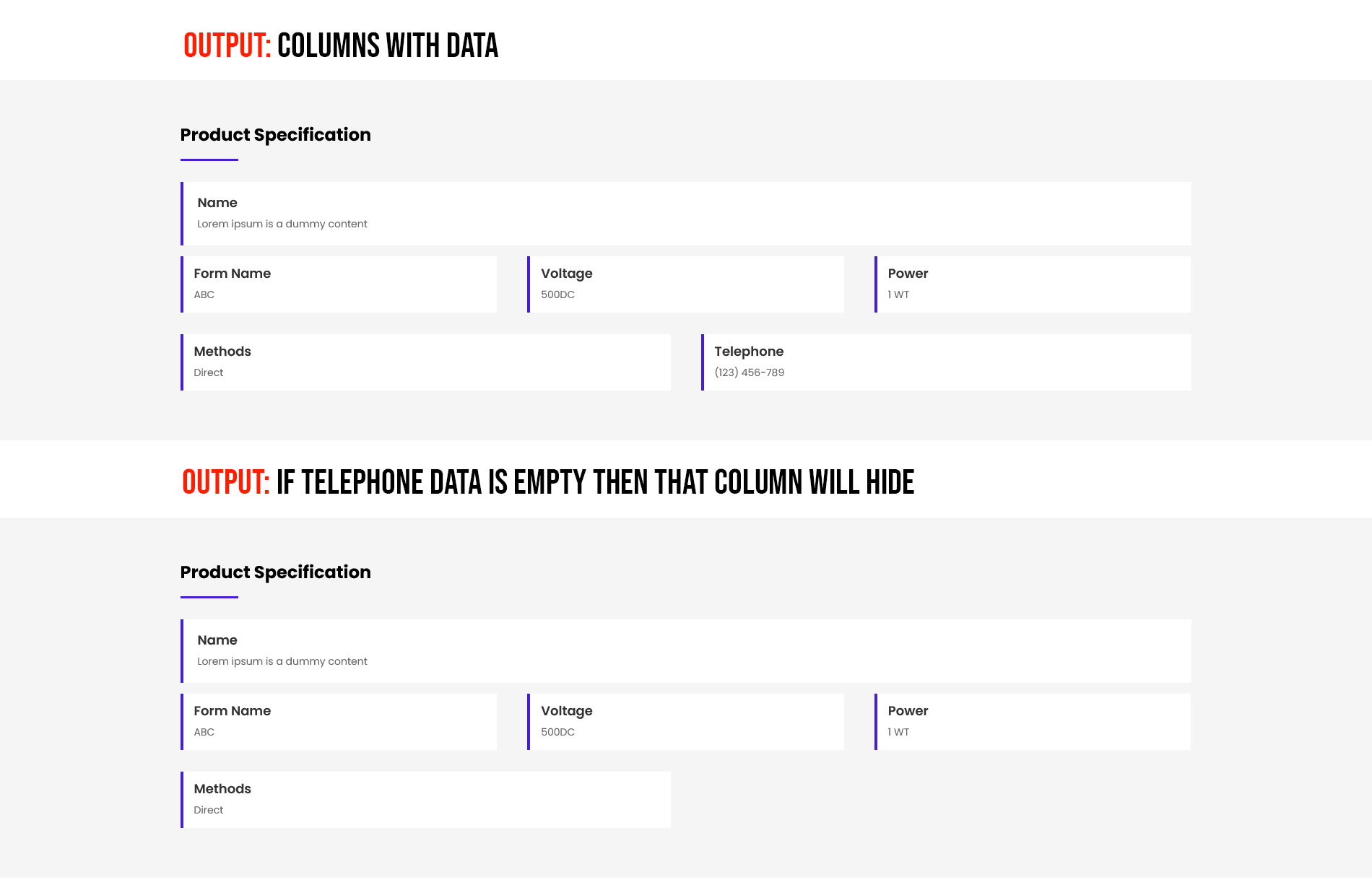
Step 4: Hide Entire Section When All ACF Fields Are Empty
Now we want the main section to hide if all inner fields are empty.
To do that:
- Open Section Settings
- Go to Advanced → Conditions
- Add multiple conditions for all ACF fields you used
- Use “OR” logic (default behavior)
- Condition:
- Display only if Custom Field is any value
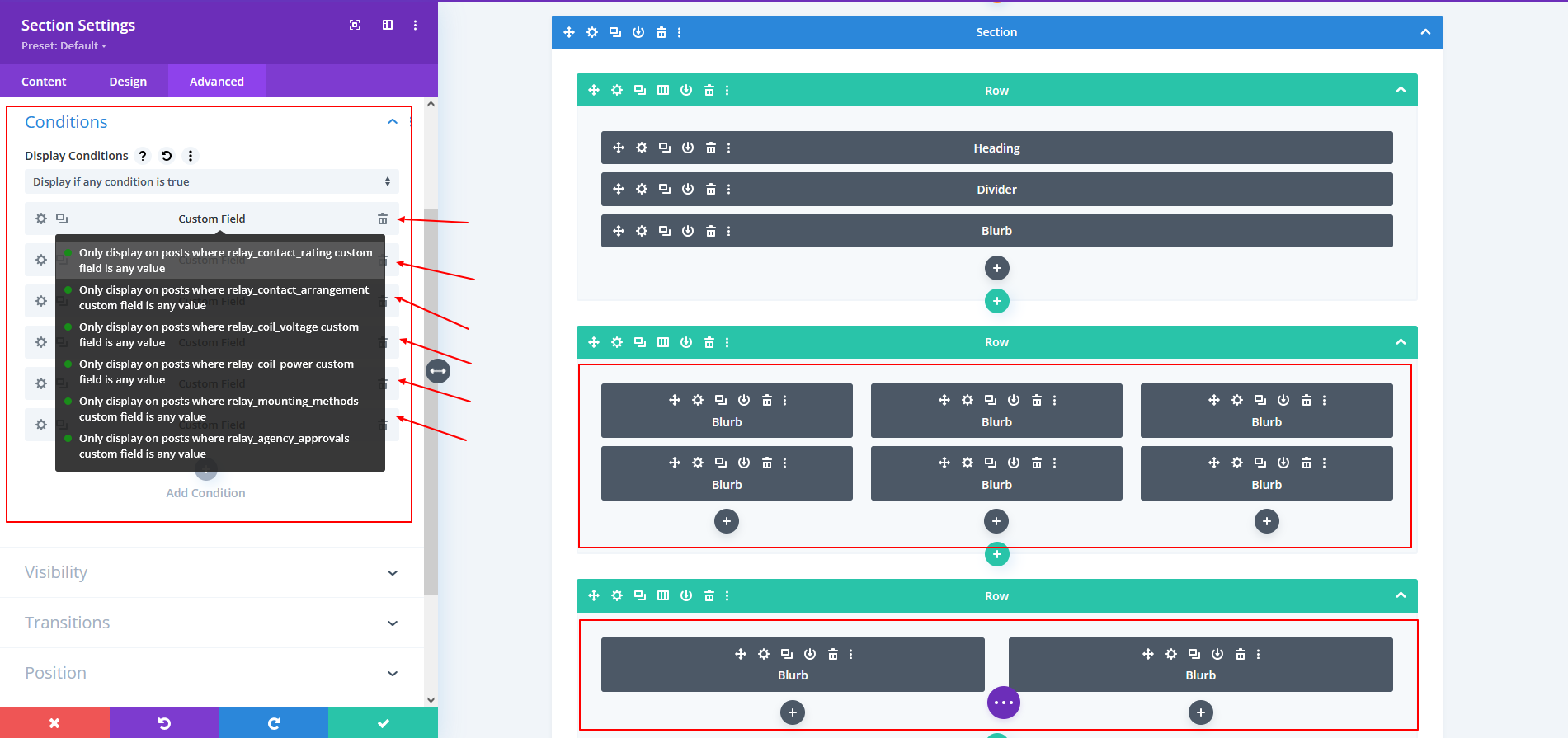
This means:
- If any one ACF field has data → Section is visible
- If all ACF fields are empty → Section hides automatically
Step 5: Save Template & Test
That’s it!
Now:
- If any column has its ACF data → column shows
- If ACF data is missing → column hides
- If all ACF blurbs are empty → entire section hides
- If at least one field has a value → section appears normally
This keeps your product or page templates clean, dynamic, and fully automated.
If your website relies on ACF-powered layouts, dynamic visibility logic, or custom Divi behavior, our team can handle the complete development—from planning and implementation to testing and launch—without plugin bloat.
You can Book a Free Project Consultation to discuss your requirements, timelines, and how we can deliver a scalable, production-ready solution for your site.