Table of Contents
If you’re working with Divi 5, building a consistent design system across multiple websites has never been easier. With the introduction of Design Variables and Presets, you can define your styles once and reuse them anywhere.
Even better—Divi 5 allows you to import and export these settings, saving hours of repetitive work.
In this guide, we’ll walk you through how to export and import both Design Variables and Presets in Divi 5, along with best practices.
What Are Design Variables in Divi 5?
Design Variables are reusable values like:
- Colors
- Fonts
- Spacing (numbers)
- Images
- Text
- Links
They are managed through the Variable Manager in the Visual Builder.
Instead of manually styling each element, you define variables once and reuse them across your site. When you update a variable, it automatically updates everywhere it’s used.
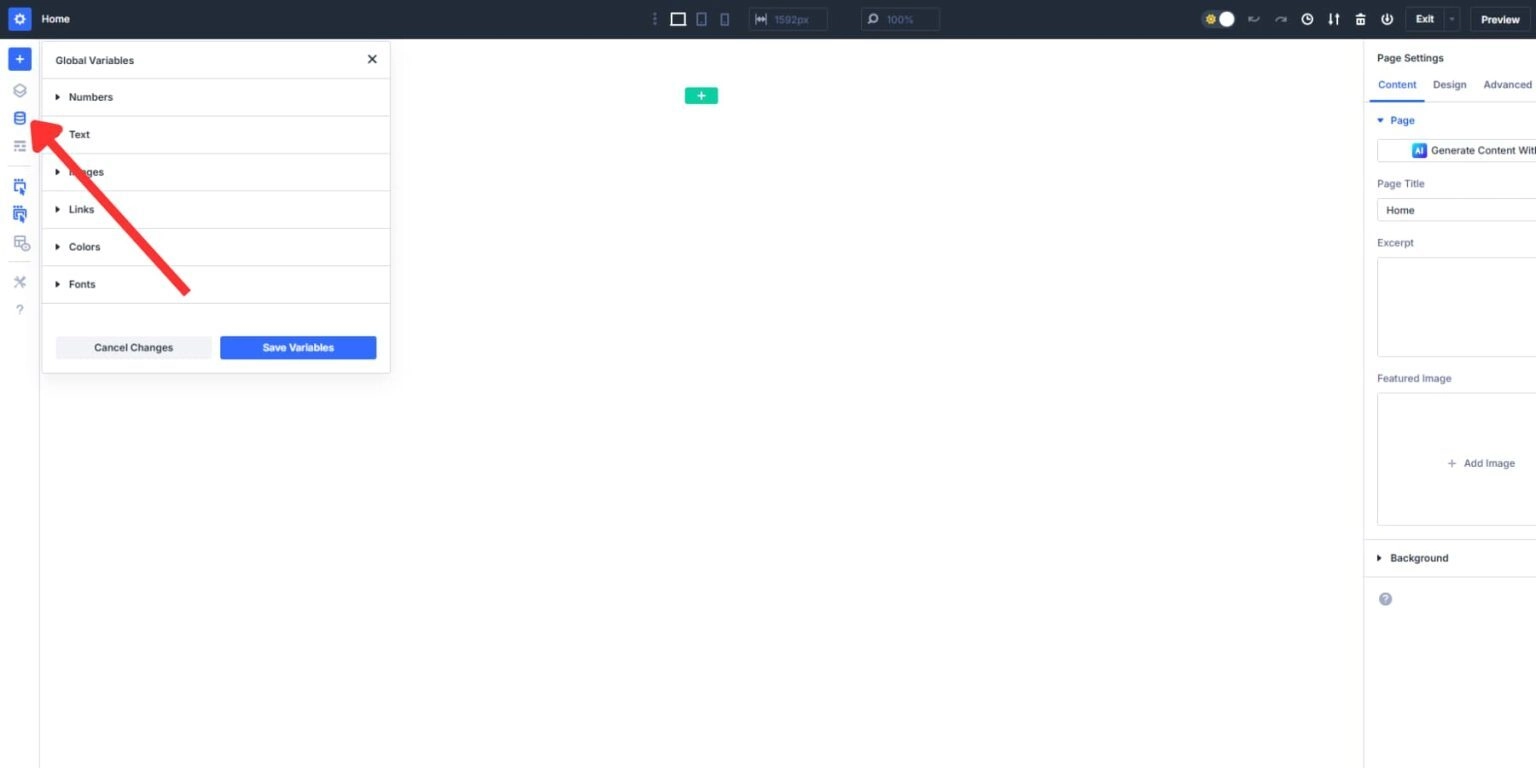
How to Export Design Variables in Divi 5
Follow these steps:
- Open the Visual Builder
- Click on the Variable Manager (left sidebar)
- Click the Import/Export icon
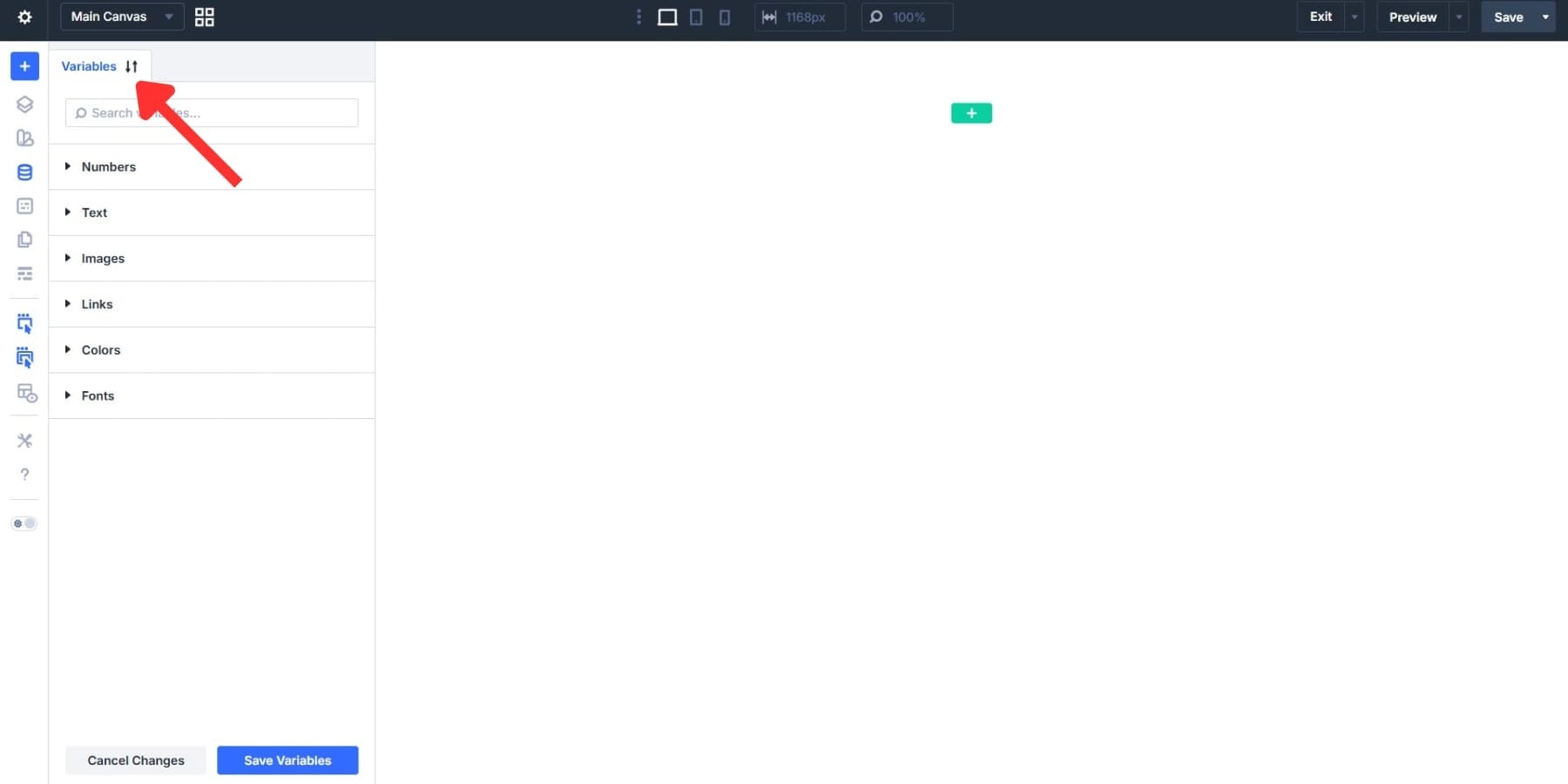
- Go to the Export tab
- Enter a file name (e.g., “Brand Variables 2026”)
- Click Export
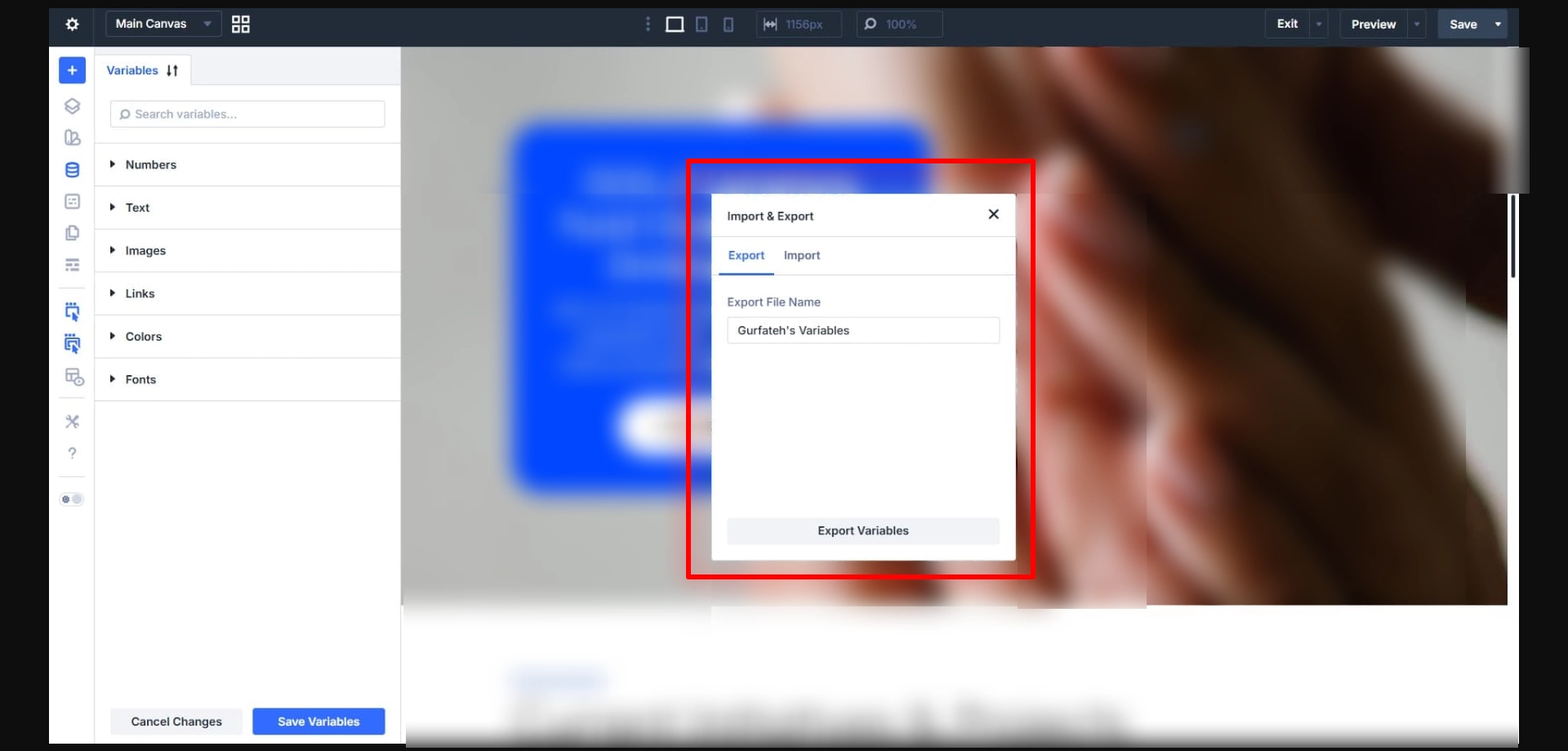
Once you name it, Divi 5 packages every Design Variable on your site into a single JSON file. Colors, fonts, numbers, images, text, and links are all bundled together. Click the export button, and your browser downloads the file.
This exported JSON file works with any other Divi 5 site. You can drop it into a staging environment, a client project, or a teammate’s local setup. The file contains your full variable set, so the receiving site gets your entire design system in a single upload.
How To Import Design Variables in Divi 5
Follow these steps:
- Open the Visual Builder
- Click on the Variable Manager (left sidebar)
- Click the Import/Export icon
- Go to the Import tab
- Enter a file name (e.g., “Brand Variables 2026”)
- Click Import
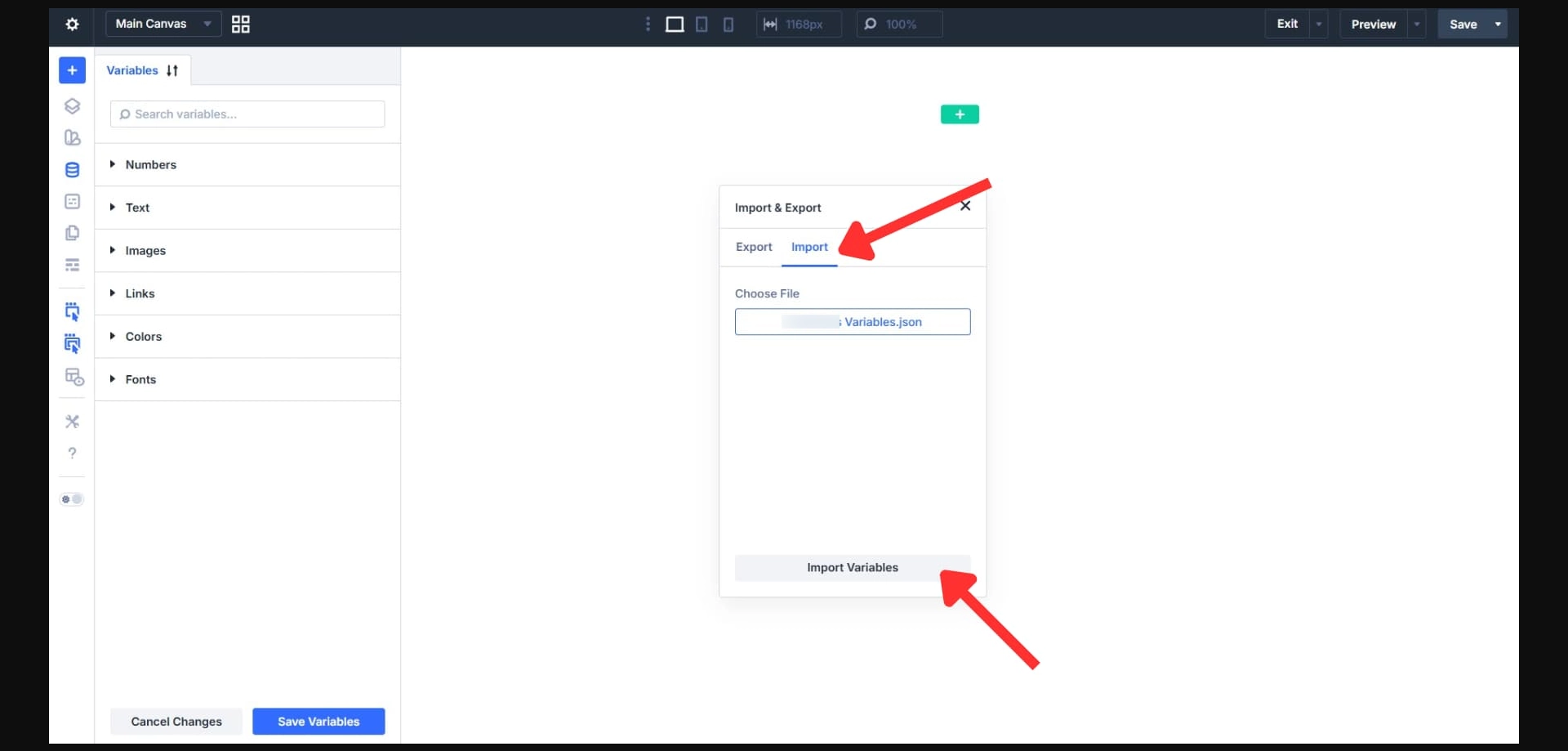
Pro Tip Before Importing
- Clean up unused variables
- Avoid duplicates
- Rename variables clearly (e.g., “Primary Button Color” instead of “Blue”)
This ensures a clean and scalable design system.
How to Export Presets in Divi 5
Here’s how you can export presets:
- Open the Visual Builder
- Click on the Preset Manager
- Click the Import/Export icon
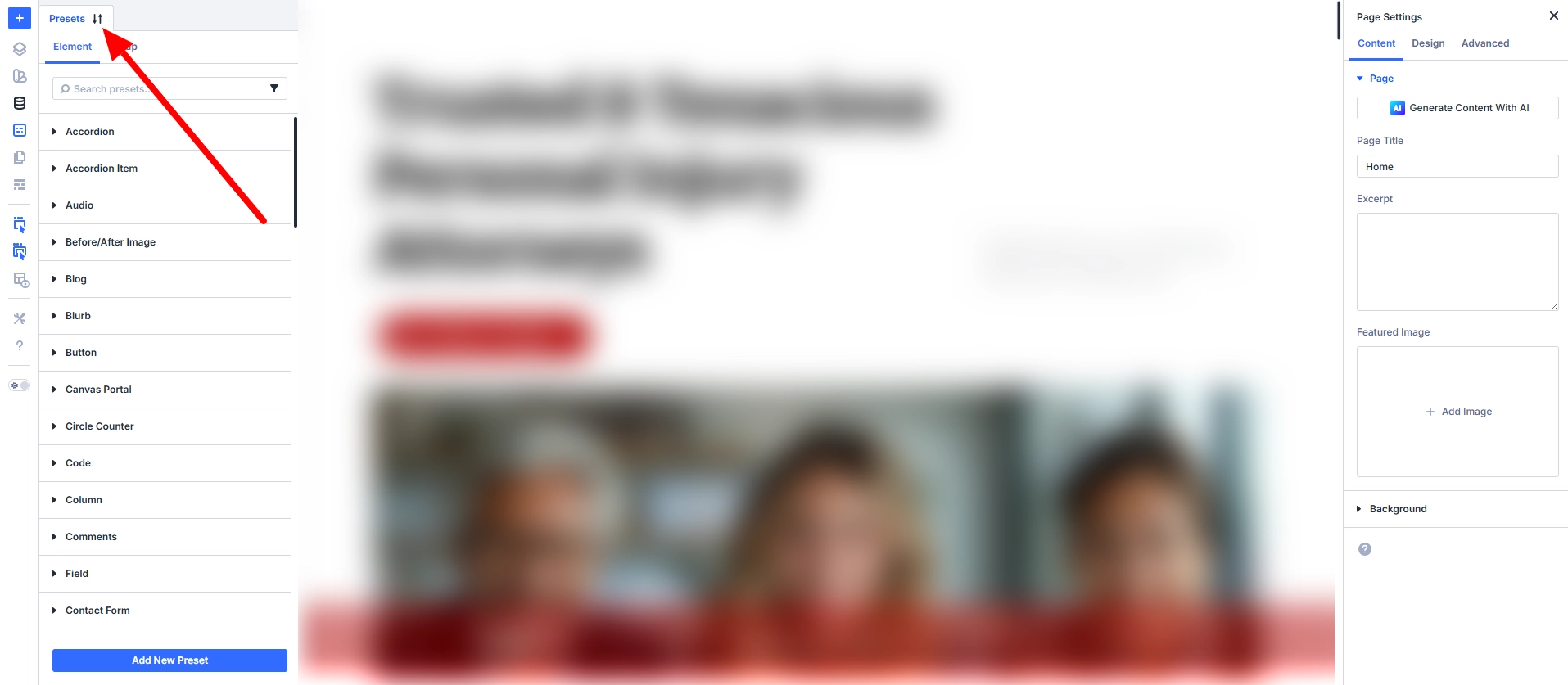
- Enter a file name
- Click Export
This exports all presets into a JSON file.
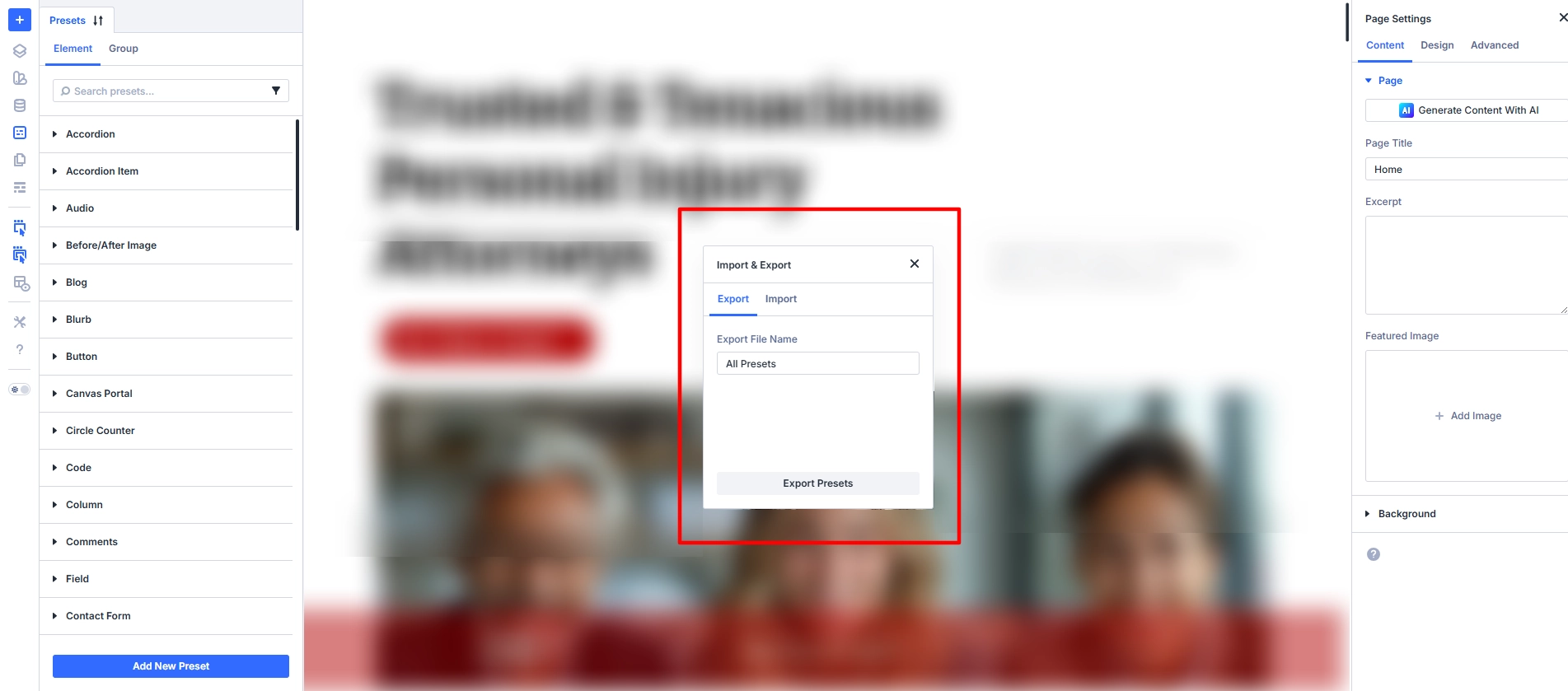
Note: This file contains only styling presets—not layouts or content.
How to Import Presets in Divi 5
Here’s how you can export presets:
- Open the Visual Builder
- Click on the Preset Manager
- Click the Import/Export icon
- Go to the Import tab
- Enter a file name (e.g., “Brand Variables 2026”)
- Click Import
Important: Presets & Design Variables Together
- Presets often rely on Design Variables
- When importing presets, referenced variables may also be included
- However, for best results, import both files separately
This ensures your design system works exactly as intended.
Final Thoughts
Divi 5’s import and export functionality transforms how you build websites. Instead of starting from scratch every time, you can:
- Export your entire design system
- Import it into new projects
- Maintain consistency effortlessly
Once you start using this workflow, you’ll significantly reduce development time and improve design consistency across all your websites.