Table of Contents
- Why Remove Unnecessary WooCommerce Checkout Fields?
- Method 1: Remove Checkout Fields Using a WooCommerce Plugin
- Step 1: Install a Checkout Field Editor Plugin
- Step 2: Open the Checkout Field Settings
- Step 3: Disable Unnecessary Fields
- Step 4: Save Your Changes
- Method 2: Remove WooCommerce Checkout Fields With Code
- Removing Individual Checkout Fields
- How to Make a Checkout Field Optional Instead of Removing It
- Removing the Order Notes Field
- Remove the Shipping Address When It Isn’t Needed
- Important: Don’t Remove Required Checkout Information
- Test Your Checkout After Removing Fields
- Frequently Asked Questions
- Final Thoughts
The WooCommerce checkout page collects essential customer information, but not every field is necessary for every store. Fields such as the company name, address line 2, phone number, or other optional information can make the checkout process feel longer than necessary.
Removing unnecessary checkout fields can create a cleaner checkout experience and help customers complete their purchases with fewer distractions. WooCommerce allows you to customize checkout fields using plugins or custom code, depending on how much control you need.
In this guide, we’ll cover several ways to remove unnecessary WooCommerce checkout fields and show you how to customize the checkout experience step by step.
Why Remove Unnecessary WooCommerce Checkout Fields?
A long checkout form can require customers to enter information that isn’t relevant to their order. Simplifying the form can make the checkout page easier to understand and reduce unnecessary steps.
Common fields you may want to remove include:
- Company name
- Address line 2
- Phone number
- Billing address
- Shipping address
- State or county
- Postcode
- Additional order notes
The fields you should remove depend on your store’s products, shipping requirements, payment methods, and customer information needs.
Method 1: Remove Checkout Fields Using a WooCommerce Plugin
If you don’t want to edit WordPress files, a checkout-field customization plugin is one of the easiest options.
Step 1: Install a Checkout Field Editor Plugin
From your WordPress dashboard, go to:
Plugins → Add New Plugin
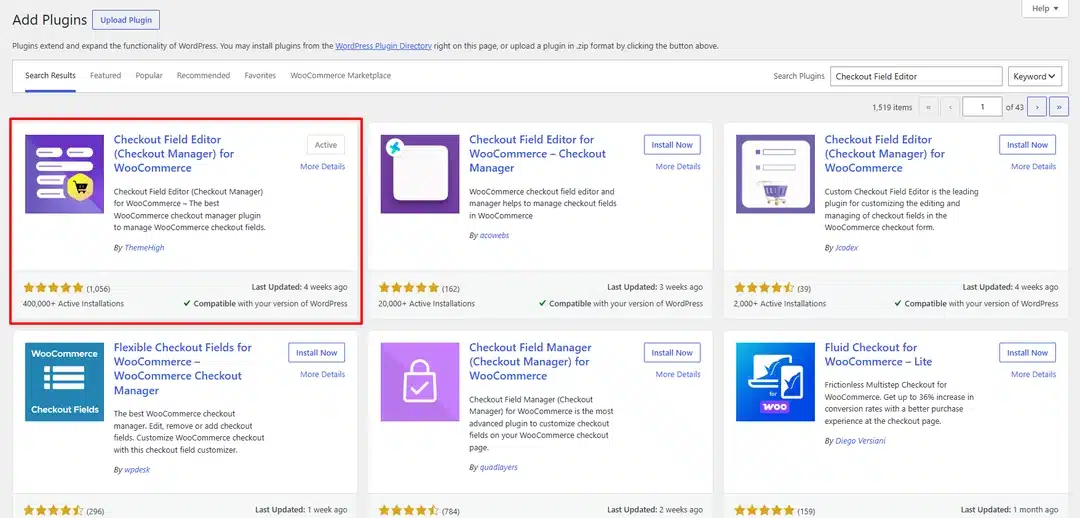
Search for a WooCommerce checkout field editor plugin and install and activate the one that fits your requirements.
Step 2: Open the Checkout Field Settings
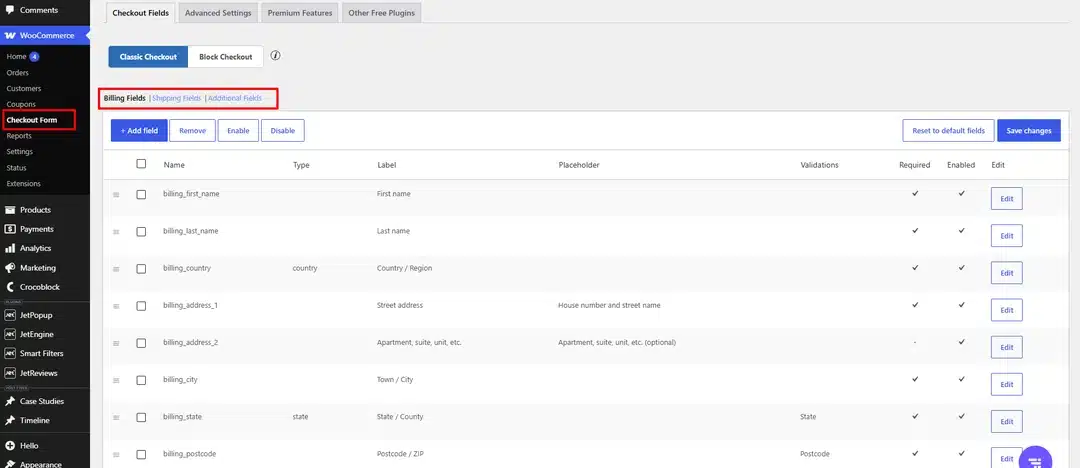
After activation, open the plugin’s checkout field settings. The exact menu location depends on the plugin you’re using.
You should see a list of available checkout fields, usually separated into sections such as:
- Billing fields
- Shipping fields
- Additional fields
Step 3: Disable Unnecessary Fields
Find the field you want to remove and use the plugin’s Disable, Remove, or similar option.
For example, if your store doesn’t need a company name, you can disable the Company field.
You can repeat this process for other fields that aren’t required by your store.
Step 4: Save Your Changes
Save the checkout field configuration and open your checkout page in a new browser window.
Test the checkout form to confirm that the unnecessary fields are no longer displayed.
Method 2: Remove WooCommerce Checkout Fields With Code
For developers or site owners who prefer a lightweight solution, WooCommerce checkout fields can be modified using a filter.
You can add the following code to your child theme’s functions.php file or through a code-snippet management plugin:
add_filter( 'woocommerce_checkout_fields', 'custom_remove_woocommerce_checkout_fields' );

function custom_remove_woocommerce_checkout_fields( $fields ) {

    unset( $fields['billing']['billing_company'] );
    unset( $fields['billing']['billing_address_2'] );
    unset( $fields['shipping']['shipping_company'] );
    unset( $fields['shipping']['shipping_address_2'] );

    return $fields;
}
This example removes:
- Company name from the billing section
- Address Line 2 from the billing section
- Company name from the shipping section
- Address Line 2 from the shipping section
After adding the code, clear your website cache and test the checkout page.
Removing Individual Checkout Fields
You don’t necessarily need to remove several fields at once. You can target individual fields based on your requirements.
For example, to remove the billing phone field:
add_filter( 'woocommerce_checkout_fields', 'remove_billing_phone_field' );

function remove_billing_phone_field( $fields ) {
    unset( $fields['billing']['billing_phone'] );

    return $fields;
}
If your store doesn’t need customers’ phone numbers, this will remove the phone field from the billing section.
However, make sure the field isn’t required by your payment gateway, shipping provider, fraud-prevention system, or other integrations before removing it.
How to Make a Checkout Field Optional Instead of Removing It
Sometimes you may still want to collect information, but you don’t want customers to be forced to provide it.
In that case, you can make a field optional instead of removing it completely.
For example:
add_filter( 'woocommerce_checkout_fields', 'make_phone_optional' );

function make_phone_optional( $fields ) {
    $fields['billing']['billing_phone']['required'] = false;

    return $fields;
}
This keeps the phone field available while allowing customers to leave it blank.
Removing the Order Notes Field
WooCommerce also provides an order notes field that customers can use to add additional information about their order.
If your store doesn’t need order notes, you can remove the field with:
add_filter( 'woocommerce_enable_order_notes_field', '__return_false' );
This prevents the additional order notes field from appearing during checkout.
Remove the Shipping Address When It Isn’t Needed
Some stores don’t need a separate shipping address. For example, a store selling downloadable products may not need customers to provide a physical shipping address.
In these situations, you may be able to disable shipping requirements through WooCommerce settings rather than hiding individual checkout fields.
Go to: WooCommerce → Settings → General
Review the Shipping location(s) settings and your product shipping configuration.
For stores that only sell virtual or downloadable products, make sure the products are configured correctly so WooCommerce doesn’t unnecessarily request shipping information.
Important: Don’t Remove Required Checkout Information
Before removing any checkout field, determine whether your store actually needs the information.
Some fields may be important for:
- Shipping
- Tax calculations
- Payment processing
- Invoicing
- Fraud prevention
- Customer communication
- Legal or regional requirements
- Third-party integrations
For example, removing the billing address could cause problems with certain payment gateways or tax calculations.
It’s better to remove fields that are genuinely unnecessary rather than simply making the checkout form as short as possible.
Test Your Checkout After Removing Fields
After changing checkout fields, don’t assume everything works just because the fields disappeared.
Complete a full test order and check:
- The checkout page loads correctly.
- Required fields are still available.
- Customers can submit the form.
- Payment processing works.
- Order details are saved correctly.
- Emails contain the expected customer information.
- Shipping calculations still work.
- Tax calculations are correct.
- The checkout works on mobile devices.
- No JavaScript or console errors appear.
Also test different product types if your store sells both physical and virtual products.
Frequently Asked Questions
Can I remove WooCommerce checkout fields without coding?
Yes. A checkout field editor plugin can provide an interface for disabling, removing, or modifying checkout fields without editing PHP files.
Which WooCommerce checkout fields can I remove?
You can remove many checkout fields, including fields such as company name, address line 2, phone number, and order notes. However, whether a field should be removed depends on your store’s requirements and integrations.
Is it better to remove a field or make it optional?
If you never need the information, removing the field can keep the checkout cleaner. If the information is occasionally useful, making the field optional may be a better approach.
Will removing checkout fields affect payment processing?
It can. Some payment gateways and other integrations may depend on specific customer information. Always test the complete checkout and payment process after making changes.
Final Thoughts
Removing unnecessary WooCommerce checkout fields can make your checkout page cleaner and easier to complete. You can use a checkout-field editor plugin if you prefer a visual approach, or use WooCommerce filters when you want more direct control over the checkout form.
Before removing anything, review how each field is used by your shipping, payment, tax, and other integrations. Once the changes are made, test the checkout from beginning to end on both desktop and mobile devices to make sure customers can still complete their orders without problems.