Table of Contents
- Common Issues After WordPress 6.9 Update
- Step 1 : Take a Fresh Backup Before Update
- Step 2 : Website Shows White Screen or Critical Error
- Step 3: Page Builder Layout Broken (Divi / Elementor)
- Step 4 : Reset Permalinks & Flush Rewrite Rules
- Step 5 : Plugins Not Working After Update
- Step 6 : WordPress Not Sending Emails After 6.9 Update
- Step 7: WooCommerce Errors After WordPress 6.9 Update
- Step 8: Site Stuck in Maintenance Mode
- Step 9: WordPress Admin or Website Became Slow
- Final Post-Fix Checklist (Very Important)
Updating WordPress is critical for security and performance—but after the WordPress 6.9 core update, many website owners reported broken layouts, plugin conflicts, email issues, and even white screens.
If your site started misbehaving after updating to WordPress 6.9, don’t panic. This guide explains the most common WordPress 6.9 problems and step-by-step solutions to fix them safely.
Common Issues After WordPress 6.9 Update
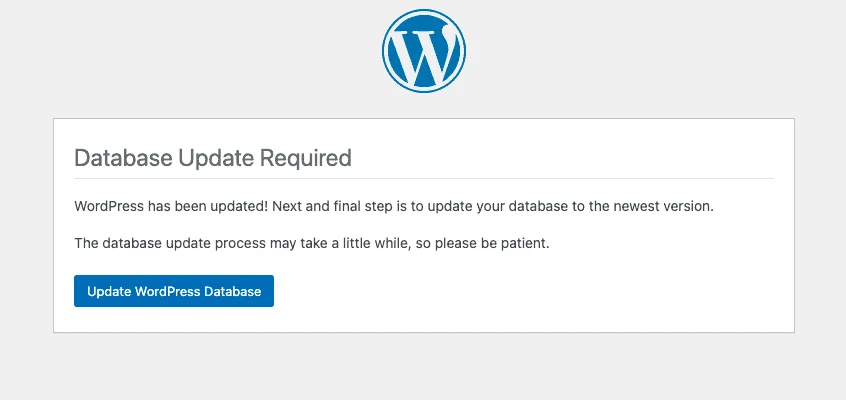
After updating WordPress 6.9, users commonly face:
- White Screen of Death (WSOD)
- Broken page layouts (Divi / Elementor)
- Plugins not working or crashing
- WooCommerce checkout errors
- Emails not sending
- Site stuck in maintenance mode
- Slow admin or frontend performance
Let’s fix these one by one.
Step 1 : Take a Fresh Backup Before Update
Before updating WordPress core, themes, or plugins, always take a full website backup. This ensures you can quickly restore your site if anything breaks during or after the update.
You can easily do this using popular backup plugins like All‑in‑One WP Migration or UpdraftPlus.
Steps:
- Install and activate All-in-One WP Migration or UpdraftPlus.
- Open the plugin from the WordPress dashboard.
- Create a full backup (database + files).
- Download the backup file or store it in cloud storage (Google Drive, Dropbox, etc.).
Confirm the backup completed successfully before proceeding with the update.
Step 2 : Website Shows White Screen or Critical Error
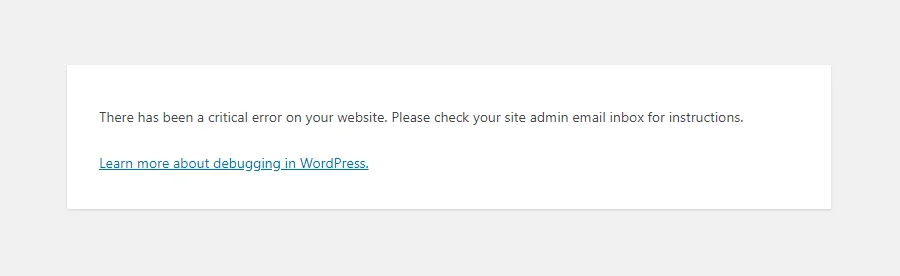
Why it happens
- Plugin or theme incompatibility with WordPress 6.9
- PHP version conflict
- Fatal error after update
How to fix
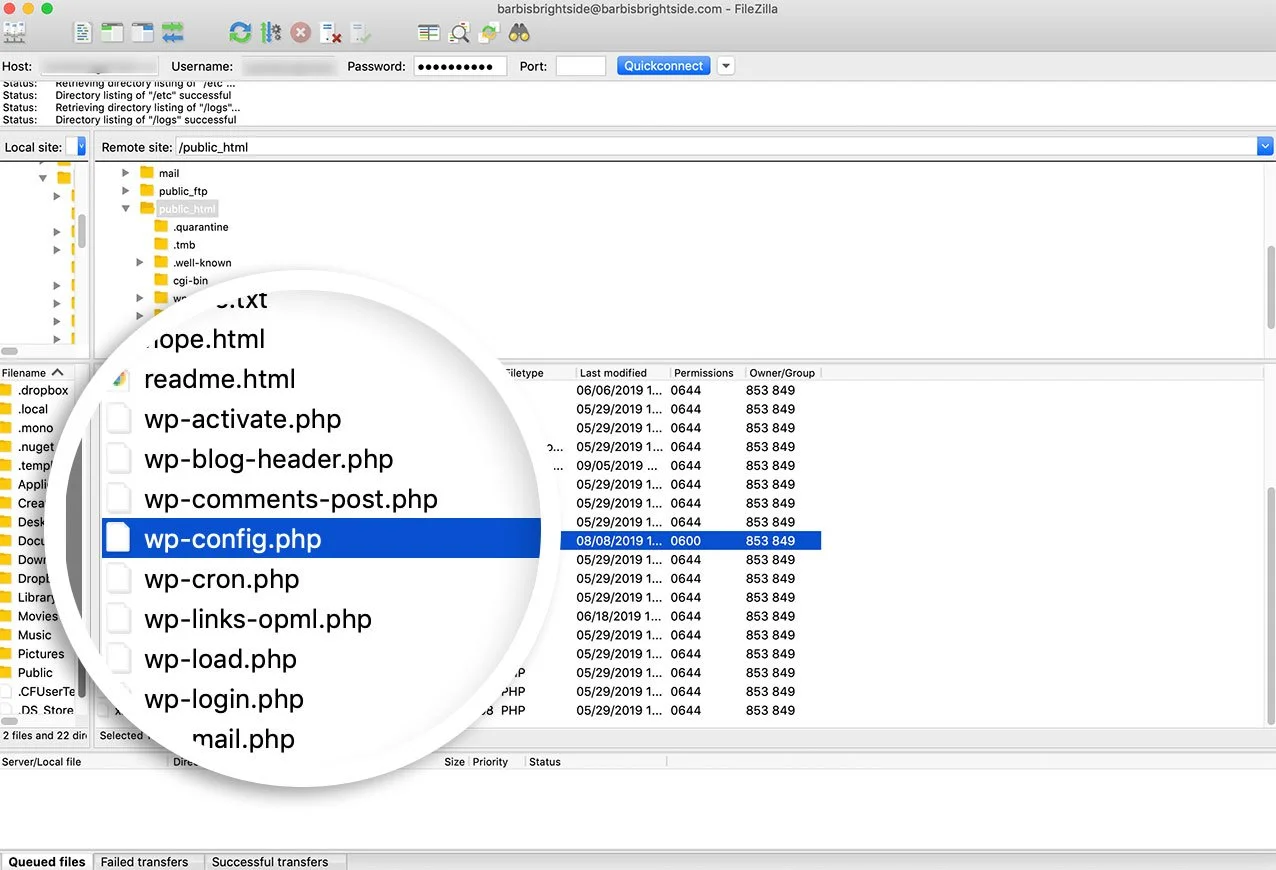
- Enable debugging in wp-config.php:
define(‘WP_DEBUG’, true);
define(‘WP_DEBUG_LOG’, true);
define(‘WP_DEBUG_DISPLAY’, true); - Check the error message
- Rename the /plugins folder via FTP to disable all plugins
- Reactivate plugins one by one
- Switch temporarily to a default theme (Twenty Twenty-Four)
Step 3: Page Builder Layout Broken (Divi / Elementor)
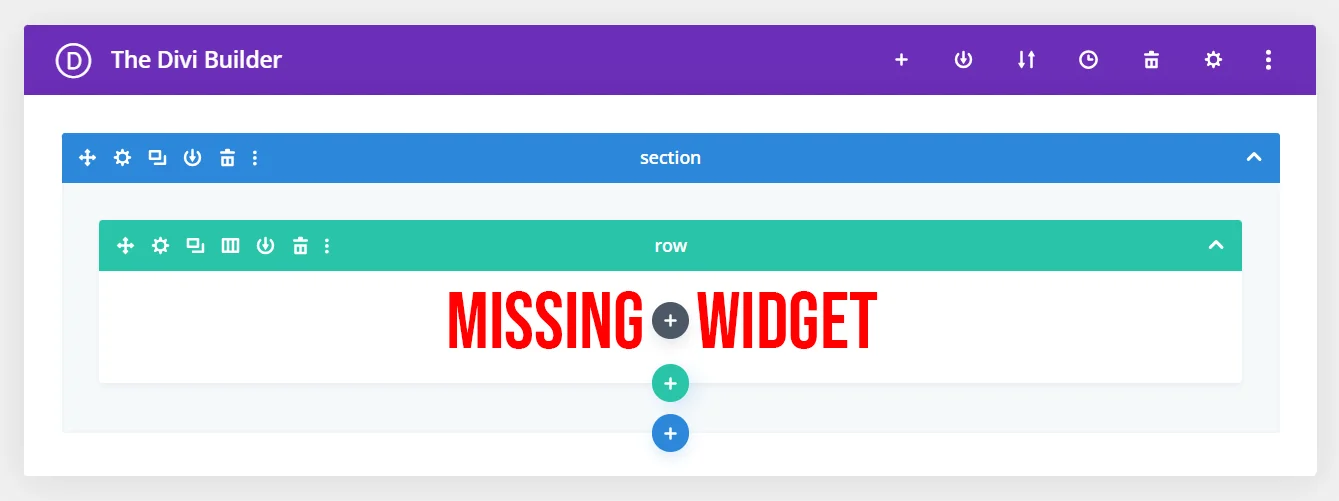
Why it happens
- Builder not yet compatible with 6.9
- Cached or outdated CSS/JS files
How to fix
- Update the page builder to the latest version
- Clear:
- Plugin cache
- Server cache
- CDN cache
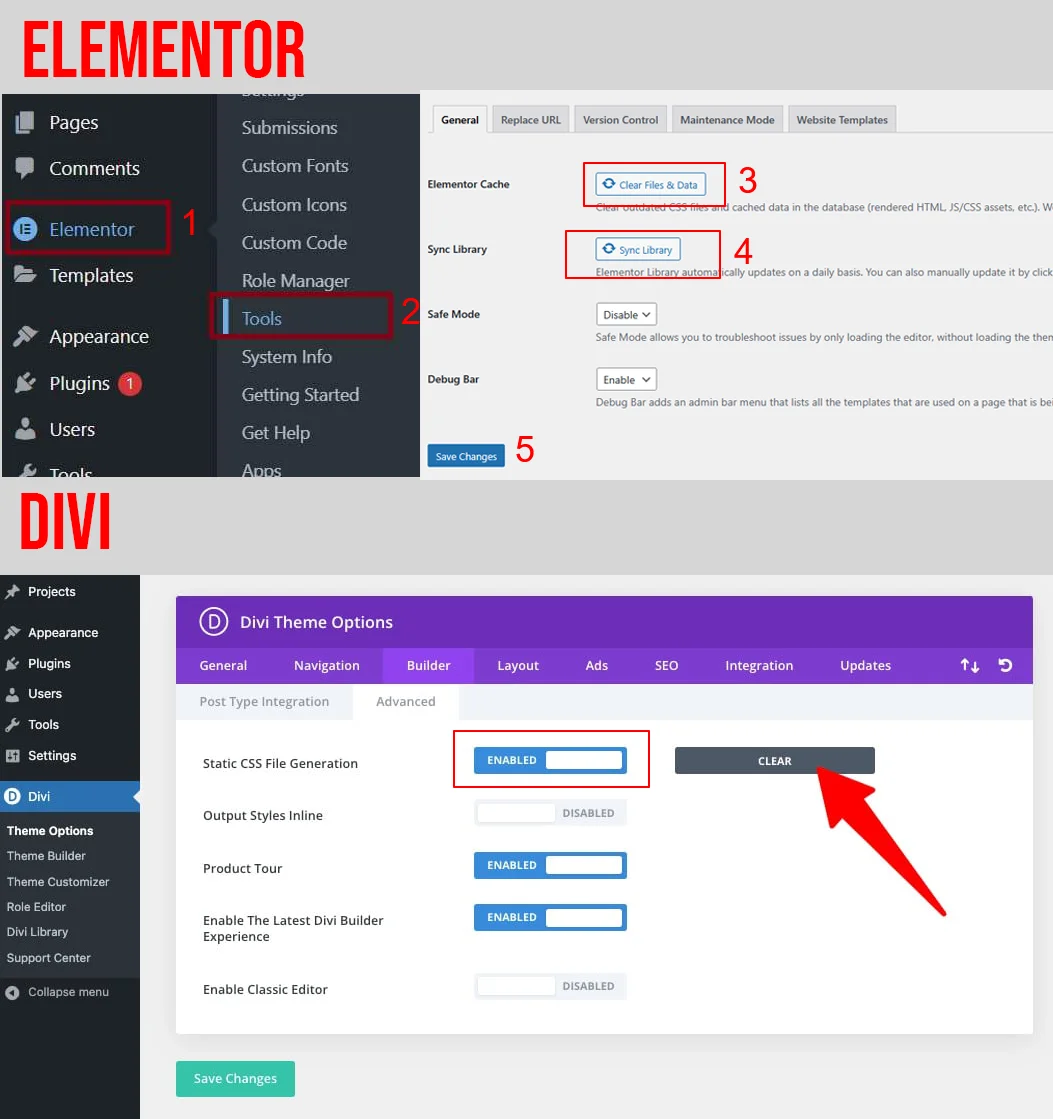
- Regenerate files:
- Elementor → Tools → Regenerate Files
- Divi → Theme Options → Builder → Clear Cache
Step 4 : Reset Permalinks & Flush Rewrite Rules
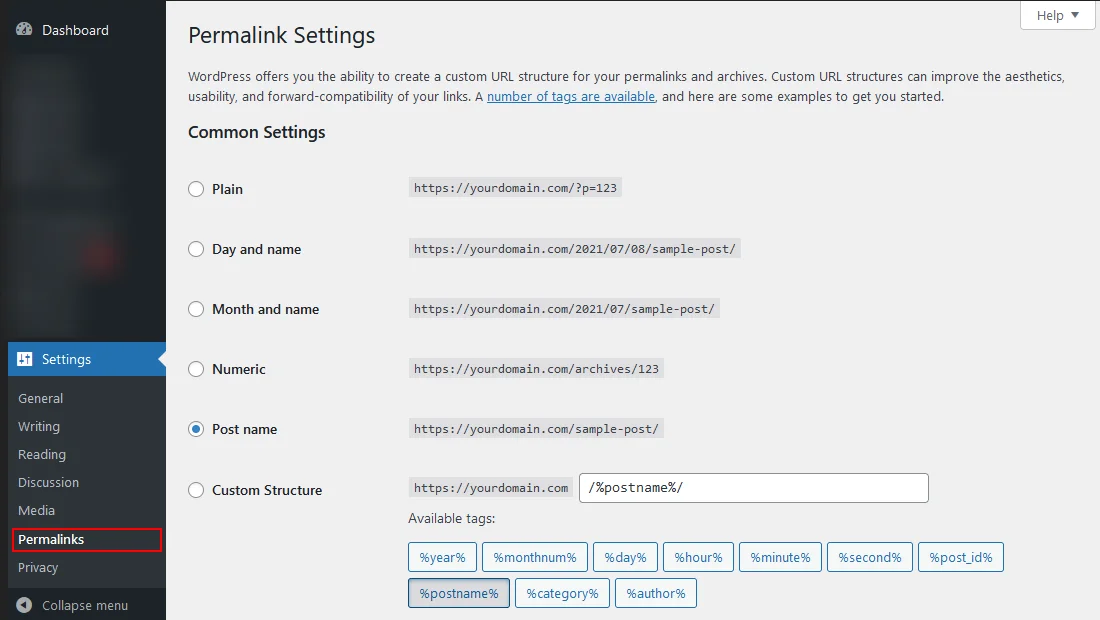
- Go to Settings → Permalinks
- Click Save Changes (no edits needed)
This fixes menu links not opening or redirecting incorrectly.
Step 5 : Plugins Not Working After Update
Why it happens
- Plugin uses deprecated WordPress functions
- Plugin not updated by developer
How to fix
- Update all plugins
- Disable plugins one by one to find the conflict
- Replace outdated plugins with actively maintained alternatives
- Check plugin support forums for WordPress 6.9 compatibility
Step 6 : WordPress Not Sending Emails After 6.9 Update
If your WordPress emails stopped working after the 6.9 update and you’re struggling to understand why, you’re in the right place to fix this issue step by step. Many site owners noticed contact form emails, WooCommerce notifications, password resets, and admin alerts failing or going to spam.
Why it happens
- PHP mail function blocked by hosting
- Core update resets mail behavior
How to fix
- Install an SMTP plugin (WP Mail SMTP / FluentSMTP)
- Configure:
- Gmail
- Outlook
- Custom SMTP
- Test email delivery using plugin tools
SMTP is mandatory now—don’t rely on default mail.
This step‑by‑step guide shows exactly how to fix WordPress email issues using SMTP: https://technocrackers.com/why-wordpress-doesnt-send-emails-after-the-6-9-update-fix-solutions/
Step 7: WooCommerce Errors After WordPress 6.9 Update
Common issues
- Checkout not loading
- Payment gateway errors
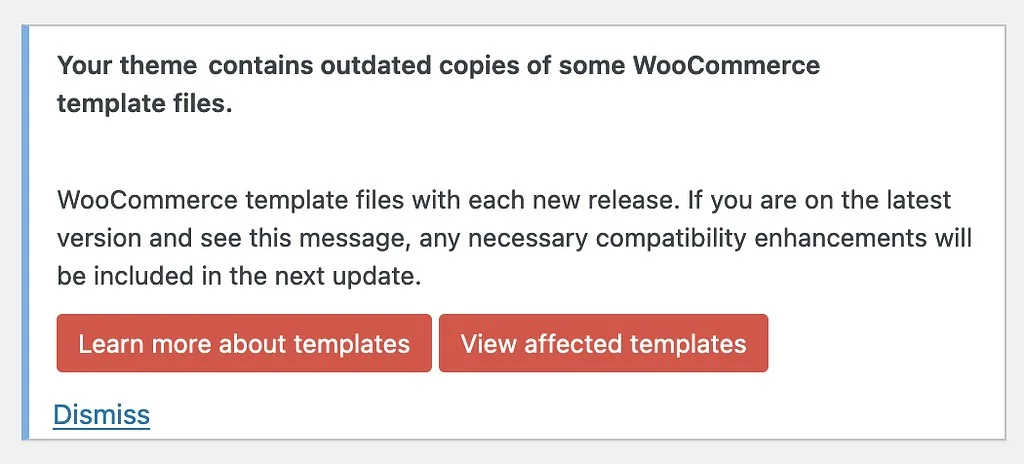
- Outdated WooCommerce templates
How to fix
- Update WooCommerce plugin
- Check:
- WooCommerce → Status → Logs
- WooCommerce → Status → Templates
- Update outdated template files in your theme
- Re-test checkout and payment methods
Step 8: Site Stuck in Maintenance Mode
Why it happens
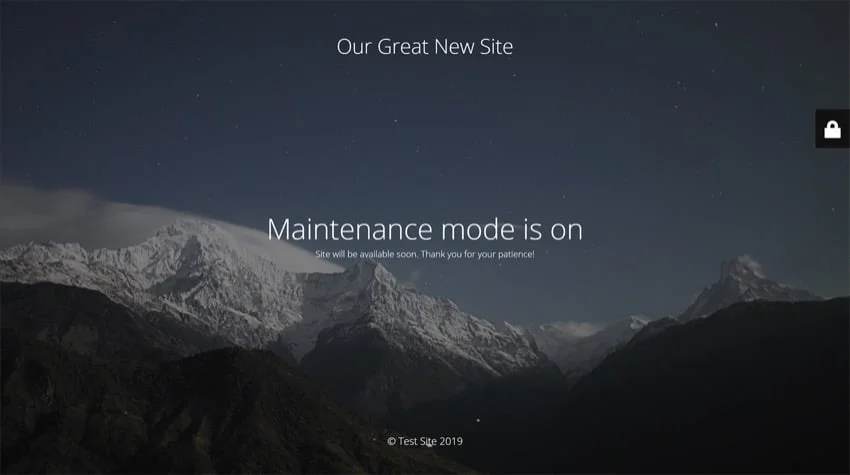
- Update process interrupted
How to fix
- Connect via FTP or cPanel
- Delete .maintenance file from root directory
- Reload your site
Step 9: WordPress Admin or Website Became Slow
Why it happens
- Cache not cleared
- Database needs optimization
- Plugin conflicts
How to fix
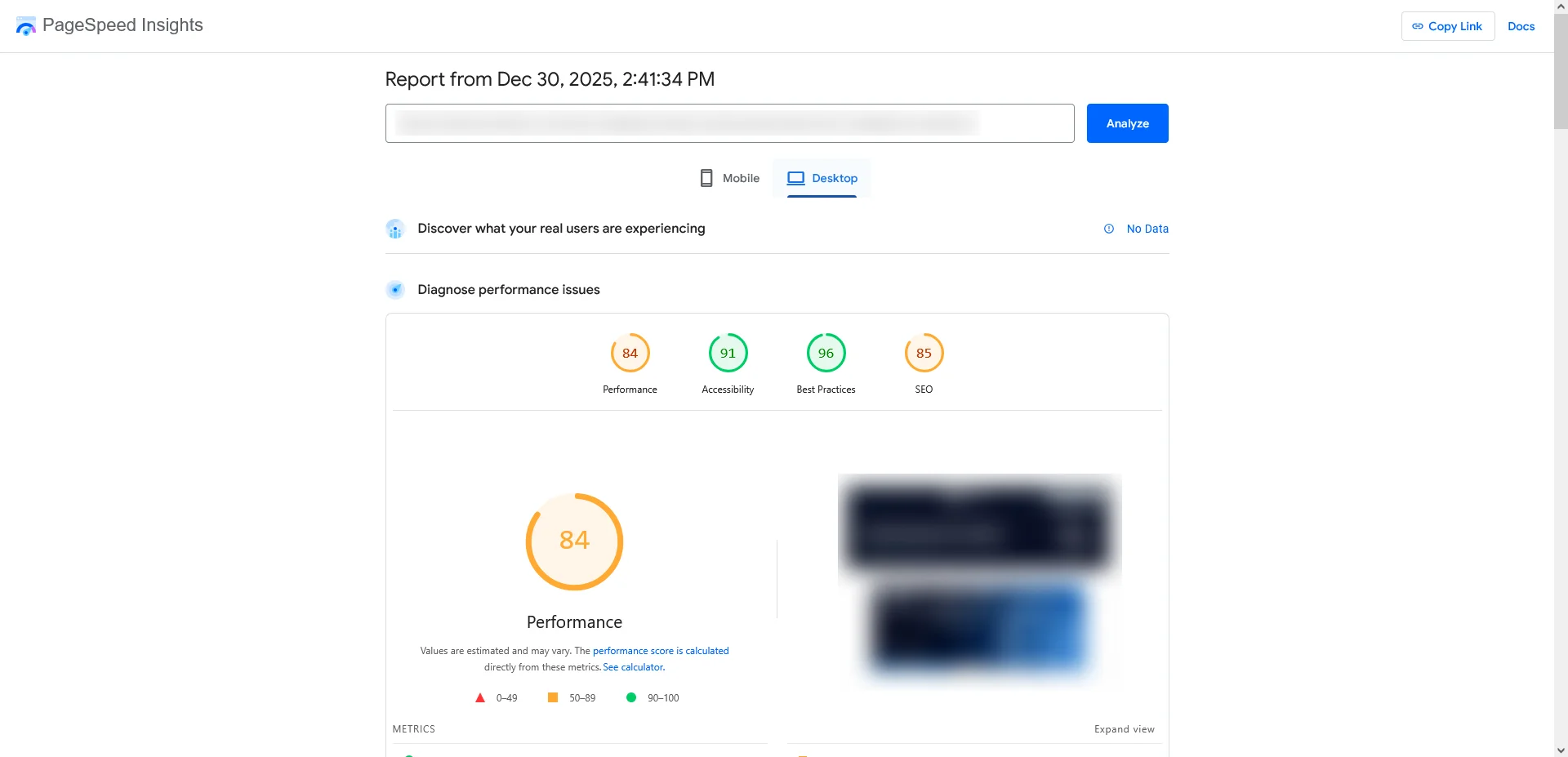
- Clear all caches
- Disable unused plugins
- Optimize database
- Check hosting PHP memory limit (increase if needed)
Final Post-Fix Checklist (Very Important)
- After fixing issues:
- Test frontend & backend
- Check contact forms
- Test login & registration
- Verify WooCommerce checkout
- Check mobile responsiveness
- Review error logs
- Take a fresh backup
Ready to take your WordPress site beyond fixes and into professional development?
Partner with TechnoCrackers for custom WordPress solutions, feature builds, and performance enhancements.