Table of Contents
- What Is Text Fill in Divi 5?
- How to Access Text Fill Type in Divi 5
- 1. Create Gradient Text in Divi 5
- Step 1: Select Gradient
- Step 2: Customize the Gradient
- Step 3: Adjust the Text Styling
- Example: Gradient Heading
- 2. Create Image-Filled Text in Divi 5
- 3. Create Transparent Text with a Stroke
- Gradient vs. Image vs. Transparent Text
- Tips for Creating Better Text Fill Effects
- Use Large Headings
- Choose Strong Contrast
- Choose the Right Font Weight
- Keep Text Readable
- Experiment with the Text Stroke
- Create Creative Text Effects Directly in Divi 5
Adding creative text effects to a website often requires extra CSS or complicated workarounds. With Divi 5, you can create eye-catching text effects directly from the Text and Heading modules using the built-in Text Fill Type options.
Divi 5 provides three different fill types that let you create different text styles without custom code:
- Gradient
- Image
- Transparent
In this guide, we’ll explore each option and show you how to create gradient text, image-filled text, and transparent outlined text using Divi 5’s built-in settings.
What Is Text Fill in Divi 5?
The Text Fill feature allows you to control how the inside of your text is displayed.
Instead of using a standard solid text color, you can use a gradient or image as the text fill. You can also make the text transparent and use a stroke to create an outlined effect.
These options are available directly in the Text and Heading module settings, making it much easier to create custom typography effects.
How to Access Text Fill Type in Divi 5
First, open any page with the Divi 5 Visual Builder.
Add a Text or Heading module to your page.
Then open the module’s:
Design → Text
Inside the text design settings, you’ll find the Text Fill Type option.
Divi 5 provides three choices:
- Gradient
- Image
- Transparent
You can select the option that fits the text effect you want to create.
1. Create Gradient Text in Divi 5
The Gradient fill type allows you to apply a gradient directly to your text.
This is useful when you want to create colorful headings or add your brand colors to large typography.
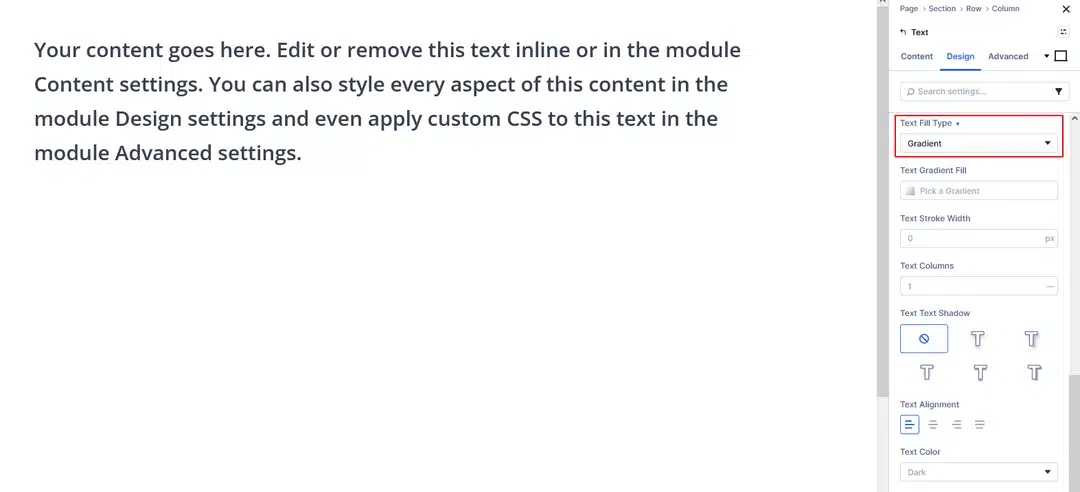
Step 1: Select Gradient
Open your Text or Heading module and go to:
Design → Text → Text Fill Type → Gradient
Select Gradient from the dropdown.
Divi 5 will display additional gradient settings that you can use to customize the text fill.
Step 2: Customize the Gradient
Click the Text Gradient Fill option to open the Gradient Picker.
Here you can customize the gradient used inside your text.
You can adjust settings such as:
- Gradient colors
- Gradient type
- Gradient direction
- Gradient length
- Gradient repetition
For example, you can create a simple two-color gradient or use multiple color stops to create a more advanced effect.
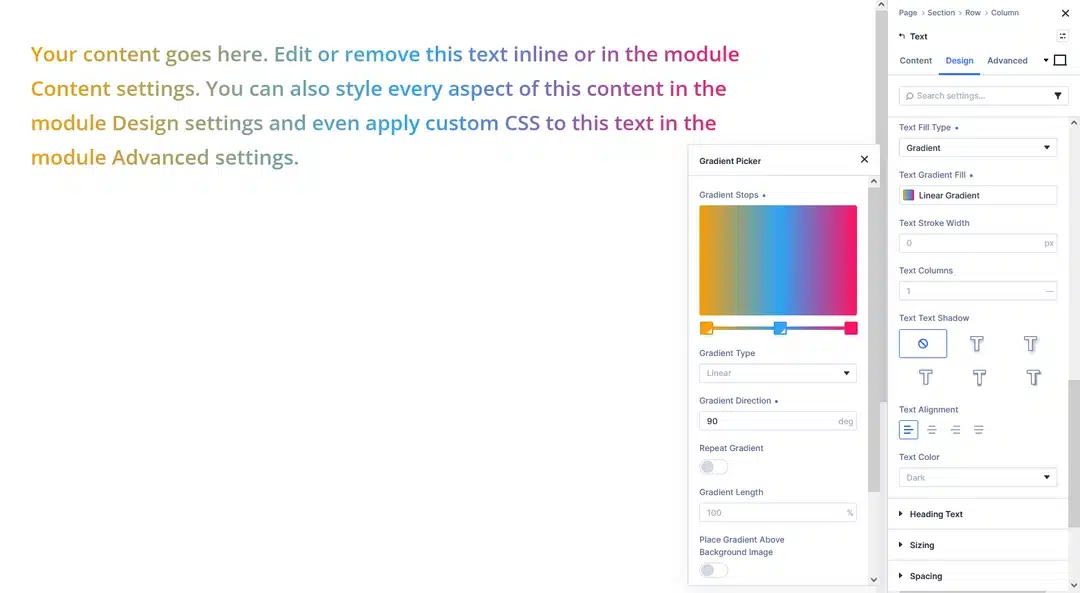
The Gradient Type setting allows you to change how the gradient is displayed.
You can also adjust the Gradient Direction to control the direction in which the colors move across your text.
This gives you plenty of control over the final appearance.
Step 3: Adjust the Text Styling
After creating your gradient, you can continue styling the text using the normal typography settings.
You can change:
- Font
- Font weight
- Font size
- Letter spacing
- Line height
- Text alignment
Large and bold headings usually make gradient text more noticeable.
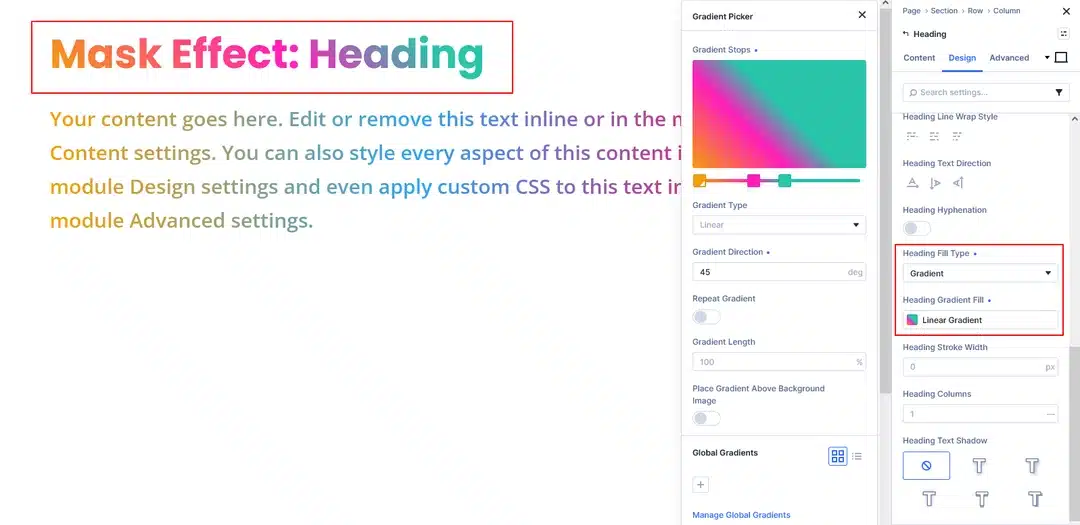
Example: Gradient Heading
You can use gradient text for:
- Hero headings
- Page titles
- Promotional text
- Section headings
- Creative landing pages
A simple gradient can add color to your design without adding another visual element to the page.
2. Create Image-Filled Text in Divi 5
The Image fill type allows you to place an image inside your text.
This creates an effect where the image is visible only within the letters.
It can be useful for creative hero sections, portfolio websites, travel websites, and other visually focused designs.
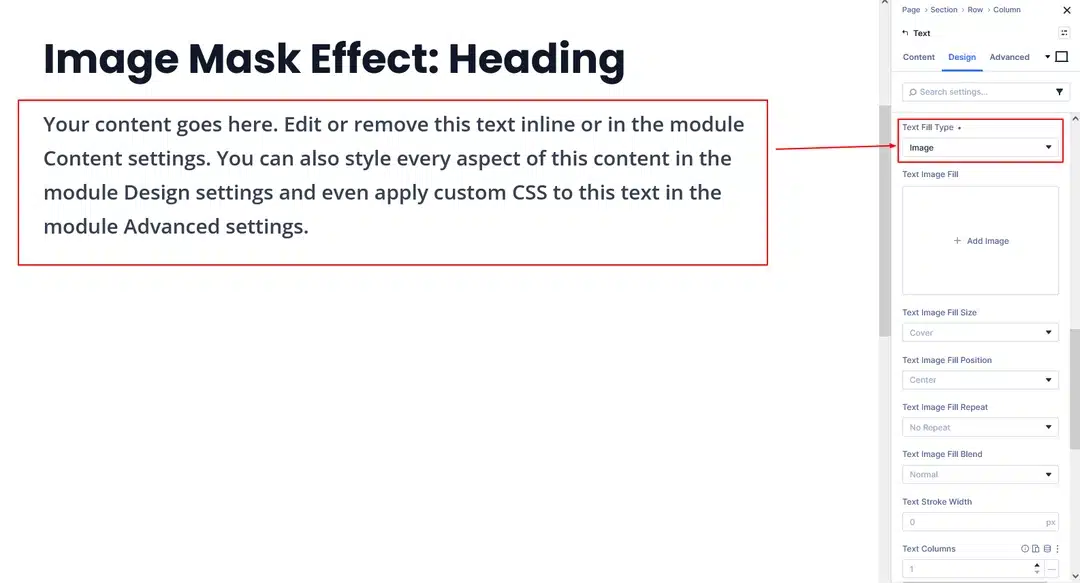
Step 1: Select Image Fill
Open your Text or Heading module.
Go to:
Design → Text → Text Fill Type → Image
Select Image.
Divi 5 will provide the image settings needed to create the effect.
Step 2: Add Your Image
Choose the image you want to use as the text fill.
Try using an image with strong colors or noticeable visual details so that it remains visible inside the letters.
For example, you could use:
- A landscape photograph
- A colorful abstract image
- A product image
- A texture
- A branded graphic
Once the image is applied, it will appear inside the text instead of using a traditional solid text color.
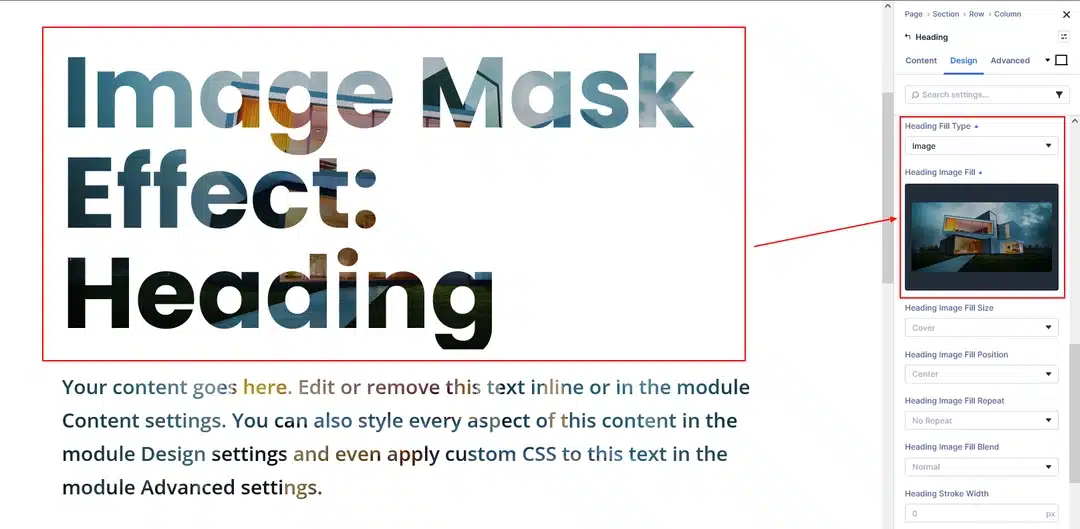
Step 3: Customize the Typography
The typography settings can still be used to control how much of the image is visible.
For example, increasing the font size creates larger areas for the image to appear.
A heavier font weight can also make the image fill more noticeable.
3. Create Transparent Text with a Stroke
The Transparent fill type works differently from Gradient and Image.
Instead of filling the letters with a color or image, it makes the text transparent.
You can then use the Text Stroke settings to create an outlined text effect.
This is useful when you want large outlined headings or a more minimal typography style.
Step 1: Select Transparent
Open your Text or Heading module and go to:
Design → Text → Text Fill Type → Transparent
Select Transparent.
The inside of the letters will become transparent.
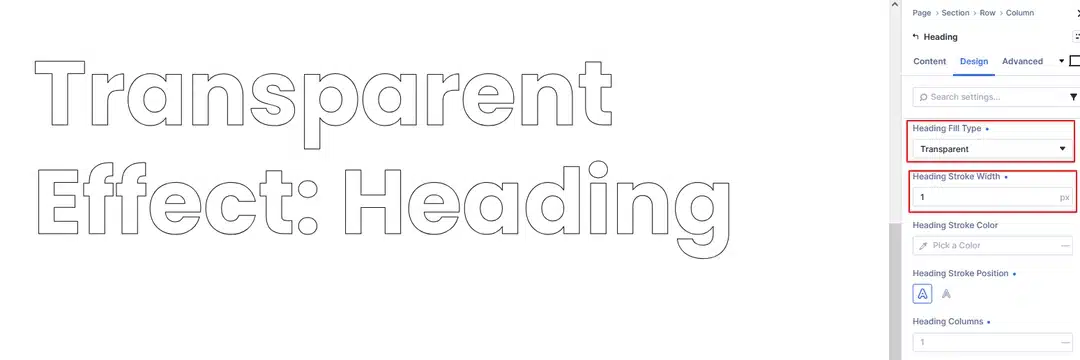
Step 2: Add a Text Stroke and Shadow
After selecting Transparent, look for the Text Stroke settings.
You can customize the stroke by adjusting:
- Stroke width
- Stroke color
- Stroke position
For example, you can use a thin white stroke on a dark background or a colorful stroke to create a more creative effect.
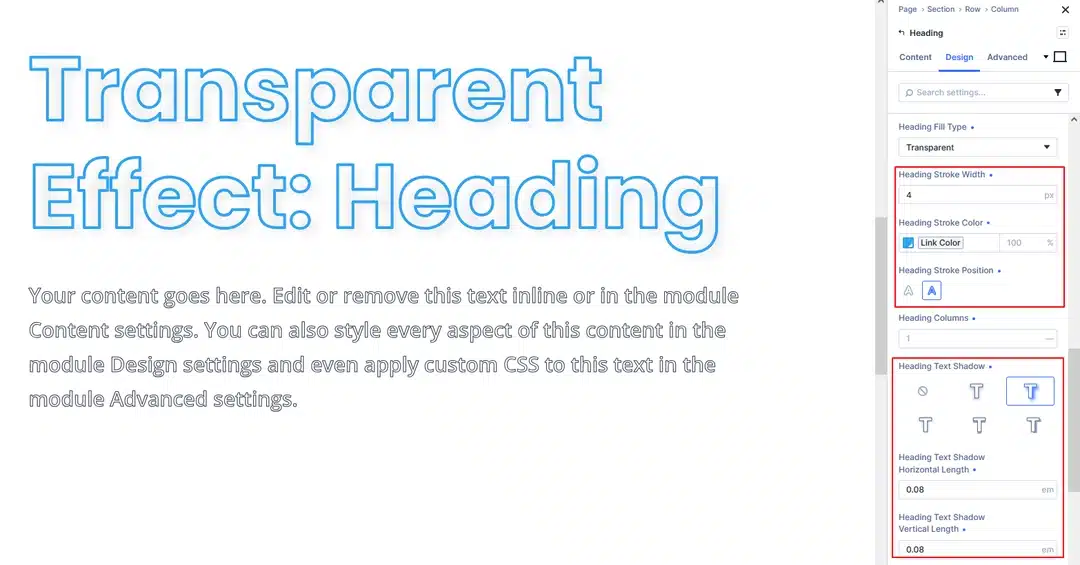
Step 3: Adjust the Stroke Width
The Text Stroke Width controls the thickness of the outline around your letters.
A smaller value creates a subtle outline, while a larger value creates a stronger outlined effect.
Experiment with different values depending on your font and heading size.
You can also change the Text Stroke Color to match your website’s design.
Gradient vs. Image vs. Transparent Text
Divi 5’s three Text Fill Type options can be used for different design purposes.
| Fill Type | What It Does | Best For |
|---|---|---|
| Gradient | Adds a gradient inside the text | Colorful headings and branded designs |
| Image | Displays an image inside the letters | Creative and visual designs |
| Transparent | Removes the text fill and allows an outline | Modern outlined typography |
The important advantage is that all three effects can be created directly from the module settings.
You don’t need to recreate the older text masking workaround with additional backgrounds and blend modes.
Tips for Creating Better Text Fill Effects
Use Large Headings
These effects are generally easier to see when applied to larger text.
Large headings give gradients and images more space to become visible.
Choose Strong Contrast
Make sure the text fill stands out from the background.
For gradient text, choose colors that are clearly different from the surrounding section.
For image-filled text, choose an image with enough contrast and detail.
Choose the Right Font Weight
Bold fonts usually make image and gradient fills more noticeable.
For transparent text, however, thinner fonts can create a clean and elegant outlined effect.
Keep Text Readable
Text effects should enhance your design without making the content difficult to read.
For important headings, make sure the fill and background have enough contrast.
Experiment with the Text Stroke
When using Transparent fill, try different stroke widths and colors.
A subtle stroke can create a clean outline, while a thicker stroke can make the heading much more prominent.
Create Creative Text Effects Directly in Divi 5
Divi 5 makes text customization much easier with its built-in Text Fill Type options.
With just a few settings, you can create three different styles:
Gradient for colorful text, Image for image-filled typography, and Transparent for outlined text effects.
These options are available directly inside the Text and Heading modules, so you can create and customize these effects without relying on custom CSS or older masking techniques.
Try combining these fill types with Divi 5’s typography, spacing, stroke, and responsive settings to create unique headings that match your website’s design.