Table of Contents
- 1. Why Add Filters to a WooCommerce Product Grid?
- 2. Plan the Product Grid Structure
- 3. Organize Your WooCommerce Product Data
- 4. Design a Reusable Product Card
- Add the Product Image
- Display the Product Name and Price
- Include a Product Link
- Maintain a Consistent Visual Hierarchy
- 5. Build a Multi-Column Product Layout
- 6. Configure Product Filtering
- 7. Improve Product Discovery with Multiple Filters
- 8. Optimize the Grid for Mobile Shopping
- 9. Common Issues and How to Resolve Them
- Filters Don’t Change the Product Results
- Some Products Are Missing
- Attribute Filters Return Unexpected Results
- The Layout Breaks on Mobile
- Product Results Are Slow to Update
- 10. Final Thoughts
When an online store offers a wide range of products, helping customers find the right item quickly becomes essential. A basic product grid displays products in an organized layout, but shoppers may still need to scroll through multiple pages to find something specific. A filterable product grid solves this problem by allowing visitors to narrow product listings according to their preferences.
Divi 5 provides flexible design tools for building custom WooCommerce layouts, while WooCommerce supplies the product information needed to organize a store. By combining a reusable product layout with suitable filtering functionality, you can create a shopping experience that is easier to navigate and maintain.
In this guide, we’ll explore how to plan, design, and configure a filterable WooCommerce product grid in Divi 5, using an example of an online electronics store.
1. Why Add Filters to a WooCommerce Product Grid?
Product filtering gives customers a practical way to narrow a large catalog without browsing every item individually. Instead of navigating through dozens of unrelated products, visitors can select the characteristics that matter to them and focus on relevant results.
Consider an electronics store selling headphones, keyboards, monitors, webcams, and computer accessories. A visitor looking for wireless headphones under $100 shouldn’t need to browse every product in the store.
With a filterable product grid, the visitor can select the Headphones category, choose Wireless connectivity, and set a maximum price. The product listing can then display matching items instead of the entire catalog.
A well-designed filtering system can help you:
- Reduce the time customers spend searching for products.
- Make large product catalogs easier to explore.
- Help shoppers compare products with similar characteristics.
- Improve navigation without creating excessive category pages.
- Provide a more convenient experience on desktop and mobile devices.
The objective isn’t to add as many filters as possible. It’s to identify the product characteristics that matter most to your customers.
2. Plan the Product Grid Structure
Before opening the Divi Builder, decide how your product catalog should be presented and which filtering options will be most useful.
For this tutorial, imagine an electronics store with the following product categories:
- Headphones
- Keyboards
- Monitors
- Webcams
- Computer Accessories
Each category has different characteristics. Headphones might need connectivity and noise-cancellation filters, while monitors could benefit from screen-size and resolution filters.
Start by defining the main components of your shop page.
Shop heading: Introduce the catalog with a clear heading such as “Explore Our Electronics.”
Search field: Allow visitors to look for products by name or keyword.
Filter area: Display the category and product-specific filtering controls.
Product grid: Show the matching products in a consistent card layout.
Result information: Where supported by your filtering solution, display the number of matching products or a helpful no-results message.
Keep the most frequently used controls visible. Less important options can be placed in a collapsible filter panel if your chosen implementation supports it.
3. Organize Your WooCommerce Product Data
A filterable grid is only as useful as the product information behind it. Before configuring the page, review your WooCommerce catalog and ensure that products have consistent categories, attributes, and prices.
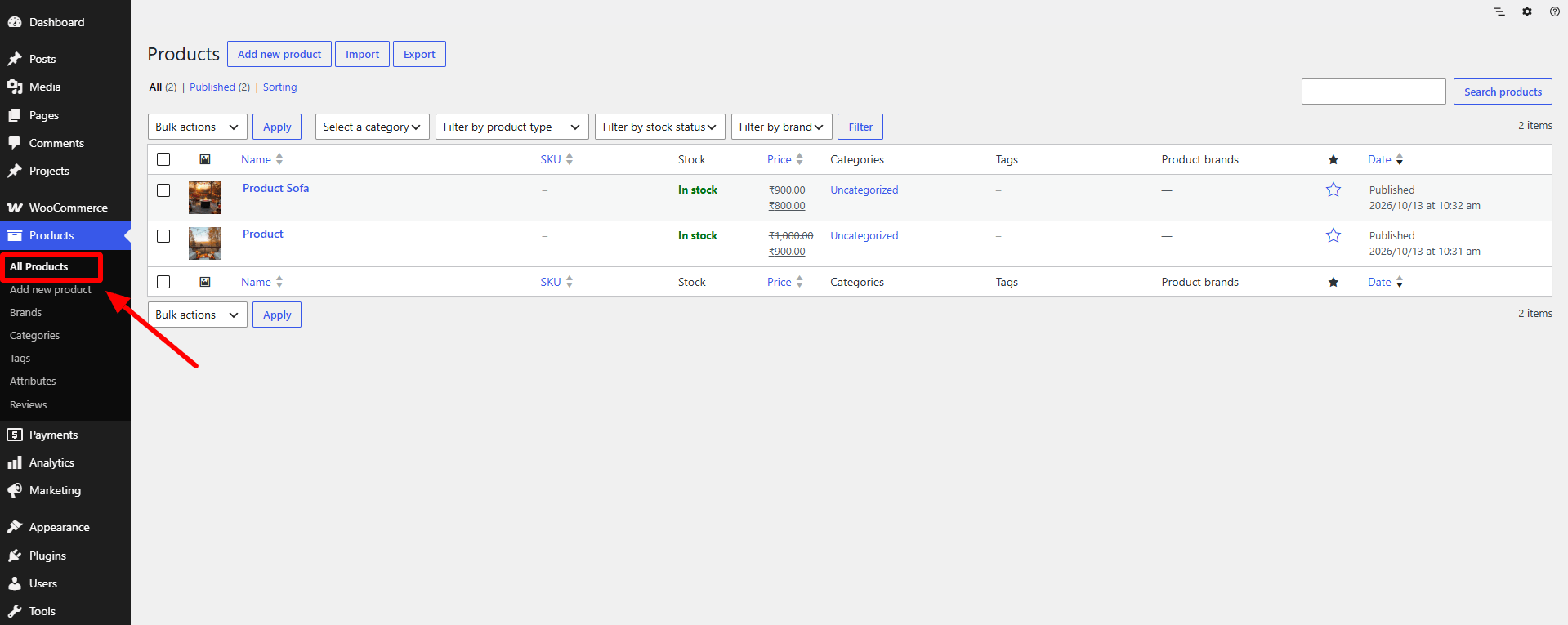
Open your WordPress dashboard and navigate to Products → All Products to review your existing inventory.
Create Consistent Product Categories
Use product categories to group related items. For example, assign wireless and wired headphones to the Headphones category rather than creating unrelated categories for every connectivity type.
Categories should describe the general type of product, while attributes should describe its individual characteristics.
Add Global Product Attributes
Navigate to Products → Attributes in WooCommerce and create the attributes your store needs.
For the electronics example, you could create:
| Attribute | Example values |
|---|---|
| Connectivity | Wired, Wireless, Bluetooth |
| Color | Black, White, Silver |
| Screen Size | 24-inch, 27-inch, 32-inch |
| Resolution | Full HD, QHD, 4K |
Assign the appropriate attribute values to each product. Use consistent naming to avoid creating duplicate options such as “Wireless,” “wireless,” and “Wireless Connection.”
Not every attribute needs to appear as a filter. Select only those that help customers make meaningful purchasing decisions.
4. Design a Reusable Product Card
A consistent product card helps customers scan a product grid quickly. Instead of designing every product individually, create one layout that can display dynamic WooCommerce information.
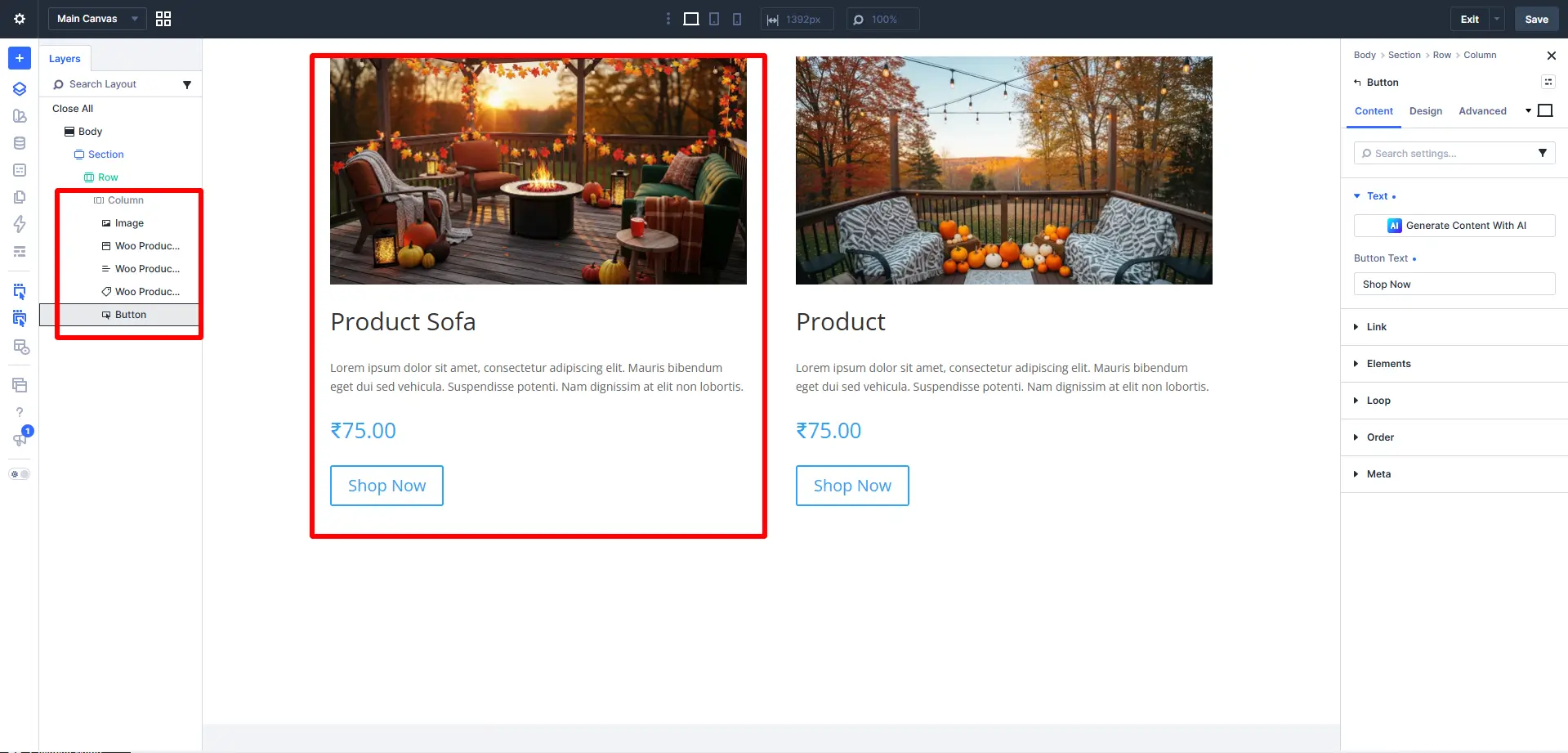
Open the shop page in Divi 5’s Visual Builder and create a container for the product listing. Inside it, design the elements that each product card should contain.
Add the Product Image
Use a product image element or the appropriate dynamic image field to display the current product’s featured image. Keep image proportions consistent so that cards align neatly.
Display the Product Name and Price
Add a heading connected to the product title and a price element connected to the WooCommerce product price.
Keep the title readable and allow longer product names to wrap naturally rather than overflow the card.
Include a Product Link
Add a button or link that takes visitors to the relevant product page. Labels such as “View Details” or “Explore Product” can make the next action clear.
If your store supports add-to-cart functionality directly from the grid, you can include that option as well.
Maintain a Consistent Visual Hierarchy
Arrange the image, title, price, and action in the same order for every product. Use consistent padding, spacing, and button styling.
Once the card design is complete, connect it to a Divi 5 Loop or another supported dynamic product-listing method so the layout can be repeated for the products returned by the query.
5. Build a Multi-Column Product Layout
With the product card ready, configure the surrounding layout to display multiple products in a grid.
Select the main product-listing container and use the available Divi 5 layout controls to establish the number of columns, spacing, and alignment.
For example, a desktop layout might display four product cards per row, while a tablet layout displays two and a mobile layout displays one or two depending on the available width.
Pay attention to the following details:
- Column spacing: Provide enough room between cards without wasting space.
- Image alignment: Keep product images consistently positioned.
- Card height: Avoid large visual differences caused by inconsistent spacing.
- Action placement: Keep buttons in predictable positions.
- Responsive behavior: Adjust the number of columns for smaller screens.
Use the Loop Builder where appropriate to repeat your dynamic product card across the product query. Configure the query to return WooCommerce products rather than ordinary blog posts.
At this point, the product grid should display products correctly even before filters are added.
6. Configure Product Filtering
The next step is to connect filtering controls to the product listing. Divi 5 can provide the layout and dynamic content, but the filtering mechanism must support WooCommerce product queries and the filter types you intend to use.
Depending on the Divi 5 version and modules available on your website, you may need a compatible filtering extension or custom implementation. Confirm that your selected solution supports the relevant Divi product loop before configuring the filters.
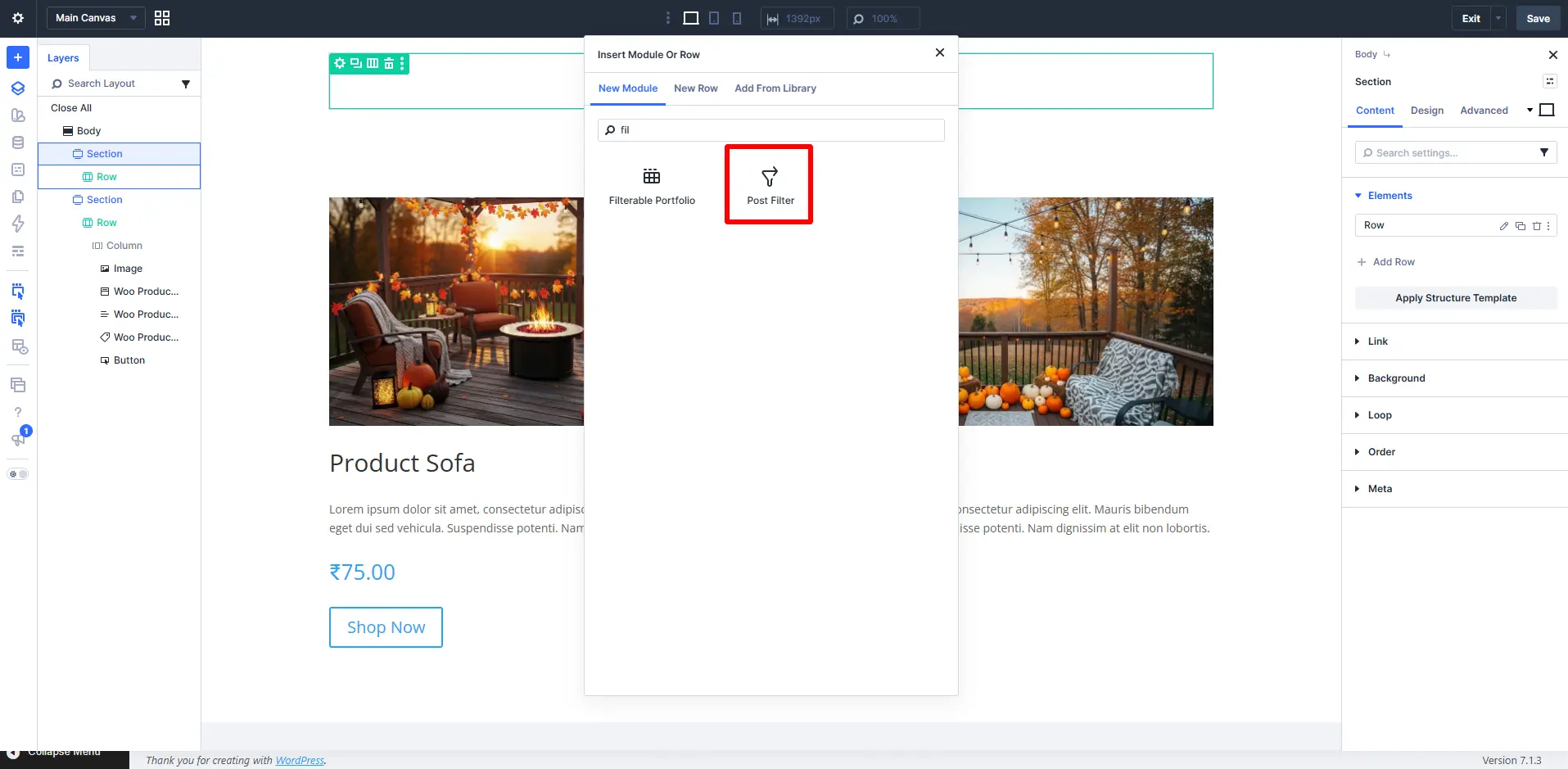
For example, a filtering interface might include the following controls:
Category filter: Lets visitors select Headphones, Keyboards, or Monitors.
Price filter: Allows shoppers to specify a minimum and maximum price.
Connectivity filter: Helps visitors find wired, wireless, or Bluetooth devices.
Color filter: Narrows results to products available in a particular color.
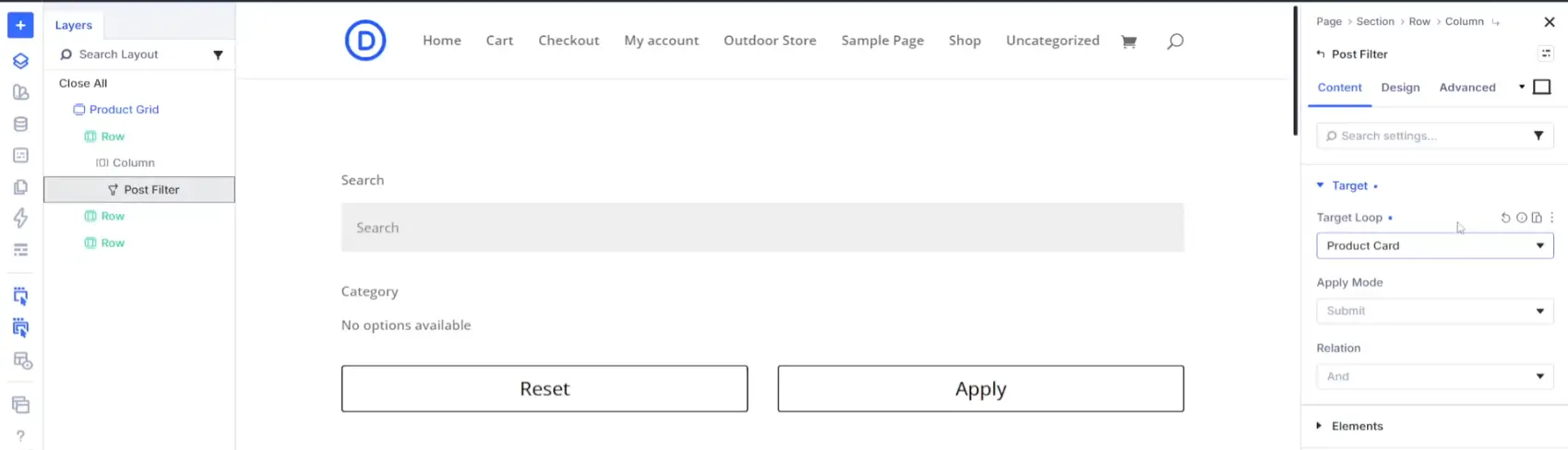
Configure each control to use the appropriate WooCommerce product data. Category filters should use product categories, price filters should use product prices, and attribute filters should use the corresponding product attributes.
Make sure the filtering system targets the correct product listing. A filter that updates a different query or ordinary post loop won’t provide the expected results.
After configuring the controls, test each one separately before combining multiple filters.
7. Improve Product Discovery with Multiple Filters
Once the basic filtering interface works, consider how customers might combine different requirements.
For example, a shopper searching for a monitor could select:
- Category: Monitors
- Screen Size: 27-inch
- Resolution: QHD
- Maximum Price: $350
The filtering system should return products that satisfy the selected conditions according to the configured filter logic.
Choose the Right Filter Logic
When multiple filters are active, the relationship between them matters.
For example, selecting both the Black and White color options might mean the shopper wants products available in either color. However, selecting a specific screen size and resolution usually means the product must meet both requirements.
Your filtering implementation should handle these relationships appropriately:
- Use OR logic for alternative values within a filter when supported.
- Use AND logic between separate requirements when shoppers need products that satisfy all of them.
- Provide a clear way to remove an individual selection or reset the filters.
The exact behavior depends on the filtering solution and its configuration, so verify the results with real products.
Provide Useful Empty States
Sometimes a combination of filters won’t match any products. Instead of leaving a blank area, display a message such as:
“No products match your current selections. Try adjusting your filters.”
If your implementation supports it, provide a reset option so shoppers can return to the complete catalog without manually clearing every field.
8. Optimize the Grid for Mobile Shopping
Customers may browse your store using phones, tablets, and desktop computers. A filterable product grid should remain usable across all these screen sizes.
On desktop, filters can appear in a sidebar beside the product grid. On mobile, a full-width filter panel above the products may be more practical.
Consider these improvements:
Use a compact filter interface. Avoid displaying too many controls at once on smaller screens.
Make controls touch-friendly. Provide enough space around checkboxes, buttons, and dropdowns.
Keep product information readable. Product names and prices should remain easy to scan without zooming.
Avoid unnecessary horizontal scrolling. Ensure the product grid fits within the viewport.
Test filter behavior. Check that selecting an option updates the intended products and doesn’t unexpectedly reset other selections.
If your filtering solution supports an expandable mobile filter panel, use a clear label such as “Filter Products” and make the selected filters easy to review.
9. Common Issues and How to Resolve Them
A filterable product grid may require some troubleshooting during setup. Here are a few common problems and the checks that can help.
Filters Don’t Change the Product Results
Verify that the filters are connected to the correct WooCommerce product query. Check that the target loop, product source, and field configuration match your setup.
Some Products Are Missing
Check whether the products are published, assigned to the correct categories, and configured with the required attribute values. Also review stock visibility settings and any query conditions that may exclude products.
Attribute Filters Return Unexpected Results
Confirm that the filter uses the correct global product attribute and that products have been assigned the corresponding terms. Inconsistent attribute values can lead to confusing results.
The Layout Breaks on Mobile
Review the responsive column settings, container widths, and filter spacing. Test the actual page on several viewport sizes rather than relying only on the desktop preview.
Product Results Are Slow to Update
Large catalogs and complex filtering conditions can affect performance. Avoid unnecessary filters, optimize product images, and review caching or AJAX settings in the filtering solution. Ensure that any caching configuration is compatible with dynamic product results.
10. Final Thoughts
A filterable WooCommerce product grid makes product discovery more convenient by helping shoppers narrow a catalog according to their needs. With Divi 5, you can design a consistent product card, build a responsive grid, and integrate suitable filtering functionality around your WooCommerce product data.
Start by organizing categories and attributes, then create a reusable product layout and add only the filters that offer clear value to customers. Test combinations, empty results, and mobile behavior before publishing.
The best product grid isn’t necessarily the one with the most controls. It’s the one that helps shoppers find relevant products quickly while keeping the store simple to browse and maintain.