Table of Contents
- Why SMTP Is Mandatory After WordPress 6.9
- Step 1: Choose a Reliable SMTP Plugin
- Step 2: Install WP Mail SMTP Plugin
- Step 3: Choose Your SMTP Mailer
- Step 4: Configure SMTP Settings (Example: Other SMTP)
- Step 5: Fix the “From Email Address” Issue (Very Important)
- Step 6: Send a Test Email
- Step 7: Add SPF, DKIM & DMARC Records (Critical for Deliverability)
- Step 8: Fix Contact Form & WooCommerce Emails
- Step 9: Enable Email Logging (Optional but Recommended)
- Common Errors & Fixes After WordPress 6.9
- Final Checklist (WordPress 6.9 Email Fix)
- Need Expert Help?
If your WordPress emails stopped working after the 6.9 update and you’re struggling to understand why, you’re in the right place to fix this issue step by step. Many site owners noticed contact form emails, WooCommerce notifications, password resets, and admin alerts failing or going to spam.
This step‑by‑step guide shows exactly how to fix WordPress email issues using SMTP, the most reliable solution recommended for WordPress 6.9 and beyond.
Why SMTP Is Mandatory After WordPress 6.9
WordPress 6.9 introduced stricter handling of the email envelope sender. As a result:
- PHP mail() is no longer reliable
- Emails without authentication fail silently
- Gmail, Outlook, and Yahoo block unauthenticated senders
SMTP fixes all of this by authenticating emails before sending.
Step 1: Choose a Reliable SMTP Plugin
For WordPress 6.9, these plugins work best:
- WP Mail SMTP (Beginner‑friendly)
- FluentSMTP (Free & powerful)
- Post SMTP Mailer (Advanced logging)
Recommended for most sites: WP Mail SMTP
Step 2: Install WP Mail SMTP Plugin
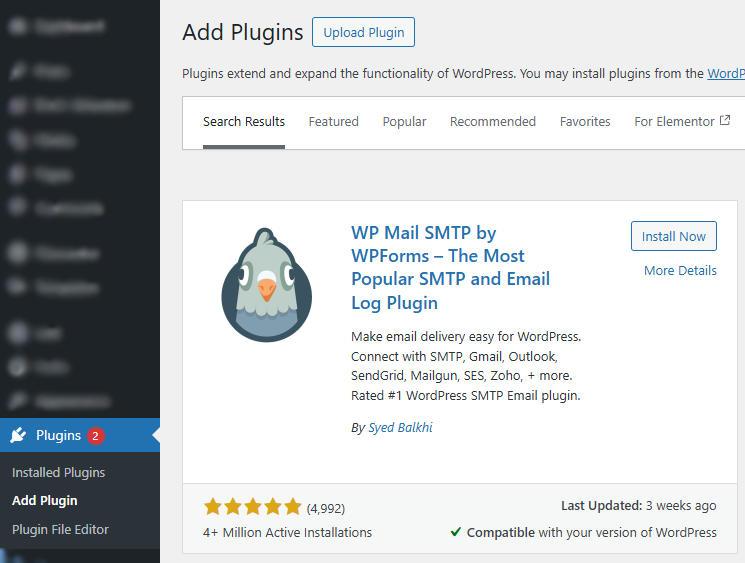
- Go to WordPress Dashboard → Plugins → Add New
- Search for WP Mail SMTP
- Click Install → Activate
Once activated, you’ll see the WP Mail SMTP Setup Wizard.
Step 3: Choose Your SMTP Mailer
WP Mail SMTP supports multiple mailers. Popular options:
| Mailer | Best For |
| Gmail / Google Workspace | Small sites, blogs |
| Brevo (Sendinblue) | Marketing + transactional emails |
| SendLayer | WooCommerce & business sites |
| Amazon SES | High‑volume sending |
| Other SMTP | Custom hosting SMTP |
For beginners, choose Gmail or Brevo.
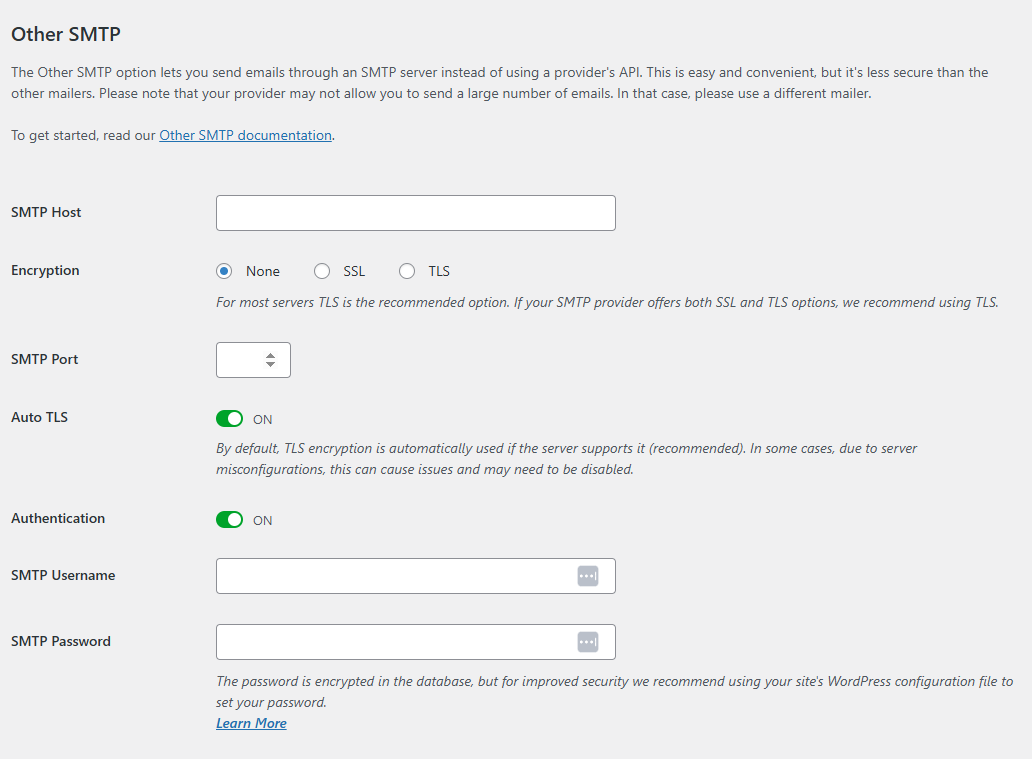
Step 4: Configure SMTP Settings (Example: Other SMTP)
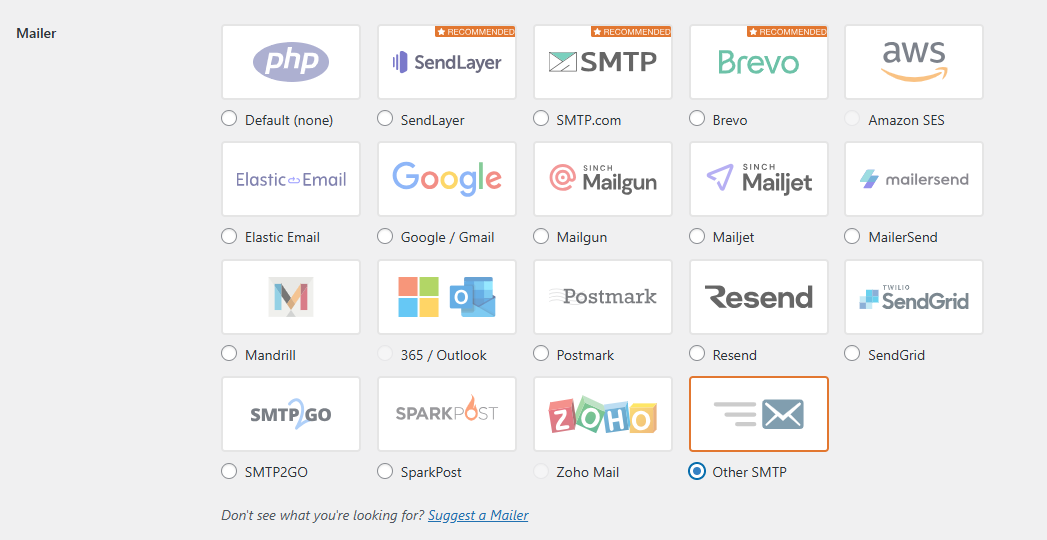
If you select Other SMTP, enter:
- SMTP Host: yourmailprovider.com
- Encryption: TLS
- SMTP Port: 587
- Authentication: ON
- Username: your email address
- Password: email app password
Enable Force From Email Enable Force From Name
Step 5: Fix the “From Email Address” Issue (Very Important)
After WordPress 6.9, emails sent from:
are often rejected.
Best Practice:
- Use a real domain email like:
Make sure this email exists in your hosting or SMTP provider.
Step 6: Send a Test Email
- Go to WP Mail SMTP → Tools → Email Test
- Enter your email address
- Click Send Email
If successful, WordPress email issues are fixed If failed, continue to DNS setup below
Step 7: Add SPF, DKIM & DMARC Records (Critical for Deliverability)
Without DNS authentication, emails may still land in spam.
Required DNS Records:
SPF (Example)
v=spf1 include:_spf.google.com ~all
DKIM
Provided by your SMTP provider (copy exactly)
DMARC (Basic Setup)
v=DMARC1; p=none; rua=mailto:[email protected]
Add these in Domain DNS Manager (GoDaddy, Namecheap, Cloudflare, etc.)
Step 8: Fix Contact Form & WooCommerce Emails
Contact Forms (CF7 / Elementor / WPForms)
- Set From Email to same SMTP email
- Avoid user‑entered emails as sender
WooCommerce
Go to: WooCommerce → Settings → Emails
- Enable email notifications
- Ensure “From email” matches SMTP email
Step 9: Enable Email Logging (Optional but Recommended)
WP Mail SMTP Pro includes email logs.
Free alternatives: – WP Mail Logging – FluentSMTP logs
This helps track: – Failed emails – SMTP errors – Delivery status
Common Errors & Fixes After WordPress 6.9
SMTP Authentication Failed
- Check username/password
- Use app password (Gmail)
Emails Go to Spam
- Add SPF, DKIM, DMARC
- Avoid free Gmail as sender
Emails Not Sending at All
- Disable other SMTP plugins
- Check hosting mail restrictions
Final Checklist (WordPress 6.9 Email Fix)
- SMTP plugin installed
- Authenticated domain email
- Correct From Email
- SPF, DKIM, DMARC added
- Test email successful
Need Expert Help?
If you’re still facing issues with WordPress email delivery, SMTP errors, or WooCommerce notifications, Technocrackers can help.