Table of Contents
- How to Start Your Divi 5 Website From Scratch
- 1. Plan Your Design First
- 2. Create Global Variables in Divi 5
- Create Global Color Variables
- Create Global Font Variables
- Create Global Link Variables
- Your Global Variables Are Now Ready
- 3. Create Presets in Divi 5
- Create Presets for Other Typography Styles
- Your Global Typography System Is Now Ready
- Why This Setup Makes Divi 5 Websites Easier to Manage
- Final Divi 5 Workflow
- Final Thoughts
Building a website from scratch can become difficult to manage when colors, fonts, buttons, spacing, and links are added manually throughout every page.
Divi 5 makes this process much easier with Global Variables and Presets.
In this guide, we’ll show you a simple step-by-step workflow for setting up your Divi 5 website correctly from the beginning. The goal is to create a reusable design system so you can make changes once and apply them across the entire website.
Whether you’re building a small business website, portfolio, blog, or large website with multiple pages, this setup can save time and keep your design consistent.
Let’s get started.
How to Start Your Divi 5 Website From Scratch
Before you start designing pages, take a little time to plan your design system.
A few minutes of planning at the beginning can save you hours of manual editing later.
We’ll break the setup into two main parts:
- Plan your design
- Create Global Variables
- Create Presets
Once these are ready, you can start building your pages using your predefined system.
1. Plan Your Design First
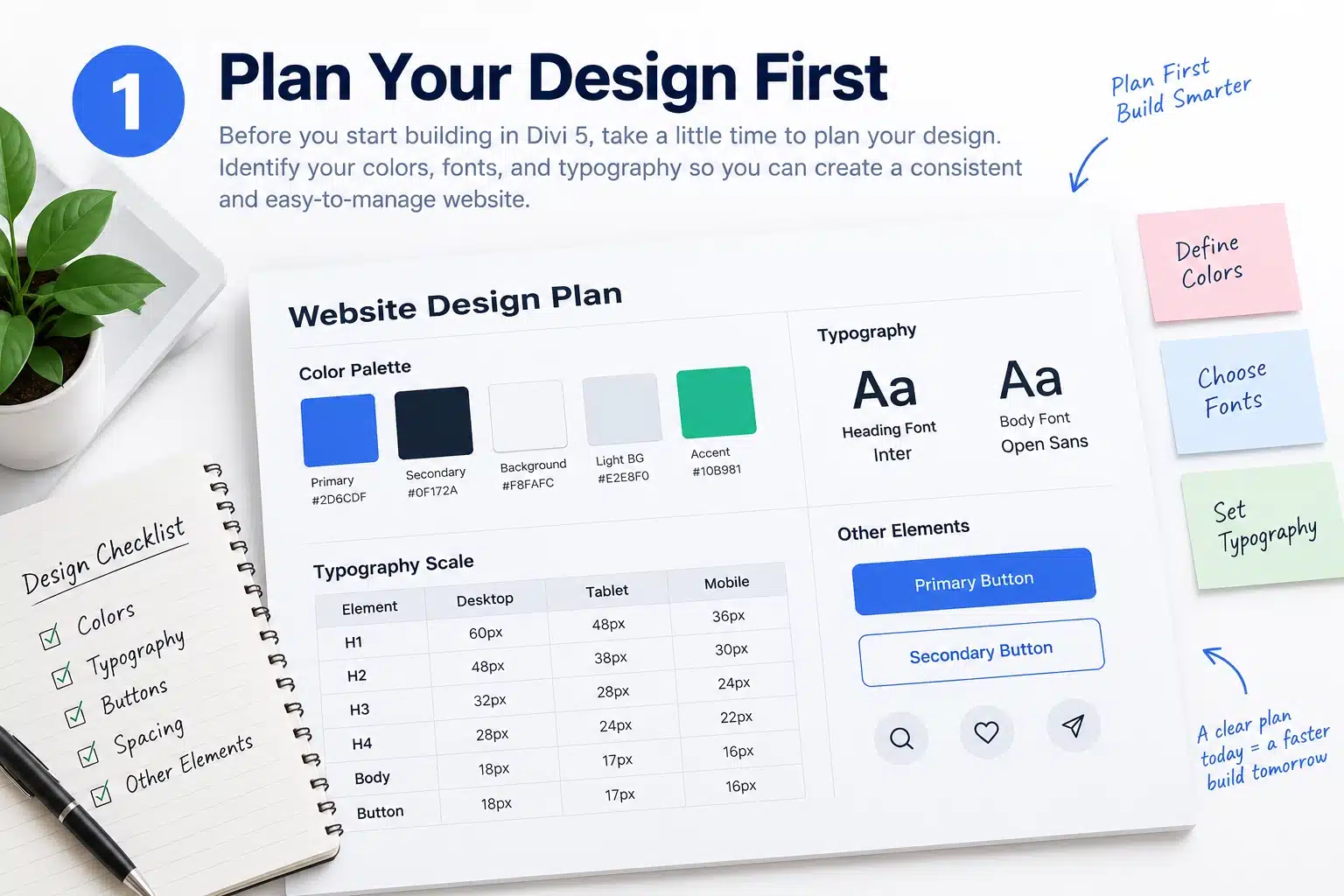
Before opening the Divi Builder, check your design and make a list of the colors, fonts, typography, and other values you’ll use throughout the website.
Check Your Colors
Identify the main colors used in your design.
For example:
- Primary Brand Color
- Secondary Brand Color
- Heading Color
- Body Text Color
- Background Color
- Light Background Color
- Border Color
- Accent Color
You don’t necessarily need all of these. Create only the colors that your design actually uses.
The important thing is to know your colors before you start building pages.
Check Your Typography
Next, identify your typography system.
For example:
- Primary Font
- Secondary Font, if required
- H1 Size
- H2 Size
- H3 Size
- H4 Size
- H5 Size
- H6 Size
- Body Text Size
- Small Text Size
- Button Text Size
Also decide how each typography style should behave on desktop, tablet, and mobile.
For example:
| Element | Desktop | Tablet | Mobile |
|---|---|---|---|
| H1 | 60px | 48px | 36px |
| H2 | 48px | 38px | 30px |
| H3 | 32px | 28px | 24px |
| H4 | 28px | 24px | 22px |
| Body | 18px | 17px | 16px |
| Button | 18px | 17px | 16px |
These values are only examples. Use the typography values from your actual design.
Once your colors and typography are planned, you can start creating your Divi 5 global system.
2. Create Global Variables in Divi 5
Now it’s time to create your Global Variables.
Open any page with the Divi 5 Visual Builder.
From the Divi Builder sidebar, open the Variable Manager.
This is where you can create and manage the values you want to reuse throughout your website.
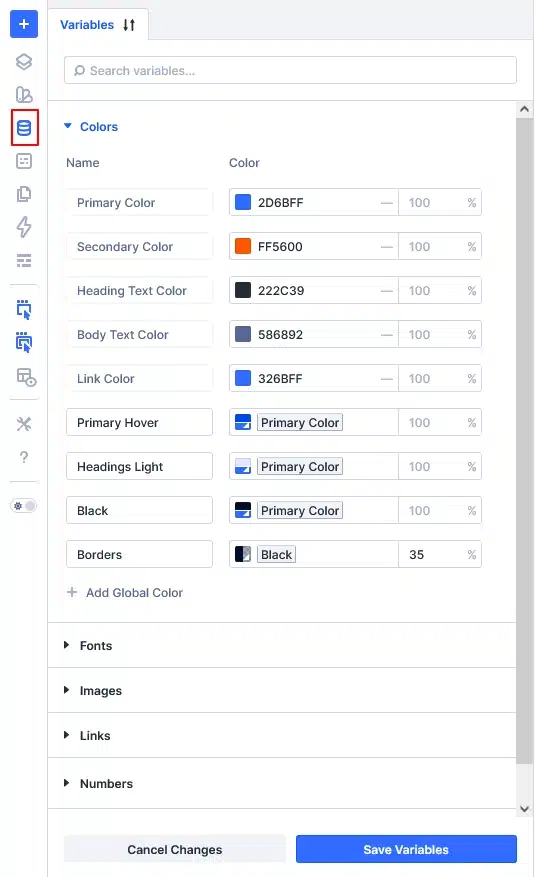
Create Global Color Variables
Open the Colors section and add the colors from your design.
For example:
- Primary Brand Color
- Secondary Brand Color
- Heading Color
- Body Text Color
- Background Color
- Light Background Color
- Border Color
- Accent Color
Instead of entering a HEX value manually every time you need a color, you can select the corresponding global variable.
For example:
Primary Brand Color → #2D6CDF
Then use the Primary Brand Color variable for buttons, links, backgrounds, icons, or other elements that use your primary brand color.
Why is this useful?
Imagine you finish a 20-page website and the client says:
“Let’s change our primary brand color.”
Instead of manually changing the color on every button and section, you can update the Primary Brand Color variable.
Any element using that variable can then use the updated value.
Create Global Font Variables
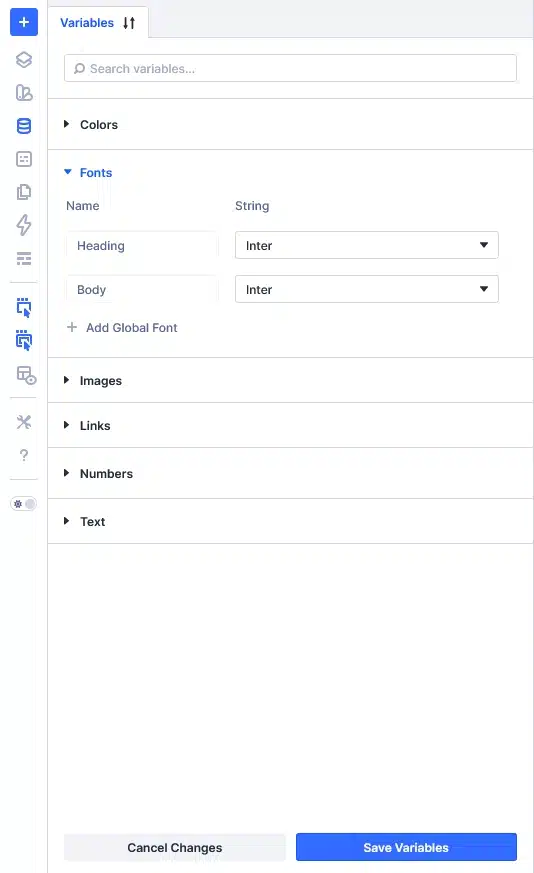
Next, open the Fonts section in the Variable Manager.
Create your font variables.
For example:
- Heading Font Family
- Body Font Family
If your design uses additional fonts, you can add those as well.
For example:
Heading → Inter
Body → Inter
Or you could have:
Heading → Poppins
Body → Open Sans
The fonts will depend on your design.
The important part is to use the global font variables throughout your website instead of manually selecting the font every time.
Create Global Link Variables
Divi 5 variables aren’t limited to colors and fonts.
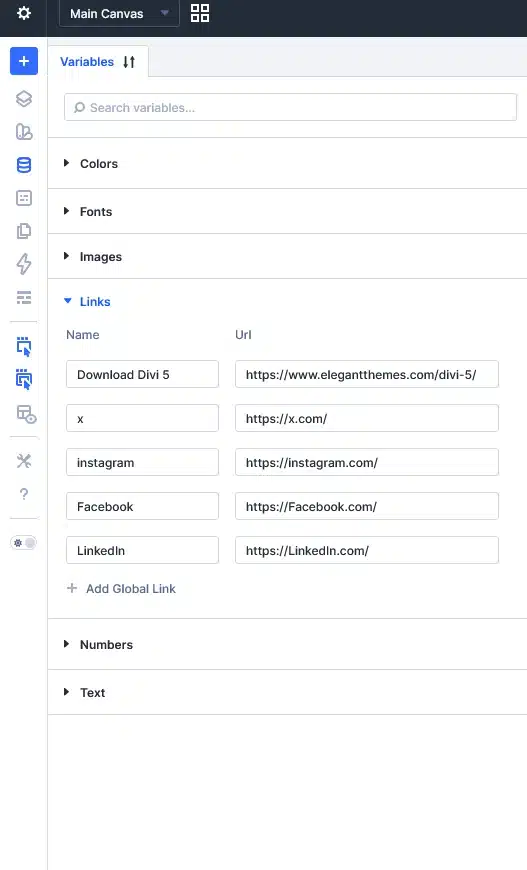
You can also create variables for URLs that you use repeatedly throughout the website.
For example, create variables for your social media links:
- YouTube
- X/Twitter
You can then use the same variable in your:
- Header
- Footer
- Contact page
- Social media section
- Other website sections
You can also create variables for other frequently used URLs or contact links, such as:
- Phone number
- Email address
- Location/Google Maps URL
- Contact page
- Quote page
- Booking page
This is particularly useful because these values may need to be updated in the future.
Your Global Variables Are Now Ready
At this point, you have created the basic global variables for your website:
Colors
- Primary
- Secondary
- Heading
- Body
- Background
- Border
- Accent
Fonts
- Heading Font
- Body Font
- Additional Fonts, if required
Links
- Social Media
- Phone
- Location
- Other frequently used URLs
Now these values can be used throughout your website.
The biggest benefit?
If you need to change one of these values in the future, you can update the variable value instead of manually editing every location where it is used.
Your website becomes much easier to maintain.
3. Create Presets in Divi 5
Now that your global variables are ready, the next step is to create Presets.
Presets allow you to save the styling of frequently used elements and reuse that styling throughout your website.
Before creating your presets, check your planned typography again.
For example:
| Element | Desktop | Tablet | Mobile |
|---|---|---|---|
| H1 | 60px | 48px | 36px |
| H2 | 48px | 38px | 30px |
| H3 | 32px | 28px | 24px |
| H4 | 28px | 24px | 22px |
| Body | 18px | 17px | 16px |
| Button | 18px | 17px | 16px |
Now we’ll turn these styles into reusable presets.
Create Heading Presets
Open any page with the Divi 5 Visual Builder.
Add a Heading/Text module.
Start with H1.
Set your:
- Font Family
- Font Weight
- Font Size
- Line Height
- Text Color
- Responsive values for Desktop
- Responsive values for Tablet
- Responsive values for Mobile
Use your Global Font and Color Variables wherever possible.
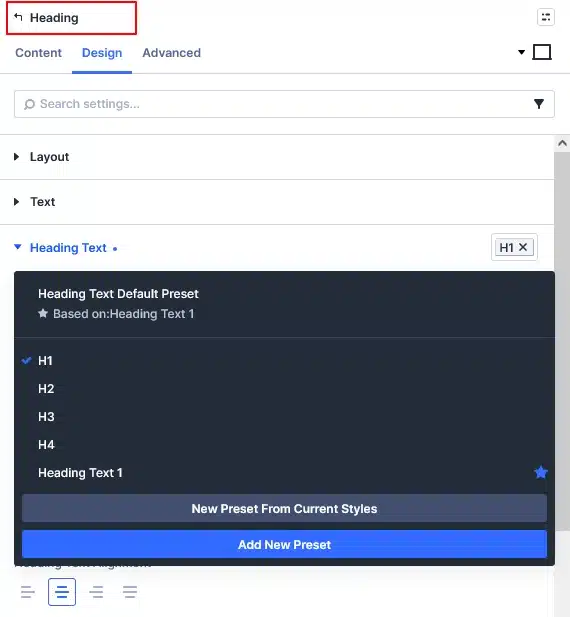
Once the H1 styling is complete, save the current styling as a new preset.
For example:
Global H1
Then repeat the same process for:
- H2
- H3
- H4
- H5
- H6
Your presets can be named:
- Global H1
- Global H2
- Global H3
- Global H4
- Global H5
- Global H6
When creating a new preset, Divi 5 allows you to create a preset from the current styles, making it easy to turn your configured element into a reusable style.
Create a Body Text Preset
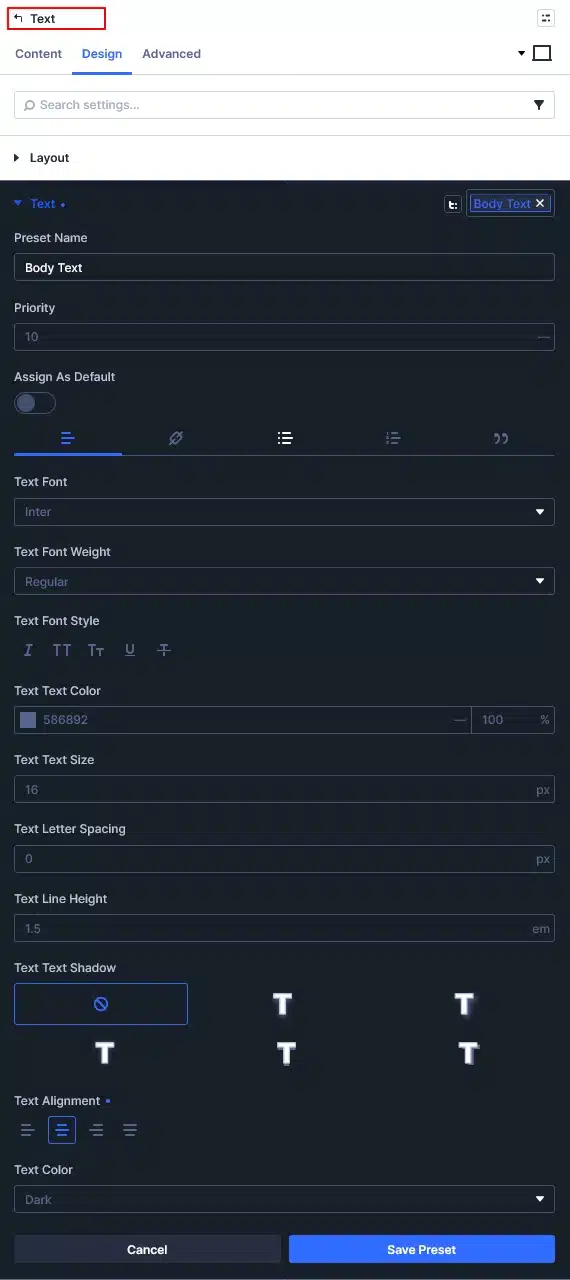
Next, create your standard Body Text preset.
Add a Text module and configure:
- Body Font
- Font Size
- Line Height
- Text Color
- Responsive sizes
- Responsive spacing, if required
Use your global font and color variables.
Then save it as:
Global Body Text
Now you can use this preset whenever you add regular body content.
Create a Button Preset
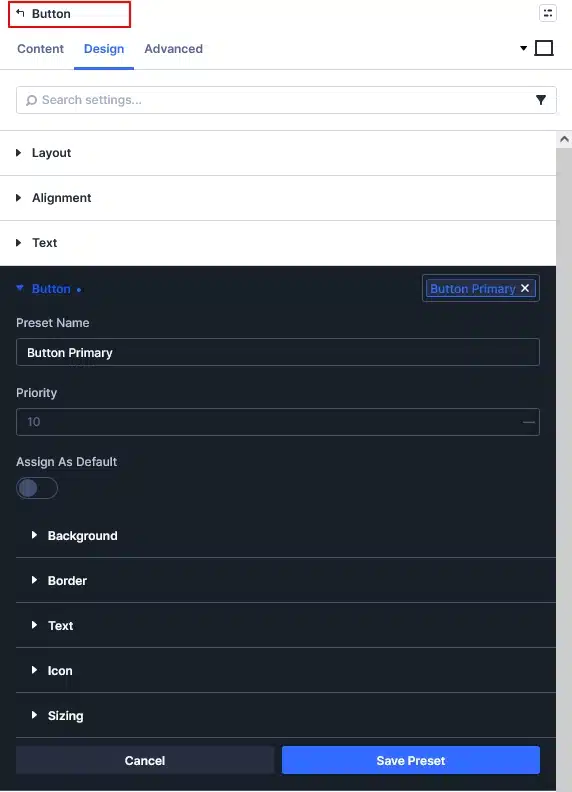
Do the same thing for your buttons.
Create your standard button design and configure:
- Font Family
- Font Size
- Font Weight
- Text Color
- Background Color
- Border
- Border Radius
- Padding
- Hover styling
- Responsive settings
Use your global color and font variables.
Then save the styling as:
Global Button
If your design has multiple button styles, you can create additional presets such as:
- Global Primary Button
- Global Secondary Button
- Global Outline Button
Create Presets for Other Typography Styles
Finally, check your design for any additional typography styles.
For example:
- Section Subtitle
- Eyebrow Text
- Intro Text
- Small Text
- Caption
- Blog Meta
- Labels
If a style is used repeatedly, create a preset for it.
For example:
Global Subtitle
This keeps your typography consistent throughout the entire website.
Your Global Typography System Is Now Ready
Once you finish creating your heading, body, button, and additional typography presets, your core typography system is ready.
You now have something like:
Global Variables
Fonts
- Heading Font
- Body Font
Colors
- Primary
- Secondary
- Heading
- Body
- Background
- Border
- Accent
Links
- YouTube
- Phone
- Location
Global Presets
- Global H1
- Global H2
- Global H3
- Global H4
- Global H5
- Global H6
- Global Body Text
- Global Button
- Global Subtitle
- Other required styles
Now you can start building the rest of your website using these predefined variables and presets.
Why This Setup Makes Divi 5 Websites Easier to Manage
The real advantage of this workflow becomes clear when you need to make changes later.
For example, if you need to:
Change your brand color → Update the global color variable.
Change your heading font → Update the heading font variable.
Change H1 size → Update the Global H1 preset.
Change body text size → Update the Global Body Text preset.
Change button styling → Update the Global Button preset.
Change your Instagram URL → Update the Instagram link variable.
Instead of manually editing every page, you manage these values from their central locations.
Final Divi 5 Workflow
For a new Divi 5 website, follow this simple process:
- Plan Your Design – Check colors and typography.
- Create Global Variables – Set Colors, Fonts, and frequently used Links.
- Create Global Presets – Create H1–H6, Body Text, Buttons, Subtitles, and other repeated styles.
- Build Your Website – Use your variables and presets instead of manually entering values.
- Make Future Changes Globally – Update the variable or preset and keep your website consistent.
Final Thoughts
The best time to create your Divi 5 design system is before you start building the full website.
By spending a little extra time planning your colors and typography and setting up Global Variables and Presets, you create a website that is faster to build, more consistent, and much easier to manage.
Instead of thinking about every page individually, build your website around a reusable system.
Set it up once. Use it everywhere. Update it from one place.
That is the real benefit of using Global Variables and Presets in Divi 5.