Table of Contents
Popups are powerful tools for newsletters, contact forms, announcements, and CTAs. Traditionally, WordPress users relied on third-party popup plugins—but Divi 5 changes that completely.
With Divi 5’s new Interaction features, you can now create fully functional, lightweight popups without installing any plugin, keeping your site faster and easier to maintain.
In this guide, I’ll walk you through exactly how to build a smart popup in Divi 5, step by step—based on a real implementation.
Why Use Divi 5 Interactions for Popups?
Divi 5 (by Elegant Themes) introduces native interactions that allow you to:
- Show or hide elements on click
- Control visibility without JavaScript
- Build dynamic UI components visually
Benefits:
- No extra plugins
- Better performance
- Full design control with Divi Builder
- Cleaner, more secure setup
Step 1: Create the Popup Section
- Open your page using Divi Builder
- Add a new Section – this will be your popup container
- Design the popup content:
- Heading (e.g. Subscribe to Our Newsletter)
- Form (Email opt-in or contact form)
- Close icon (Text module, Icon module, or Button)
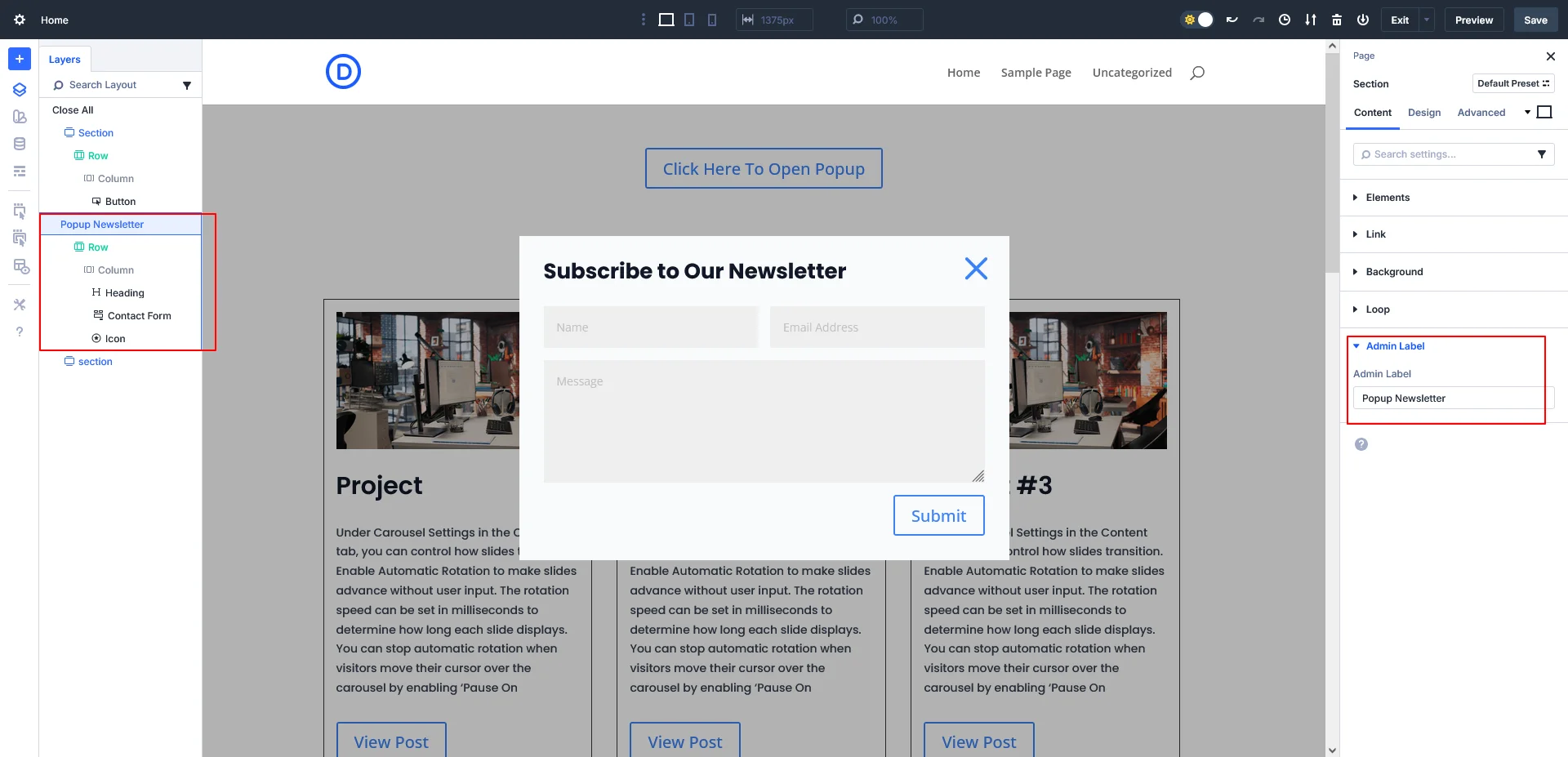
Add an Admin Label
Go to: Section Settings → Advanced → Admin Label
Set: Popup Newsletter
This makes it easy to target the section later using interactions.
Step 2: Position the Popup Properly
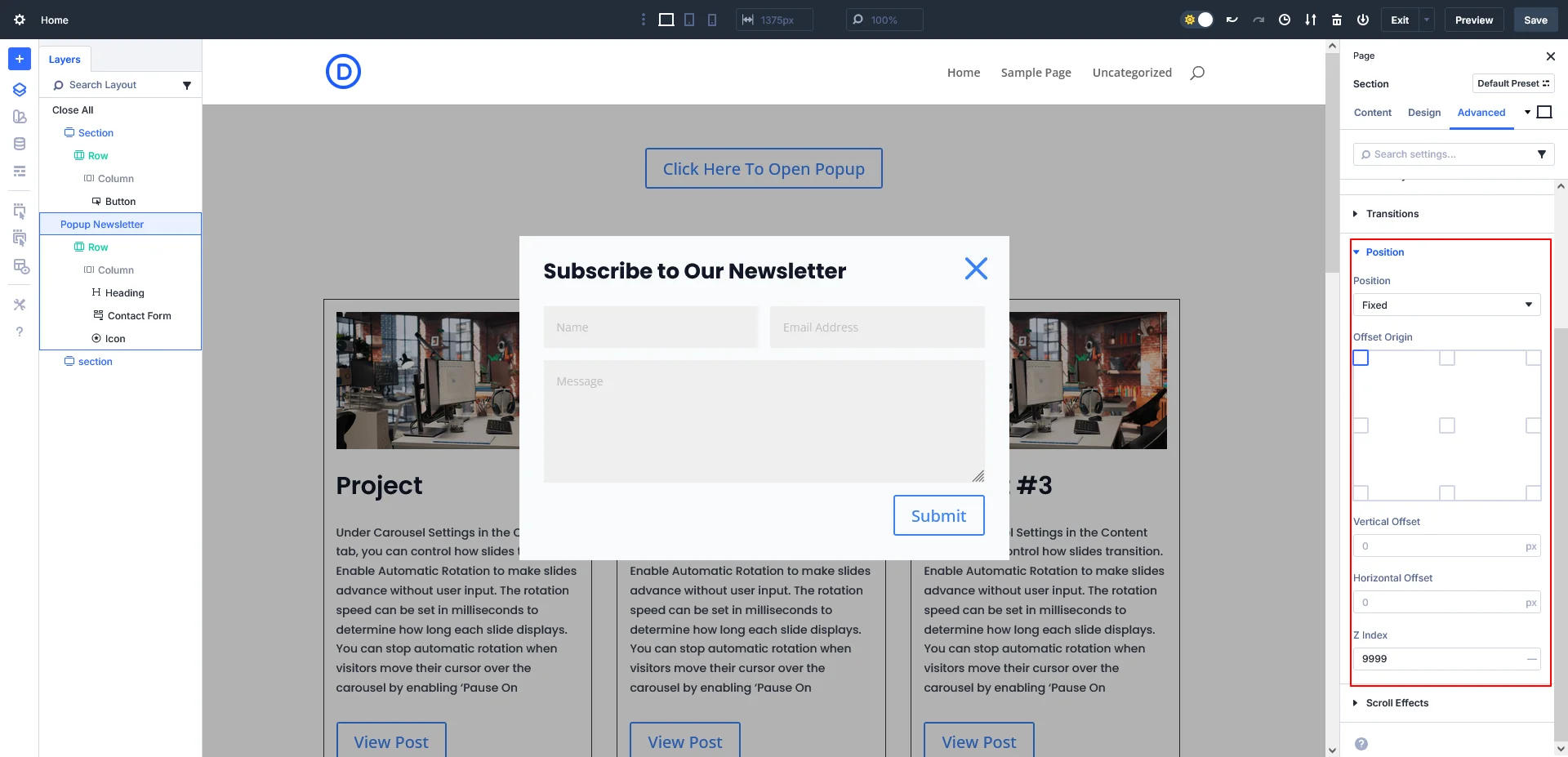
Go to: Section Settings → Advanced → Position
Set the following:
- Position: Fixed
- Z-Index: 99
This ensures the popup:
- Stays on top of all content
- Remains visible even while scrolling
Now style the popup:
- Add background color or gradient
- Rounded corners
- Box shadow
- Center alignment (top/left 50% with transform if needed)
Step 3: Hide the Popup by Default
To prevent the popup from showing on page load:
Go to: Section Settings → Advanced → Visibility
Disable visibility on:
- Desktop
- Tablet
- Phone
This keeps the popup hidden until triggered by an interaction.
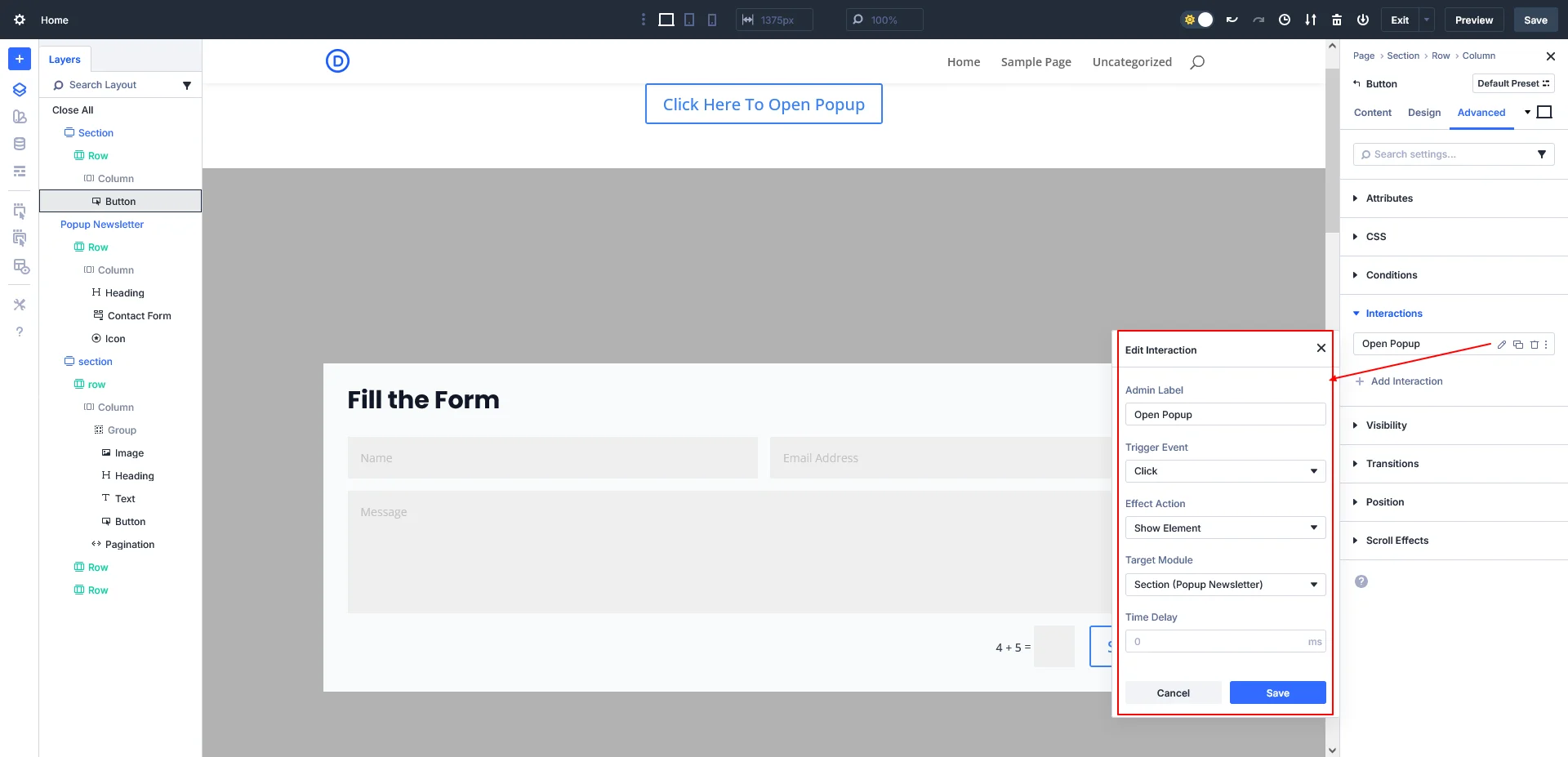
Step 4: Create the “Open Popup” Button
- Add a Button module (or any clickable element)
- Open: Button Settings → Advanced → Interactions
Configure Interaction:
- Admin Label: Open Popup
- Trigger Event: Click
- Element Action: Show Element
- Target Module: Section → Popup Newsletter
Save changes.
Now, clicking this button will show the popup section instantly.
Step 5: Create the “Close Popup” Action
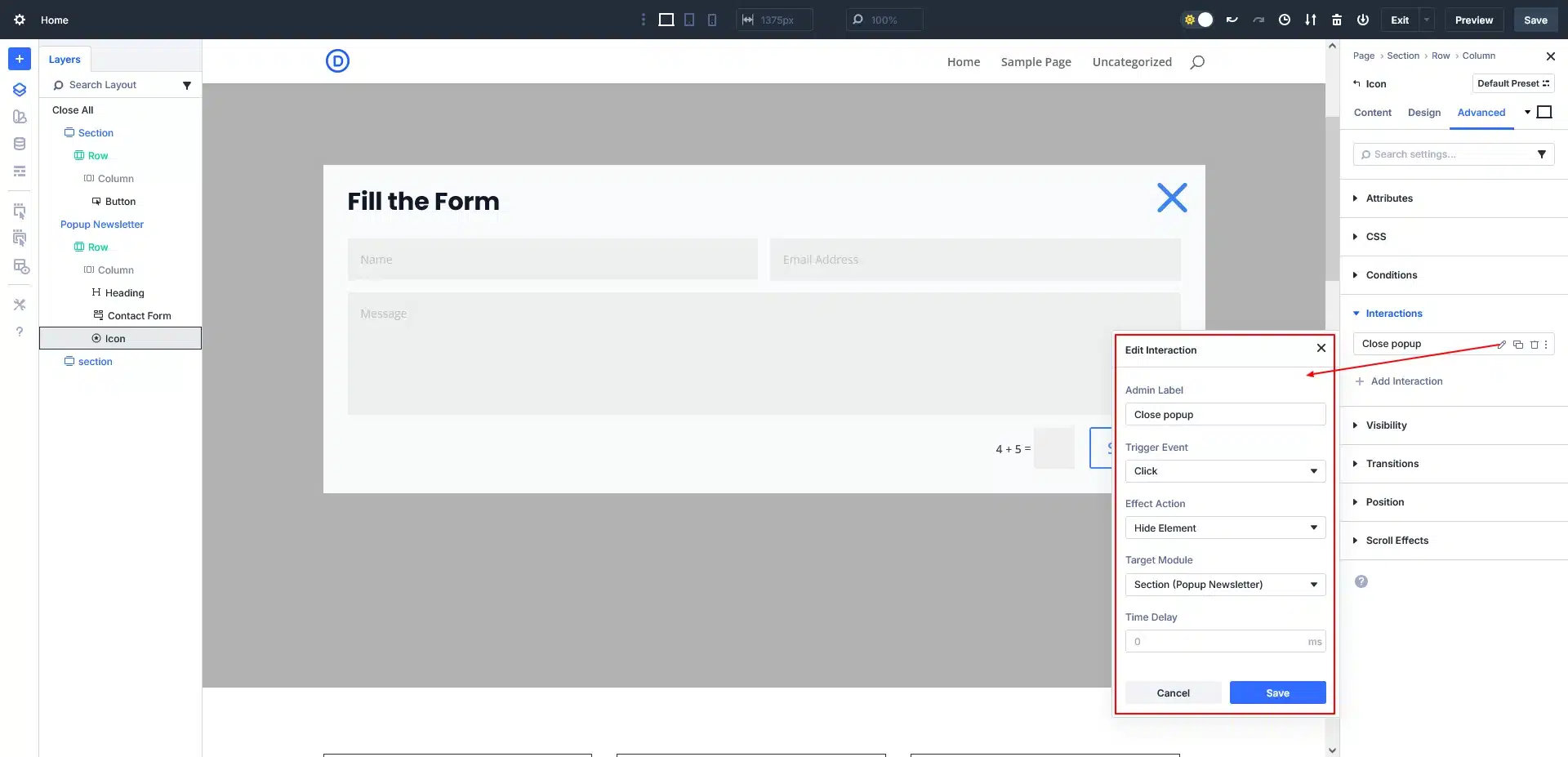
Select the close icon or button inside the popup.
Go to: Module Settings → Advanced → Interactions
Configure Interaction:
- Admin Label: Close Popup
- Trigger Event: Click
- Element Action: Hide Element
- Target Module: Section → Popup Newsletter
Save.
Clicking the close icon will now hide the popup smoothly.
Step 6: Test Your Popup
Before publishing:
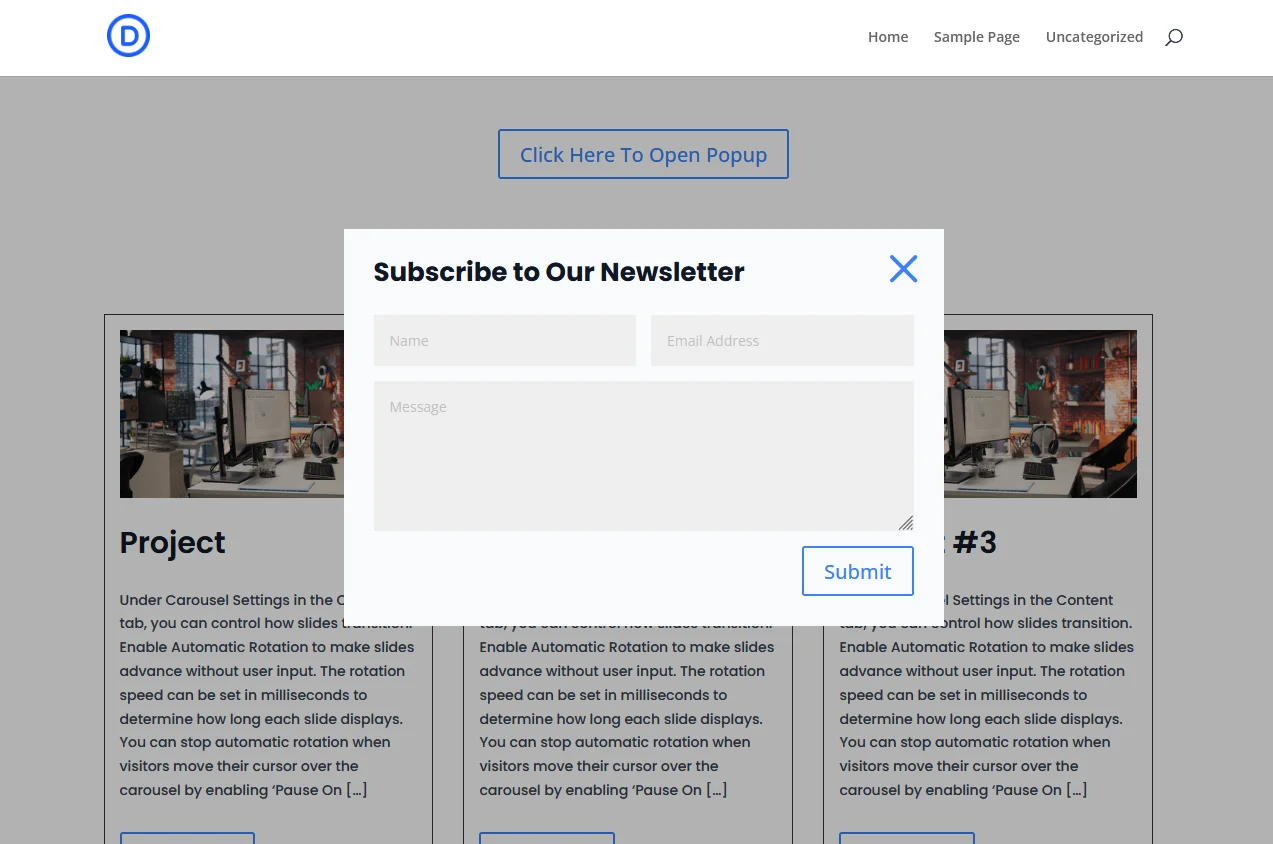
- Click the open button → popup should appear
- Click the close icon → popup should disappear
- Test on desktop, tablet, and mobile
Your plugin-free Divi 5 popup is now live
What You Can Build With This Method
Using the same technique, you can create:
- Newsletter popups
- Login/register popups
- Contact form popups
- Exit-intent style popups (with scroll interactions)
- Promotional banners
- Cookie notices
All without installing a single popup plugin.
Want custom WordPress features like smart popups without plugin bloat? Request a WordPress quote and let our expert team build performance-focused solutions tailored to your business.