Table of Contents
Consistent spacing is one of the most important parts of professional web design. Proper section padding — especially left and right spacing based on device width — improves readability, user interaction, and overall design balance.
In many other theme builders, if you want the same spacing across multiple sections or site-wide, you must manually add padding and margins to each section. And if you later decide to adjust spacing? You have to update every section one by one.
Thankfully, Divi 5 solves this problem with Number Variables and Presets.
In this guide, I’ll show you how to set up global spacing in Divi 5 the smart way.
Step 1: Create Global Spacing Variables
First, we create reusable spacing variables.
How to Create Number Variables
- Edit any page with Divi 5
- Go to Variables
- Click Number Variable
- Create spacing variables based on your breakpoints
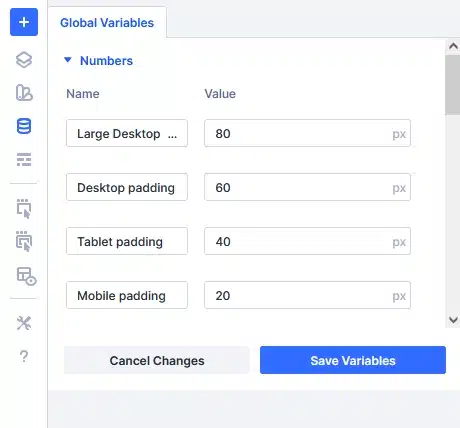
For example, I created these:
- Large Desktop Padding = 80px
- Desktop Padding = 60px
- Tablet Padding = 40px
- Mobile Padding = 20px
After creating them, click Save Variables.
Now your spacing values are stored globally and can be reused anywhere on the site.
Step 2: Apply Variables to a Section
Now let’s apply these variables to a section and make them global.
- Create or edit any section
- Go to Design → Spacing
- Open Padding
- Click the Responsive icon (hover over the Padding label to see it)
You’ll now see padding controls for different breakpoints.
Assign Your Number Variables
Hover over the padding input field (Top/Bottom or Left/Right).
You will see the Dynamic Content icon.
Click the icon and select the spacing variable you created.
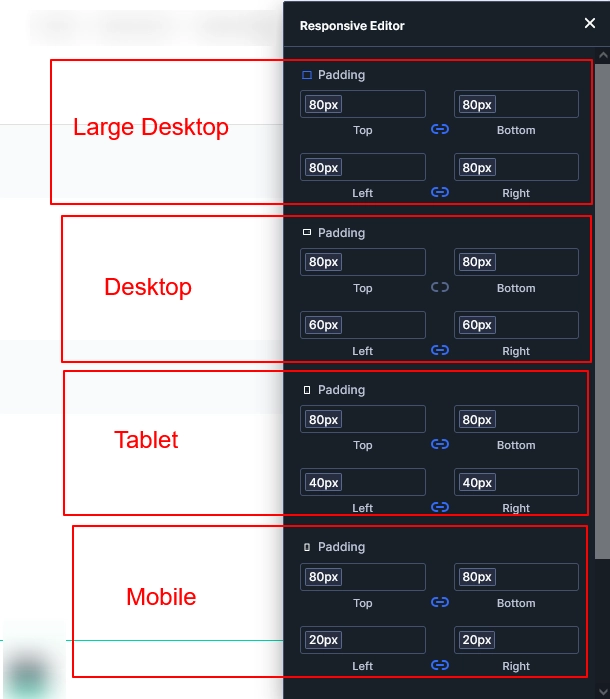
Here’s the setup I use:
Section Top & Bottom Spacing
- 80px on all breakpoints
Section Left & Right Spacing
- Large Desktop → 80px
- Desktop → 60px
- Tablet → 40px
- Mobile → 20px
Your layout will now automatically adjust based on device size.
Test it on the frontend to confirm everything looks correct.
If spacing needs adjustment, simply edit the variable once — and it updates everywhere.
That’s the power of variables.
Step 3: Save as a Global Spacing Preset
Once your spacing is perfect:
- Go to Design → Spacing
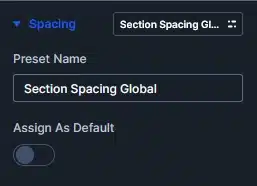
- Click the Preset icon (top right of the Spacing panel)
- Choose Create New Preset From Current Styles
- Give it a name (example: Global Section Spacing)
- Save it
Now you can apply this preset to any section across your entire website with one click.
You can even create multiple spacing presets for different layout styles.
Why This Is Better Than Other Builders
In most theme builders:
- You manually set padding for each section
- Global changes require editing every section
- Maintaining consistency becomes time-consuming
In Divi 5:
- Spacing values are centralized
- One update changes everything
- Design consistency is guaranteed
- Your workflow becomes faster and cleaner
Final Result
Using Divi 5 Number Variables + Presets, you can:
- Maintain perfect spacing consistency
- Save development time
- Easily update spacing site-wide
- Build cleaner, scalable layouts
This method is ideal for professional designers who want a structured, system-based design approach instead of manual styling everywhere.
If you want expert help implementing advanced Divi development techniques or scalable website solutions, consider working with professional web development experts.
Partner with Technocrackers for professional white label WordPress development, custom website design, and performance optimization. Get a free consultation today and build high-performance websites faster.