Table of Contents
- Why Text Styling Matters in Blog Design
- What’s New With Text Styling in Divi 5?
- 7 Ways to Improve Your Blog Layout With Divi 5 Text Styling
- 1. Create Multi-Column Text Layouts
- 2. Add Drop Caps to Create a Strong Opening
- 3. Improve Readability With Paragraph Spacing
- 4. Use Balanced and Pretty Text Wrapping
- 5. Use Hyphenation for Narrow Text Columns
- 6. Add Small Caps for Editorial Details
- 7. Create Unique Headings With Text Direction
- Combine Multiple Text Styles for a Complete Editorial Layout
- Keep Your Blog Design Readable
- Create Better Blog Experiences With Divi 5
A great blog design is about more than choosing the right font and colors. Typography, spacing, text width, headings, and paragraph structure all affect how easily visitors can scan and read your content.
With Divi 5, you get more control over these details directly from the Design tab. New text styling options make it easier to create polished, editorial-style layouts without relying on multiple modules or custom CSS.
In this guide, we’ll explore the key Divi 5 text styling options and show how you can use them to create cleaner, more readable, and more engaging blog layouts.
Why Text Styling Matters in Blog Design
Long-form content can quickly become difficult to read when everything appears as one large block of text.
Readers typically scan a blog before deciding whether to continue reading. Clear headings, comfortable line lengths, proper paragraph spacing, and visual breaks help visitors understand the structure of your content.
Divi 5 gives you more control over these details, allowing you to style different parts of your content independently.
The goal isn’t to make every blog look like a printed magazine. Instead, you can use editorial design techniques to make digital content feel more structured, intentional, and enjoyable to read.
What’s New With Text Styling in Divi 5?
Divi 5 introduces several useful text styling controls within the Design tab.
Depending on the text element you’re working with, you can control options such as:
- Text columns
- Drop caps
- Paragraph spacing
- Line wrapping
- Hyphenation
- Text capitalization
- Small caps
- Text direction
- Stroke positioning
These controls can be applied to different text elements, including body text, headings, links, lists, and blockquotes.
This means you can create a heading with balanced wrapping, use multiple columns for body content, and give a section label a small-caps treatment—all within the same design system.
7 Ways to Improve Your Blog Layout With Divi 5 Text Styling
Let’s look at the most useful text styling options and how they can improve a modern editorial blog layout.
1. Create Multi-Column Text Layouts
One of the easiest ways to give a blog a more editorial appearance is to control the width of your text.
Very long lines can make paragraphs harder to scan because the reader’s eyes have to travel farther from one side of the screen to the other.
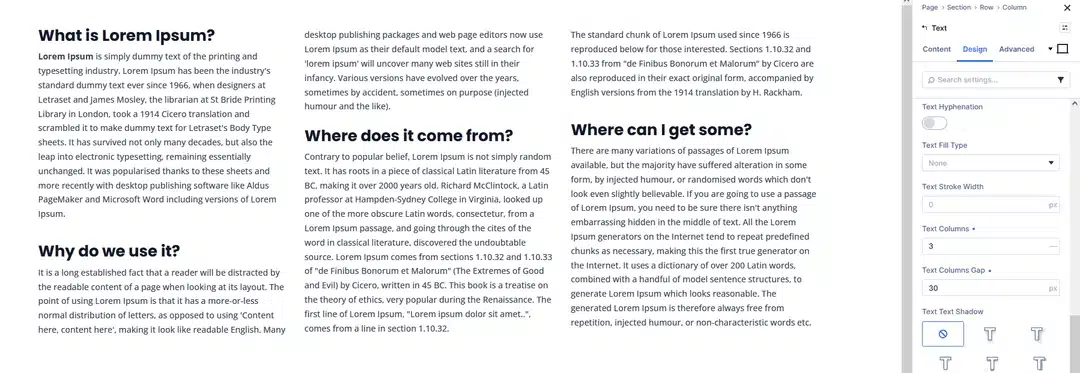
Divi 5 lets you divide text into multiple columns directly from the text settings.
Simply open the relevant text option group and adjust the Text Columns value.
You can also control columns for different content types, including:
- Body text
- Links
- Unordered lists
- Ordered lists
- Heading text
This gives you more flexibility when designing long-form content. For example, your main article text could use two columns while your headings and blockquotes remain full width.
Tip
Use multiple columns carefully on smaller screens. A layout that works well on desktop may become too narrow on mobile, so reduce the column count at responsive breakpoints.
2. Add Drop Caps to Create a Strong Opening
Want your blog introduction to feel more editorial?
Drop caps can give the opening paragraph a distinctive visual treatment by enlarging the first letter.
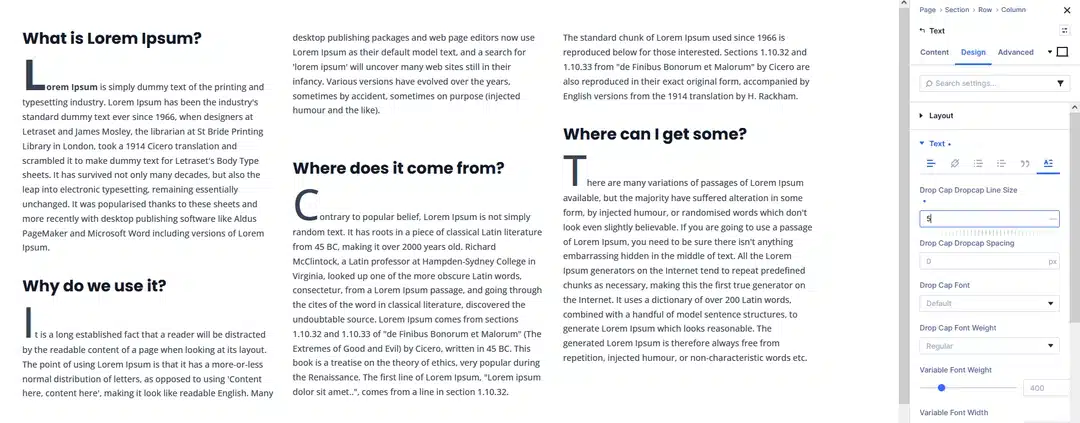
Divi 5 allows you to control the drop cap using the Drop Cap Line Size setting.
You can then customize additional properties such as:
- Drop Cap Spacing
- Font
- Font Weight
- Text Color
- Capitalization
- Font Style
- Text Shadow
A three-line drop cap can be a good starting point for creating a noticeable opening without overpowering the content.
Tip
Don’t use drop caps on every paragraph. They work best as an opening detail for major sections or the beginning of an article.
3. Improve Readability With Paragraph Spacing
Line height and paragraph spacing serve different purposes.
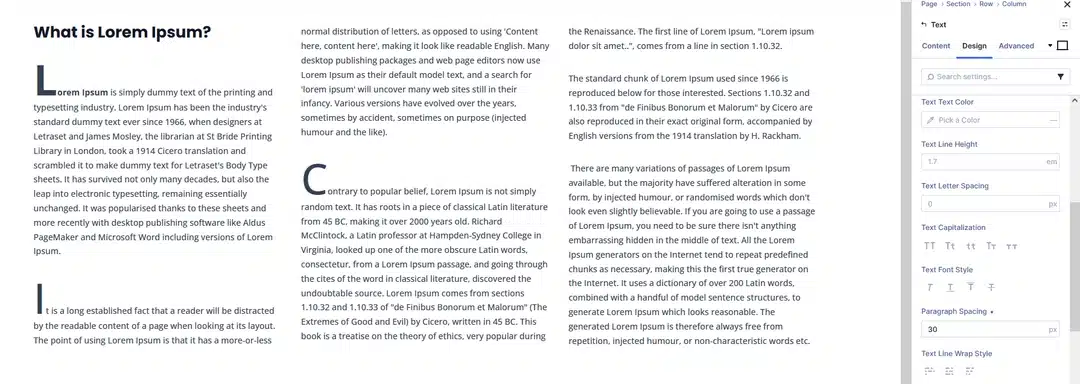
Line height controls the space between individual lines, while paragraph spacing creates separation between different paragraphs.
Divi 5’s Paragraph Spacing control lets you manage this spacing directly within the text content rather than adding external spacing around the entire module.
You can also use different CSS units, including:
- px
- em
- %
- rem
- vw
- vh
- vmin
- vmax
For responsive designs, CSS functions such as clamp() can also help create fluid spacing that adapts to different screen sizes.
Tip
Good paragraph spacing creates natural visual pauses without making the article feel disconnected.
4. Use Balanced and Pretty Text Wrapping
Have you ever designed a beautiful heading only to find that it breaks awkwardly onto another line?
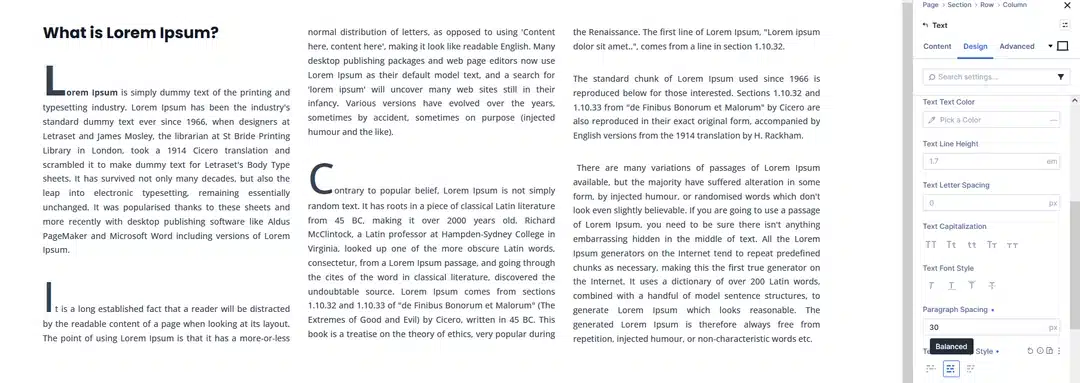
Divi 5 introduces Text Line Wrap Style controls that can help improve how text breaks across lines.
The available options include:
- Default – Uses the browser’s normal wrapping behavior.
- Balanced – Helps distribute shorter text more evenly across lines.
- Pretty – Helps create cleaner endings, particularly in body text.
These controls can be applied independently to headings, body text, links, lists, and blockquotes.
Tip
Try Balanced for headings and Pretty for body copy. This can help create a more polished reading experience without manually inserting line breaks.
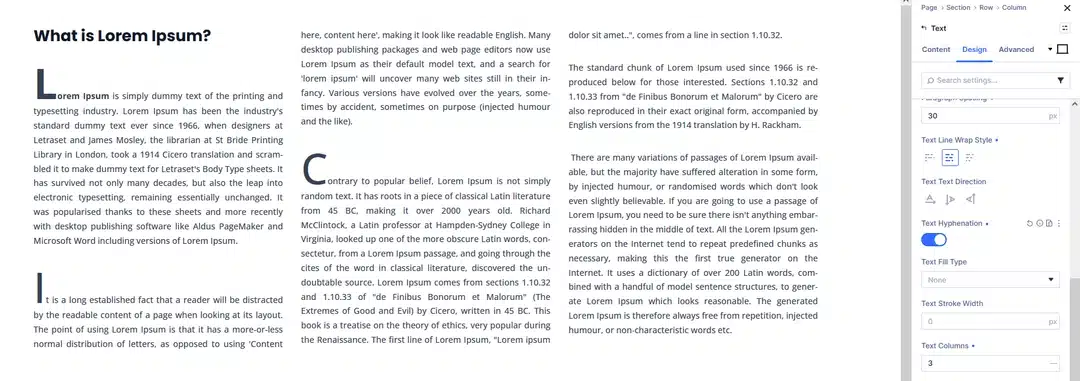
5. Use Hyphenation for Narrow Text Columns
Multi-column layouts can improve readability, but narrower columns can create another problem: long words may not fit naturally.
Divi 5’s Text Hyphenation option can help break longer words at appropriate points instead of creating awkward spacing or overflow.
You can control hyphenation for different text elements, including body text, links, lists, blockquotes, and headings.
Tip
Hyphenation can be useful for body text inside narrow columns. However, you may want to keep it disabled for large headings so your headlines remain visually strong.
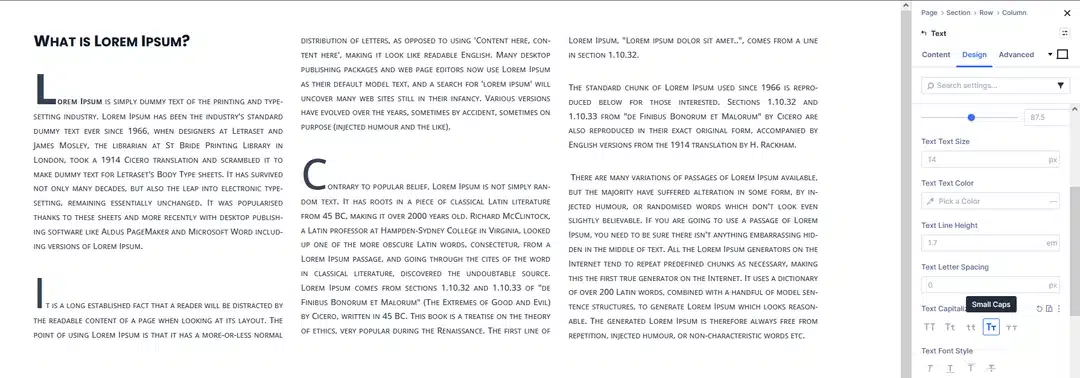
6. Add Small Caps for Editorial Details
Small caps are a simple way to introduce an editorial feel without making an entire line of text fully uppercase.
They’re particularly useful for:
- Section labels
- Author information
- Categories
- Metadata
- Short introductory labels
- Editorial notes
Divi 5 includes several capitalization options, including All Caps, Capitalize, Lowercase, Small Caps, and All Small Caps.
For example, you could use small caps for a category label above your main H1 while keeping the headline itself in normal capitalization.
Tip
Keep small caps short. They are most effective as a supporting design element rather than for large blocks of content.
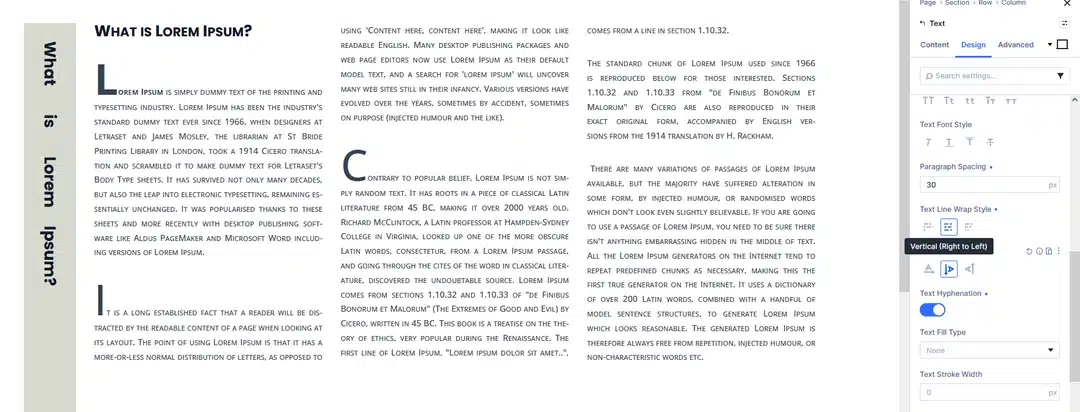
7. Create Unique Headings With Text Direction
Divi 5 also gives designers more creative control with Text Direction.
The available options include:
- Standard Horizontal
- Vertical Right To Left
- Vertical Left To Right
Vertical text can be used for short headings, category labels, dates, side notes, or other supporting content.
This can be especially useful when creating an editorial layout with a large main heading and a smaller vertical label positioned beside it.
Tip
Vertical text is best suited to short pieces of content. Always check the design on smaller screens and consider switching back to horizontal text on mobile.
Combine Multiple Text Styles for a Complete Editorial Layout
The real benefit of Divi 5’s text styling options comes from combining them strategically.
For example, you could create a blog layout with:
- Small caps for the category label
- A balanced H1 for the main title
- Comfortable paragraph spacing
- Two-column body text
- A three-line drop cap for the introduction
- Pretty text wrapping for paragraphs
- A full-width blockquote between sections
Each individual setting is relatively simple, but together they can create a much more refined editorial experience.
Keep Your Blog Design Readable
Editorial styling should always support readability.
Avoid adding effects simply because they’re available. Too many columns, decorative treatments, unusual text directions, or excessive capitalization can make content harder to understand.
Instead, think about each text setting as a tool that solves a specific design problem.
Use columns to control line length.
Use spacing to separate ideas.
Use drop caps to create an entry point.
Use balanced wrapping to improve headings.
Use small caps to create hierarchy.
Use vertical text to add visual structure.
The result is a blog that looks intentional without sacrificing usability.
Create Better Blog Experiences With Divi 5
Divi 5’s expanded text styling controls give designers more freedom to create sophisticated blog layouts using the tools already built into Divi.
You don’t need to recreate an entire magazine layout to benefit from these features. Even small changes—such as improving paragraph spacing, balancing a heading, or narrowing body text into columns—can make a noticeable difference.
By combining typography, spacing, columns, and responsive design thoughtfully, you can turn a standard blog post into a more engaging and comfortable reading experience.
Looking to get more from Divi 5? Explore these text styling options in your next blog project and experiment with different combinations to find a layout that fits your brand and content.