Table of Contents
Divi 5 Workspaces let you customize the Divi Builder interface based on how you work. Instead of using the same builder setup for every task, you can create different workspaces for designing pages, editing content, or managing layouts.
You can customize the available sidebar tools, save your setup as a workspace, update it later, duplicate it, reset it, or delete it when you no longer need it.
In this guide, we’ll show you how to create and manage Divi 5 Workspaces and explain the main Workspace Settings options.
What Are Divi 5 Workspaces?
A Workspace saves your preferred Divi Builder interface settings. It controls which tools and interface options are available while you work.
For example, you could create:
- Design Workspace – for building and styling pages
- Content Workspace – for editing page content
- Development Workspace – for working with layouts and advanced tools
Your workspace settings affect the builder interface, not the actual content or design of your page.
How to Create a Custom Workspace in Divi 5
Creating a workspace is simple.
Step 1: Open Workspace Settings
Open the Divi Builder and click the Workspace option.
Then open Workspace Settings to customize your current builder setup.

Step 2: Customize Your Workspace
Choose the tools and options you want to display in your workspace.
You can enable or disable sidebar icons and other interface settings based on your workflow.
Step 3: Save Your Workspace
After making your changes, save the workspace and give it a name.
For example: Design Workspace
Your customized workspace can now be selected whenever you need it.
Divi 5 Workspace Settings Explained
The Sidebar Icons section lets you control which tools are available in the Divi Builder sidebar.
Here is a quick explanation of the available options:
| Option | What It Does |
|---|---|
| Add Layout | Opens the option to add a new layout, section, row, or module. |
| Layers | Opens the Layers panel to view and manage the page structure. |
| Inspector | Lets you inspect elements and access their settings while working in the builder. |
| Variable Manager | Opens the Variable Manager to create and manage reusable design variables. |
| Preset Manager | Opens the Preset Manager to create and manage reusable presets. |
| Page Manager | Provides access to page-related management options. |
| Command Center | Provides quick access to Divi commands and builder actions. |
| Wireframe View | Switches the builder to a wireframe-style view of the page structure. |
| Action Icons On Hover | Displays action icons when you hover over an element. |
| Parent Action Icons On Hover | Displays action icons for parent elements when hovering over their child elements. |
| X-Ray | Enables X-Ray mode to help visualize the structure of elements on the page. |
| Workspace | Opens Workspace options so you can switch and manage workspaces. |
| Help | Provides access to Divi help and support options. |
| Product Updates | Provides access to Divi product update information. |
| Interface Mode Toggle | Lets you quickly switch between available interface modes. |

You can simply check or uncheck an option depending on which tools you want visible in your workspace.
How to Update a Workspace
You can change your workspace whenever your workflow changes.
First, select your workspace from the Active Workspace dropdown.
Make the necessary changes to your builder settings.
Then:
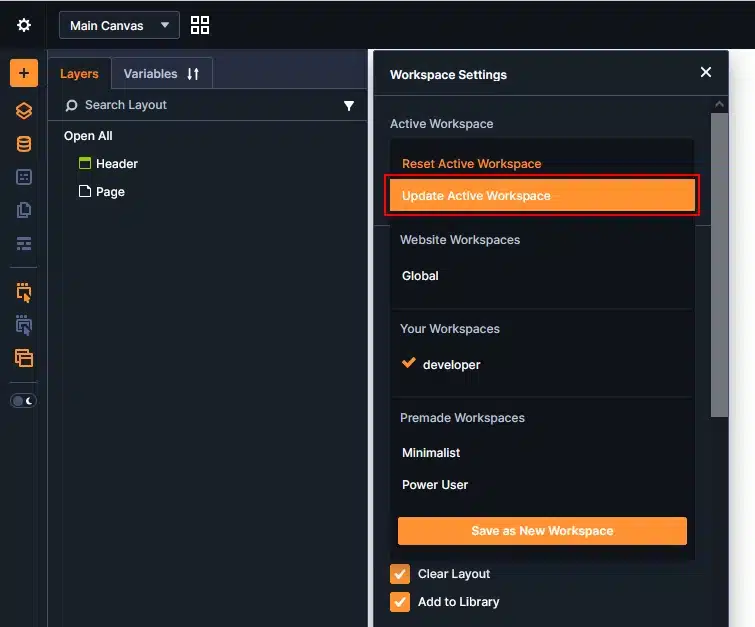
- Open the Active Workspace
- Click Update Active Workspace.
Your latest changes will now be saved to that workspace.
You can also use the workspace controls to manage your saved workspaces, including switching between them and performing available workspace actions.
How to Duplicate a Workspace
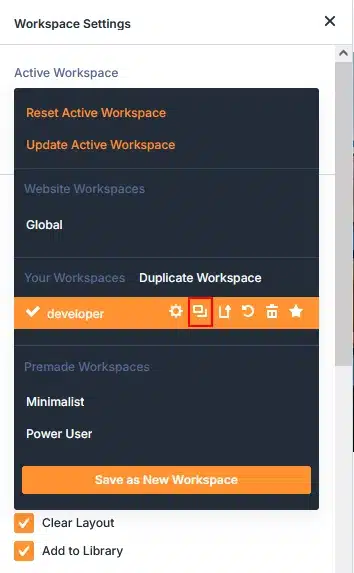
If you already have a workspace that is close to what you need, you don’t have to create one from scratch.
You can duplicate the existing workspace, give the copy a new name, and customize it.
For example:
- Design Workspace
- Design + Development Workspace
- Content Workspace
This is useful when you want to create multiple workspaces with similar settings.
How to Reset a Workspace
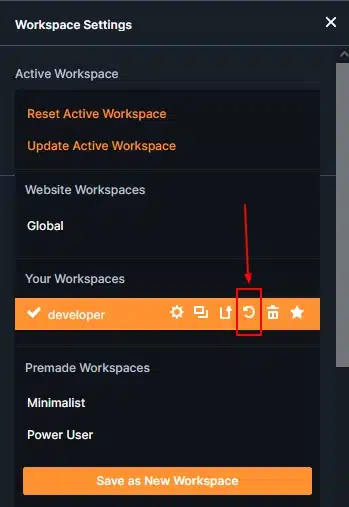
If you have made too many changes and want to return the workspace to its previous/default configuration, you can use the Reset option.
This gives you a quick way to start over without manually changing every setting.
How to Delete a Workspace
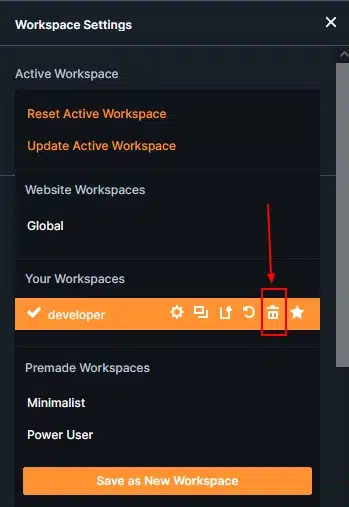
If you no longer need a custom workspace, you can delete it from the Workspace management options.
Select the workspace you want to remove and choose Delete.
Tip: Make sure you are deleting the correct workspace before confirming.
Create Workspaces for Different Tasks
One of the biggest advantages of Divi 5 Workspaces is that you can create different setups for different types of work.
Design Workspace
Keep design-related tools easily accessible when building pages and creating layouts.
Content Workspace
Keep the interface simple when your main task is editing text, images, and page content.
Development Workspace
Keep advanced tools such as Variables, Presets, Layers, Inspector, and Command Center available when working on more complex builds.
You can switch between workspaces depending on what you are working on.
Tips for Using Divi 5 Workspaces
- Keep each workspace focused on a specific task.
- Hide tools you rarely use to keep the interface clean.
- Create a base workspace and duplicate it when you need a similar setup.
- Use descriptive names such as Design, Content, or Development.
- Update your workspace as your workflow changes.
Conclusion
Divi 5 Workspaces make the builder more flexible by allowing you to create an interface that matches your workflow. You can create a custom workspace, customize its available tools, update it, duplicate it, reset it, or delete it whenever needed.
With different workspaces for design, content, and development tasks, you can keep the Divi 5 Builder organized and work with only the tools you need.