Table of Contents
Elementor Atomic Elements makes it easier to build consistent designs by allowing you to create reusable Variables for colors, fonts, and sizes.
Instead of selecting the same color, font, or spacing value every time, you can create a variable once and reuse it across your website. If you later update the variable, the connected elements can use the updated value automatically.
In this guide, we’ll show you how to create and use Color, Font, and Size Variables in Elementor Atomic Elements.
Note: Make sure Elementor Atomic Elements is enabled before creating variables.
What Are Variables in Elementor?
Variables are reusable design values that you can create in Elementor’s Design System.
Elementor provides three types of variables:
- Color – Create reusable color values.
- Font – Create reusable font family values.
- Size – Create reusable size values using units such as PX, %, EM, REM, VW, VH, and CSS functions such as calc() and clamp().
This helps you maintain consistent styling across your website and makes global design changes easier.
How to Create Variables in Elementor Atomic Elements
First, open any page and edit it with Elementor.
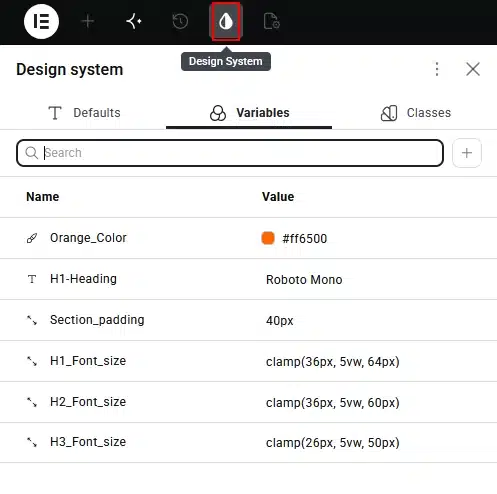
From the top Elementor panel, click the Design System icon.
You will see three tabs:
- Defaults
- Variables
- Classes
Click the Variables tab.
You will now see the option to create variables.
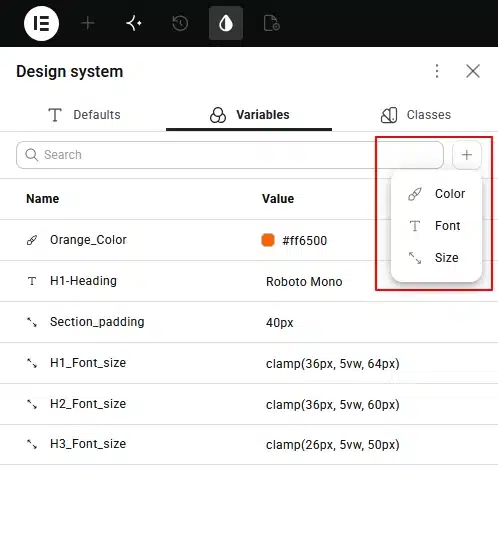
Click the + button to create a new variable.
You will see three options:
- Color
- Font
- Size
1. How to Create a Color Variable
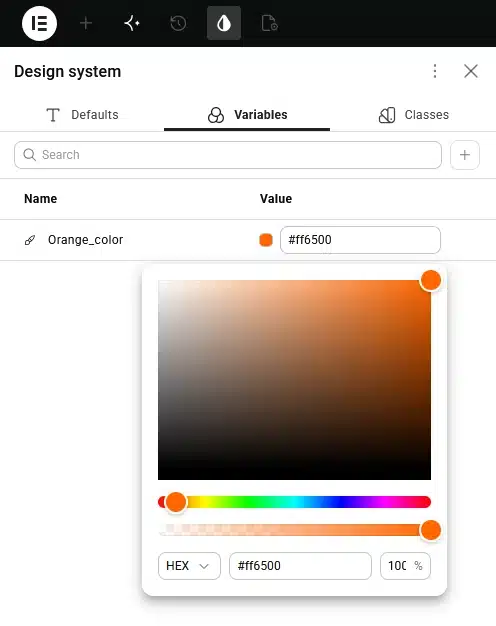
A Color Variable allows you to save a color that you can reuse throughout your website.
For example, you could create:
Name: Orange_Color
Value: #ff6500
Steps to Create a Color Variable
- Go to Design System → Variables.
- Click the + button.
- Select Color.
- Enter a name for your variable.
- Select or enter your color.
- Save the variable.
Your color variable will now be available whenever Elementor provides the Variables option for a color setting.
How to Use a Color Variable
Once you have created a color variable, you can use it on any supported color option.
For example, let’s apply the variable to a container background:
- Select a Container.
- Go to the Style tab.
- Open Background.
- Find the Color option.
- Hover over the color field.
- Click the Variable icon.
- Select your color variable.
Your selected variable will now be applied to the container.
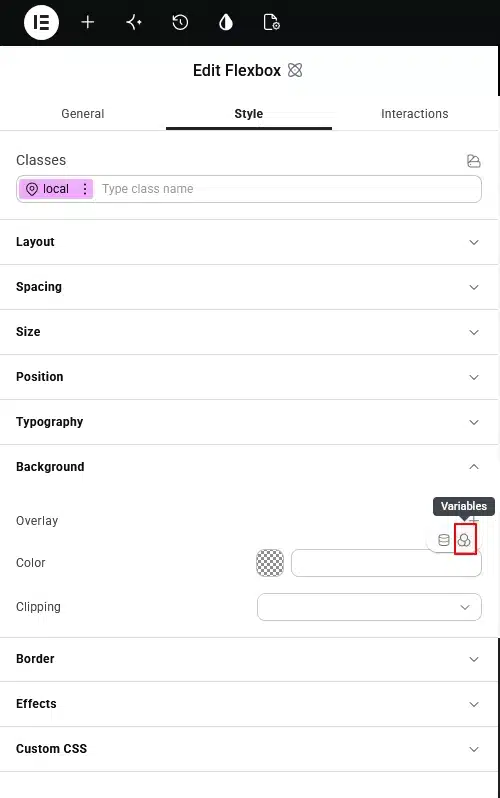
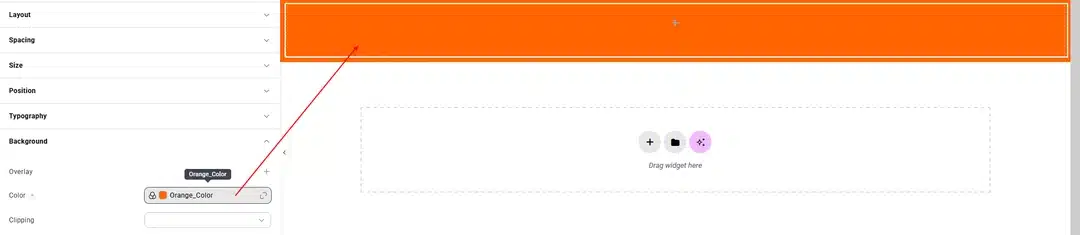
You can use the same color variable for headings, buttons, backgrounds, borders, and other supported color settings.
2. How to Create a Font Variable
A Font Variable allows you to save a font family and reuse it across different elements.
For example:
Name: H1-Heading
Value: Roboto Mono
Steps to Create a Font Variable
- Go to Design System → Variables.
- Click the + button.
- Select Font.
- Enter a name for the variable.
- Select the font family.
- Save the variable.
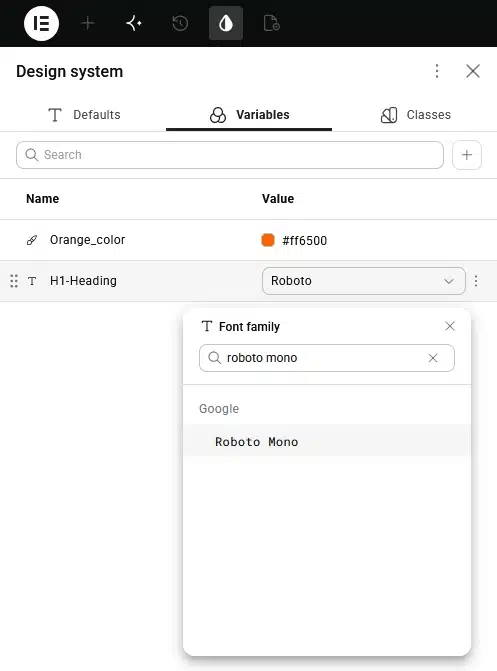
How to Use a Font Variable
You can apply the font variable to supported typography settings.
For example:
- Select a Heading element.
- Go to the Style tab.
- Open Typography.
- Find the Font Family option.
- Click the Variable icon.
- Select your font variable.
The heading will now use the font stored in the variable.
This is useful when you want to use the same font family across multiple headings or other elements.
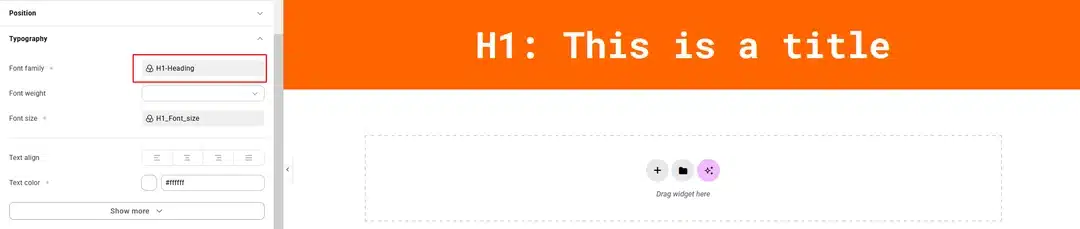
3. How to Create a Size Variable
A Size Variable lets you save reusable values for sizes, spacing, typography, and other supported CSS properties.
You can use different CSS units, including:
- PX – Fixed pixel values
- % – Percentage-based values
- EM – Relative to font size
- REM – Relative to the root font size
- VW – Viewport width
- VH – Viewport height
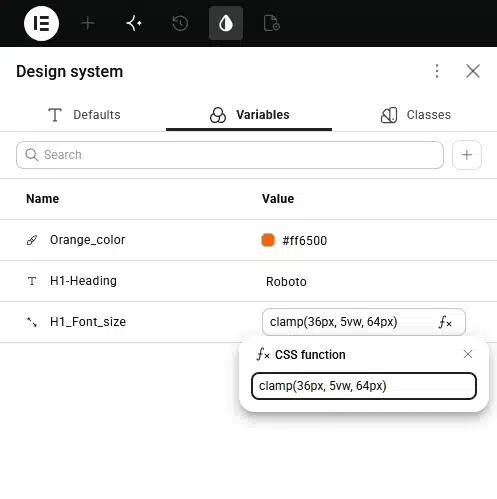
You can also use CSS functions with the FX option, such as:
calc(100% – 40px)
or:
clamp(36px, 5vw, 64px)
Example Size Variables
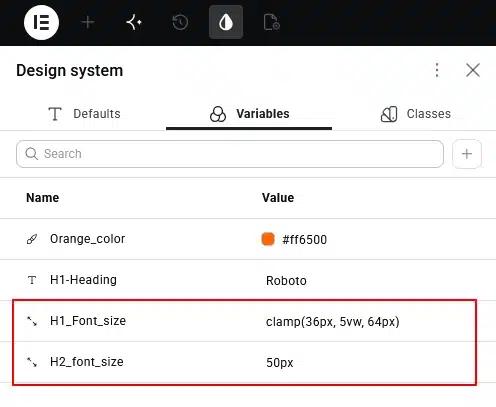
You could create variables such as:
| Variable | Value |
|---|---|
| Section_padding | 40px |
| H1_Font_size | clamp(36px, 5vw, 64px) |
| H2_Font_size | clamp(36px, 5vw, 60px) |
| H3_Font_size | clamp(26px, 5vw, 50px) |
How to Use a Size Variable
Once you create a size variable, you can use it wherever Elementor provides the Variables option for a size-related property.
For example, you can apply a size variable to:
- Padding
- Margin
- Font size
- Width
- Height
- Gap
- Other supported size properties
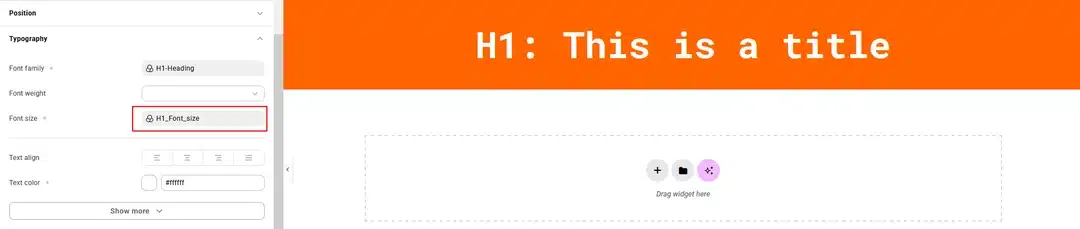
Example: Applying a Size Variable
- Select an element or container.
- Open the Style or Layout settings.
- Find the size-related property you want to change.
- Click the Variable icon.
- Select your size variable.
The saved value will be applied automatically.
Using Variables for a Consistent Design System
The biggest advantage of Variables is that you can create a small set of reusable design values and use them throughout your website.
For example, you could create:
Colors
- Primary_Color
- Secondary_Color
- Orange_Color
Fonts
- Heading_Font
- Body_Font
Sizes
- Section_Padding
- H1_Font_Size
- H2_Font_Size
- H3_Font_Size
Then, instead of manually entering values for every element, you can select the appropriate variable.
Why Use Variables in Elementor?
Elementor Variables can make your design workflow more consistent and easier to manage.
Maintain Consistency
Use the same colors, fonts, and sizes across different elements.
Make Global Changes Easier
If you need to change a reusable design value, you can update the variable instead of manually changing every individual setting.
Create Responsive Values
Size Variables can use responsive units and CSS functions such as clamp() to create fluid values.
Save Time
Create a variable once and reuse it wherever needed.
Final Thoughts
Elementor Atomic Elements Variables provide a simple way to create reusable design values for your website.
You can create three main types of variables:
- Color Variables for reusable colors
- Font Variables for reusable font families
- Size Variables for reusable CSS size values
With Size Variables, you can also use units such as PX, %, EM, REM, VW, and VH, along with CSS functions such as calc() and clamp().
By combining these variables with Elementor’s Atomic Elements, you can create a more consistent and flexible design system while reducing repetitive styling work.