Table of Contents
Elementor Editor V4 introduces a major upgrade in how styles and layouts are handled. Instead of relying heavily on scattered settings and custom CSS, V4 moves toward a more structured, CSS-based design system.
The most powerful additions in Elementor Editor V4 include:
- Transitions
- Transform Controls
- Size Variables
Let’s explore what’s new and how you can use these features inside Elementor Editor V4.
Transitions – Smoother, More Professional Animations
What Are Transitions?
Transitions allow elements to smoothly change from one state to another — such as hover effects, color shifts, scaling, or movement.
Previously, adding advanced transitions often required custom CSS. Now, Elementor gives you direct control inside the editor.
What You Can Control:
- Duration (speed of animation)
- Timing functions (ease, linear, etc.)
- Property-specific transitions
- Add Multiple Transitions for any css properties
Why It Matters
- Creates a more interactive user experience
- Makes buttons and UI elements feel responsive
- Reduces dependency on custom CSS
- Improves consistency across the design
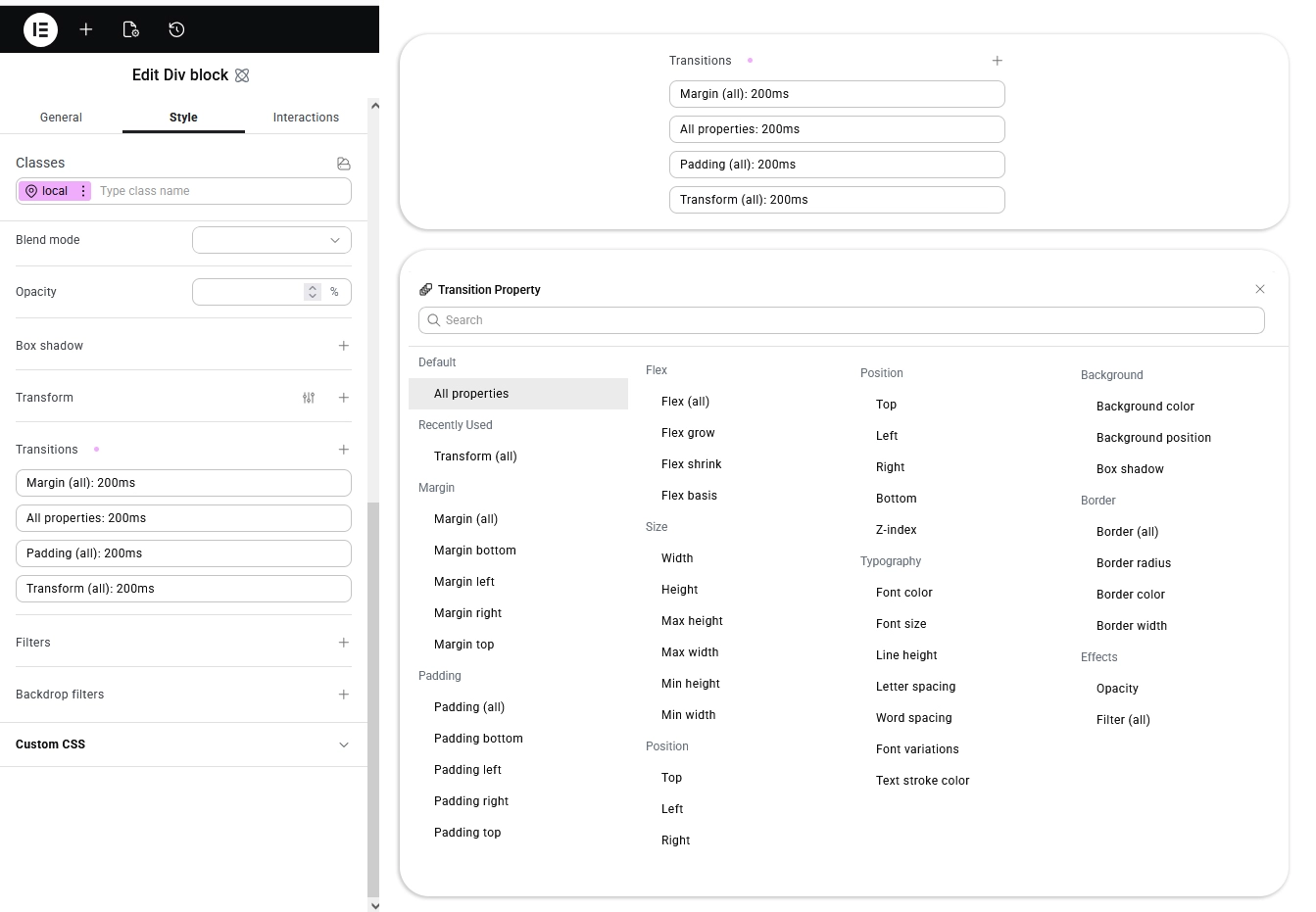
How to Use Transitions in Elementor
- Edit any widget (Button, Image, Container, Heading, etc.)
- Go to the Style Tab > Effects
- Click on Transition
- Add Transition properties like:
- Duration (e.g., 0.3s)
- Transition type Specific CSS properties (background-color, transform, opacity, etc.)
You can even add multiple transitions for different CSS properties.
Transform – Advanced Visual Effects Without Code
What Is Transform?
The Transform feature allows you to visually manipulate elements by:
- Scaling
- Rotating
- Skewing
- Translating (moving on X and Y axis)
All without writing a single line of CSS.
Why This Is Powerful
Transform opens up modern design possibilities like:
- Dynamic card hover effects
- Tilted background elements
- Floating image layouts
- Creative hero sections
Previously, these effects required manual CSS transforms. Now, everything is accessible directly inside Elementor’s visual controls.
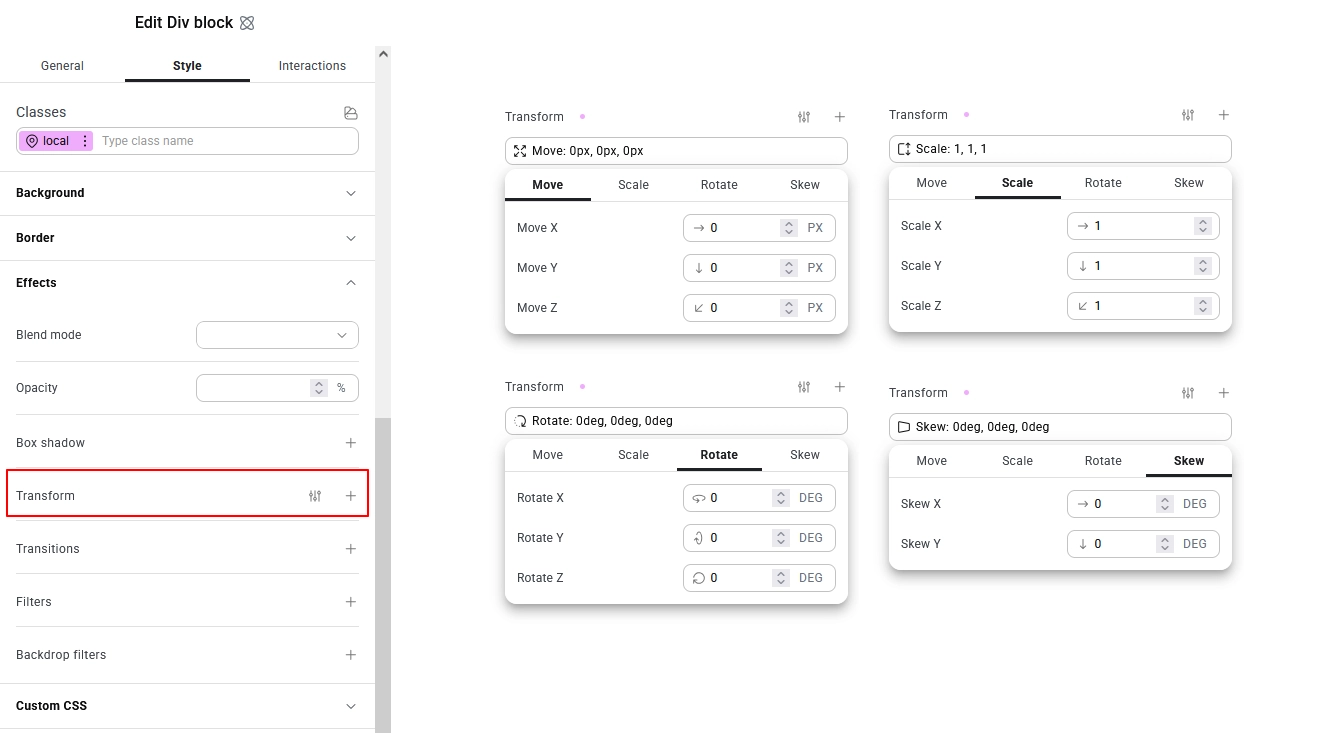
How to Use Transform in Elementor
- Select the widget or container
- Go to Style Tab > Effects
- Open Transform
- Choose:
- Normal State or Hover State
- Adjust:
- Rotate
- Scale
- Offset (X/Y movement)
- Skew
You can apply different transform values for hover to create interactive effects.
Size Variables – Smarter, Consistent Spacing & Layout Control
What Are Size Variables?
Size Variables allow you to define reusable spacing values (like padding, margin, gap sizes) globally and apply them across your website.
Instead of manually entering pixel values everywhere, you can define structured spacing rules.
Benefits:
- Consistent design system
- Faster development workflow
- Easier future updates
- Cleaner and scalable layouts
For example:
- Small spacing = 8px
- Medium spacing = 16px
- Large spacing = 32px
Update once → changes reflect everywhere.
This brings Elementor closer to professional design systems used in large-scale web applications.
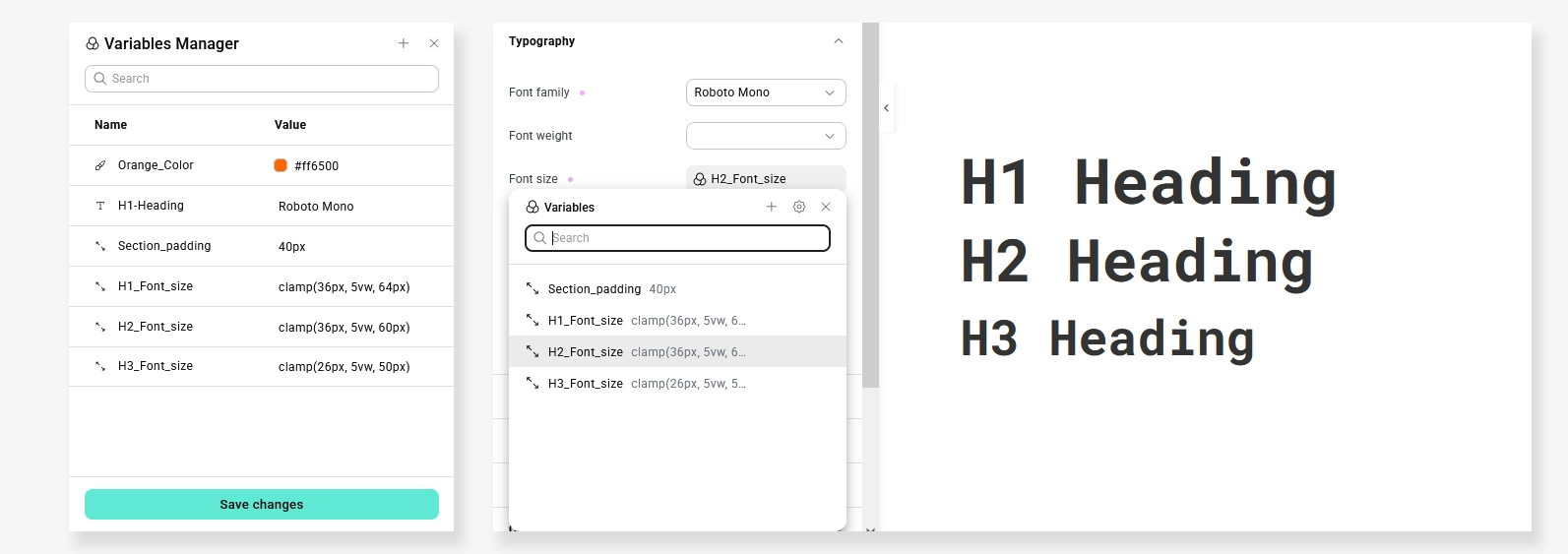
How to Use Size Variables in Elementor Editor V4
Elementor V4 makes it very easy to create and apply Size Variables directly from the editor. Follow these steps:
- Edit Any Page in Elementor
Open the page using Elementor Editor V4. - Select the Element
Click on any widget or container where you want to adjust spacing or typography (padding, margin, gap, font-size, etc.). - Hover Over a Size Field
When you hover over a size-related field (such as padding, margin, or font-size), you’ll see a Variable icon next to the input field. - Click the Variable Icon
Click the icon to:- Select an existing Size Variable
- Or create a new one
- Create Size Variables
You can define structured spacing values such as:- XS → 4px
- S → 8px
- M → 16px
- L → 32px
- Apply the Variable
Instead of manually entering pixel values, select your created variable from the list.
Why This Is Powerful
If you later update the “M” variable from 16px to 20px, every element using that variable across the entire website will update automatically.
This ensures:
- Consistent spacing
- Faster global design updates
- A scalable and maintainable design system
Size Variables in Elementor V4 help you build websites the way professional front-end systems work — structured, consistent, and future-ready.
Why These Features Matter for Businesses
These updates aren’t just visual improvements — they impact:
Performance
Less custom CSS and third-party animation plugins.
Maintainability
Structured variables mean easier updates later.
Modern UI/UX
Smooth transitions and transforms align with current design trends.
Faster Development
Developers can build advanced layouts directly within Elementor.
Real-World Impact on Client Websites
At our IT company, we focus on creating websites that are:
- Visually engaging
- Performance-optimized
- Scalable
- Easy to maintain
With these new Elementor capabilities, we can now deliver:
- Cleaner animations
- Better interactive experiences
- Consistent design systems
- Faster project turnaround
Final Thoughts
Elementor’s new Transitions, Transform, and Size Variables features represent a major step forward in visual design control and workflow optimization.
Whether you’re a business owner looking for a modern website or a developer aiming to streamline production, these tools help build better WordPress websites — without increasing complexity.
If you’re planning to upgrade your site or build a new one using Elementor, now is the perfect time to leverage these powerful improvements.
Take Your WordPress Website to the Next Level
At TechnoCrackers, we specialize in WordPress development, Elementor customization, performance optimization, and scalable website architecture for businesses and agencies.
Book a Free Consultation and let’s turn your website idea into a high-performing digital experience.