Table of Contents
- What Is the Divi 5 Gravity Forms Module?
- Why Use the Gravity Forms Module in Divi 5?
- How to Add a Gravity Form in Divi 5
- Step 1: Create Your Form in Gravity Forms
- Step 2: Add the Gravity Form Module
- Step 3: Select Your Form
- Step 4: Customize the Design
- Customize Every Part of Your Form
- No Need to Style the Form Separately
- Final Thoughts
Creating forms in WordPress is easy with the right form builder, but making those forms match the design of your website can often require additional CSS or custom development.
With Divi 5’s new Gravity Forms Module, you can now bring your existing Gravity Forms directly into the Divi Visual Builder and customize their appearance using Divi’s built-in design settings.
Instead of styling your Gravity Forms separately, you can select a form, place it anywhere on your page, and customize everything from labels and inputs to buttons, validation messages, spacing, borders, and more.
In this guide, we’ll explore how the Divi 5 Gravity Forms Module works and how you can use it to create beautifully styled forms without relying heavily on custom CSS.
What Is the Divi 5 Gravity Forms Module?
The Gravity Forms Module is a new Divi 5 module that allows you to display and customize forms created with the Gravity Forms plugin.
Once you have Gravity Forms installed and have created your form, you can simply add the Gravity Form Module to your Divi page and select the form you want to display.
From there, Divi gives you a wide range of design controls to customize the form directly inside the Divi Builder.
This makes it easier to keep your forms visually consistent with the rest of your website.
Why Use the Gravity Forms Module in Divi 5?
Normally, Gravity Forms handles the form functionality while your WordPress theme or custom CSS handles the styling.
Divi 5 brings these two parts together.
With the Gravity Forms Module, you can:
- Select an existing Gravity Form
- Place the form anywhere within your Divi layout
- Customize form typography
- Style labels and sub-labels
- Customize input fields
- Style checkboxes and radio buttons
- Customize image choices
- Style section headings and descriptions
- Customize required markers
- Design submit and navigation buttons
- Customize validation and confirmation messages
- Adjust spacing, sizing, borders, and shadows
- Apply Divi effects such as transforms and animations
This gives you much more control over the appearance of your forms directly from the Divi interface.
How to Add a Gravity Form in Divi 5
Adding a Gravity Form to your Divi page is straightforward.
Step 1: Create Your Form in Gravity Forms
First, create your form using the Gravity Forms plugin.
You can build any type of form you need, such as:
- Contact forms
- Quote request forms
- Registration forms
- Lead generation forms
- Survey forms
- Application forms
- Event registration forms
- Support forms
Once the form is ready, you can add it to your Divi page.
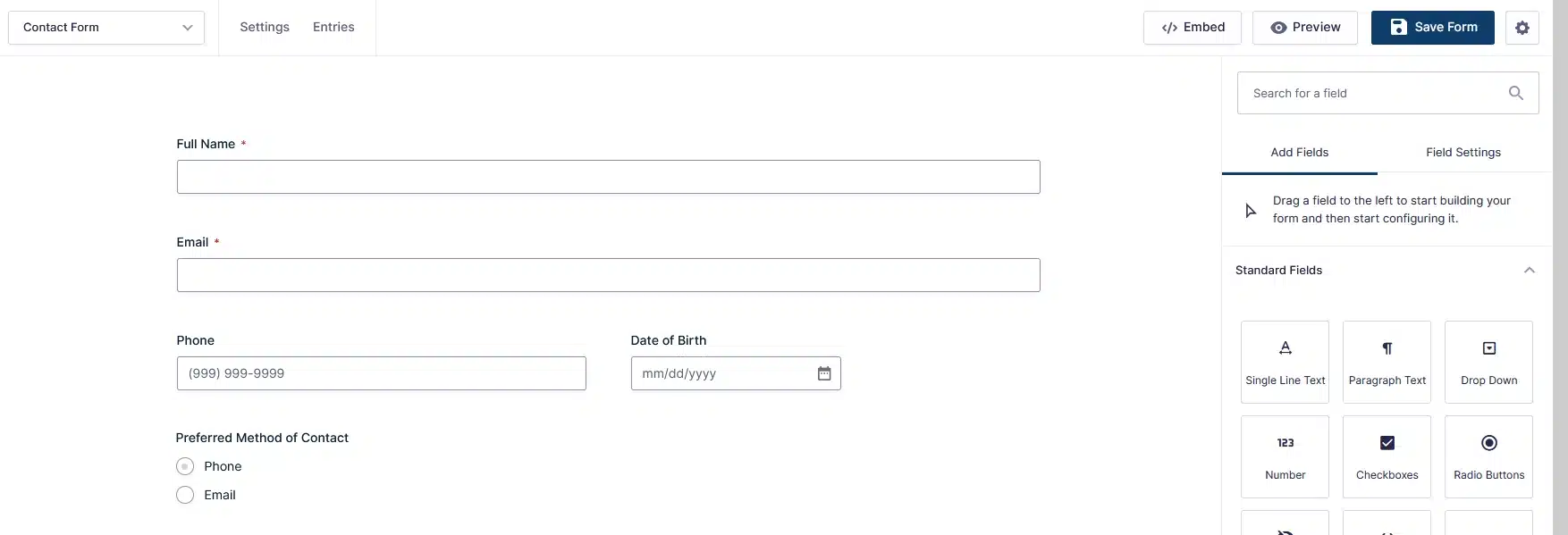
Step 2: Add the Gravity Form Module
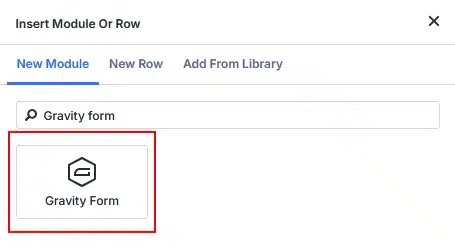
Open the page with the Divi 5 Visual Builder and add a new module.
Search for Gravity Form and add the module to your desired row or column.
Step 3: Select Your Form
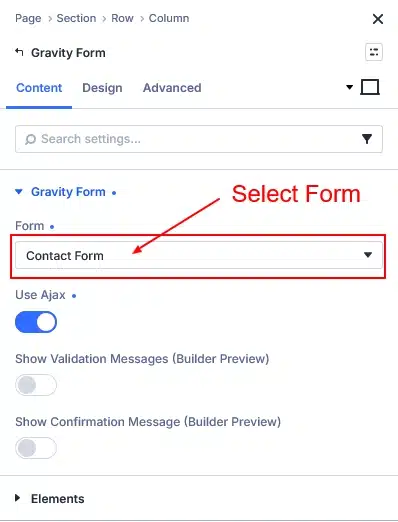
Inside the module settings, choose the Gravity Form you want to display.
The selected form will then appear within your Divi layout.
Step 4: Customize the Design
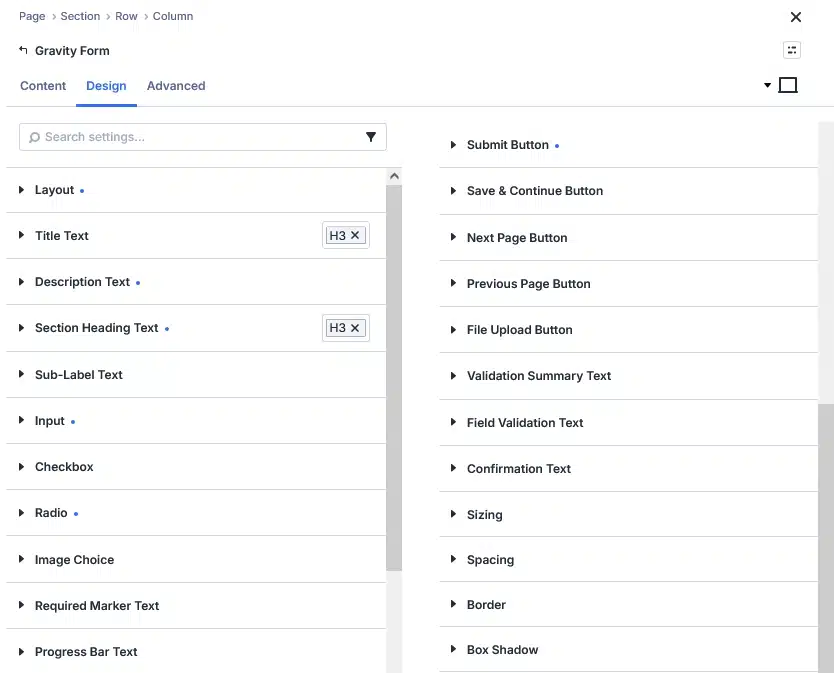
Now you can open the Design tab and customize the appearance of the form.
This is where Divi 5 makes the module especially useful.
Customize Every Part of Your Form
Divi 5 gives you dedicated design controls for almost every part of your Gravity Form. Open the Design tab to customize:
- Title & Description Text
- Section Heading & Sub-Label Text
- Input Fields
- Checkboxes & Radio Buttons
- Image Choices
- Required Marker Text
- Submit, Next, Previous & Save & Continue Buttons
- Validation & Confirmation Messages
You can adjust typography, colors, backgrounds, borders, spacing, sizing, and more to match your website design.
More Design Controls for Complete Customization
Divi 5 also provides additional controls such as Sizing, Spacing, Border, Box Shadow, Filters, Transform, and Animation. Use these options to fine-tune your form’s layout and appearance and create a polished, consistent design.
No Need to Style the Form Separately
Before this type of integration, customizing Gravity Forms to match a specific website design could involve custom CSS or additional styling work.
The Divi 5 Gravity Forms Module simplifies that process by bringing many of those controls directly into the Divi Builder.
You can visually adjust the form while working on the page instead of constantly switching between your form settings, theme styles, and custom CSS.
This can make the design workflow faster and easier—especially when building client websites.
Final Thoughts
The new Divi 5 Gravity Forms Module makes it easier to combine the functionality of Gravity Forms with the visual design capabilities of Divi.
You can select an existing Gravity Form, add it anywhere on your page, and customize individual elements including titles, descriptions, section headings, labels, inputs, checkboxes, radio buttons, image choices, required markers, buttons, validation messages, and confirmation messages.
With additional controls for spacing, sizing, borders, shadows, filters, transforms, and animations, you have plenty of flexibility to create forms that look and feel like a natural part of your website.
If you’re already using Gravity Forms and Divi 5, this module provides a much more streamlined way to design and style your forms without depending entirely on custom CSS.
Build your form in Gravity Forms. Design it visually with Divi 5.