Table of Contents
Filtering is useful when your website has a large amount of custom post type content.
For example, a real estate website can allow visitors to filter homes by Bedrooms, Bathrooms, Price, and Square Feet.
With Divi 5, you can connect the Post Filter module to your Loop and use custom fields to create these filters.
In this guide, we’ll create a simple home listing filter using a Projects Custom Post Type, ACF custom fields, a Divi 5 Loop, and the Post Filter module.
1. Create a Custom Post Type
First, create your Custom Post Type.
For this example, we using: Projects
Each Project represents a home listing.
2. Create Taxonomies and Custom Fields
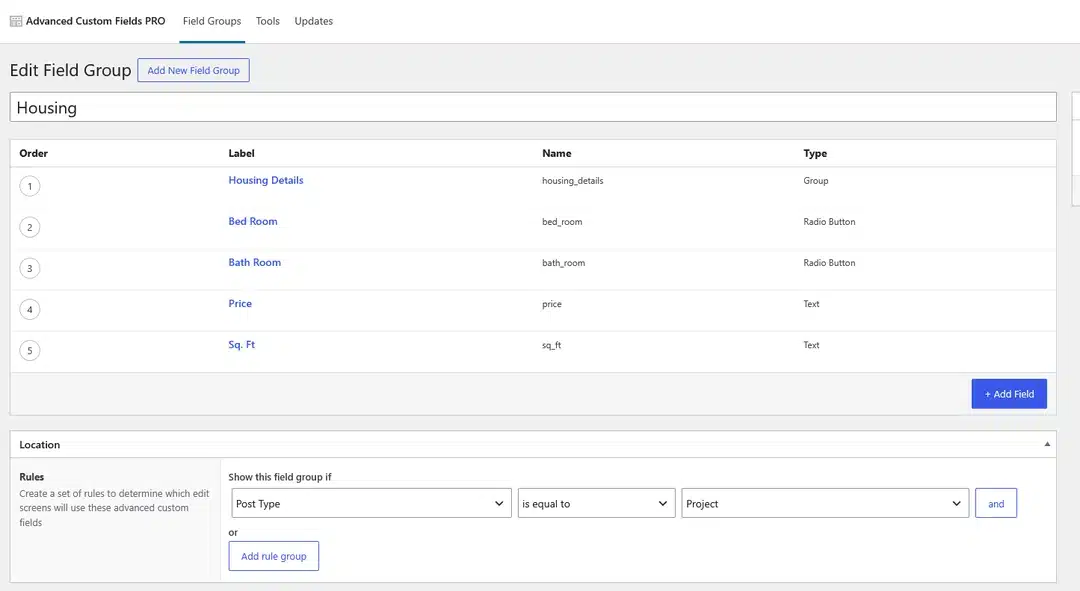
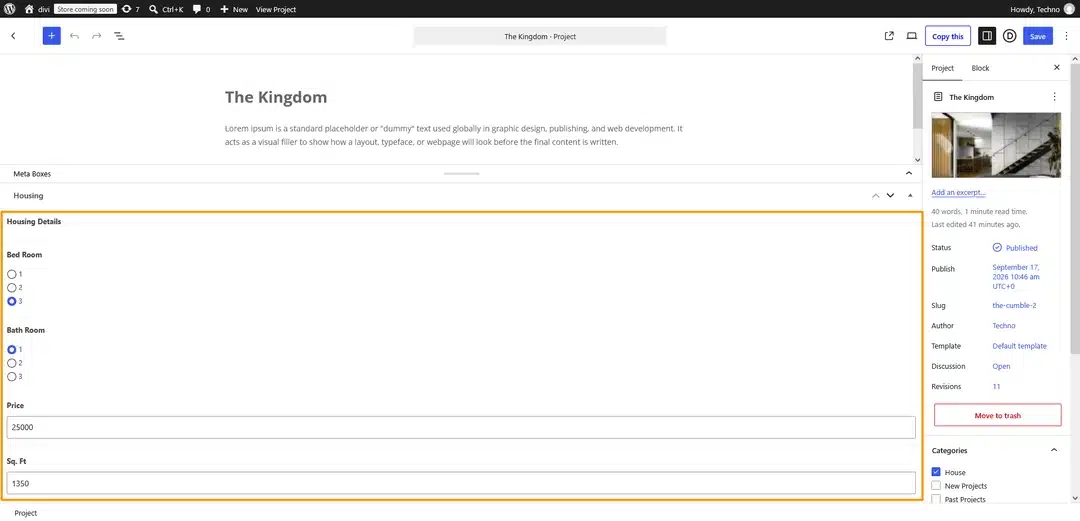
Create the taxonomies and ACF custom fields you need for your Projects.
For our example, we created:
- Bed Room
- Bath Room
- Price
- Sq. Ft.
3. Create Sample Listings
Create a few Projects and add the custom field values for each listing.
For example:
Bed Room: 3
Bath Room: 2
Price: $25,000
Sq. Ft.: 1350
4. Create Your Projects Loop
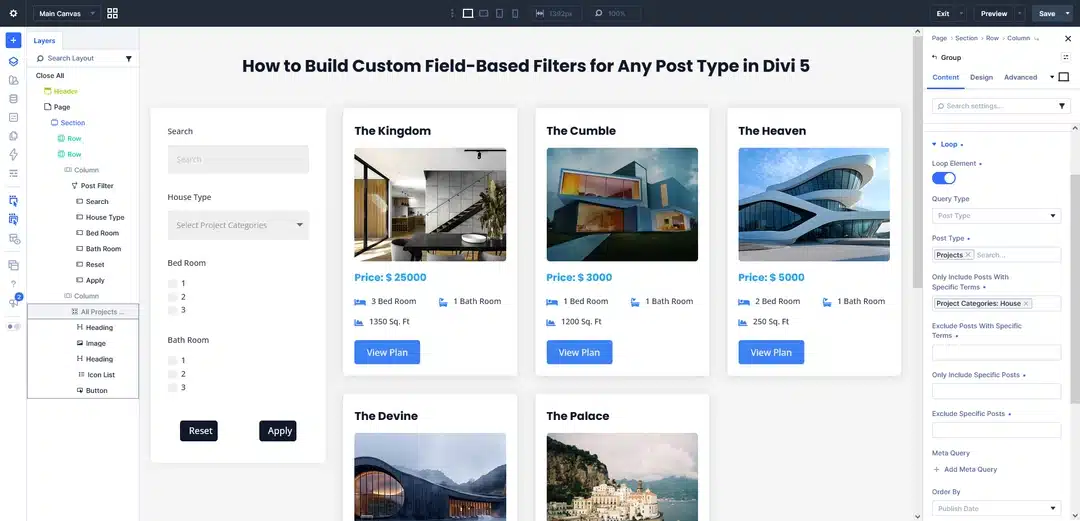
Create a new page and open it with the Divi 5 Visual Builder.
Create a two-column layout:
Left: Post Filter module
Right: Projects Loop
Design your Project card and add the custom field data to the Loop.
For example:
- Price
- Bed Room
- Bath Room
- Sq. Ft.
5. Connect the Post Filter to Your Loop
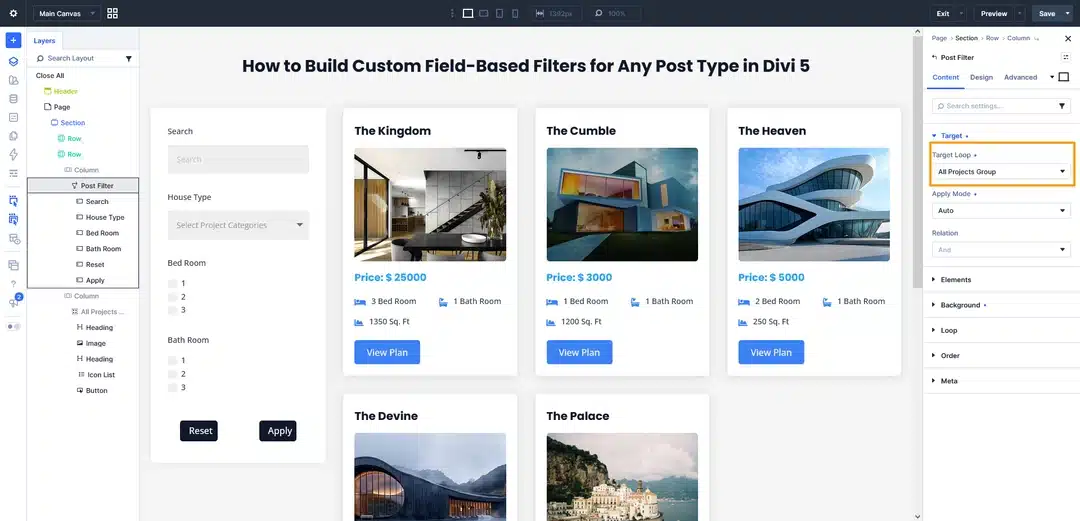
Open the Post Filter module settings.
Under Target Loop, select the Loop Group you created for your Projects.
For example: All Projects Group
Now the Post Filter is connected to your Projects Loop.
6.Add Your Custom Field Filters
Add a Post Filter Item
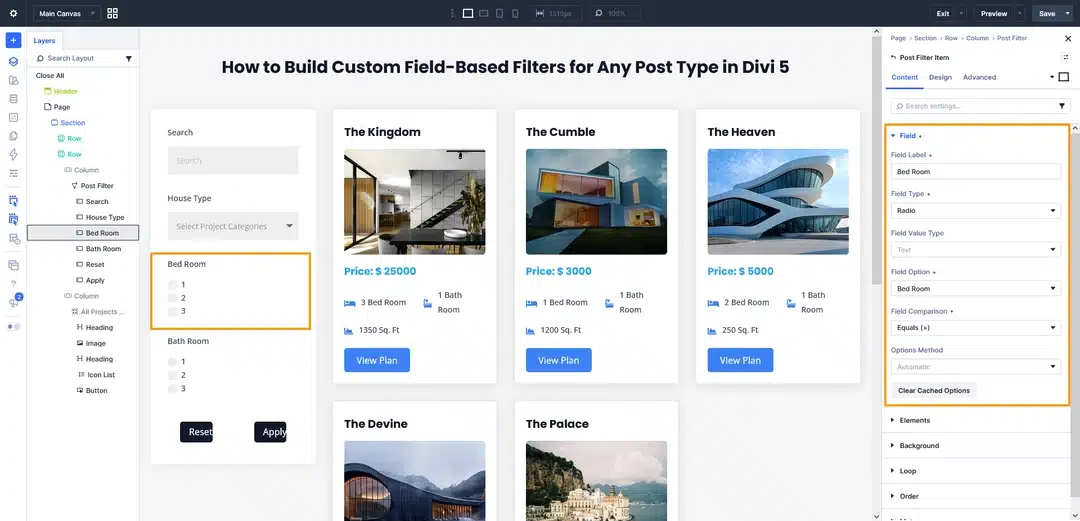
Inside the Post Filter module, add a new Post Filter Item.
For the Bed Room filter, select:
Field Type: Radio or Checkbox
Field Option: Bed Room
The Field Option will show the ACF fields you created. Simply select the field you want to use for filtering.
Add More Custom Field Filters
Repeat the same process for your other ACF fields.
Bath Room
Field Type: Radio or Checkbox
Field Option: Bath Room
Price
Field Type: Radio, Checkbox, or another suitable option
Field Option: Price
Sq. Ft.
Field Type: Radio, Checkbox, or another suitable option
Field Option: Sq. Ft.
That’s it. You don’t need to manually enter the ACF field name—the available custom fields will appear in Field Option.
7.Save and Check the Frontend
Save your page and check the frontend.
Select a filter such as:
Bed Room → 2
The Projects Loop will automatically show the matching listings.
You can combine multiple custom field filters to help visitors find the Projects they need.
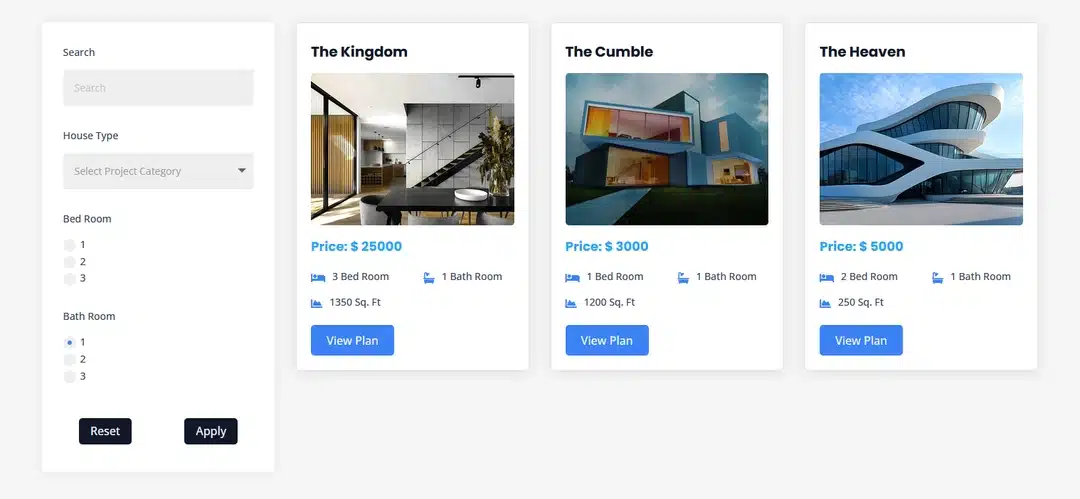
Final Result
With Divi 5, you can easily create custom field-based filters for any Custom Post Type.
The process is simple:
CPT → ACF Fields → Projects Loop → Post Filter → Select ACF Fields → Filter
The same method can be used for real estate listings, products, vehicles, jobs, directories, portfolios, and other custom post types.