Table of Contents
- What We’re Building
- Step 1: Create a Theme Builder Layout
- Step 2: Add the Main Group Structure
- Step 3: Build the Popup Content
- Step 4: Enable Loop & Dynamic Content
- Step 5: Style the Popup
- Step 6: Add JavaScript (Divi Integration)
- Step 7: Add CSS to Show the Popup
- Final Result
- Why This Approach Is Powerful
- Conclusion
Divi 5 introduces powerful loop and group features that make it easy to create advanced layouts without any extra plugins. In this tutorial, we’ll build a Custom Post Type (CPT) Grid/List view with dynamic popups using the Divi 5 Theme Builder.
I’m using the Project CPT only as a reference. This same functionality works with any post type (Posts, Services, Portfolio, or custom CPTs).
What We’re Building
- A grid/list layout of CPT items
- Each item has a “View More” button
- Clicking the button opens a dynamic popup with post-specific content
- Popup closes smoothly with a close icon
- Fully reusable and scalable using Divi 5 loops
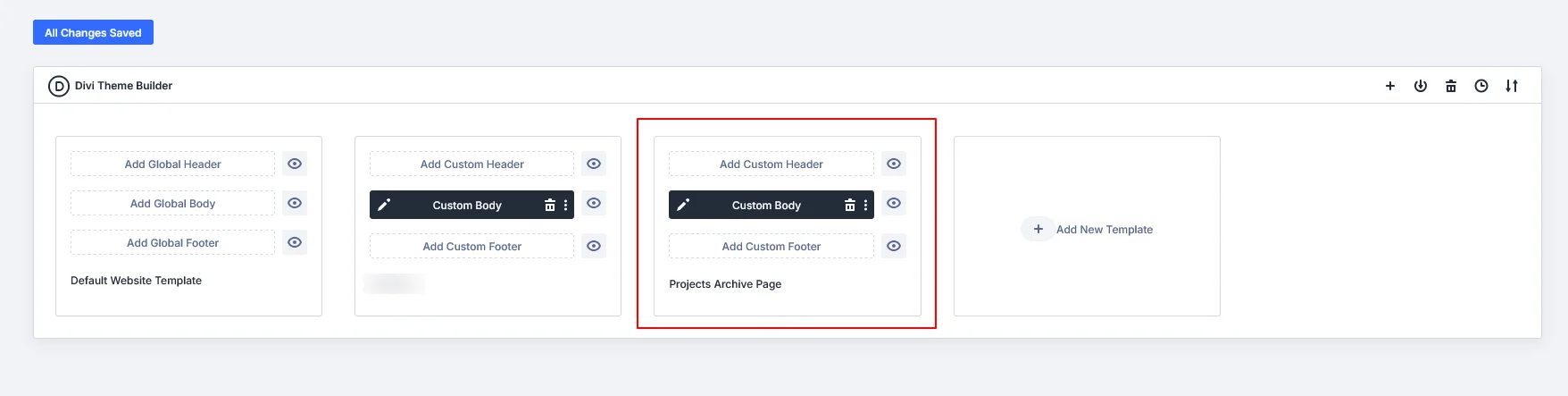
Step 1: Create a Theme Builder Layout
- Go to Divi → Theme Builder
- Create or edit a template for your desired post type
- Add a Section → Row → Column
Step 2: Add the Main Group Structure
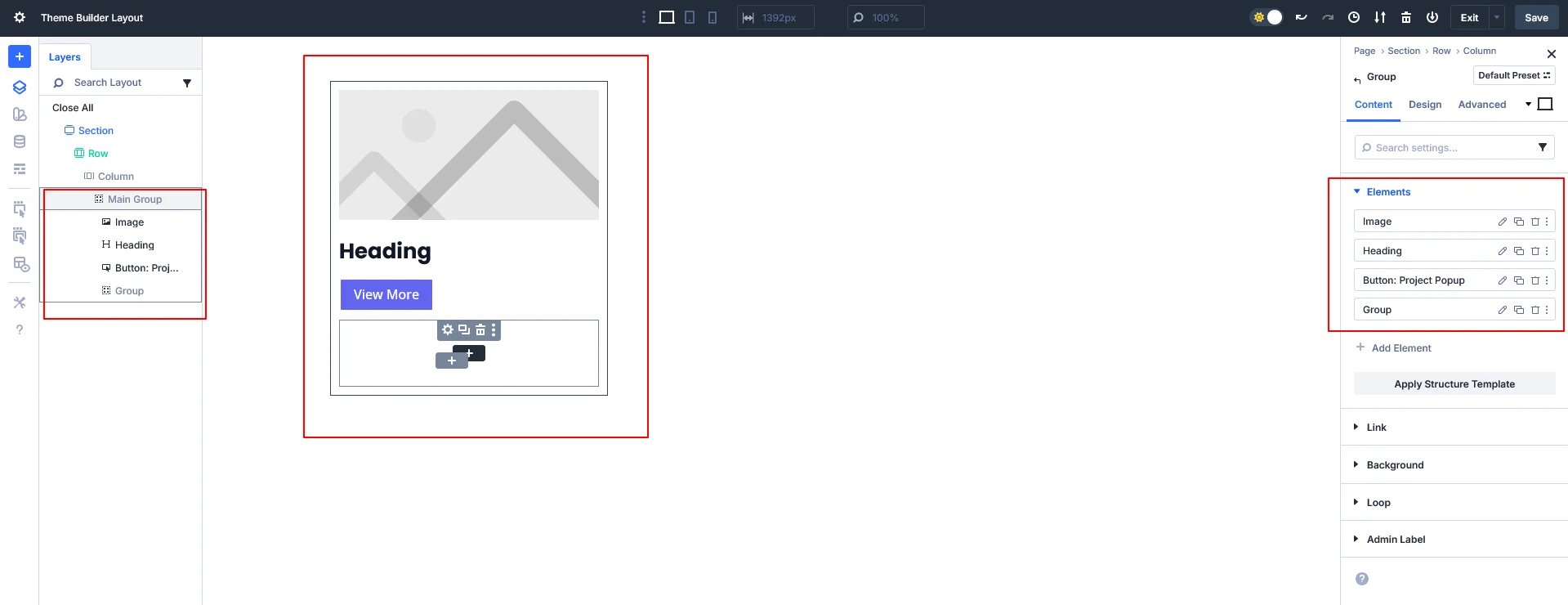
Inside the column, add a Group Module and set the class: main-box
Inside the Main Group (main-box), add:
- Heading (Post Title – dynamic)
- Featured Image (dynamic)
- Button
- Button Text: View More
- CSS Class: main-box-popup-open
- Group Module (Popup Container)
- CSS Class: main-box-popup
Step 3: Build the Popup Content
Inside the popup group (main-box-popup), add:
- Heading (dynamic post title)
- Text Module (dynamic excerpt or content)
- Icon Module (Close Button)
- CSS Class: main-box-popup-close
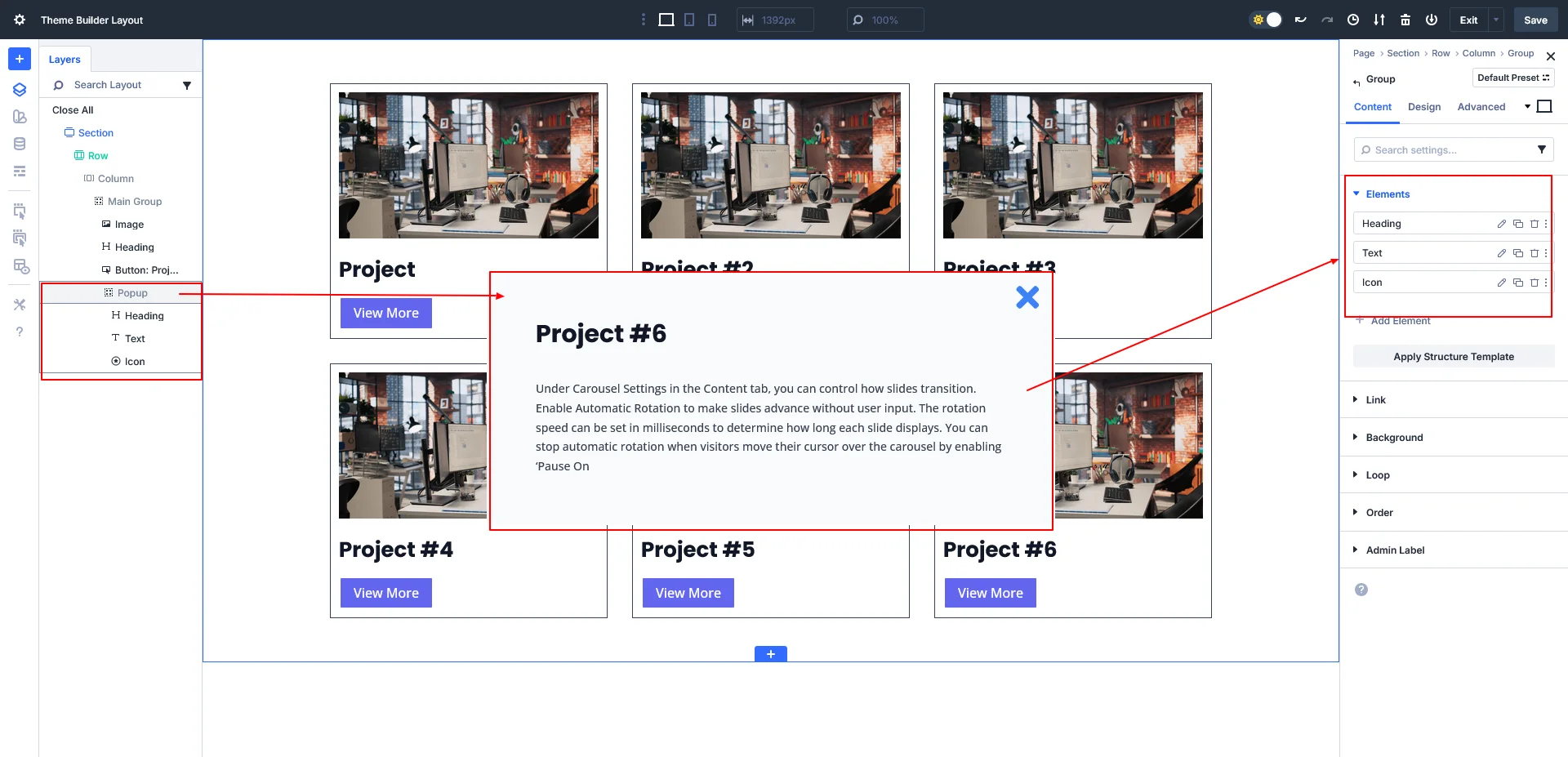
After design popup make it hidden so popup will display only after button click.
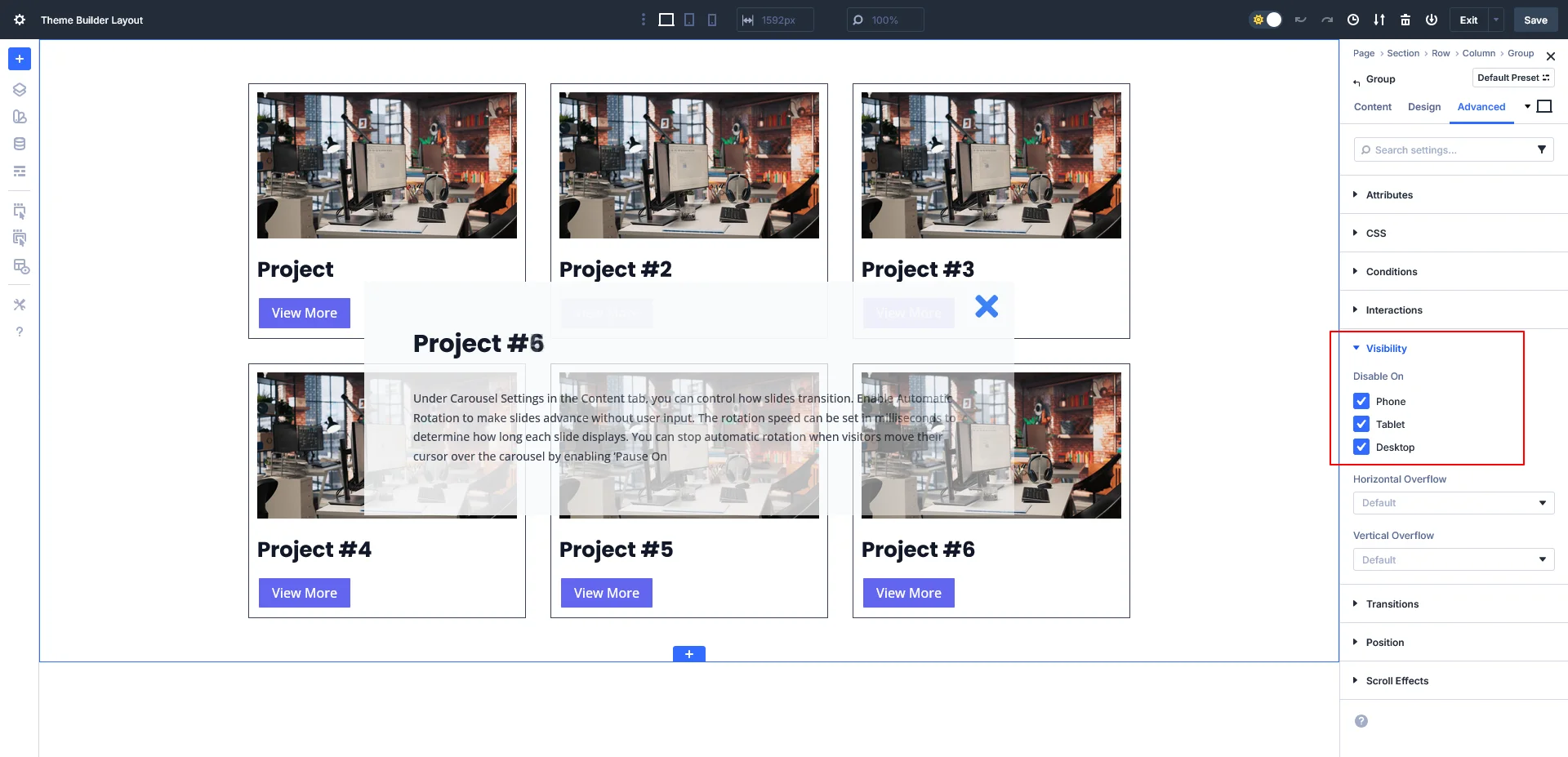
To Hide Popup : Inside the popup group > Advance > visibility
Disable on: Desktop, Tablet and Mobile
Step 4: Enable Loop & Dynamic Content
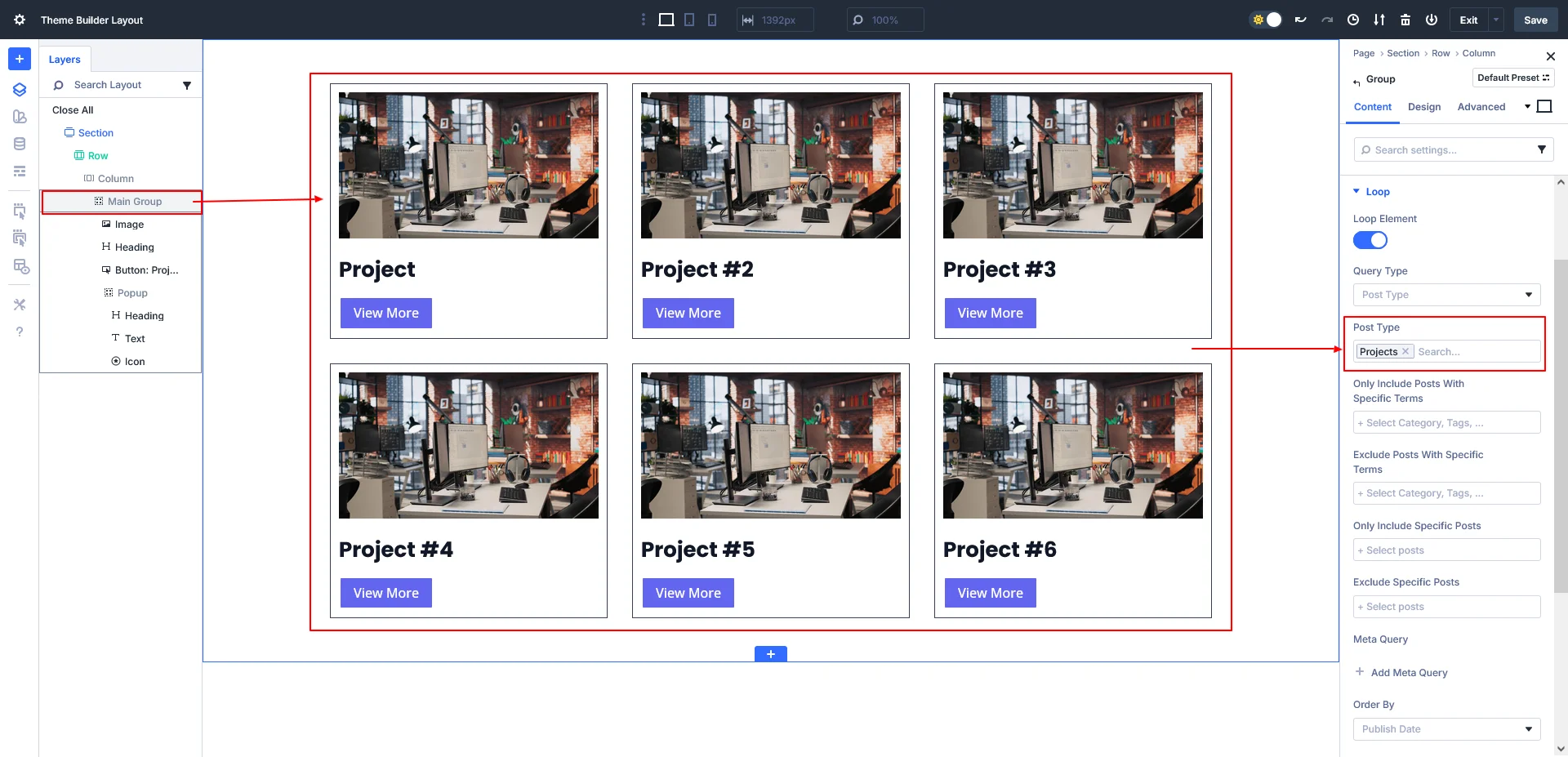
- Edit the Main Group (main-box)
- Enable Loop
- Choose:
- Post Type
- Ascending / Descending order
- Posts per page
- Assign dynamic content:
- Heading → Post Title
- Image → Featured Image
- Text → Excerpt or Content
Now each grid item automatically pulls content from the CPT. You can able to set list/grid view from Design > Layout options.
Step 5: Style the Popup
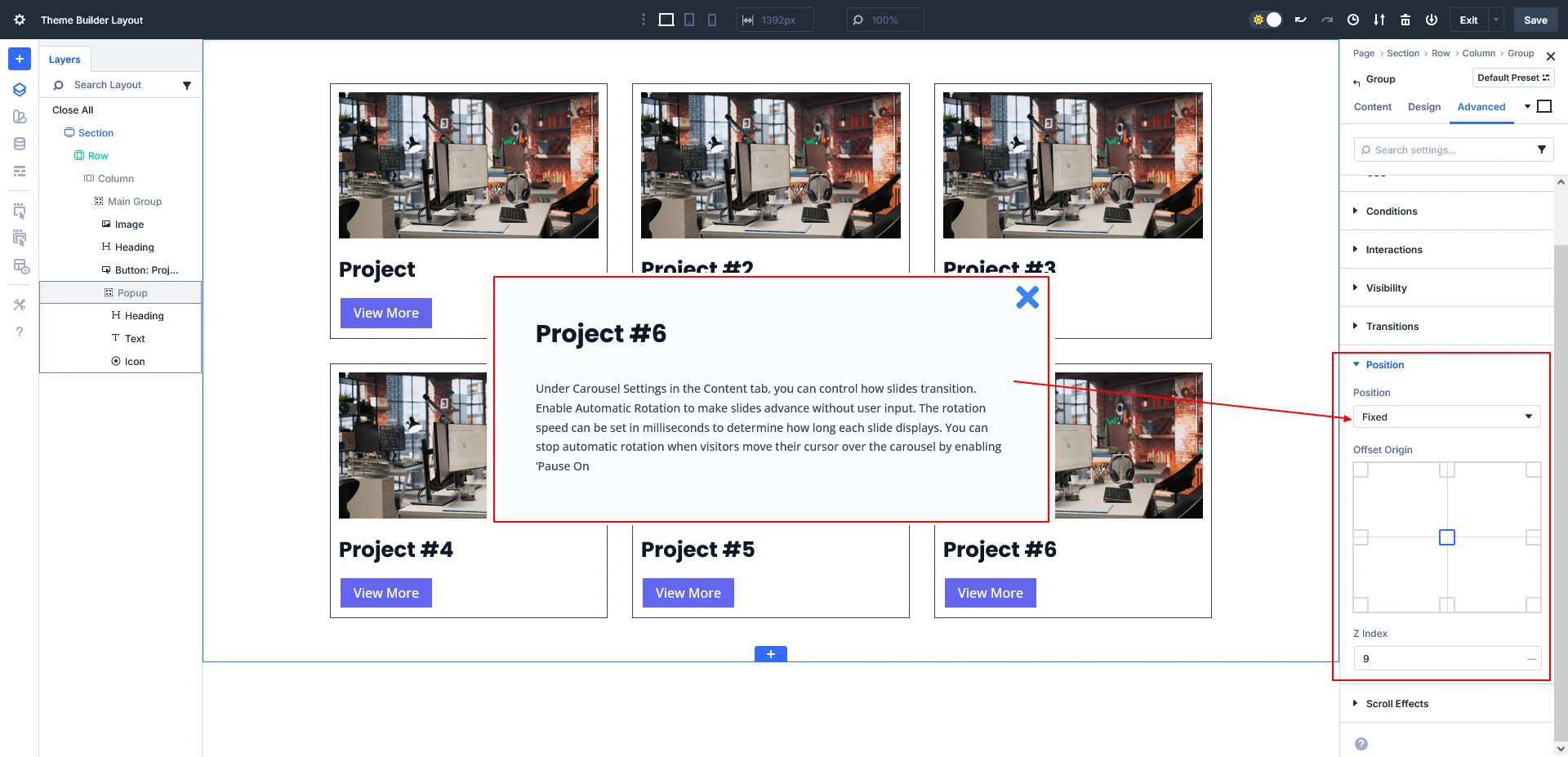
Edit the popup group (main-box-popup) and set:
- Position: Fixed
- Vertical: Center
- Horizontal: Center
- Add background, padding, border-radius, and shadow as needed
- Hide it by default using CSS (next step)
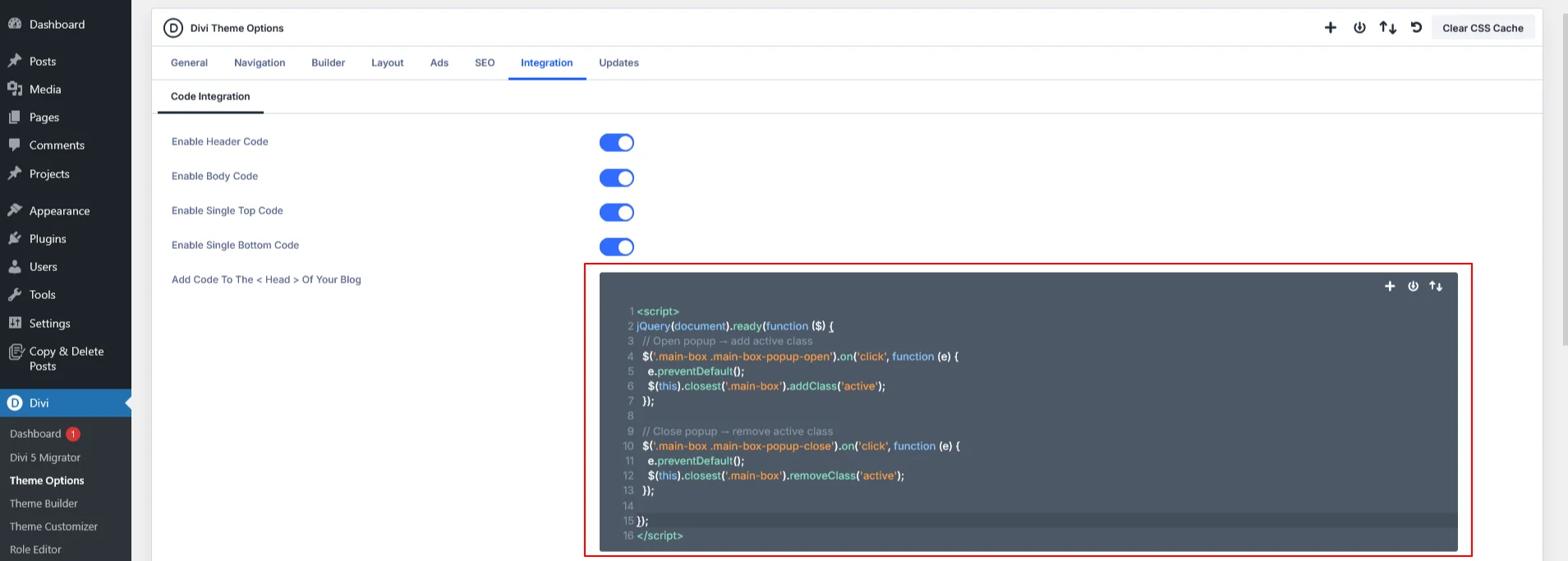
Step 6: Add JavaScript (Divi Integration)
Go to Divi → Theme Options → Integration
Paste this code inside the Body section:
<script>
jQuery(document).ready(function ($) {

  // Open popup → add active class
  $('.main-box .main-box-popup-open').on('click', function (e) {
    e.preventDefault();
    $(this).closest('.main-box').addClass('active');
  });

  // Close popup → remove active class
  $('.main-box .main-box-popup-close').on('click', function (e) {
    e.preventDefault();
    $(this).closest('.main-box').removeClass('active');
  });

});
</script>
Step 7: Add CSS to Show the Popup
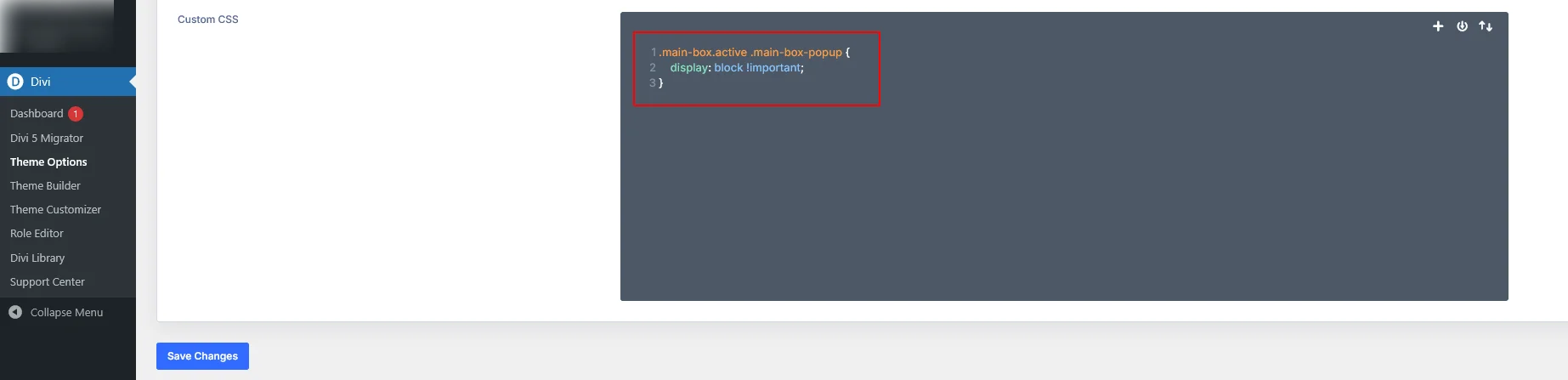
Add this CSS in Divi → Theme Options → Custom CSS:
.main-box.active .main-box-popup { display: block !important;}
By default, keep .main-box-popup hidden using display: none.
Final Result
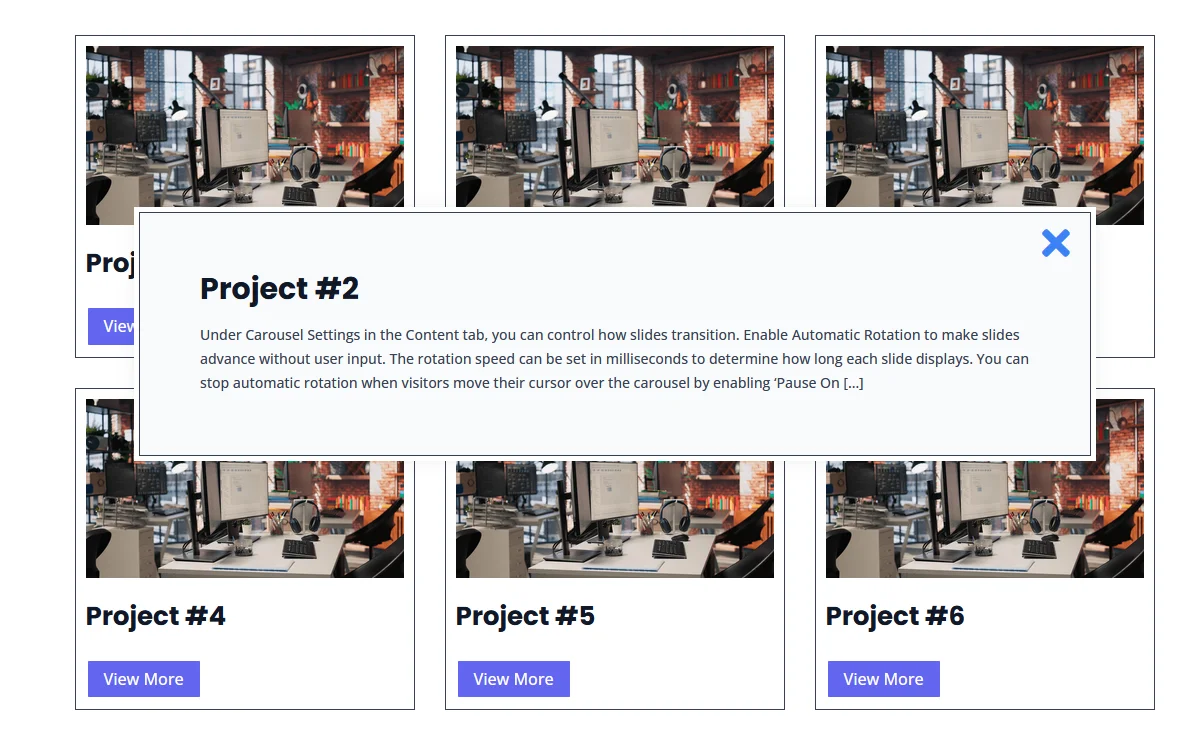
- Clicking View More opens a popup for that specific post
- Clicking the close icon closes only that popup
- No conflicts, no extra libraries
- Fully dynamic and reusable
- Works with any CPT
Why This Approach Is Powerful
- No third-party popup plugins
- Uses native Divi 5 features
- Fully dynamic with loops
- Easy to style and customize
- Lightweight and performance-friendly
Conclusion
With Divi 5’s Group Modules + Loop Builder, creating dynamic CPT popups is simple, clean, and scalable. This setup is perfect for portfolios, projects, services, case studies, or any custom post type where you want more details without navigating away from the page.
If you want expert help building advanced Divi websites, custom layouts, or dynamic WordPress solutions, TechnoCrackers provides professional white label web development services tailored to your business needs. Get a free consultation today and build high-performing, scalable websites with our expert team.