Table of Contents
Want to display WooCommerce products in a dynamic carousel without manually creating every product slide?
With Divi 5 Loops, you can turn a Group Carousel slide into a dynamic product card and automatically pull products from your WooCommerce store.
In this tutorial, we’ll create a simple product carousel using the Group Carousel module and connect each element to WooCommerce product data.
You can also choose a specific product category if you only want to display products from that category.
1. Add the Group Carousel Module
First, open the Divi Builder and add the Group Carousel module where you want to display your products.
Inside the Group Carousel, Default one Carousel Slide will shows.
The carousel slide will become your product card.

2. Build Your Product Card
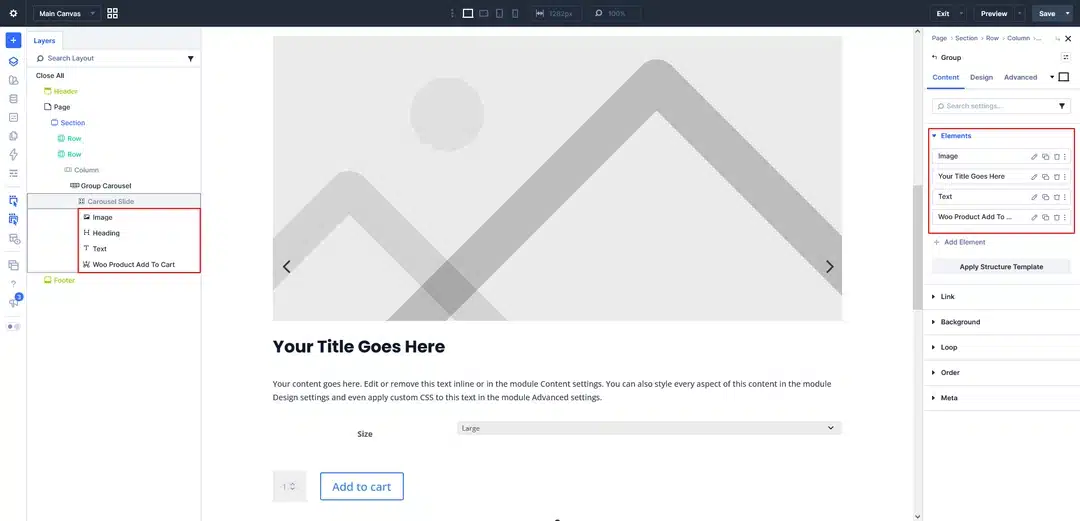
Before enabling the loop, design the product slide the way you want it to look.
Inside the Carousel Slide, add the elements you need, such as:
- Image – Product image
- Heading – Product name
- Text – Product price
- Woo Add To Cart Button – Add the product to the cart
You can also customize the spacing, typography, colors, buttons, borders, and other design options to match your website.
At this point, you are creating the layout for one product. The Loop will automatically repeat this design for the products returned by your query.
3. Enable the Product Loop
Once your product card is ready, open the Carousel Slide settings.
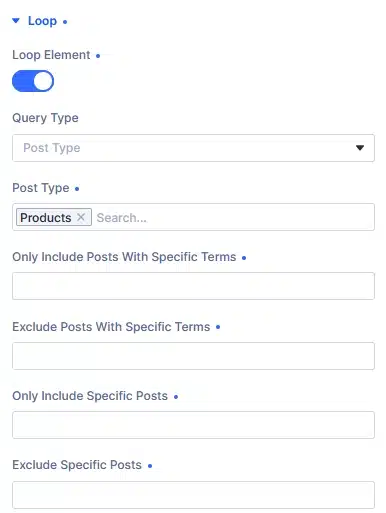
Go to: Content → Loop
Enable the Loop option.
Add screenshot here.
Once the Loop is enabled, configure it to display your WooCommerce products.
Select:
Post Type → Products
Now the carousel can automatically pull products from your WooCommerce store.
4. Choose Which Products to Display
You can use the product query to control which products appear in the carousel.
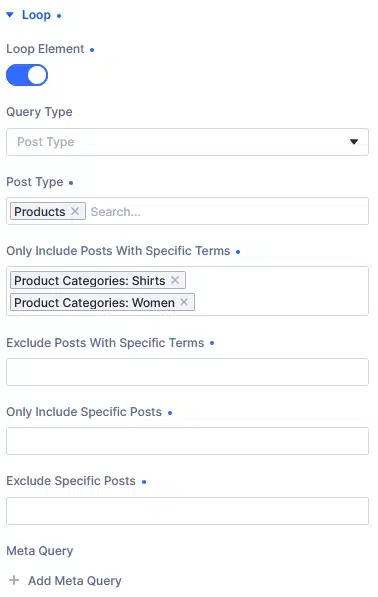
If you want to display products from your entire store, use the general Products query.
If you want to display products from a specific category, select the category you want.
For example:
Category: Divi Products
The carousel will then display products assigned to that category.
This is useful when creating different product carousels for different sections of your website.
For example:
- Featured Products
- New Products
- Divi Products
- Accessories
- Sale Products
5. Connect Your Product Data
After enabling the Loop, connect each element in your product card to its corresponding dynamic product data.
This is what makes the carousel dynamic.
Product Image
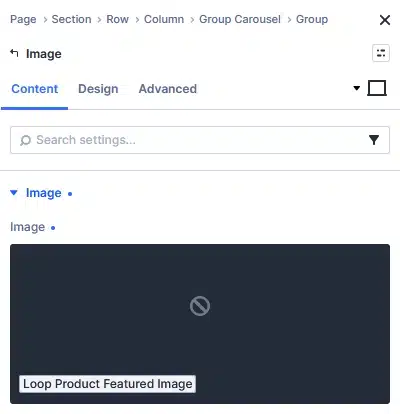
Open the Image module and connect it to:
Loop → Product Featured Image
The image will automatically change for each product.
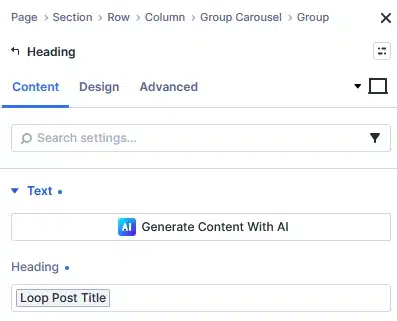
Product Title
Open the Heading module and connect it to:
Loop → Post Title
Each carousel slide will now display the title of the current product.
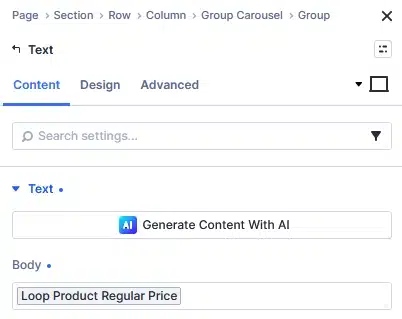
Product Price
For the price, open your Text module and connect it to:
Loop → Product Regular Price
The regular price will automatically update based on the product being displayed.
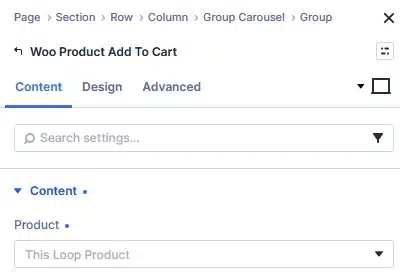
Add to Cart Button
Finally, open the WooCommerce Add To Cart button and connect it to:
Loop → Product
This connects the button to the current product in the loop.
When a visitor clicks the button, the corresponding product can be added to the cart.
6. Customize Your Group Carousel
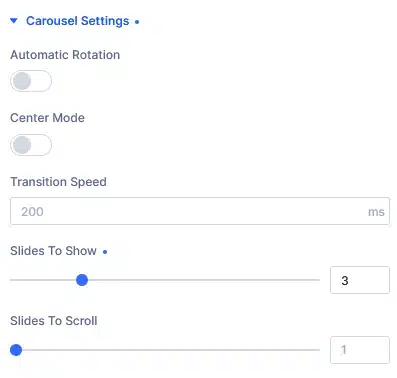
Now that your product data is connected, customize the Group Carousel settings.
You can adjust the carousel according to your design, including things such as:
- Number of slides
- Spacing
- Navigation
- Arrows
- Pagination
- Responsive settings
- Slide behavior
Configure these options according to how you want the product carousel to work on desktop, tablet, and mobile.
Your Product Carousel Is Ready!
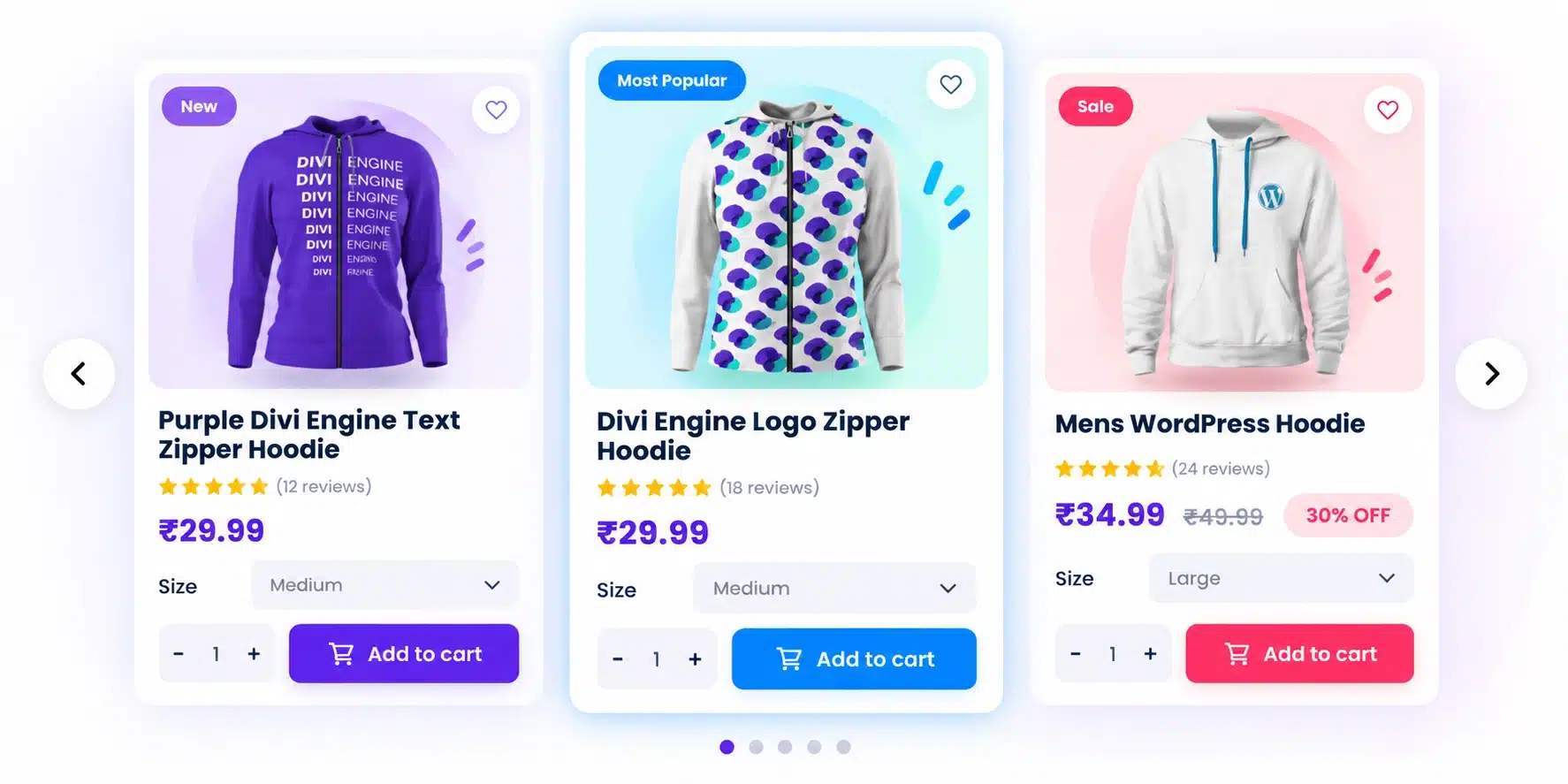
That’s it. Your Divi 5 Group Carousel is now connected to your WooCommerce products.
Instead of manually creating a separate slide for every product, you created one product card and connected it to the Loop.
Divi can then use that layout to display your products dynamically.
For example:
Product Image → Product Featured Image
Heading → Post Title
Text → Product Regular Price
Add To Cart → Current Product
Create Different Product Carousels
One of the useful parts of this setup is that you can create different carousels based on your product query.
For example, you could create:
Featured Products
Display your selected featured products.
Category Products
Select a specific WooCommerce category to display only products from that category.
Product Sections
Create separate carousels for different types of products throughout your website.
This gives you flexibility to reuse the same dynamic product-card approach in different sections.
Final Result
With Divi 5’s Group Carousel and Loop features, you can create a dynamic WooCommerce product carousel in just a few steps:
Add Group Carousel → Create Carousel Slide → Design Product Card → Enable Loop → Select Products → Connect Dynamic Content → Customize Carousel
Once the loop is configured, your product information is pulled automatically, so you don’t need to manually update every carousel slide whenever your WooCommerce products change.