






Table of Contents
Timelines are a great way to visually display progress, project stages, process steps, achievements, or company milestones. They help users quickly understand the flow of information, and they make your content more engaging.
If you’re using the Divi Theme, you don’t need any third-party plugin to create a stylish vertical timeline. With Divi’s layout controls, animation effects, and positioning tools, you can build a fully custom timeline in just a few steps.
In this tutorial, you’ll learn how to create a responsive, animated timeline layout in Divi — from scratch — using only Divi modules and a little styling.
Step-by-Step Guide
Step 1: Create the Layout
- Open the page using Divi Builder
- Add a New Section
- Insert a Row with Two Columns (50/50 layout)
This will allow left and right alternating card placements.

Step 2: Configure the Row Settings
Go to: Row Settings → Design → Sizing
Enable the following options:
- Gutter Width: 1
- Equalize Column Heights: ✔️ Enabled
This ensures each timeline section stays aligned and structured.

Step 3: Add Your Content Module
Inside right column:
- Add a Blurb Module or Text Module
- Add your content title and description
This will serve as the timeline content blocks.
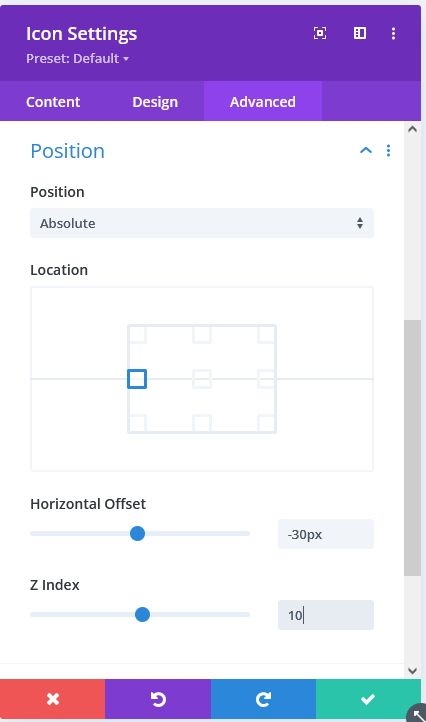
Step 4: Add and Position the Icon
Add an Icon Module under the same column.
Then go to: Icon Settings → Advanced → Position
Apply the following:
| Setting | Value |
|---|---|
| Position | Absolute |
| Location | Center Left |
| Horizontal Offset | -30px (adjust based on design) |
| Z-index | 10+ |
This makes the icon overlap the center timeline line.
Use round, minimal icons for a cleaner timeline look.
Step 5: Add Animations to same column where you added blurb (eg. content)
To make the timeline feel alive:
Go to: Column Settings → Design → Animation
Recommended setup:
| Option | Value |
|---|---|
| Animation Style | Slide |
| Direction | Down |
| Duration | 900–1200ms |
| Intensity | 50% |
You can add animation timing with delays for a professional feel.

Step 6: Create the Vertical Line
Select the Column on the LEFT — whichever contains the line.
Go to: Column Settings → Design → Border
Apply:
- Right Border Width: 3–4px
- Border Color: A visible brand accent (e.g., gold, navy, etc.)
This border acts as the main timeline line.

Step 7: Duplicate and Alternate
Now duplicate the entire row for additional timeline steps.
To make the layout visually balanced:
- For Row 1 → Content on right
- For Row 2 → Move content to left
- For Row 3 → Back to right
- …repeat…
This creates a zig-zag storytelling design And make setting reverce for border and icon of columns to make smooth effect.

Step 8: Preview and Test
Test your animated timeline:
- Animation timing
- Icon alignment
- Mobile responsiveness
- Text spacing and readability
Once satisfied — you’re done!

A well-structured timeline can elevate your WordPress website’s user experience, improve navigation, and make your content more engaging — all without relying on plugins. If you’re looking to build a high-performing, custom-designed WordPress website that’s optimized for both speed and conversions, our team can help. Book a Free Consultation today and let TechnoCrackers create a smarter, more powerful WordPress experience for your business.
How do you ensure there isn’t a ‘break’ between the line between each row? In other words, how do you make the border look like one continuous line?
If the break is caused by spacing between rows, try setting the margin and padding to 0 for each row/item. This will make the line touch continuously and appear as one seamless border/connector line between timeline items.