Table of Contents
- What Are Nested Modules in Divi 5?
- When Should You Use Nested Tabs & Accordions?
- Part 1: How to Create Nested Tabs in Divi 5
- Step 1: Open the Page in Divi 5 Builder
- Step 2: Add a Tabs Module
- Step 3: Edit a Tab (Example: “General”)
- Step 4: Add Group Modules Inside the Tab
- Step 5: Apply a Structure Template (2-Column Layout)
- Step 6: Add Content Inside Each Group
- Important Note for Users
- Part 2: How to Create Nested Accordions in Divi 5
- Step 1: Add an Accordion Module
- Step 2: Edit an Accordion Item
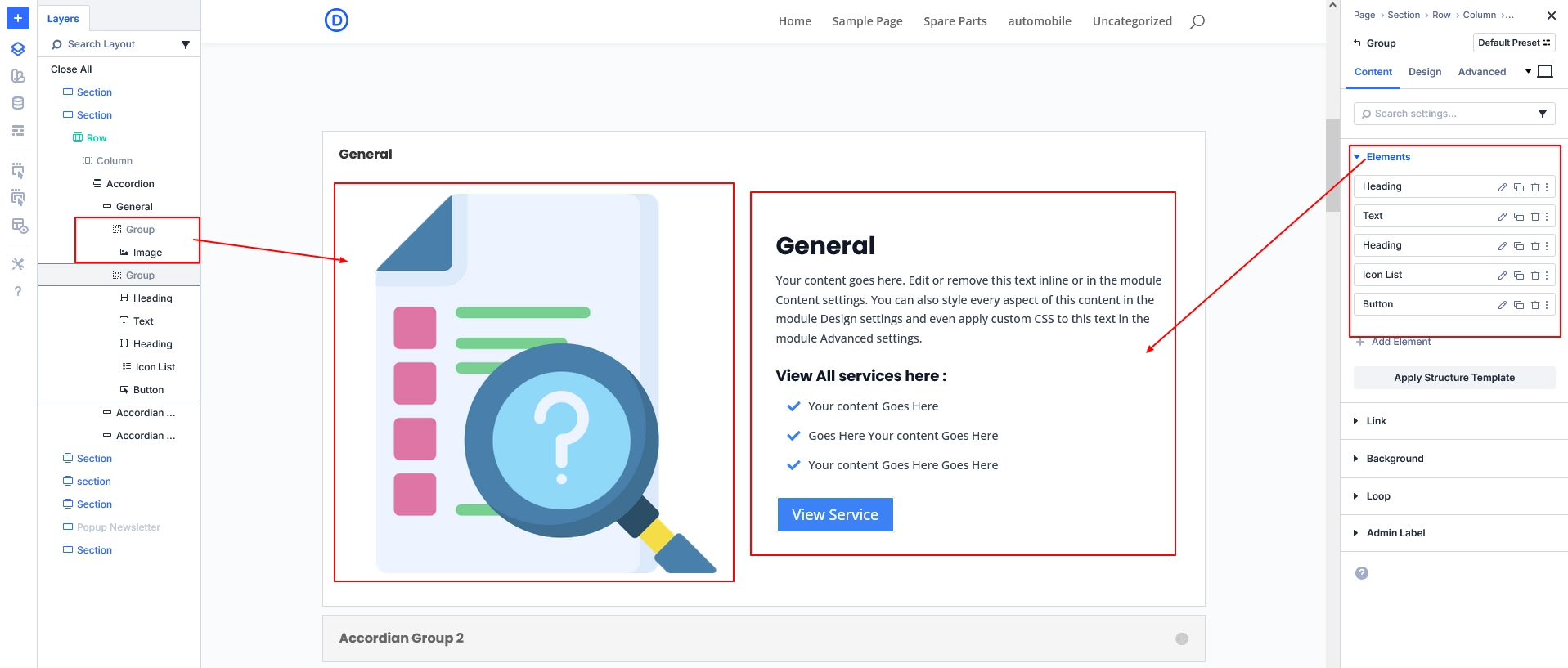
- Step 3: Add Group Modules Inside Accordion Content
- Step 4: Apply a Structure Template
- Step 5: Add Nested Content
- Styling Tips for Nested Tabs & Accordions
- Responsive Best Practices
- Divi 5 vs Divi 4: Why Nested Modules Matter
- Final Thoughts
Divi 5 introduces Nested Modules, a powerful new feature that completely changes how Tabs and Accordions work. Instead of being limited to plain text, you can now place any Divi element inside tabs and accordion panels — images, buttons, icons, groups, multi-column layouts, and more — without using plugins or custom code.
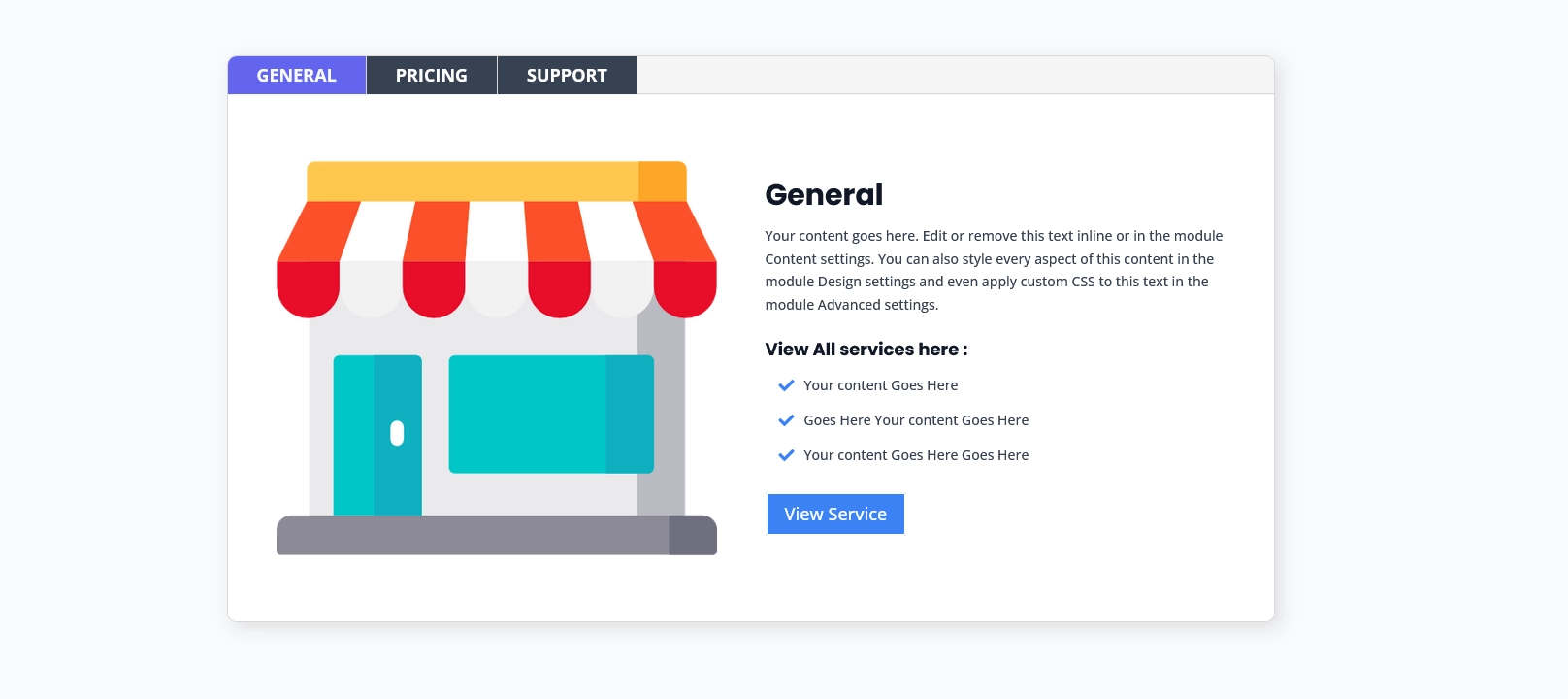
This guide not only shows how to create Nested Tabs and Accordions, but also helps users understand that the design possibilities are unlimited. The example shown here is just one layout — you can mix, match, and customize endlessly using Divi 5’s nested elements.
What Are Nested Modules in Divi 5?
Nested Modules allow supported modules (like Tabs and Accordions) to act as containers for other elements. Each tab or accordion panel can now include:
- Group modules
- Images
- Headings and text
- Icon lists
- Buttons
- Multi-column layouts using structure templates
This means Tabs and Accordions are no longer simple content switchers — they are now full layout builders.
When Should You Use Nested Tabs & Accordions?
Nested layouts are perfect for:
- Service sections (Overview / Pricing / Features)
- SaaS feature explanations
- FAQs grouped by category
- Documentation and knowledge bases
- Interactive homepage sections
Part 1: How to Create Nested Tabs in Divi 5
Step 1: Open the Page in Divi 5 Builder
- Edit your page using Divi 5 Builder
- Add a Section → Row → Column as required
Step 2: Add a Tabs Module
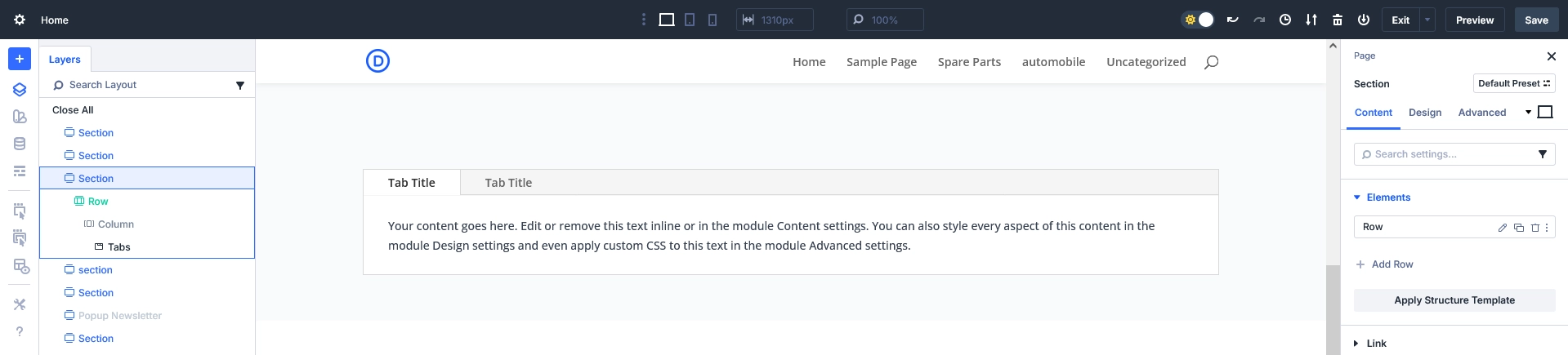
- Click Add Module
- Select Tabs
- Create your main tabs, for example:
- General
- Pricing
- Support
Each tab will now work as a container for nested elements.
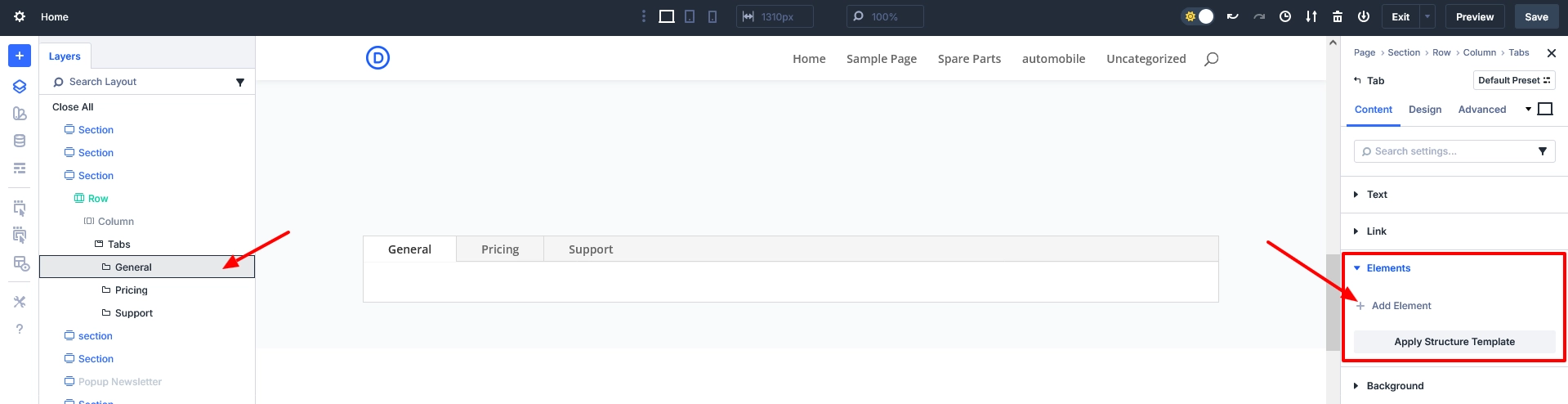
Step 3: Edit a Tab (Example: “General”)
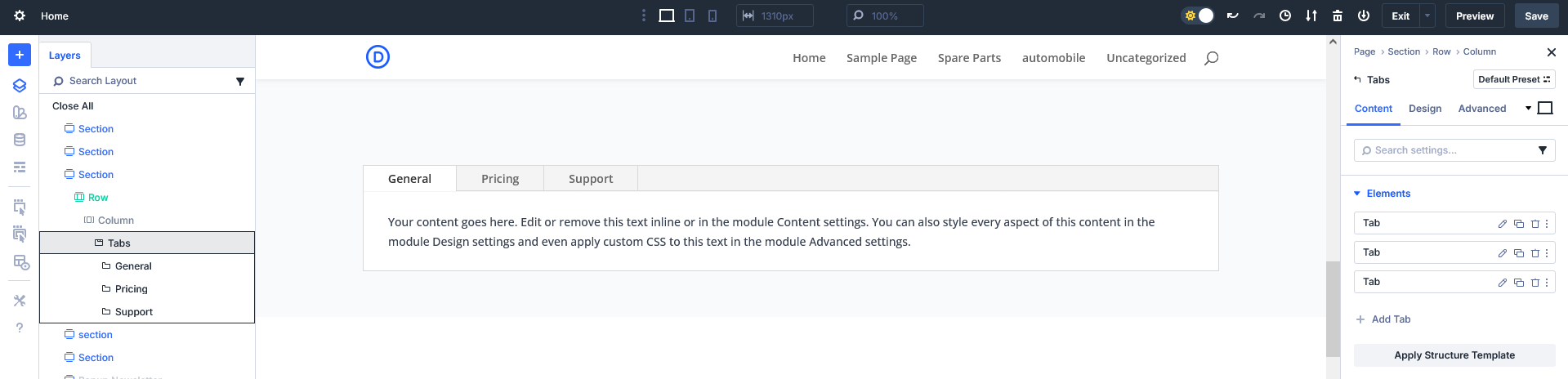
- Open the General tab settings
- Remove the default body text
- Scroll to the new Elements section (Divi 5 feature)
This is where nested modules are added.
Step 4: Add Group Modules Inside the Tab
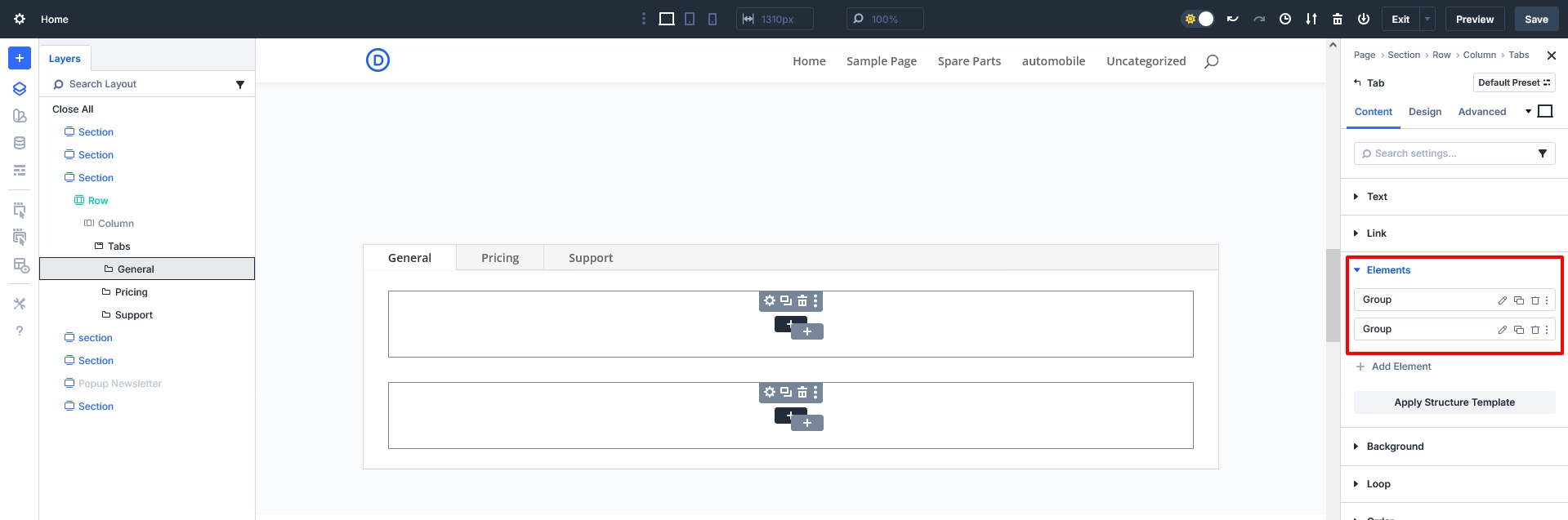
- Click Add Element
- Add two Group modules
Groups help organize content and make it easy to create complex layouts inside tabs.
Step 5: Apply a Structure Template (2-Column Layout)
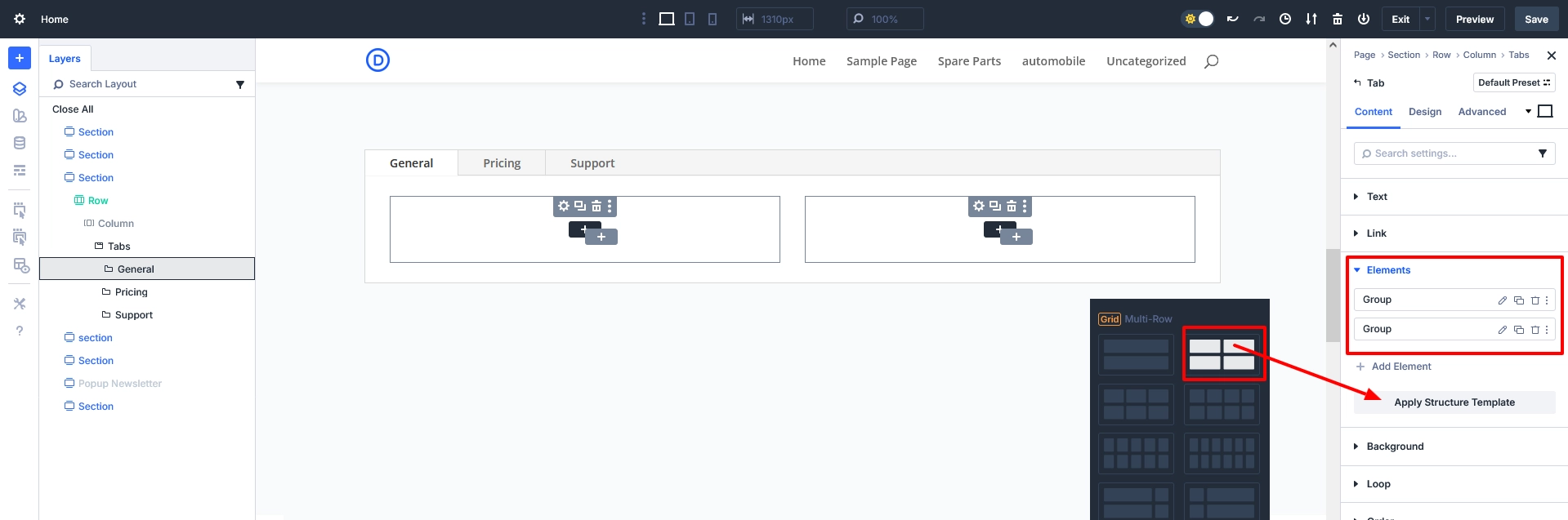
- Select a Group module
- Go to Elements → Apply Structure Template
- Choose a 2-column layout
This creates a clean side-by-side layout inside the tab.
Step 6: Add Content Inside Each Group
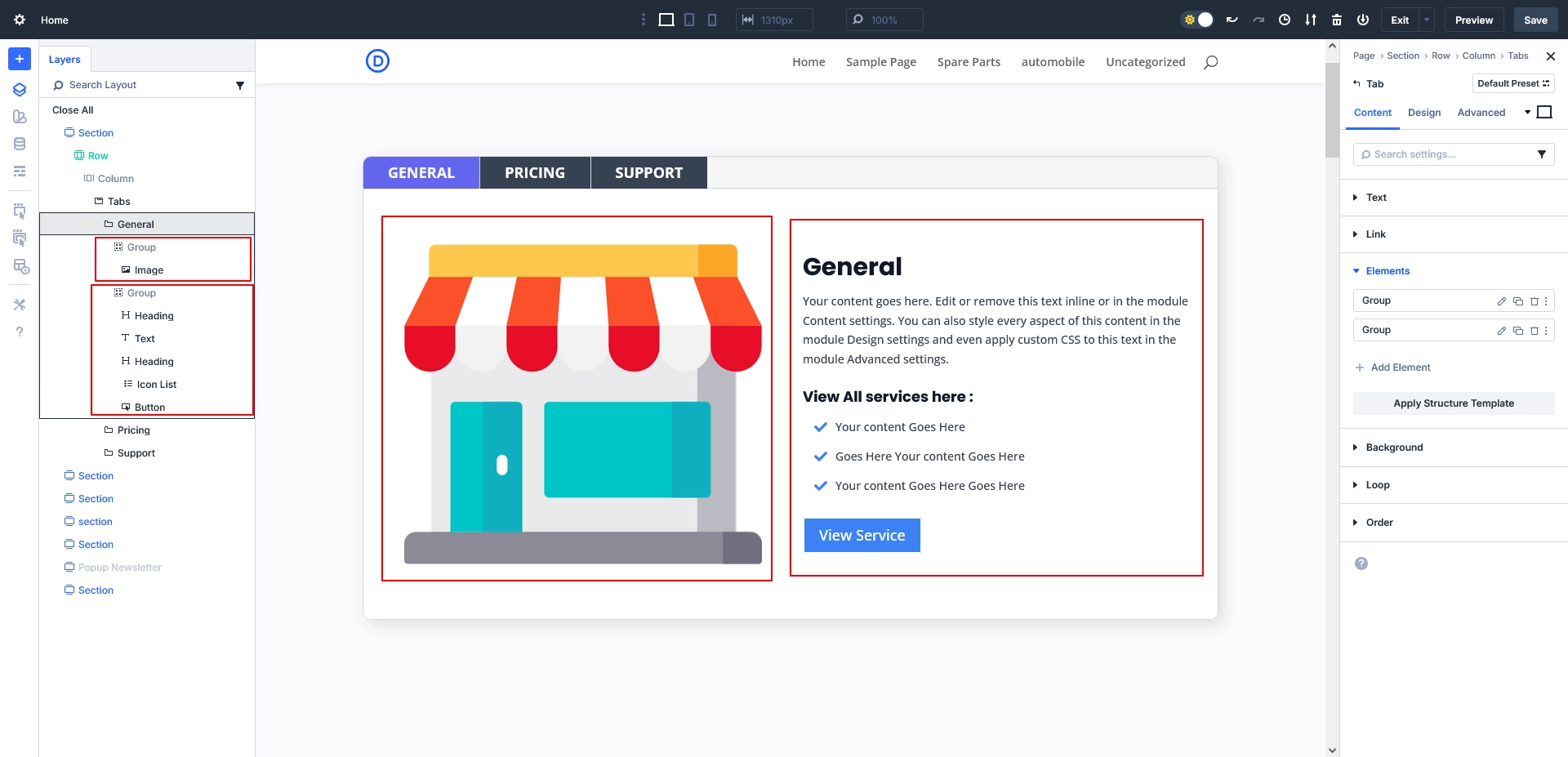
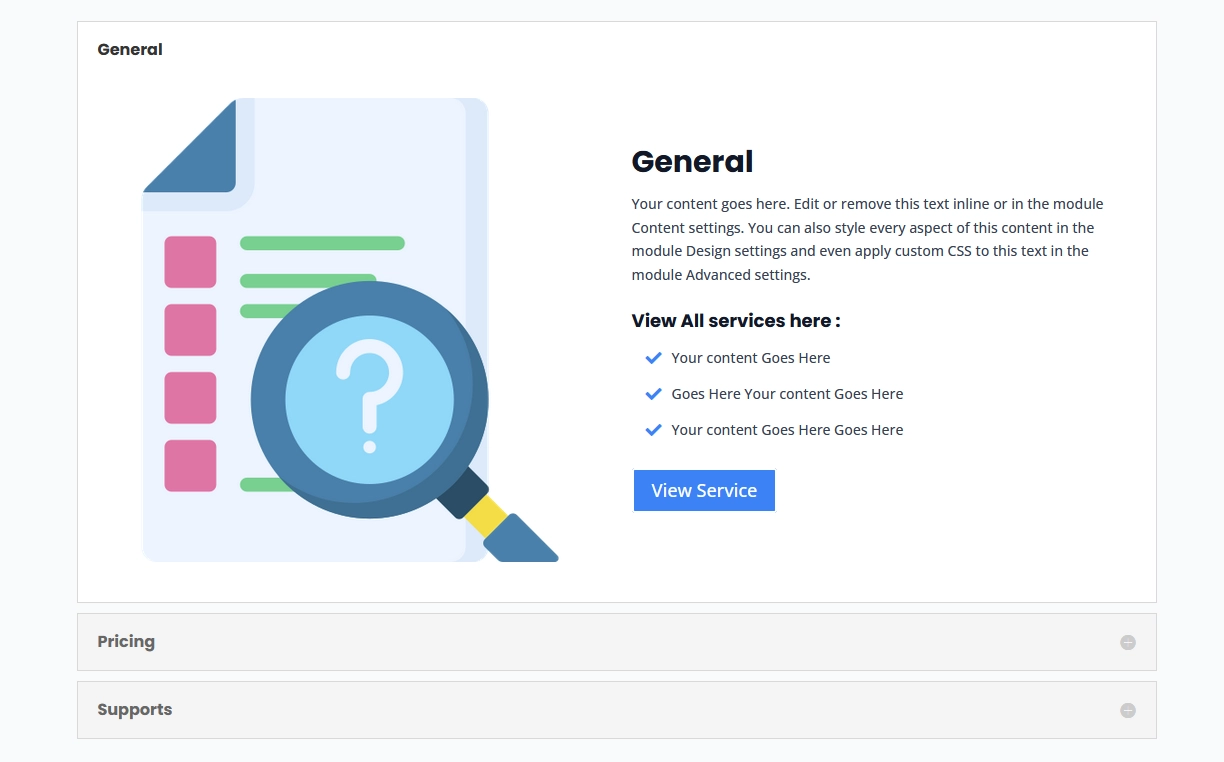
Left Group (Column 1): – Image module (illustration, product image, or service visual)
Right Group (Column 2): – Heading module – Text module – Icon List module – Button module
You can freely add, remove, reorder, or replace these elements.
Important Note for Users
This is just one example design. With Divi 5 Nested Modules, you can:
- Add sliders, videos, or testimonials inside tabs
- Create multi-row layouts inside a single tab
- Nest accordions inside tabs (or tabs inside accordions)
- Use presets and variables for global styling
Your creativity is the only limit.
Part 2: How to Create Nested Accordions in Divi 5
The process for Accordions is almost identical to Tabs.
Step 1: Add an Accordion Module
- Click Add Module
- Select Accordion
- Create accordion items, for example:
- General
- Pricing
- Support
Each accordion item supports nested elements.
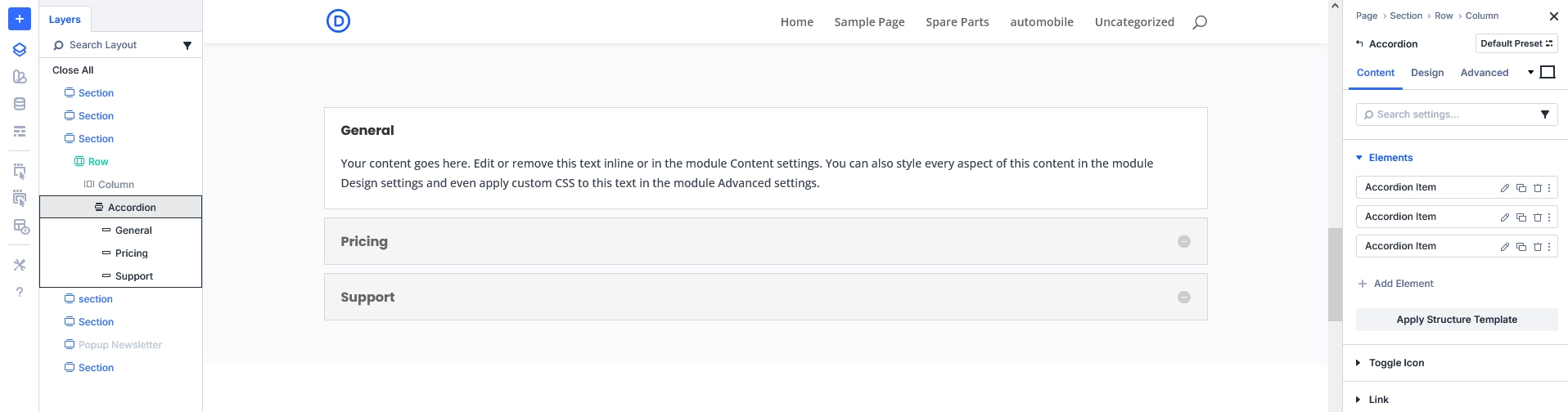
Step 2: Edit an Accordion Item
- Open an Accordion Item (Toggle)
- Remove the default body text
- Scroll to the Elements section
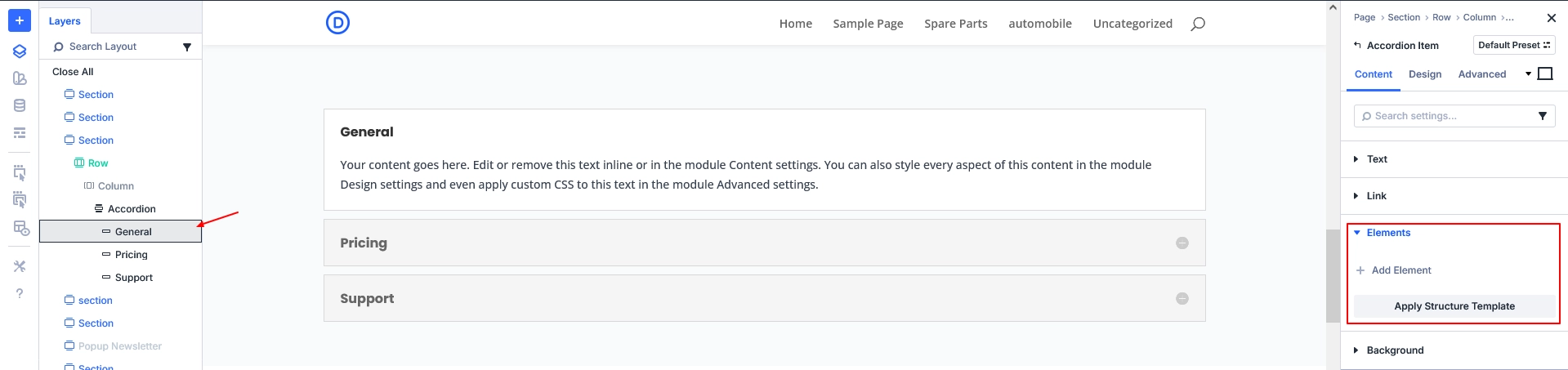
Step 3: Add Group Modules Inside Accordion Content
- Click Add Element
- Add two Group modules
This allows you to reuse the same layout structure used in Tabs.
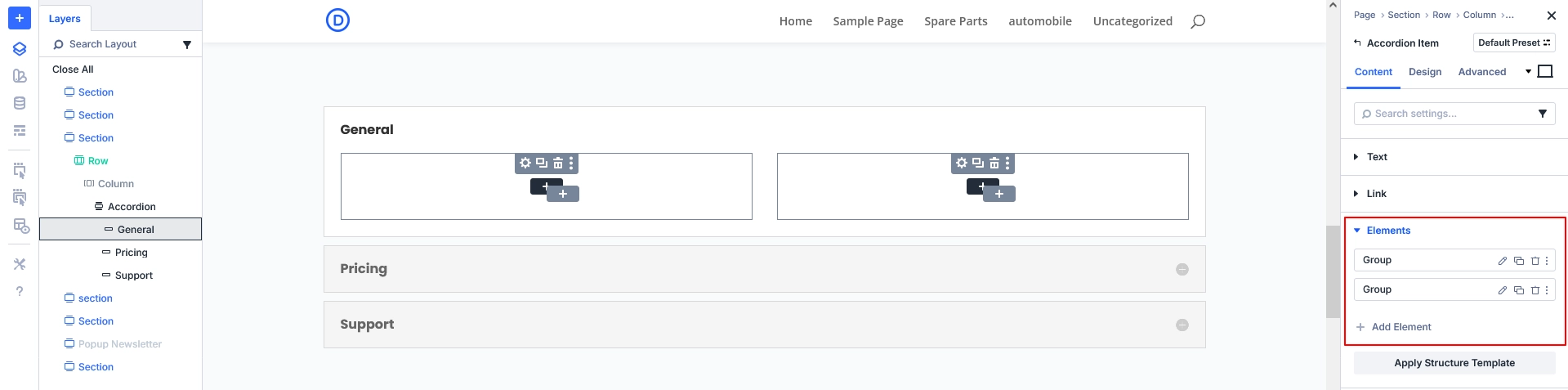
Step 4: Apply a Structure Template
- Select a Group module
- Go to Elements → Apply Structure Template
- Choose a 2-column layout
The accordion content now supports multi-column layouts.
Step 5: Add Nested Content
Left Group: – Image module
Right Group: – Heading module – Text module – Icon List module – Button module
This creates a rich, expandable accordion layout.
Styling Tips for Nested Tabs & Accordions
- Reduce padding inside nested groups
- Use consistent spacing between elements
- Apply background colors or border radius to content areas
- Use Divi 5 Presets for headings, buttons, and icon lists
Responsive Best Practices
- Stack columns vertically on mobile
- Adjust image sizes for smaller screens
- Avoid overcrowding nested content
- Always test tabs and accordions on tablet and mobile
Divi 5 handles nested responsiveness better than Divi 4, but testing is still recommended.
Divi 5 vs Divi 4: Why Nested Modules Matter
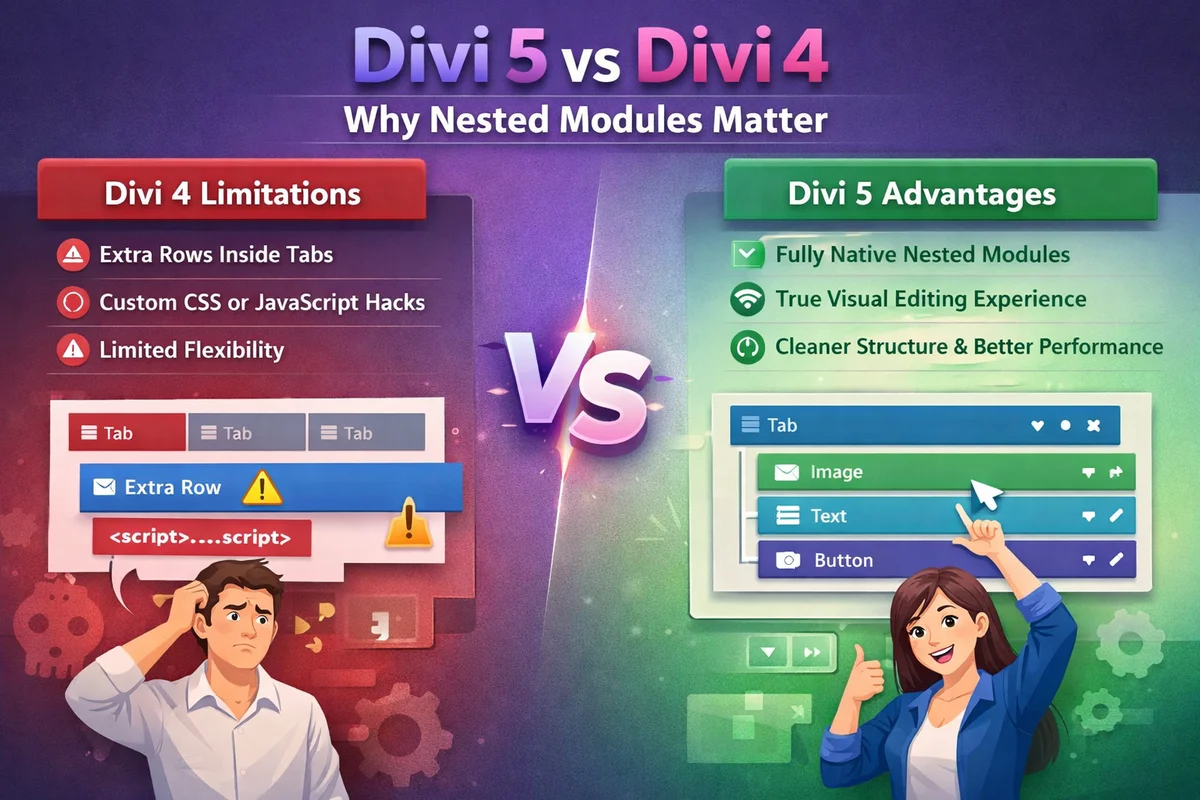
Divi 4 limitations: – Extra rows inside tabs or accordions – Custom CSS or JavaScript workarounds – Limited flexibility
Divi 5 advantages: – Fully native nested modules – True visual editing experience – Cleaner structure and better performance
Final Thoughts
Divi 5’s Nested Modules completely redefine what’s possible with Tabs and Accordions. By using Groups and structure templates, you can build highly interactive, flexible, and scalable layouts — all without plugins.
Remember: the design shown in this blog is just a starting point. With Nested Modules, you can create any layout you imagine inside Tabs and Accordions.
Need custom Divi development or white label website solutions? TechnoCrackers helps businesses build scalable, high-performance websites using the latest Divi features. Get a free consultation today and upgrade your website design strategy.