Table of Contents
- Divi 5 Gives You Two Ways to Create Dynamic Sliders
- Option 1: Use the Divi 5 Post Carousel Module
- Option 2: Create a Custom Dynamic Card Slider with Group Carousel
- Step 1: Add a Group Carousel
- Step 2: Design Your First Carousel Slide
- Step 3: Enable Loop on the Carousel Slide
- Step 4: Make the Inner Elements Dynamic
- Dynamic Featured Image
- Dynamic Post Title
- Dynamic Post Excerpt
- Dynamic Button Link
- Your Dynamic Card Is Now Complete
- Step 5: Configure the Main Carousel Settings
- Step 6: Check the Front End
- Why Use Group Carousel for Custom Dynamic Cards?
- Examples of What You Can Build
- Post Carousel vs Group Carousel
- Final Thoughts
Displaying dynamic content in a slider is a great way to showcase blog posts, products, projects, team members, or any other custom post type.
Divi 5 provides a Post Carousel module that makes this easy with a predefined layout. But what if you want complete control over the card design?
Instead of using the fixed Post Carousel layout, you can create your own custom card design using Group Carousel + Loop.
In this guide, we’ll show you both approaches and then walk through how to create a fully custom dynamic card slider in Divi 5.
Divi 5 Gives You Two Ways to Create Dynamic Sliders
Depending on your design requirements, you can choose between:
Option 1: Post Carousel
Use the Post Carousel module when its built-in layout and styling options are enough for your design.
Option 2: Group Carousel
Use Group Carousel when you need complete control over the card layout and want to build your own design.
Let’s look at both.
Option 1: Use the Divi 5 Post Carousel Module
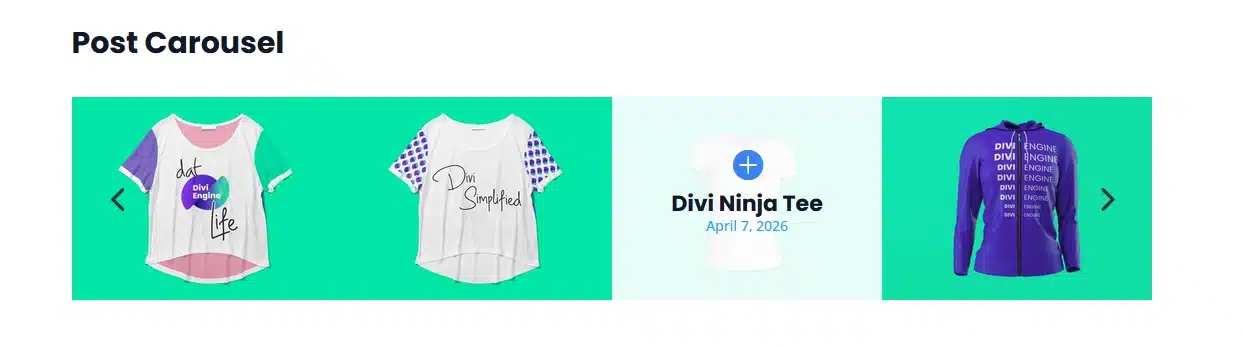
Divi 5 includes a Post Carousel module that can automatically display dynamic content in a carousel.
It is a good choice when you don’t need a completely custom card layout.
With the Post Carousel module, you can select the type of content you want to display, such as:
- Posts
- Products
- Custom Post Types (CPTs)
You can then configure the available carousel and content settings to create your slider.
When Should You Use Post Carousel?
Use the Post Carousel when:
- The default layout works for your design.
- You want a quick dynamic slider.
- You don’t need a completely custom card structure.
- The available styling options are enough for your project.
However, sometimes the predefined layout doesn’t match your design.
That’s when Group Carousel becomes useful.
Option 2: Create a Custom Dynamic Card Slider with Group Carousel
If you want complete control over the card design, you can build the card yourself using the Group Carousel module.
This allows you to decide exactly what each card contains and how it looks.
For example, your card can contain:
Image → Heading → Text → Button
Or you can create a completely different structure based on your design.
The important part is that the card can still be dynamic.
Step 1: Add a Group Carousel
Open your page in the Divi 5 Visual Builder.
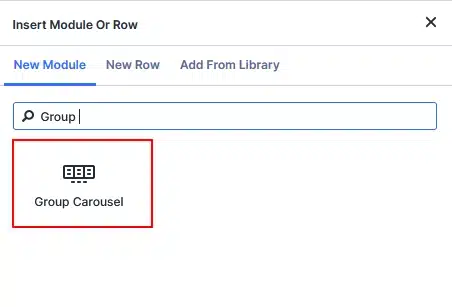
Add a Group Carousel module to your page.
The Group Carousel allows you to create carousel slides and place your own elements inside each slide.
Step 2: Design Your First Carousel Slide
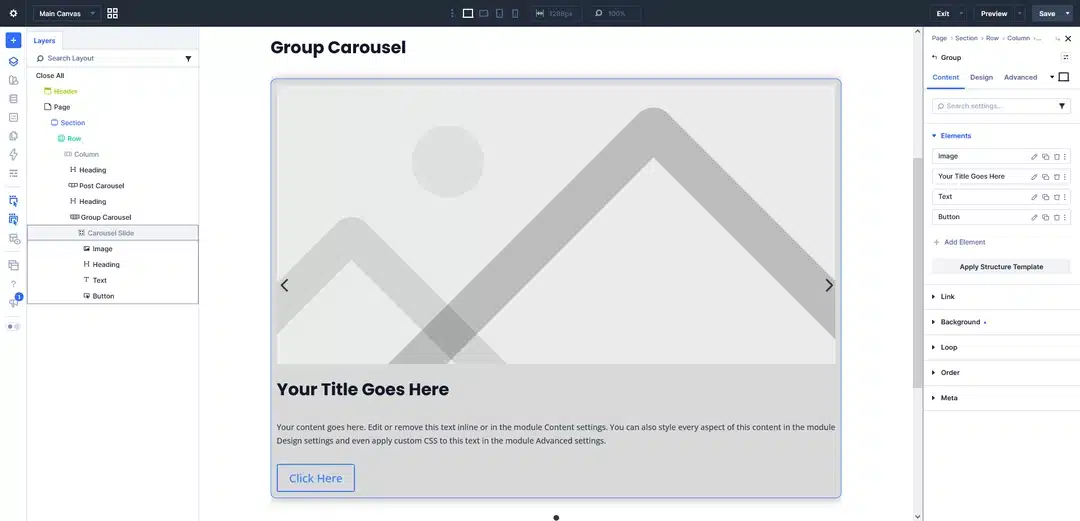
Inside the Group Carousel, you’ll have a Carousel Slide.
This is where you create your card layout.
Add the elements you need for your design.
For example:
- Image
- Heading
- Text
- Button
You can style these elements exactly how you want.
For example, you could create a card like:
┌─────────────────────────┐

│ │

│ Featured Image │

│ │

├─────────────────────────┤

│ Post Title │

│ │

│ Post Excerpt │

│ │

│ Read More → │

└─────────────────────────┘
The important part is that you only need to design one card.
Once the loop is enabled, Divi can use that card structure to display your dynamic content.
Step 3: Enable Loop on the Carousel Slide
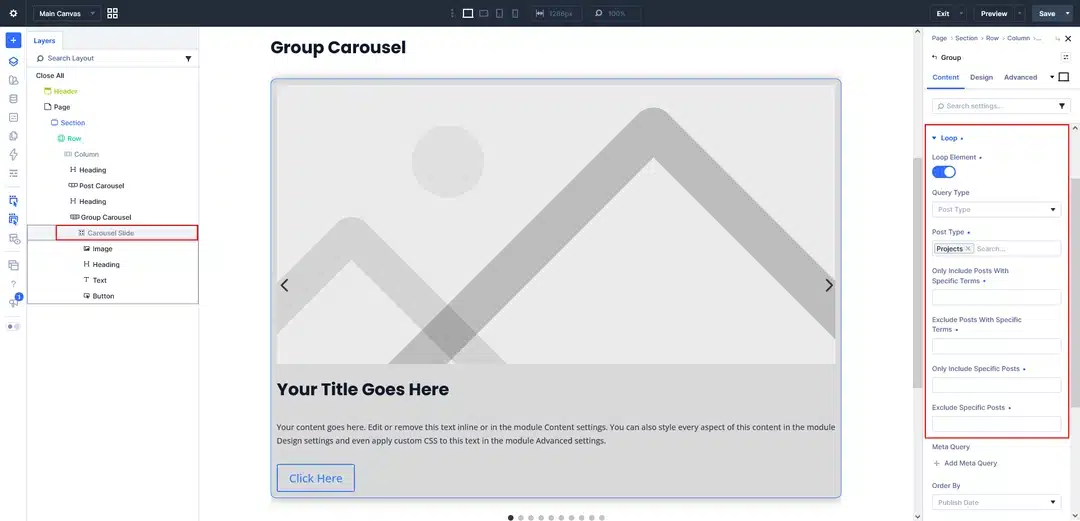
Now select the first Carousel Slide.
Open the Loop settings and enable Loop Element.
This tells Divi that the Carousel Slide should be generated dynamically from your selected content.
Once Loop is enabled, select the content you want to display.
You can choose the appropriate Query Type and select your desired Post Type.
For example:
- Posts
- Products
- Projects
- Team Members
- Services
- Any other registered Custom Post Type
You can also configure additional query settings depending on what content you want to include or exclude.
For example, you can control:
- Post Type
- Specific Terms
- Specific Posts
- Order By
- Other available query options
Now your carousel slide is connected to dynamic content.
Step 4: Make the Inner Elements Dynamic
This is the most important part.
You have created your card design, but the content inside the card is still static.
Now connect each element to the corresponding dynamic Loop value.
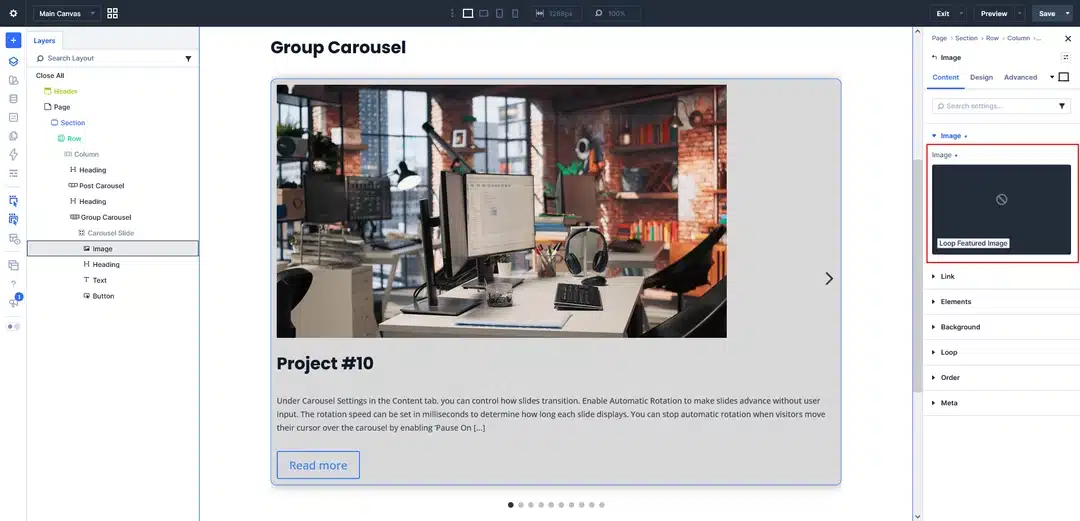
Dynamic Featured Image
Select the Image element inside your Carousel Slide.
Instead of using a fixed image, select the dynamic option:
Loop Featured Image
Now every carousel card can display the featured image of the current post or CPT item.
Dynamic Post Title
Select the Heading element.
Set its content to:
Loop Post Title
Now the heading automatically changes according to the current item.
For example:
Project One
Project Two
Project Three
Each card gets its own title automatically.
Dynamic Post Excerpt
Select the Text element.
Set it to:
Loop Excerpt
Now the text area will automatically display the excerpt from each post or custom post type item.
Dynamic Button Link
Finally, select your Button.
For the button URL, use:
Loop Link
Now the button automatically links to the current post or CPT item’s individual page.
For example:
Project One → /projects/project-one/
Project Two → /projects/project-two/
Project Three → /projects/project-three/
You don’t need to manually enter each URL.
Your Dynamic Card Is Now Complete
At this point, your card contains dynamic content:
| Card Element | Dynamic Value |
|---|---|
| Image | Loop Featured Image |
| Heading | Loop Post Title |
| Text | Loop Excerpt |
| Button Link | Loop Link |
The design stays the same, but the content changes automatically for each item in your query.
This is what makes the Group Carousel approach so powerful.
Step 5: Configure the Main Carousel Settings
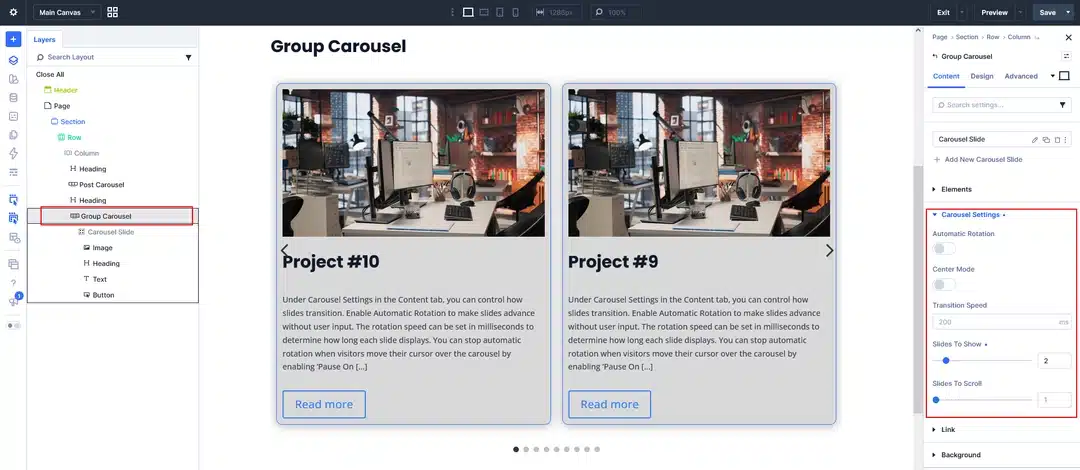
Once your card is complete, select the Group Carousel itself.
Now configure the main Carousel Settings.
Depending on your design, you can control settings such as:
- Automatic Rotation
- Transition Speed
- Slides to Show
- Slides to Scroll
- Center Mode
- Other available carousel options
For example, you can choose to display:
1 card on mobile
2 cards on tablet
3 cards on desktop
You can also configure how many slides should move when the visitor clicks the navigation arrows.
Adjust these settings according to your design and responsive requirements.
Step 6: Check the Front End
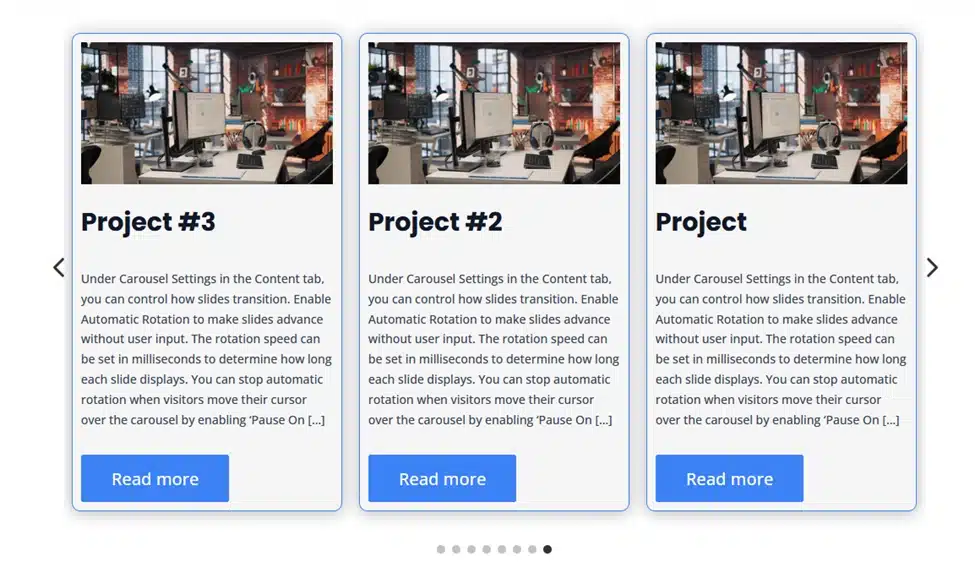
Once everything is configured, save your page and check the front end.
Your custom dynamic slider should now display your selected posts, products, or CPT items using the card design you created.
Instead of manually creating individual cards, Divi generates them from your query.
For example:
Post 1 → Card Design
Post 2 → Card Design
Post 3 → Card Design
Post 4 → Card Design
Post 5 → Card Design
The content changes automatically while your custom layout remains consistent.
Why Use Group Carousel for Custom Dynamic Cards?
The biggest advantage is design flexibility.
With a predefined carousel module, you are generally working within the structure provided by the module.
With Group Carousel, you create the structure yourself.
You can decide:
- Where the image appears
- Where the title appears
- How much text is displayed
- Where the button goes
- How the card is spaced
- How the card looks on mobile
- What additional elements are included
You can even add other Divi elements to your card if your design requires them.
Examples of What You Can Build
This approach isn’t limited to blog posts.
You can use the same method for almost any content that can be queried dynamically.
Blog Post Slider
Featured Image → Title → Excerpt → Read More
Product Slider
Product Image → Product Name → Price → Product Link
Project Slider
Project Image → Project Title → Description → View Project
Team Member Slider
Photo → Name → Position → View Profile
Service Slider
Icon → Service Name → Description → Learn More
Portfolio Slider
Project Image → Category → Project Name → View Project
The layout is completely up to you.
Post Carousel vs Group Carousel
So which one should you use?
| Feature | Post Carousel | Group Carousel |
|---|---|---|
| Dynamic Posts | ✓ | ✓ |
| Dynamic Products | ✓ | ✓ |
| Dynamic CPTs | ✓ | ✓ |
| Quick Setup | ✓ | ✓ |
| Custom Card Structure | Limited to module options | ✓ |
| Complete Element Control | Limited | ✓ |
| Custom Card Design | Limited | ✓ |
| Dynamic Inner Elements | — | ✓ |
| Best for | Standard layouts | Custom layouts |
Use Post Carousel
When the built-in layout and styling options already satisfy your design.
Use Group Carousel
When you need a fully custom card layout with dynamic content.
Final Thoughts
Divi 5 makes it possible to create dynamic sliders without manually creating every card.
If the standard Post Carousel layout works for your project, it is a quick and simple option for displaying Posts, Products, or Custom Post Types.
But when your design requires a completely custom card, use the Group Carousel + Loop approach.
The workflow is simple:
Add Group Carousel
↓
Create your first Carousel Slide
↓
Add Image, Heading, Text, Button, or other elements
↓
Enable Loop on the Carousel Slide
↓
Select your Post Type and query
↓
Connect inner elements to Loop data
↓
Configure Carousel Settings
↓
Check the front end
Once configured, Divi 5 automatically generates your cards from the selected content while keeping your custom design intact.
Design the card once, connect it to dynamic content, and let Divi 5 handle the rest.