Table of Contents
If you’re running a WooCommerce store using Crocoblock tools like JetEngine, JetSmartFilters, or JetWooBuilder, you might want your products to display in-stock items first, followed by out-of-stock items.
WooCommerce doesn’t offer this sorting option by default, but with a simple customization, you can easily control the product order and improve your customers’ shopping experience.
In this guide, we’ll explain how to set the default sorting order so that in-stock products appear first across your shop, categories, or archive pages — even when using Crocoblock listings.
Step 1: Install Required Plugins
Ensure the following plugins are installed and activated:
Elementor Pro: Required for theme builder functionality.
JetEngine: From Crocoblock.
Step 2: Create a Custom Query for Sorting
Go to JetEngine Queries:
- Navigate to the WordPress Dashboard and go to JetEngine > Queries.
Add a New Query:
- Click on “Add New” and select “Posts Query” as the query type.
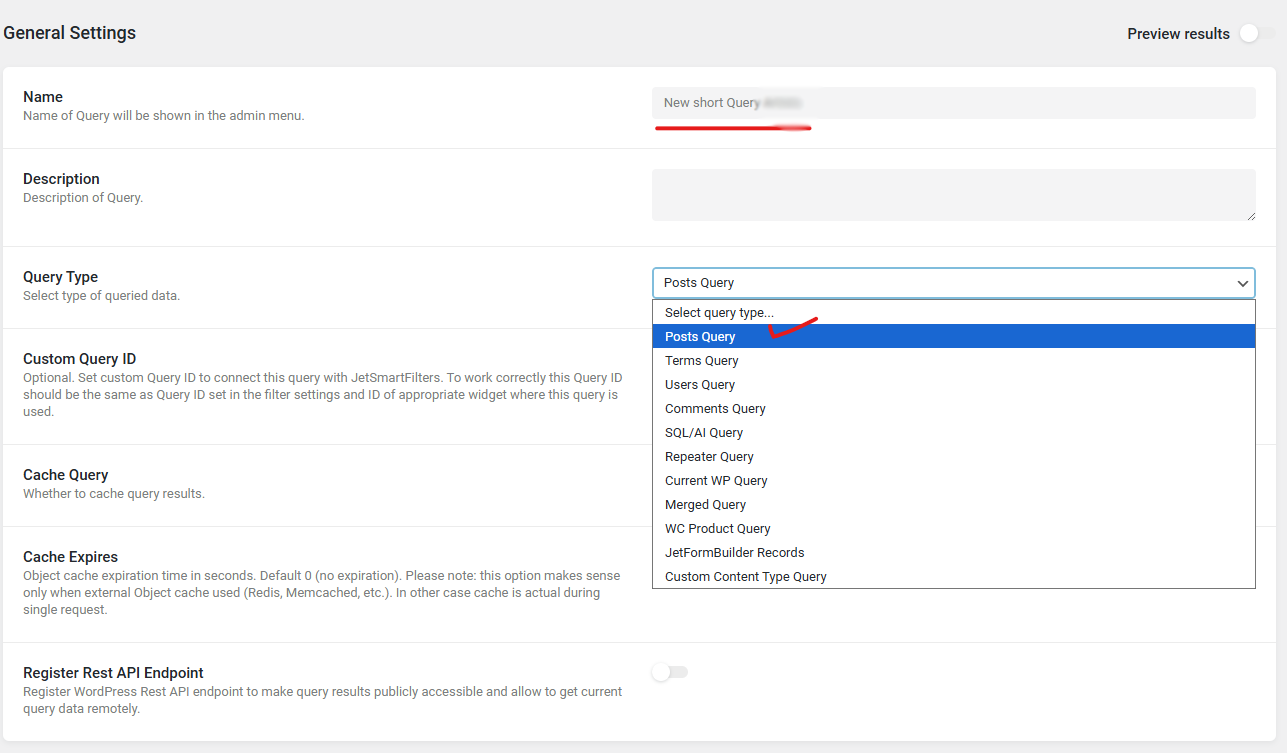
Configure Query Settings:
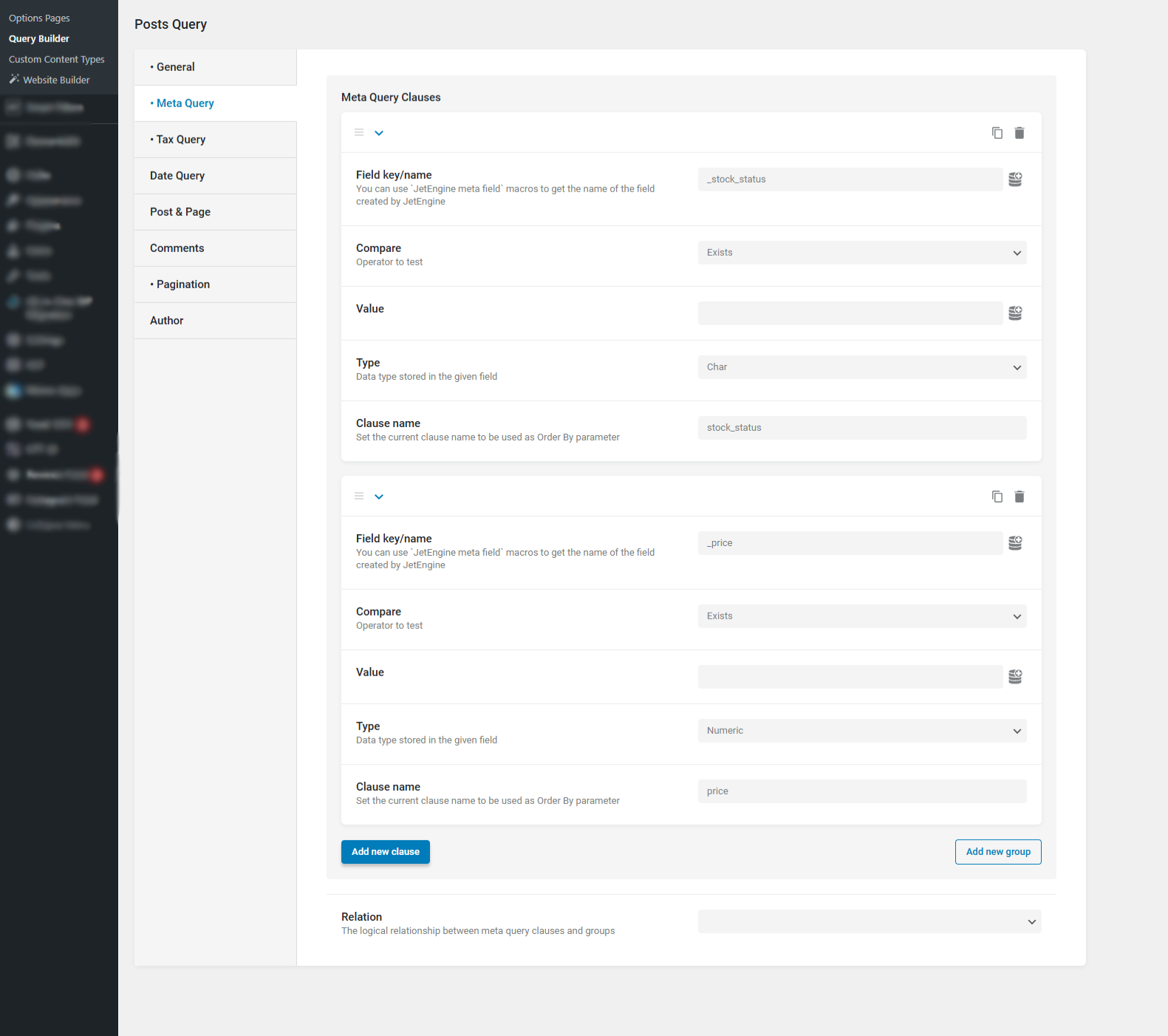
- Set the Meta Query Clauses in the Meta query.
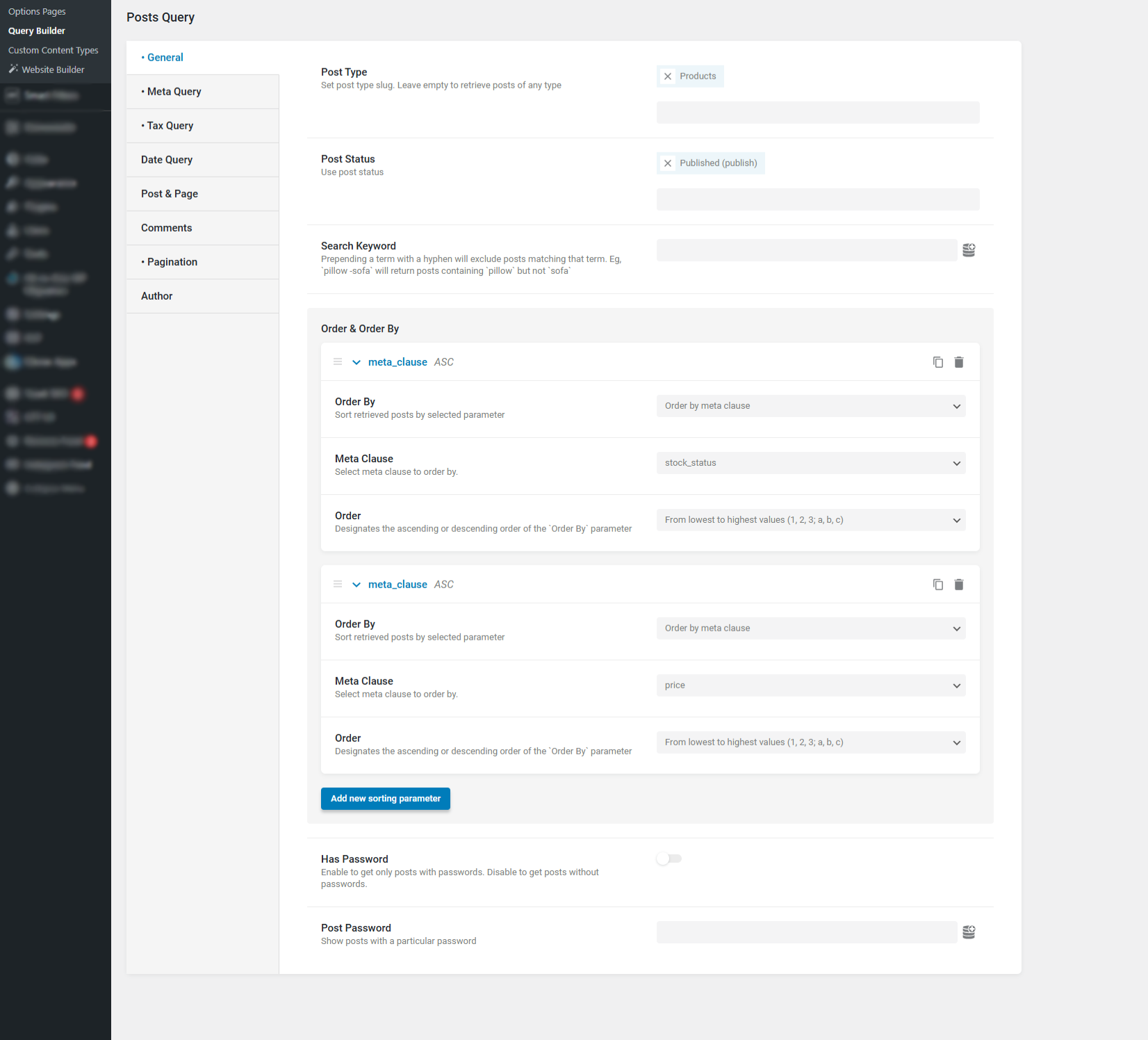
- After creating the Meta Query Clauses, go to the General tab, set the Order By option, and assign the Meta Clauses you created.
- After set Posts Per Page limit in Pagination tab in post query Settings.
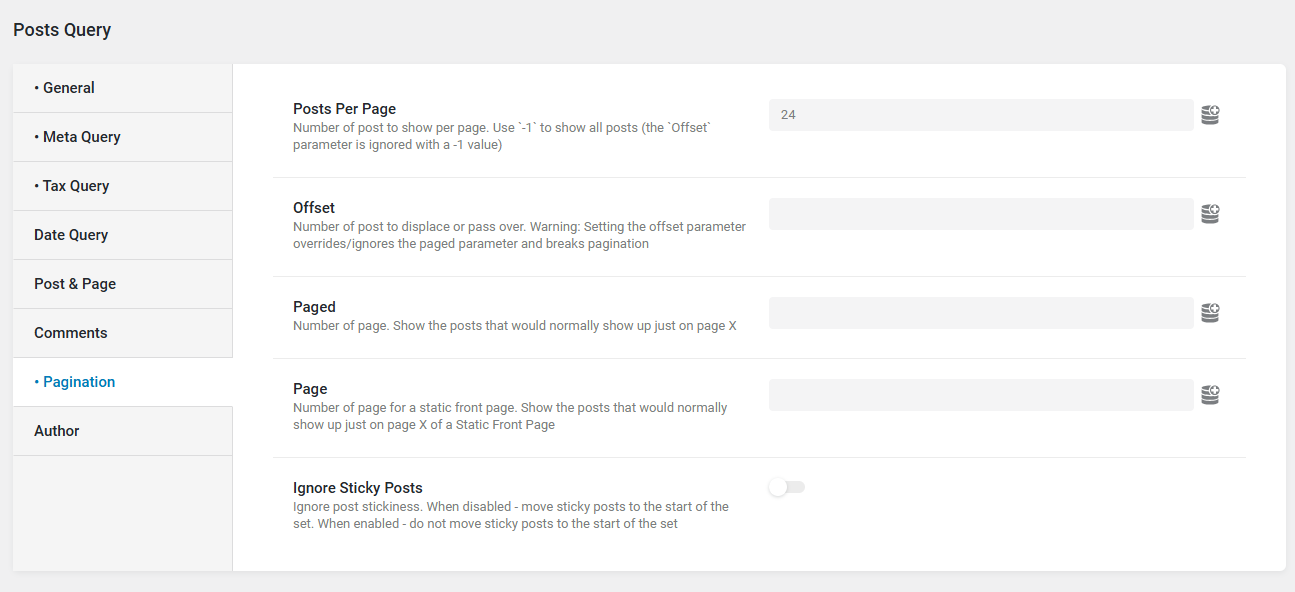
Update above all setting and then after go to archive page and edit this page
Go to Elementor Template -> Theme Builder
Edit your template and use query in custom query which you created in query builder.
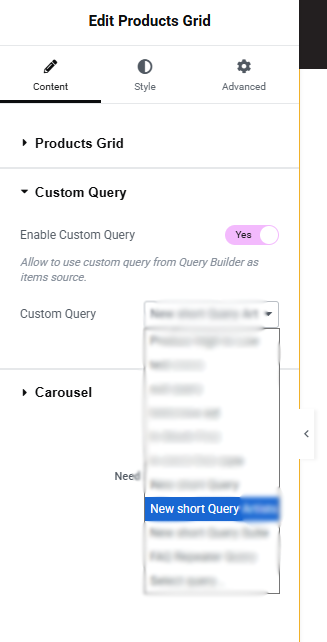
Final Thoughts
Sorting WooCommerce products by stock availability is not a native feature — but with Crocoblock’s flexible system and a small bit of custom code, you can achieve it easily.
By following this guide, you can:
- Improve your product visibility
- Create a more user-friendly online store