Table of Contents
- What Is Divi 5?
- Things to Do Before Upgrading to Divi 5
- 1. Backup Your Website
- 2. Create a Staging Website (Recommended)
- 3. Check Third-Party Plugins and Extensions
- Step-by-Step Guide to Upgrade from Divi 4 to Divi 5
- Run the Compatibility Check
- Migrate Your Website
- Understanding Backward Compatibility Mode
- Migration Testing
- Going Live
- If Something Goes Wrong
- Final Thoughts
Divi 5 is the newest version of the Divi theme for WordPress. It has been completely rebuilt to improve performance, speed, and the overall website-building experience.
If your website is currently using Divi 4, upgrading to Divi 5 will allow you to benefit from faster editing, improved stability, and a modern framework designed for future updates.
In this guide, we will explain how to upgrade from Divi 4 to Divi 5 step by step in simple language, so anyone can follow the process safely.
What Is Divi 5?
Divi 5 is the next generation of the Divi Builder. Instead of simply adding new features, the Divi team rebuilt the system from the ground up with a focus on performance and scalability.
Some major improvements in Divi 5 include:
- Faster Visual Builder performance
- Improved overall website speed
- Cleaner and more modern code structure
- Better scalability for large and complex websites
- Greater flexibility for future features
These improvements make Divi 5 a faster, more efficient, and more powerful version of the Divi theme.
Things to Do Before Upgrading to Divi 5
Before starting the upgrade process, it is important to prepare your website properly.

1. Backup Your Website
Always create a full backup of your website before upgrading.
Your backup should include:
- Website files
- WordPress database
- Media files
- Theme and plugin settings
You can create backups using plugins such as:
- UpdraftPlus
- All-in-One WP Migration
- Your hosting provider’s backup system
Having a backup ensures that you can restore your website if anything goes wrong during the upgrade.
2. Create a Staging Website (Recommended)
It is highly recommended to perform the migration on a staging site first.
A staging site is a copy of your website where you can safely test updates without affecting your live website.
This allows you to:
- Test the Divi 5 upgrade safely
- Fix any issues before updating the live website
- Avoid downtime for your visitors
3. Check Third-Party Plugins and Extensions
If your website uses third-party Divi extensions or plugins, check whether they support Divi 5.
Before upgrading:
- Update all plugins to the latest version
- Remove any unused plugins
- Install Divi 5 compatible versions of extensions if available
This helps prevent compatibility issues during migration.
Step-by-Step Guide to Upgrade from Divi 4 to Divi 5
Now let’s go through the complete upgrade process.
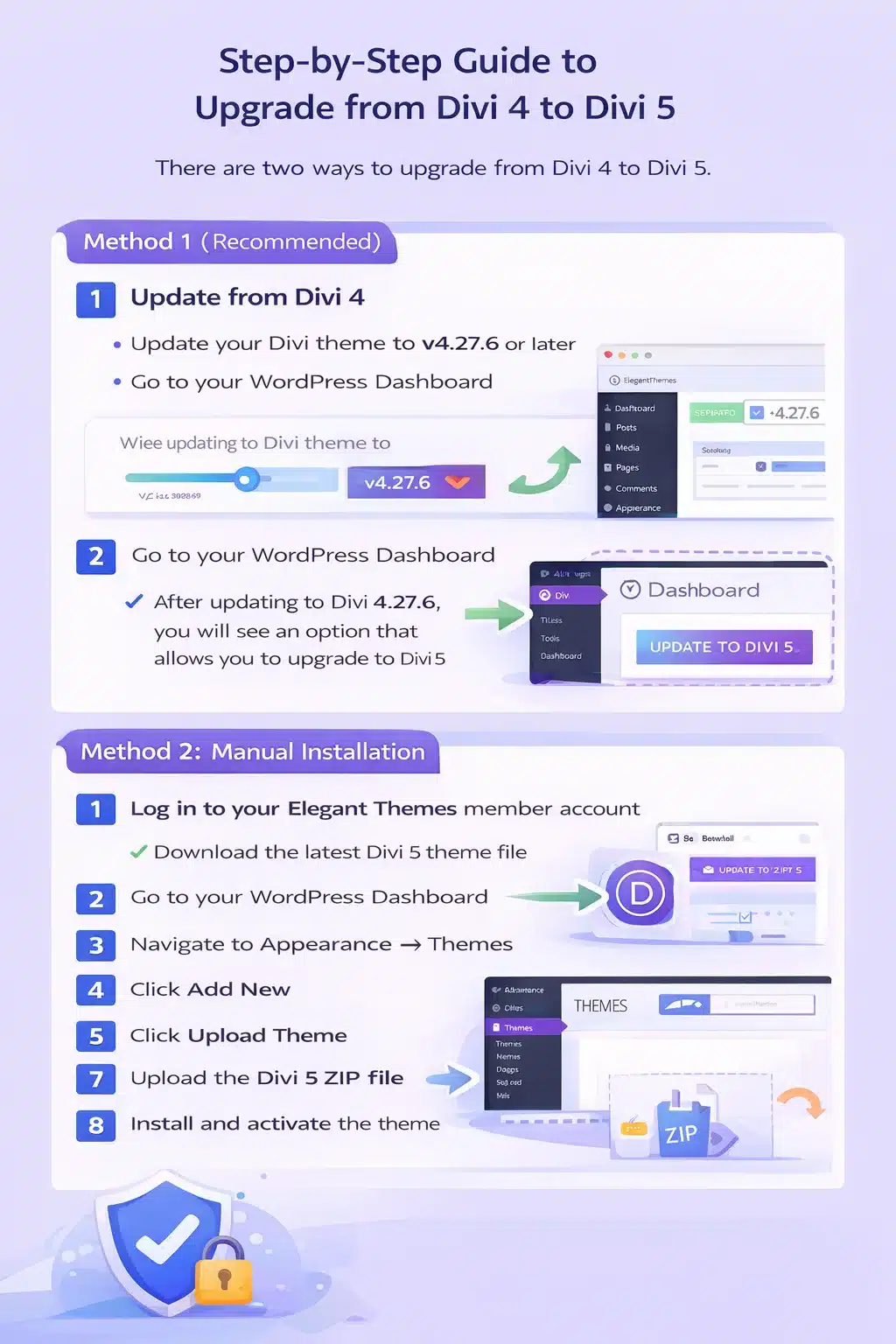
There are two ways to upgrade from Divi 4 to Divi 5.
Method 1 (Recommended): Update from Divi 4
The easiest way to upgrade is by updating your existing Divi theme.
First, make sure your website is running Divi version 4.27.6 or higher.
Steps
- Update your Divi theme to version 4.27.6 or later
- Go to your WordPress Dashboard
- Navigate to Divi → Dashboard
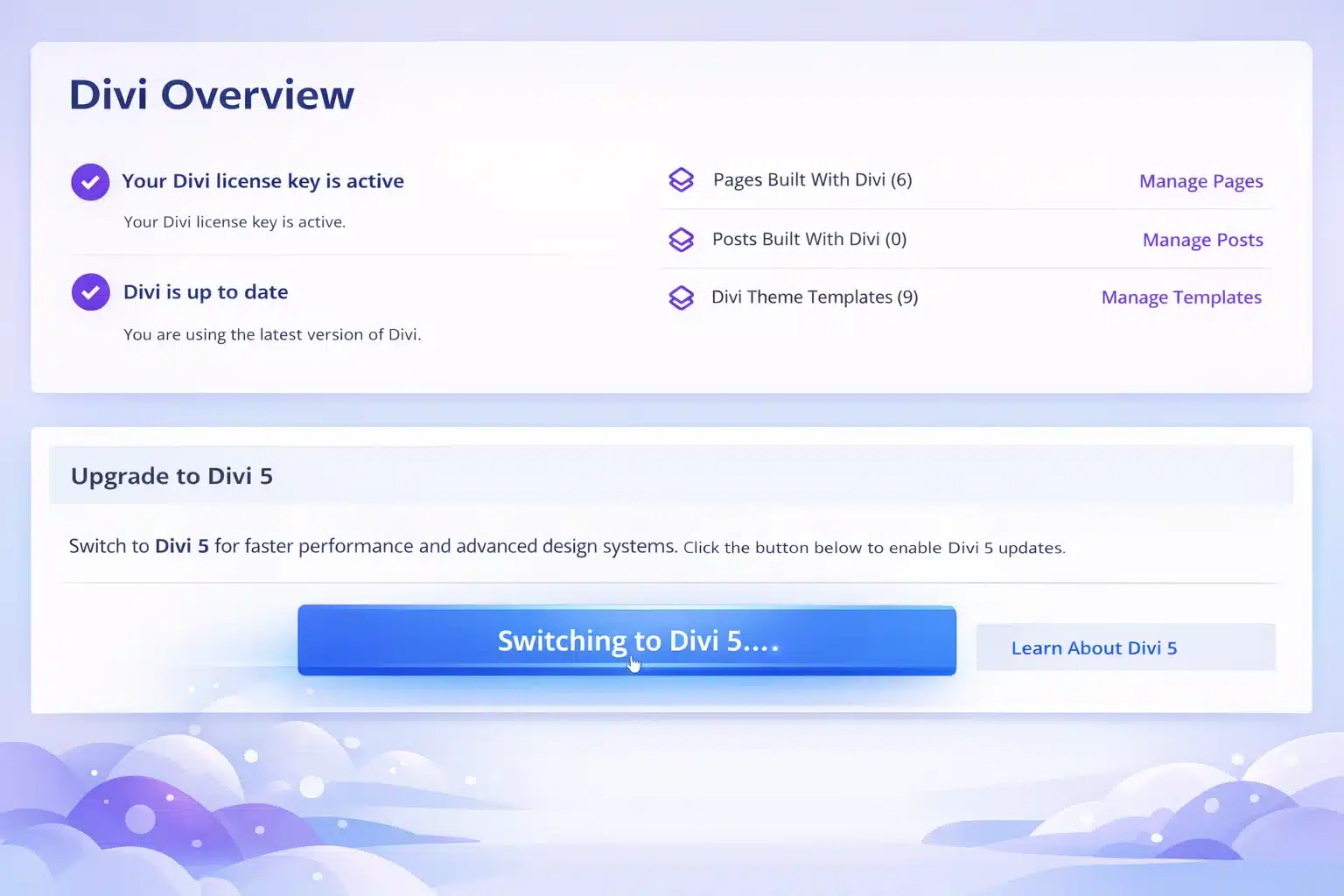
After updating to Divi 4.27.6, you will see an option that allows you to upgrade to Divi 5.
When you enable this option, WordPress will show another theme update. This update will be the latest Divi 5 version.
Simply update the theme again, and your website will be upgraded to Divi 5.
Method 2: Manual Installation
The second method is installing Divi 5 manually.
Steps
- Log in to your Elegant Themes member account
- Download the latest Divi 5 theme file
- Go to your WordPress Dashboard
- Navigate to Appearance → Themes
- Click Add New
- Click Upload Theme
- Upload the Divi 5 ZIP file
- Install and activate the theme
This will install Divi 5 on your website.

Run the Compatibility Check
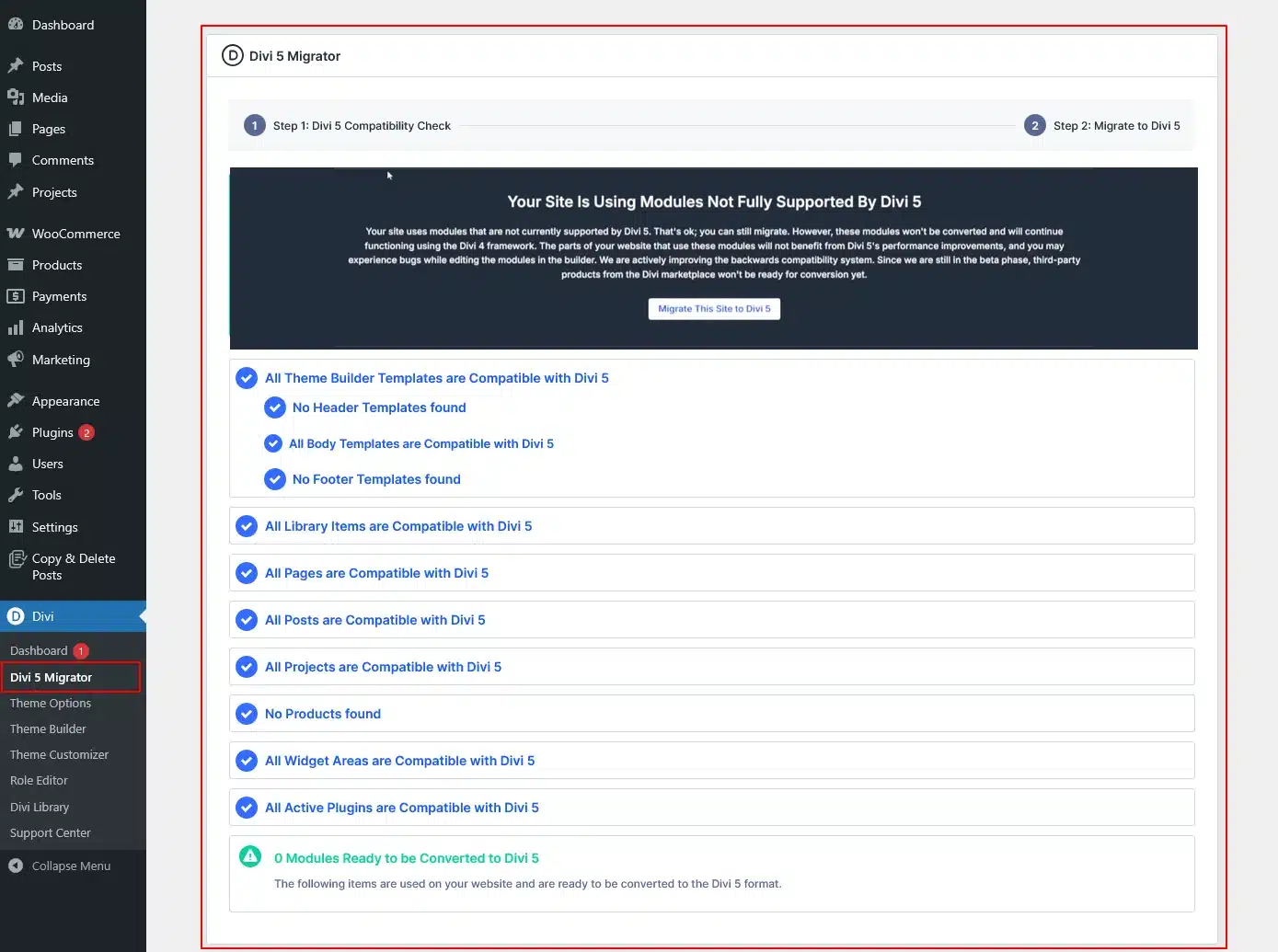
After installing Divi 5, you need to run the Divi 5 Compatibility Check.
To do this, navigate to:
Divi → Divi 5 Migrator
The first time you open this tool, Divi will automatically run a compatibility scan.
This scan checks multiple areas of your website, including:
- Pages
- Posts
- Custom Post Types
- Theme Builder Templates
- WooCommerce Products
- Divi Library Items
- Widgets
- Presets
The system will generate a compatibility report showing if anything needs attention before migration.

Migrate Your Website
After reviewing the compatibility report, make sure all third-party extensions are updated to their Divi 5 compatible versions.
Once everything looks good, you can begin the migration process.
Steps
- Go back to the Divi 5 Migrator page
- Click Migrate This Site to Divi 5
- A confirmation message will appear
- Click Confirm to start the migration
Divi will now convert your Divi 4 layouts into the Divi 5 structure.
The migration process may take a few minutes depending on the size of your website.
Understanding Backward Compatibility Mode
Divi 5 includes a feature called Backward Compatibility Mode.
This allows older Divi 4 modules and layouts to continue working even after upgrading.
Benefits include:
- Your website will not break after upgrading
- Older layouts can still function
- You can migrate gradually if needed
This makes the transition from Divi 4 to Divi 5 much safer.
Migration Testing
After the migration is complete, carefully test your website.
Check the following areas:
- Homepage layout
- Header and footer
- Buttons and modules
- Contact forms
- Mobile responsiveness
- WooCommerce pages (if applicable)
Fix any styling or functionality issues if necessary.
Going Live
Once everything works correctly on the staging site, you can repeat the same steps on your live website.
After upgrading the live site:
- Clear all website cache
- Test your pages again
- Confirm that all features are working properly
Your website will now be fully running on Divi 5.
If Something Goes Wrong
If you experience any issues during migration, you can:
- Restore your website backup
- Update incompatible plugins
- Re-run the compatibility scan
- Try migrating again after fixing the issue
This is why creating a backup and staging site is very important before upgrading.
Final Thoughts
Upgrading from Divi 4 to Divi 5 is an important step that improves your website’s performance and prepares it for future updates.
By following the steps in this guide — creating a backup, installing Divi 5, running the compatibility check, and completing the migration — you can safely upgrade your website.
Once the process is complete, you will benefit from faster performance, a smoother editing experience, and a more powerful website builder with Divi 5.
Need Help Building or Upgrading Your WordPress Website?
Whether you’re upgrading to Divi 5, improving performance, or building a fully customized WordPress website, the experts at TechnoCrackers can help you create a fast, scalable, and future-ready site.
Book a Free Consultation and let’s discuss how we can design, develop, and optimize your WordPress website.