Table of Contents
- What Are Gradient Options in Divi 5?
- How to Create a Gradient in Divi 5
- Step 1: Open the Background Settings
- Step 2: Choose Your Gradient Colors
- Step 3: Choose the Gradient Type
- Step 4: Adjust the Gradient Direction
- Step 5: Adjust the Gradient Length
- How to Save a Gradient as a Variable in Divi 5
- How to Use a Gradient Variable
- Why Use Gradient Variables?
- Quick Tips for Better Divi 5 Gradients
- Create Better Gradients with Divi 5
Gradients are a simple way to add more color and visual interest to a website. You can use them for section backgrounds, buttons, columns, modules, and even text.
Divi 5 makes working with gradients easier with its new Gradient Picker and Gradient Variables. Instead of managing different gradient settings separately, you can create a gradient in one place, customize it, and save it for reuse.
In this guide, we’ll show you how to create a gradient in Divi 5 and save it as a reusable Gradient Variable.
What Are Gradient Options in Divi 5?
Divi 5 brings gradient settings together inside a dedicated gradient field. When you open the Gradient Picker, you can control the colors, gradient type, direction, length, and other settings from one panel.
You can use different gradient types, including:
- Linear
- Circular
- Elliptical
- Conical
You can also save a gradient as a Gradient Variable and reuse the same design across different parts of your website.
How to Create a Gradient in Divi 5
Let’s start by creating a simple gradient.
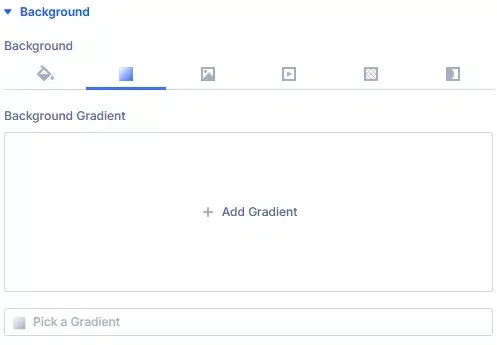
Step 1: Open the Background Settings
Open any page in the Divi 5 Visual Builder.
For this example, select the section where you want to add the gradient.
Go to:
Section Settings → Content → Background
Then select the Gradient option.
Click the gradient field to open the Gradient Picker.
Step 2: Choose Your Gradient Colors
The Gradient Picker allows you to add and customize your gradient colors.
You can select a color stop and choose your preferred color using the color picker or enter a color value directly.
For a simple gradient, start with two colors.
For example:
Color 1 → Color 2
You can add additional color stops if you want a more complex gradient.
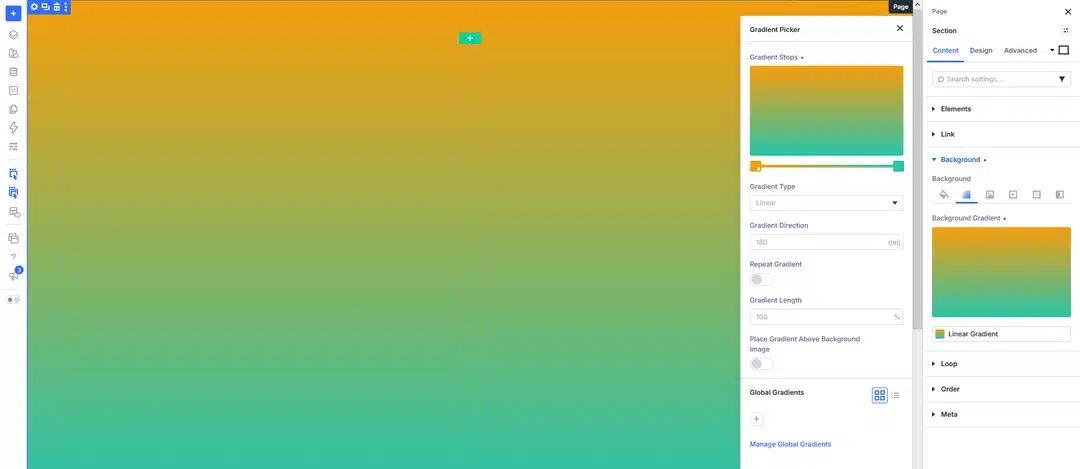
For most designs, starting with two colors is a good way to keep the gradient clean and easy to control.
Step 3: Choose the Gradient Type
Next, choose the type of gradient you want to use.
Divi 5 provides four options:
- Linear – Colors move in a straight direction.
- Circular – Colors spread outward from a central point.
- Elliptical – Similar to a circular gradient but stretched into an oval shape.
- Conical – Colors rotate around a central point.
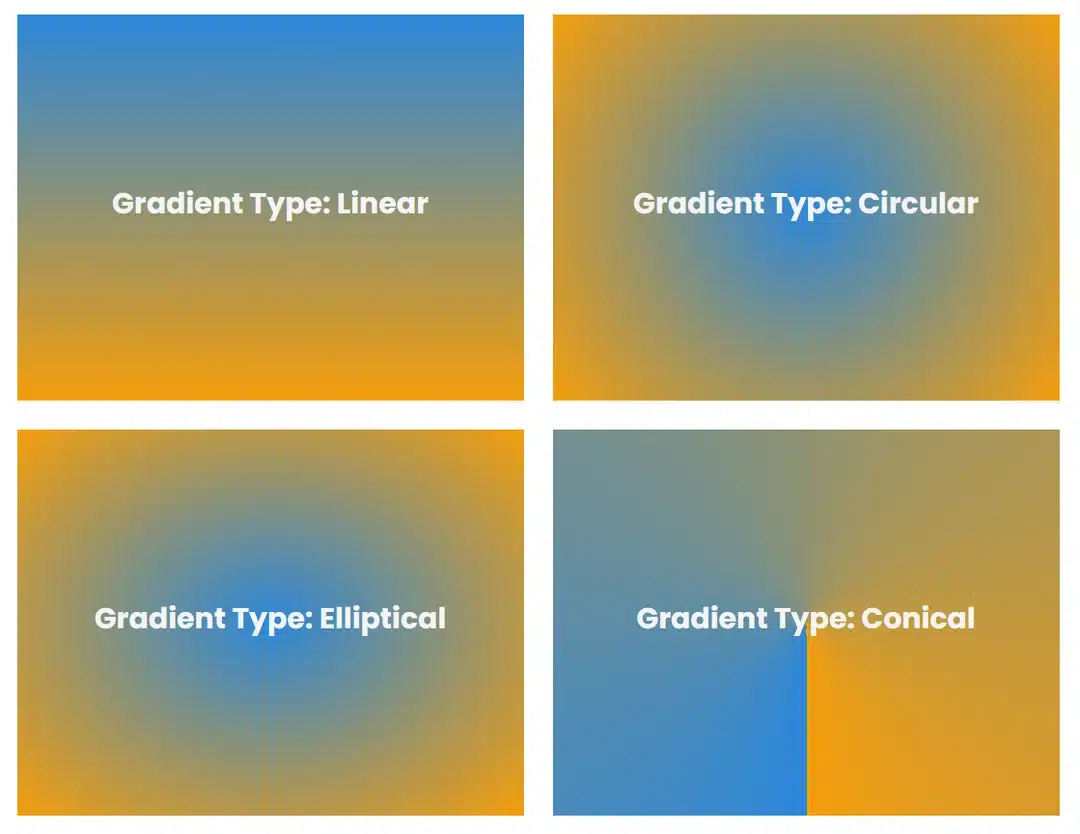
For a simple website background, Linear is usually a good starting point.
Step 4: Adjust the Gradient Direction
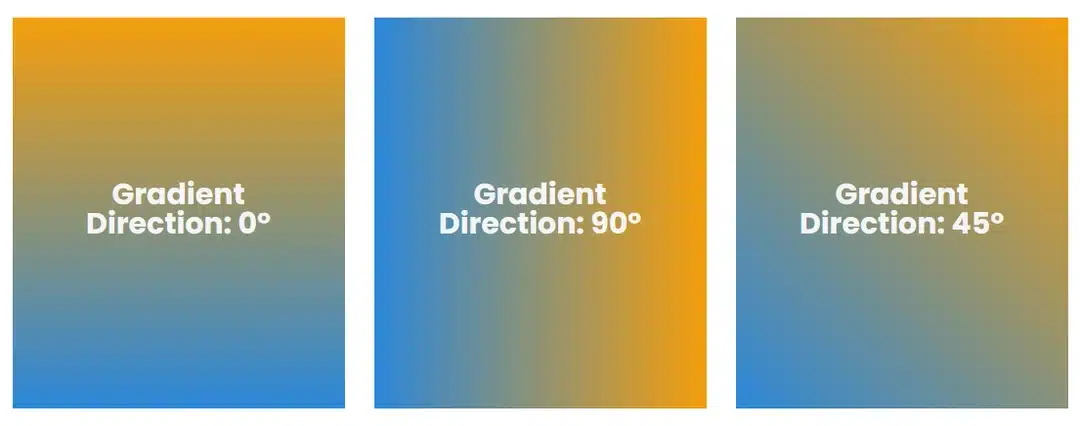
If you select a Linear gradient, you can control its direction using the Gradient Direction setting.
The direction is controlled using degrees.
For example:
- 0° – Horizontal direction
- 90° – Vertical direction
- 45° – Diagonal direction
Try different values while looking at the page preview.
Divi 5 updates the design on the canvas, so you can see the result while adjusting the gradient.
Step 5: Adjust the Gradient Length
You can also control how much space the gradient occupies using the Gradient Length option.
Adjust the value until the transition between your colors looks right for your design.
You can also experiment with the other Gradient Picker settings, such as repeating the gradient or changing its placement.
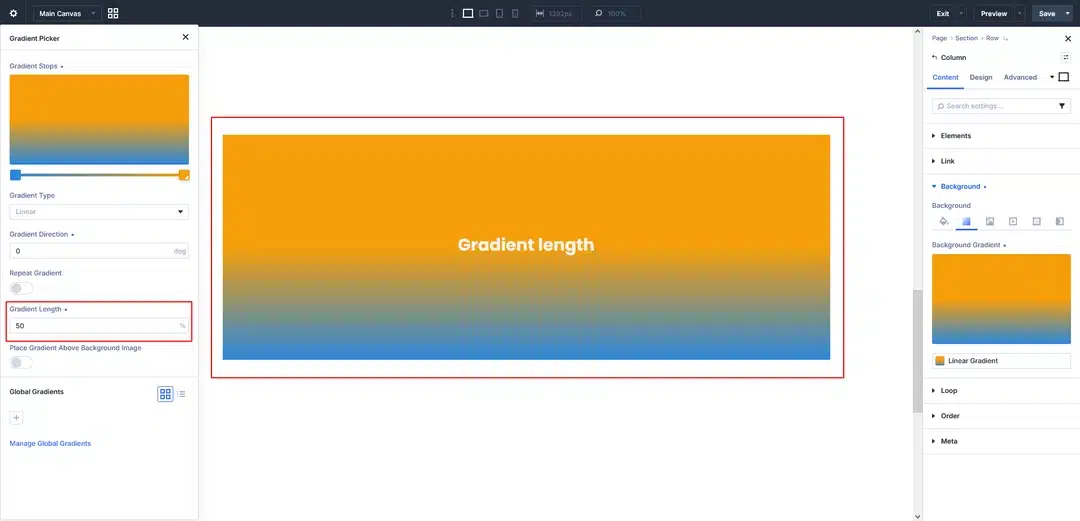
For a basic gradient, you don’t need to change every setting. Start with the colors, gradient type, direction, and length.
How to Save a Gradient as a Variable in Divi 5
If you plan to use the same gradient multiple times, you don’t need to recreate it every time.
Divi 5 allows you to save your gradient as a Gradient Variable.
This is especially useful for websites that use the same gradient across multiple sections, buttons, cards, or other design elements.
Step 1: Open the Variable Manager
Open the Divi 5 Visual Builder and open the Variable Manager.
Find the Gradient section.
Here, you can view existing Gradient Variables or create a new one.
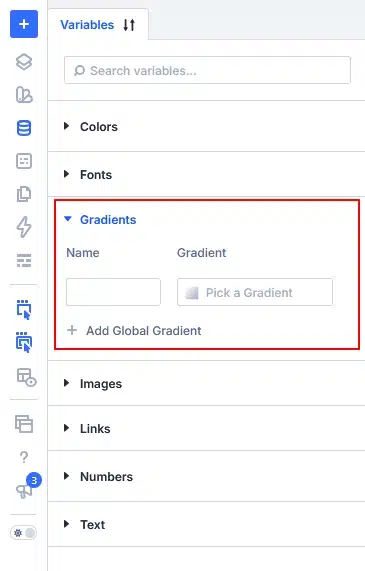
Step 2: Add a Global Gradient
Click: + Add Global Gradient
Give your gradient a name.
Instead of using a name such as Blue Orange Gradient, consider using a name that describes where the gradient is used.
For example:
- Gradient Hero Primary
- Gradient Button Accent
- Gradient Card
- Gradient Text
- Gradient Section
This makes your gradients easier to find later.
Step 3: Create Your Gradient
Click the gradient field to open the Gradient Picker.
Now create your gradient just like you did earlier.
Choose:
- Colors
- Gradient type
- Direction
- Length
- Other available settings
Once you’re happy with the result, save the variable.
Your gradient is now available as a reusable design variable.
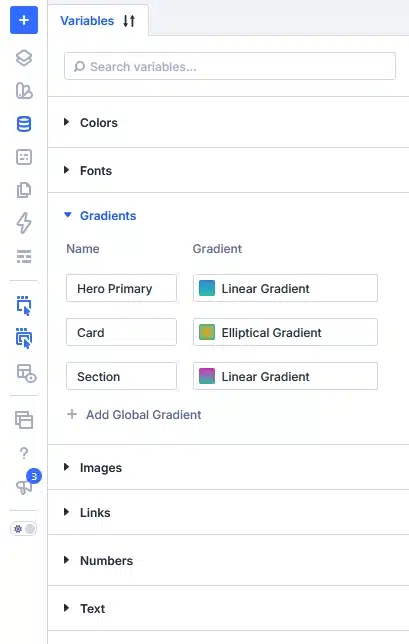
How to Use a Gradient Variable
Now let’s use the Gradient Variable on another element.
Open another section, row, column, or module that supports gradients.
Open its Background settings and click the Gradient field.
Inside the Gradient Picker, look for your saved Gradient Variable.
Select it.
The saved gradient will now be applied to the element.
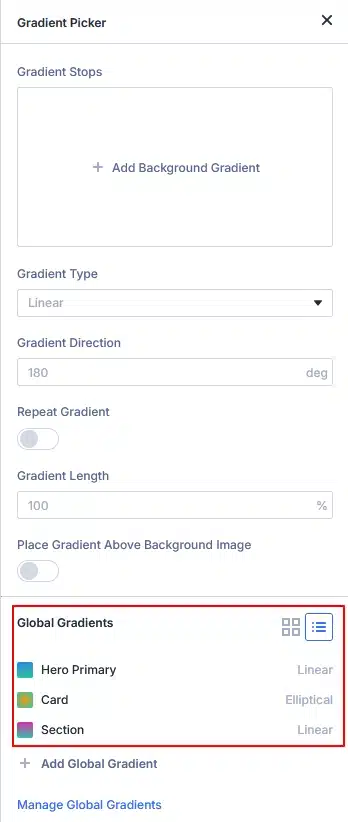
This saves you from manually rebuilding the same gradient.
Why Use Gradient Variables?
Gradient Variables are especially useful when the same gradient appears in multiple places on your website.
For example, you might use one gradient for:
- Hero sections
- Buttons
- Call-to-action sections
- Cards
- Section backgrounds
- Image overlays
- Text effects
If you later change the Gradient Variable, elements using that variable can follow the updated design.
The important part is to use the Gradient Variable itself rather than creating a separate copy of the gradient each time. Pasted text
Quick Tips for Better Divi 5 Gradients
Start With Two Colors
You don’t need many colors to create a good gradient.
Start with two colors and add more color stops only when necessary.
Use Your Brand Colors
Try using colors from your website’s existing color palette.
This helps keep your gradients consistent with the rest of your design.
Try Different Directions
A small change in gradient direction can completely change how the design looks.
Try 45°, 90°, or other values until you find the right appearance.
Save Frequently Used Gradients as Variables
If you use a gradient more than once, consider saving it as a Gradient Variable.
This makes it easier to reuse and maintain.
Give Variables Clear Names
Use names based on the purpose of the gradient rather than only the colors.
For example:
Gradient Hero Primary
is easier to understand later than:
Blue Green Gradient 2
Create Better Gradients with Divi 5
Divi 5 makes gradients easier to create, customize, and reuse.
With the new Gradient Picker, you can manage your gradient colors, type, direction, and other settings from one place. And when you need the same gradient in multiple locations, you can save it as a Gradient Variable and reuse it across your website.
The basic workflow is simple:
Create Gradient → Customize It → Save as Variable → Reuse It
Once you start using Gradient Variables, you can build a more consistent design system and spend less time recreating the same gradients manually.