Table of Contents
- Why Global Styling Improves Website Speed
- What Are Global Colors and Global Typography in Divi 5?
- How to Set Up Global Colors in Divi 5
- Step 1: Open Global Color Settings
- Step 2: Create Your Color Palette
- Step 3: Use Global Colors Everywhere
- How to Set Up Global Typography in Divi 5
- How Global Styling Makes Divi 5 Faster
- Best Practices for Maximum Speed
- Common Mistakes to Avoid
- Final Thoughts
Website speed is no longer optional—it directly impacts SEO, user experience, and conversions. With Divi 5, you can significantly improve performance by using Global Colors and Global Typography the right way.
Instead of styling every module individually, Divi 5 allows you to create a central design system. This reduces CSS output, avoids repetition, and helps your pages load faster.
In this guide, you’ll learn how to use global colors and fonts in Divi 5 and why they improve site speed.
Why Global Styling Improves Website Speed
Before we jump into the setup, let’s understand the performance benefits.
When you don’t use global styles:
- Every module adds its own inline CSS
- Repeated font and color rules bloat your page
- Browsers must parse more CSS on every load
When you use global styles:
- Styles are reused instead of duplicated
- CSS output is smaller and cleaner
- Browsers cache styles more efficiently
- Page rendering becomes faster
Divi 5 is designed around performance-first architecture, and global settings are a key part of that system.
What Are Global Colors and Global Typography in Divi 5?
- Global Colors: Reusable color variables you define once and use everywhere
- Global Typography: Central font settings for headings, body text, and text hierarchy
Together, they act like a design system for your website.
How to Set Up Global Colors in Divi 5
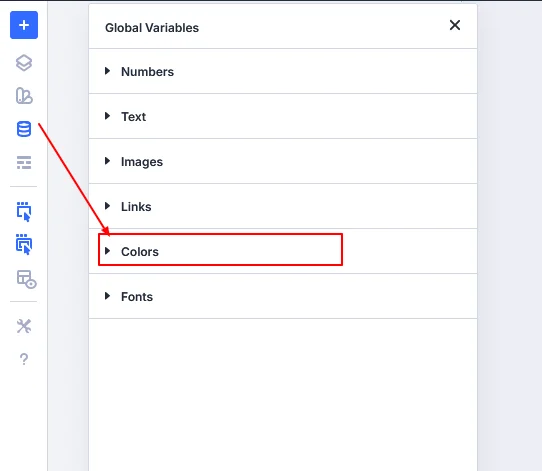
Step 1: Open Global Color Settings
- Open any page with Divi Builder
- Click the Global Styles / Variables icon
- Go to Colors
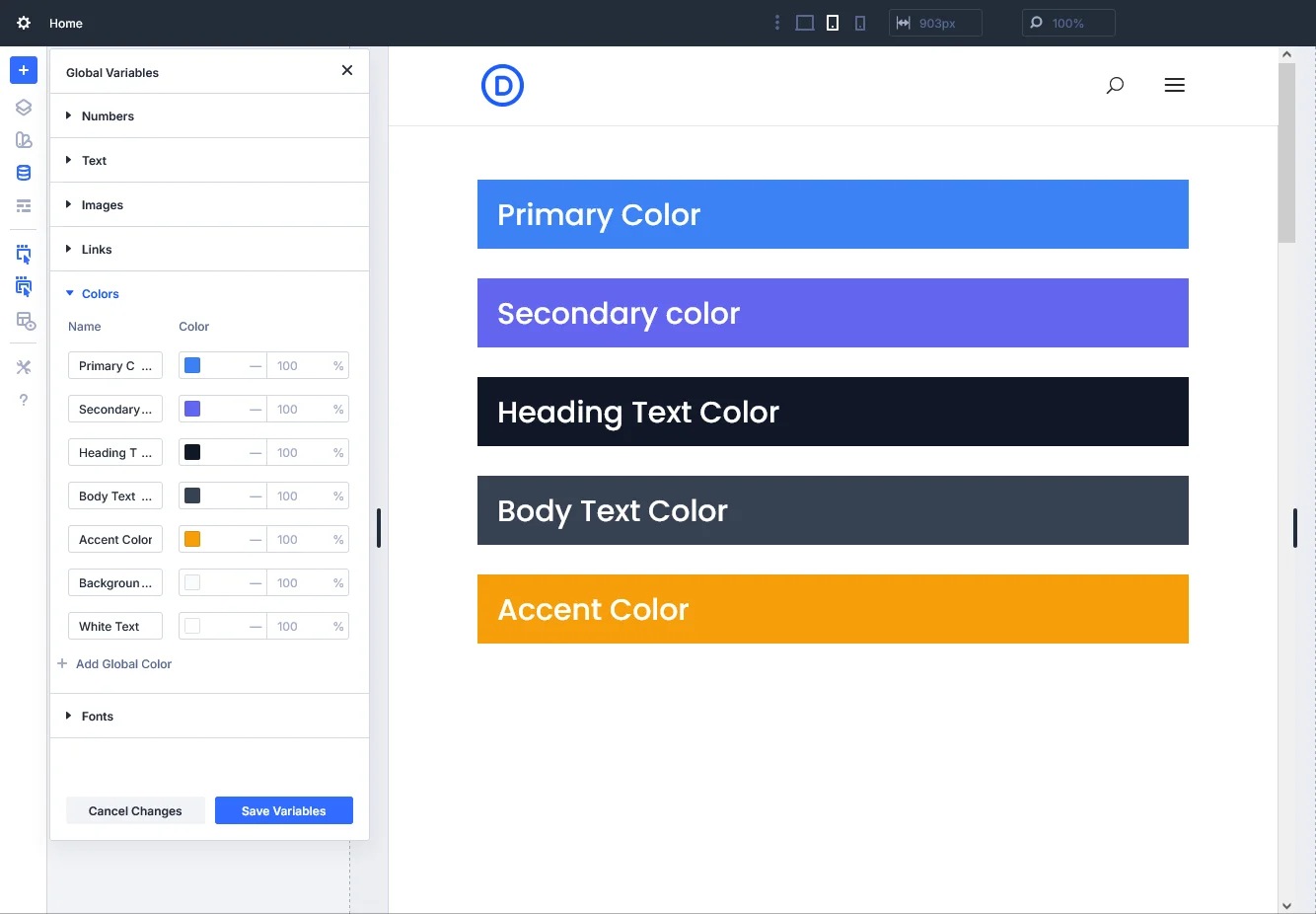
Step 2: Create Your Color Palette
Add colors such as:
- Primary brand color
- Secondary color
- Accent color
- Heading color
- Text color
- Background color
Name them clearly (e.g., Primary Blue, Text Gray).
Step 3: Use Global Colors Everywhere
Instead of selecting custom colors:
- Choose your global color in modules
- Apply them to buttons, text, backgrounds, icons, and borders
Performance Tip:
Using global colors prevents Divi from generating repeated inline CSS values.

How to Set Up Global Typography in Divi 5
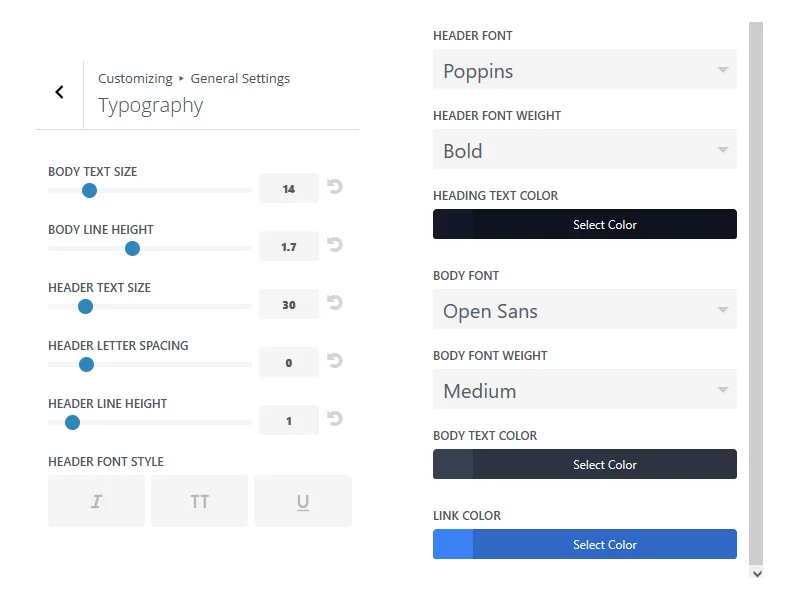
Step 1: Open Typography Settings
- Dashboard > appearance > General settings > Typography
- Navigate to Typography
Step 2: Define Core Font Styles
Set typography for:
- Body text
- H1 – H6 headings
- Buttons
- Links
Configure:
- Font family
- Font weight
Step 3: Apply Typography Globally
Once set:
- Avoid changing fonts at the module level
- Let global typography control all text styles
Performance Tip:
This reduces font declarations and prevents unnecessary font loading.
How Global Styling Makes Divi 5 Faster
Here’s what happens behind the scenes:
| Without Global Styles | With Global Styles |
| Repeated inline CSS | Reusable variables |
| Larger HTML output | Cleaner markup |
| More CSS parsing | Faster rendering |
| Hard to maintain | Easy global updates |
Divi 5’s architecture ensures global styles are cached and reused, which improves real-world loading times.
Best Practices for Maximum Speed
To get the best performance results:
- Always use global colors instead of custom colors
- Use one or two font families only
- Avoid per-module font overrides
- Keep heading hierarchy consistent
- Update styles globally, not individually
Common Mistakes to Avoid
- Using custom colors in every module
- Mixing global fonts with custom fonts
- Overriding typography at module level
- Adding too many font weights
These mistakes increase CSS size and slow down your site.
Final Thoughts
Using Global Colors and Typography in Divi 5 isn’t just about design consistency—it’s about performance optimization.
By setting styles once and reusing them everywhere, you:
- Reduce CSS bloat
- Improve page rendering speed
- Make future updates faster
- Build scalable, maintainable websites
If you want a faster, cleaner, and more professional Divi 5 website, global styling should always be your first step.
Want professional help making your Divi 5 site faster and more scalable?
TechnoCrackers delivers optimized design systems for better speed and UX—Reach out now!