Table of Contents
- What Is JetSmartFilters?
- Why Use Advanced Filters in Divi 5?
- JetSmartFilters and Divi 5 Integration
- Selection Filters
- Search Filter
- Range Filter
- Date Filters
- Rating Filter
- Visual Filter
- Alphabet Filter
- Sorting and Pagination
- How to Set Up JetSmartFilters in Divi 5
- Step 1: Install the Required Integration
- Step 2: Create Your Listing
- Step 3: Create Your Filters
- Step 4: Add the Filters to Your Divi Layout
- Step 5: Connect the Filters to Your Listing
- Step 6: Configure AJAX Filtering
- Example: Creating a Filtered WooCommerce Catalog
- Where Can You Use JetSmartFilters?
- Online Stores
- Directory Websites
- Real Estate Websites
- Blog and Content Websites
- Custom Post Type Websites
- Best Practices for Using JetSmartFilters with Divi 5
- Don’t Add Too Many Filters
- Use Clear Labels
- Combine Different Filter Types
- Test the Provider Connection
- Consider Mobile Users
- Final Thoughts
Creating a website with a large amount of content is easy. Making that content easy to find is the real challenge. When visitors have to browse through dozens or hundreds of products, posts, or listings, a powerful filtering system can make the experience much faster and more convenient.
With JetSmartFilters for Divi 5, you can add advanced filtering functionality to your Divi websites and allow visitors to narrow down content according to their specific needs.
Whether you are building a WooCommerce store, directory, blog, portfolio, or dynamic listing website, JetSmartFilters provides multiple filter types that can work with Divi 5 layouts.
In this guide, we’ll explore how JetSmartFilters works with Divi 5, which filter types are available, how to set up filters, and how to create a practical filtered listing experience.
What Is JetSmartFilters?
JetSmartFilters is a WordPress filtering plugin designed to help users quickly find specific content from dynamic listings.
Instead of displaying every item at once, you can give visitors controls such as:
- Search fields
- Checkboxes
- Radio buttons
- Dropdown selections
- Price ranges
- Date filters
- Rating filters
- Sorting options
- Pagination
- Active filter indicators
The filters can be connected to different listing sources, including WooCommerce products, posts, custom post types, and dynamic listings.
For Divi 5 users, JetSmartFilters can be integrated through the Divi Integration Addon, making the available filter modules accessible from the Divi interface.
Why Use Advanced Filters in Divi 5?
Filtering becomes especially useful when a website contains a large amount of content.
For example, an online store may have hundreds of products divided by:
- Product category
- Brand
- Price
- Size
- Color
- Rating
- Availability
Instead of forcing users to manually browse the entire catalog, filters let them immediately narrow the results.
This can improve navigation, reduce the time users spend searching, and create a more organized browsing experience.
JetSmartFilters and Divi 5 Integration
JetSmartFilters can be used with Divi 5 through the Divi Integration Addon.
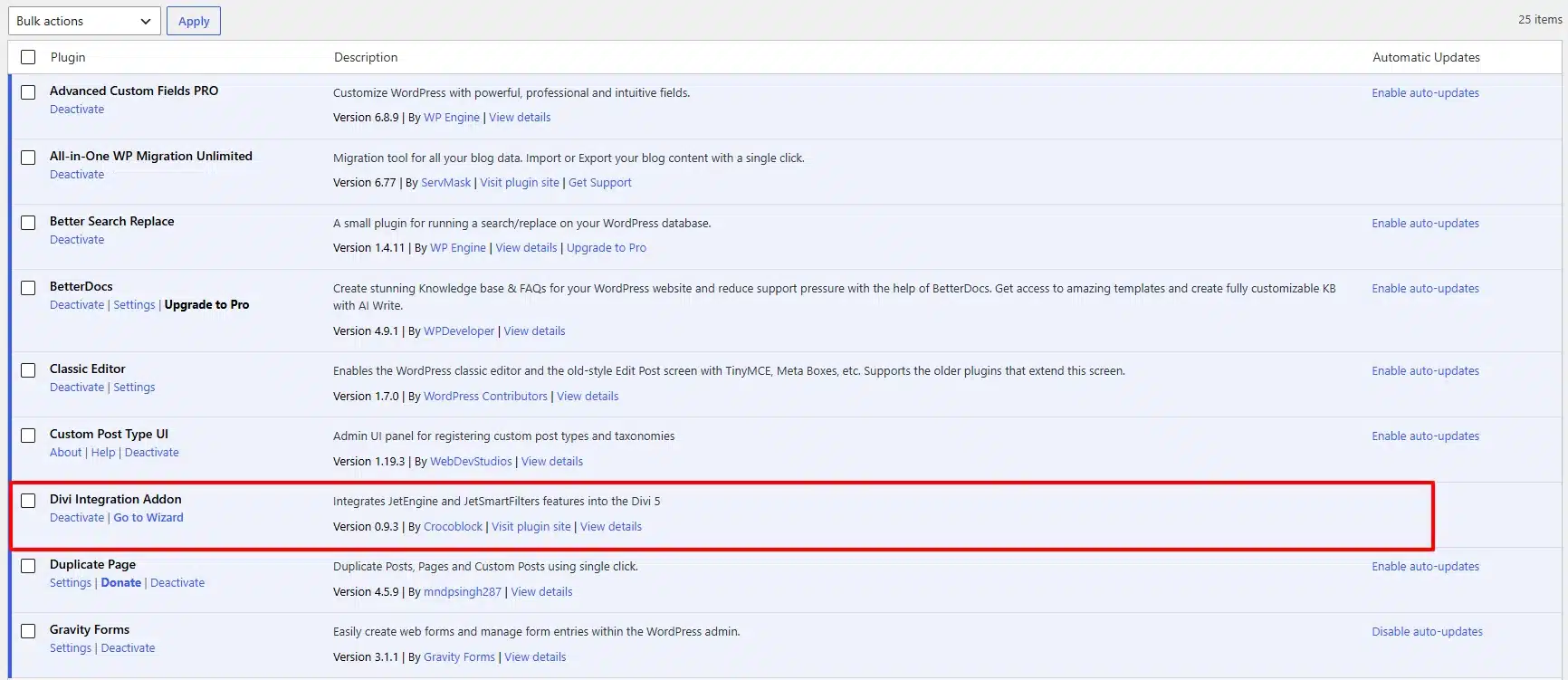
The integration makes JetSmartFilters modules available within the Divi 5 Module Library. The filtering functionality continues to use JetSmartFilters’ existing filtering system while the modules can be configured within the Divi environment.
Once the integration is installed, you can add the appropriate filter modules to your Divi layouts and connect them to your listing or content provider.
The available modules include:
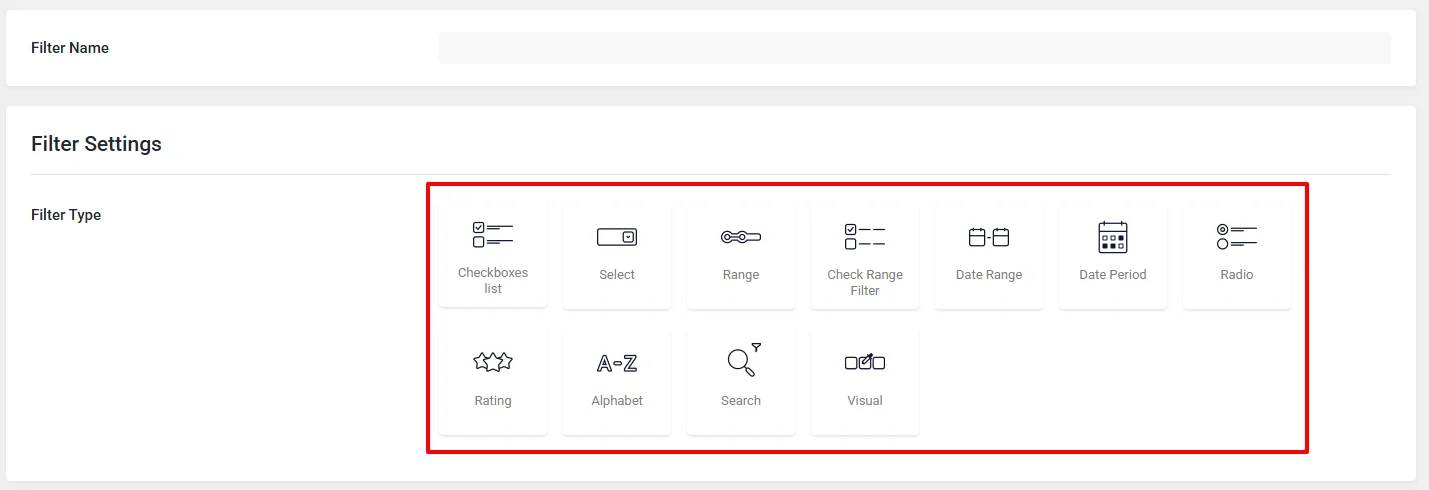
Selection Filters
Selection-based filters are useful when visitors need to choose one or more predefined options.
Examples include:
- Select Filter
- Checkboxes Filter
- Radio Filter
These are ideal for filtering products by categories, attributes, tags, or other taxonomies.
Search Filter
The Search Filter allows visitors to enter keywords and find matching content.
For example, a WooCommerce catalog could include a search field with a placeholder such as:
Search products…
Users can then enter a product name or relevant keyword instead of manually browsing through the catalog.
Range Filter
A Range Filter is useful when users need to filter numerical values.
One of the most common examples is price.
You could allow visitors to select:
$20 – $100
and display only products that fall within that price range.
Range filters can also be useful for other numerical data, depending on the type of website you are building.
Date Filters
Date-based filtering can be useful for websites that display events, appointments, listings, or other time-sensitive content.
JetSmartFilters provides date-related filtering options, including Date Period and Date Range filters.
Rating Filter
A Rating Filter can help visitors narrow down content according to ratings.
For example, a WooCommerce store could allow visitors to display products rated:
- 5 stars
- 4 stars and higher
- 3 stars and higher
This can be particularly useful for stores with a large product catalog.
Visual Filter
Visual filters provide a more graphical way to select filtering options.
They can be useful when the appearance of an option is important, such as filtering products by color or another visual attribute.
Alphabet Filter
An Alphabet Filter can be useful for directories, resource libraries, or websites where users need to browse content alphabetically.
Visitors can select a letter and quickly narrow the available results.
Sorting and Pagination
Filtering is not the only way to improve content discovery.
Sorting allows users to change how results are ordered, while pagination helps them navigate through larger result sets.
For an online store, sorting options could include:
- Price: Low to High
- Price: High to Low
- Newest Products
- Popular Products
Combining sorting with filters gives visitors more control over how they explore your content.
How to Set Up JetSmartFilters in Divi 5
Let’s look at a basic workflow for creating a filtered WooCommerce layout.
Step 1: Install the Required Integration
First, make sure Divi 5 and the required Crocoblock plugins are installed on your WordPress website.
Install and activate the Divi Integration Addon and the JetSmartFilters plugin.
After activation, the relevant JetSmartFilters modules can become available in the Divi 5 Module Library.
Step 2: Create Your Listing
Before adding filters, you need a listing or content area that will display your results.
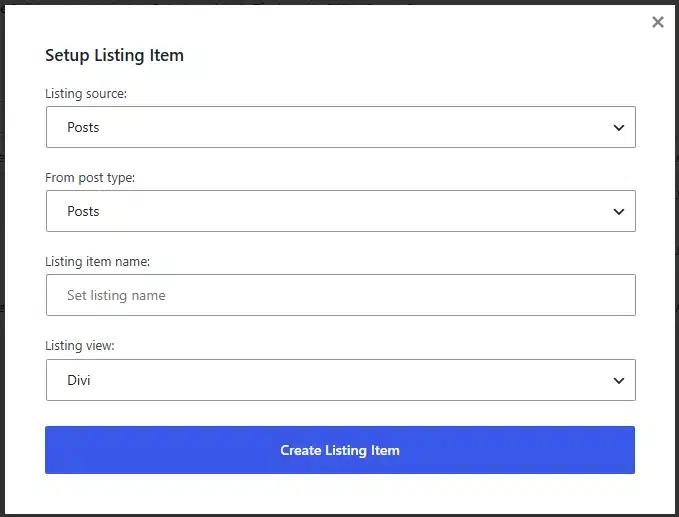
For example, you could create a WooCommerce product listing containing:
- Product image
- Product title
- Product price
- Product link
- Additional product information
The listing becomes the content that your filters will control.
Step 3: Create Your Filters
Go to:
WordPress Dashboard → JetSmartFilters → Add New
Create the filters you need for your project.
For a basic WooCommerce catalog, you might create:
- A Search Filter for keywords
- A Checkboxes Filter for product types
- A Range Filter for price
You can add additional filters depending on the information available in your product data.
Step 4: Add the Filters to Your Divi Layout
Open your page with Divi 5 and add the appropriate JetSmartFilters modules.
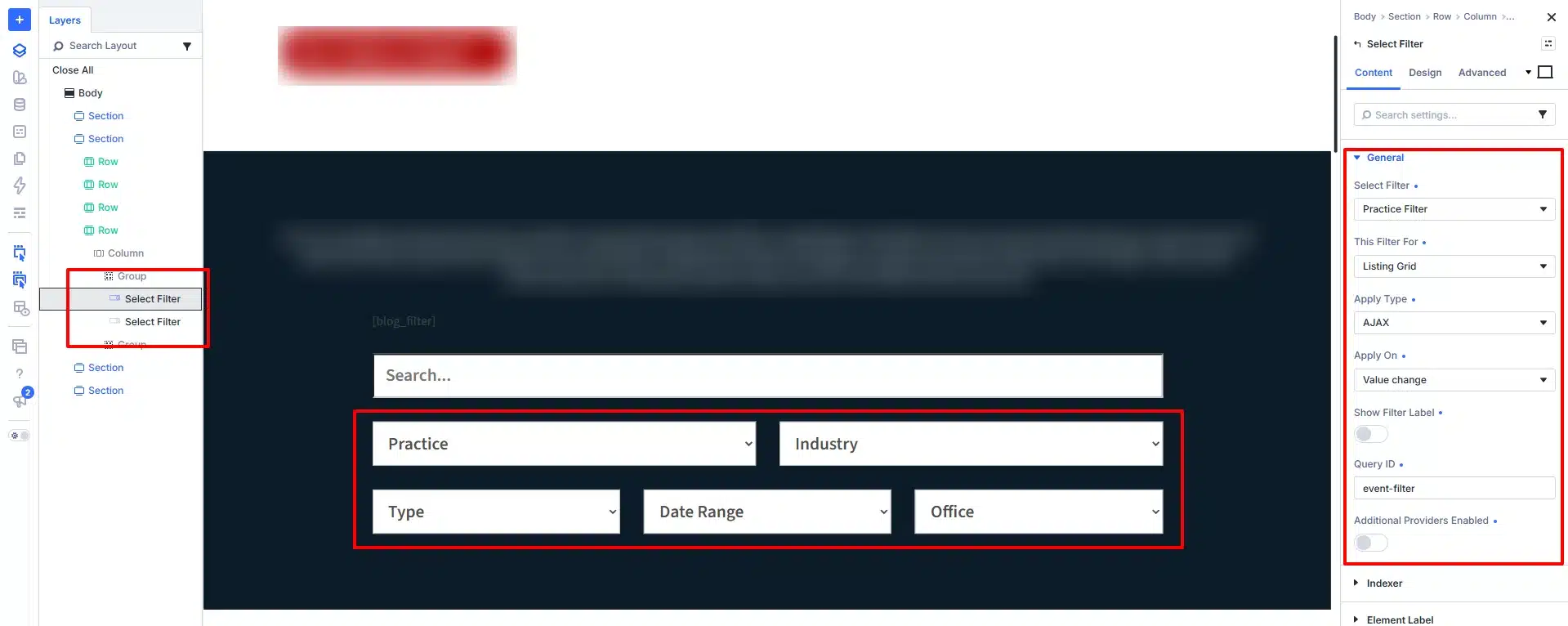
A common layout is a two-column design:
Left column: Filters
Right column: Product Listing
This structure works particularly well for desktop shopping experiences.
On smaller screens, the filter area can be adapted into a collapsible or stacked layout.
Step 5: Connect the Filters to Your Listing
This is one of the most important steps.
Each filter needs to know which content or listing it should control.
Select the appropriate provider and connect the filter to your listing.
For example, if your product grid is using a Listing Grid provider, make sure the filter is configured to work with that same provider.
If the provider settings do not match, the filter may appear correctly but fail to update the results.
Step 6: Configure AJAX Filtering
One of the major benefits of JetSmartFilters is AJAX-based filtering.
With AJAX filtering, the results can update without requiring the entire page to reload.
For example, when a visitor selects a product category, the product listing can update immediately.
This creates a smoother browsing experience and makes it easier for visitors to experiment with different filter combinations.
Example: Creating a Filtered WooCommerce Catalog
Imagine you are creating a fashion store with a large collection of products.
Your product listing contains:
- Product image
- Product name
- Price
- Product category
- Product type
You could create a filter sidebar containing:
Search
Visitors can search for a specific product.
Product Type
Checkboxes can allow users to select categories such as Dresses, Shoes, Accessories, or Jackets.
Price
A range slider can let users choose their preferred price range.
The visitor might select:
Product Type: Shoes
Price: $50–$150
The listing will then show products matching those conditions.
This approach is much more convenient than forcing the visitor to browse the entire catalog.
Where Can You Use JetSmartFilters?
JetSmartFilters is not limited to WooCommerce stores.
You can use advanced filtering in many different types of websites.
Online Stores
Create filters for:
- Price
- Brand
- Category
- Color
- Size
- Rating
- Product attributes
Directory Websites
Allow visitors to filter listings by:
- Location
- Category
- Price
- Availability
- Rating
- Services
Real Estate Websites
Property websites can use filters such as:
- Property type
- Price
- Number of bedrooms
- Number of bathrooms
- Location
- Area
Blog and Content Websites
Content-heavy websites can provide filtering based on:
- Categories
- Tags
- Topics
- Authors
- Publication dates
Custom Post Type Websites
If your website uses custom post types, filters can help visitors navigate large collections of custom content.
This makes JetSmartFilters useful for directories, job boards, event websites, portfolios, resource libraries, and many other dynamic websites.
Best Practices for Using JetSmartFilters with Divi 5
Don’t Add Too Many Filters
More filters do not always mean a better experience.
Only include filtering options that are genuinely useful to your visitors.
Use Clear Labels
Make sure users immediately understand what each filter does.
Instead of using technical field names, use labels such as:
Filter by Price
Choose a Category
Select a Brand
Combine Different Filter Types
A combination of filters can be more effective than using the same filter type repeatedly.
For example:
- Search Filter
- Category Checkboxes
- Price Range
- Rating Filter
- Sorting
This gives users multiple ways to narrow down results.
Test the Provider Connection
If a filter appears on the page but does not change the results, check the provider configuration first.
The filter and listing need to reference the correct provider and connection settings.
Consider Mobile Users
A large filter sidebar may work well on desktop but take up too much space on mobile.
Consider using a compact filter section, accordion, or other responsive layout so users can access filtering without overwhelming the page.
Final Thoughts
JetSmartFilters makes it easier to create advanced content discovery experiences with Divi 5.
With options for search, checkboxes, ranges, dates, ratings, visual filtering, sorting, and pagination, you can build filtering systems for everything from WooCommerce stores to directories and custom content websites.
The Divi Integration Addon provides the connection between JetSmartFilters and Divi 5, allowing you to work with JetSmartFilters modules directly within the Divi environment.
If your Divi 5 website contains a large amount of content, adding smart filtering can make navigation significantly easier. Instead of making visitors search through every item manually, you can give them the tools to quickly find exactly what they need.