Table of Contents
- Why Create a Global Typography System?
- 1. Plan Your Typography First
- 2. Create Global Font Variables in Divi 5
- 3. Create Your Typography System
- 4. Create Typography Presets
- 5. Use Your Typography Presets Across Your Website
- Use Variable Fonts for More Control
- Why This Workflow Makes Divi 5 Typography Easier
- Final Thoughts
Typography is one of the most important parts of a website’s design. The right font, size, weight, and spacing can make your content easier to read while creating a consistent visual identity.
Divi 5 makes typography easier to manage with global font variables, responsive typography settings, and reusable presets.
Instead of manually styling every heading and text element throughout your website, you can first define your typography system and then reuse those styles across your pages.
In this guide, we’ll show you how to plan and create a consistent typography system in Divi 5.
Why Create a Global Typography System?
When building a website, typography is repeated across almost every page.
You may use the same:
- Heading font
- Body font
- H1–H6 sizes
- Body text size
- Button text size
- Line heights
- Font weights
If these values are manually configured for every module, making changes later can become time-consuming.
A global typography system lets you define your main typography styles in advance and reuse them throughout your website.
1. Plan Your Typography First
Before you start styling your pages, decide how your typography should look.
Start by identifying:
- Primary Font
- Secondary Font, if required
- H1–H6 Sizes
- Body Text Size
- Small Text Size
- Button Text Size
You should also decide how these sizes will change across desktop, tablet, and mobile.
For example:
| Element | Desktop | Tablet | Mobile |
|---|---|---|---|
| H1 | 60px | 48px | 36px |
| H2 | 48px | 38px | 30px |
| H3 | 32px | 28px | 24px |
| H4 | 28px | 24px | 22px |
| Body | 18px | 17px | 16px |
| Button | 18px | 17px | 16px |
These are only example values. Your typography should follow your website’s actual design.
2. Create Global Font Variables in Divi 5
Once your typography is planned, open any page using the Divi 5 Visual Builder.
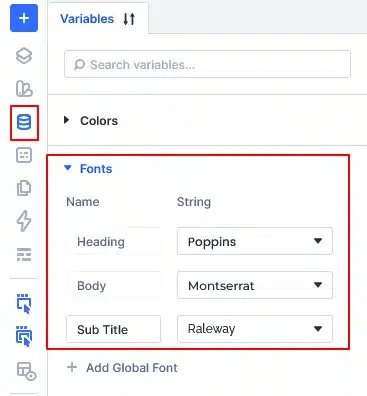
Open the Variable Manager and go to the Fonts section.
Here, you can create reusable font variables such as:
- Heading Font
- Body Font
- Additional Font, if required
For example:
Heading Font → Poppins
Body Font → Open Sans
Subtitle → Raleway
The actual fonts will depend on your website’s branding.
The main benefit is that you don’t have to manually select the font every time you create a new text element. Instead, you can use your predefined font variables throughout the website.
3. Create Your Typography System
Now that your fonts and typography values are planned, it’s time to build your typography system in Divi 5.
Create a Typography Section
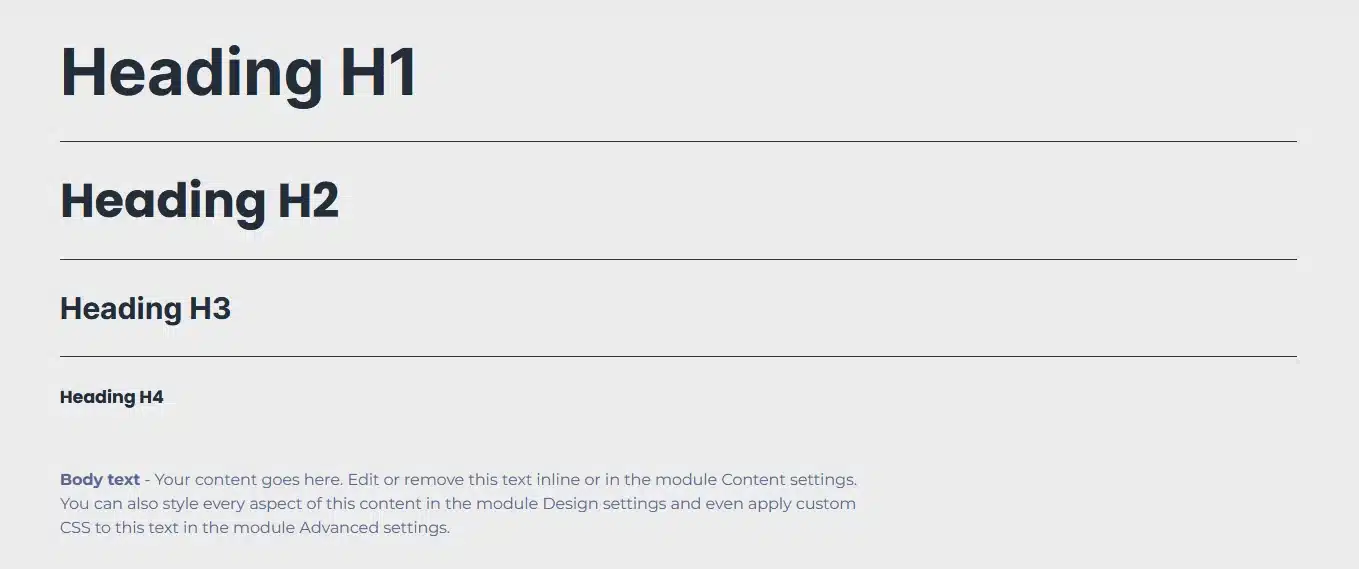
Open any page in the Divi 5 Visual Builder and create a dedicated section for your typography styles.
This section will act as a visual reference for your website’s typography.
Add Your Heading Styles
Add your heading modules and create styles for:
- H1
- H2
- H3
- H4
- H5
- H6
For each heading, configure the typography according to your planned design.
Set the:
- Font family
- Font weight
- Font size
- Line height
- Letter spacing
- Text color
- Responsive values
Use your global font variables wherever appropriate.
Add Your Body Text Style
Next, add a Text Module and configure your standard body text.
Set the typography according to your design, including:
- Font family
- Font size
- Font weight
- Line height
- Letter spacing
- Text color
Make sure the typography is also adjusted for desktop, tablet, and mobile.
Your typography section should now give you a clear visual overview of how your website’s headings and body content will look.
Once all of your typography styles are created and responsive settings are configured, you can turn these styles into reusable presets.
4. Create Typography Presets
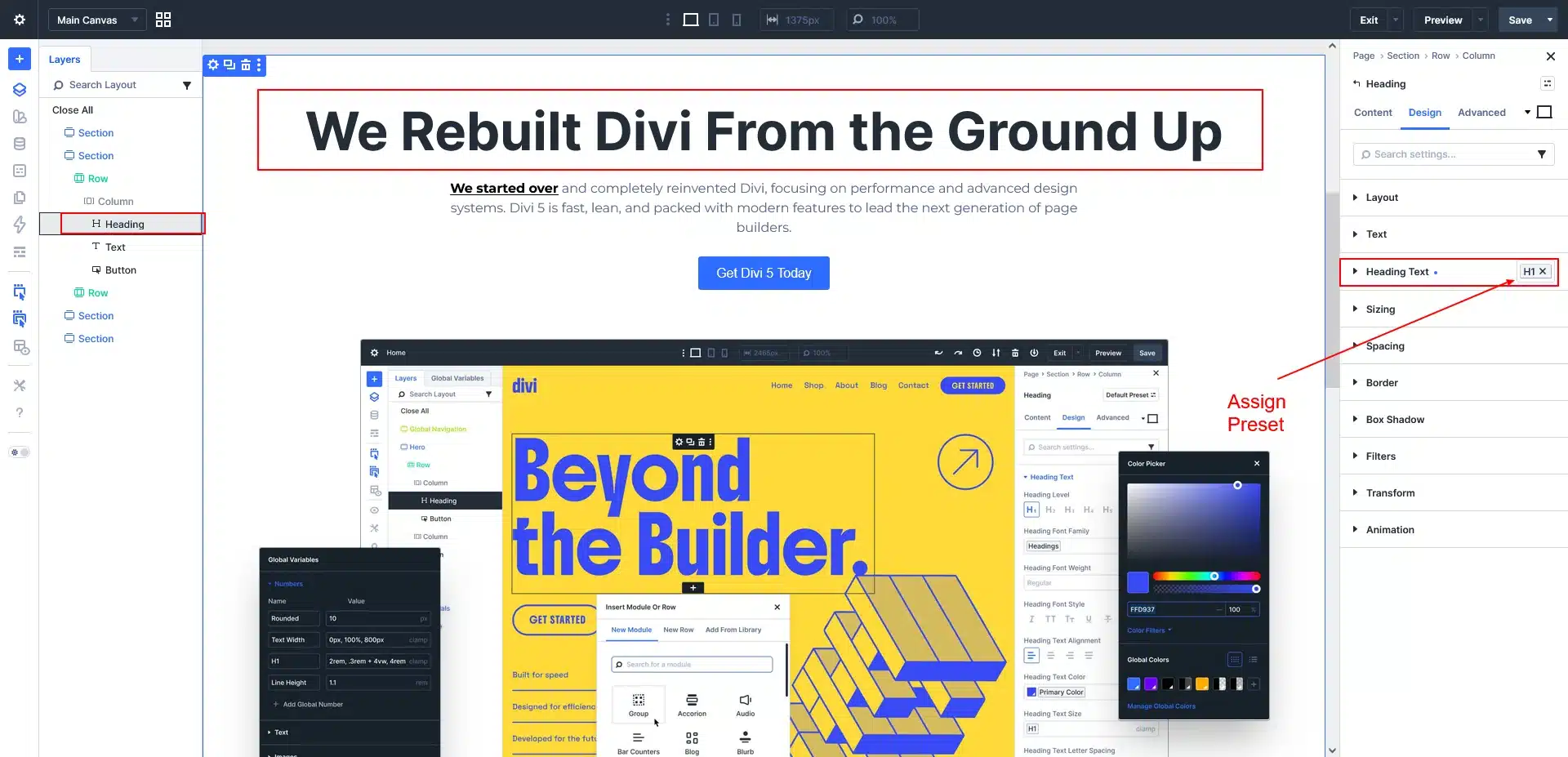
Now that your typography styles are ready, the next step is to save them as Divi 5 Presets.
Presets allow you to save the styling of an element and reuse that styling throughout your website.
For example, you can create presets for:
- Global H1
- Global H2
- Global H3
- Global H4
- Global H5
- Global H6
- Global Body Text
- Global Subtitle
- Global Small Text
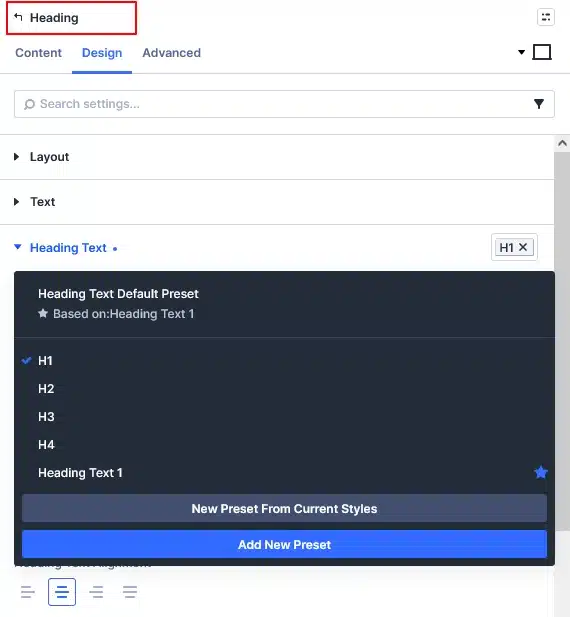
Create an H1 Preset
Start with your H1 heading.
Open the H1 module settings and make sure all of your typography settings are configured correctly.
Then create a new preset from the current styling.
Name it something simple, such as:
Global H1 or H1
Repeat the same process for H2 through H6.
Create a Body Text Preset
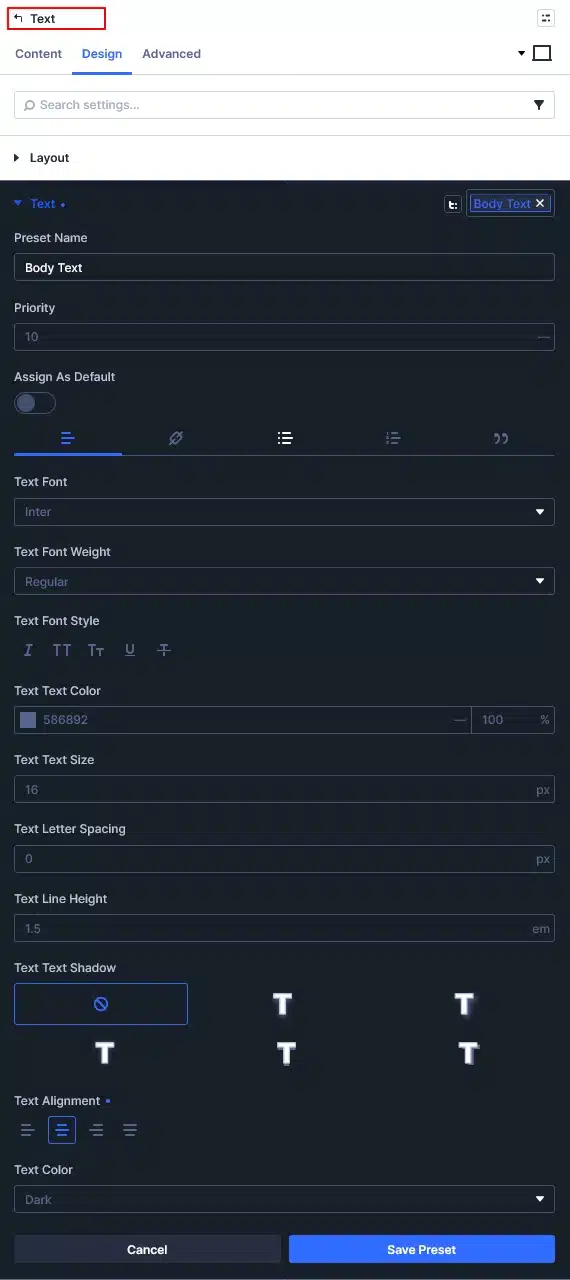
Next, select your Body Text module and save its completed styling as a preset.
For example:
Global Body Text
Now you can apply this preset whenever you need standard body content.
Create Additional Typography Presets
If your design includes other repeated text styles, create presets for those as well.
For example:
- Global Subtitle
- Global Intro Text
- Global Small Text
- Global Caption
- Global Button Text
Only create presets for styles that you actually use repeatedly. This keeps your typography system organized and easy to manage.
5. Use Your Typography Presets Across Your Website
Your typography system is now ready.
When building your pages, instead of manually configuring every heading and paragraph, simply apply the appropriate preset.
For example:
Main Page Heading → Global H1
Section Heading → Global H2
Subsection Heading → Global H3
Paragraph → Global Body Text
This keeps typography consistent across your entire website.
Use Variable Fonts for More Control
If you’re using a supported Variable Font, Divi 5 can give you more control over the font’s available characteristics instead of limiting you to traditional predefined font weights.
Depending on the font, you may be able to fine-tune characteristics such as weight, width, slant, or other supported axes.
This can be useful when you want more precise control over the appearance of your headings and text while keeping your typography system consistent.
Why This Workflow Makes Divi 5 Typography Easier
Once your typography variables and presets are created, making future changes becomes much easier.
For example:
Change the heading font → Update your font variable.
Change H1 styling → Update the Global H1 preset.
Change body text styling → Update the Global Body Text preset.
Change responsive typography → Update the relevant typography settings.
Instead of manually searching through every page, you have a structured system for managing your site’s typography.
Final Thoughts
A well-planned typography system can make a Divi 5 website more consistent, professional, and easier to maintain.
By first planning your typography, then creating global font variables, building a visual typography reference section, and finally saving those styles as presets, you can create a reusable system for your entire website.
Variable Fonts can give you additional control when supported, while responsive settings help ensure your typography looks great across desktop, tablet, and mobile.
Plan your typography once, build your system in Divi 5, and reuse it throughout your website.