Table of Contents
Introduction
Want to make your Divi 5 website more modern and interactive?
Divi 5 includes built-in Animation and Scroll Effects, so you can create beautiful scrolling sections without installing any extra plugins or writing custom code.
In this guide, we’ll show you how to use both features together to create smooth and professional-looking page animations.
Why Use Animation and Scroll Effects?
Adding animation helps visitors focus on important content while making your website feel more engaging.
Some benefits include:
- Create a modern website design
- Make content more attractive
- Highlight important sections
- Improve user experience
- No extra plugins required
Divi 5 Provides Two Animation Features
To create a great scrolling effect, Divi offers two different options:
- Animation – Controls how an element appears.
- Scroll Effects – Controls how an element moves while the user scrolls.
Using both together creates the best result.
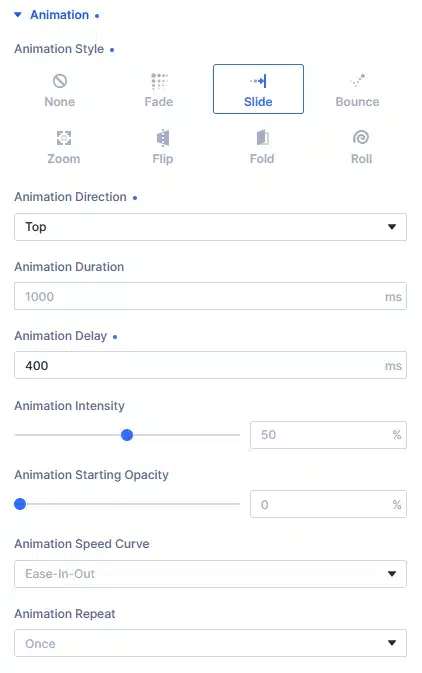
Animation Settings
Open your module and go to:
Design → Animation
Animation Styles
Divi provides several animation styles.
Fade
Makes the element smoothly appear.
Best for:
- Text
- Buttons
- Testimonials
Slide
Slides the element from a direction.
Best for:
- Service cards
- Images
- Columns
Zoom
Zooms the element into view.
Great for:
- Images
- Icons
- Portfolio items
Bounce
Adds a bouncing effect.
Best used for small decorative elements.
Flip
Flips the element while appearing.
Good for creative websites.
Fold
Creates a folding animation.
Useful for feature sections.
Roll
Rolls the element into view.
Use sparingly for fun designs.
Animation Options
Direction
Choose where the animation starts.
Options:
- Top
- Bottom
- Left
- Right
Duration
Controls animation speed.
Recommended: 600–1000ms
Delay
Adds a delay before the animation starts.
Perfect when animating multiple columns one after another.
Intensity
Controls how strong the animation looks.
Recommended:
30%–60%
Starting Opacity
Controls the visibility before the animation starts.
Usually 0% gives the best result.
Speed Curve
Controls how smoothly the animation plays.
The default Ease option works well.
Repeat
Choose whether the animation plays once or continuously.
For most business websites, choose Once.
Scroll Effects Settings
Go to:
Design → Scroll Effects
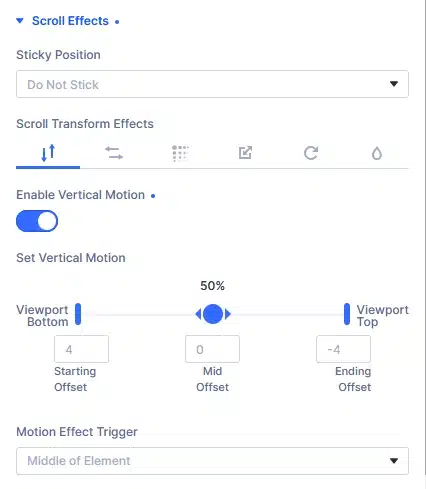
Scroll Effects move the element while visitors scroll the page.
Sticky Position
Keeps an element fixed while scrolling.
Useful for:
- Buttons
- Sidebars
- Navigation
Scroll Transform Effects
Divi provides several scroll effects.
- Vertical Motion
- Horizontal Motion
- Scale
- Rotate
- Opacity
- Blur
You can combine multiple effects together.
Vertical Motion
Moves the element up or down while scrolling.
This is one of the most commonly used scroll effects.
Starting Offset
Position when scrolling begins.
Mid Offset
Position in the middle of scrolling.
Ending Offset
Position where the animation finishes.
The default values work well in most cases, but you can adjust them to create slower or faster movement.
Motion Effect Trigger
Choose when the scroll effect starts.
Recommended:
Middle of Element
Example: Animate a 4-Column Section
Let’s create a simple animation.
Step 1
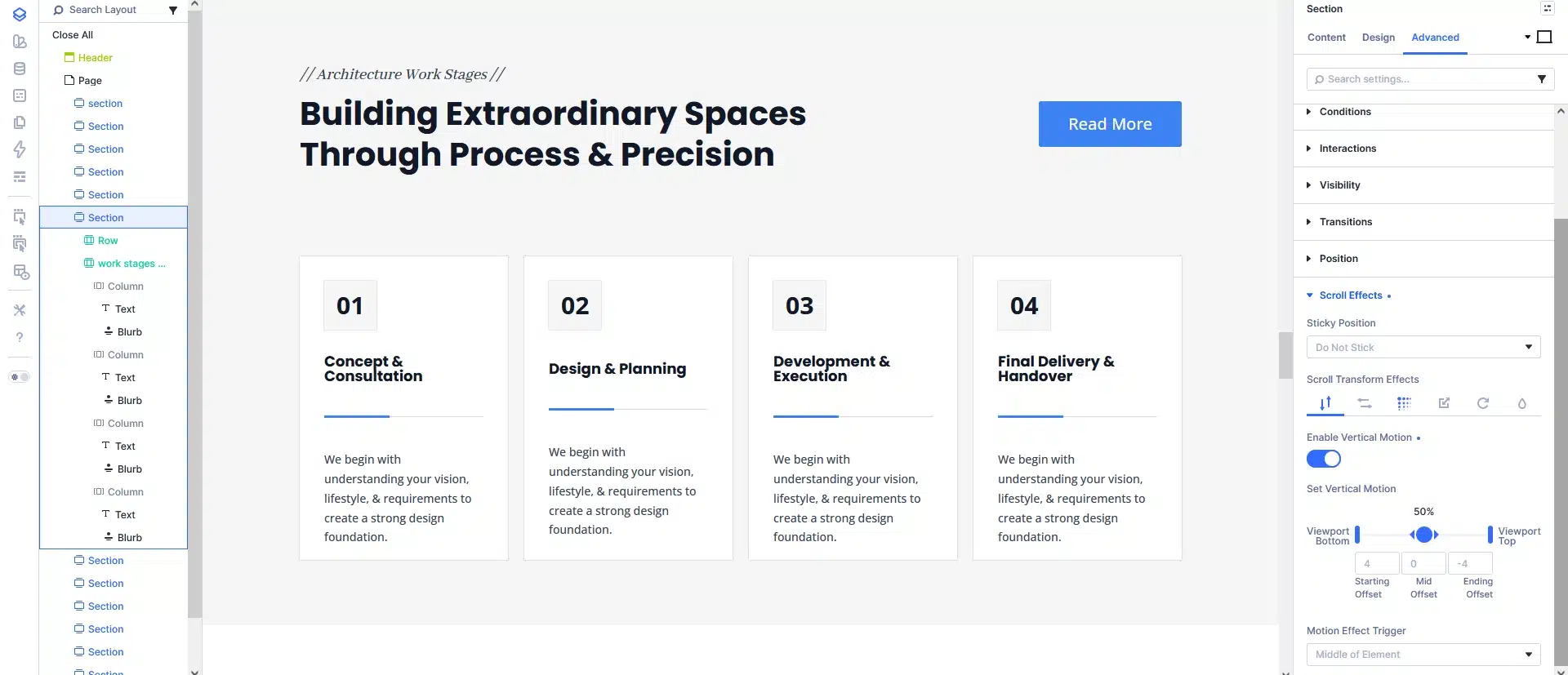
Open your Section Settings.
Go to:
Design → Scroll Effects
Enable Vertical Motion.
You can leave the default values or make small adjustments based on your design.
Step 2
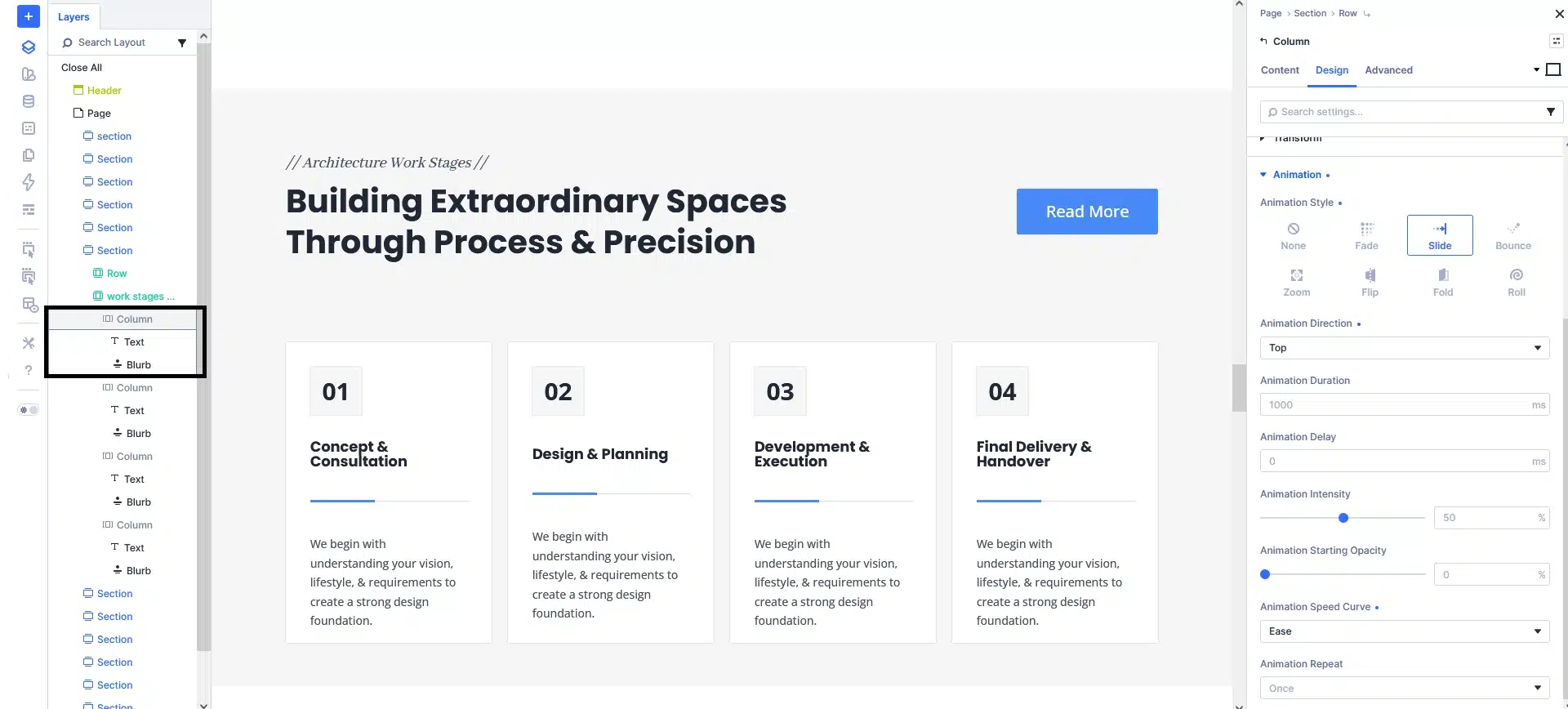
Now open the first column.
Go to:
Design → Animation
Choose:
- Animation Style → Fade
- Direction → Bottom
- Duration → 800ms
- Delay → 0ms
Step 3
Repeat the same settings for the remaining columns.
Only change the Delay value.
Column 1 → 0ms
Column 2 → 200ms
Column 3 → 400ms
Column 4 → 600ms
Final Result
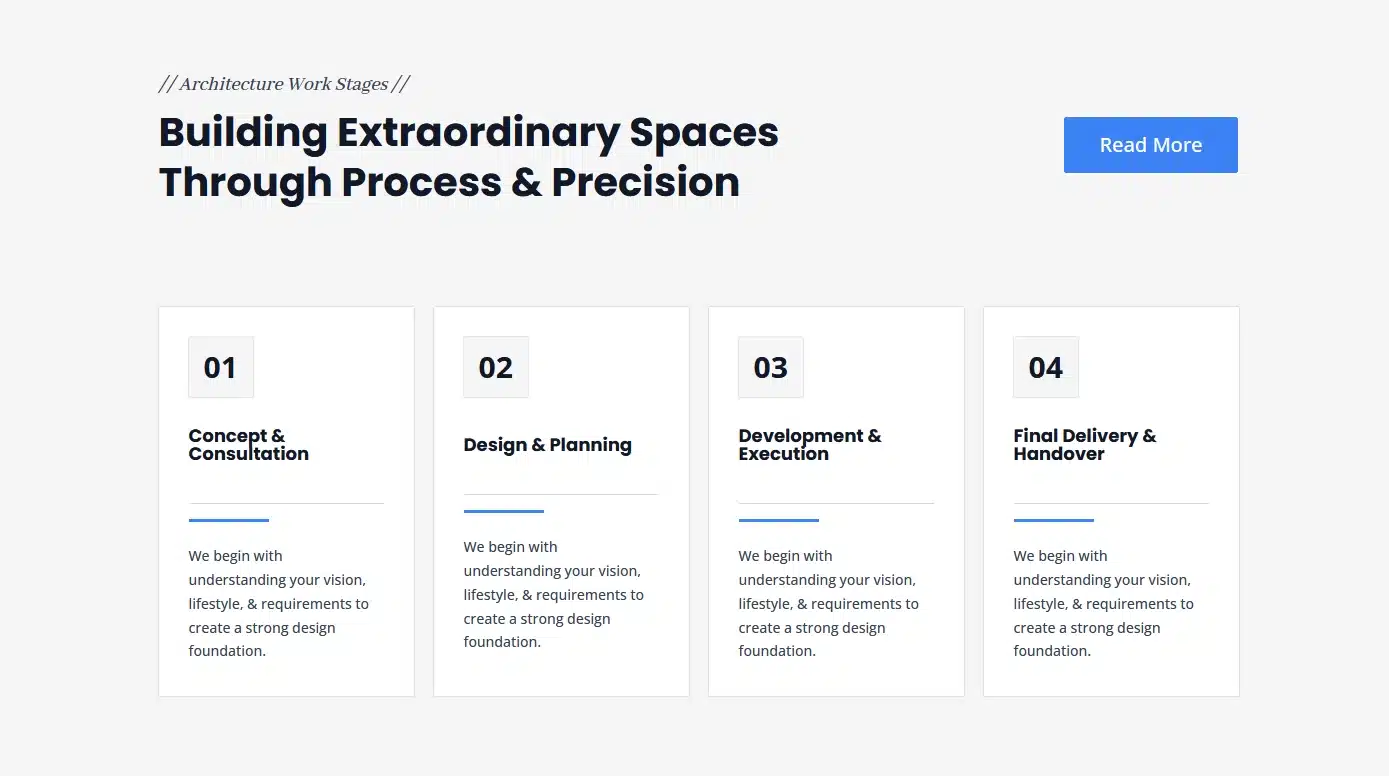
When visitors scroll to this section:
- The entire section smoothly moves upward because of the Scroll Effect.
- Each column appears one after another because of the Animation Delay.
- The combination creates a clean, modern, and professional animation without using any plugin.
Best Practices
- Use Fade or Slide for most business websites.
- Keep animations smooth instead of dramatic.
- Use delays to create a natural sequence.
- Don’t animate every section on the page.
- Always test on desktop, tablet, and mobile.
Final Thoughts
Divi 5 makes it easy to create beautiful animated sections without extra plugins.
For the best results, use Scroll Effects to add movement to the entire section and Animation to reveal each element individually. This simple combination can make your pages feel more modern, engaging, and professional while keeping your design clean and responsive.