Table of Contents
- Introduction
- What Is a Dynamic Search Results Layout?
- Why Use JetThemeCore to Customize Search Results?
- Requirements Before Getting Started
- Step 1: Configure the Search Functionality
- Step 2: Create a Dynamic Listing Template
- Step 3: Create a Search Results Template in JetThemeCore
- Step 4: Add the Listing Grid to the Template
- Step 5: Customize the Search Results Page Layout
- Step 6: Style the Results for Different Devices
- Step 7: Publish and Test the Template
- Step 8: Improve the No-Results Experience
- Common Issues and Troubleshooting
- Conclusion
Introduction
When visitors search for something on your WordPress website, they expect to find relevant information without navigating through multiple pages. A well-structured search results page makes this process easier by presenting matching content in a clear and organized format.
However, the default search results design may not match your website’s layout or provide enough flexibility to control how individual results appear. You might want to display featured images, custom descriptions, category labels, or other information that helps visitors identify the right content.
JetThemeCore allows you to create custom WordPress templates and control where they appear. By combining it with JetEngine and JetSearch, you can build a dynamic search results layout that displays content according to a visitor’s search query.
In this tutorial, we’ll explore how to configure the template, connect dynamic content, and customize the results page to create a more useful search experience.
What Is a Dynamic Search Results Layout?
A dynamic search results layout is a template that displays content matching the search terms entered by a visitor. Instead of manually creating a separate page for every possible query, you design one reusable layout that displays different results automatically.
For example, imagine you run a travel website featuring destination guides, hotel reviews, and travel tips. When a visitor searches for “beach destinations,” the results page can display matching articles with their featured images, titles, excerpts, and links.
The same approach can be used for blogs, service directories, portfolios, and websites that organize content using custom post types.
JetThemeCore manages the template structure, while the search functionality and dynamic listing configuration determine which content appears.
Why Use JetThemeCore to Customize Search Results?
JetThemeCore provides a template-building workflow that lets you customize the appearance of different WordPress page types.
Here are some reasons to use it for your search results page:
- Reusable design: Create one template instead of designing individual search pages.
- Dynamic content display: Present matching posts using a consistent layout.
- Flexible styling: Customize the spacing, typography, colors, and arrangement of result items.
- Better content discovery: Display useful information that helps visitors choose relevant results.
- Theme consistency: Integrate the search results page with your website’s existing header and footer.
When combined with JetEngine, you can also use listing templates to control the appearance of individual results. JetSearch can provide the search interface through which visitors submit queries.
Requirements Before Getting Started
Prepare the following plugins and tools before creating the layout:
- WordPress installed and configured.
- Elementor or the WordPress Block Editor (Gutenberg).
- JetThemeCore for creating and assigning templates.
- JetSearch for the search functionality.
- JetEngine for creating dynamic listing templates, if you plan to use its Listing Grid.
The exact configuration depends on your chosen editor and installed plugin versions. This tutorial uses Elementor with JetEngine as the primary example.
Step 1: Configure the Search Functionality
Start by making sure visitors can search your website’s content.
If you already have a working search form, you can use it. Otherwise, configure a search widget with JetSearch and place it in a suitable location, such as the website header, sidebar, or dedicated search section.
For example, a travel blog might include a search form with the placeholder text “Search destinations, guides, and travel tips.”
When a visitor enters a keyword and submits the form, the website should process the query and provide access to the corresponding search results.
Test the search form with a few keywords that appear in your published content. Confirm that it returns relevant results before moving on to the template design.
Step 2: Create a Dynamic Listing Template
Before building the main search results page, decide how each result should look.
JetEngine’s Listing functionality allows you to design a reusable item layout for posts or supported content types.
Follow these steps:
- Open your WordPress dashboard.
- Navigate to JetEngine → Listings/Components.
- Create a new listing item.
- Select the appropriate source, such as Posts.
- Enter a descriptive name, such as “Search Result Card.”
- Choose Elementor as the listing editor and open the editor.
Inside Elementor, arrange the content elements that should appear in each result.
For a travel blog, you could include:
- A featured image of the destination.
- The post title.
- A short excerpt.
- A category or destination label.
- A link to read the full article.
Use dynamic widgets or dynamic tags to retrieve information from the current post. This allows the same listing design to display different content for every result.
Style the listing item with consistent image proportions, readable typography, and appropriate spacing. Save the template when you’re satisfied with its appearance.
If you already have a suitable listing template, you can reuse it instead of creating another one.
Step 3: Create a Search Results Template in JetThemeCore
Now create the template that will control the overall search results page.
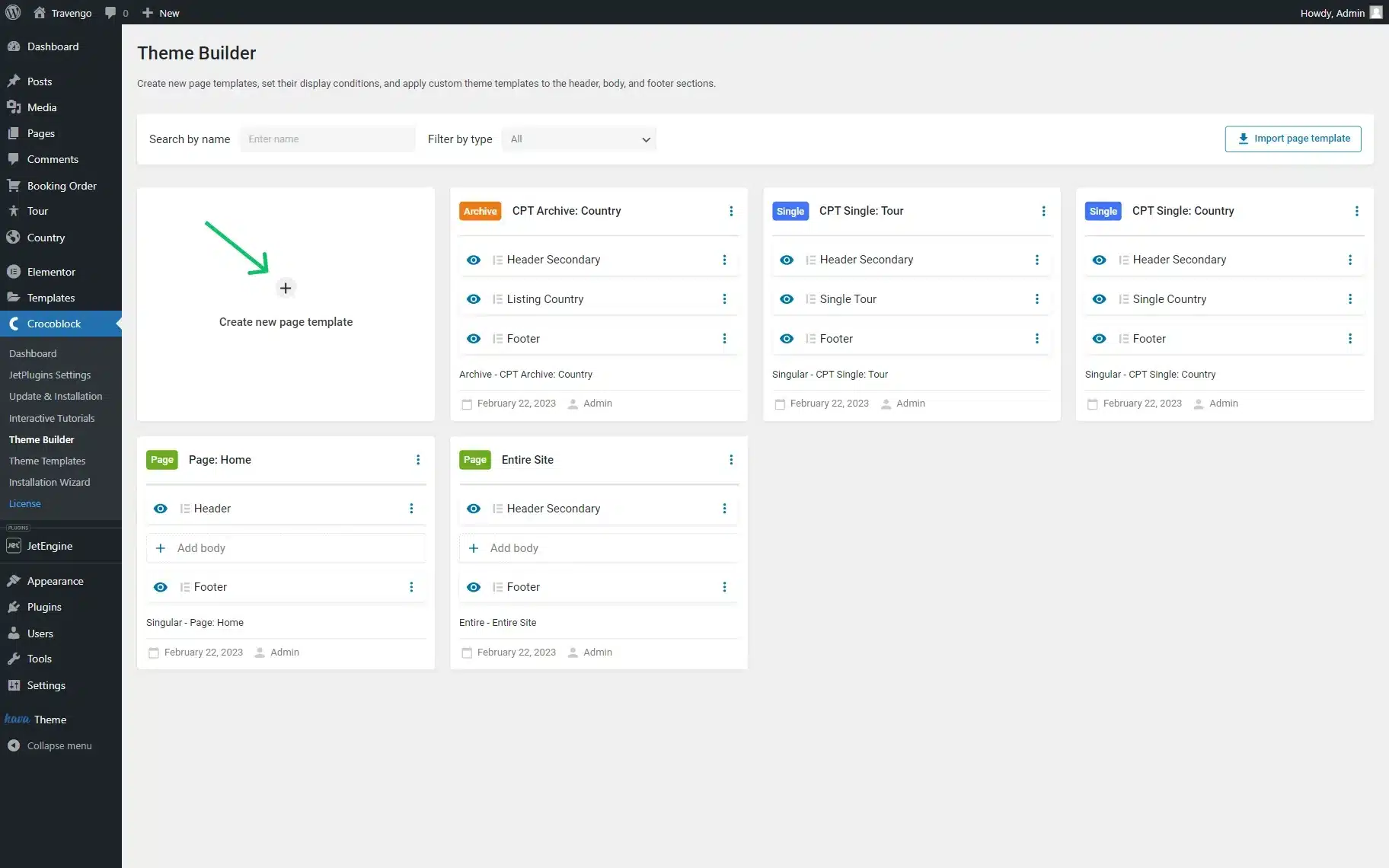
- From the WordPress dashboard, open Crocoblock → Theme Builder.
- Select Create new page template.
- Add a display condition.
- Choose the options corresponding to Include → Archive → Search Results.
- Create the template and give it a descriptive name, such as “Dynamic Search Results.”
- Add a body template and choose to create a new template.
- Select Elementor as the content type and open the editor.
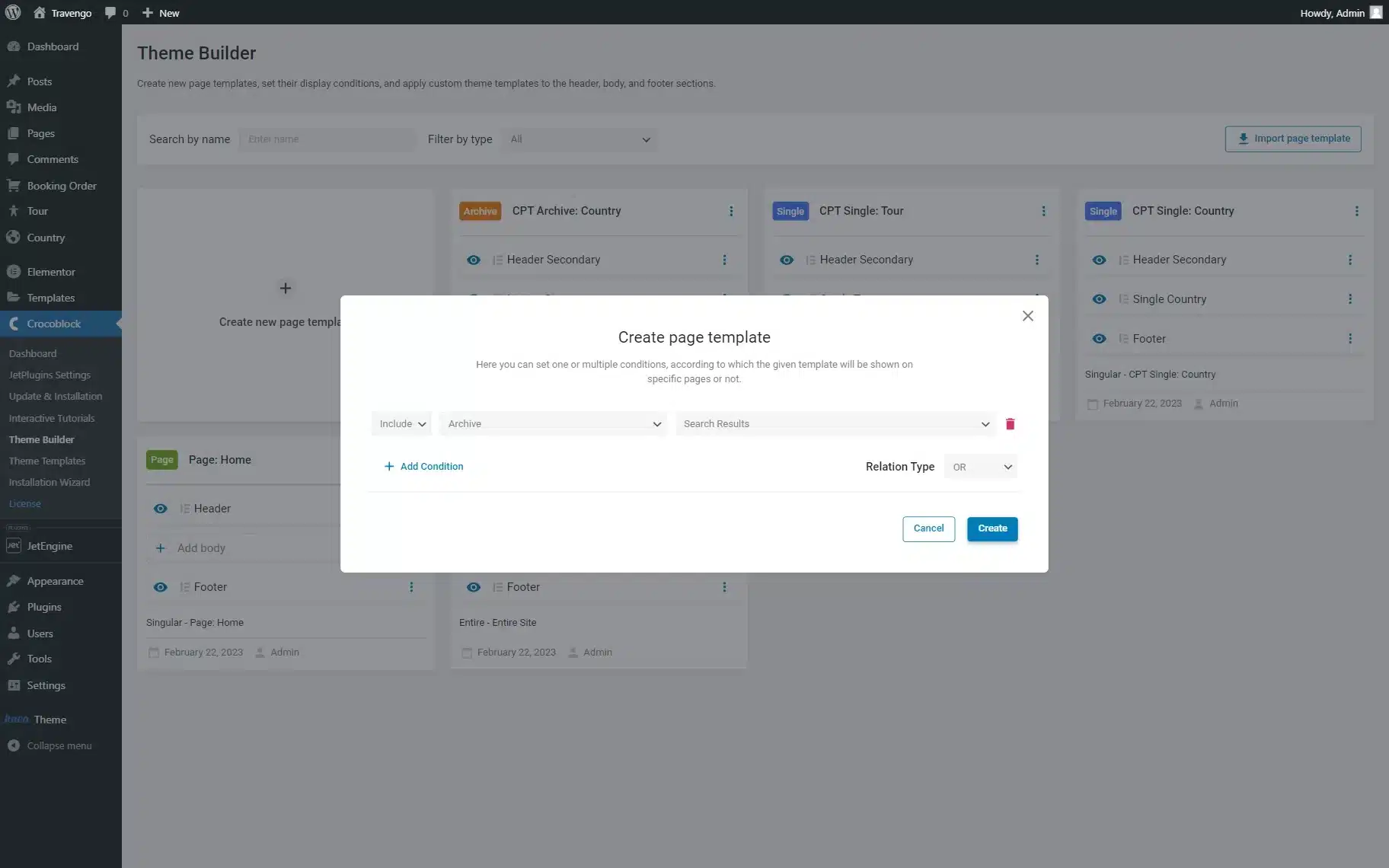
The Search Results condition tells JetThemeCore where the template should be applied. This is different from designing the individual result card: the page template controls the overall structure, while the listing template controls each item.
Depending on your website setup, you can also add an existing header or footer template to maintain a consistent appearance across the website.
Step 4: Add the Listing Grid to the Template
With the main template open in Elementor, add the JetEngine Listing Grid widget.
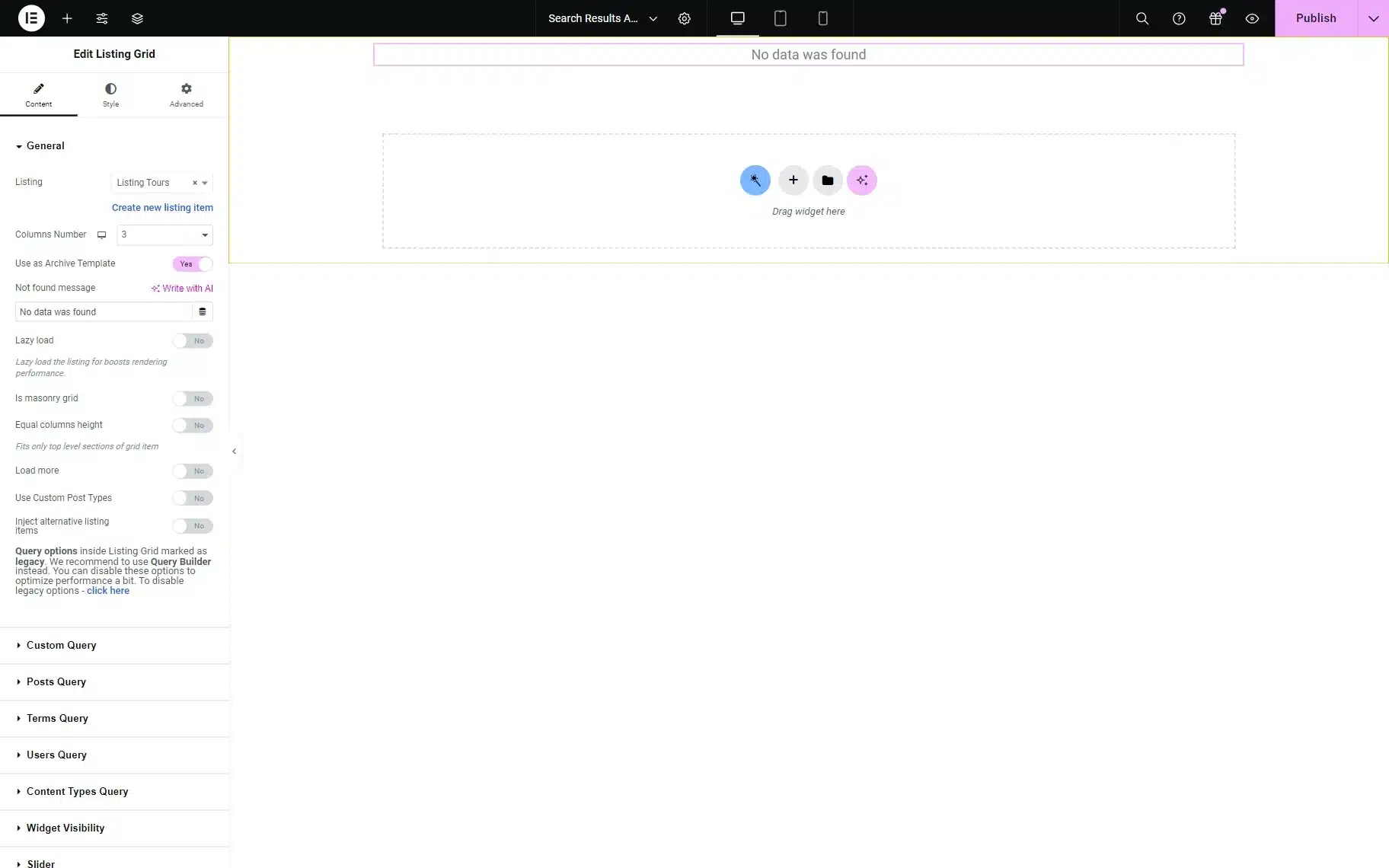
Configure the widget to use the listing template you created in Step 2.
Next, enable the Use as Archive Template option. This allows the Listing Grid to inherit the relevant archive query instead of relying on an unrelated, manually configured posts query.
This setting is important because the search results page needs to display content associated with the visitor’s current search request.
You can then adjust the grid settings, including the number of columns, spacing between items, and the number of results displayed.
For example, a three-column layout may work well for a travel blog on desktop, while a single-column layout may be more readable on mobile.
Note: The editor may show a “No data was found” message while you’re building the template. This does not necessarily mean the front-end search is broken. Test the published template using an actual search query to verify the results.
Step 5: Customize the Search Results Page Layout
Once the Listing Grid is connected, organize the remaining page elements.
Consider including the following sections:
Page heading
Add a clear heading such as “Search Results” so visitors understand where they are.
Search form
Include a search field that allows visitors to change their keywords without returning to another page.
Results area
Display the Listing Grid beneath the heading and search form. Maintain enough spacing between items to make the results easy to scan.
Supporting information
Where appropriate, show relevant categories, publication dates, or short descriptions. Avoid displaying unnecessary metadata that makes the page harder to read.
You can also add a sidebar containing category links or other navigation elements if your website has a large amount of content.
Keep the main focus on the results themselves. A simple layout usually makes it easier for visitors to find the content they need.
Step 6: Style the Results for Different Devices
A dynamic search page should remain usable on desktop computers, tablets, and smartphones.
Use Elementor’s responsive controls to adjust the layout for different screen sizes.
For example:
- Desktop: Display three columns for image-based content.
- Tablet: Reduce the grid to two columns.
- Mobile: Use one column with readable titles and appropriately sized images.
Also check the spacing between result cards, text wrapping, image dimensions, and the size of clickable links.
If your search results contain longer article titles, make sure they do not overlap other elements or create uneven spacing.
Test the actual front-end page at different viewport widths rather than relying exclusively on the editor preview.
Step 7: Publish and Test the Template
After completing the design, publish the template and check its display conditions in JetThemeCore.
Open your website’s front end and perform searches using different keywords.
For example, on the travel website, try searching for “beach destinations,” “mountain trips,” and “travel tips.” Confirm that each search displays the appropriate content while retaining the same overall design.
Check these points before considering the page complete:
- The correct template appears for search results.
- The results change when different keywords are submitted.
- Featured images, titles, and descriptions display correctly.
- Each result links to the correct page.
- The search form allows visitors to submit another query.
- The layout works across desktop, tablet, and mobile.
- Searches without matches are handled appropriately.
If your website uses a separate search template for WooCommerce products or another content type, test that template independently to ensure the correct results are displayed.
Step 8: Improve the No-Results Experience
Not every search will return matching content. Rather than leaving visitors with an empty page, provide a useful message when no results are available.
For example, you could display:
“We couldn’t find any content matching your search. Try another keyword or browse our latest articles.”
You can also include a search form so visitors can try another query immediately.
If your website has a large content library, consider providing category links or suggestions for related topics. These additions give visitors another way to discover relevant information.
Make sure the no-results message appears only when the search returns no matching content, rather than showing unnecessarily alongside valid results.
Common Issues and Troubleshooting
The Search Results Template Is Not Appearing
Review the display conditions in JetThemeCore and confirm that the template is assigned to the appropriate Search Results archive. Check whether another theme template is overriding it.
The Same Content Appears for Every Search
Inspect the Listing Grid configuration. Make sure it inherits the current archive query or uses a correctly configured custom query that respects the search request.
The Listing Grid Shows No Results in the Editor
The editor preview may not contain the same search context as the live page. Test the published template by submitting a search from the front end and verify that matching content is returned.
Dynamic Fields Are Missing
Check that the listing template uses the correct content source and that the relevant posts contain the fields you’re trying to display.
The Search Page Looks Different From Other Pages
Review the header, footer, typography, colors, and container widths. Reusing existing global templates and design settings can help maintain consistency.
Conclusion
Creating a dynamic search results layout with JetThemeCore allows you to control how WordPress presents matching content without designing a separate page for every search query.
By combining JetThemeCore’s template conditions with a JetEngine Listing Grid and a compatible search solution, you can build a reusable layout that adapts to visitors’ queries. You can also customize individual result cards, refine the page’s responsive design, and provide helpful messages when no matching content is available.
The most important step is ensuring that the Listing Grid uses the correct search or archive query. Once the template and query are configured properly, you can deliver a consistent, organized search experience that helps visitors discover content more easily.