
Table of Contents
- Introduction
- What Is Dynamic Product Cross-Selling?
- Why Use JetWooBuilder for Product Cross-Selling?
- Step 1: Configure Cross-Sell Products in WooCommerce
- Step 2: Create a Single Product Template With JetWooBuilder
- Step 3: Add a Cross-Selling Section
- Step 4: Connect the Section to the Appropriate Products
- Step 5: Customize the Product Cards
- Step 6: Make the Cross-Selling Section Responsive
- Step 7: Assign and Publish the Template
- Best Practices for Effective Cross-Selling
- Conclusion
Introduction
Cross-selling is an effective way to increase the average order value of a WooCommerce store by recommending complementary products that customers may want to purchase alongside the item they are viewing. For example, a customer browsing a laptop might also be interested in a laptop bag, wireless mouse, or keyboard.
Instead of manually adding recommendations to every product page, you can create a dynamic cross-selling section that displays relevant products automatically. With JetWooBuilder, you can customize WooCommerce product page layouts using Elementor and design a recommendation section that matches your store’s appearance.
In this tutorial, you’ll learn how to prepare cross-sell products in WooCommerce, build a custom product page template with JetWooBuilder, and display complementary product recommendations in a visually appealing layout.
What Is Dynamic Product Cross-Selling?
Dynamic product cross-selling displays related or complementary products based on the product a customer is currently viewing. Rather than showing the same recommendations on every page, the section can change according to the selected product and its configured relationships.
For example:
- A customer viewing a smartphone may see a phone case or screen protector.
- Someone browsing running shoes may see athletic socks or shoe-cleaning products.
- A customer viewing a coffee machine may see coffee beans or reusable filters.
A well-designed cross-selling section helps customers discover useful products without interrupting their shopping experience.
Why Use JetWooBuilder for Product Cross-Selling?
JetWooBuilder is a WooCommerce-focused plugin for Elementor that lets you create and customize product page templates without building the entire layout from scratch.
Using JetWooBuilder for your cross-selling layout offers several advantages:
- Custom product layouts: Design product recommendation sections that complement your existing product pages.
- Dynamic product information: Display product images, names, prices, ratings, and other available WooCommerce details.
- Consistent styling: Apply the same design system across different product pages.
- Responsive layouts: Adjust the number of product columns, spacing, and typography for different screen sizes.
- Flexible placement: Integrate recommendations into a single-product template wherever they make sense for your shopping experience.
The exact widgets and dynamic query options available depend on your installed JetWooBuilder version and the widgets enabled in Elementor.
Step 1: Configure Cross-Sell Products in WooCommerce
Before creating the visual layout, define which products should appear as cross-sell recommendations.
- Open your WordPress dashboard.
- Navigate to Products → All Products.
- Edit the product for which you want to configure recommendations.
- Locate the Product data
- Open the Linked Products
- Find the Cross-sells
- Search for and select the complementary products you want to recommend.
- Click Update to save your changes.
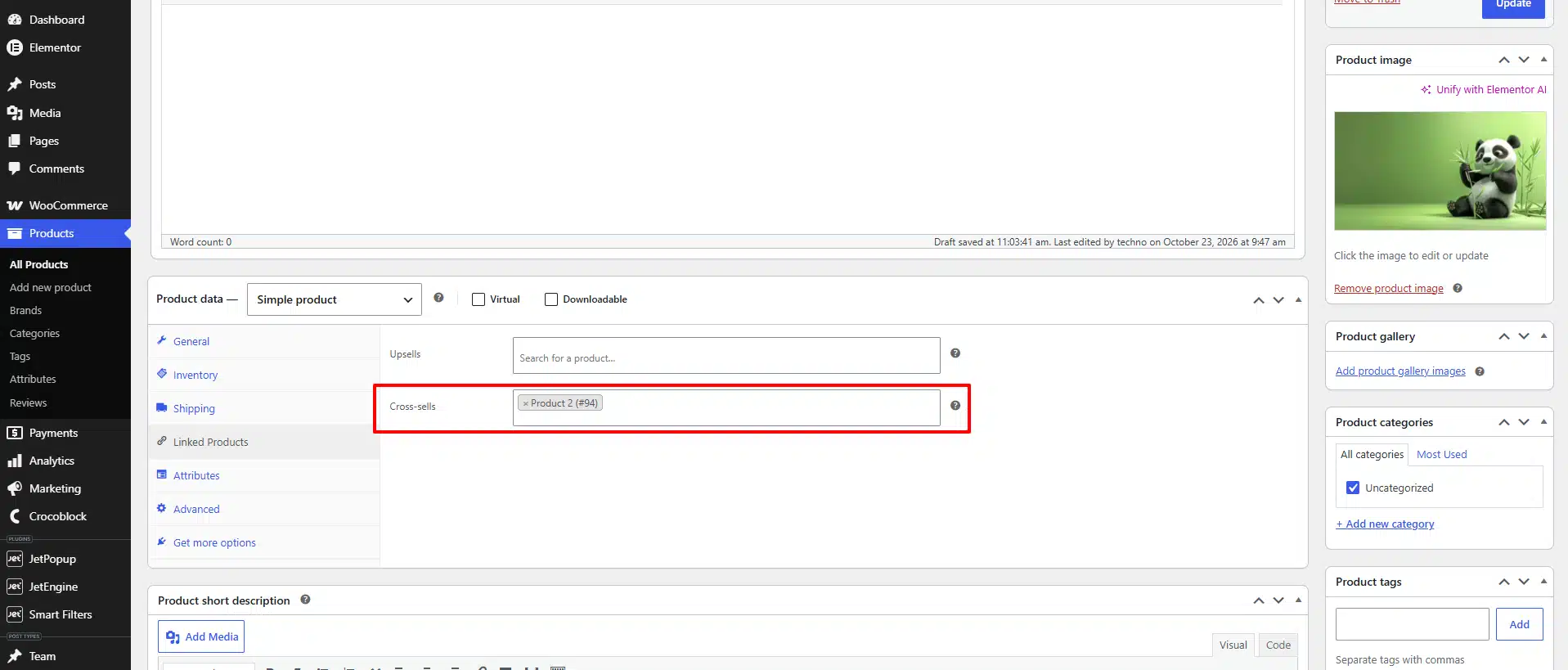
For example, if you sell a travel backpack, you could configure a packing cube set, travel organizer, or luggage tag as cross-sell products.
Repeat this process for other products as needed. Keep recommendations relevant to the product customers are viewing instead of selecting unrelated items simply to fill the section.
Step 2: Create a Single Product Template With JetWooBuilder
Now create the product page layout that will contain the cross-selling section.
- From the WordPress dashboard, open JetWooBuilder.
- Navigate to the available template settings or the Single Product template area, depending on your plugin version.
- Create a new Single Product template.
- Give the template a descriptive name, such as Single Product With Cross-Selling.
- Open the template in Elementor.
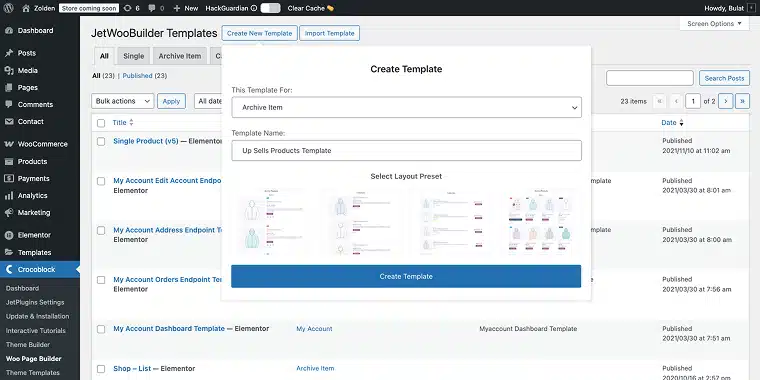
If your store already uses a JetWooBuilder single-product template, you can edit that template instead of creating another one.
Build or retain the main product layout with the necessary elements, such as the product image, title, price, rating, description, quantity selector, and Add to Cart button.
Leave enough space below the primary product information for the cross-selling section.
Step 3: Add a Cross-Selling Section
In the Elementor editor, add a new section or container where you want the recommendations to appear.
A good starting point is to position the section below the product description or near the lower part of the product page, before additional product information or the footer.
Follow these steps:
- Add a new container beneath the main product details.
- Insert a heading widget.
- Enter a heading such as You May Also Like or Complete Your Purchase.
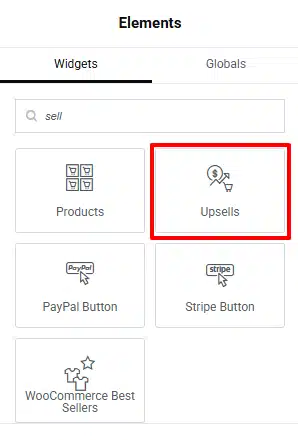
- Add the appropriate JetWooBuilder product display widget available in your installation.
- Configure the product display to show the desired number of products and columns.
Choose a product display widget that supports the product selection method you intend to use. If your installed version does not provide a dedicated cross-sell display option, you may need a compatible WooCommerce query or another supported method of retrieving the configured cross-sell products.
Important: A standard product grid does not automatically guarantee that WooCommerce’s Cross-sells field will control the displayed items. Verify that the selected widget or query supports the intended cross-sell relationship before publishing.
Step 4: Connect the Section to the Appropriate Products
The main purpose of a dynamic cross-selling section is to display the correct recommendations for each product.
Configure the product source or query using the options supported by your installed JetWooBuilder setup.
Depending on the available functionality, the implementation may use:
- WooCommerce cross-sell relationships configured in the Linked Products tab.
- A compatible product query that retrieves the selected complementary items.
- A custom integration if the visual builder does not directly expose the required cross-sell relationship.
If a dedicated cross-sell source is available, select it and configure any additional display settings.
If it is not available, do not assume that selecting a general products query will automatically retrieve the cross-sell products. A category-based or latest-products query can display products dynamically, but it is not equivalent to displaying the specific cross-sells assigned to the current product.
After configuring the source, preview the template using multiple products with different cross-sell assignments. Confirm that the recommendations change as expected.
Step 5: Customize the Product Cards
Once the correct products are being retrieved, customize their appearance to fit your store’s design.
Consider including the following elements:
- Product image: Use clear, high-quality images with consistent proportions.
- Product title: Keep titles readable and avoid excessive text.
- Product price: Display the current price and sale price where applicable.
- Product rating: Show customer ratings if they are available and relevant.
- Add to Cart button: Make it easy for customers to purchase a recommended item.
You can also adjust the card background, border, corner radius, spacing, typography, and button styling through the available Elementor and JetWooBuilder controls.
For a clean shopping experience, avoid overcrowding the cards with too many details. The primary goal is to help customers recognize useful complementary products quickly.
Step 6: Make the Cross-Selling Section Responsive
Your recommendations should work well on desktops, tablets, and mobile devices.
Open Elementor’s responsive editing controls and review the section at different screen sizes.
Use the following layout as a starting point:
| Device | Suggested layout |
|---|---|
| Desktop | 3–4 product columns |
| Tablet | 2 product columns |
| Mobile | 1–2 product columns |
Adjust the settings according to your product images, card widths, and available screen space. Check that product titles remain readable, prices do not overlap, and Add to Cart buttons are easy to tap.
Also verify that the section does not introduce horizontal scrolling or excessive empty space on smaller screens.
Step 7: Assign and Publish the Template
When the design is ready, configure the Single Product template’s display conditions so it applies to the intended products.
- Save your template.
- Open the template’s display conditions or assignment settings.
- Select the appropriate Single Product condition.
- Apply the template to the relevant products or product scope.
- Publish or update the template.
If your store already has an active single-product template, make sure the new conditions do not unintentionally replace existing product layouts.
Finally, open a product page on the front end and check that the cross-selling section appears in the correct position.
Best Practices for Effective Cross-Selling
Creating the section is only the first step. The recommendations should also provide genuine value to customers.
Recommend complementary products. Choose items that naturally work with the main product, such as accessories, replacement parts, or useful add-ons.
Avoid overwhelming shoppers. A compact selection of relevant products is generally more helpful than a large collection of unrelated items.
Keep the design consistent. Use the same typography, spacing, and button styles as the rest of your WooCommerce store.
Review product availability. Make sure recommended products are available for purchase and that unavailable items are handled appropriately.
Measure performance. Track clicks on recommended products, cross-sell purchases, and average order value to understand whether the section improves the shopping experience.
Conclusion
A dynamic product cross-selling section can help WooCommerce store owners showcase complementary products, improve product discovery, and create additional sales opportunities. JetWooBuilder provides the visual design tools needed to build a customized product page that fits your store’s branding and layout.
By configuring cross-sell relationships in WooCommerce, creating a suitable single-product template, connecting the recommendation area to the correct product source, and testing the result across different devices, you can build a more useful shopping experience.
The most important step is ensuring that the section displays the actual cross-sell products assigned to each product rather than a generic product grid. With the right configuration and relevant recommendations, your store can make product discovery easier while encouraging customers to find everything they need in one place.