How to Add Multiple Columns Inside Divi Tabs

How to Add Multiple Columns Inside Divi Tabs

Creating multiple columns within Divi Tabs is a great way to enhance your content’s visual appeal and organization. Whether you’re looking to display products, services, or detailed information, Divi’s flexible design options make it easy to customize your tabbed layouts.

In this guide, we’ll walk you through the simple steps to create a stunning, multi-column layout within your Divi tabs, giving your website a polished and professional look. Let’s get started!

Step 1: Install the ‘Shortcodes for Divi’ Plugin

First, you need to install a plugin that helps create shortcodes for your saved Divi sections:

  • Go to Plugins > Add New in your WordPress dashboard.
  • Search for ‘Shortcodes for Divi’ and click Install and Activate plugin.

Alternatively, you can download the plugin directly from this link: https://wordpress.org/plugins/shortcodes-for-divi/ and upload it to your site.

This plugin will allow you to generate shortcodes for any saved Divi sections.

generate shortcodes

Step 2: Create Section and Save Your Column Layouts

Next, use the Divi Builder to create your desired 2-column or 3-column sections:

  • Open the Divi Builder and design your column layouts as needed.
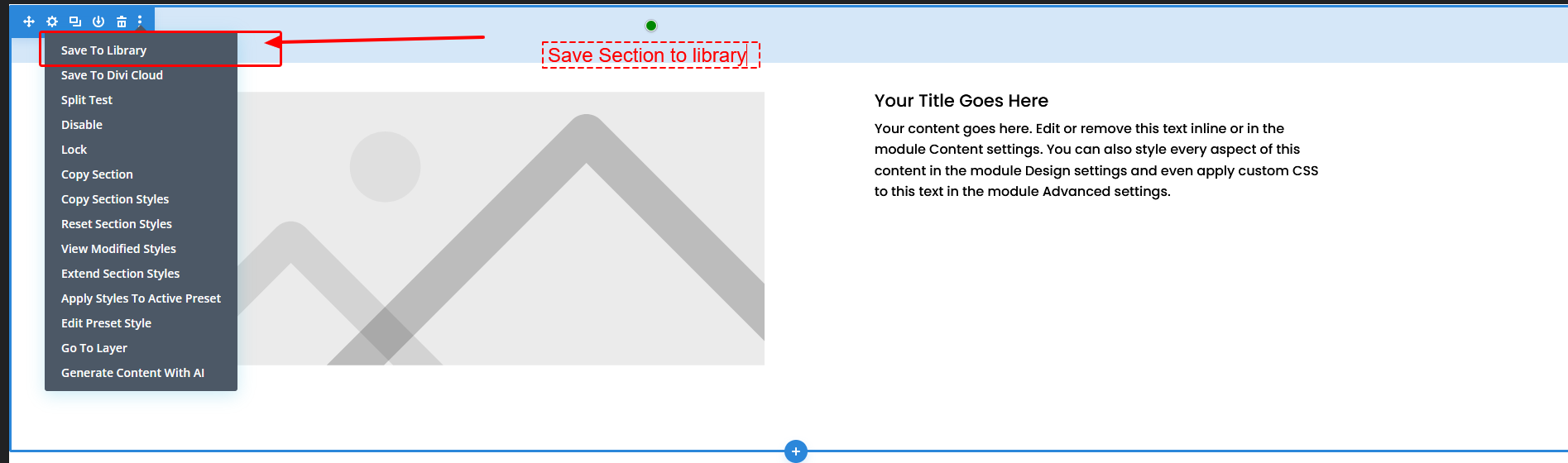
  • Save each section to your Divi Library for easy access later.

Divi Library

Step 3: Add Tabs to Your Page

Now, it’s time to add tabs to your page:

  • Edit the page where you want to add the tabs using the Divi Builder.
  • Use the Tabs module to insert a tabbed section on your page.

Step 4: Set Up Your Tab Titles

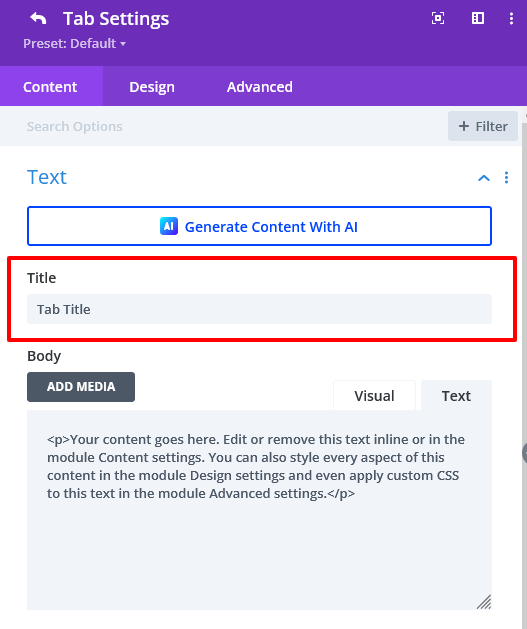
In the Tabs module settings, add the titles for each of your tabs under the ‘Tab Title’ fields.

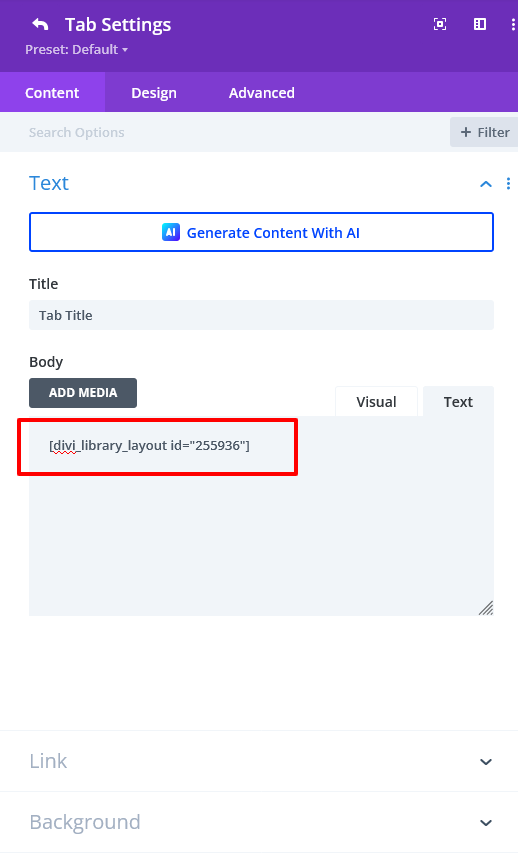
Tab setting

Step 5: Insert Your Saved Section Short codes To tab Description Area

To display your saved column layouts within the tabs:

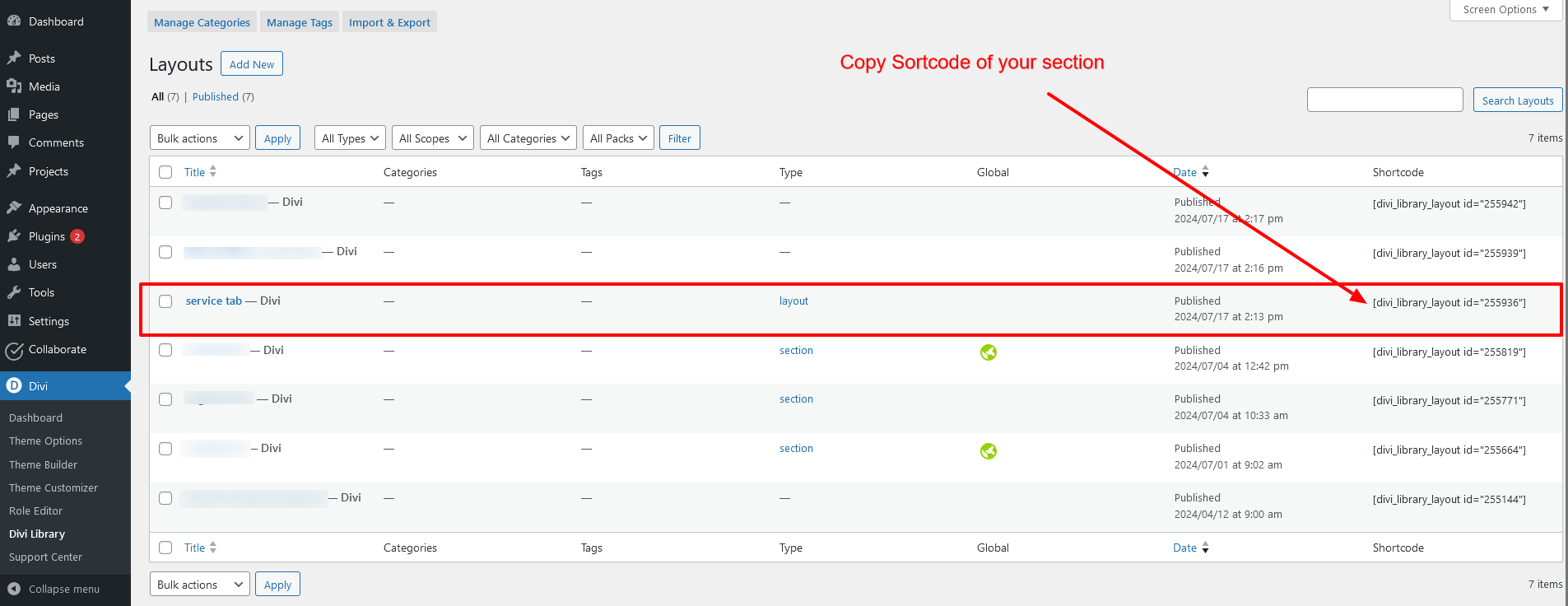
  • Go to Divi Library and locate the section you saved earlier.

shortcode copy

  • Copy the shortcode for the saved section (e.g., [divi_library_layout id=”255664″]).

Paste the shortcode into the Content Area of the respective tab.

paste code

Step 6: Save and Publish

Finally, save your changes and publish the page. Your custom multi-column layout will now appear within the tabs!

With these simple steps, you can now effortlessly create eye-catching, multi-column layouts within Divi Tabs that enhance the user experience and add a professional touch to your website. By utilizing Divi’s flexibility, you can design unique layouts that fit your content perfectly. So, experiment with different combinations to create a polished, engaging tabbed interface that keeps your visitors coming back for more!

Mastering Divi’s advanced customization options takes time, expertise, and precision. If your agency needs a dependable partner to handle complex layouts, custom modules, or performance-optimized builds, TechnoCrackers can help you scale effortlessly.

Book a Free Strategy Call to explore how we can support your ongoing WordPress projects.

WooCommerce: Customize the “You cannot add another Product to your cart” Notification

Customize the “You cannot add another Product to your cart” Notification

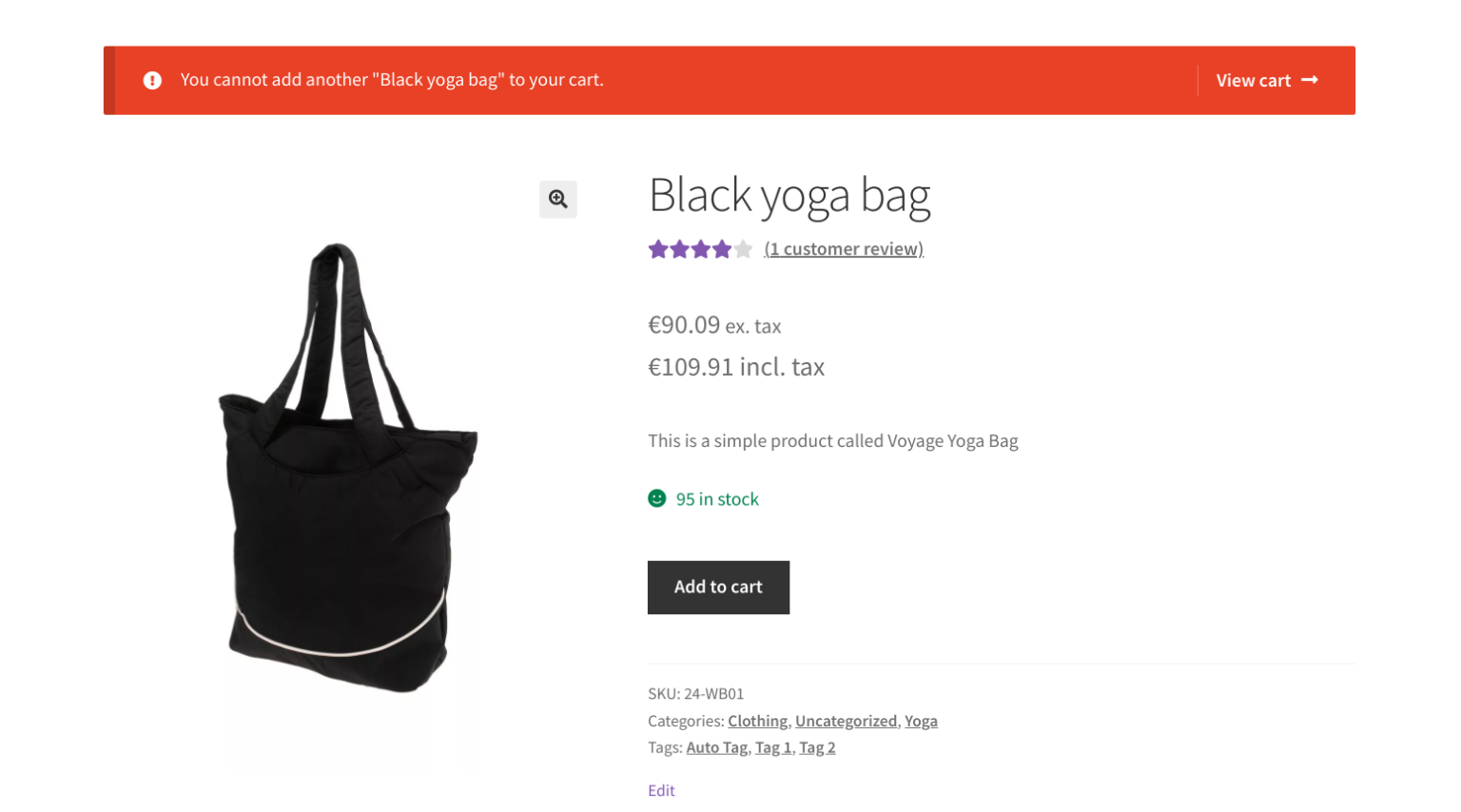
In WooCommerce, the “sold individually” setting ensures that customers can only purchase one unit of a specific product per order. However, when they attempt to add the same item again, they receive a generic notification: “You cannot add another product to your cart.” While functional, this message may not fully resonate with your store’s unique branding or tone of voice.

The good news is that WooCommerce offers the flexibility to customize this default notification, enabling you to tailor it better to reflect your brand’s personality and enhance the overall shopping experience.

In this blog post, we’ll guide you through modifying this message using a straightforward code snippet, empowering you to create a more cohesive and customer-friendly interaction.

Understanding the Default Behaviour

The default WooCommerce behavior when a product is set as “sold individually” is to restrict customers from adding more than one product to their cart. When they attempt to add another, WooCommerce displays the following message:

"You cannot add another product to your cart."

This message is clear, but it might not fit your store’s communication style best. You might want to soften the tone, add a bit of humor, or simply make it more informative.

Customizing the Notification Message

WooCommerce provides a PHP filter that makes it easy to customize this notification. By adding a small piece of code to your theme’s functions.php file, you can change the message’s wording to anything you like.

Step-by-Step Guide

1. Access your theme’s functions.php file: Navigate to Appearance > Theme Editor in your WordPress admin dashboard.

2. Add the following code:

/**
 * @snippet       Custom "You cannot add another __" Woo Message
 * @author        Technocrackers
 * @compatible    WooCommerce 8
 * @authorURI     https://technocrackers.com/
 */
 
add_filter( 'woocommerce_cart_product_cannot_add_another_message', 'technocrackers_override_cannot_add_another_message', 9999, 2 );
 
function technocrackers_override_cannot_add_another_message( $message, $product_data ) {
    $message = sprintf( 'Sorry, you can only buy one "%s" at a time', $product_data->get_name() );
    return $message;
}

How It Works

  • Hooking into the Filter: The woocommerce_cart_product_cannot_add_another_message filter allows us to modify the message WooCommerce displays when a customer tries to add more than one of an “individually sold” product to their cart.
  • Customizing the Message: The function technocrackers_override_cannot_add_another_message takes in the default message and the product data as parameters. We use sprintf to dynamically insert the product name into our custom message, resulting in something like:
    "Sorry, you can only buy one 'Product Name' at a time"
  • Returning the New Message: The modified message is then returned, replacing the default WooCommerce notification.

Conclusion

Customizing the “You cannot add another _ to your cart” notification in WooCommerce is an easy yet impactful way to ensure your store’s messaging reflects your brand’s identity. Whether you aim to infuse the message with warmth, humor, or additional information, this simple code snippet allows you to make it your own.

Implementing this customization ensures that every customer interaction feels deliberate and aligned with your brand, contributing to a more cohesive and engaging shopping experience.

WooCommerce: Empty Cart Redirect

Empty Cart Redirect

In e-commerce, every interaction with your online store can make or break a sale. One often-overlooked opportunity to enhance the customer experience is how your WooCommerce store handles an empty cart.

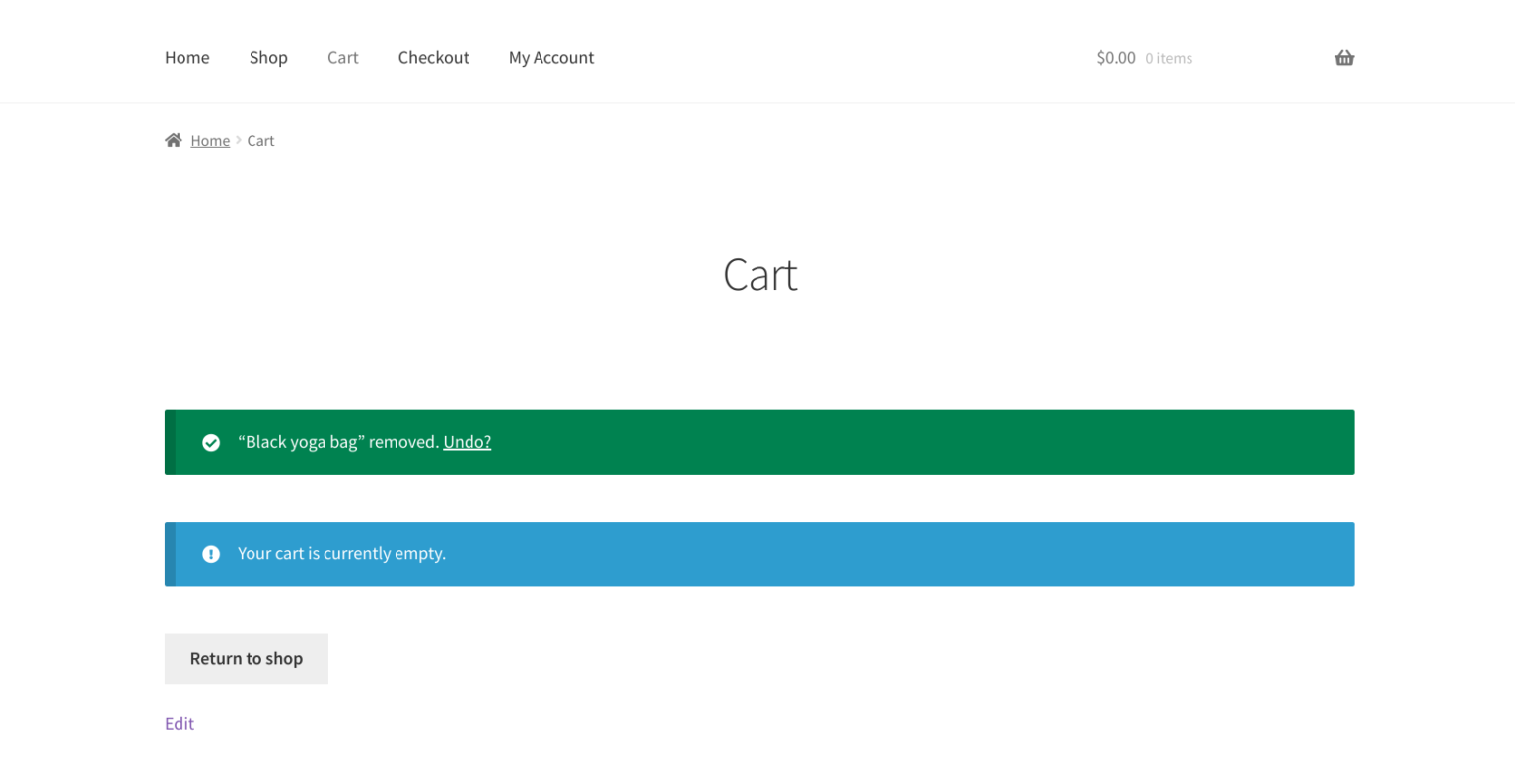
Typically, when users land on the cart page and find it empty, they’re met with a simple message—end of the journey. But what if you could turn this dead-end into a strategic opportunity by automatically redirecting users to a more engaging page, like your shop or homepage?

You can keep the shopping momentum by redirecting users from an empty cart to a page featuring ongoing sales, promotions, or new arrivals. This improves the user experience and increases the likelihood of conversions by showcasing products that might catch their eye.

In this blog, we’ll guide you through the steps to implement an automatic redirect from an empty cart page to a URL of your choice. This will ensure your customers are always engaged and ready to explore more of what you offer.

Why Redirect the Empty Cart?

1. Improved User Experience: If a user lands on an empty cart, it’s often a dead end. Redirecting them to your shop or a specific page keeps the shopping flow active.

2. Conversion Optimization: By redirecting to a shop or a special offers page, you can recover a lost sale by encouraging users to continue browsing your products.

3. Professionalism: A seamless shopping experience contributes to a more polished and user-friendly website, which can improve customer satisfaction and loyalty.

How to Redirect an Empty Cart in WooCommerce

You can use a simple snippet of code added to your theme’s functions.php file to achieve this redirection. This method is straightforward and requires no additional plugins.

Step-by-Step Guide

1. Access your theme’s functions.php file: This can usually be done via the WordPress admin dashboard by navigating to Appearance > Theme Editor.

2. Add the following code:

/**
* @snippet Redirect Empty Woo Cart Page
* @author Technocrackers
* @compatible WooCommerce 8
* @authorURI https://technocrackers.com/
*/

add_action( 'template_redirect', 'technocrackers_redirect_empty_cart', 9999 );

function 'technocrackers _redirect_empty_cart() {
if ( is_cart() && WC()->cart->is_empty() ) {
wp_safe_redirect( wc_get_page_permalink( 'shop' ) );
// OR wp_safe_redirect( 'https://example.com' );
exit;
}
}

How It Works

  • Hooking into template_redirect: The template_redirect action is a WordPress hook that fires before the template for the page is loaded. By hooking into this action, we can check the cart’s status and perform a redirect if necessary.
  • Checking if the Cart is Empty: The function is_cart() checks if the current page is the cart page. The WC()->cart->is_empty() method checks if the WooCommerce cart is empty.
  • Redirecting the User: If the cart is empty, wp_safe_redirect() is used to redirect the user safely to the specified page. This could be your shop page, homepage, or any other URL. The exit; statement is used to terminate the script execution immediately after the redirect, ensuring no further code is processed.

Customization Options

You can customize the redirect destination based on your needs:

  • Shop Page Redirect: The example above redirects users to the shop page using wc_get_page_permalink( ‘shop’ ).
  • Custom URL Redirect: If you prefer to redirect users to a custom page, replace the shop URL with any other URL by modifying the wp_safe_redirect() function like so:
    wp_safe_redirect( ‘https://yourcustompage.com’ );

Conclusion

Implementing an automatic redirect from an empty WooCommerce cart page to a more strategic destination is a powerful yet straightforward way to elevate your store’s user experience. By seamlessly guiding users away from potential dead ends and back into the shopping journey, you boost conversion opportunities and create a smoother, more professional online experience.

This lightweight code snippet is easy to implement and fully compatible with WooCommerce 8, making it an invaluable enhancement for any store looking to optimize its customer journey and maximize sales potential.

A simple empty cart redirect can make your WooCommerce store smoother and more conversion-friendly. Need professional WooCommerce or WordPress development? Book a Free Consultation Call.

WooCommerce: Remove “add-to-cart=123” URL Parameter After Add to Cart

Remove “add-to-cart=123” URL Parameter After Add to Cart

Optimizing the user experience is key to driving conversions and ensuring a smooth shopping journey when building a WordPress WooCommerce store. A common challenge developers face is the appearance of the add-to-cart=123 URL parameter after a product is added to the cart. Although this parameter is essential for WooCommerce to process product additions, it can lead to cluttered and less professional-looking URLs.

In this blog post, we’ll explore why the add-to-cart=123 parameter appears, the potential drawbacks of leaving it visible, and how to clean up your URLs by removing it using custom code snippets in your theme’s functions.php file.

Whether you’re a seasoned developer or new to WordPress, our step-by-step guide will make the process easy to follow. Let’s dive into everything you need to know about the “add-to-cart=123” URL and how to refine it for a more polished online store.

Why Does the add-to-cart=123 Parameter Appear?

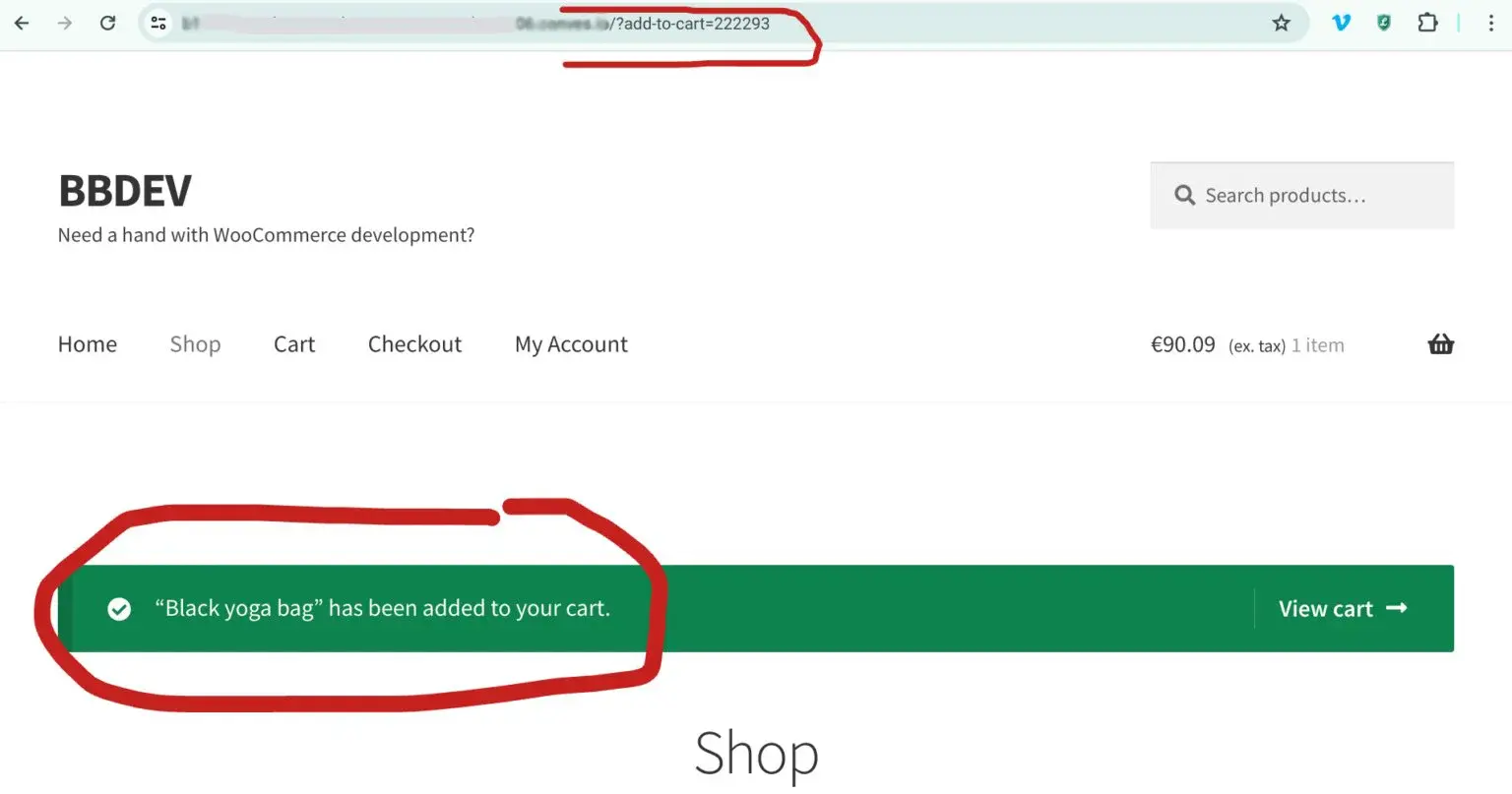
When a customer clicks the “Add to Cart” button, WooCommerce appends a query string to the URL that includes the add-to-cart parameter and the product ID. This allows WooCommerce to track which product was added and update the cart accordingly.

For example, if you add a product with the ID 123 to the cart, the URL might look like this:

https://yourstore.com/shop?add-to-cart=123

Downsides of the add-to-cart URL Parameter

1. Aesthetics and Professionalism: URLs with query strings look less clean and can be off-putting to users.

2. SEO Implications: While minor, some believe that cleaner URLs are better for SEO, even though most search engines can handle query strings.

3. User Experience: If a user bookmarks or shares a URL with an add-to-cart parameter, it can lead to confusion, as revisiting the link will trigger another “add to cart” action.

Given these potential issues, removing the add-to-cart parameter is often desirable after the product has been successfully added to the cart.

How to Remove the add-to-cart=123 Parameter

We can remove this parameter by using a custom function in your theme’s functions.php file. This code snippet will ensure that after a product is added to the cart, the URL is cleaned by removing the add-to-cart parameter.

Step-by-Step Guide

1. Open your theme’s functions.php file: This can usually be found under Appearance > Theme Editor in your WordPress admin dashboard.
2. Add the following code:

/**
 * @snippet       Remove "add-to-cart" From URL
 * @author        Technocrackers
 * @compatible    WooCommerce 8
 */
 
add_filter( 'woocommerce_add_to_cart_redirect', 'wp_get_referer' );

wp_get_referer is a WordPress function used to retrieve the webpage URL linked to the current one. It tells you where the user came from before landing on the page. This means this will take the user back to the original URL before they are added to the cart, hence removing the “add-to-cart” URL parameter!

3. Save the functions.php file.

Conclusion

Streamlining your WooCommerce URLs by removing the add-to-cart parameter is a simple yet impactful way to elevate the appearance and professionalism of your online store. Adding just a few lines of code to your theme’s functions.php file lets you maintain clean, user-friendly URLs that enhance both the user experience and your store’s overall image.

As always, testing any code changes in a staging environment before implementing them on your live site is crucial. This precaution ensures compatibility and prevents potential disruptions to your customers’ shopping experience.

Simplifying WooCommerce URLs is a simple way to improve store performance and user trust. If you’re planning to upgrade or develop your WooCommerce site, Book a Free Strategy Call.

How To Make A Slider Using Divi Column Without a Plugin?

Creating visually appealing and dynamic websites is essential for engaging visitors, and Divi offers a wealth of tools to help you achieve just that. While Divi’s robust framework makes designing and customizing websites a breeze, there are times when you might want to add a bit of extra functionality without relying on third-party plugins. One such feature is converting a standard column layout into a slider. By doing this, you can present content in a more interactive and user-friendly way, enhancing the overall user experience.

In this guide, we’ll walk you through the steps to transform your Divi column layouts into a sleek, responsive slider—all without using any plugins. Whether you’re a seasoned web designer or just getting started, this tutorial will help you take your Divi website to the next level.

Step 1: Create Your Column Layout

Start by designing a 2 or 3-column layout using the Divi Builder:

  • Open the Divi Builder on your desired page.
  • Create a new section and add a row.
  • Choose a 2-column or 3-column layout for your row based on your design needs.

Step 2: Add Design Your Columns

In Divi, create your columns by following these steps:

  • Add a Section to your page.
  • Create a Row within the section.
  • Add the desired number of Columns to the row (e.g., 2 or 3 columns).

Step 3: Add a Class to Your Row

To enable the slider functionality, add a custom class to your row:

  • Select the row where you want the slider effect.
  • In the row settings, add the class “my_slider” to the CSS Class field. ( You can use any class name as per your need )

Step 4: Add CSS and JS cdn file links for the Slider

Now, you’ll need to add the necessary CSS and JavaScript files to create the slider effect:

  • Go to Divi > Theme Options > Integration in your WordPress dashboard.

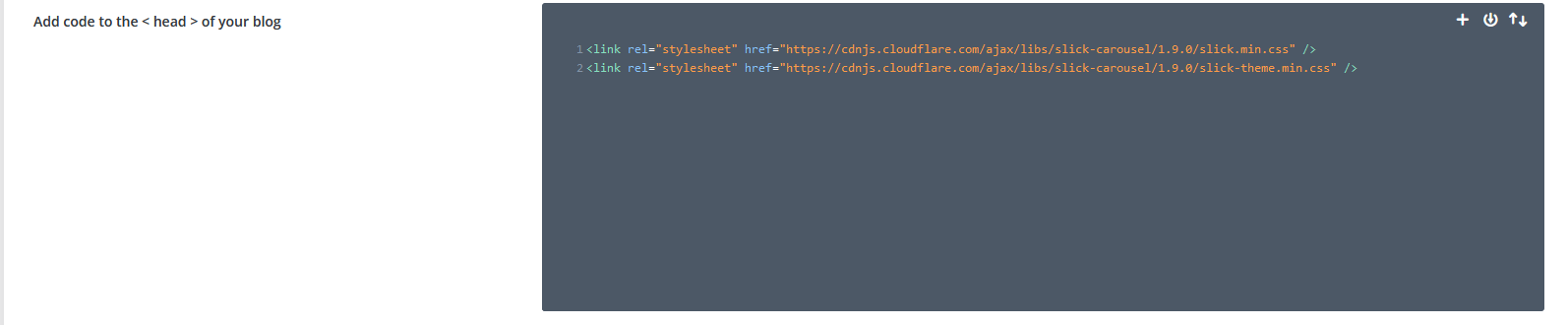
In the <head> section:

Add the following CDN URLs for the slider styles:

<link rel="stylesheet" href="https://cdnjs.cloudflare.com/ajax/libs/slick-carousel/1.9.0/slick.min.css" />
<link rel="stylesheet" href="https://cdnjs.cloudflare.com/ajax/libs/slick-carousel/1.9.0/slick-theme.min.css" />

( Use latest slick slider css files cdn link )

add_css_links

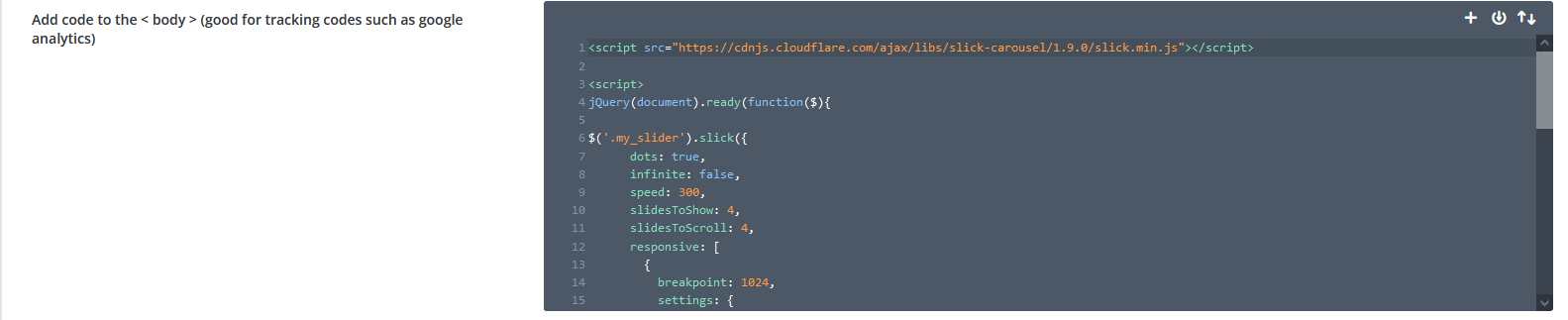
In the <body> section:

Add the CDN URL for the slider script and initialize the slider with this code:

You can change the below code as per your need.

	
<script src="https://cdnjs.cloudflare.com/ajax/libs/slick-carousel/1.9.0/slick.min.js"></script>
<script>
jQuery(document).ready(function($){
  $('.my_slider').slick({
    dots: true,
    infinite: true,
    speed: 300,
    slidesToShow: 4,
    slidesToScroll: 4,
    responsive: [
      {
        breakpoint: 1024,
        settings: {
          slidesToShow: 3,
          slidesToScroll: 3 
        }
      },
      {
        breakpoint: 600,
        settings: {
          slidesToShow: 2,
          slidesToScroll: 2
        }
      },
      {
        breakpoint: 480,
        settings: {
          slidesToShow: 1,
          slidesToScroll: 1
        }
      }
    ]
  });
});
</script>

add_script_code

Step 5: Save and Publish Your Page

Finally, save your changes and publish the page.

Your Divi columns will now display as a slider!

By following these steps, you can transform any column layout in Divi into a dynamic slider without needing any plugins.
And there you have it—a simple way to turn your Divi columns into an interactive slider without any plugins. This method keeps your site sleek and efficient while adding a dynamic touch that’s sure to impress your visitors. Keep exploring and pushing the boundaries of what you can create with Divi!

Top 7 WordPress website maintenance tips

WordPress is a diversified CMS platform in the arena of Content Management Systems. It dominates the CMS area with a staggering 39.6% of the internet in 2021. But even a durable framework like WordPress requires regular wordpress website maintenance services to guarantee that the website runs well.

WordPress is an open-source CMS, which means that any person can use this framework for good or bad reasons, hence, it is even more important to go for WordPress website maintenance for frequent updates to protect your website. So, today we have curated a list of WordPress website maintenance tips that you cannot miss!

Before you run through the maintenance tips, ensure that the website is working just fine and you have taken a backup of it. You don’t want to end up with a ton of problems for the website not working properly or losing out on data if you make any mistake.

The following areas will be covered in a thorough WordPress maintenance routine:

A Backup is must

Even if you aren’t making any modifications to your site right now, this is one of the most important things to accomplish. You may either do it manually by downloading all of the files as well as the database dump and save them somewhere safe, or you can use a WordPress backup plugin to automate the process. The WordPress plugin store contains a large number of both free and commercial plugins. Since most hosting companies provide backup alternatives, you may also use the backup option at the server level–this is something you should verify with your hosting provider about.

Backups provide you the assurance that your site will be fully operational again in the event of a crash or a mistake. It may also assist your new developer in quickly resolving difficulties, particularly if you’re seeking to resolve a defect that you think happened during previous maintenance. Regular backups should aid your new developers in identifying and resolving issues that arose months or years before they took over the project.

Remove Unnecessary Files, Code, and Plugins

It’s normal to forget about files and plugins that are no longer required. This becomes a hassle when the files collect over time as your website’s lifetime progresses. It’s difficult to determine where a file came from and whether it’s being needed by some element of the site if your developer didn’t care about deleting undesirable files that were added over time. This adds to the pain because the site must be retested to ensure that nothing has broken since the suspicious elements were removed.

This may be avoided if the developer who worked on it removes any unnecessary files as soon as possible.

To help you with this task, you can install various plugins like Media Cleaner.

WordPress Updates

Updates to the WordPress software are issued on a regular basis. This covers the core of WordPress as well as any themes or plugins you’ve installed.

These changes must be made to your website in order for it to continue to work correctly. You risk having code conflicts and components of your site getting out-of-date if you don’t apply these updates on a regular basis. This will put your site in danger and hackers could easily break it. It is also possible that the website may not work properly.

When downloading the updates, ensure you follow the sequence of updating WordPress core first, then theme and lastly the plugins. This can help you prevent plugin and theme conflicts, which might cause your entire website to go down.

Optimizing Images on Website

Larger the image resolution, slower the website.

A thumb rule to speed up your website loading time. When it comes to WordPress website performance, image selection and placement is a critical factor. Not every image may be utilised on your website; to ensure that your image is suitable for your purposes, it must be optimised.

An image can be optimised in one of two ways:

  • Manual optimization
  • Invest in a paid plug-in

Check & Moderate Website Comments

This step is more about making an impression in the mind of the visitor. Your visitors will have a negative image of your website if you do not control the comments. They’ll get the impression that the place is neglected and uncared for.

Responding to criticisms in a timely manner is a major step in the right direction. When you react to a visitor’s question, concern, or point of view, you demonstrate that you value their time.

Filtering spam comments is another essential component of comment moderation. And believe me when I say you’ll get a lot of them. It’s critical that they’re flagged as spam and then removed. Nothing is more unattractive than a spam-filled comments area.

Furthermore, if left unchecked, a large number of spam comments might soon accumulate. As a result, the database space is clogged, severely impacting website performance.

Database Optimization

The WordPress database is slim and functions ideally when your website is fresh. Your website reacts and loads more quickly. The database becomes congested and clogged with time.

This happens when you install a plugin or a new theme. Because it updates the database with all of the new data. This can also happen when you uninstall a plugin or a theme. They don’t always get removed as efficiently as you’d like them to. Tables, references, and other data are left behind, clogging up the database.

The database becomes filled with useless tables, and data from removed plugins, themes, saved drafts, pages, and blog posts as time passes. Apart from that, other content that you upload on the website also takes up space in the database. As a result, these unneeded garbage items should be deleted from the database in order for it to continue to operate properly for a long period.

You can take help of WordPress plugins to clean up the database. One of them is WP-Optimize.

Security Scans

This is something that is much too frequently neglected. For our desktops and PCs, we do invest in decent antivirus software. However, when it comes to internet security for our numerous websites, don’t give it much attention. We don’t think it’s important.

We must keep in mind that hackers are constantly looking for new ways to break into your website and steal critical information. They may essentially render your site unusable if they obtain access to it.

It might take months, if not years, to bring your site back to where it was before the attack. Invest your time and resources towards discovering and eradicating malware and/or harmful code that has been introduced.

If due to some reason the search engine has blacklisted, the browsers will display a malware warning for your site. After your site has been restored, it might take some time for the warning to go away. Consider the damage to your reputation and income that such an unanticipated event may do.

Always keep security a priority. For that, you can consider various plugins available on the WordPress plugin store. You can check out MalCare and Wordfence to tighten the security of your WordPress website.

Final Thoughts

WordPress is a powerful content management system that must be updated on a regular basis to keep a website running smoothly. We hope that these WordPress website maintenance tips will help you in doing so. Consider them as a reminder to check your WordPress websites for upgrades and maintenance if you run your business website on WordPress.

We at Technocrackers take utmost care from the beginning of WordPress website development of these points. Hire WordPress developers to help you maintain your WordPress website. We ensure that the health of the website is up and running perfectly always. Talk to us today and get a website-health checkup!

Squarespace VS WordPress: What is the Best Website Builder

The COVID-19 pandemic taught us that “If it’s not online, it’s nowhere!” and that made businesses really think about taking their products and services to the platforms that reach globally irrespective of the shutdown. The businesses started creating their website portals and literally everyone’s alarm rang almost at the same time!

Multiple businesses coming under small cap, the start-ups, the home-grown business ideas, every-single-one started creating their own website. And but-obvious, in order to stand out from the crowd, the website needs to be eye-catching.

The competition no longer remained in the quality of product and services, but the real question came as to how better you showcase your brand. The solution came up to create your own creative as well as attractive website which also has tools that can efficiently handle all of the infrastructure needs and does not require much of the coding language. Well, if you go and search about it, you will get hundreds of options, but WordPress and Squarespace are two of the most popular in the business. So, take a seat and we are going to help you solve this everlasting confusion of which website builder to opt for, by giving you a clear-cut comparison of features, templates, and hosting options for Squarespace Vs WordPress.

WORDPRESS- AN OVERVIEW

WordPress as we all are aware, is a free and an open-source management system (CMS). It is based on PHP and MySQL. It started as a simple blogging system in 2003 but powers more than a quarter of new sites today. It clearly is the choice for nearly a half of the top million sites making it the most popular on the web. Choosing WordPress, you get about 13 years of proven history and with more than 50 million sites globally that are created using the same platform, you know your work is going in the right hands.

SQUARESPACE- AN OVERVIEW

Squarespace is a creative website builder designed to help artists build their own attractive websites and showcase their work, no matter how well versed you know your technical terms, Squarespace gives you a home-like environment. If you are a photographer, artist, and anyone who simply loves design and is willing to make their website look as good as the content you generally show off offline, then we can assume your search very well ends here itself. But let’s say your business is not revolving around high quality images or the website demands loads of textual briefings – you may struggle to use Squarespace’s visual designs at its par.Unlike WordPress, Squarespace gives you 14 days trial period, post-trial period Squarespace plans starts at $12/month

DISCUSSING THE SUBSCRIPTION PLANS IN WORDPRESS VS SQUARESPACE:

WordPress currently is offering four plans: Personal, Premium, Business and eCommerce. The details of each plan is easily available on their official website WordPress.com. There’s also WordPress.org to create a website for free if you have a hosting provider. If you wish to create a website using professional templates and features, select the plan as per your requirements and you’re good to go.

Squarespace as well covers its plans in four pricing tiers: Personal starting at $12/month, it’s ad-free and includes a free domain name for a year. The Business plan costs $12/month. You get marketing features under a business plan. The online Stores Basic $26/month plan and the Advanced tier with $40/month adds Ecommerce features.

HOSTING IN SQUARESPACE VS WORDPRESS:

If simply explained, your WordPress subscription does not include hosting and Squarespace does.

But the supreme benefit while you select to create your website using WordPress is that you can easily download, edit and host the WordPress codebase anytime and from anywhere. Reputable hosts will have a server architecture which is WordPress-ready. None-the-less many will have one-click installation. But an important thing to consider here is that your host’s tech support might not cover WordPress itself, so by any chance you break something while editing, you’re on your own. Whereas on the other-side of the road, Squarespace might not give you availability in each of your hosts’ servers. No matter how time saving and attractive Squarespace codebase is, your host’s server might not be Squarespace ready.

TEMPLATES IN WORDPRESS VS SQUARESPACE:

Squarespace spoils you with dozens of pre-constructed attractive templates. The templates are designed before-hand according to  robust user interface principles. Your subscription plan contains all the pre-made designs and development, hosting and security certificates, everything in one price. But again, the debate comes down to whether or not it is advisable for the businesses which DO NOT deal with imagery or video contents to invest a wholesome amount over Squarespace subscription?

Whereas on the other hand there are literally thousands of WordPress templates, all of them with completely accessible code to let you make any changes you desire. WordPress literally has everything for everyone. If you’re artistic enough, you can easily design your site in a graphic application and then probably can just give it to a developer to program. There are countless designers out there, who offer custom WordPress design services. You’ll get exactly the look and functionality you wish, but it might add up a little to your costs.

DISTINCT FEATURES OF WORDPRESS:

The most unique feature of WordPress is that it gives you the power to run your website the ‘old’ way. No matter what the product or service your brand deals with, you will find everything you’re looking for way too easily. With easy access to CSS and HTML, one can make N number of tweaks until everything is exactly how one had envisioned it to be. If you are good at design or programming or say you have access to cost-effective pros who do, it might very well give you an ace and you can customise your website to behave and do what you want in limitless ways.

DISTINCT FEATURES OF SQUARESPACE:

Squarespace is a comparatively more controlled environment. There is absolutely no need to buy or source designs, extensions, hosting or any other services additionally. You can simply sign up, start building your pages, and deploy your site when you’re satisfied with the result.

But one thing to keep in mind is while using Squarespace you will have no direct access to codes. Meaning you can hardly make changes or make any tweaks in any of their given template or design.

CONCLUDING WORDPRESS VS SQUARESPACE

Given a choice to reserve a dinner table at a restaurant which has multiple cuisines and that avails you to enjoy the evening with your loved ones plus gives you options to make any required changes in the pre-decided menu versus a restaurant that offers delish food but has very limited items listed on the menu in addition to their ‘no changes allowed’ rule. Which one would you like to choose?

Who is not spoilt with the choices? In this analogy, the former restaurant clearly signifies WordPress, with its easy customizable and personalized experience. The latter is just similar to Squarespace. No doubt, Squarespace gives you a ready-menu. You don’t need to brainstorm much. It clearly holds your hand much tighter.

But the ready templates might not deliver you right exactly the way you had envisioned your dream website to look like. It would require some changes to give it the authentic look that your brand promises its customers.

But if you need to work with only the basics like email or social marketing or ecommerce, Squarespace would suffice for your needs and it will definitely be visually striking. But a basic WordPress will have your back just fine if you do not need a host of special or unusual features

Even so you might need to hire a service provider to take care of errands required to run a successful website, there are certain WordPress development firms like Technocrackers that help you hone your business growth with a compact yet elegant website design which fits perfectly fine for your brand.  Contact us today with your WordPress development requirements!

Ultimate WordPress SEO Guide for Beginners (Step by Step)

WordPress began as a simple blogging platform in 2003 and has since grown to include blogs, periodicals, eCommerce sites, businesses, portfolios, photography sites, and more. WordPress is a potent content management system and it owns 65.2% of the market share. It’s amazing how popular WordPress has become in only 17 years.

WordPress has empowered websites with easy functionalities, themes, plugins and various features that has made the task of managing a website easier. Same way, it also assists in ranking your WordPress website. Want to learn how to use WordPress SEO to improve your site but don’t know where to begin?

We’re here to assist you!

You’ll learn the smartest WordPress SEO tips and tactics for optimising your website through this WordPress SEO Guide.

What is SEO?

Search engine optimization (SEO) is a technique for improving a website’s exposure and ranking in search engine results pages. It enforces us to have more search engine friendly websites that provide a better user experience.

The design, on-page keywords, and links all have an impact on a website’s appearance. Moreover, many aspects of SEO aren’t well understood. As a result, people are unable to fully utilise SEO to increase their website and content rankings.

It’s vital to remember that search engines employ algorithms that are still evolving. In addition, search engine updates are made to assist search engines in delivering higher results.

How does SEO work?

To put it another way, SEO is based on the following theory:

  • You create a website and decide whether portions of it should be displayed to search engines.
  • The ‘Web crawlers’ of the search engines visit your website and its pages to collect information.
  • This information is used by the search engine to assess the quality of your content and your entire website.
  • Your website receives an initial ranking based on that evaluation.

The web-crawlers will review your page and update the information in the database every time you give fresh ranking signals. Based on the quality of the newly discovered data, it might either boost or decrease your site’s ranking.

Why is SEO essential?

You created your website for a specific reason, and you want people to be able to locate it. Understanding SEO can aid in the growth of your audience. You’ll know which design elements to focus on and how to generate content that will get a lot of attention while also providing a good experience for your visitors.

Furthermore, without SEO, all of your efforts would be useless, as having a website with low visibility is virtually as bad as having none at all.

Check on basic WordPress SEO settings

WordPress includes certain SEO options that you may apply right away to boost your website’s ranking. Below are a few basic WordPress SEO settings you should notice and configure through the dashboard,

WordPress site settings

WordPress includes a feature that allows users to prevent search engines from indexing their site. You must guarantee that your site is not turned on in order for it to appear in the search results.

Settings > Reading is where you’ll find the setting. Make sure you haven’t checked the box in front of the “Search Engine Visibility” setting.

Set correct permalinks (URLs) structure

A permalink is a link to your web page and blog post on your website. Your permalinks are critical to your SEO success from an SEO standpoint. Words in permalinks are used by search engines to figure out what the page is about.

The default WordPress option, however, prevents you from using a custom permalink structure. Unless you alter it manually, you’re stuck with the “Day and name” preset.

Go to Settings > Permalinks to set the proper permalink structure. Select “Post name” as default option.

WordPress provides the ability to automatically propose the optimal permalink for a page based on the content on that page.

WordPress Website health checkup

This is a built-in function that will monitor the health of your site and alert you if it needs to be improved. From your WordPress dashboard, go to Tools > Site Health to view the site health function. In terms of SEO, the site health feature is critical because it can alert you to upgrades and adjustments that may harm your site’s long-term ranking.

Improve WordPress SEO With These Best Practices

You’re ready to level up your game once you’ve finished fine-tuning the fundamental WordPress site settings. The finest SEO practises are listed in this WordPress SEO guide.

Organize your content

WordPress provides two fantastic features that can help you better organise your content: categories and tags. You can use them to add some logic to the way your website’s content is organised.

Create categories for the various topics you cover on your website. Once you’ve created the categories, group all of your content into one category with a common theme. Tags exist to aid in the organisation of your material into subtopics. They go over the specifics of your posts.

Every WordPress post must be assigned to a category. The use of tags is entirely optional. If you don’t give your post a category, WordPress will put it in the “Uncategorized” category by default.

In order to create them, go to Posts > Categories & Posts > Tags.

It’s a significant SEO indication to organise your content for maximum usability. Your website’s visitors will be enthralled by how simple it is to navigate.

A neat website structure

While the readability and functionality of your site are crucial, we must also consider the structure of your site. Why? Here are three reasons,

A. A structure will make it easier to explore and work on the website as it grows.
B. Your visitors would fall in love with how easy navigation is.
C. Search engine crawlers will have an easier time crawling your content

Every WordPress SEO strategy focuses on 5 main elements,

  • Header navigation menu
  • Sidebar navigation
  • Footer navigation
  • Pages
  • Blog categories

Make a spreadsheet before you start constructing anything in your dashboard. Begin at the top with the homepage and work your way down, adding category pages as you go.

After you’ve finished with the spreadsheet, you may start working on your web pages and categories. Create and submit an XML sitemap to Google Search Console as a final step. This will allow Google to crawl and index your site effectively.

Quality Content

While optimising WordPress for SEO is critical, it is only a small part of a comprehensive SEO plan. With SEO in mind, you’ll need to produce and compose high-quality content. Doing keyword research and finding the most relevant terms for your target audience. Then you can design a content plan based on the keywords you’ve discovered.

When it comes to writing quality content, you should never put number or frequency of publication ahead of quality. You should publish well-researched, original, and entertaining content while leveraging the relevant keywords.

Optimizing your WordPress website performance

A website’s performance must be exceptional in order for it to rise in the search engine result pages. The following pointers will assist you in improving your WordPress SEO.

A mobile-friendly website

More than 60% of searches are made through mobile devices on Google. Responsive design is a key SEO signal, according to search engines like Google.

You should make certain that your website works flawlessly on both desktop computers and mobile devices.

A secure website

Google, like any other search engine, does not wish to send its customers to websites that are dangerous to their online security. Website security is not only an SEO consideration, but it may also work against you, causing your site to be punished and removed from search results.

Fast Website speed

The speed with which your website loads is also a ranking factor for Google. Fast loading speeds guarantee a superior user experience and make browsing your website more delightful on all devices.

Track performance

Many website owners and administrators are unaware that website performance optimization is a continuous process. It’s not possible to optimise it once and then leave it alone. Updates to the WordPress core, plugins, and themes can all have an impact on site performance.

To keep dazzling your visitors and delivering a high ranking signal to search engines, it’s critical to review your site’s performance on a frequent basis.

WordPress SEO Plugins You Can Use:

Plugins in WordPress allow you to automate your SEO efforts. You may utilise a variety of WordPress SEO plugins to automate your SEO approach and up your SEO game.

Take note that you do not need to use many SEO plugins at the same time. Only one will do the job, so pick wisely. The six finest WordPress SEO plugins to consider are listed below.

  1. All in One SEO for WordPress
  2. Yoast SEO
  3. Semrush SEO Writing Assistant
  4. SEOPress
  5. Rank Math
  6. MonsterInsights

Conclusion

WordPress provides a number of options for optimising your site for search engines. You can utilise several plugins to optimize your SEO activity in addition to the basic SEO settings in the dashboard. Remember that SEO is a long-term and constant pursuit. It will take some time to see the fruits of your labour. Continue to improve your SEO skills, and you’ll be able to push your online presence to new heights. 

At Technocrackers, to improve your WordPress website, we use tried-and-true SEO tactics. We know what works, and we’ll apply it to you. Our WordPress development team is experienced and chooses responsive themes, effectively codes for faster load speed and makes the website user-friendly. Questions about WordPress SEO Development? Ask us!




Contact us

Let's Unleash Your Digital Potential Together.

Address

C-605, Ganesh glory 11, Nr. BSNL Office, Jagatpur Road, S.G. Highway, Jagatpur, Ahmedabad, India - 382481.

Phone

INDIA : (091) 8200639242 USA : +1 (310) 868-6009

Limited Time Offer

X

Try a Free 2-Hour Test Task

Experience our quality, speed, and communication on any small WordPress task before you commit. No contract. No cost. No obligation.
[For New Agency Partners]

"*" indicates required fields

Name*