Table of Contents
Email marketing remains one of the most effective ways to grow your audience and increase conversions. With Divi 5’s new Canvas feature and Interactions, you can build a beautiful newsletter popup without installing a popup plugin or writing custom JavaScript.
In this tutorial, we’ll create a fully functional newsletter subscription popup that can be triggered either on page load or when a visitor clicks a button.
What You’ll Build
By the end of this tutorial, you’ll have:
- A responsive newsletter popup
- A close button to dismiss the popup
- A page-load popup with a customizable delay
- A button-triggered popup
- A completely plugin-free solution using only Divi 5’s built-in features
Step 1: Create a New Canvas
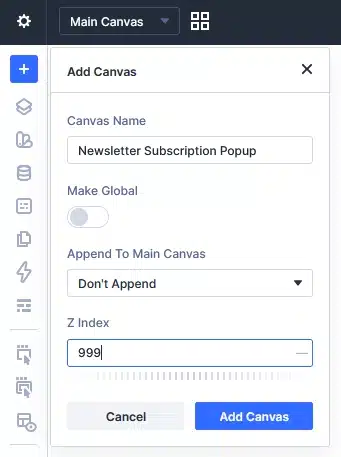
Start by creating a dedicated popup canvas.
- Click the Canvas dropdown.
- Select Add Canvas.
Configure the following settings:
- Canvas Name: Newsletter Subscription Popup
- Append to Main Canvas: Don’t Append
- Z-Index: 999 (or higher if needed)
A higher z-index ensures your popup appears above the rest of the page content.
Step 2: Build Your Popup Layout
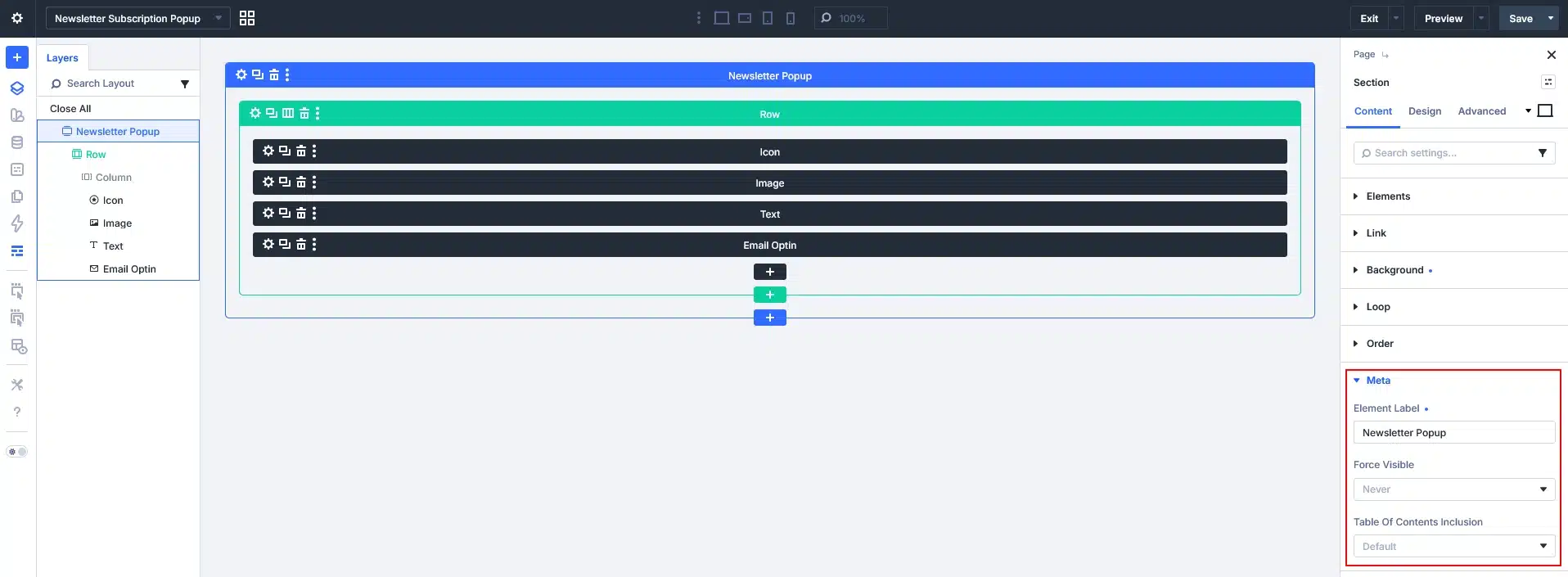
Inside the new canvas, add a Section and give it an admin label such as Newsletter Popup.
Next, insert a Row and design your popup using any Divi modules you prefer.
For this example, the popup includes:
- Close Icon
- Image
- Heading
- Description Text
- Email Opt-In Module
You can customize the design to match your brand by adding additional elements such as buttons, countdown timers, testimonials, or promotional offers.
Step 3: Style the Popup
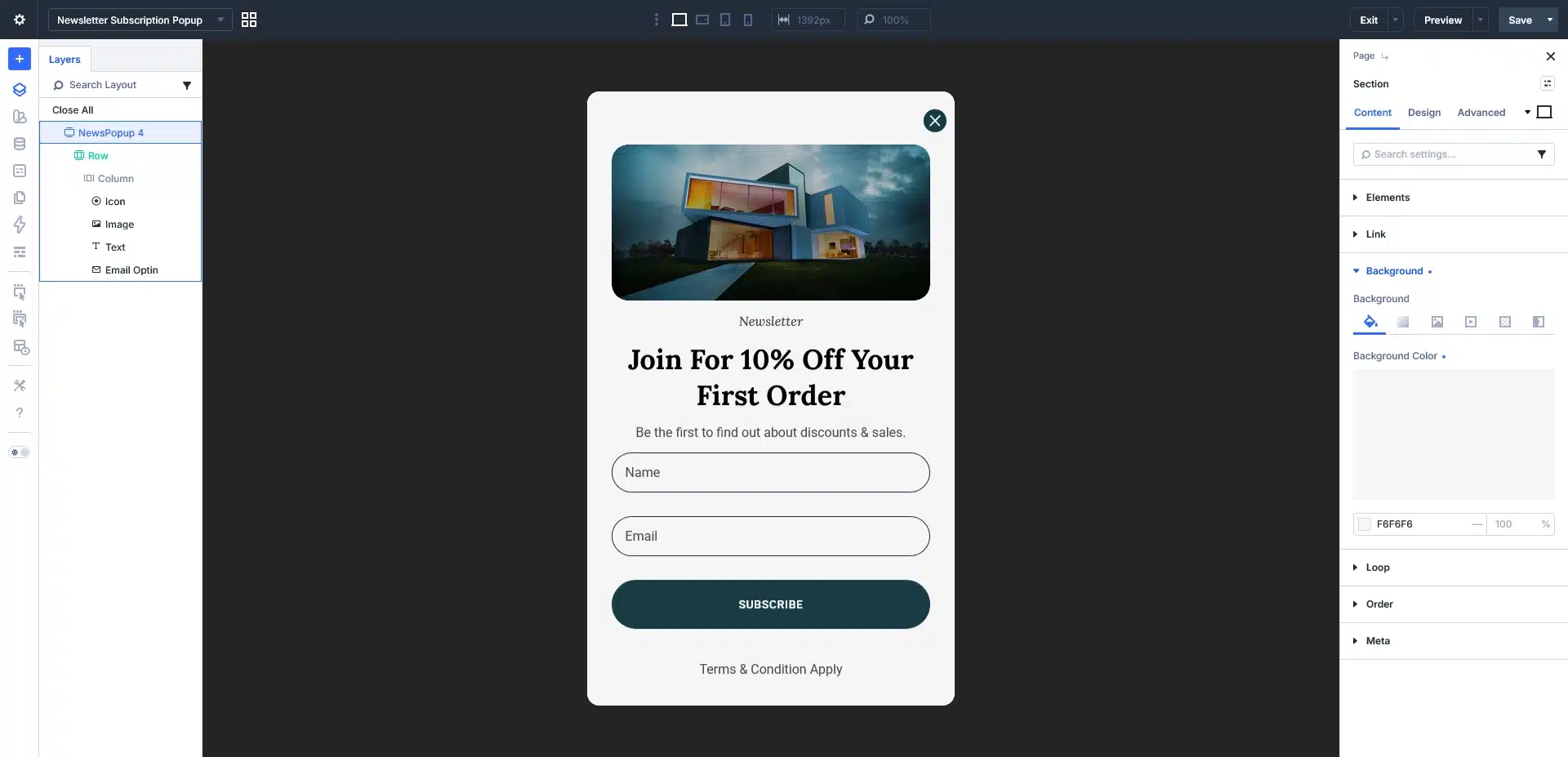
Now it’s time to design your popup.
Some styling ideas include:
- Rounded corners
- White popup background
- Dark semi-transparent page overlay
- Large promotional heading
- Branded colors
- Rounded input fields
- Full-width subscribe button
Since this is built entirely with Divi modules, every part of the popup is fully customizable using the Visual Builder.
Step 4: Add the Close Button Interaction
Every popup should include an easy way for visitors to close it.
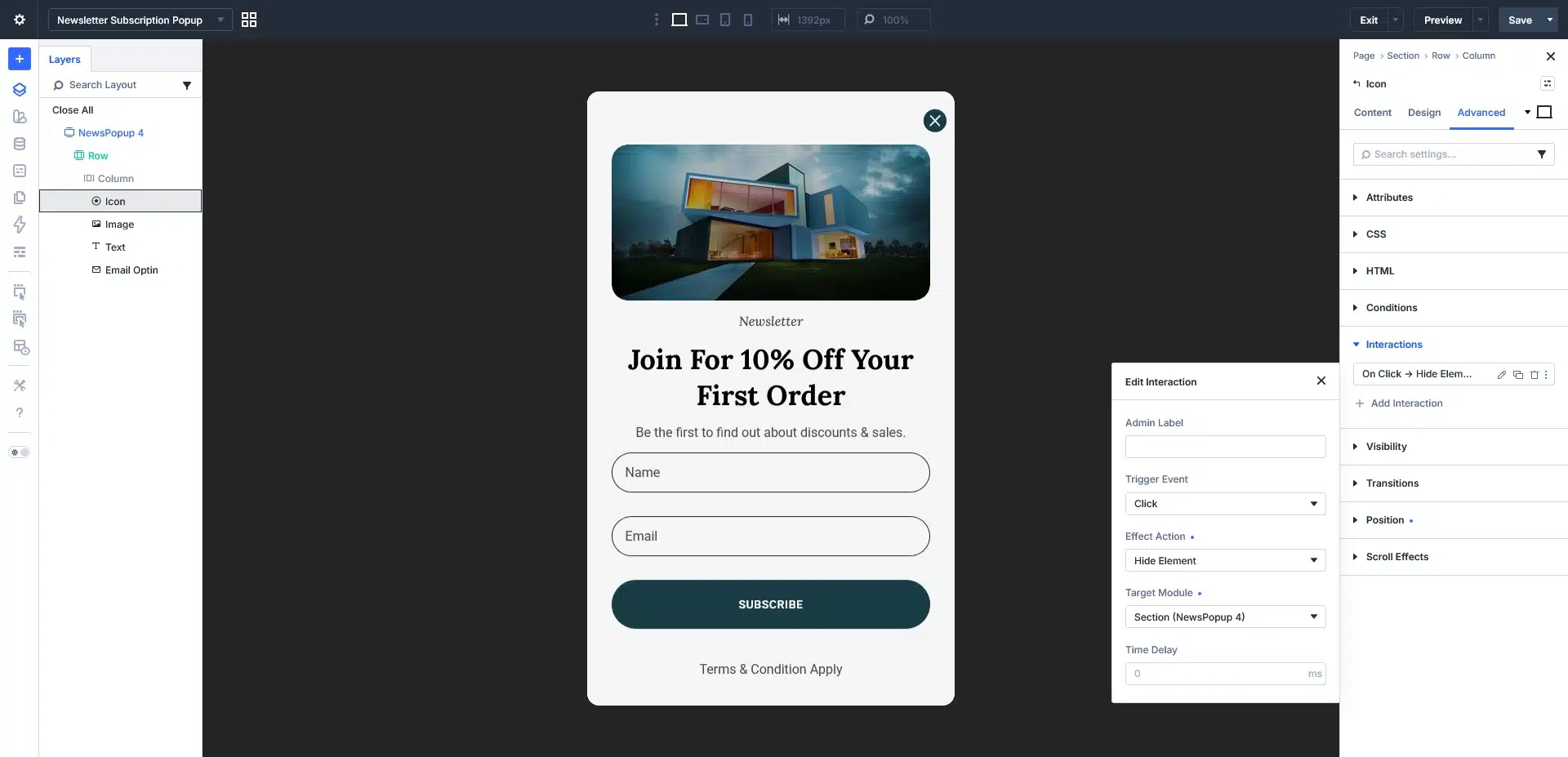
Select the Close Icon module and navigate to:
Advanced → Interactions
Add a new interaction with these settings:
Admin Label: Close Popup
Trigger Event: Click
Effect Action: Hide Element
Target Module: Popup Section
Time Delay: 0 ms
Now clicking the close icon will instantly hide the popup.
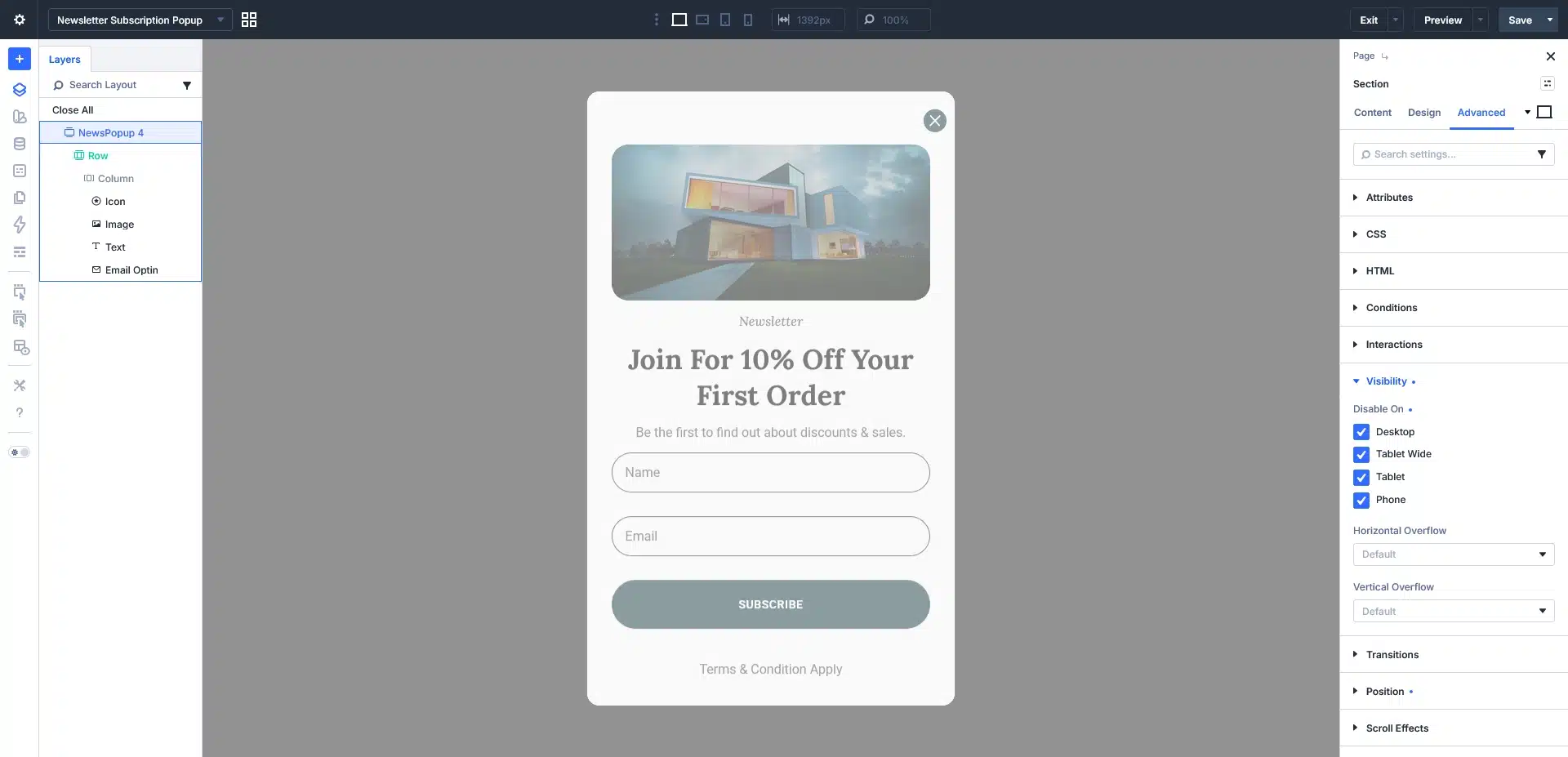
Step 5: Hide the Popup by Default
Before the popup can be shown with an interaction, it needs to start in a hidden state.
Open the Popup Section Settings and navigate to:
Advanced → Visibility
Enable Hide on for:
- Desktop
- Tablet Wide
- Tablet
- Phone
This prevents the popup from appearing immediately when the page loads.
Instead, it will only appear when triggered by an Interaction.
Step 6: Trigger the Popup
Divi 5 allows multiple ways to display your popup. Here are the two most common methods.
Option 1: Show Popup on Page Load
If you’d like the popup to appear automatically after a few seconds, switch back to the Main Canvas.
Select a page element that loads immediately, such as the Hero Section.
Navigate to:
Advanced → Interactions
Add a new Interaction using these settings:
Trigger Event: Load
Effect Action: Show Element
Target Module: Popup Section
Time Delay: 5000–8000 ms
Waiting a few seconds before displaying the popup creates a better user experience than showing it instantly.
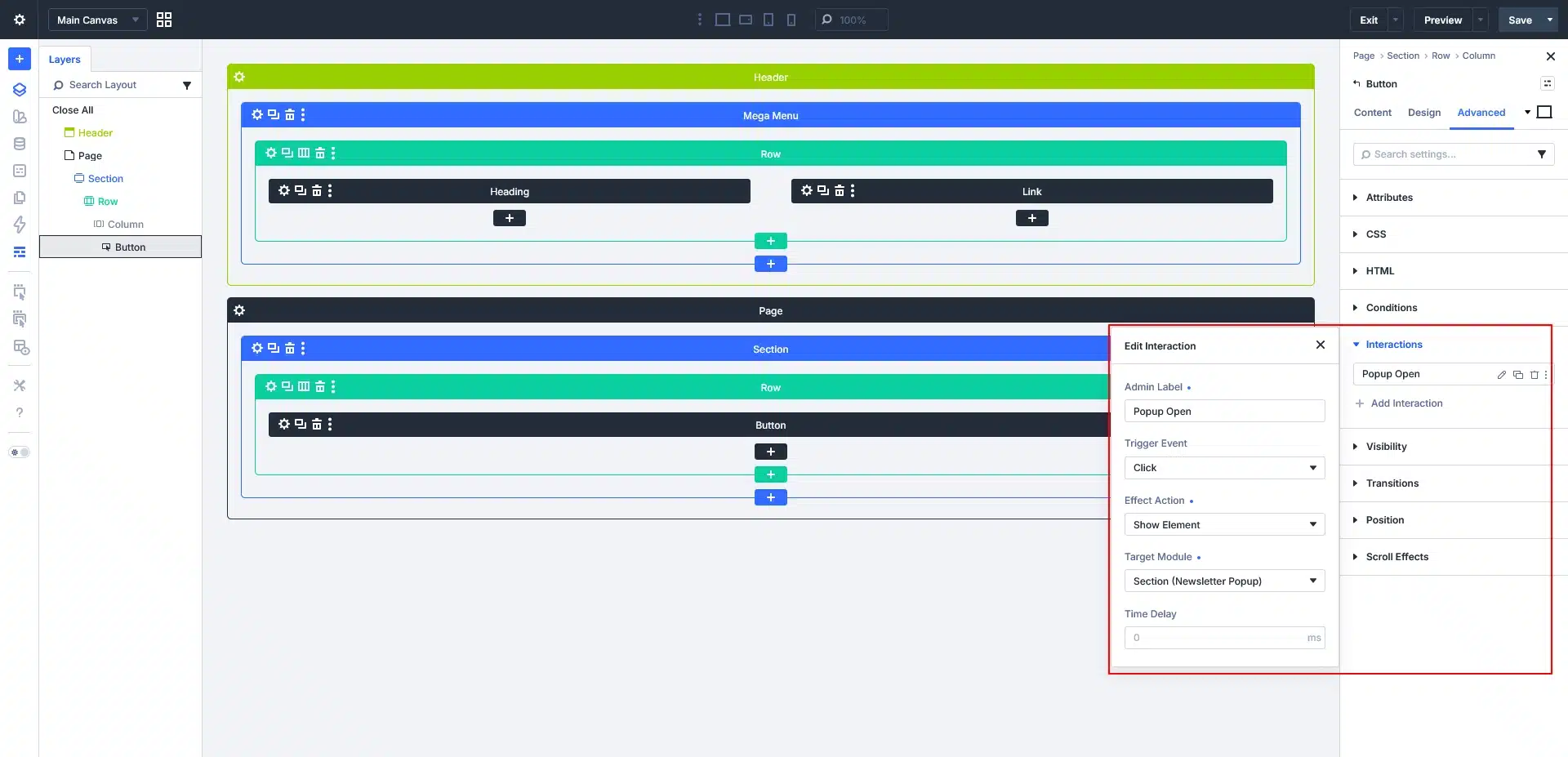
Option 2: Show Popup on Button Click
If you prefer visitors to open the popup manually, attach the interaction to any button.
Select your button and go to:
Advanced → Interactions
Configure it as follows:
Admin Label : Open Popup
Trigger Event : Click
Effect Action : Show Element
Target Module : Popup Section
Time Delay : 0 ms
Now the popup will appear immediately whenever the button is clicked.
Step 7: Test Your Popup
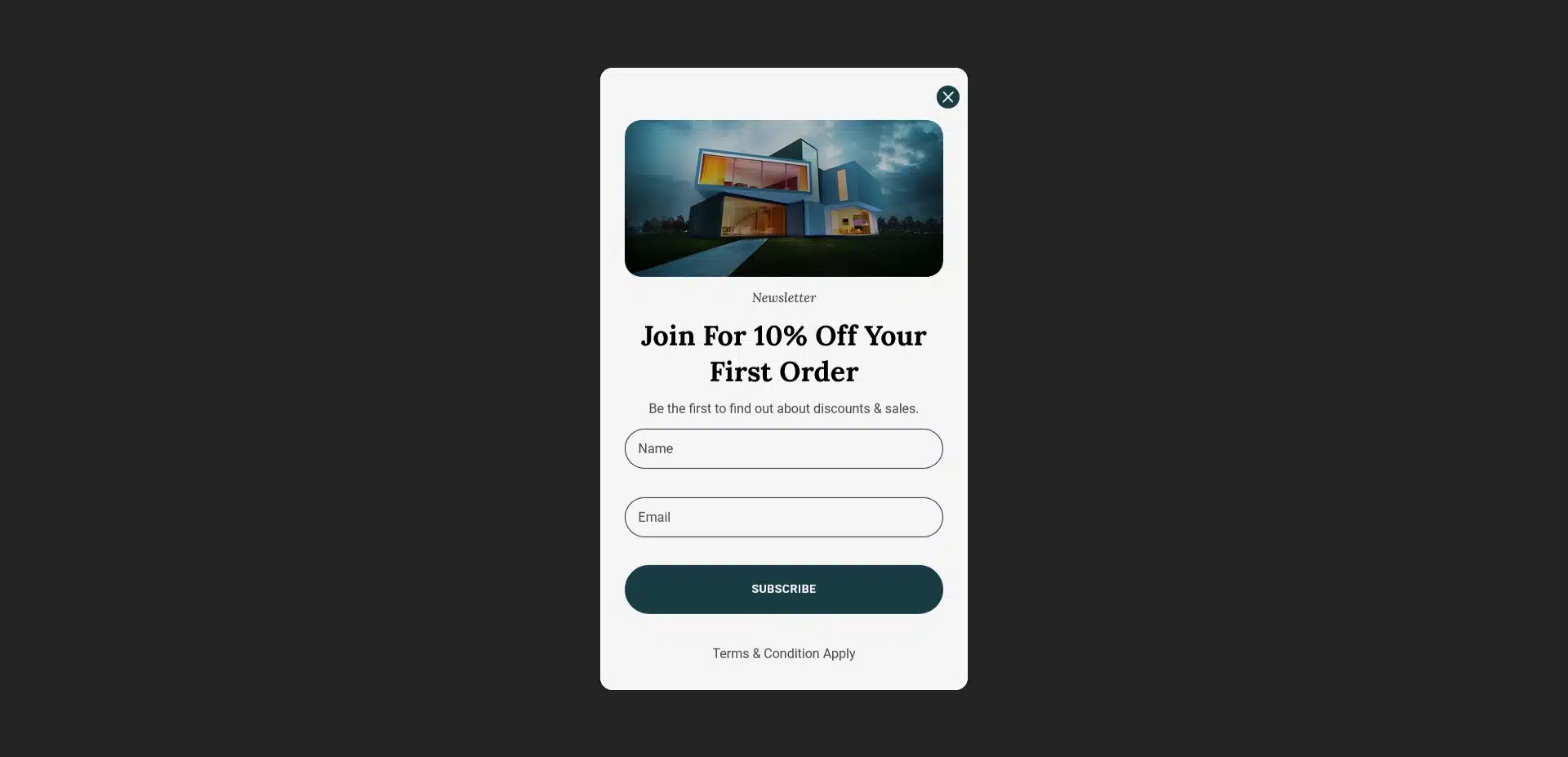
Save your page and preview it on the front end.
Depending on the interaction you configured:
- The popup will appear automatically after a few seconds.
- Or it will open when visitors click your button.
The close icon will instantly hide the popup without reloading the page.
Why Use This Method?
Building your popup with Divi 5’s built-in features offers several advantages:
- No popup plugins required
- No custom JavaScript
- Lightweight and faster loading
- Fully customizable
- Responsive across all devices
- Easy to maintain
- Built entirely with Divi 5 Interactions
Pro Tips
To improve conversions, consider these best practices:
- Delay the popup by 5–8 seconds instead of showing it immediately.
- Keep the form simple by asking only for a name and email address.
- Offer a discount, free download, or exclusive content as an incentive.
- Include a clear close button for a better user experience.
- Test different headlines and call-to-action text to maximize signups.
Conclusion
With Divi 5’s Canvas and Interaction features, creating a professional newsletter subscription popup is easier than ever. You can build attractive, responsive popups without relying on third-party plugins or custom code.
Whether you want the popup to appear automatically or open with a button click, Divi 5 provides all the tools you need to create engaging, conversion-focused experiences using only built-in features.