





Table of Contents
Creating an image slider with thumbnails is a great way to showcase galleries, products, portfolios, testimonials, or featured content on your website. With Crocoblock, you can easily build a dynamic and professional-looking slider using Elementor and Jet plugins—without writing custom code.
In this guide, we’ll walk through the complete process of creating an image slider with thumbnails in Crocoblock step by step.
Step 1 — Install and Activate Required Plugins
Before starting, make sure you have the following plugins installed and activated:
- Elementor Pro — required for theme builder & dynamic layouts
- JetEngine — creates custom post types, custom fields & listings
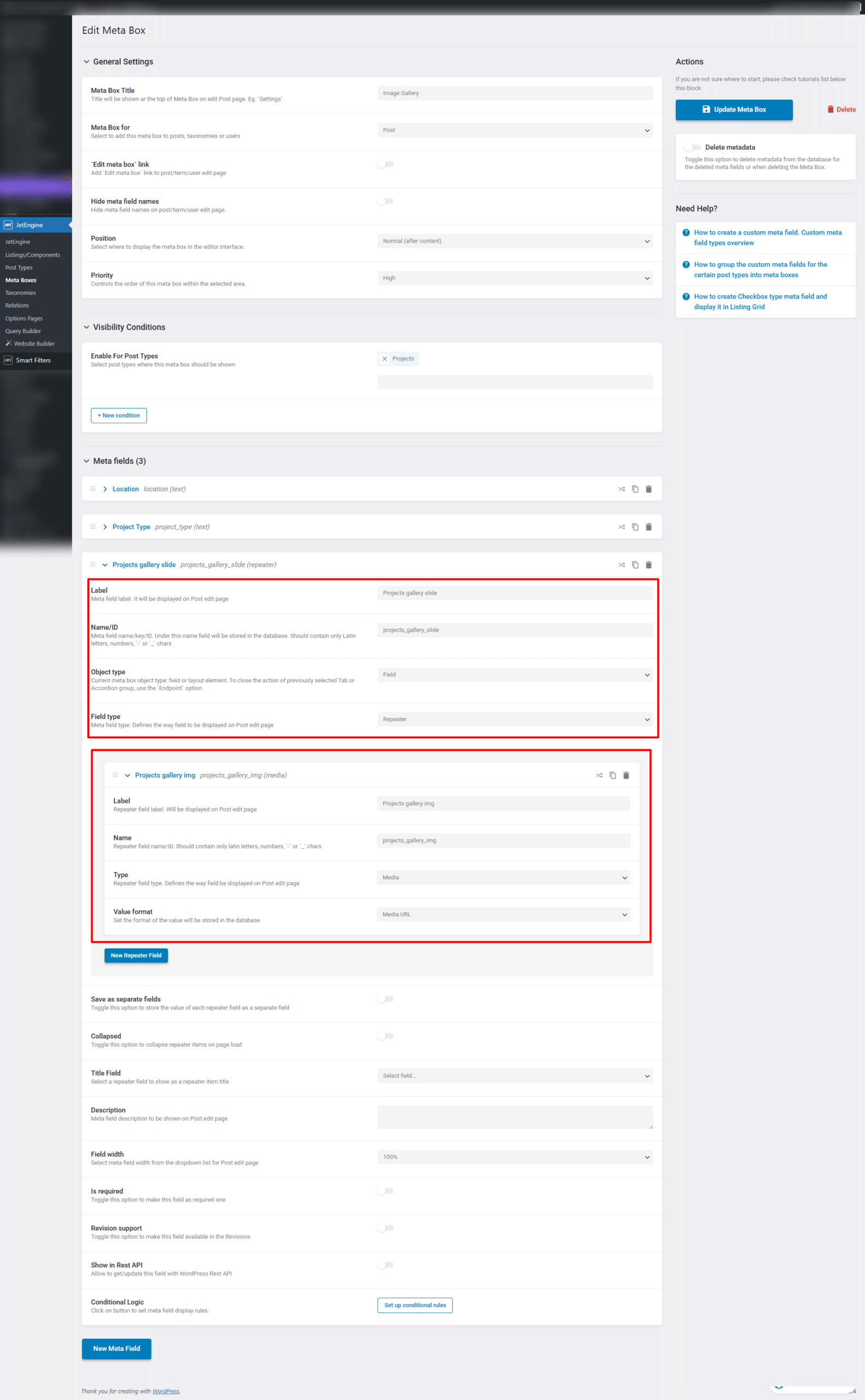
After installing the plugin, you can create a meta box using JetEngine and add meta fields to any post type you want.
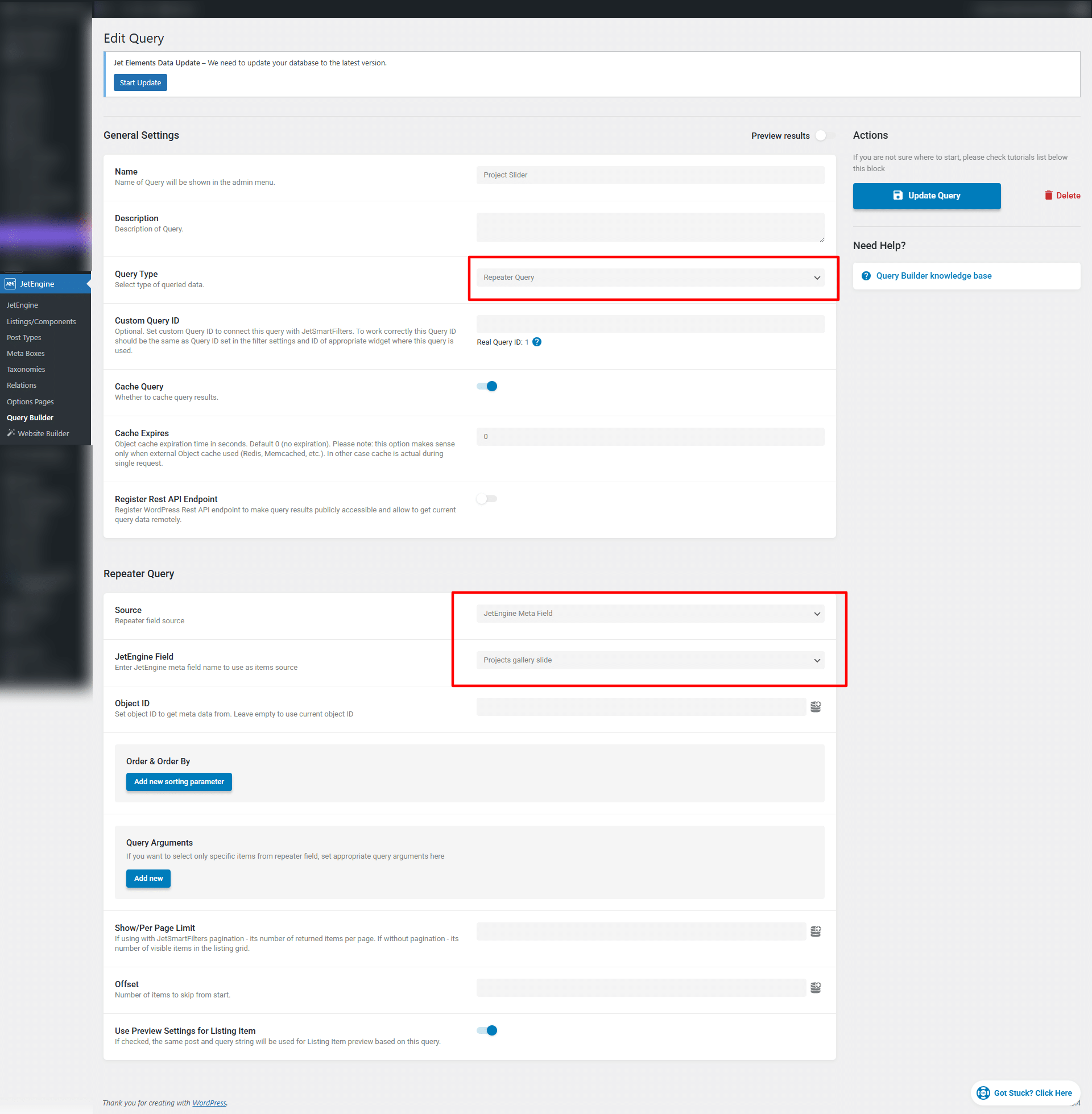
Based on the meta field ID from that meta box, we can then create a search query using the meta ID.
Step 2: Create a Custom Post Type
First, create a custom post type where you want to manage slider content.
For example:
- Gallery
- Portfolio
- Projects
- Testimonials
Go to:
JetEngine → Post Types → Add New
Create your custom post type and publish it.
Example:
- Post Type Name: Projects
- Slug: projects
Now you’ll have a dedicated section in your WordPress dashboard to manage slider items.
Step 3: Create a Repeater Meta Field for Images
Next, we need to add multiple images using a repeater field.
Go to:
JetEngine → Meta Boxes or Meta Fields
Create a new meta field group and assign it to your custom post type.
Add:
- Field Type: Repeater
- Field Name: projects_gallery_slide
Inside the repeater, add:
- Field Type: Media
- Field Name: projects_gallery_img
This allows you to upload multiple images for each post.
Step 4: Add Images to Your Post
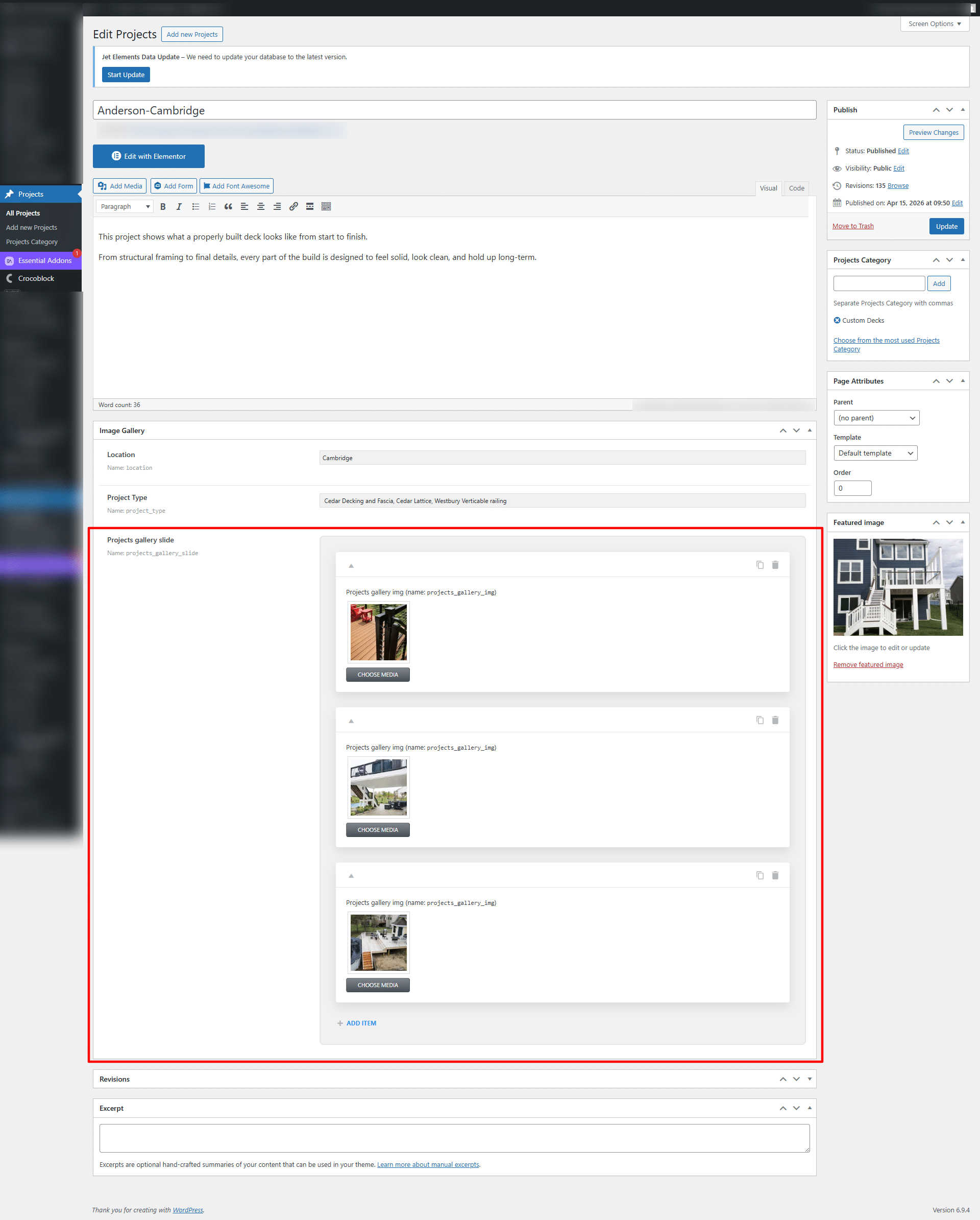
Now open any post from your custom post type and upload multiple images inside the repeater field.
Example:
Gallery → Add New
Add:
- Title
- Content
- Multiple Slider Images
Publish the post.
Step 5: Create a Query Builder for Repeater Field
To display repeater images dynamically in the slider, create a query.
Go to:
JetEngine → Query Builder → Add New
Select:
- Query Type: Repeater Query
Choose:
- Repeater Field: projects_gallery_slide
Set the source as current post.
Save the query.
This query will pull all images from the repeater field dynamically.
Step 6: Build the Image Slider with Thumbnails
Now edit your page using Elementor.
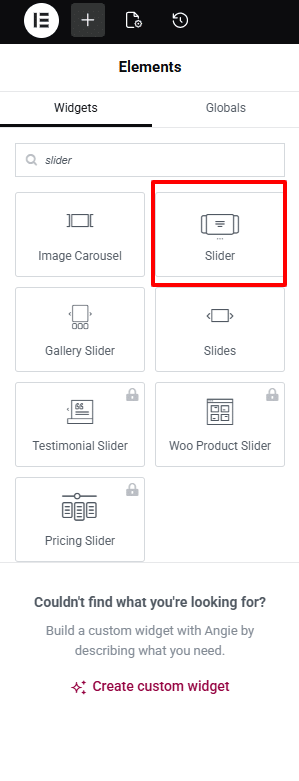
Drag and drop the slider widget
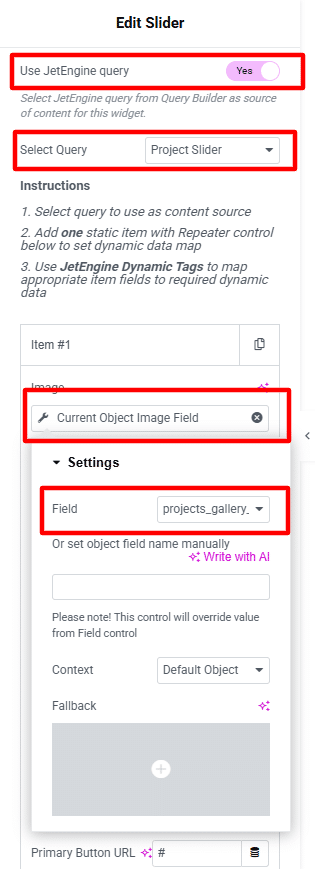
Then, enable the Use JetEngine Query option.
In the Select Query dropdown, choose the query that you have already created.
By default, 3 slides will be added. Keep 1 slide and remove the other 2.
After that, you need to set the image to fetch dynamic data:
- Select the image source from JetEngine > Current Object Field.
- In the settings, choose the image field that was created specifically for the repeater field.
Step 7: Customize the Design
Now style the slider based on your website design.
You can customize:
- Slider height
- Border radius
- Arrows style
- Thumbnail spacing
- Hover effects
- Active border color
- Transition speed
- Mobile responsiveness
Make the design clean and user-friendly.
Conclusion
Creating an image slider with thumbnails in Crocoblock is simple when using JetEngine and Elementor. By combining repeater fields, query builder, and slider widgets, you can create fully dynamic image galleries that look professional and improve user experience.
If you want advanced sliders without custom coding, Crocoblock is one of the best solutions for WordPress websites.