Table of Contents
If you’re looking for a clean and interactive way to organize images on your Divi website, a tabbed gallery is an excellent solution. Whether you’re showcasing a portfolio, product categories, project types, or photo collections, Divi 5 makes it easy to build this layout using only its built-in modules—no extra plugins or custom code required.
In this tutorial, we’ll create a responsive tabbed gallery where each tab displays a different image gallery.
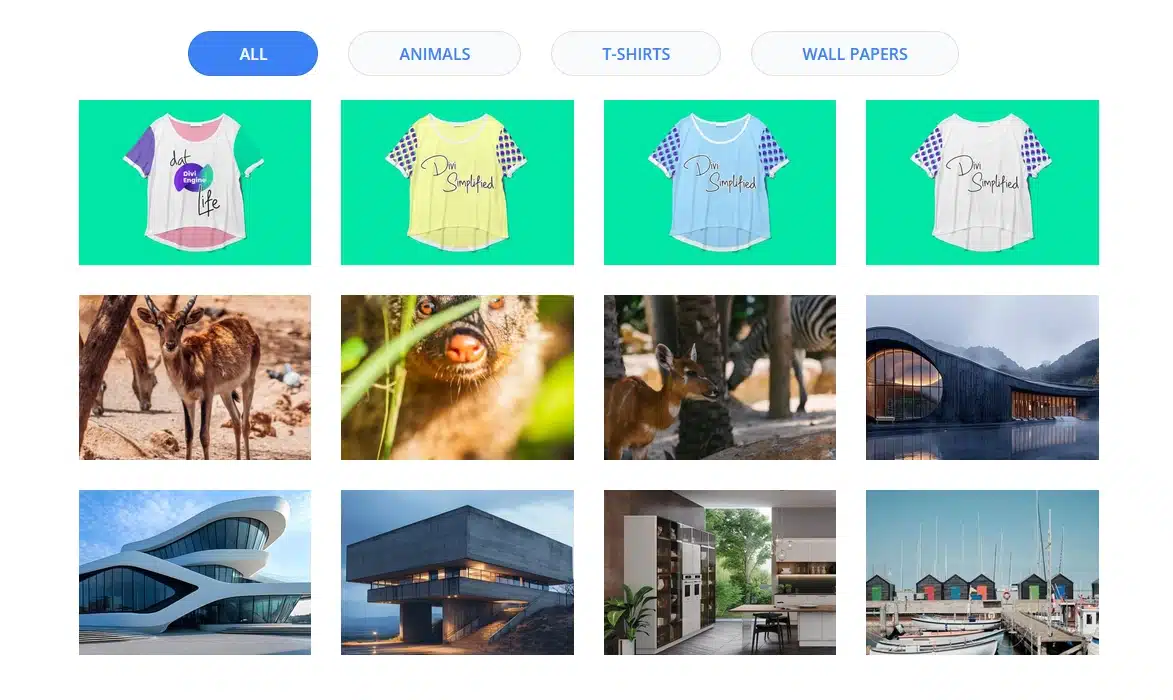
Result: By the end of this tutorial, you’ll have a layout similar to this:
- All – Displays every image.
- Animals – Shows only animal photos.
- T-Shirts – Displays product images.
- Wall Papers – Shows wallpaper or architecture images.
The layout is clean, responsive, and perfect for portfolio or showcase pages.
Step 1: Create a New Section
Add a new Regular Section to your page.
Inside the section, insert a single-column Row.
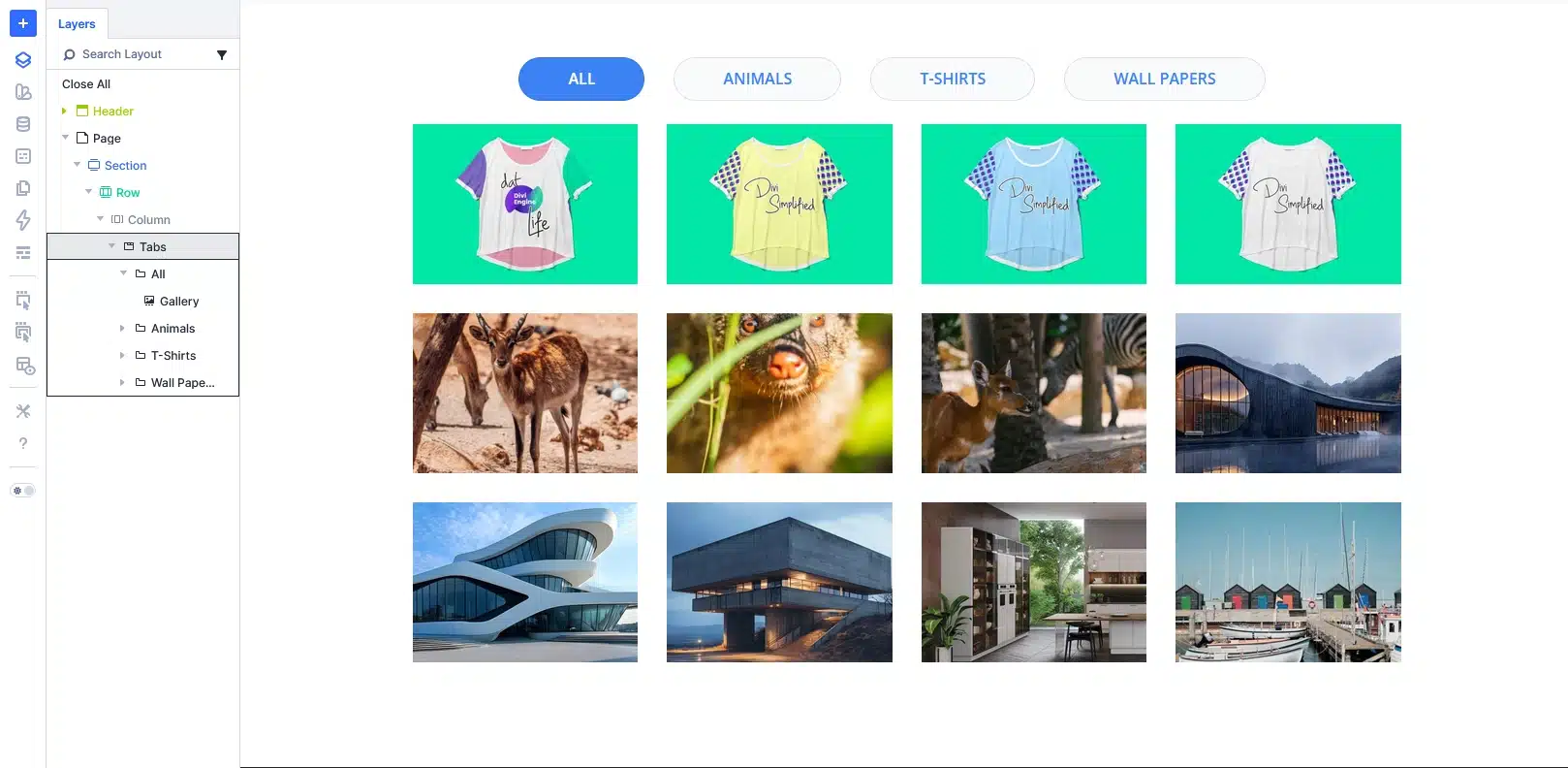
Inside the row, insert the Tabs module.
By default, Divi creates a few sample tabs. We’ll customize them

Step 2: Create Your First Tab (All)
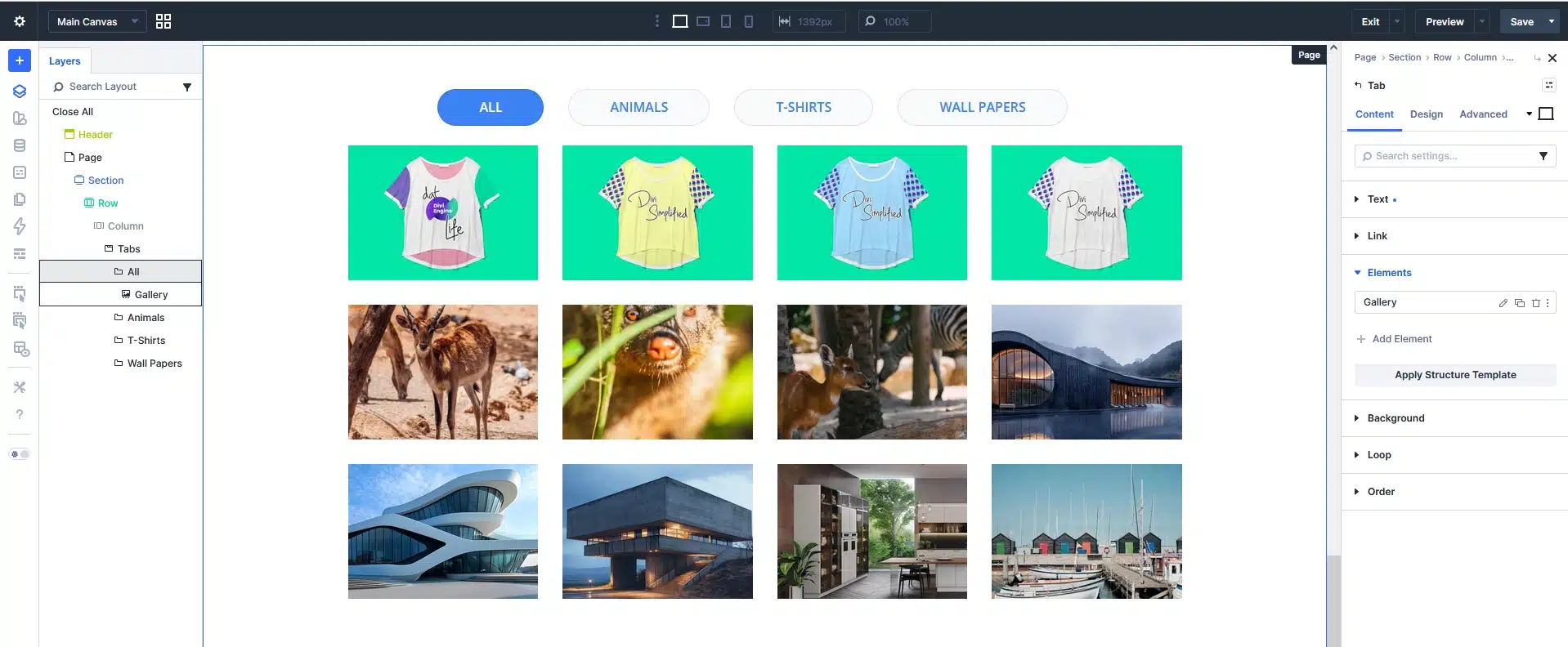
Rename the first tab to: All
Since the gallery will be added as a child module, you don’t need any body text.
Simply remove the default content from the Body field.
Add a Gallery Module Inside the Tab
With the All tab selected:
- Open the Elements panel.
- Click Add Element.
- Choose Gallery.
- Upload all the images you want visitors to see.
This first gallery will contain every image from all categories.
Step 3: Create Additional Tabs
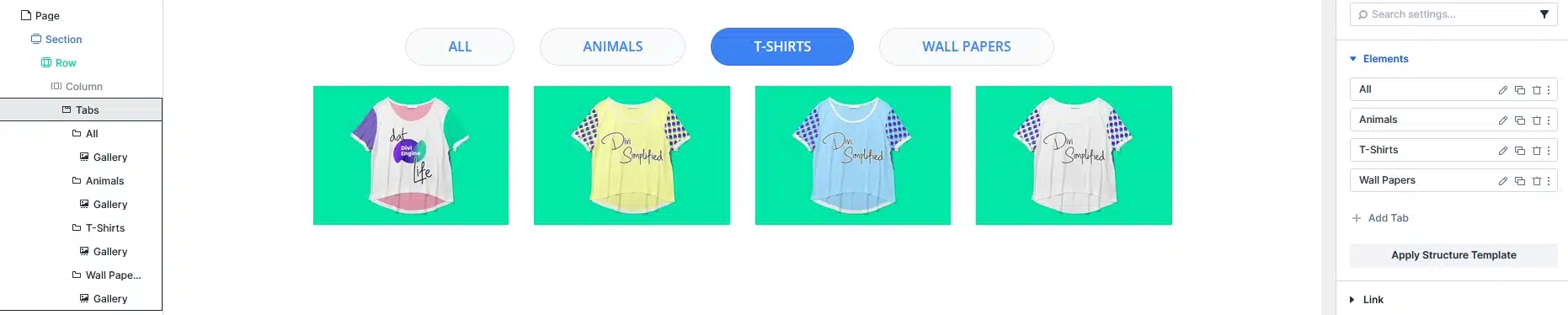
Duplicate the first tab three times.
Rename them:
- Animals
- T-Shirts
- Wall Papers
Each duplicated tab already contains the Gallery element, making setup much faster.
Step 4: Update Each Gallery
Open each tab individually.
Replace the gallery images with only the photos belonging to that category.
For example:
Animals
- Wildlife photos
- Nature images
T-Shirts
- Product images
- Apparel photos
Wall Papers
- Interior designs
- Buildings
- Architecture
- Background images
Each tab now displays only its own gallery.
Step 5: Style the Tabs
Now customize the appearance of the Tabs module.
Recommended styling:
- Rounded buttons
- Blue active tab
- White inactive tabs
- Center-align the tabs
- Add spacing between buttons
- Adjust typography to match your website
You can also customize:
- Border radius
- Border color
- Background colors
- Hover effects
- Font weight
- Padding
Divi 5 provides all of these styling options without writing CSS.
Step 6: Preview Your Layout
Save your page and preview it on the front end.
When users click each tab, they’ll instantly see the corresponding gallery without leaving the page.
The result is a clean, organized gallery that feels similar to a portfolio or category filter.
Why Use This Method?
This approach offers several advantages:
- No plugins required
- Built entirely with Divi 5
- No custom CSS or JavaScript
- Easy to update later
- Mobile responsive
- Great for portfolios, products, projects, and image collections
- Beginner-friendly
Pro Tips
To make your gallery even better:
- Use images with consistent dimensions.
- Compress images before uploading for faster page speeds.
- Add image titles and alt text for improved accessibility and SEO.
- Keep each gallery focused on a single category for a cleaner user experience.
Conclusion
Creating a tabbed gallery in Divi 5 is surprisingly simple thanks to the flexibility of the Tabs module and nested elements. In just a few minutes, you can build a professional-looking portfolio or categorized image gallery without relying on third-party plugins.
If you’re already using Divi 5, this is one of the easiest ways to create an organized, interactive gallery while keeping your website lightweight and easy to maintain.