Table of Contents
- What Is the Divi 5 Instagram Feed Module?
- How to Connect an Instagram Account in Divi 5
- Control What Your Instagram Feed Displays
- Choose How Many Instagram Posts to Display
- Open Instagram Images in a Lightbox
- Add a Follow Button
- Use Nested Elements for More Flexible Layouts
- Customize the Instagram Feed Design in Divi 5
- 1. Feed: Control the Instagram Grid
- 2. Item: Style Individual Instagram Posts
- 3. Image: Control Aspect Ratio, Crop & Position
- 4. Button: Match Your Website’s CTA Design
- Keep Your Instagram Access Token Updated
- Why Use the Divi 5 Instagram Feed Module?
- Final Thoughts
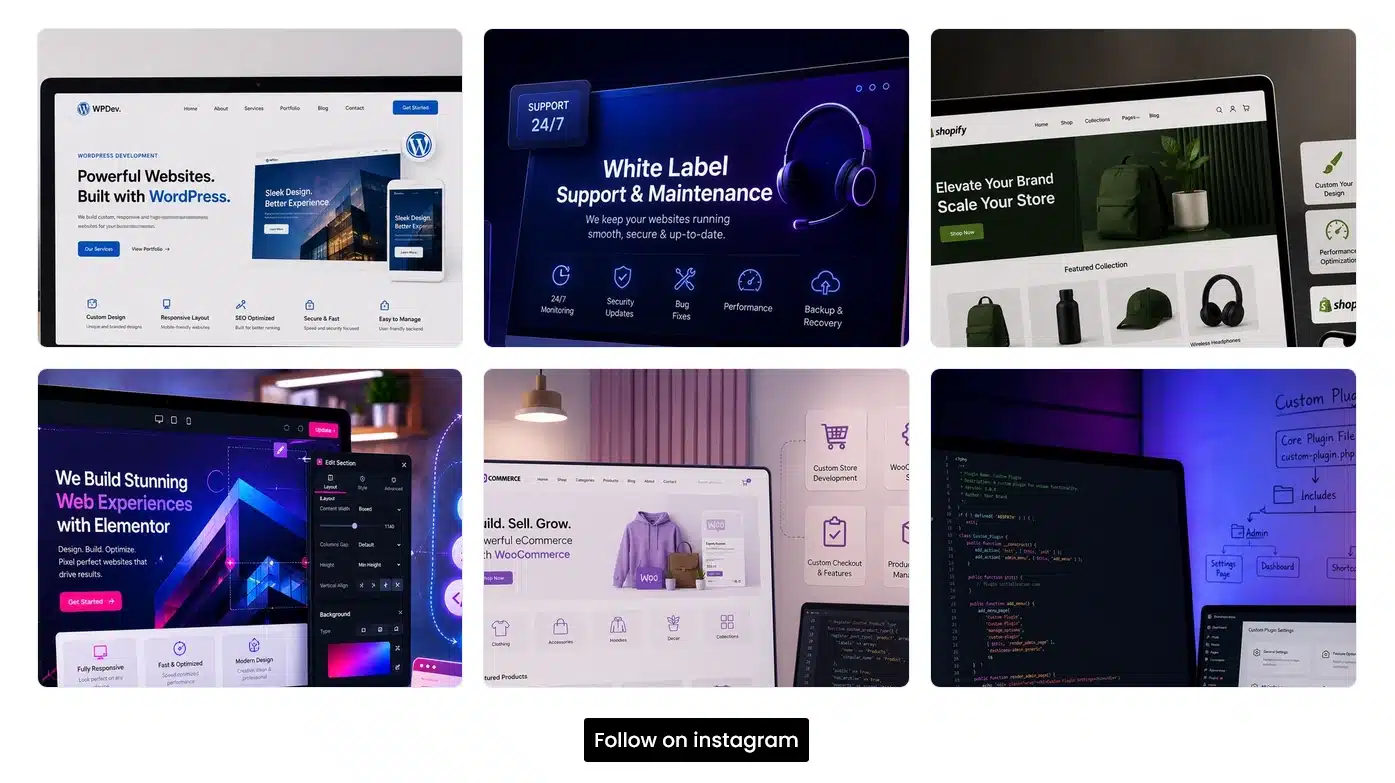
Instagram is one of the easiest ways to showcase your latest projects, products, behind-the-scenes content, and customer engagement directly on your website. With Divi 5’s Instagram Feed Module, you can display your Instagram posts on a page and customize the feed to match your website design.
The module gives you control over the number of posts, image layout, lightbox behavior, follow button, spacing, borders, image framing, and more.
In this guide, we’ll walk through how to connect Instagram to Divi 5, control what your feed displays, and customize its design.
What Is the Divi 5 Instagram Feed Module?
The Instagram Feed Module is a Divi 5 module that lets you display content from a connected Instagram account directly on your website.
Instead of manually uploading Instagram images to your website every time you publish a new post, the module can retrieve your Instagram content and display it within your Divi layout.
You can use it for:
- Showcasing your latest Instagram posts
- Creating a social media section on your homepage
- Displaying product or project photography
- Encouraging visitors to follow your Instagram account
- Adding visual content to portfolio or service pages
- Creating a dedicated Instagram gallery
The module also includes separate styling controls for the feed, individual items, images, and follow button, giving you more control over the final design.
How to Connect an Instagram Account in Divi 5
Before your Instagram posts can appear, you need to connect an Instagram account using an Instagram Access Token.
Step 1: Add the Instagram Feed Module
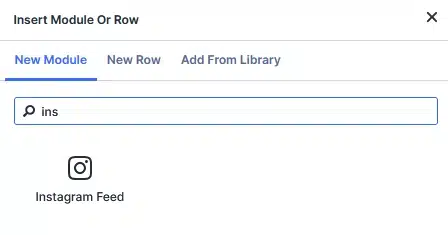
Open your page with the Divi 5 Visual Builder and add the Instagram Feed Module to your layout.
Then open the module settings and go to:
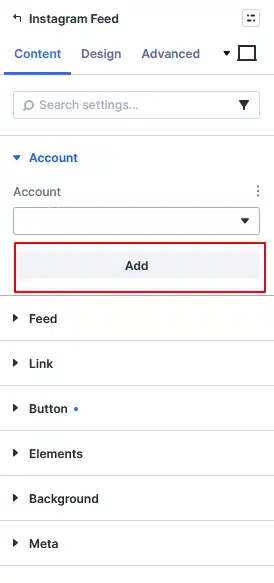
Content → Account
Step 2: Add Your Instagram Account
If an account has not been connected yet, you will see a Select An Account option and an Add button.
Click Add.
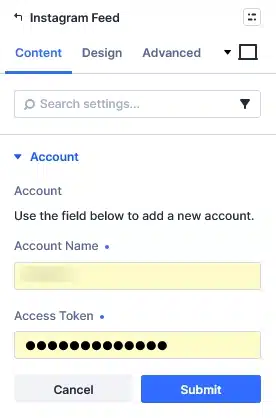
Divi will ask you to provide:
- Account Name – The name used to identify the Instagram connection inside Divi.
- Access Token – The credential Divi uses to retrieve Instagram content.
Enter the required information and click Submit.
Once the account is connected, select it from the account dropdown.
Your Instagram feed can now be displayed through the module.
Tip: If you manage multiple Instagram accounts, using clear account names makes it easier to identify and manage each connection.
The Access Token is generated through Meta’s developer tools, so the exact setup process may change as Meta updates its developer requirements.
Control What Your Instagram Feed Displays
Once your Instagram account is connected, Divi 5 gives you several options for controlling what visitors see and how they interact with your feed.
Most of these settings are available under the module’s Content tab.
Choose How Many Instagram Posts to Display
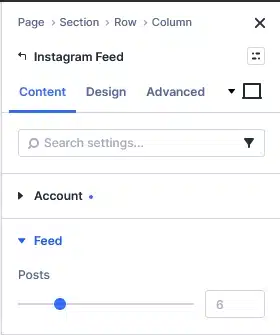
The Feed settings include a Posts option that lets you decide how many Instagram posts should appear.
For example, you could display:
- A few posts on your homepage
- A larger collection on a dedicated Instagram page
- A small selection in a footer or promotional section
There is no need to display every available post. Choose a number that fits the purpose of the section and keeps the page visually balanced.
You can then use the Feed Layout settings in the Design tab to control how those posts are arranged.
Open Instagram Images in a Lightbox
Want visitors to view your Instagram images without immediately leaving your website?
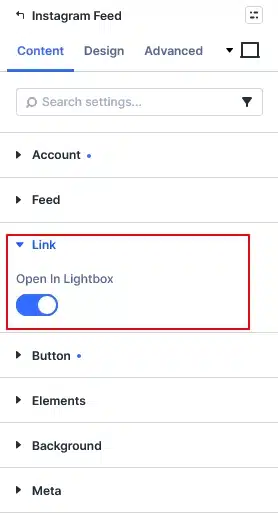
Divi 5 includes an Open In Lightbox option.
When enabled, visitors can click an Instagram image and view it in an overlay.
This is particularly useful when your Instagram feed is being used as a visual gallery.
For example, a photography website could display recent Instagram posts in a grid and allow visitors to enlarge individual images without leaving the page.
If your main goal is to send visitors to Instagram, however, linking the content to Instagram may be more appropriate.
Add a Follow Button
You can also add a clear call to action encouraging visitors to follow your Instagram account.
Under:
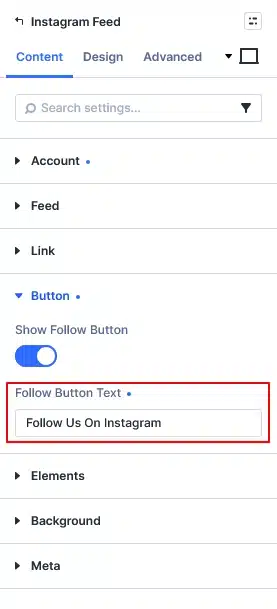
Content → Button
enable Show Follow Button.
You can also customize the Follow Button Text.
For example:
Follow Us on Instagram
or
Follow Our Journey
A follow button is especially useful when your website already receives visitors who may be interested in seeing your latest social media content.
Use Nested Elements for More Flexible Layouts
Divi 5’s Instagram Feed Module also supports nested elements.
This gives you more flexibility when building a larger composition around your Instagram content.
Instead of treating the Instagram feed as an isolated gallery, you can incorporate it into a more complete section of your page alongside other Divi elements.
This can be useful for creating sections such as:
Heading → Intro Text → Instagram Feed → Follow Button
The result feels more like a custom-designed website section rather than a basic social media embed.
Customize the Instagram Feed Design in Divi 5
One of the biggest advantages of the Divi 5 Instagram Feed Module is the amount of design control available in the Design tab.
Along with familiar Divi options such as:
- Layout
- Sizing
- Spacing
- Border
- Box Shadow
- Filters
- Transform
- Animation
the Instagram module provides dedicated styling groups for the different parts of the feed.
The four main groups are:
- Feed
- Item
- Image
- Button
Let’s look at what each one does.
1. Feed: Control the Instagram Grid
The Feed settings control the overall container that holds your Instagram posts.
You can adjust options related to:
- Layout
- Background
- Border
- Box Shadow
- Sizing
- Spacing
The Layout settings are particularly useful for controlling the structure of your Instagram gallery.
For example, you might use a larger multi-column grid on desktop and simplify the layout on smaller screens.
Make Your Feed Responsive
Don’t forget to check your Instagram feed on:
- Desktop
- Tablet
- Mobile
A layout that looks great with four columns on desktop may become too crowded on a phone.
Divi 5’s responsive controls allow you to adjust the layout for different screen sizes and create a better experience across devices.
2. Item: Style Individual Instagram Posts
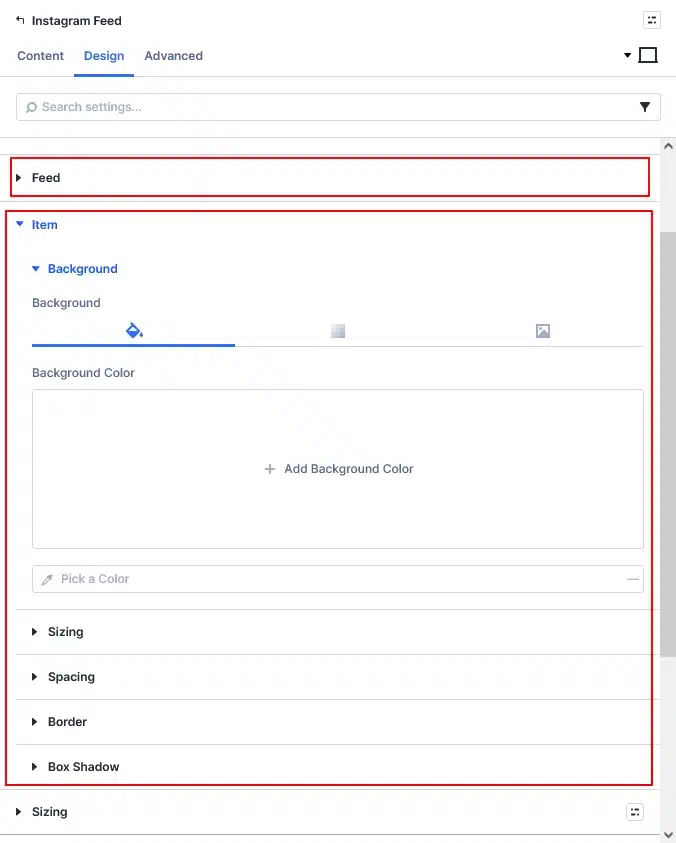
While Feed controls the overall gallery, Item controls each individual Instagram tile.
You can customize:
- Background
- Border
- Box Shadow
- Sizing
- Spacing
This is useful when you want every Instagram post to have a consistent visual treatment.
For example, you could add:
- Rounded corners
- A subtle border
- A soft shadow
- Additional spacing between posts
This creates a more polished gallery while keeping every Instagram item visually consistent.
Think of it this way:
Feed = the complete gallery
Item = each individual Instagram tile
3. Image: Control Aspect Ratio, Crop & Position
Instagram posts can have very different image dimensions.
One post might be square, another portrait, and another landscape.
If each image keeps its original dimensions, your Instagram grid can quickly become uneven.
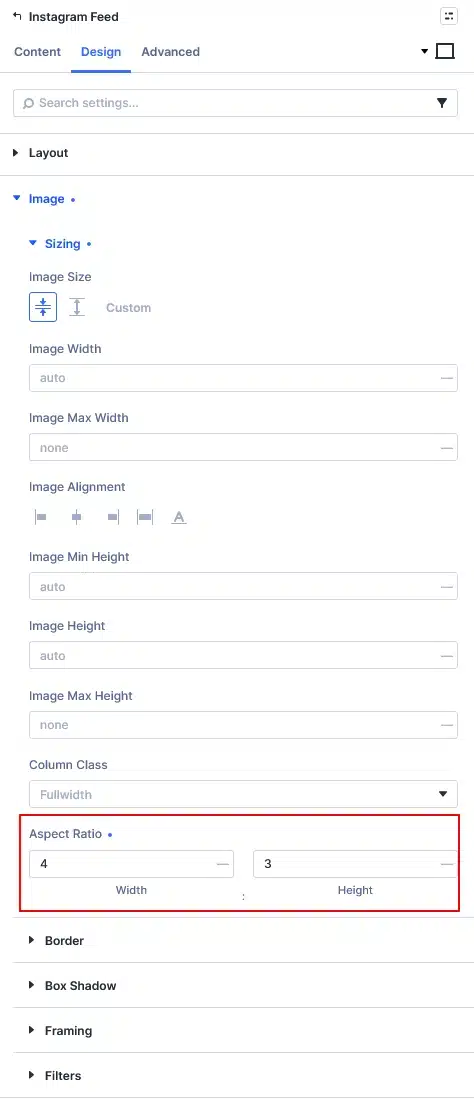
Divi 5’s Image controls help solve this problem.
Set a Consistent Aspect Ratio
You can define an Aspect Ratio for the images displayed in your feed.
For example:
- 1:1 – Great for a classic square Instagram grid
- 4:5 – Useful for taller portrait-style images
- Other ratios – Depending on your website’s design
This allows different Instagram images to fit into a consistent visual frame.
Use Object Fit
The Object Fit setting determines how the image fits inside its frame.
Using Cover allows the image to fill the available area while maintaining its proportions.
The image may be cropped, but it won’t be stretched or distorted.
Adjust Object Position
Sometimes the important part of an image isn’t located in the center.
For example, a portrait subject may be positioned toward the top of the photo.
Using Object Position, you can control which portion of the image remains visible after cropping.
This gives you much more control over how your Instagram gallery looks.
4. Button: Match Your Website’s CTA Design
If you’ve enabled the Instagram Follow button, the Button settings let you customize its appearance.
You can style the button using familiar Divi controls for things such as:
- Typography
- Background
- Borders
- Spacing
- Sizing
- Other button styling options
This means your Instagram button doesn’t have to look like a separate social media widget.
Instead, you can style it to match your website’s existing call-to-action buttons.
Keep Your Design Consistent
For example, if your website uses rounded buttons with a specific typography style, you can apply a similar design to the Instagram Follow button.
This helps the Instagram section feel like a natural part of your website design.
Keep Your Instagram Access Token Updated
There is one important maintenance step to remember when using the Instagram Feed Module.
The Instagram Access Token generated through Meta is valid for 60 days.
Once it expires, the module may no longer be able to retrieve new Instagram posts.
When your token needs to be refreshed, the general process is:
- Open the Facebook App used for your Instagram connection.
- Go to the Instagram access-token section.
- Generate a new token.
- Copy the new Access Token.
- Open the page containing the Divi Instagram Feed Module.
- Go to Content → Account.
- Remove the existing connection.
- Add the account again using the new token.
Keeping the token updated helps ensure that your Instagram feed continues to work correctly.
Why Use the Divi 5 Instagram Feed Module?
The main advantage of the Divi 5 Instagram Feed Module is that it lets you bring your social media content into your website without sacrificing your website’s design.
You can control both the content and the presentation.
With the module, you can:
- Connect an Instagram account
- Display multiple Instagram posts
- Choose how many posts appear
- Open images in a lightbox
- Add a Follow button
- Create responsive feed layouts
- Style individual Instagram tiles
- Control image aspect ratios
- Adjust image cropping and positioning
- Customize the Follow button
- Match the feed with your existing website design
This makes it useful for everything from a simple homepage Instagram section to a fully designed social media gallery.
Final Thoughts
Divi 5’s Instagram Feed Module makes it easier to integrate Instagram content directly into your website while keeping complete control over the visual presentation.
Instead of simply embedding a social feed, you can design the grid, individual items, images, and Follow button to match your site’s branding.
If your business actively uses Instagram, adding a feed to your website can also give visitors another way to discover your latest content and connect with your brand.
With the right layout, consistent image framing, responsive settings, and a clear Follow button, you can turn your Instagram content into a valuable part of your website rather than just another social media widget.