Table of Contents
Creating custom WooCommerce category pages usually means creating layouts that can display the right products automatically. With Divi 5 Loops, you can build a reusable category template that automatically pulls products based on the WooCommerce category being viewed.
In this tutorial, we’ll create a WooCommerce Product Category template using Divi 5’s Loop feature.
The best part is that you don’t need to select individual categories inside the loop. Once the template is assigned to All Product Categories, Divi automatically displays the products belonging to the current category.
Let’s get started.
1. Set Up Your WooCommerce Category Template
First, create a template for your WooCommerce product category pages.
From your WordPress dashboard, go to:
Divi → Theme Builder
Click Add New Template.
Choose Build New Template
Select Build New Template to start creating your category template.
Next, select: All Product Categories
This tells Divi to use this template for your WooCommerce product category archive pages.
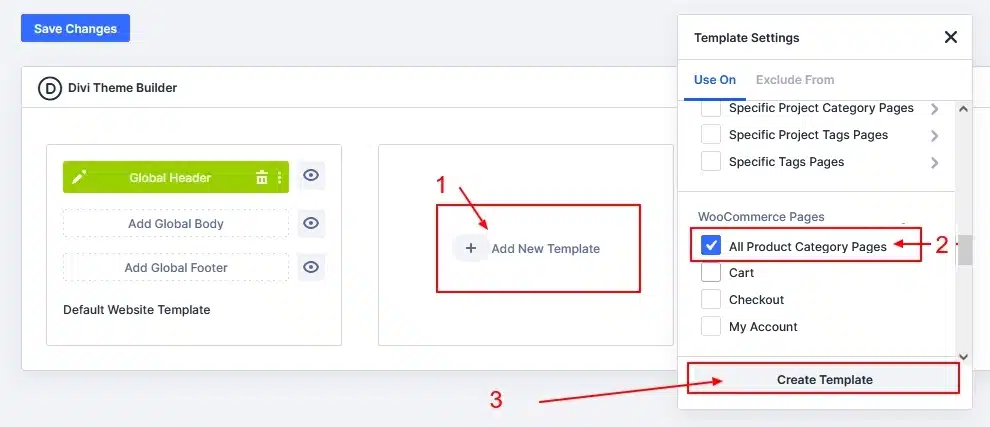
Once the template is added, click:
Add Custom Body → Build Custom Body
This will open the Divi Builder where you can create your product category layout.
2. Build Your Product Layout
Now let’s create the layout that will be repeated for each product.
Inside the Custom Body:
- Add a Row.
- Select a single-column layout.
- Add the modules you want to use for your product design.
For example, you can add:
- Heading → Product Title
- Text → Product Price or Description
- Image → Product Image
- Button or Icon → Product Link
You can arrange these elements however you want to create your product card.
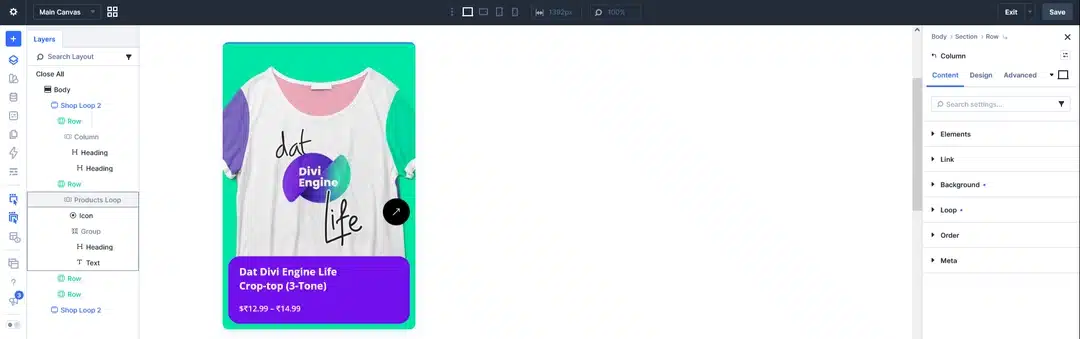
At this stage, you’re designing the appearance of one product. The Loop feature will later repeat this layout for the products in the current category.
3. Enable the Divi 5 Loop
Now it’s time to turn your product layout into a dynamic loop.
Open the Column Settings.
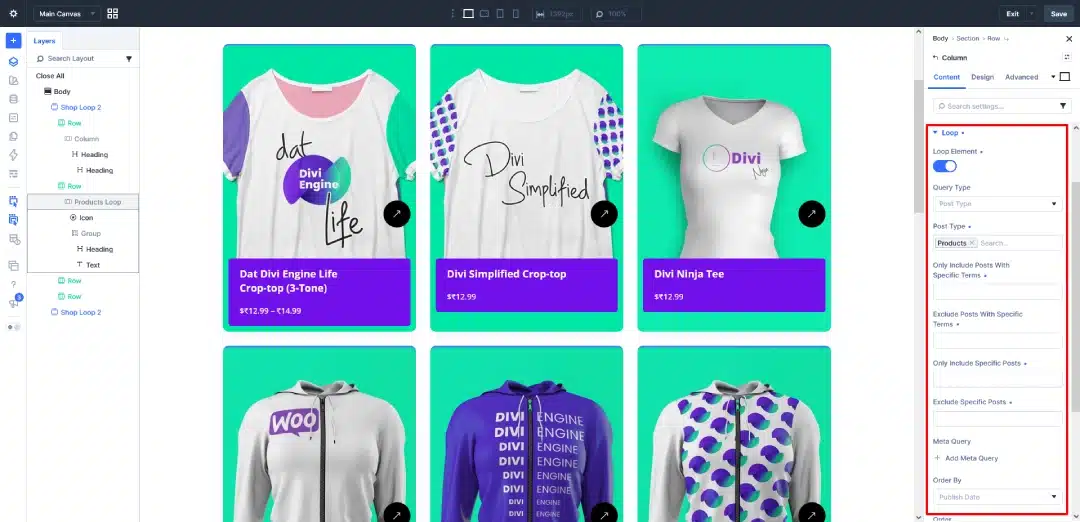
Find the Loop option and enable it.
Add screenshot here.
Once Loop is enabled, configure the query settings.
Configure the Loop
For this WooCommerce example, use settings such as:
Query Type: Post Type
Post Type: Products
Order By: Publish Date
Posts Per Page: 6, 12, or 15
For example:
Query Type: Post Type
Post Type: Products
Order By: Publish Date
Posts Per Page: 12
Add screenshot of Loop settings here.
The important setting here is Post Type → Products. This tells Divi to retrieve WooCommerce products for the loop.
4. Connect Your Product Information
Now we need to tell each element what product information it should display.
Open the settings of each element and connect it to the appropriate Loop data.
Product Title
Select the Heading module and connect it to:
Loop → Product Title
This will automatically display the title of each product.
Product Price
For the price, use the Text module and connect it to:
Loop → Product Price
Each product will now display its own price automatically.
Product Image
Open the Image module and connect it to:
Loop → Featured Image
The featured image of each WooCommerce product will automatically be displayed.
Product Link
You can also connect a Button or Icon to the product URL.
For example:
Button/Icon → Product URL
When a visitor clicks it, they will be taken to that product’s page.
Your Product Layout Is Now Dynamic
At this point, your layout might look something like this:
Product Image
Product Title
Product Price
View Product
The important thing is that you only designed the layout once.
Divi’s Loop will repeat that design for every product returned by the query.
5. Use the Featured Image as a Background
You can also use the product’s Featured Image as a background instead of placing it inside an Image module.
This can be useful when creating more creative product layouts.
For example, you could create a product card with:
- Product image as the background
- Product title over the image
- Price below the title
- Button for viewing the product
This gives you more flexibility when designing your WooCommerce category layout.
6. See the Dynamic Category Page in Action
Now comes the most useful part of this setup.
You don’t need to create a separate loop for every WooCommerce category.
Suppose your store has these categories:
- Divi Products
- WordPress Products
- Accessories
- Templates
And your products are assigned to different categories.
When a visitor opens a category page, Divi automatically uses the current category context and displays the products that belong to that category.
For example:
Divi Products
The category page automatically displays the products assigned to Divi Products.
You don’t need to manually select each category in the Loop settings.
Create Different Layouts for Different Categories
You can also create different designs for different WooCommerce categories when needed.
For example, you could have:
Divi Products → Grid Layout
Accessories → Card Layout
Templates → Large Image Layout
Instead of using one template for every category, you can create separate Theme Builder templates and assign them to specific product categories.
This gives you more control when different categories need different designs.
Final Result
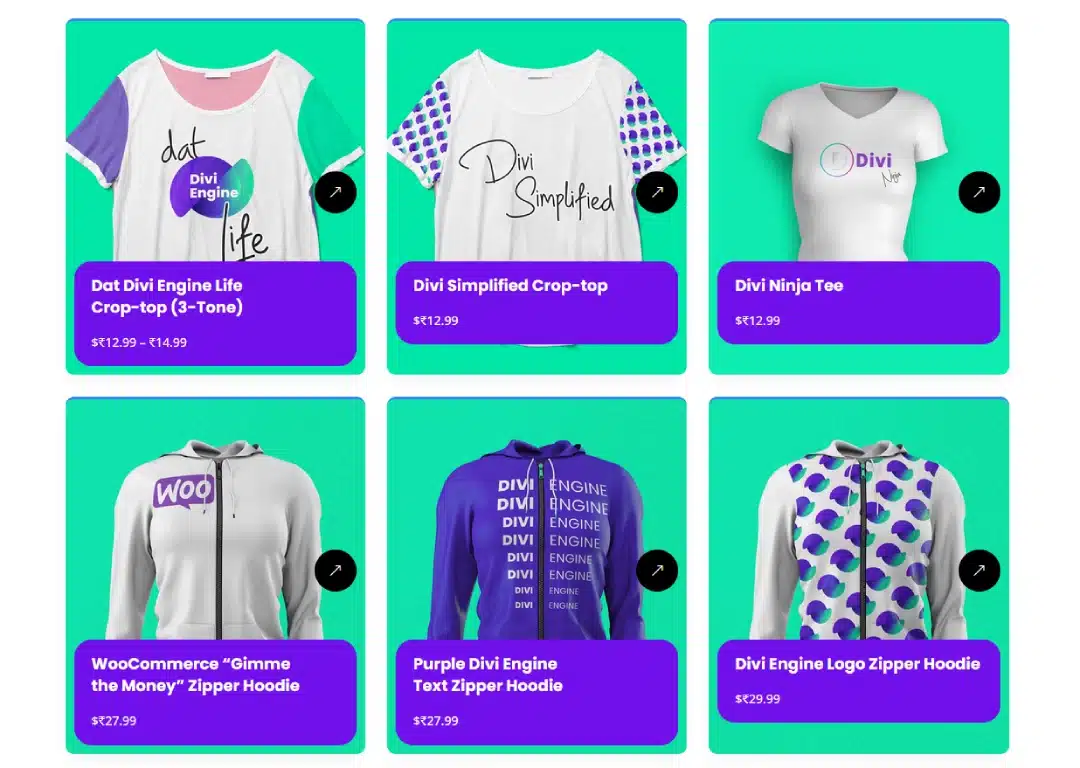
With Divi 5 Loops, you can create a reusable WooCommerce category layout without manually building a separate page for every category.
The basic process is:
Create Category Template → Build Product Layout → Enable Loop → Select Products → Connect Dynamic Content
Once everything is connected, Divi automatically fills your layout with the appropriate WooCommerce products.
This makes it much easier to create dynamic and reusable WooCommerce category pages while keeping the design completely under your control.
Quick Recap
Here’s the complete setup:
| Step | What to Do |
|---|---|
| 1 | Go to Divi → Theme Builder |
| 2 | Create a Build New Template |
| 3 | Select All Product Categories |
| 4 | Add a Custom Body |
| 5 | Create your product layout |
| 6 | Enable Loop on the column |
| 7 | Select Products as the Post Type |
| 8 | Set your posts per page |
| 9 | Connect product data using dynamic content |
| 10 | Open your WooCommerce categories and test the result |
That’s it! Your Divi 5 Loop now works dynamically with your WooCommerce category pages, displaying the appropriate products automatically based on the category being viewed.