Table of Contents
Lottie animations are a simple way to add engaging motion to your website. With Divi 5’s Lottie Widget, you can upload a Lottie JSON file and control how the animation plays directly from the Visual Builder.
In this guide, we’ll show you where to find Lottie animations, how to add them to Divi 5, and how to configure the main animation settings.
1. How to Find Lottie Animations
First, you need a Lottie animation in JSON format.
You can find and download Lottie animations from websites such as:
You can also use the LottieFiles WordPress plugin if you want to work with Lottie animations directly from WordPress.
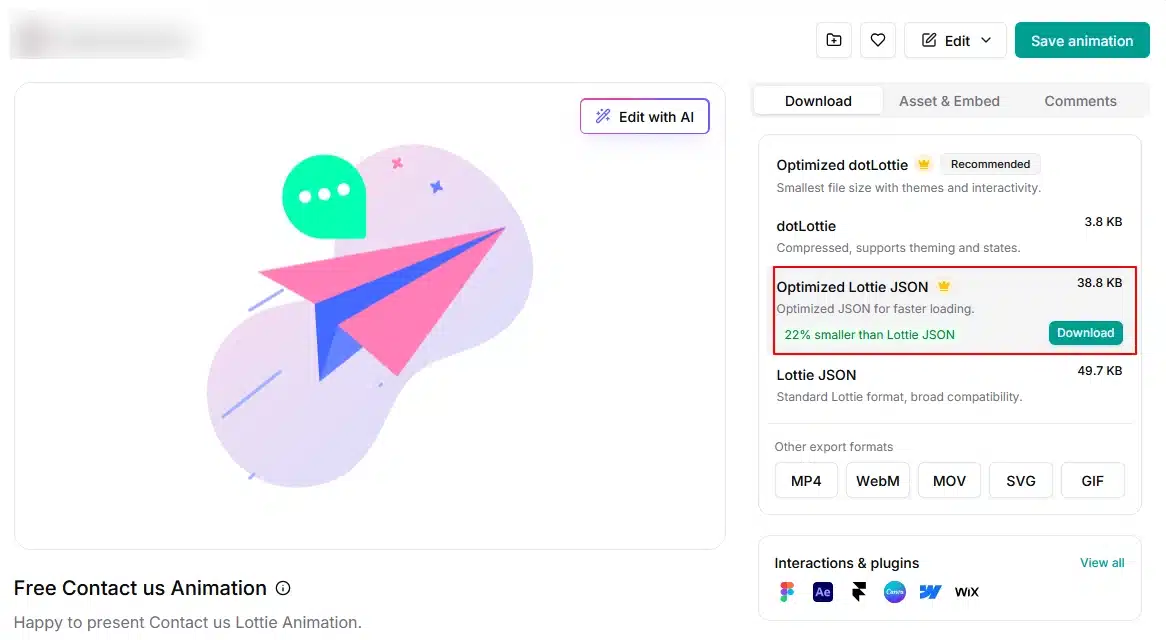
Download the Animation as JSON
Find an animation you like and download it in JSON format.
Once you have the .json file, you can upload it directly to the Divi 5 Lottie Widget.
Tip: Make sure you download the animation as a JSON file, as this is the file format used by the Divi 5 Lottie Widget.
2. Add the Lottie Widget in Divi 5
Once you have your JSON animation, open the page where you want to add it.
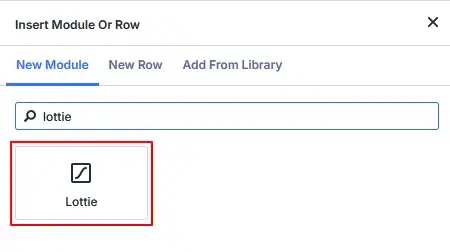
Open the Divi 5 Visual Builder and click the + button to add a new module.
Search for: Lottie
Then select the Lottie widget.
3. Upload Your Lottie Animation
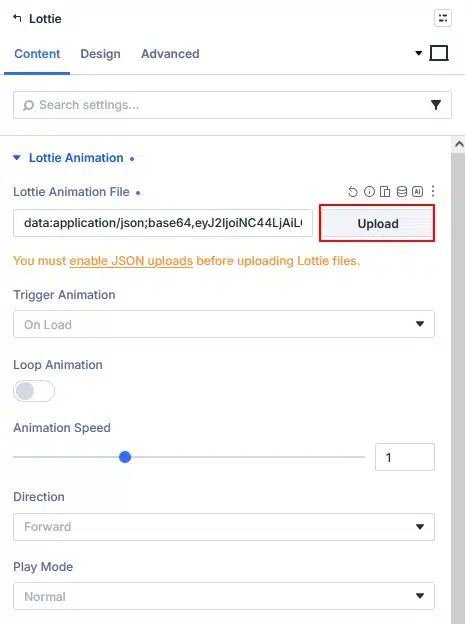
After adding the Lottie Widget, go to:
Content → Lottie Animation
You’ll find the Lottie Animation File option.
Click Upload and select your downloaded .json file.
Add screenshot here.
Once the file is uploaded, Divi will load the animation and you can preview it directly inside the Visual Builder.
JSON Upload Notice
If you see this message:
You must enable JSON uploads before uploading Lottie files.
you’ll need to enable JSON file uploads on your WordPress website before uploading the animation.
4. Configure Your Lottie Animation
After uploading your animation, you can control how it plays using the options available in the Lottie Animation section.
Let’s look at each option.
Trigger Animation
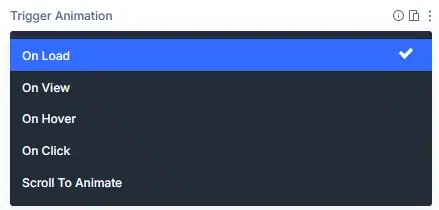
The Trigger Animation option controls when your Lottie animation starts playing.
Divi 5 provides five options:
On Load
The animation starts when the page loads.
On View
The animation starts when the Lottie animation comes into the visitor’s view.
On Hover
The animation starts when the visitor moves their mouse over the Lottie animation.
On Click
The animation starts when the visitor clicks the Lottie animation.
Scroll To Animate
The animation responds to the visitor’s scrolling.
Choose the trigger that best fits your design. For example, On View works well when you want an animation to start as the visitor reaches that section.
5. Enable Loop Animation
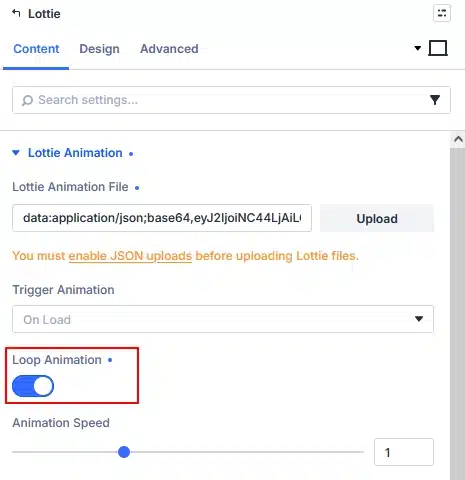
The Loop Animation option controls whether the animation repeats.
Loop OFF
The animation plays once and stops.
Loop ON
The animation continues repeating.
For animations such as loading indicators or decorative effects, enabling the loop can help create a continuous animation.
6. Adjust Animation Speed
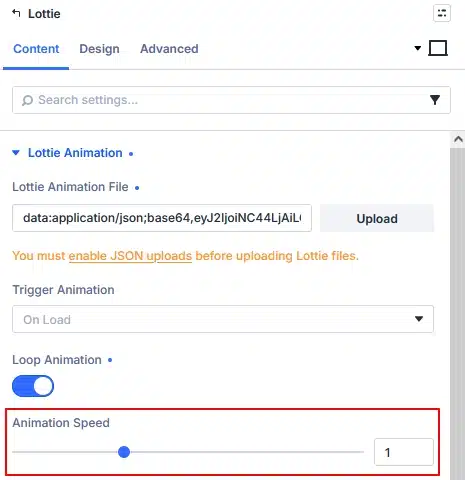
Use Animation Speed to control how quickly your Lottie animation plays.
For example:
- 0.5 → Slower animation
- 1 → Normal speed
- 2 → Faster animation
You can adjust the slider or enter a value directly to find the speed that works best for your animation.
7. Choose the Animation Direction
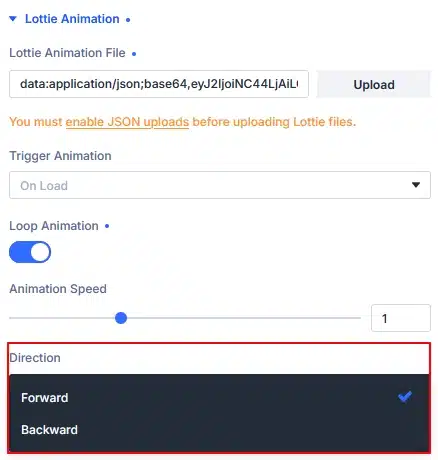
The Direction option controls which way the animation plays.
You can choose between:
- Forward
- Backward
Forward plays the animation normally, while Backward plays it in reverse.
8. Choose a Play Mode
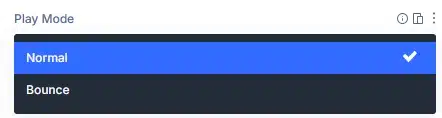
The Play Mode option controls how the animation behaves during playback.
Divi 5 provides two options:
Normal
The animation plays normally from start to finish.
Bounce
The animation plays forward and then reverses, creating a continuous back-and-forth effect.
9. Customize Your Lottie Widget
Once your animation settings are configured, you can use the Design tab to customize how the Lottie animation looks on your page.
You can adjust options such as:
- Size
- Alignment
- Spacing
- Position
- Transform
- Filters
- Box Shadow
This allows you to match the Lottie animation with your website’s overall design.

Final Result
Adding a Lottie animation to Divi 5 is simple:
Find a Lottie Animation → Download JSON → Add Lottie Widget → Upload JSON → Choose Trigger → Adjust Animation Settings → Customize Design
The Lottie Widget gives you control over when the animation starts, whether it loops, its playback speed, direction, and play mode.
You can use these animations for icons, illustrations, loading effects, decorative elements, and other interactive visuals throughout your Divi 5 website.