How to Prevent Bot Attacks, Fake User Registrations, and Spam Orders in WooCommerce

How to Prevent Bot Attacks, Fake User Registrations, and Spam Orders in WooCommerce

Running a WooCommerce store is exciting—but nothing kills momentum faster than bot attacks, fake user registrations, and spam orders. These automated threats don’t just clutter your dashboard; they waste server resources, slow down your site, inflate analytics, trigger payment gateway issues, and in worst cases, lead to security breaches.

If you’ve ever logged in to WordPress and seen hundreds of suspicious users, fake checkout attempts, or strange orders from random countries, you’re not alone. WooCommerce stores are prime targets for bots because of their open registration forms, checkout pages, and predictable endpoints.

In this guide, we’ll cover why bots attack WooCommerce, how to identify the warning signs, and step-by-step solutions to stop fake registrations and spam orders—permanently.

Why WooCommerce Stores Are a Major Bot Target

Bots target WooCommerce stores for several reasons:

  1. Open user registration (My Account page)
  2. Guest checkout forms
  3. Checkout endpoints exposed publicly
  4. Coupon abuse and card-testing attacks
  5. Weak form validation

Attackers use automated scripts to:

  • Create fake user accounts
  • Test stolen credit cards
  • Abuse discount codes
  • Overload your server
  • Inject spam data into orders

Unlike a one-time hack, bot attacks are persistent. Once your site is discovered, it can be targeted repeatedly unless proper defenses are in place.

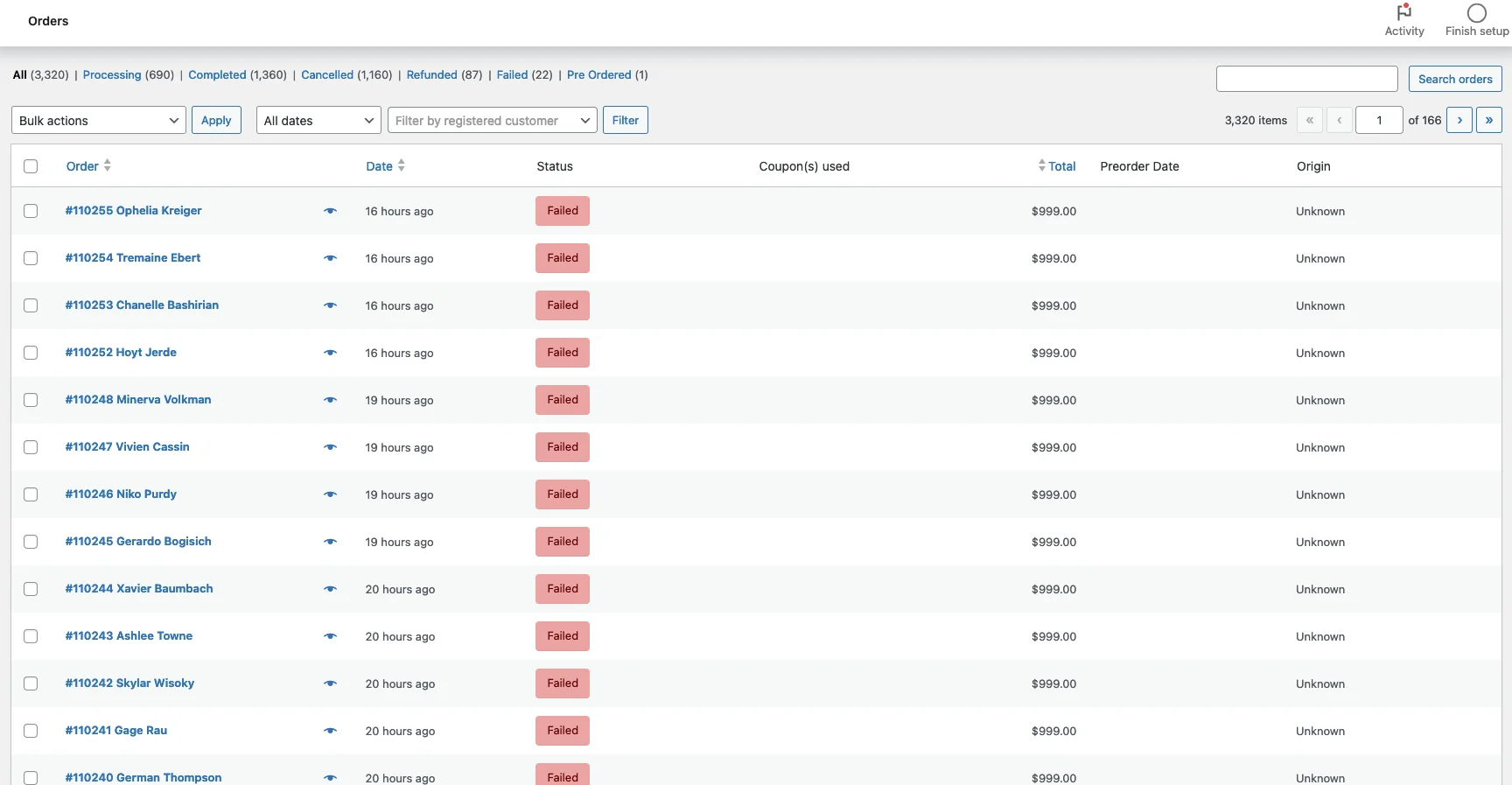
Common Signs of Bot Attacks and Fake Orders

Before fixing the problem, it helps to identify it clearly. Common red flags include:

  • Sudden spike in user registrations
  • Random usernames like user48293, testabc123
  • Dozens of failed or pending orders
  • Orders with fake addresses or gibberish names
  • Checkout attempts from countries you don’t serve
  • High server load with low real traffic
  • reCAPTCHA appearing repeatedly for real users

If you notice two or more of these signs, bots are already active on your store.
Common Signs of Bot Attacks and Fake Orders

Step 1: Disable Unnecessary User Registration

If your store does not require customer accounts, disabling registration is the simplest and most effective defense.

How to Disable Registration in WooCommerce

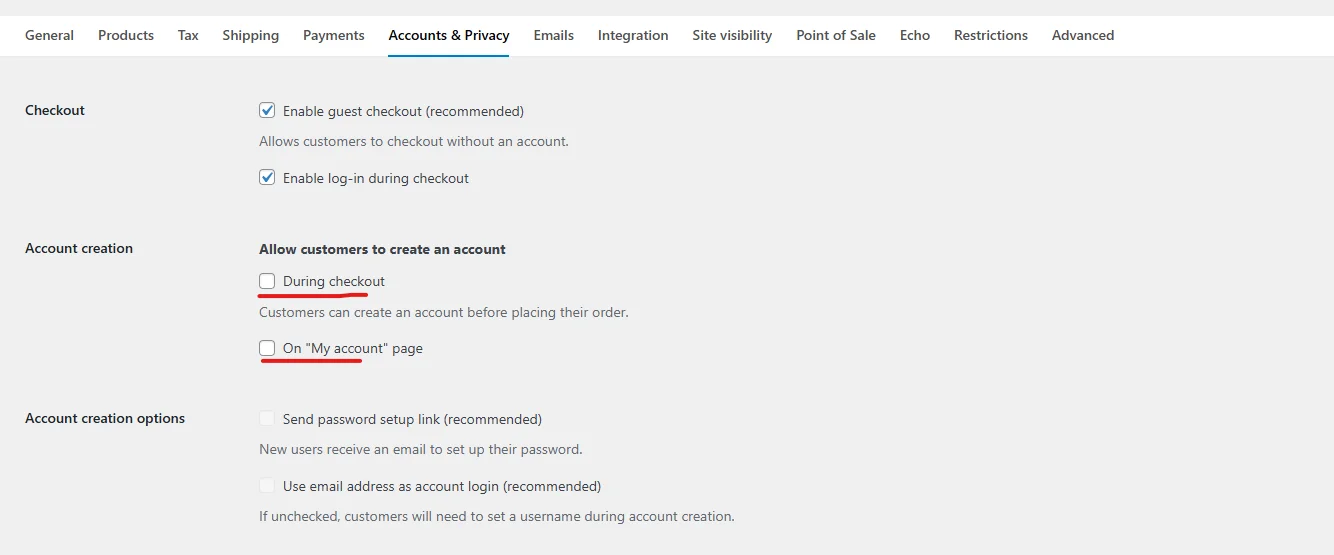
  1. Go to WooCommerce → Settings → Accounts & Privacy
  2. Uncheck:
    • “Allow customers to create an account on the My Account page”
    • “Allow customers to create an account during checkout”
  3. Save changes

How to Disable Registration in WooCommerce

This instantly eliminates fake account creation attacks.

If you do need registrations, move to the next steps.

Step 2: Add Google reCAPTCHA to WooCommerce Forms

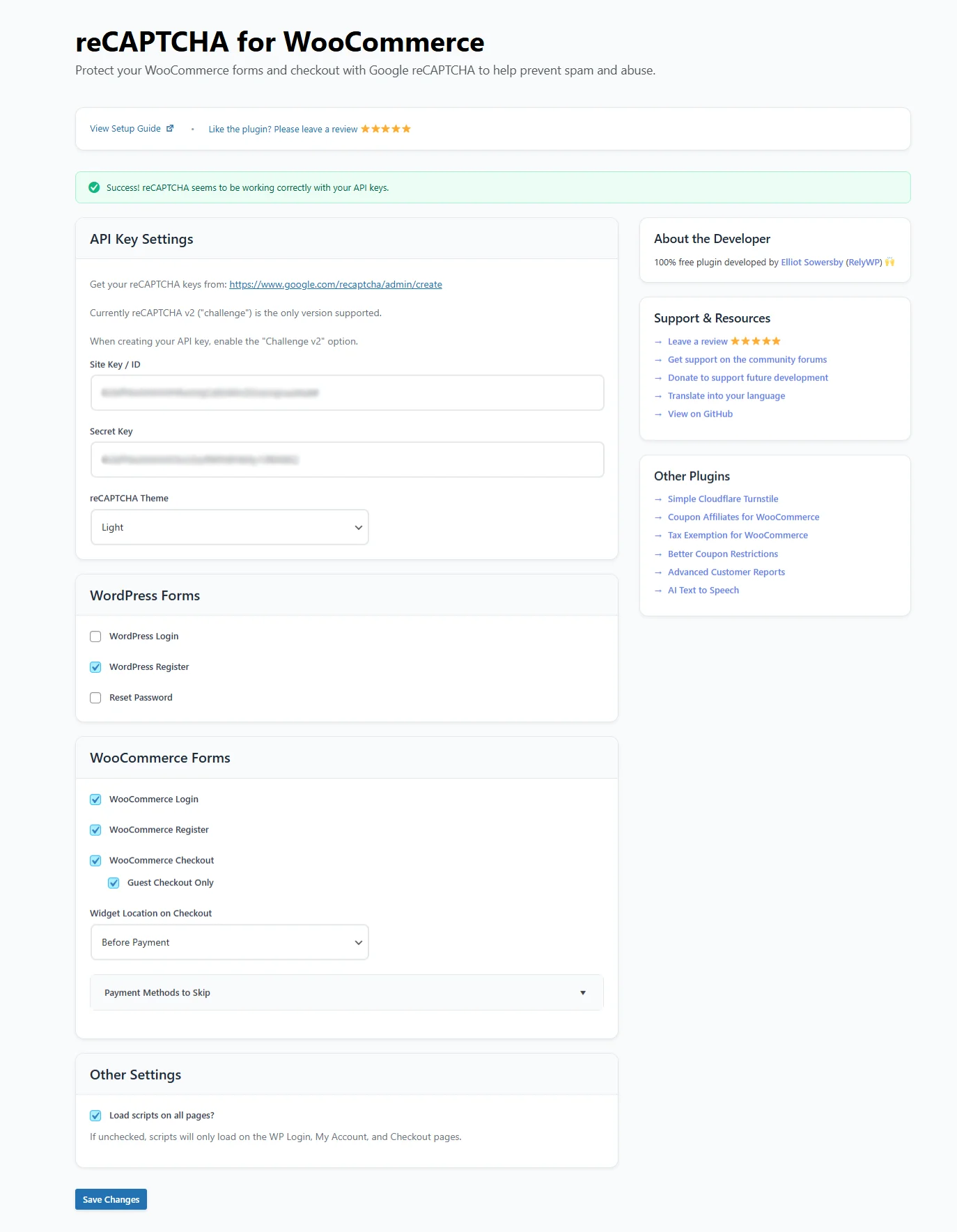
Google reCAPTCHA is one of the most effective ways to block automated bots.

Forms That Must Be Protected

  • Login
  • Registration
  • Checkout
  • Password reset
  • Guest checkout

Recommended Option

Google reCAPTCHA v2 (“I’m not a robot”)

Why v2?

  • More reliable for WooCommerce
  • Visible challenge stops most bots
  • Lower false positives than v3

Best Plugins for WooCommerce reCAPTCHA

  • Advanced Google reCAPTCHA
  • reCaptcha for WooCommerce
  • WP Armour (honeypot-based)

WooCommerce reCAPTCHA

Make sure the CAPTCHA is visible and actually loading on the frontend. Many sites install it but forget to verify placement.

Step 3: Enable Honeypot Protection (Invisible but Powerful)

Honeypots work by adding hidden fields that real users never see—but bots automatically fill in.

If a hidden field is completed, the submission is instantly blocked.

Why Honeypots Are Effective

  • Zero friction for real users
  • No visual challenges
  • Very low false positives
  • Excellent backup to reCAPTCHA

Recommended Plugin

WP Armour – Honeypot Anti Spam

Works automatically on:

  • WooCommerce login & register
  • Checkout forms
  • Contact forms
  • Password reset forms

This is especially useful when bots start bypassing reCAPTCHA.
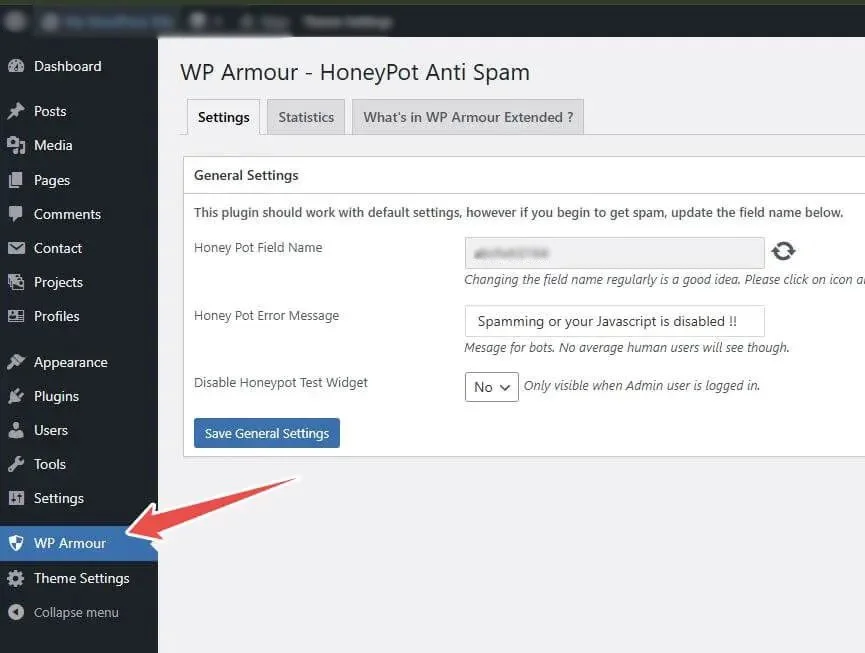
WP Armour – Honeypot Anti Spam

Step 4: Restrict Checkout by Country and Region

Many spam orders originate from countries you don’t even sell to.

How to Block High-Risk Countries

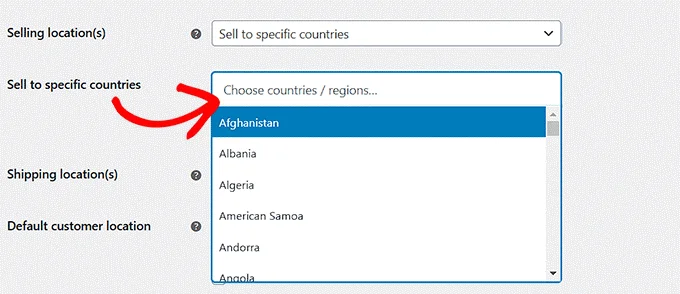
  1. Go to WooCommerce → Settings → General
  2. Set:
    • “Sell to specific countries”
  3. Select only the countries you ship to

Restrict Checkout by Country and Region

For advanced control:

  • Use shipping zones wisely
  • Do not create “Worldwide” zones unless necessary

This single step can reduce spam orders by 50–70%.

Step 5: Block Suspicious IPs and User Agents

Some bots repeatedly attack from the same IP ranges or cloud providers.

Server-Level Protection (Highly Recommended)

If you’re on managed hosting (like WPX, WP Engine, Kinsta):

  • Enable firewall rules
  • Block known bad IP ranges
  • Rate-limit /wp-login.php and /checkout

WordPress Plugins for IP Blocking

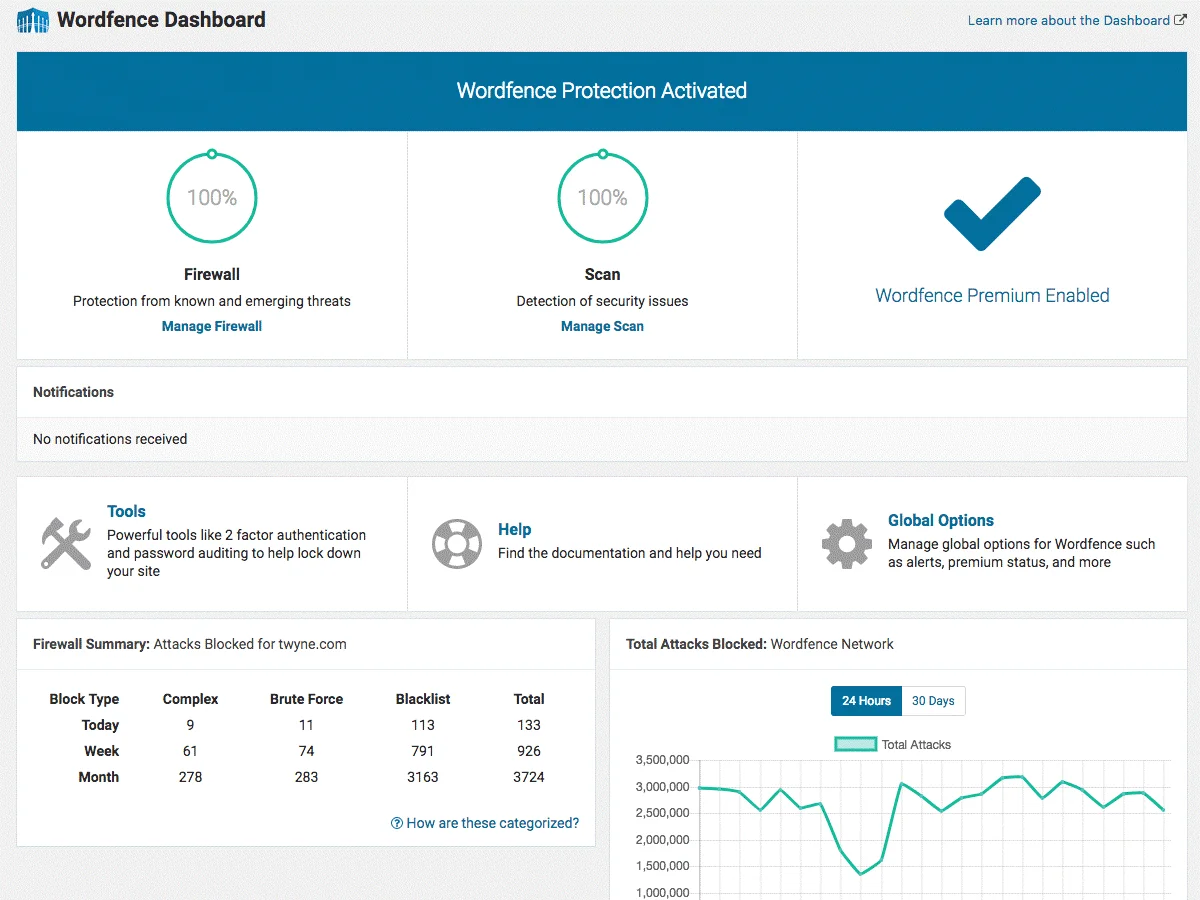
  • Wordfence
  • iThemes Security
  • All In One WP Security

WordPress Plugins for IP Blocking

Set rules like:

  • Block IP after 5 failed login attempts
  • Temporarily lock checkout after multiple failures

Step 6: Protect WooCommerce Checkout from Card Testing

Card-testing bots attempt thousands of small transactions to validate stolen cards.

Signs of Card Testing

  • Many failed payments
  • Same IP, different cards
  • Small order amounts
  • Repeated checkout attempts

How to Stop It

  • Enable CAPTCHA on checkout
  • Set minimum order value
  • Limit checkout attempts per IP
  • Use payment gateways with fraud detection (Stripe Radar, PayPal Fraud Protection)

Step 7: Remove Existing Fake Users and Orders Safely

After stopping new bots, clean up the old data.

Removing Fake Users

  • Filter users by registration date
  • Check suspicious email domains
  • Bulk delete users with no orders

Removing Spam Orders

  • Filter orders by status (failed, pending)
  • Identify repeated IPs
  • Delete test or fake orders in bulk

Always take a backup before mass deletion.

Step 8: Monitor and “Watch & Wait”

Security is not a one-time task.

After implementing:

  • reCAPTCHA
  • Honeypot
  • Country restrictions
  • IP blocking

Monitor for 7–14 days

If:

  • No new fake users appear
  • Spam orders stop completely

You can safely:

  • Remove old spam users
  • Fine-tune CAPTCHA sensitivity
  • Reduce friction for real customers

Final Thoughts

Bot attacks, fake registrations, and spam orders are not just annoying—they directly impact your store’s performance, data quality, and revenue.

The key takeaway is this:

Do not rely on one solution alone.

A combination of:

  • CAPTCHA
  • Honeypots
  • Country restrictions
  • IP blocking
  • Server-level security

…is the only reliable way to protect a WooCommerce store long-term.

If you implement the steps above correctly, you’ll see an immediate drop in fake users and spam orders—and your store will run faster, cleaner, and more securely.

Tired of bot attacks, fake user registrations, or spam orders in your WooCommerce store?

Let TechnoCrackers secure your site with professional protection and optimization—Reach out today!

WordPress 6.9 Update Issues Why You Shouldn’t Update Right Now

WordPress 6.9 Update Issues Why You Shouldn’t Update Right Now.

WordPress core updates are usually exciting—they promise better performance, improved security, and new features. However, WordPress 6.9 has raised serious concerns across the developer and site owner community. Many users who updated too early are reporting broken layouts, plugin conflicts, admin access issues, and unexpected performance drops.

If you’re running a business website, WooCommerce store, or Elementor-based site, updating immediately could cause more harm than good. In this article, we’ll break down why you should delay updating to WordPress 6.9, the issues being reported, and how to safely plan your update strategy.

Major Plugin Compatibility Problems

One of the biggest risks with WordPress 6.9 is plugin incompatibility. Several popular plugins are not yet fully optimized for this release, leading to broken functionality and errors.

WooCommerce Issues

WooCommerce-powered sites are experiencing:

  • Checkout page errors
  • Cart not updating correctly
  • Payment gateways failing or not loading
  • Product pages displaying incorrect prices or layouts

For eCommerce stores, even a small bug can lead to lost sales and customer trust, making early updates extremely risky.

Yoast SEO Conflicts

SEO plugins like Yoast are also affected:

  • Meta titles and descriptions not saving properly
  • SEO analysis panels failing to load
  • Schema markup inconsistencies

Any SEO plugin malfunction can directly impact search engine rankings, so stability is critical.

Elementor Compatibility Problems

Elementor users are reporting:

  • Editor not loading or freezing
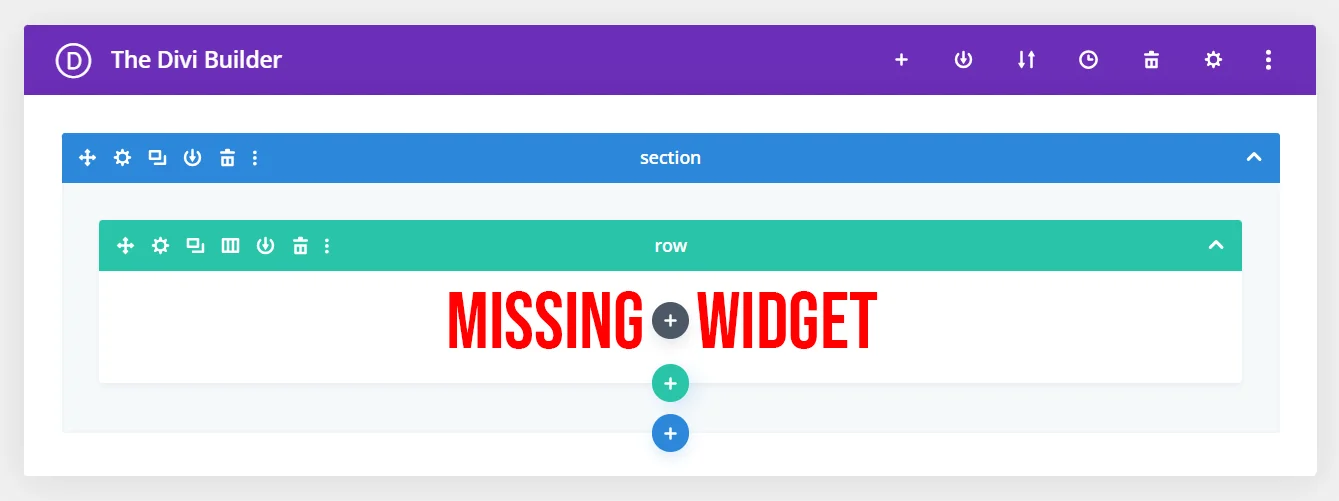
  • Widgets disappearing from pages
  • Global styles not applying correctly
  • Header and footer templates breaking

Elementor Compatibility Problems

Since Elementor powers millions of websites, these issues alone are a strong reason to wait.

Themes & Layout Breakage

Many themes—especially custom or heavily styled ones—are struggling with WordPress 6.9.

Common Layout Issues Include

  • Sidebars and grid systems collapsing
  • Broken column alignments
  • Full-width sections shrinking unexpectedly

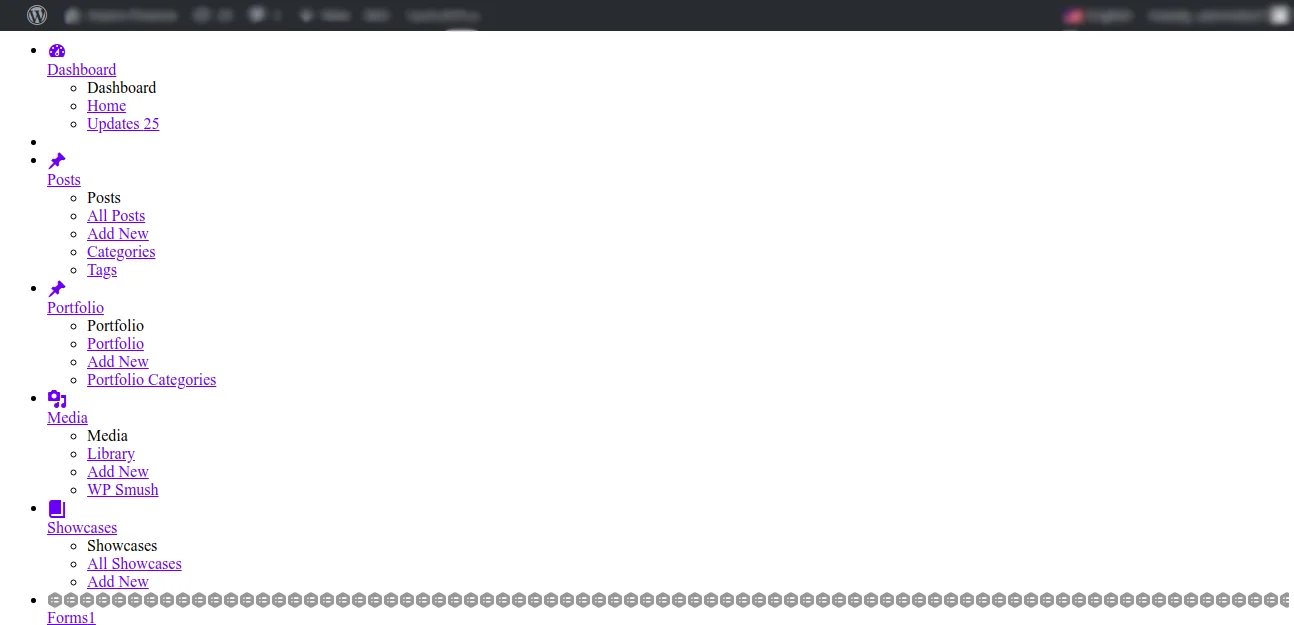
Menu & Mobile Display Problems

  • Navigation menus going missing
  • Mobile breakpoints behaving inconsistently
  • Hamburger menus not responding

CSS Not Loading Properly

Some sites are experiencing:

  • Missing stylesheets
  • Inline CSS being ignored
  • Cache-related style conflicts

This results in websites looking unstyled, broken, or partially loaded, especially for visitors using mobile devices.

Admin Dashboard Access Issues

Another serious concern is limited or broken admin access after updating.

Users have reported:

  • White Screen of Death (WSOD)
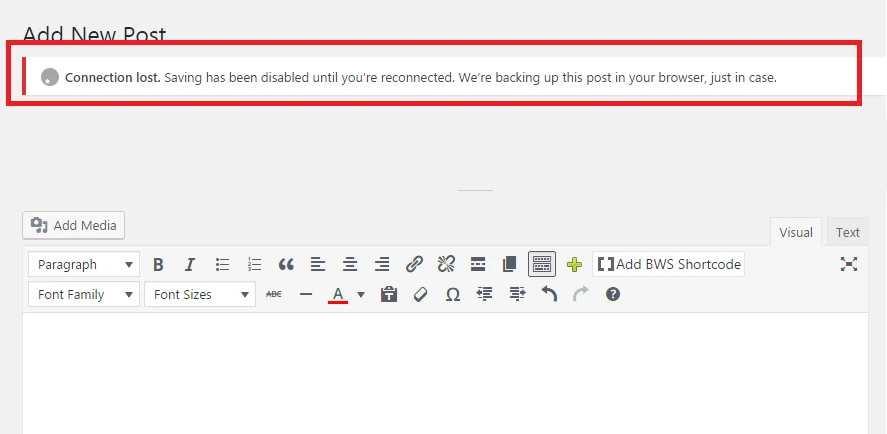
  • Admin dashboard loading endlessly
  • JavaScript errors preventing settings from saving
  • Plugin pages not opening

Admin Dashboard Access Issues

For site administrators, losing backend access can turn a simple update into a major recovery operation.

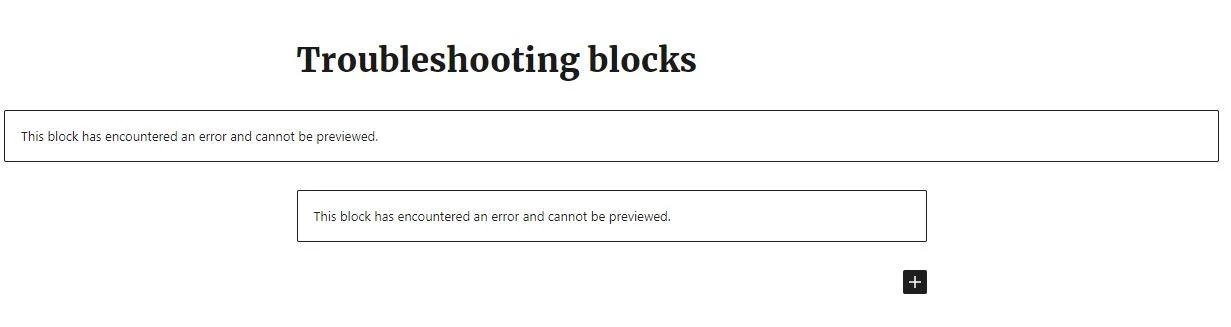
Gutenberg Block Changes Can Break Layouts

WordPress 6.9 introduces subtle but impactful changes to the Gutenberg Block Editor.

Problems Being Reported

  • Block spacing and alignment changes
  • Custom block styles overridden
  • Reusable blocks losing formatting
  • Third-party block plugins malfunctioning

Gutenberg Block Changes Can Break Layouts

Websites built entirely with Gutenberg may find that previously perfect layouts suddenly look different—without any warning.

Slowdowns & Performance Glitches

Despite promises of optimization, many users are experiencing performance regressions.

Performance Issues Include

  • Slower page load times
  • Increased Time to First Byte (TTFB)
  • Admin panel lag
  • High CPU usage on shared hosting

These slowdowns are especially noticeable on sites using multiple plugins or page builders.

Edited Content & Block Editor Breakage

Some site owners have encountered issues where:

  • Edited content doesn’t save
  • Changes disappear after publishing
  • Block editor crashes mid-edit
  • Formatting resets unexpectedly

Edited Content & Block Editor Breakage

This is particularly dangerous for content-heavy websites like blogs, news portals, and business sites that update content frequently.

Should You Update WordPress 6.9 Now?

At this stage, updating immediately is not recommended, especially for production websites. Instead, follow a safer update strategy.

1. Test in a Staging Environment

Always test WordPress updates on a staging or development site before applying them live. This helps you identify conflicts without risking downtime.

2. Update Plugins Before Core

Make sure all plugins and themes:

  • Explicitly support WordPress 6.9
  • Are updated to their latest versions
  • Have recent changelog confirmations

3. Disable Automatic Updates

Automatic updates can break your site without warning. Temporarily disabling auto-updates gives you control over when and how updates happen.

4. Back Up and Have a Rollback Plan

Before any major update:

  • Take a full site backup (files + database)
  • Ensure you can roll back WordPress core
  • Keep FTP and hosting access ready

A rollback plan can save hours—or even days—of recovery time.

Conclusion: Proceed with Caution

WordPress 6.9 introduces powerful new collaboration and editing features, but for many websites, these improvements currently come with significant risks. Ongoing reports of plugin incompatibilities, broken layouts, admin access issues, sitemap errors, and performance slowdowns indicate that this release is not yet ready for most live production sites.

If your website depends on critical tools such as WooCommerce, Yoast SEO, Elementor, or an older theme, upgrading too soon could result in lost functionality, reduced visibility in search engines, or even downtime. Waiting for plugin and theme developers to release full compatibility updates—and for WordPress to roll out a 6.9.1 maintenance release—is the safer approach.

Until then, prioritize testing updates in a staging environment, keep all plugins and themes up to date, and ensure you have a reliable backup and rollback strategy in place. Once the major issues are resolved, you’ll be able to take advantage of WordPress 6.9’s new features without risking site stability. As always, careful planning and informed decisions are key to protecting your website and your business.

Running into WordPress update issues or unsure when to update?

Our WordPress specialists at TechnoCrackers can help protect your site and fix update-related problems.

How to Fix Broken Menus and Styles After WordPress 6.9 Update

How to Fix Broken Menus and Styles After WordPress 6.9 Update

After upgrading to WordPress 6.9, many site owners notice menus not opening, CSS styles missing, mobile menus broken, or layouts looking completely off. This usually happens due to cache conflicts, theme compatibility issues, or outdated assets after the update.

This guide walks you through clear, practical fixes to restore menus and styles quickly—without guesswork.

Why Menus & Styles Break After WordPress 6.9

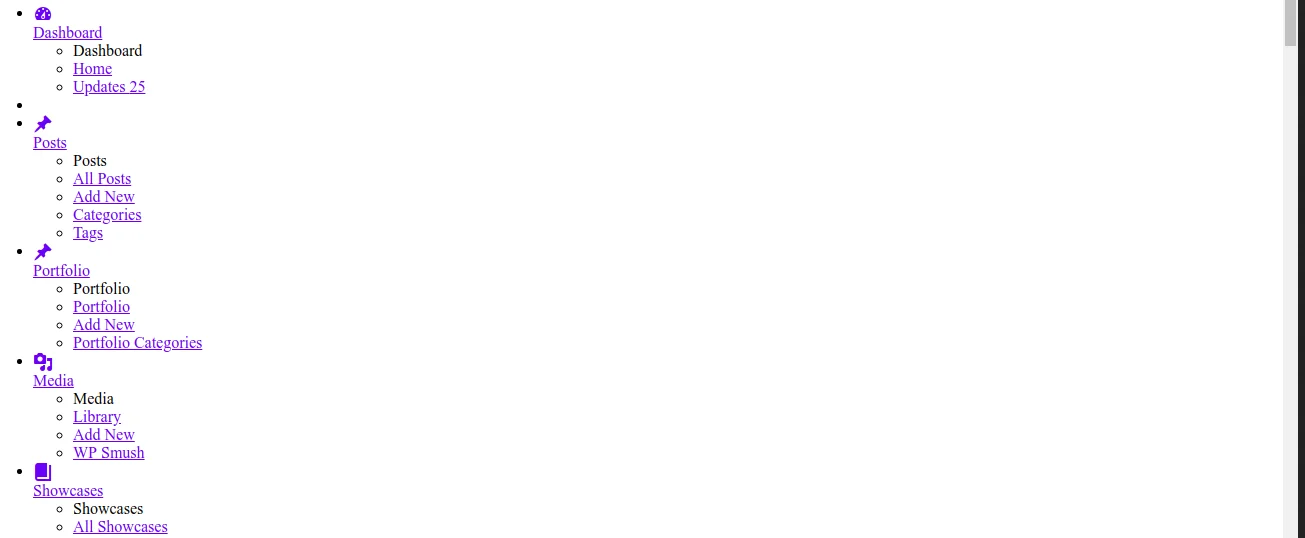
broken_menu

After updating WordPress 6.9, the most common causes are:

  • Cached CSS/JS files no longer matching the new core version
  • Theme or page builder not fully compatible yet
  • Minification or optimization plugins serving old files
  • Menu locations reset during update
  • Header builder CSS not regenerated

The good news: most issues are fixable in minutes.

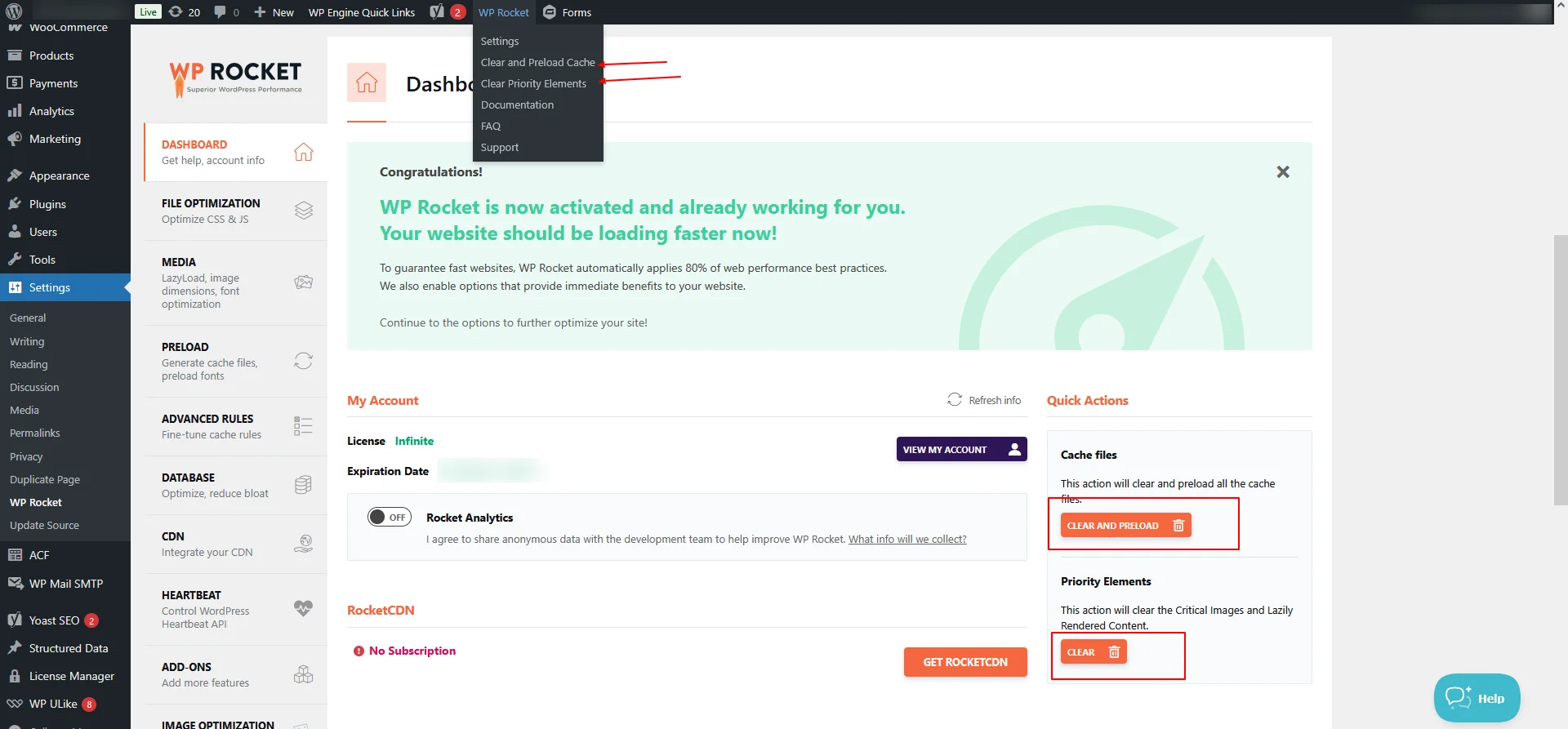
Step 1 : Clear All Cache (Most Important Step)

Start here—this alone fixes many broken-style issues.

Clear cache from:

  • WordPress cache plugin (WP Rocket, LiteSpeed, W3 Total Cache, etc.)
  • Hosting/server cache
  • CDN cache (Cloudflare, Bunny.net)

Also hard-refresh your browser:

  • Windows: Ctrl + F5
  • Mac: Cmd + Shift + R

clear-cache

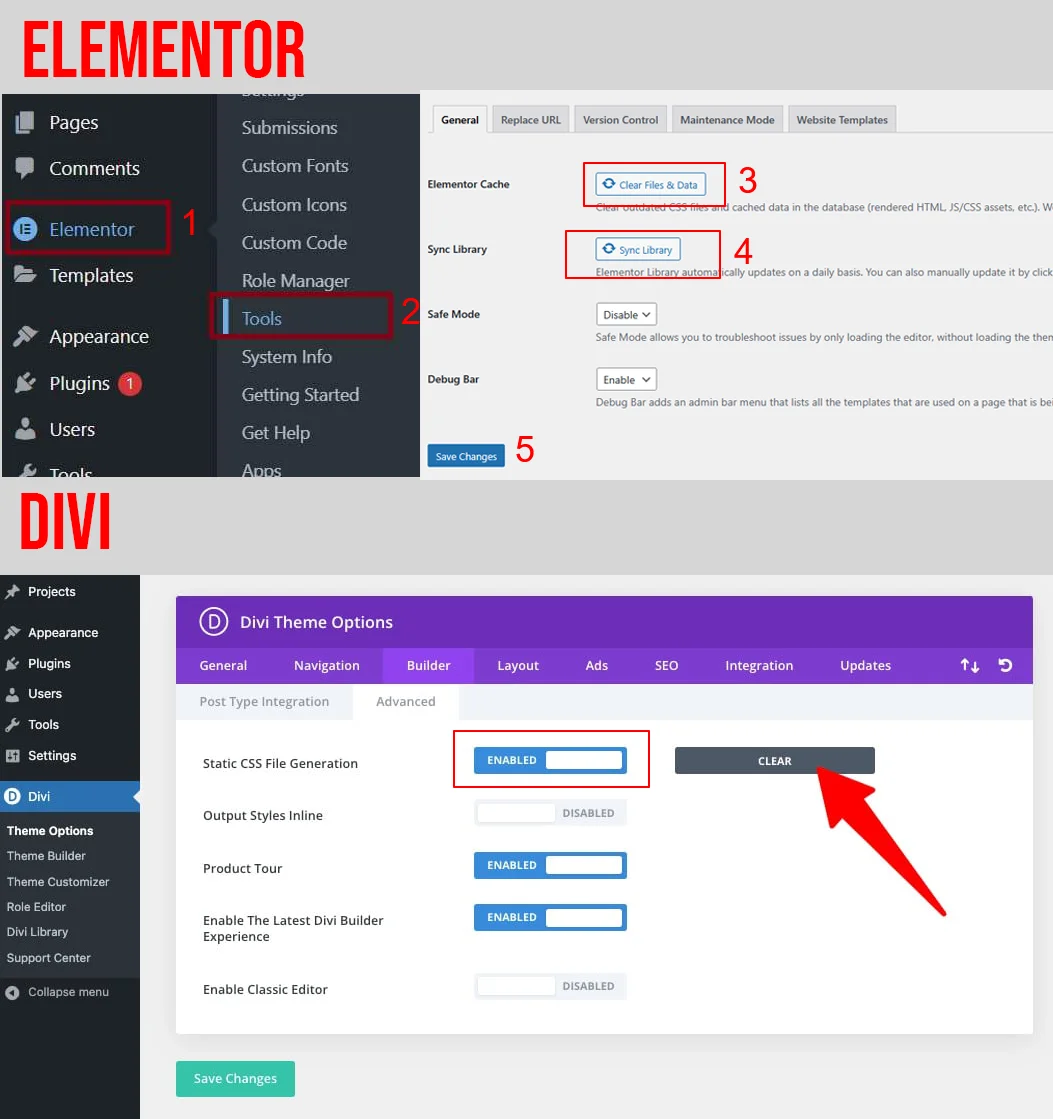
Step 2 : Regenerate CSS & Static Files (Critical for Menus)

If you use Elementor

  • Go to Elementor → Tools
  • Click Regenerate Files & Data
  • Save permalinks (Settings → Permalinks → Save)

If you use Divi

  • Go to Divi → Theme Options → Builder
  • Clear Static CSS File Generation
  • Enable Dynamic CSS if available

This rebuilds menu and header styles.

clear-divi-static-css-cache

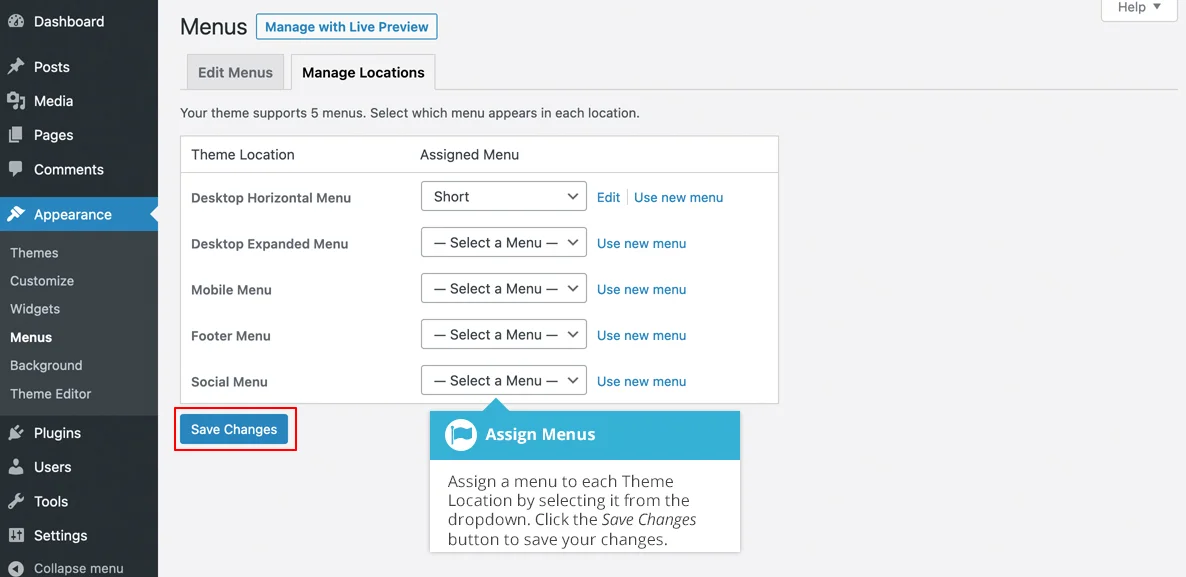
Step 3 : Re-Save Menus & Menu Locations

Sometimes WordPress 6.9 resets menu assignments.

Steps:

  1. Go to Appearance → Menus
  2. Select your main menu
  3. Click Save Menu
  4. Check Menu Locations:
    • Primary Menu
    • Mobile Menu
    • Header Menu

Especially important for mobile menus.

save-menu-locations

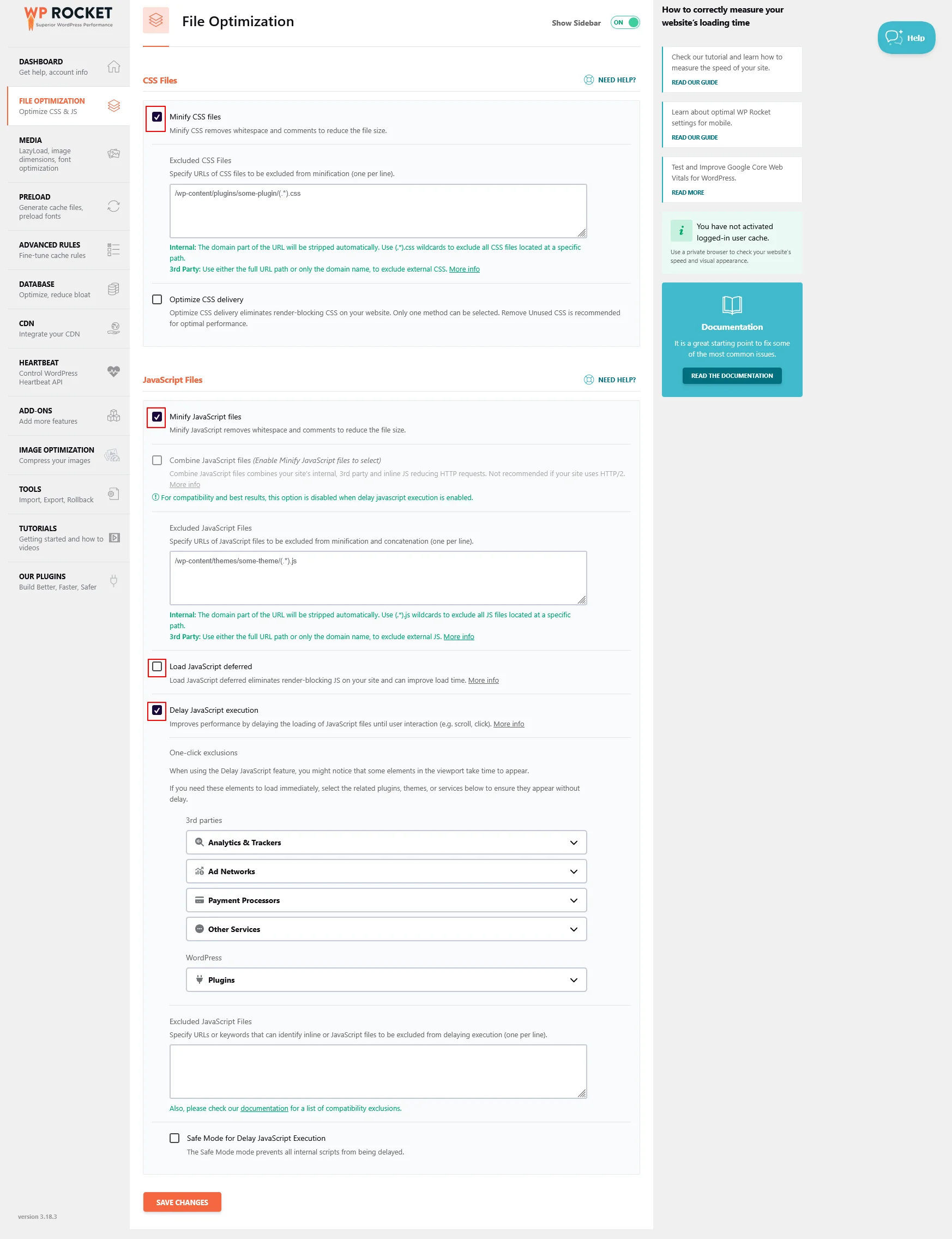
Step 4 : Disable CSS/JS Minification Temporarily

Minification plugins can break menus after core updates.

  • If you used WordPress cache plugin (WP Rocket, LiteSpeed, W3 Total Cache, etc.)

Temporarily disable:

  • CSS minify
  • JS minify
  • Combine files
  • Defer JavaScript
  • Load JS asynchronously

Then:

  • Clear cache
  • Test menus again

If fixed, re-enable options one by one.

WP-Rocket-settings

Step 5 : Check Theme & Child Theme Compatibility

Check Theme & Child Theme Compatibility

  • Update your parent theme
  • Update your child theme
  • Check for:
    • Outdated header.php
    • Custom functions.php menu code
    • Old navigation walkers

WooCommerce sites should also check:
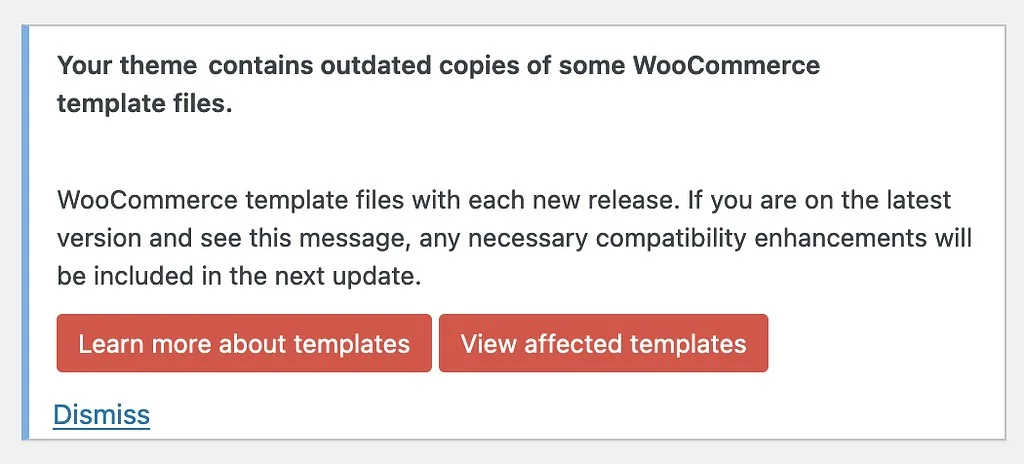
WooCommerce → Status → Templates for outdated overrides.

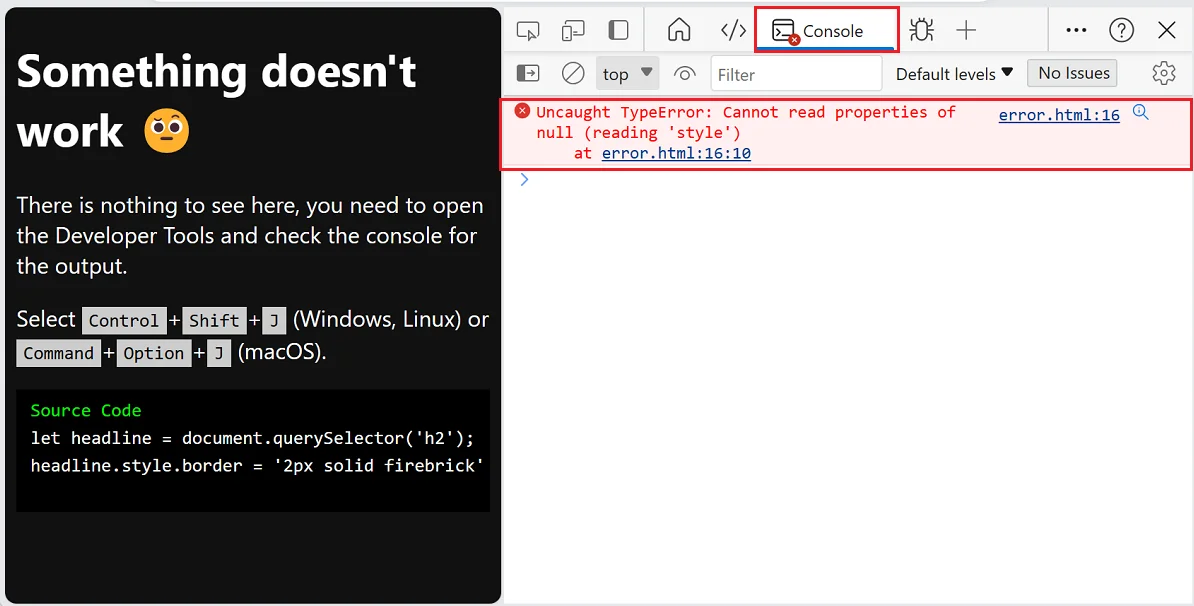
Step 6 : Inspect Console Errors (Advanced but Helpful)

Open browser DevTools:

  • Right-click → Inspect → Console tab

Check errors and Fix :

  • Uncaught TypeError
  • Blocked by CORS
  • Missing JS or CSS files (404)

Errors here often point directly to the broken menu script.

errors

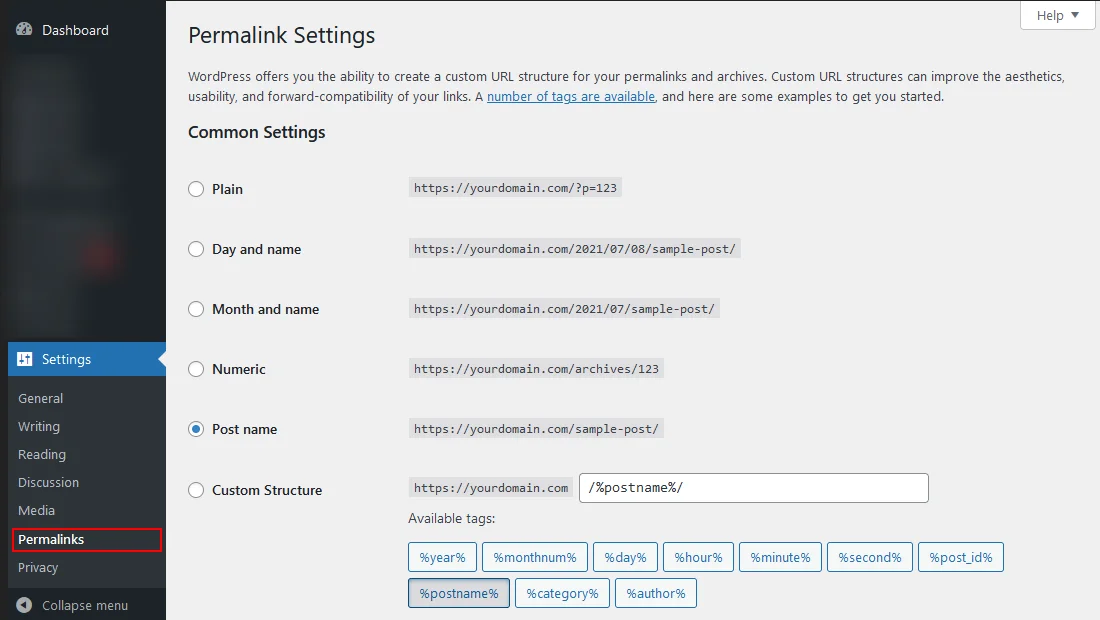
Step 7 : Reset Permalinks & Flush Rewrite Rules

  • Go to Settings → Permalinks
  • Click Save Changes (no edits needed)

This fixes menu links not opening or redirecting incorrectly.

permalinks

Step 8 : Test with Default Theme (Last Resort)

If nothing works:

  • Switch temporarily to Twenty Twenty-Four
  • Check if menus & styles work

If yes → issue is theme-specific
If no → issue is plugin or cache-related

wp-theme

Final Quick Checklist

  • Cache cleared everywhere
  • CSS & assets regenerated
  • Menus re-saved & locations checked
  • Theme updated
  • Console errors reviewed
  • Permalinks flushed

Pro Tip for Business & Client Websites

After major WordPress updates:

  • Always regenerate CSS
  • Never rely on old cache
  • Test menus on mobile first
  • Document fixes for client reporting

This avoids panic messages like “Menu not working after update”.

Website updates shouldn’t compromise performance, design, or user experience.

Partner with TechnoCrackers for reliable WordPress development, optimization, and long-term site stability.

WordPress 6.9 Update Causing Website Issues? Here’s How to Fix Them

WordPress_6.9_Update_Causing_Issues

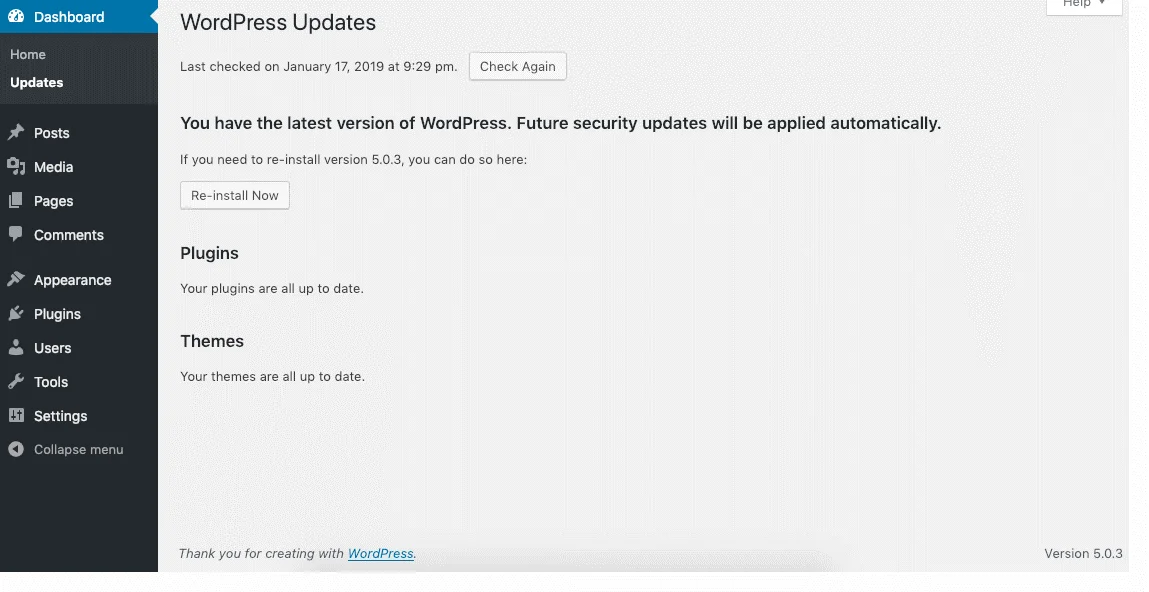
Updating WordPress is critical for security and performance—but after the WordPress 6.9 core update, many website owners reported broken layouts, plugin conflicts, email issues, and even white screens.

If your site started misbehaving after updating to WordPress 6.9, don’t panic. This guide explains the most common WordPress 6.9 problems and step-by-step solutions to fix them safely.

Common Issues After WordPress 6.9 Update

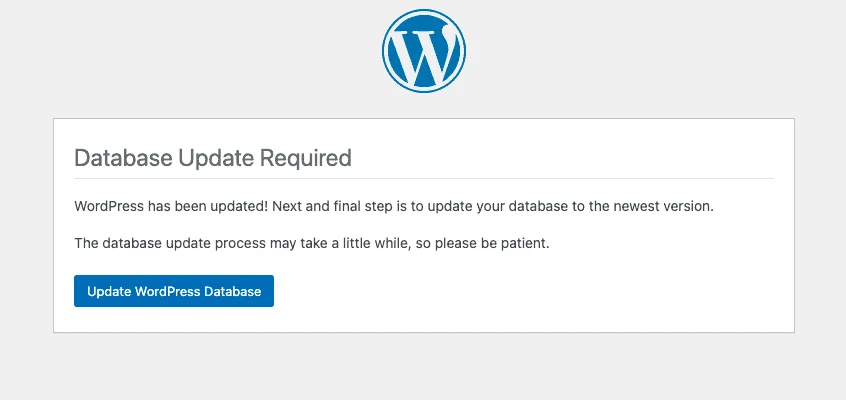
Update-Required-Error

After updating WordPress 6.9, users commonly face:

  • White Screen of Death (WSOD)
  • Broken page layouts (Divi / Elementor)
  • Plugins not working or crashing
  • WooCommerce checkout errors
  • Emails not sending
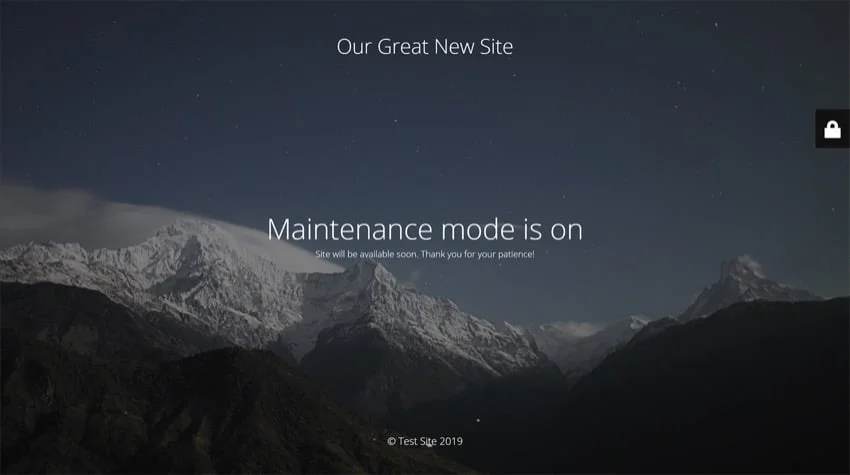
  • Site stuck in maintenance mode
  • Slow admin or frontend performance

Let’s fix these one by one.

Step 1 : Take a Fresh Backup Before Update

Before updating WordPress core, themes, or plugins, always take a full website backup. This ensures you can quickly restore your site if anything breaks during or after the update.

You can easily do this using popular backup plugins like All‑in‑One WP Migration or UpdraftPlus.

Steps:

  • Install and activate All-in-One WP Migration or UpdraftPlus.
  • Open the plugin from the WordPress dashboard.
  • Create a full backup (database + files).
  • Download the backup file or store it in cloud storage (Google Drive, Dropbox, etc.).

Confirm the backup completed successfully before proceeding with the update.

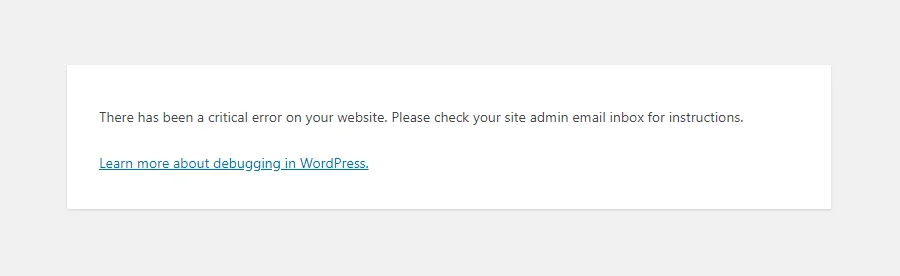
Step 2 : Website Shows White Screen or Critical Error

wordpress-critical-error

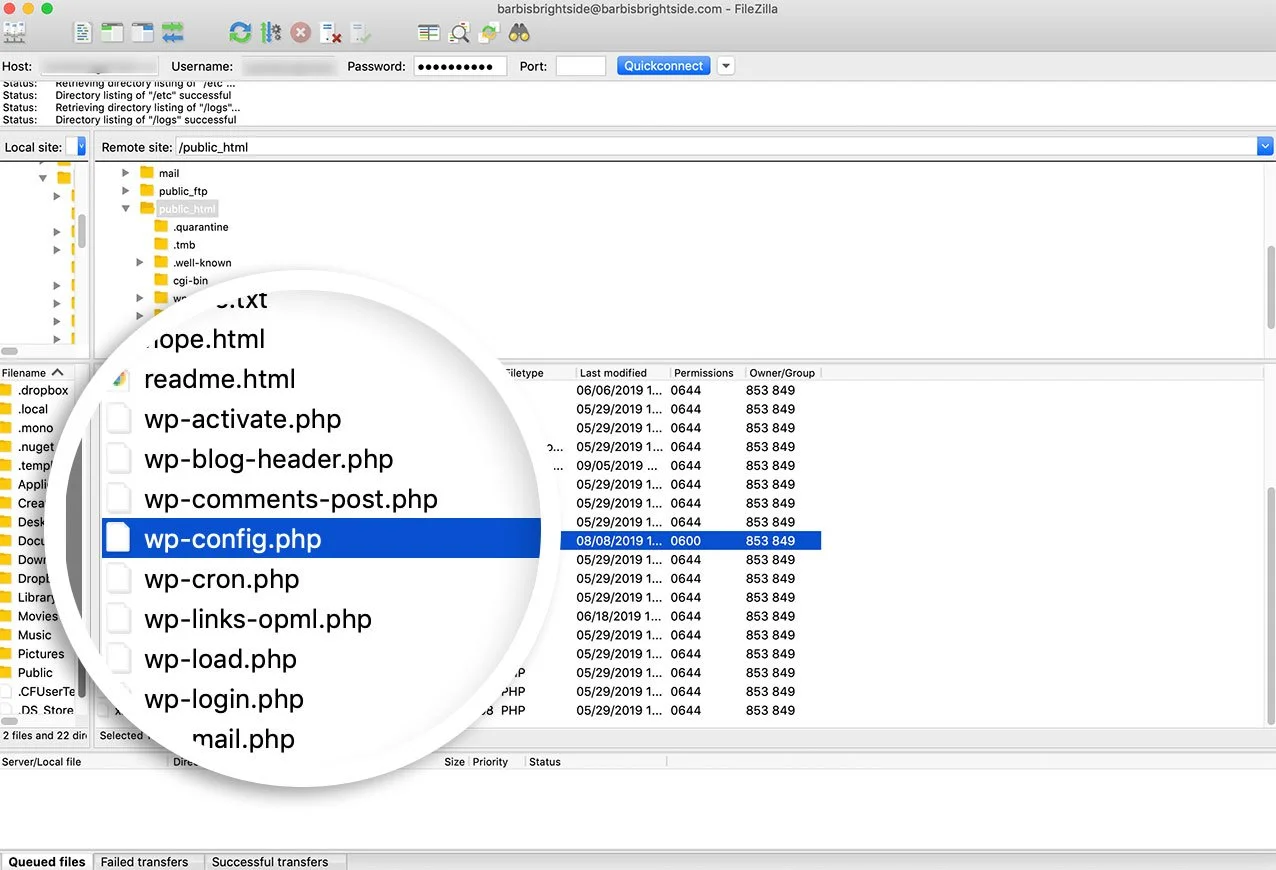
ftp-edit-wp-config-file

Why it happens

  • Plugin or theme incompatibility with WordPress 6.9
  • PHP version conflict
  • Fatal error after update

How to fix

  1. Enable debugging in wp-config.php:
    define(‘WP_DEBUG’, true);
    define(‘WP_DEBUG_LOG’, true);
    define(‘WP_DEBUG_DISPLAY’, true);
  2. Check the error message
  3. Rename the /plugins folder via FTP to disable all plugins
  4. Reactivate plugins one by one
  5. Switch temporarily to a default theme (Twenty Twenty-Four)

Step 3: Page Builder Layout Broken (Divi / Elementor)

missing-Divi-Library-layouts-issue

Why it happens

  • Builder not yet compatible with 6.9
  • Cached or outdated CSS/JS files

How to fix

  • Update the page builder to the latest version
  • Clear:
    • Plugin cache
    • Server cache
    • CDN cache
  • Regenerate files:
    • Elementor → Tools → Regenerate Files
    • Divi → Theme Options → Builder → Clear Cache

clear-divi-static-css-cache

Step 4 : Reset Permalinks & Flush Rewrite Rules

  • Go to Settings → Permalinks
  • Click Save Changes (no edits needed)

This fixes menu links not opening or redirecting incorrectly.

permalinks

Step 5 : Plugins Not Working After Update

Why it happens

  • Plugin uses deprecated WordPress functions
  • Plugin not updated by developer

How to fix

  • Update all plugins
  • Disable plugins one by one to find the conflict
  • Replace outdated plugins with actively maintained alternatives
  • Check plugin support forums for WordPress 6.9 compatibility

Step 6 : WordPress Not Sending Emails After 6.9 Update

If your WordPress emails stopped working after the 6.9 update and you’re struggling to understand why, you’re in the right place to fix this issue step by step. Many site owners noticed contact form emails, WooCommerce notifications, password resets, and admin alerts failing or going to spam.

Why it happens

  • PHP mail function blocked by hosting
  • Core update resets mail behavior

How to fix

  • Install an SMTP plugin (WP Mail SMTP / FluentSMTP)
  • Configure:
    • Gmail
    • Outlook
    • Custom SMTP
  • Test email delivery using plugin tools

SMTP is mandatory now—don’t rely on default mail.

This step‑by‑step guide shows exactly how to fix WordPress email issues using SMTP: https://technocrackers.com/why-wordpress-doesnt-send-emails-after-the-6-9-update-fix-solutions/

Why WordPress Doesn’t Send Emails After the 6.9 Update

Step 7:  WooCommerce Errors After WordPress 6.9 Update

Common issues

  • Checkout not loading
  • Payment gateway errors
  • Outdated WooCommerce templates

How to fix

  • Update WooCommerce plugin
  • Check:
    • WooCommerce → Status → Logs
    • WooCommerce → Status → Templates
  • Update outdated template files in your theme
  • Re-test checkout and payment methods

WooCommerce Errors After WordPress 6.9 Update

Step 8: Site Stuck in Maintenance Mode

Why it happens

  • Update process interrupted

How to fix

  • Connect via FTP or cPanel
  • Delete .maintenance file from root directory
  • Reload your site

wp_maintenance_mode_screen

Step 9: WordPress Admin or Website Became Slow

Why it happens

  • Cache not cleared
  • Database needs optimization
  • Plugin conflicts

How to fix

  • Clear all caches
  • Disable unused plugins
  • Optimize database
  • Check hosting PHP memory limit (increase if needed)

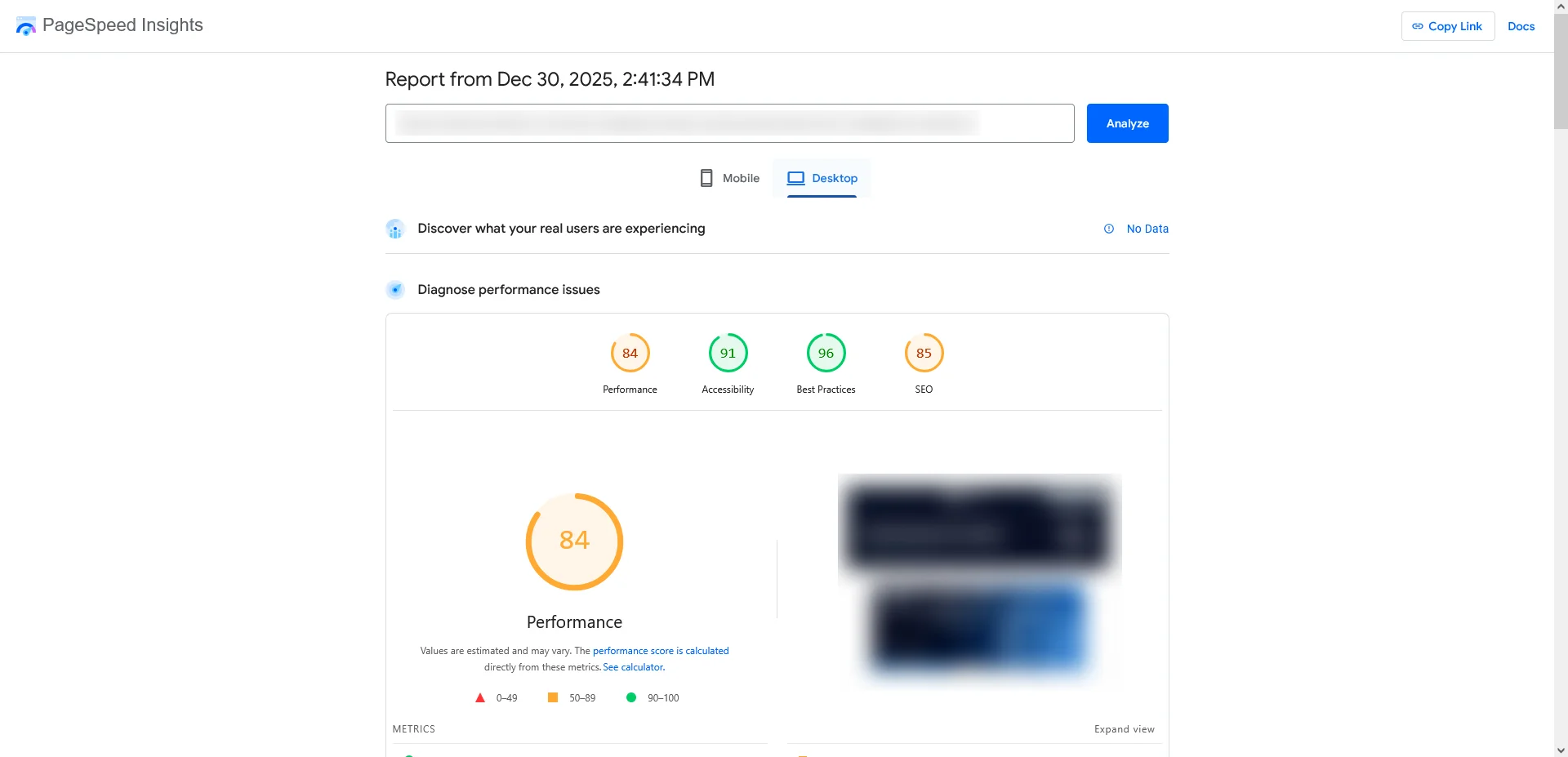
PageSpeed-Insights

Final Post-Fix Checklist (Very Important)

  • After fixing issues:
  • Test frontend & backend
  • Check contact forms
  • Test login & registration
  • Verify WooCommerce checkout
  • Check mobile responsiveness
  • Review error logs
  • Take a fresh backup

Ready to take your WordPress site beyond fixes and into professional development?

Partner with TechnoCrackers for custom WordPress solutions, feature builds, and performance enhancements.

How to Show WooCommerce Product Categories in Hierarchical Tree Format without Plugin

How to Show WooCommerce Product Categories in Hierarchical Tree Format without Plugin

WooCommerce product categories are hierarchical by nature (parent → child → sub-child). However, WooCommerce does not provide a clean tree-style category output by default unless you use widgets or third-party plugins.

In this blog, you’ll learn multiple methods to display WooCommerce product categories in a hierarchical tree format using pure PHP and WordPress functions—no plugin required.

Why Use a Hierarchical Category Tree?

Displaying product categories in a tree structure helps:

  • Improve user navigation
  • Increase product discoverability
  • Enhance SEO internal linking
  • Keep layouts clean in sidebars, filters, or menus

Method 1: Using wp_list_categories() (Easiest Way)

WordPress already supports hierarchical taxonomies, and WooCommerce product categories use the product_cat taxonomy.

Basic Hierarchical Category Tree

<?php  wp_list_categories( array(
    'taxonomy'     => 'product_cat',
    'title_li'     => '',
    'hierarchical' => true,
    'show_count'   => true,
    'hide_empty'   => true,
) ); ?>

Method 2: Custom Recursive Category Tree (Full Control)

If you want complete control over HTML structure, classes, or styling, use a recursive function.

function display_woocommerce_categories_styled() {
    // Helper: Get total count including children
    function tp_total_product_count($term_id) {
        $taxonomy = 'product_cat';
        $children = get_term_children($term_id, $taxonomy);
        if (is_wp_error($children)) $children = [];
        $all_ids = array_merge([$term_id], $children);
        $total = 0;
        foreach ($all_ids as $id) {
            $term = get_term($id, $taxonomy);
            if ($term && !is_wp_error($term)) {
                $total += (int) $term->count;
            }
        }
        return $total;
    }

    // Recursive renderer
    function tp_render_cat_tree($parent_id) {
        $terms = get_terms([
            'taxonomy'   => 'product_cat',
            'hide_empty' => false,
            'parent'     => $parent_id,
            'orderby'    => 'term_order',
            'order'      => 'ASC',
        ]);

        if (empty($terms) || is_wp_error($terms)) return '';

        $html = '<ul class="children">';
        $has_visible_items = false;

        foreach ($terms as $term) {
            $count = tp_total_product_count($term->term_id);

            // Skip empty categories
            if ($count <= 0) continue;

            $has_visible_items = true;
            $html .= '<li class="cat-item cat-item-' . esc_attr($term->term_id) . '">';
            $html .= '<a href="' . esc_url(get_term_link($term)) . '">' . esc_html($term->name) . '</a> (' . intval($count) . ')';
            $html .= tp_render_cat_tree($term->term_id);
            $html .= '</li>';
        }

        $html .= '</ul>';

        // Return empty string if NO visible children remain
        return $has_visible_items ? $html : '';
    }

    // Top level terms
    $top_terms = get_terms([
        'taxonomy'   => 'product_cat',
        'hide_empty' => false,
        'parent'     => 0,
        'orderby'    => 'term_order',
        'order'      => 'ASC',
    ]);

    if (empty($top_terms) || is_wp_error($top_terms)) return '';

    $output = '<div class="wc-cat-wrapper"><ul class="wc-cat-list">';

    foreach ($top_terms as $term) {
        $count = tp_total_product_count($term->term_id);

        // Skip if top-level category also has no products
        if ($count <= 0) continue;

        $output .= '<li class="cat-item cat-item-' . esc_attr($term->term_id) . '">';
        $output .= '<a href="' . esc_url(get_term_link($term)) . '">' . esc_html($term->name) . '</a> (' . intval($count) . ')';
        $output .= tp_render_cat_tree($term->term_id);
        $output .= '</li>';
    }

    $output .= '</ul></div>';

    return $output;
}
add_shortcode('wc_categories', 'display_woocommerce_categories_styled');

How to Use the Shortcode in Divi, Elementor, or Theme Templates

If you are using Divi or Elementor, simply add a Code widget to your page and paste the following shortcode:

[wc_categories]

If you are using a template-based approach (such as a custom theme file or child theme), place the shortcode directly inside your template using PHP:

<?php echo do_shortcode('[wc_categories]');?>

This will render the WooCommerce product categories in a hierarchical tree format wherever the shortcode is placed.

Final Thoughts

Displaying WooCommerce product categories in a hierarchical tree format without plugins gives you:

  • Better performance
  • Full design control
  • Cleaner HTML
  • Improved SEO

Whether you use the built-in WordPress function or a custom recursive solution, both approaches are lightweight and scalable for any WooCommerce store.

Looking to level up your WooCommerce store with advanced customizations?

Our white‑label WordPress development team at TechnoCrackers can build it right—reach out now!

How to Hide Out-of-Stock Product Prices in WooCommerce

How to Hide Out-of-Stock Product Prices in WooCommerce

Displaying product prices when items are out of stock can confuse customers, reduce conversions, and lead to unnecessary support queries. In many WooCommerce stores—especially B2B, wholesale, or limited-inventory shops—it’s better to hide prices for out-of-stock products until they’re available again.

In this guide, you’ll learn why hiding out-of-stock prices matters, different methods to hide them, and step-by-step solutions using WooCommerce settings, code snippets.

Why Hide Prices for Out-of-Stock Products?

Before diving into the “how,” let’s understand the “why.”

1. Improves User Experience

Customers get frustrated when they see a price but can’t buy the product. Hiding prices avoids false expectations.

2. Reduces Bounce Rate

Visitors are more likely to leave if they repeatedly see unavailable products with visible prices.

3. Prevents Price Comparison

Competitors and price scrapers can track your pricing even when products aren’t available.

4. Ideal for Wholesale & B2B Stores

Many B2B stores only want to show prices when stock is confirmed.

5. Encourages Back-in-Stock Actions

You can replace the price with a “Notify Me” or “Coming Soon” message instead.

Method 1: Hide Prices Using WooCommerce Settings (Limited)

WooCommerce does not provide a built-in option specifically to hide prices for out-of-stock products, but you should still ensure stock management is enabled.

Steps:

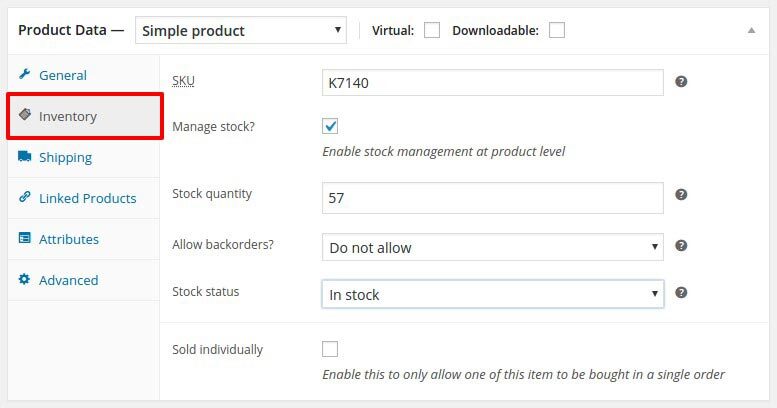
  1. Go to WooCommerce → Settings → Products → Inventory
  2. Enable Manage stock
  3. Set Out of stock visibility if needed

Method 2: Hide Out-of-Stock Prices Using Custom Code (Recommended)

This is the cleanest and most flexible approach, especially for developers or custom WooCommerce sites.

Add This Code to functions.php

(Use a child theme or Code Snippets plugin)

add_filter( 'woocommerce_get_price_html', 'hide_price_when_out_of_stock', 10, 2 );
function hide_price_when_out_of_stock( $price, $product ) {
    if ( ! $product->is_in_stock() ) {
        return '';
    }
    return $price;
}

Method 3: Replace Price with Custom Text (Better UX)

Instead of hiding the price completely, you may want to show a message.

Example: Show “Out of Stock – Price Hidden”

add_filter( 'woocommerce_get_price_html', 'replace_price_for_out_of_stock', 10, 2 );
function replace_price_for_out_of_stock( $price, $product ) {
    if ( ! $product->is_in_stock() ) {
        return '<span class="out-of-stock-price">Out of stock</span>';
    }
    return $price;
}

You can customize the text:

  • “Coming Soon”
  • “Price Available When Back in Stock”
  • “Contact Us for Pricing”

Method 4: Hide Prices Only on Shop & Category Pages

Some stores want prices hidden only on listing pages, but visible on single product pages.

add_filter( 'woocommerce_get_price_html', 'hide_price_on_shop_pages_only', 10, 2 );
function hide_price_on_shop_pages_only( $price, $product ) {
    if ( ! $product->is_in_stock() && ( is_shop() || is_product_category() ) ) {
        return '';
    }
    return $price;
}

Method 5: Hide Prices for Variable Products When All Variations Are Out of Stock

WooCommerce variable products sometimes still show prices even if all variations are unavailable.

add_filter( 'woocommerce_variable_price_html', 'hide_variable_price_if_out_of_stock', 10, 2 );
function hide_variable_price_if_out_of_stock( $price, $product ) {
    if ( ! $product->is_in_stock() ) {
        return '';
    }
    return $price;
}

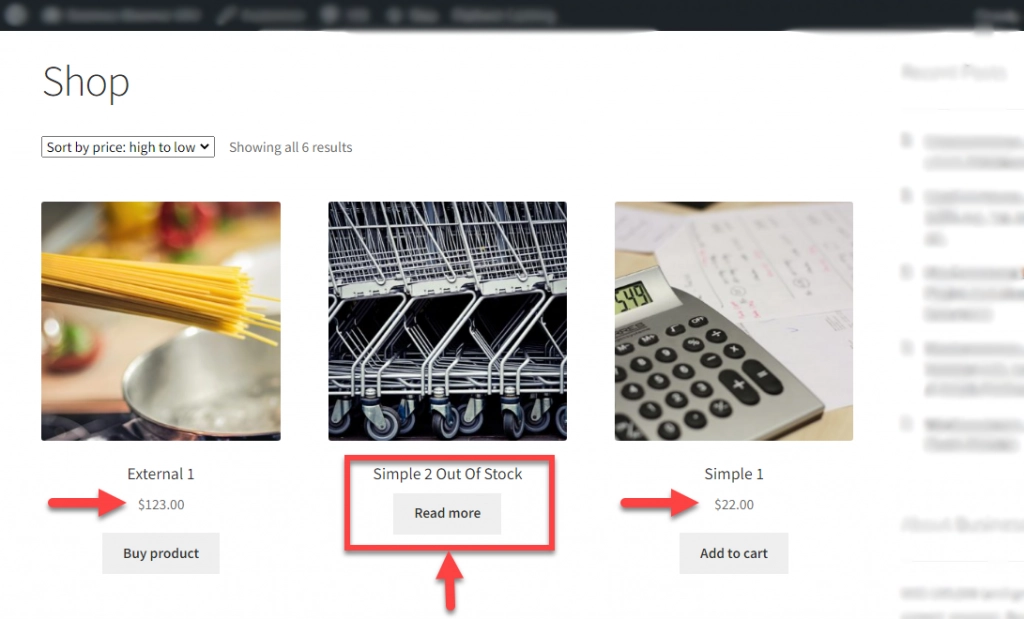
This is exactly how the FINAL OUTPUT will appear on the frontend when the product is out of stock and the price is hidden.

Final Thoughts

Hiding out-of-stock product prices in WooCommerce is a smart UX and conversion strategy, especially for stores with limited inventory or dynamic pricing.

Whether you choose:

  • Custom code (best performance)
  • Plugin solutions (ease of use)
  • Hybrid approach (best UX)

…the key is to reduce customer frustration and guide them toward available products.

Need expert help customizing your WooCommerce store with specific features like hidden pricing? Partner with TechnoCrackers for reliable white-label WordPress development services.

Hide Price until User Login in Woocommerce

Hide Price until User Login in Woocommerce

If you’re running a B2B, wholesale, or dealer-based WooCommerce store, hiding product prices from guest users is often essential. Many businesses prefer showing prices only after user login to control access, encourage registrations, or provide quote-based pricing.

In this blog, we’ll explain two easy methods to hide prices until a user logs in:

  1. Without a Plugin (Using Custom Code)
  2. Using a Plugin (Recommended for beginners)

Both methods work perfectly with WooCommerce, so you can choose the one that best fits your project.

Method 1: Hide Price Without Plugin (Using Code)

If you prefer a lightweight solution or want full control, you can hide prices using custom PHP code.

You can add this code in either:

  • Your theme’s php file
    OR
  • By installing a Code Snippets plugin (recommended to avoid theme update issues)
// Hide prices
add_action('after_setup_theme','tc_hideprice_activate_filter') ;

function tc_hideprice_activate_filter()
{
   add_filter('woocommerce_get_price_html', 'tc_show_price_logged');
}

function tc_show_price_logged($price)
{
   if(is_user_logged_in() )
   {
      return $price;
   }
   else
  {
     remove_action( 'woocommerce_single_product_summary', 'woocommerce_template_single_price', 10 );
     remove_action( 'woocommerce_after_shop_loop_item_title', 'woocommerce_template_loop_price', 10 );
     return 'Login to see price';
  }
}

// Add this code if you want to Disable Purchase for Guest Users (Optional but Recommended ) 
add_filter('woocommerce_is_purchasable', 'my_woocommerce_is_purchasable', 10, 2);
function my_woocommerce_is_purchasable($is_purchasable, $product) {

	$isLoggedIn = is_user_logged_in();
	if(true == $isLoggedIn){
		//Make product purchasable to logged in user
		return true;
	}

	//Make product not purchasable to unlogged in user
	return false;
}

add-code

Method 2: Hide Price Using a Plugin (Easy & Safe)

Install the Plugin

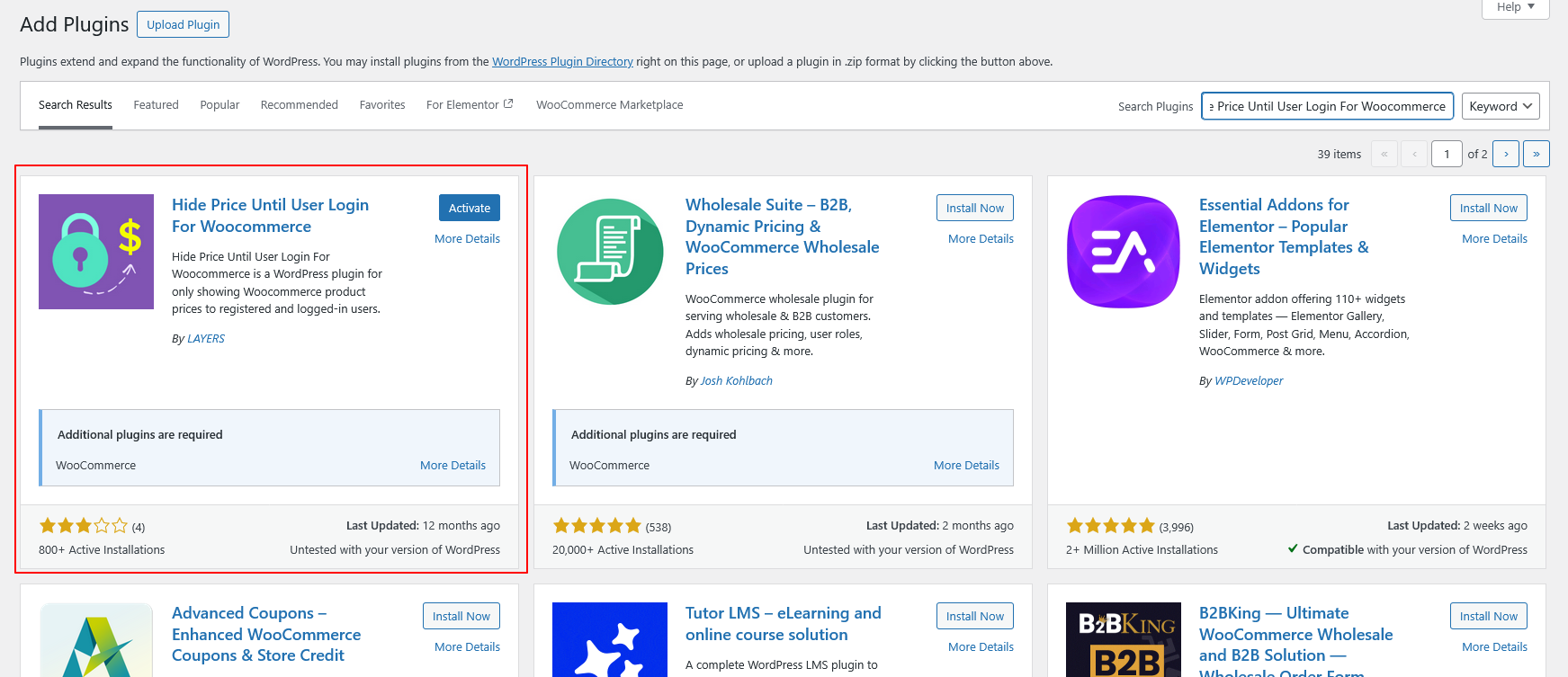
You can install the plugin using the Upload Plugin method.

Upload Plugin:

  1. Download the plugin ZIP file from WordPress.org
  2. Go to your WordPress Dashboard
  3. Navigate to Plugins → Add New
  4. Click Upload Plugin
  5. Choose the downloaded ZIP file
  6. Click Install Now
  7. Activate the plugin

Add-Plugins

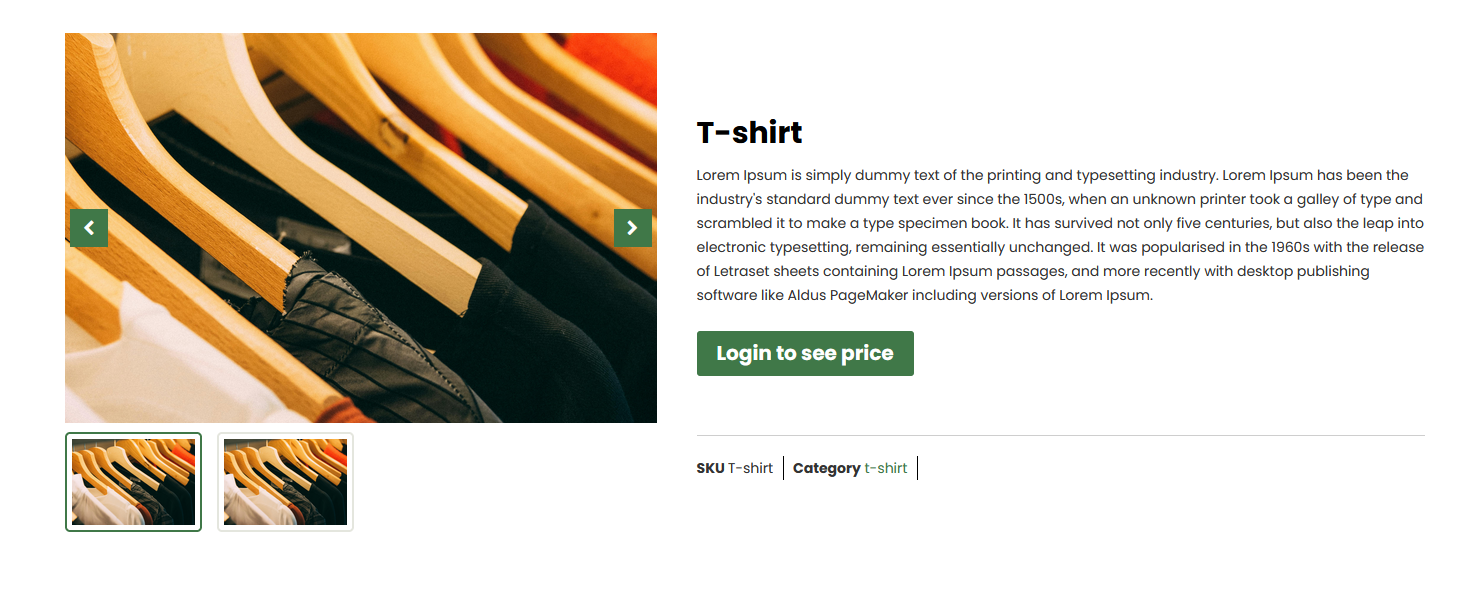
Result

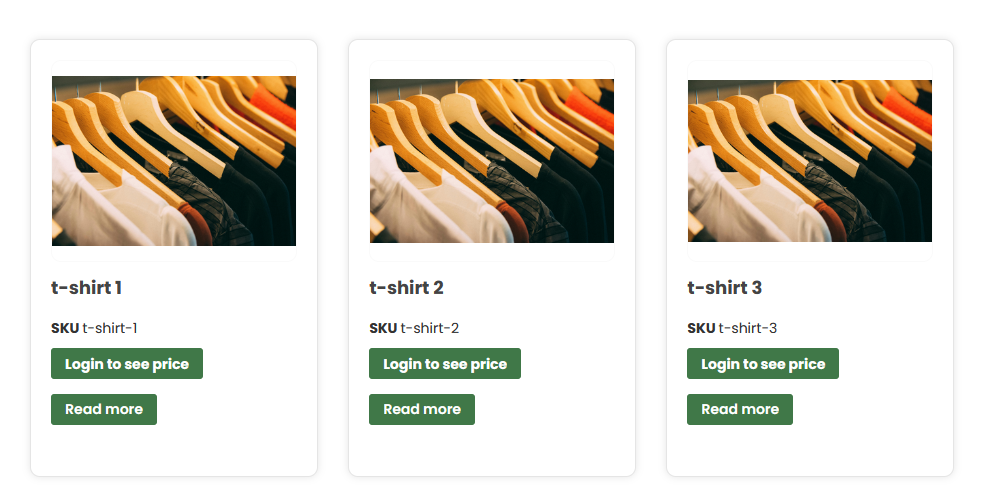
output

output

Final Thoughts

Hiding prices until login is a powerful strategy for B2B, wholesale, and dealer-based WooCommerce websites. Whether you choose a plugin or a custom code approach, both methods ensure that pricing remains visible only to authorized users.

Custom pricing, dynamic features, or advanced workflows — we do it all with WordPress.

Partner with TechnoCrackers for expert development and next-level WooCommerce enhancements.

How to Display Product ACF Values on the WooCommerce Shop Page

How to Display Product ACF Values on the WooCommerce Shop Page

WooCommerce is powerful out of the box, but most real-world stores need custom product data beyond price, title, and description. This is where Advanced Custom Fields (ACF) becomes essential. ACF allows store owners and developers to add custom fields like material, dimensions, warranty, brand details, delivery time, or any unique product attribute.

However, adding ACF fields to products is only half the job. The real challenge is displaying those ACF values on the WooCommerce Shop, Category, and Archive pages, not just on the single product page.

In this blog, you’ll learn multiple methods to display ACF product fields on the WooCommerce shop page, including code-based and builder-based approaches, best practices, and performance tips.

Why Display ACF Fields on the Shop Page?

Displaying ACF values on the shop page improves:

  • User experience – Customers see important product details before clicking.
  • Conversion rate – Less friction, faster decisions.
  • Product comparison – Shoppers can compare attributes easily.
  • SEO value – Structured product data improves relevance.

Common Use Cases

  • Show Brand Name
  • Display Product Material
  • Add Delivery Time
  • Show Custom Badges (Eco-friendly, Handmade, Limited Stock)
  • Display Warranty Period
  • Show Dimensions or Weight

Prerequisites

Before proceeding, make sure you have:

  • WooCommerce installed and activated
  • Advanced Custom Fields (Free or Pro)
  • ACF field group assigned to Product post type
  • Basic knowledge of WordPress hooks (for code method)

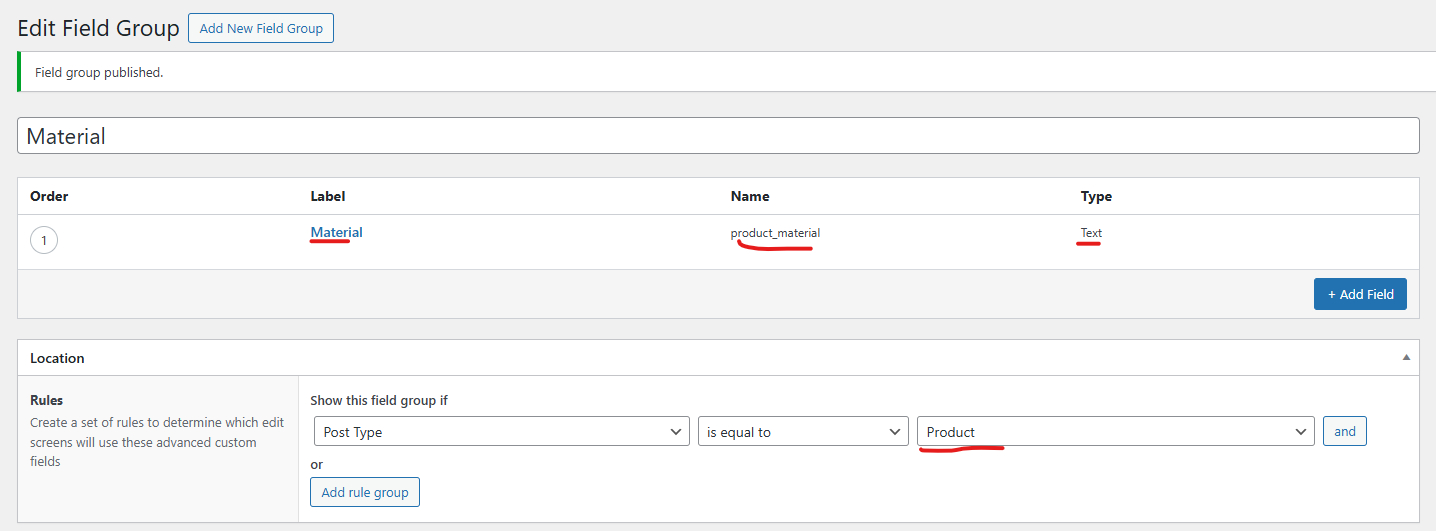
Step 1: Create Custom Fields Using ACF

  1. Go to ACF → Field Groups
  2. Click Add New
  3. Add fields like:
    • Field Label: Material
    • Field Name: product_material
    • Field Type: Text
  4. Set Location Rule:
    • Post Type → is equal to → Product
  5. Publish the field group
  6. Add values to products

Method 1: Display ACF Values Using WooCommerce Hooks (Recommended for Developers)

WooCommerce provides powerful hooks that allow you to inject content anywhere on the shop page.

Example: Display ACF Field Below Product Title

add_action( 'woocommerce_after_shop_loop_item_title', 'display_acf_on_shop_page', 15 );
function display_acf_on_shop_page() {
    global $product;
    $material = get_field( 'product_material', $product->get_id() );
    if ( $material ) {
        echo '<p class="product-material">Material: ' . esc_html( $material ) . '</p>';
    }
}

Hook Position Options

Hook Name Position
woocommerce_before_shop_loop_item_title Before image
woocommerce_after_shop_loop_item_title Below title
woocommerce_after_shop_loop_item  Bottom of product
woocommerce_before_shop_loop_item Wrapper start

Method 2: Display Multiple ACF Fields Together

add_action( 'woocommerce_after_shop_loop_item_title', 'display_multiple_acf_fields', 20 );
function display_multiple_acf_fields() {
    global $product;
    $brand   = get_field( 'brand_name', $product->get_id() );
    $warranty = get_field( 'warranty_period', $product->get_id() );
   if ( $brand || $warranty ) {
        echo '<div class="custom-product-meta">';
        if ( $brand ) {
            echo '<span class="brand">Brand: ' . esc_html( $brand ) . '</span>';
        }
        if ( $warranty ) {

            echo '<span class="warranty">Warranty: ' . esc_html( $warranty ) . '</span>';
        }
        echo '</div>';
    }
}


Method 3: Display ACF Fields Using Elementor / Divi / Gutenberg

Elementor

  • Use Elementor Pro → Woo Product Grid
  • Add Dynamic Field
  • Select ACF Field
  • Choose field name

Divi

  • Use Divi Machine / Divi Dynamic Content
  • Select ACF Field as dynamic source

Gutenberg (Block Editor)

  • Use ACF Blocks
  • Or use custom shortcode with do_shortcode()

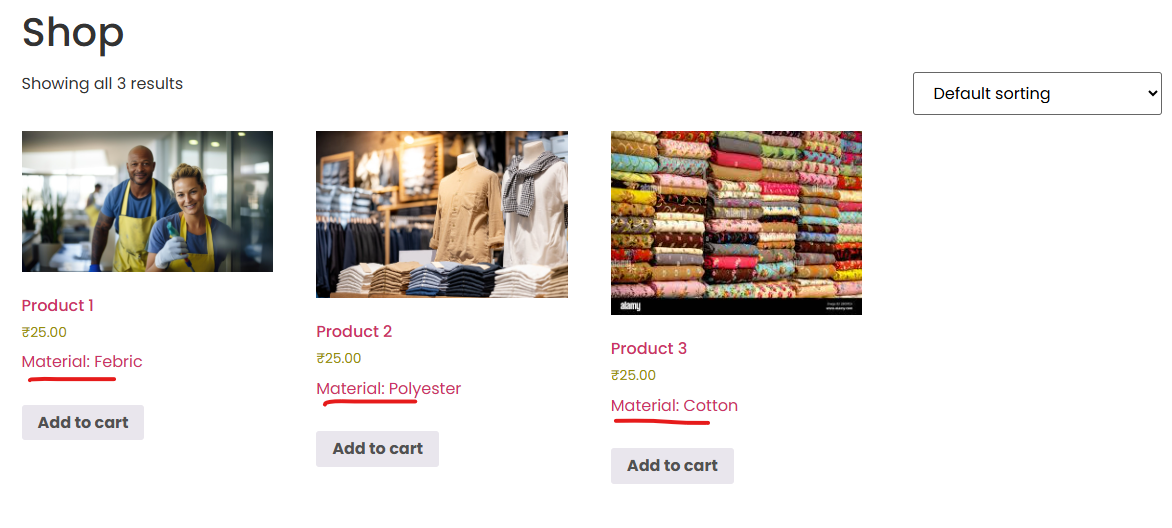
After applying the code, the ACF product values will appear on the WooCommerce shop page output.

Conclusion

Displaying ACF values on the WooCommerce shop page is one of the most effective ways to enhance your product listings and improve user experience. Whether you prefer custom PHP hooks, page builders, or dynamic content tools, WooCommerce and ACF provide flexible solutions for every use case.

For developers, WooCommerce hooks offer maximum control and performance. For non-developers, Elementor, Divi Machine, and dynamic blocks make the process effortless.

If you’re building a custom WooCommerce store, leveraging ACF on shop pages can significantly boost usability and conversions.

Want a custom WordPress solution to display ACF values and improve your WooCommerce shop? Let TechnoCrackers handle your entire WordPress development — from custom features to full site builds, contact us today.

Contact us

Let's Unleash Your Digital Potential Together.

Address

C-605, Ganesh glory 11, Nr. BSNL Office, Jagatpur Road, S.G. Highway, Jagatpur, Ahmedabad, India - 382481.

Phone

INDIA : (091) 8200639242 USA : +1 (310) 868-6009

Limited Time Offer

X

Try a Free 2-Hour Test Task

Experience our quality, speed, and communication on any small WordPress task before you commit. No contract. No cost. No obligation.
[For New Agency Partners]

"*" indicates required fields

Name*