Resolving Cross-Origin Resource Sharing (CORS) Issues in WordPress

Cross-Origin Resource Sharing (CORS) is both a critical security mechanism and a source of common frustration for WordPress developers. Designed to prevent unauthorized access to resources on different domains, CORS ensures data security but can inadvertently block legitimate resources, like fonts, JavaScript files, or API responses, that your site depends on.

Imagine designing a flawless layout only to see broken fonts or encountering errors when integrating third-party APIs. These issues often arise because of restrictive CORS policies, which require specific headers to grant access between domains. This guide breaks down the problem, helping you understand why CORS issues occur and providing actionable solutions tailored to WordPress environments. Whether your site uses Apache, Nginx, or the WordPress REST API, you’ll learn how to debug, configure, and test CORS settings effectively to ensure smooth functionality without compromising security.

What is CORS and Why Does it Matter?

CORS is a browser mechanism that controls how resources on one domain are accessed by another domain. Suppose your WordPress site attempts to load external resources (e.g., fonts, scripts, or API data). In that case, the server hosting those resources must explicitly allow such access by including proper CORS headers in its response.

Common Symptoms of CORS Issues:

  • Fonts not loading on your site with errors in the browser console like:Access to font at ‘https://example.com/font.woff’ from origin ‘https://yoursite.com’ has been blocked by CORS policy.
  • JavaScript fetching data from an API fails with:No ‘Access-Control-Allow-Origin’ header is present on the requested resource.

Step 1: Debugging CORS Issues

Use Browser Dev Tools:

  1. Open your browser’s developer tools (right-click on your site and select Inspect, then go to the Console tab).
  2. Look for CORS-related errors (e.g., “Access to the resource has been blocked by CORS policy”).
  3. Identify the blocked resource and its URL from the error message.

Key Information to Note:

  • The domain of the blocked resource.
  • Whether the issue occurs for fonts, scripts, images, or API calls.

Step 2: Configuring CORS Headers in .htaccess

If the resource is hosted on your WordPress site, you can resolve the issue by configuring CORS headers in your .htaccess file (for Apache servers).

Example for Allowing Fonts:
Add the following lines to your .htaccess file:

<IfModule mod_headers.c>
<FilesMatch "\.(ttf|ttc|otf|eot|woff|woff2|font.css)$">
Header set Access-Control-Allow-Origin "*"
</FilesMatch>
</IfModule>

Example for General Resources:
Allow all resources to be shared with specific domains:

<IfModule mod_headers.c>
Header set Access-Control-Allow-Origin "https://example.com"
Header set Access-Control-Allow-Methods "GET, POST, OPTIONS"
Header set Access-Control-Allow-Headers "X-Requested-With, Content-Type, Accept"
</IfModule>
  • Replace https://example.com with the domain that requires access.
  • Avoid using * for sensitive resources, as it allows access from any domain.

Restart Apache Server
For changes to take effect, restart your Apache server:
sudo service apache2 restart

Step 3: Configuring CORS Headers in Nginx

If you’re using Nginx as your web server, you can add CORS headers in your site’s configuration file.

Example Configuration:

location ~* \.(eot|ttf|woff|woff2|otf)$ {
	add_header Access-Control-Allow-Origin "*";
}
location / {
	add_header Access-Control-Allow-Origin "https://example.com";
	add_header Access-Control-Allow-Methods "GET, POST, OPTIONS";
	add_header Access-Control-Allow-Headers "X-Requested-With, Content-Type, Accept";
}
  • Save the changes and reload Nginx:
sudo nginx -s reload

Step 4: Adding CORS Headers to WordPress REST API Responses

If the issue occurs with custom REST API endpoints in WordPress, you can programmatically add CORS headers using the rest_api_init action.

Code Example:
Add the following code to your theme’s functions.php file or a custom plugin:

add_action('rest_api_init', function () {
	header("Access-Control-Allow-Origin: *");
	header("Access-Control-Allow-Methods: GET, POST, OPTIONS");
	header("Access-Control-Allow-Headers: X-Requested-With, Content-Type, Accept");
});

Notes:

  • Replace * with a specific domain for better security.
  • Use this approach only for REST API endpoints served by your WordPress site.

Step 5: Testing the Fix

  1. Clear your browser cache and reload your site.
  2. Use browser dev tools to verify that the blocked resources are now loading correctly.
  3. Check the response headers for the affected resource. You should see the Access-Control-Allow-Origin header in the response.

Best Practices for Handling CORS Issues

  1. Restrict Access: Avoid using * as the value for Access-Control-Allow-Origin. Specify only the domains that require access.
  2. Monitor Logs: Regularly check server logs to identify and address CORS-related issues.
  3. Secure APIs: For APIs, implement proper authentication mechanisms (e.g., API keys or OAuth) to complement CORS headers.

Resolving CORS issues in WordPress requires a mix of understanding and strategic implementation. You can unblock essential resources by correctly configuring CORS headers in your server’s .htaccess or Nginx configuration files—or adding headers programmatically for REST API responses—while maintaining tight security controls. Debugging tools like browser developer consoles will help pinpoint errors, ensuring targeted fixes.

Remember, best practices like restricting domains instead of using wildcards (*) and regularly monitoring server logs will safeguard your resources. With these steps, you can confidently address CORS challenges, ensuring your WordPress site runs smoothly and delivers a seamless user experience.

A well-configured CORS setup is essential for stable, future-ready WordPress development. If you need experts to build or optimize your WordPress project from the ground up, Book a Free Consultation Now.
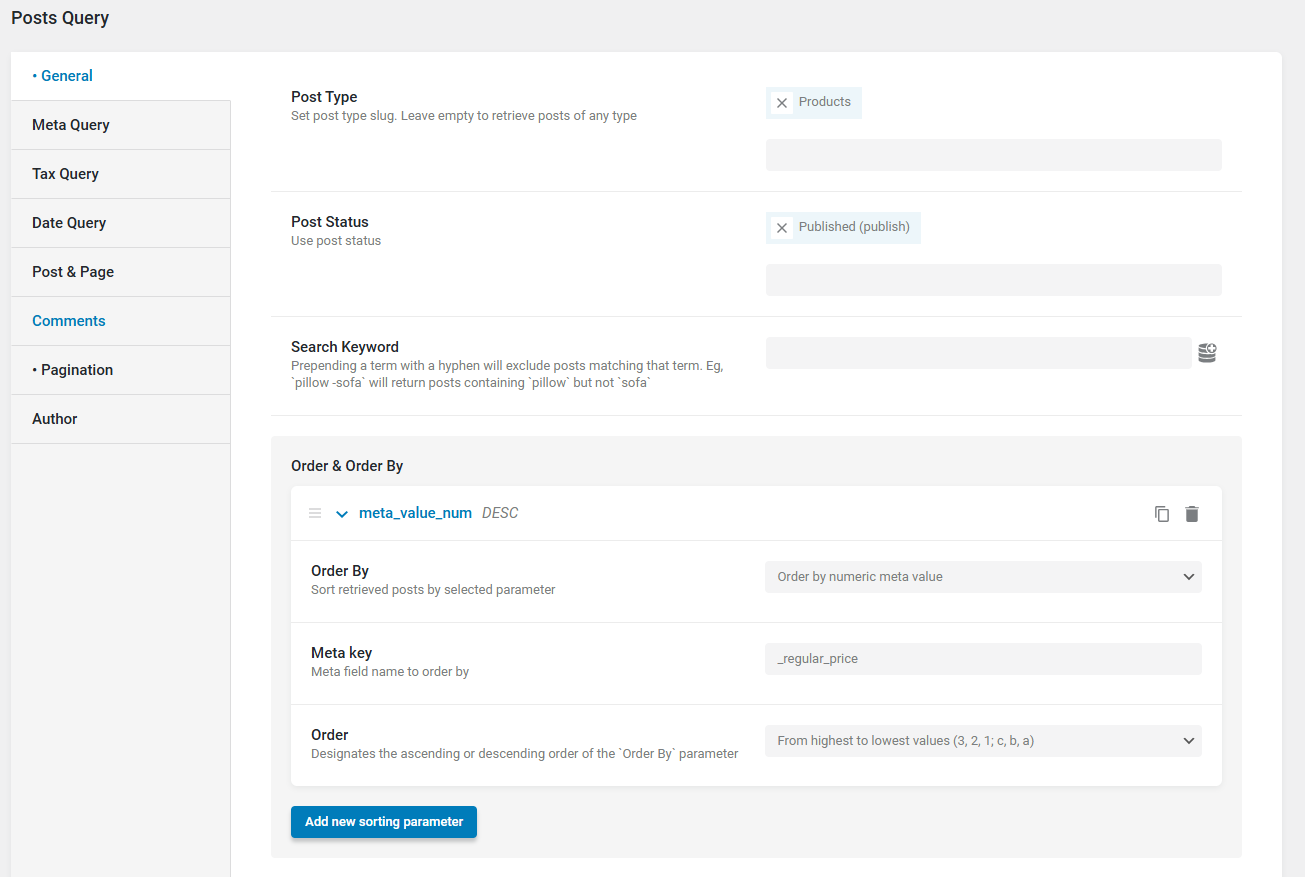
How to Set Default Product Sorting by Price (High to Low) in Crocoblock

Sorting products by price is a common feature in e-commerce sites, allowing customers to find items within their budget quickly. In Crocoblock, you can set up default product sorting by price (high to low) using JetEngine and Elementor Pro.
This guide walks you through the step-by-step process of creating a custom query, configuring it for your product listing, and ensuring it displays products in descending price order effectively.

Step 1: Install Required Plugins

Ensure the following plugins are installed and activated:

  • Elementor Pro: Required for theme builder functionality.
  • JetEngine: From Crocoblock.

Step 2: Create a Custom Query for Sorting

  1. Go to JetEngine Queries:
    • Navigate to the WordPress Dashboard and go to JetEngine > Queries.
  2. Add a New Query:
    • Click on “Add New” and select “Posts Query” as the query type.
  3. Configure Query Settings:
    • Set the query to fetch WooCommerce products.
    • Under the “Order By” field, select Meta Field.
    • In the “Meta Field Key,” enter ‘_regular_price’ (this is the WooCommerce price meta field).
    • Set the order to From highest to lowest values (3, 2, 1; c, b, a) to display products from high to low price.
  4. Save the Query:
    • Give your query a descriptive name, such as “Price High to Low,” and save it.

Step 3: Configure the Query in Your Product Listing

  1. Navigate to Your Product Page:
    • Open the page where your product listing is displayed.
  2. Edit the Listing Grid:
    • If you’re using Elementor, select the Listing Grid widget displaying your products.
  3. Assign the Custom Query:
    • In the widget settings, enable the JetEngine Query Builder.
    • Select your custom query (e.g., “Price High to Low”) from the dropdown menu.
  4. Save and Update:
    • Save your changes and update the page.

Setting default product sorting by price (high to low) in Crocoblock is a straightforward process when you use JetEngine and Elementor Pro. By creating a custom query and assigning it to your product listing grid, you can enhance the shopping experience for your customers. This configuration not only makes navigation intuitive but also ensures that your high-value products gain visibility. With these steps, you can take full control of product sorting on your e-commerce site and deliver a seamless browsing experience.

A clear default sorting option makes your WooCommerce store feel more polished and user-friendly. If you’re planning custom WordPress or eCommerce development, Book a Free Strategy Call.

Fixing WordPress Shortcode Output Breaking HTML

Shortcodes are a versatile feature in WordPress, enabling you to seamlessly add dynamic content to your site. However, they can sometimes cause frustrating issues when WordPress’s auto-formatting feature, wpautop, adds unwanted <p> or <br> tags to shortcode output. These formatting changes often disrupt layouts, introduce extra whitespace, or even break functionality.

This guide will walk you through the steps to debug and resolve such issues, ensuring your shortcodes work as intended without compromising your design or functionality.

Understanding the Issue

Why the Problem Occurs

WordPress applies the wpautop filter to the post content by default. This filter:

  • Wraps blocks of text in <p> tags.
  • Converts line breaks to <br> tags.

While useful for plain text, it can interfere with the structure of HTML or JavaScript output generated by shortcodes, resulting in misplaced <p> or <br> tags.

Symptoms of the Problem

  • Extra whitespace or unexpected line breaks in the rendered content.
  • Broken layouts or styles in HTML generated by shortcodes.
  • Functional issues in embedded JavaScript or inline CSS.

Step 1: Debugging the Issue

Test the Shortcode Output

  1. Add the shortcode to a post or page.
  2. Inspect the generated HTML using your browser’s developer tools.
  3. Look for unwanted <p> or <br> tags within the output.

Confirm the Cause

Check if the wpautop filter is the culprit by temporarily disabling it for the affected content. You can disable wpautop globally to test:

remove_filter(‘the_content’, ‘wpautop’);

If the unwanted tags disappear, wpautop is indeed the cause.

Step 2: Preventing wpautop from Affecting Shortcodes

Solution 1: Disable wpautop for Shortcode Content Only:

Instead of disabling wpautop globally, you can selectively prevent it from affecting specific shortcodes. Use the following code snippet:

function disable_wpautop_for_shortcodes($content) {
	// Check for specific shortcode
	if (has_shortcode($content, 'your_shortcode')) {
		remove_filter('the_content', 'wpautop');
	}
	return $content;
}
add_filter('the_content', 'disable_wpautop_for_shortcodes', 9);

Solution 2: Manually Wrap Shortcode Output in HTML:

Wrap the output of your shortcode in <div> or <span> tags to prevent WordPress from adding auto-formatting within the content. Example:

function custom_shortcode_handler($atts) {
	return '<div class="custom-shortcode">Your content here</div>';
}
add_shortcode('custom_shortcode', 'custom_shortcode_handler');

Solution 3: Use the do_shortcode() Function

Bypassing wpautop is possible if you use do_shortcode() directly in templates:

echo do_shortcode('[your_shortcode]');

This approach skips the filters applied by WordPress to post content.

Step 3: Disable wpautop for All Shortcodes

If multiple shortcodes are affected, you can disable wpautop globally for all shortcodes using this helper function:

function fix_shortcodes_wpautop($content) {

	$shortcodes = ['shortcode1', 'shortcode2']; // Replace with your shortcodes
	foreach ($shortcodes as $shortcode) {
	$pattern = '\[' . $shortcode . '(.*?)\](.*?)\[\/' . $shortcode . '\]';
	$content = preg_replace_callback('/' . $pattern . '/s', function ($matches) use ($shortcode) {
	return do_shortcode($matches[0]);

}, $content);
}
return $content;
}
add_filter('the_content', 'fix_shortcodes_wpautop', 9);

This ensures that the output of the listed shortcodes remains unaffected by auto-formatting.

Best Practices for Shortcode Development

  • Sanitize Output: Always escape attributes and content to ensure secure and clean output:
	function secure_shortcode_handler($atts) {
	$atts = shortcode_atts([
	'text' => 'default value'
	], $atts);

	return '<div>' . esc_html($atts['text']) . '</div>';
}
add_shortcode('secure_shortcode', 'secure_shortcode_handler');
  • Avoid Inline Styles and Scripts: Place styles and scripts in enqueued files instead of inline output to maintain clean separation.
  • Test Across Themes: Validate the behavior of your shortcode output on multiple themes to ensure consistency.
  • Use Debugging Tools: Plugins like Debug Bar can help identify filters affecting the content.

Fixing shortcode output issues caused by wpautop requires a strategic approach to manage WordPress’s auto-formatting behavior. Whether you choose to disable wpautop for specific shortcodes, manually control your shortcode output, or apply filters globally, the key is to maintain clean and predictable HTML.

By following the steps in this guide and adopting best practices like sanitizing output and testing across themes, you can confidently prevent unwanted <p> and <br> tags from interfering with your layouts. With these solutions, your WordPress shortcodes will deliver seamless functionality and maintain professional-looking designs.

If you’re an agency or website owner looking for expert support, TechnoCrackers offers White Label WordPress development services to help you fix issues, optimize performance, and scale your projects.

Book a Free Strategy Call and let our experts guide you. 

Fixing Permalink Issues in Custom Post Types

Permalink issues in WordPress can disrupt user experience, especially when dealing with custom post types. If you’ve ever faced a frustrating 404 error while accessing your custom post type URLs, you’re not alone.

These errors often stem from improper registration or unflushed rewrite rules. In this guide, we’ll break down the steps to fix these issues, ensuring your custom post type URLs function flawlessly. Whether you’re a developer or a site owner, this comprehensive walkthrough will help you resolve common permalink problems effectively.

Understanding the Issue

Custom post types are a powerful feature in WordPress, allowing you to create content beyond standard posts and pages. However, improper registration of custom post types or missing rewrite rules often leads to broken permalinks that result in 404 errors. Fixing this involves:

  1. Debugging rewrite rules with flush_rewrite_rules.
  2. Correctly registering post types with proper rewrite settings.

Let’s dive into the solution step by step.

Step 1: Registering the Custom Post Type

When you create a custom post type, you need to define its rewrite rules correctly to ensure WordPress recognizes its URLs. Here’s an example of registering a custom post type for “Books”:

function register_my_post_type() {
	register_post_type('book', array(
		'label' => 'Books',
		'public' => true,
		'rewrite' => array('slug' => 'books'),
		'supports' => array('title', 'editor'),
	));
}
add_action('init', 'register_my_post_type');

Key Points:

  • Label: This is the name displayed in the WordPress admin area.
  • Public: Setting this to true makes the custom post type visible to the public.
  • Rewrite: The slug parameter defines the URL structure. For example, posts of this type will have URLs like example.com/books/my-book-title.
  • Supports: Specifies the features (e.g., title, editor) enabled for this post type.

Step 2: Flushing Rewrite Rules

After registering a custom post type, WordPress needs to regenerate its rewrite rules. Without this step, your URLs may still return a 404 error.

How to Flush Rewrite Rules

  1. Manual Method:
    • Go to your WordPress dashboard.
    • Navigate to Settings > Permalinks.
    • Click Save Changes without modifying anything. This action flushes the rewrite rules.
  2. Programmatic Method:
    • Add the following code to your plugin or theme to flush rewrite rules programmatically:
      	function flush_rewrite_rules_on_activation() {
      		register_my_post_type();
      		flush_rewrite_rules();
      	}
      	register_activation_hook(__FILE__, 'flush_rewrite_rules_on_activation');
      

Important Note:

Avoid using flush_rewrite_rules() on every page load as it impacts performance. Use it only during plugin activation or when making significant changes to post type registration.

Step 3: Debugging Rewrite Rules

If permalinks are still not working after flushing, you can debug rewrite rules to identify the problem.

Viewing Rewrite Rules

  • Use the Rewrite Rules Inspector plugin to view all registered rewrite rules in your WordPress installation. This tool can help you verify if your custom post type’s rewrite rules are correctly registered.

Common Mistakes to Check:

  • Conflicting Slugs: Ensure the slug used for your custom post type does not conflict with existing pages, posts, or taxonomies.
  • Rewrite Set to False: If rewrite is set to false, WordPress will not generate pretty permalinks for the custom post type.

Step 4: Registering Custom Post Types with Hierarchical URLs

If your custom post type requires hierarchical URLs (e.g., example.com/books/genre/book-title), you need to configure additional rewrite rules.

function register_hierarchical_post_type() {
		register_post_type('book', array(
			'label' => 'Books',
			'public' => true,
			'rewrite' => array(
			'slug' => 'books',
			'with_front' => false,
			'hierarchical' => true
		),
		'supports' => array('title', 'editor', 'page-attributes'),
	));
}
add_action('init', 'register_hierarchical_post_type');

Key Additions:

  • Hierarchical: Set to true to allow parent-child relationships for posts of this type.
  • Page Attributes: Enables the “Parent” attribute in the admin interface to define the hierarchy.

Step 5: Testing and Troubleshooting

Test Your Permalinks

  1. Create a new post of your custom post type.
  2. Publish the post and check its URL. For example, if the slug is ‘books’, the URL should be example.com/books/post-title.
  3. If the URL still returns a 404 error, double-check the registration and flush the rewrite rules again.

Additional Debugging Tips

  • Check your .htaccess file to ensure WordPress rewrite rules are present:
    	# BEGIN WordPress
    	<IfModule mod_rewrite.c>
    	RewriteEngine On
    	RewriteBase /
    	RewriteRule ^index\.php$ - [L]
    	RewriteCond %{REQUEST_FILENAME} !-f
    	RewriteCond %{REQUEST_FILENAME} !-d
    	RewriteRule . /index.php [L]
    	</IfModule>
    	# END WordPress
    
  • Verify your web server configuration if you’re using Nginx or a custom server setup.

Fixing permalink issues for custom post types may seem challenging, but it all boils down to correctly registering the post type and flushing rewrite rules when needed. By carefully following the outlined steps—registering post types, debugging rewrite rules, and addressing common mistakes—you can eliminate 404 errors and ensure a smooth user experience. Regular testing and leveraging debugging tools like the Rewrite Rules Inspector will further streamline the process.

With these solutions, you’ll confidently handle custom post types and maintain functional permalinks on your WordPress site.

Resolving CPT permalink errors ensures better performance and a seamless user experience. If you’re looking to optimize or develop your WordPress website further, Book a Free Consultation.

WordPress Security Best Practices to keep theme, plugins and core wordpress up to date

WordPress Security Best Practices to keep theme, plugins and core wordpress up to date

WordPress, a cornerstone of the internet powering over 40% of websites globally, is a powerful and versatile platform. However, its widespread use also makes it a prime target for malicious actors. Securing your WordPress site goes beyond simply protecting your content—it’s about safeguarding sensitive user data, maintaining your website’s performance, and upholding your reputation.

From hackers exploiting outdated plugins to brute force login attempts, WordPress sites face numerous threats daily. This guide dives deep into the best practices for WordPress security, ensuring your core, themes, and plugins remain updated while implementing a multi-layered defence strategy.

1. Keep WordPress Core, Themes, and Plugins Updated

Why It Matters

WordPress frequently releases updates to fix bugs, improve performance, and patch security vulnerabilities. Outdated core files, themes, or plugins are the most common entry points for hackers.

Best Practices

  • Enable Automatic Updates: Configure WordPress to automatically update minor releases by adding the following line to your wp-config.php file:

define(‘WP_AUTO_UPDATE_CORE’, true);

  • Manually Update Themes and Plugins: Regularly check for updates in the WordPress admin dashboard under Updates.
  • Avoid Abandoned Plugins/Themes: Only use plugins and themes that are actively maintained by developers.

2. Use Strong Passwords and Two-Factor Authentication (2FA)

Why It Matters

Weak passwords make it easy for attackers to gain access to your site via brute force attacks.

Best Practices

  • Use a Password Manager: Generate complex passwords and store them securely using tools like LastPass or 1Password.
  • Enable 2FA: Use a plugin like WP 2FA or Two Factor Authentication to add an extra layer of security.
  • Restrict Login Attempts: Use a plugin like Limit Login Attempts Reloaded to block IPs after a certain number of failed login attempts.

3. Secure Your Hosting Environment

Why It Matters

Your hosting provider’s security measures can significantly impact your site’s safety.

Best Practices

  • Choose Managed WordPress Hosting: Providers like WP Engine or Kinsta offer optimized and secure environments.
  • Enable SSL/TLS Certificates: Encrypt data between your server and users by installing an SSL certificate. Most hosts offer free SSL via Let’s Encrypt.
  • Use Server-Level Firewalls: Opt for hosting providers that include Web Application Firewalls (WAFs).

4. Install a WordPress Security Plugin

Why It Matters

Security plugins provide tools to monitor, block, and mitigate attacks.

Recommended Plugins

  • Wordfence Security: Offers a firewall, malware scanner, and brute force protection.
  • Sucuri Security: Monitors file integrity and offers post-hack recovery options.
  • iThemes Security: Focuses on hardening WordPress installations.

Features to Look For

  • Malware scanning
  • Login monitoring
  • Firewall protection

5. Back Up Your Website Regularly

Why It Matters

Backups ensure you can recover your site quickly in case of an attack, data loss, or accidental changes.

Best Practices

  • Use Backup Plugins: Popular choices include UpdraftPlus, BackupBuddy, or BlogVault.
  • Store Backups Offsite: Save backups to external cloud services like Google Drive, Dropbox, or Amazon S3.
  • Automate Backups: Schedule daily or weekly backups depending on how often your site’s content changes.

6. Harden WordPress Configurations

Why It Matters

Default settings in WordPress may leave your site exposed to vulnerabilities.

Best Practices

  • Secure the wp-config.php File:
    • Move it to a non-public directory if supported by your host.
    • Restrict file permissions:

chmod 440 wp-config.php

  • Disable File Editing: Prevent users from editing theme and plugin files in the dashboard by adding the following to wp-config.php:

define(‘DISALLOW_FILE_EDIT’, true);

  • Change Database Prefix: Use a unique prefix instead of wp_ during installation.

7. Implement a Web Application Firewall (WAF)

Why It Matters

A firewall filters malicious traffic before it reaches your site.

Best Practices

  • Cloud-Based WAF: Use services like Cloudflare or Sucuri to filter traffic at the DNS level.
  • Plugin-Based WAF: Wordfence includes an application-level firewall.

8. Monitor User Activity and Permissions

Why It Matters

Unauthorized changes by users or vulnerabilities in user roles can lead to security breaches.

Best Practices

  • Limit User Roles: Assign users the minimum level of access they need (e.g., Editor, Author).
  • Audit User Activity: Use plugins like WP Activity Log to monitor changes.
  • Disable Default Admin Username: Create a new admin account with a unique username and delete the default admin account.

9. Protect Against Brute Force Attacks

Why It Matters

Brute force attacks attempt to guess your login credentials by trying numerous combinations.

Best Practices

  • Use a Custom Login URL: Change the default /wp-login.php URL using a plugin like WPS Hide Login.
  • CAPTCHA Protection: Add CAPTCHA to login and registration forms with plugins like reCAPTCHA by BestWebSoft.
  • Block IP Addresses: Use plugins to block suspicious IPs or entire countries, if needed.

10. Scan for Malware and Vulnerabilities

Why It Matters

Regular scans can detect malicious code, outdated software, or vulnerabilities before they’re exploited.

Best Practices

  • Use Online Scanners: Tools like Sucuri SiteCheck can quickly scan for vulnerabilities.
  • Automate Scans: Schedule regular scans with security plugins like Wordfence or Sucuri.
  • Check File Integrity: Verify that core WordPress files haven’t been tampered with using tools in your security plugin.

Conclusion 

WordPress security isn’t a one-time task—it’s an ongoing commitment to safeguarding your website and its users. By keeping your core, themes, and plugins updated, enforcing strong login credentials, and utilizing security plugins and firewalls, you can significantly reduce your site’s vulnerability to attacks. Moreover, regular backups and monitoring tools provide a safety net, allowing for quick recovery if issues arise.

Make search Using Title And its Query Variable in Crocoblock with jet smart filters

Make search Using Title And its Query Variable in Crocoblock with jet smart filters

Implementing a search functionality that filters content by title using JetSmart Filters in Crocoblock can greatly enhance user experience on your WordPress site. With the right configuration of query variables and filters, you can create an efficient, user-friendly search system.

This guide walks you through the step-by-step process to set up a title-based search feature using Crocoblock’s JetSmart Filters and Elementor, ensuring seamless integration and precise results.

Step 1: Install Required Plugins

Ensure the following plugins are installed and activated:

  • Elementor Pro: Required for theme builder functionality.
  • JetEngine: From Crocoblock.
  • JetSmart Filters: From Crocoblock.

Step 2: Create a Search Filter

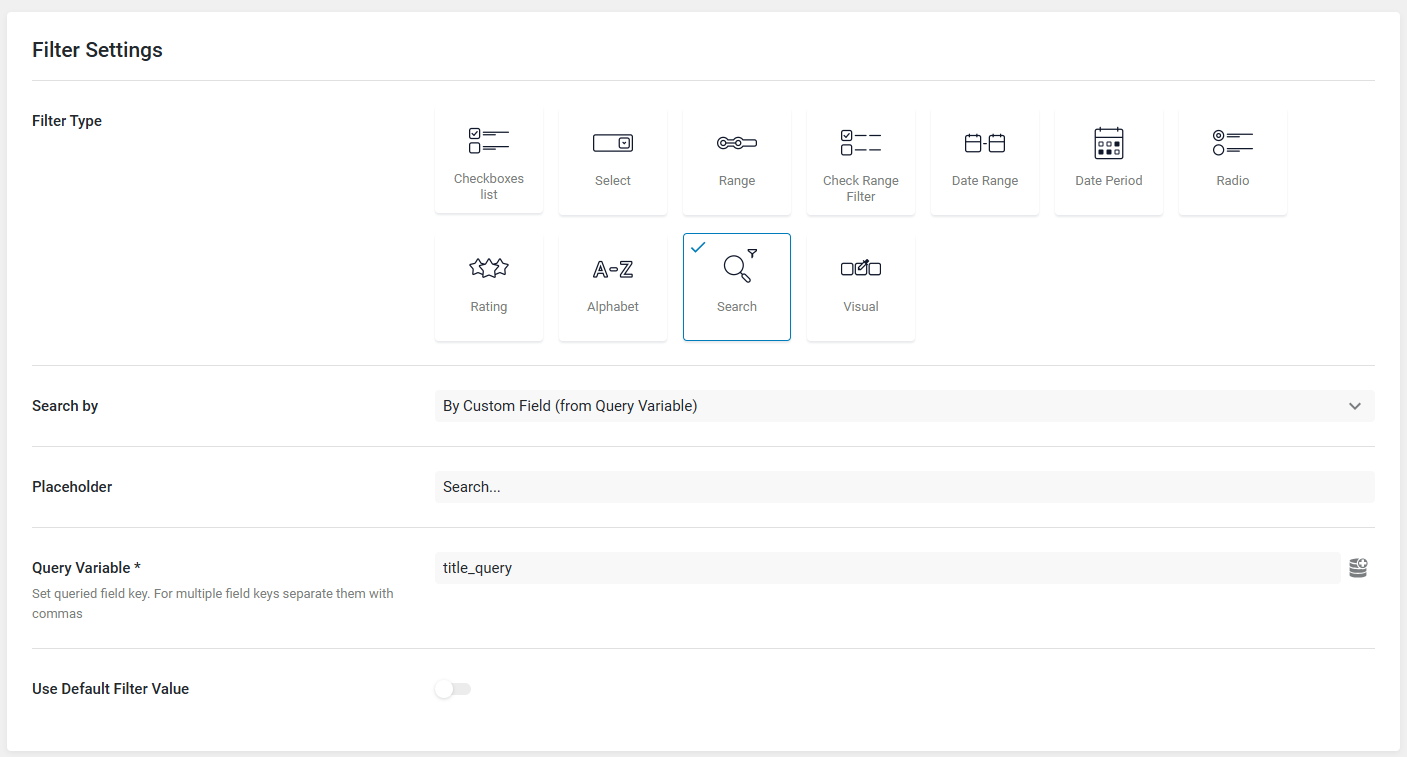
  1. Go to JetSmartFilter: Navigate to the WordPress Dashboard and go to Smart Filters under the JetPlugins section.
  2. Add New Filter: Click on “Add New” to create a new filter.
  3. Choose Filter Type: Select “Search” as the filter type to enable a search bar for entering keywords.
  4. Choose Search by Custom Field: Set the search type to “By Custom Field (from Query Variable).”
  5. Set Query Variable: In the “Query Variable” field, enter a custom variable name, such as title_query. This variable will hold the search term.
  6. Assign the Filter to Content: Under the “Filter for” section, select the post type or taxonomy you want to filter.
  7. Save Changes: Click “Publish” to save your new filter.

Step 3: Configure the Query for Titles

  1. Navigate to Query Settings: Open the page where you’ve added your content listing (e.g., blog posts, products).
  2. Edit Listing Grid Widget: Select the widget that displays your content (e.g., Listing Grid in Elementor).
  3. Enable Query Builder: In the widget settings, enable the JetEngine Query Builder.
  4. Add Query Parameter:
    • Go to the “Custom Query Options” section.
    • Add a new query parameter that matches the query variable from Step 2 (e.g., title_query).
    • Set it to search post titles using post_title LIKE ‘%query_variable%’ in the query logic.
  5. Apply Changes: Save and update the page.

Step 4: Add the Filter to a Page

  1. Open Your Page in Elementor or Gutenberg: Navigate to the page where the filter will be used.
  2. Add the Smart Filter Widget: Drag and drop the Smart Filter widget onto the page.
  3. Link the Filter to the Grid: Connect the filter to the Listing Grid or content display you want to filter.
  4. Style the Filter: Customize the appearance of the filter to match your website’s design.

By leveraging JetSmart Filters and configuring query variables, you can easily implement a powerful title-based search feature on your WordPress site. This setup enhances content discoverability, enabling users to quickly find relevant posts or products. With proper styling and configuration, this feature not only improves functionality but also aligns with your website’s design for a cohesive user experience.

Advanced Customization with WordPress cycle using Hooks

Advanced Customization with WordPress cycle using Hooks

Customizing WordPress to fit unique requirements is an essential skill for developers, and hooks play a pivotal role in achieving this flexibility. By allowing you to add, modify, or extend functionality without touching the core files, hooks make WordPress an incredibly adaptable platform.

This guide dives into the mechanics of hooks, explores their types—actions and filters—and demonstrates their use with real-world examples. Whether you’re new to WordPress development or refining your skills, understanding hooks will unlock advanced customization possibilities.

What Are Hooks and How Do They Work?

Hooks in WordPress enable developers to “hook into” the core WordPress code at specific points to modify default behavior or add custom functionality. Hooks come in two main types: actions and filters.

Actions

Actions are triggered at specific points during WordPress’s execution. They allow you to add custom functions or execute specific tasks. For instance, you can use actions to enqueue scripts, modify the login page, or send an email when a post is published.

Filters

Filters are used to modify or “filter” data before it is outputted to the browser or saved to the database. They allow you to manipulate variables such as content, titles, or URLs dynamically.

How Hooks Work

Hooks work by using callback functions. A callback is a function you create and assign to a hook. WordPress runs the callback function when the hook is triggered.

Here’s a simple example:

// Example of an action hook
add_action('wp_head', 'custom_function');
function custom_function() {
    echo '<meta name="custom" content="Advanced Customization">';
}

// Example of a filter hook
add_filter('the_content', 'modify_content');
function modify_content($content) {
    return $content . '<p>Extra content added via filter.</p>';
}

Real-World Examples of Custom Hooks

  1. Adding Custom Code to the Header

Using the wp_head action, you can inject additional meta tags, styles, or scripts into the <head> section of your site:

add_action('wp_head', 'add_custom_meta');
function add_custom_meta() {
    echo '<meta name="viewport" content="width=device-width, initial-scale=1.0">';
}
  1. Modifying Post Titles with a Filter

Using the the_title filter, you can change how post titles appear:

add_filter('the_title', 'prepend_to_title');
function prepend_to_title($title) {
    if (is_single()) {
        return 'Custom Prefix: ' . $title;
    }
    return $title;
}


  1. Customizing Login Page

Use the login_enqueue_scripts action to style the WordPress login page:

add_action('login_enqueue_scripts', 'custom_login_styles');
function custom_login_styles() {
    echo '<style>
        body.login { background-color: #f0f0f0; }
        .login h1 a { background-image: url("your-logo.png"); }
    </style>';
}


  1. Redirect Users After Login

Leverage the wp_login action to redirect users based on their role:

add_action('wp_login', 'custom_redirect_after_login', 10, 2);
function custom_redirect_after_login($user_login, $user) {
    if (in_array('administrator', $user->roles)) {
        wp_redirect(admin_url());
    } else {
        wp_redirect(home_url());
    }
    exit;
}


  1. Adding a Custom Footer Text

Use the wp_footer action to display custom text in the footer:

add_action('wp_footer', 'custom_footer_text');
function custom_footer_text() {
    echo '<p>Custom Footer Text Powered by Hooks</p>';
}

Differences between Actions and Filters

Feature Actions Filters
Purpose Perform tasks or add functionality. Modify data or content dynamically.
Parameters Do not always pass data to callbacks. Always pass data to callbacks.
Return Value Does not expect a return value. Expects a modified return value.
Examples wp_head, save_post, init. the_content, the_title, excerpt_length.

Best Practices When Using Hooks

1. Avoid Hook Duplication: Ensure the same callback function isn’t accidentally hooked multiple times.

remove_action(‘wp_head’, ‘custom_function’);

2. Use Priority and Arguments: Adjust hook priority to control execution order and ensure your callback receives the necessary arguments.

add_filter(‘the_content’, ‘modify_content’, 20, 1);

3. Namespace Your Functions: Prevent function name collisions by prefixing or namespacing your functions.

add_action(‘wp_head’, ‘mytheme_custom_function’);

4. Use Conditional Logic: Apply hooks only when needed using conditional tags like is_page() or is_single().

5. Document Your Code: Clearly describe what each hook does for better maintenance.

Conclusion:

Mastering WordPress hooks empowers developers to create highly customized, scalable, and maintainable websites.  By leveraging actions and filters effectively, you can modify functionality and data seamlessly, all while adhering to best practices to ensure code reliability and readability. With this knowledge, you can push the boundaries of WordPress customization, crafting tailored solutions that meet any client or project need.

How to Fix Multiple Image and File Upload Issues with Gravity Forms Post Creation Add-On

How to Fix Multiple Image and File Upload Issues with Gravity Forms Post Creation Add-On

Encountering issues with multiple image and file uploads while working with Gravity Forms and the Post Creation Add-On in WordPress can be frustrating. These challenges often arise when dealing with custom post types (CPTs) and Advanced Custom Fields (ACF), where managing uploaded files or prepopulating form fields is critical. This guide provides a step-by-step solution to dynamically populate Gravity Form fields, handle file uploads, and save or update data in ACF fields, ensuring seamless integration and functionality.

Understanding the Problem

When using Gravity Forms to create or update posts, especially with custom post types (CPTs) and Advanced Custom Fields (ACF), handling file uploads (like images and PDFs) can be tricky. The issues often arise in two scenarios:

  • Populating fields: Dynamically preloading values (e.g., images) into a Gravity Form for editing.
  • Saving data: Ensuring uploaded files are correctly saved or updated in the custom post type’s ACF fields.

Solution Overview

We’ll address the following:

  1. Dynamically prepopulate Gravity Form fields with existing data (like images and files).
  2. Save or update the uploaded data back into the custom post type’s ACF fields.

Populating Form Fields

To dynamically populate fields with existing post data:

Add the Code to Your Theme’s Functions.php

Use the following code to fetch and populate the fields with pre-existing data:

add_filter('gform_pre_render_9', 'populate_all_fields_on_player_data_update_form');
add_filter('gform_pre_validation_9', 'populate_all_fields_on_player_data_update_form');
add_filter('gform_pre_submission_filter_9', 'populate_all_fields_on_player_data_update_form');
add_filter('gform_admin_pre_render_9', 'populate_all_fields_on_player_data_update_form');
function populate_all_fields_on_player_data_update_form($form) {
    if (isset($_GET['profile_id'])) {
        $profile_id = intval($_GET['profile_id']);
        foreach ($form['fields'] as &$field) {
            if ($field->type === 'hidden' && $field->id == 69) {
                $image_id = get_post_meta($profile_id, 'profile_photo', true);
                if ($image_id) {
                    $image_url = wp_get_attachment_url($image_id);
                    if ($image_url) {
                        $field->defaultValue = $image_url;
                    }
                }
            }
            if ($field->type === 'hidden' && $field->id == 70) {
                $card_image_id = get_post_meta($profile_id, 'player_card_photo', true);
                if ($card_image_id) {
                    $card_image_url = wp_get_attachment_url($card_image_id);
                    if ($card_image_url) {
                        $field->defaultValue = $card_image_url;
                    }
                }
            }
            if ($field->type === 'hidden' && $field->id == 71) {
                $school_transcript_id = get_post_meta($profile_id, 'school_transcript', true);
                if ($school_transcript_id) {
                    $file_url = wp_get_attachment_url($school_transcript_id);
                    if ($file_url) {
                        $field->defaultValue = $file_url;
                    }
                }
            }
        }
    }
    return $form;
}

Explanation

  • Filters Used: These hooks ensure that the form is pre-filled when it’s rendered or validated.
  • Data Mapping: The meta keys (like profile_photo, player_card_photo) are mapped to ACF fields.

Uploading Images and Files

  • To handle image uploads via Base64 and files from a URL, use the following helper functions.
  • Helper Function: Upload Base64 Image
function upload_base64_image_to_media($base64_image, $post_id) {
if (preg_match('/^data:image\/(\w+);base64,/', $base64_image, $matches)) {
$image_data = base64_decode(preg_replace('/^data:image\/\w+;base64,/', '', $base64_image));

if (!$image_data) {
error_log("Base64 decode failed.");
return false;
}
$upload_dir = wp_upload_dir();
$file_name = 'uploaded_image_' . time() . '.' . $matches[1];
$file_path = $upload_dir['path'] . '/' . $file_name;

// Save image to disk
if (file_put_contents($file_path, $image_data)) {
$attachment = [
'guid' => $upload_dir['url'] . '/' . $file_name,
'post_mime_type' => 'image/' . $matches[1],
'post_title' => basename($file_name, '.' . $matches[1]),
'post_content' => '',
'post_status' => 'inherit',
];

// Insert attachment into WordPress
$attachment_id = wp_insert_attachment($attachment, $file_path, $post_id);

if (is_wp_error($attachment_id)) {
error_log("Failed to insert attachment: " . $attachment_id->get_error_message());
return false;
}

require_once ABSPATH . 'wp-admin/includes/image.php';
$attachment_data = wp_generate_attachment_metadata($attachment_id, $file_path);
wp_update_attachment_metadata($attachment_id, $attachment_data);

return $attachment_id;
} else {
error_log("Failed to write file to disk: " . $file_path);
}
} else {
error_log("Invalid Base64 format.");
}

return false;
}

function upload_file_from_url_to_media($file_url, $post_id = 0) {
if (empty($file_url)) {
error_log("File URL is empty.");
return false;
}

$upload_dir = wp_upload_dir();

// Extract the file name and path from the URL
$file_name = basename(parse_url($file_url, PHP_URL_PATH));
$file_path = $upload_dir['path'] . '/' . $file_name;

// Download the file to the uploads directory
$file_data = file_get_contents($file_url);
if ($file_data === false) {
error_log("Failed to fetch file from URL: $file_url");
return false;
}

if (!file_put_contents($file_path, $file_data)) {
error_log("Failed to save file to disk: $file_path");
return false;
}

// Determine the MIME type
$file_type = wp_check_filetype($file_name);
if (empty($file_type['type'])) {
error_log("Failed to determine MIME type for file: $file_name");
return false;
}

// Prepare the attachment metadata
$attachment = [
'guid' => $upload_dir['url'] . '/' . $file_name,
'post_mime_type' => $file_type['type'],
'post_title' => sanitize_file_name($file_name),
'post_content' => '',
'post_status' => 'inherit',
];

// Insert the attachment into WordPress
$attachment_id = wp_insert_attachment($attachment, $file_path, $post_id);

if (is_wp_error($attachment_id)) {
error_log("Failed to insert attachment: " . $attachment_id->get_error_message());
return false;
}

// Generate attachment metadata and update
require_once ABSPATH . 'wp-admin/includes/image.php';
$attachment_data = wp_generate_attachment_metadata($attachment_id, $file_path);
wp_update_attachment_metadata($attachment_id, $attachment_data);

return $attachment_id;
}

Saving the Data

Now that the form fields are populated and file uploads are handled, we can save or update the data in ACF fields.

Add This Code to Save the Data

add_action('gform_after_submission_9', 'update_player_profile', 10, 2);
function update_player_profile($entry, $form) {
    if (isset($_GET['profile_id']) && is_user_logged_in()) {
        $profile_id = $_GET['profile_id'];
        $acf_field_key_33 = 'profile_photo';
        $acf_field_key_34 = 'player_card_photo';
        $acf_field_key_35 = 'school_transcript';
        $gform_field_id_33 = '69';
        $gform_field_id_34 = '70';
        $gform_field_id_35 = '71';
        $gform_data_33 = rgar($entry, $gform_field_id_33);
        $gform_data_34 = rgar($entry, $gform_field_id_34);
        $gform_data_35 = rgar($entry, $gform_field_id_35);
        if (!empty($gform_data_33)) {
            $attachment_id = upload_base64_image_to_media($gform_data_33, $profile_id);
            if ($attachment_id) {
                update_field($acf_field_key_33, $attachment_id, $profile_id);
                set_post_thumbnail($profile_id, $attachment_id);
            }
        }
        if (!empty($gform_data_34)) {
            $attachment_id = upload_base64_image_to_media($gform_data_34, $profile_id);
            if ($attachment_id) {
                update_field($acf_field_key_34, $attachment_id, $profile_id);
            }
        }
        if (!empty($gform_data_35)) {
            $attachment_id = upload_file_from_url_to_media($gform_data_35, $profile_id);
            if ($attachment_id) {
                update_field($acf_field_key_35, $attachment_id, $profile_id);
            }
        }
    }
}
  1. Testing
  1. Populate the Form:
    • Use the profile_id in the query string to test if fields are prepopulated correctly.
  2. Submit and Save:
    • Upload images/files in the form and verify that they are saved to the correct ACF fields.
  3. Debugging:
    • Use error_log statements to debug issues.

By following the outlined steps, you can effectively manage multiple images and file uploads in Gravity Forms, ensuring compatibility with custom post types and ACF fields. From dynamically prepopulating form fields to saving uploaded data, these solutions enable a streamlined process for creating and updating posts. With proper implementation and testing, you’ll overcome common challenges and enhance your WordPress functionality for a more efficient workflow.

Fixing multiple image and file upload issues in Gravity Forms ensures smoother workflows and a more reliable WordPress setup. If you’re looking for custom WordPress development or advanced form solutions, Book a Free Consultation.

Contact us

Let's Unleash Your Digital Potential Together.

Address

C-605, Ganesh glory 11, Nr. BSNL Office, Jagatpur Road, S.G. Highway, Jagatpur, Ahmedabad, India - 382481.

Phone

INDIA : (091) 8200639242 USA : +1 (310) 868-6009

Limited Time Offer

X

Try a Free 2-Hour Test Task

Experience our quality, speed, and communication on any small WordPress task before you commit. No contract. No cost. No obligation.
[For New Agency Partners]

"*" indicates required fields

Name*