Create Dynamic Upcoming & Past Event Listings with JetEngine Query Builder

Create Dynamic Upcoming & Past Event Listings with JetEngine Query Builder

Displaying events in a clean “Upcoming” and “Past” format is one of the most requested features on WordPress event websites. Whether you’re managing workshops, webinars, conferences, or local meetups—showing events in the right chronological order boosts user engagement and improves navigation.

With JetEngine’s Query Builder, you can easily create two dynamic listings:

Upcoming Events – sorted by closest future date

Past Events – sorted by most recent past date

In this guide, you’ll learn how to build both listings from scratch using JetEngine, Elementor, and your custom event date fields.

Why Use JetEngine Query Builder for Event Filters?

JetEngine gives you powerful control over custom post types, meta fields, and dynamic content. With the Query Builder, you can:

– Filter events by date automatically

– Sort events by ascending/descending order

– Display upcoming & past events on any page

– Reuse the queries across multiple listings

– Avoid writing custom PHP code

Step 1: Prepare Your Event Structure

  1. Create a Custom Post Type
    – JetEngine → Post Types → Add “Events”
  2. Add an Event Date Meta Field
    – JetEngine → Meta Fields
    – Field Name: event_start_date
    – Field Name: event_end_date
    – Field Type: Date (or DateTime)
    – Save Format: Y-m-d

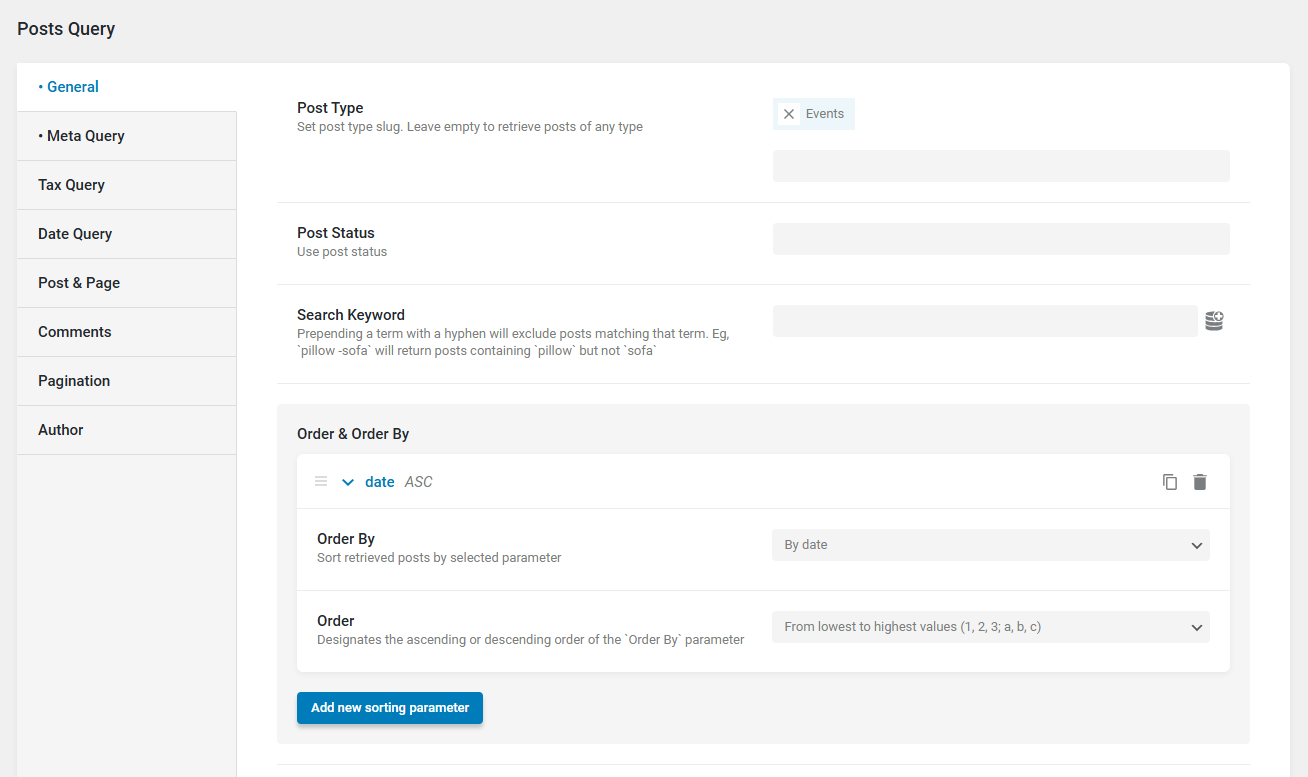
Step 2: Build the Query for Upcoming Events

  1. JetEngine → Query Builder → Add New
  2. Query Type: Posts Query
  3. Post Type: Events
  4. Sorting:
    – Order By: By date
    – Order: ASC ( From lowest to highest values (1, 2, 3; a, b, c) )
  5. Meta Query:
    – Key: event_end_date
    – Operator: Greater than ( > )
    – Value: Today
    – Type: Numeric
  6. Name it: Upcoming Events Query

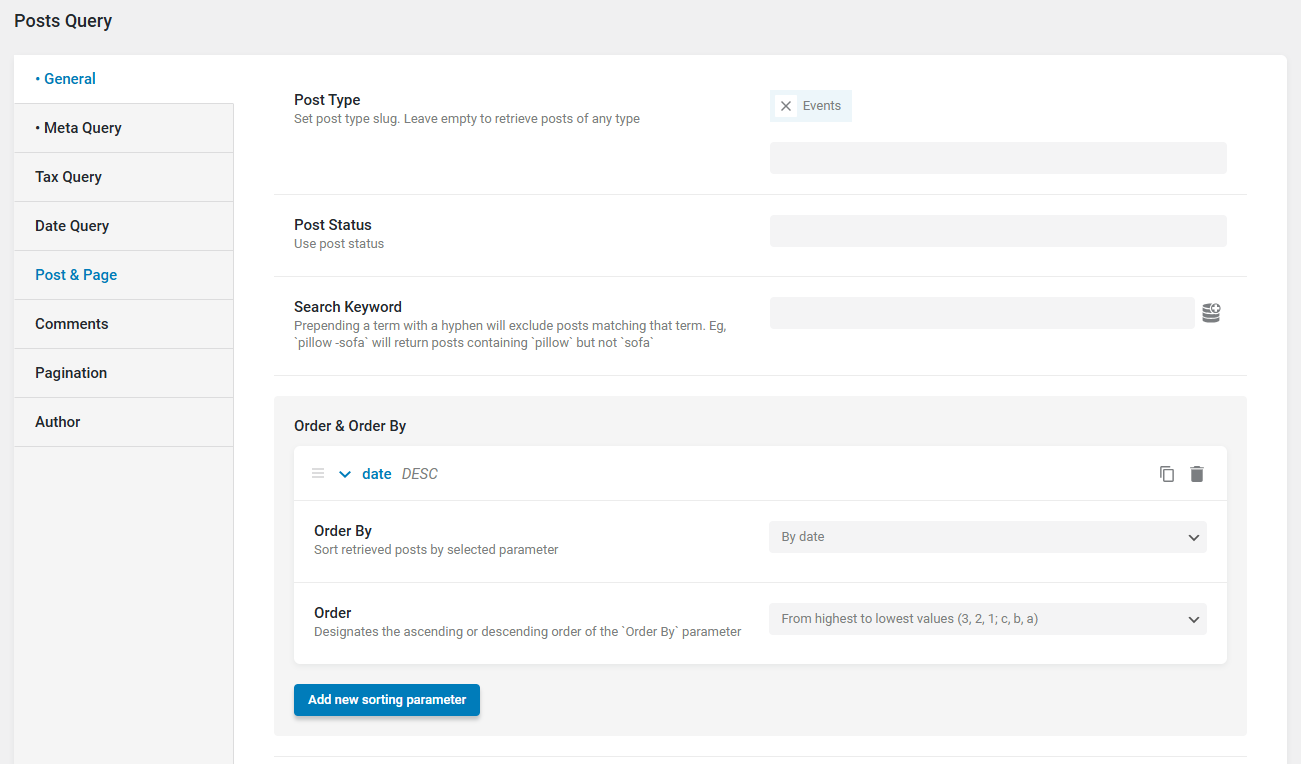
Step 3: Build the Query for Past Events

  1. JetEngine → Query Builder → Add New
  2. Query Type: Posts Query
  3. Post Type: Events
  4. Sorting:
    – Order By: By date
    – Order: ASC ( From highest to lowest values (3, 2, 1; c, b, a) )
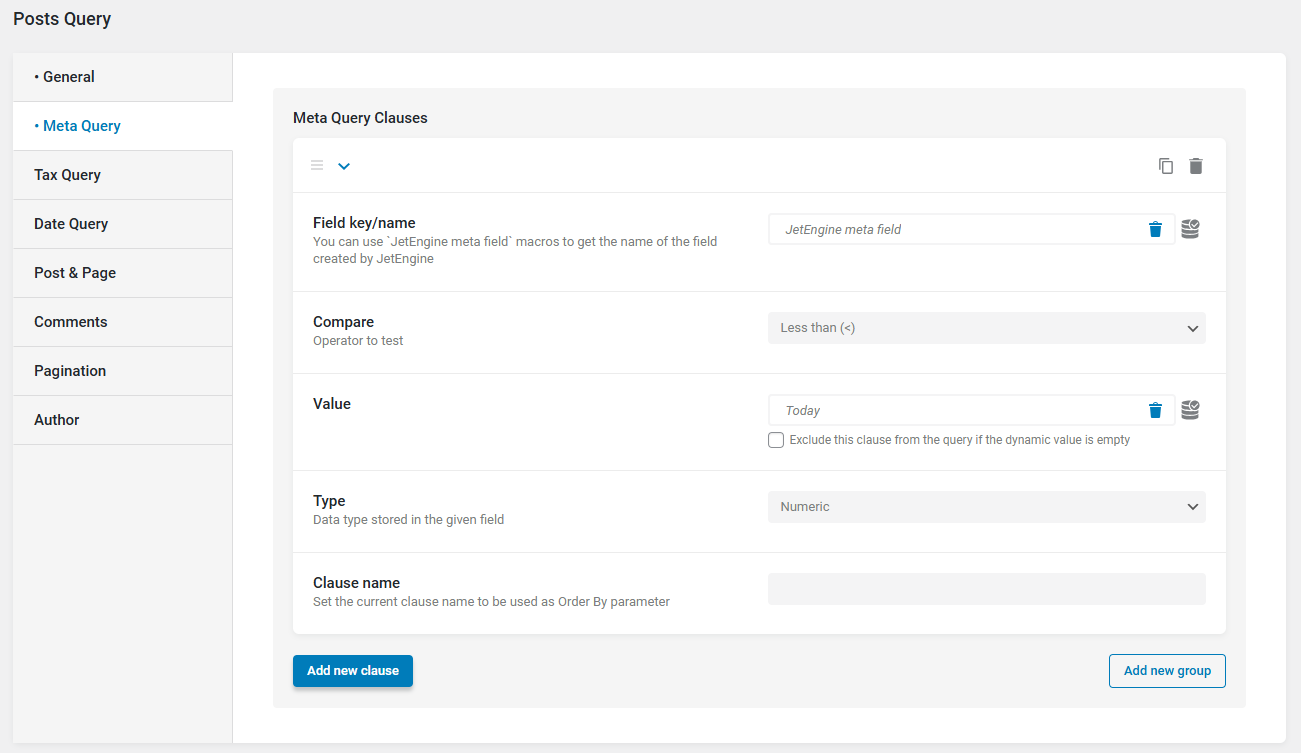
  5. Meta Query:
    – Key: event_end_date
    – Operator: Less than ( < )
    – Value: Today
    – Type: Numeric
  6. Name it: Past Events Query

Step 4: Create the Event Listing Template

  1. JetEngine → Listings → Add New
  2. Select CPT: Events
  3. Add:
    – Dynamic Title
    – Event Start Date
    – Event End Date
    – Featured Image
    – Location
    – View Details Button

Step 5: Add Upcoming & Past Listings on a Page

  • For Upcoming Events:
    – Add Listing Grid in Elementor
    – Enable Custom Query
    – Select: Upcoming Events Query
  • For Past Events:
    – Repeat with: Past Events Query

Final Thoughts

Using JetEngine’s Query Builder makes event management fast, scalable, and automatic. Your listings update dynamically without manual work, making your website more professional and user-friendly.

If you’re building a WordPress site with dynamic event listings, date-based queries, or complex JetEngine logic, our team can take full ownership of the project—from data structure and query setup to frontend integration and performance optimization.

You can Book a Free Project Consultation to discuss your goals, timelines, and how we can deliver a reliable, scalable solution tailored to your website.
How to Create a Custom Single Business Listing Template in Elementor for the Directory Plugin

custom-buissness-listing

If you’re using Directorist – Business Directory Plugin and want to customize your single listing page layout using Elementor without writing complex templates, you’re in the right place.
In this tutorial, you’ll learn how to structure your single business listing page into a two-column layout and control what content appears on the left or right—using a simple CSS class and small JavaScript snippet.

Step 1: Install the Directorist Plugin

First, install the plugin from the official WordPress repository:

Directorist – Business Directory Plugin (Available in WordPress Plugins Directory)

you can direct download and install from official worpress : https://wordpress.org/plugins/directorist/

You can install it here:
Go to Plugins → Add New → Search “Directorist” → Install → Activate

Step 2: Open the Directory Builder

Once installed, go to:

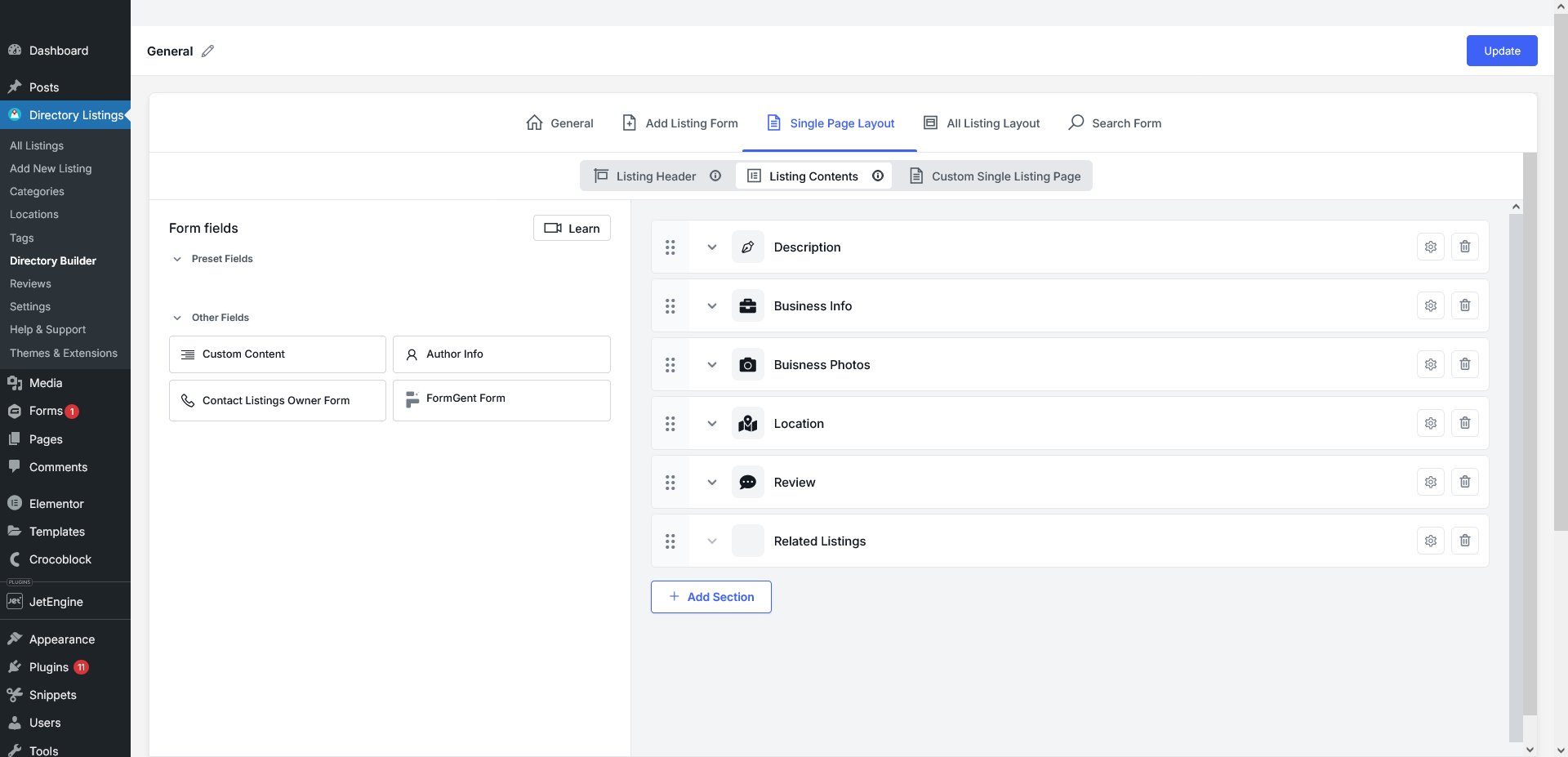
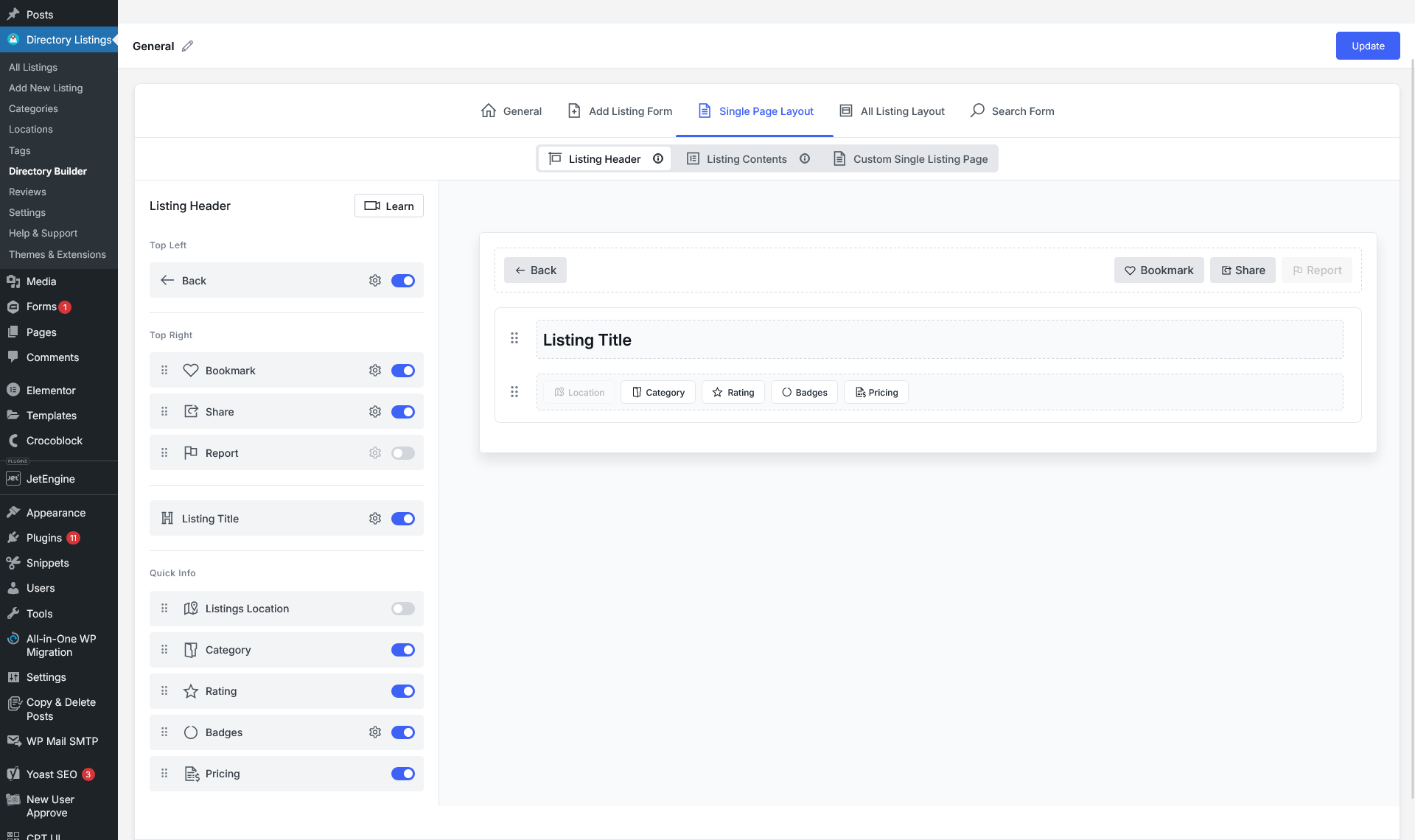
Dashboard → Directory Listings → Directory Builder → Single Page Layout

This is where you will customize the single listing design.

Configure the Listing Header

Click on Listing Header and toggle ON/OFF the elements you want to display:

  • Back Button
  • Bookmark
  • Share
  • Report
  • Listing Title
  • Location
  • Category
  • Rating
  • Badges
  • Pricing

Configure the Listing Header

Configure Your Listing Contents

Next, go to:

Listing Contents

Drag, reorder, or remove blocks like:

  • Description
  • Business Information
  • Business Photos
  • Location Map
  • Reviews
  • Related Listings
  • Author Info
  • Custom Content

After you finish arranging fields, click Update.

Configure Your Listing Contents

Step 3: Assign Left or Right Column Placement

Now we need to tell the system which content belongs in the sidebar and which belongs in the main content area.

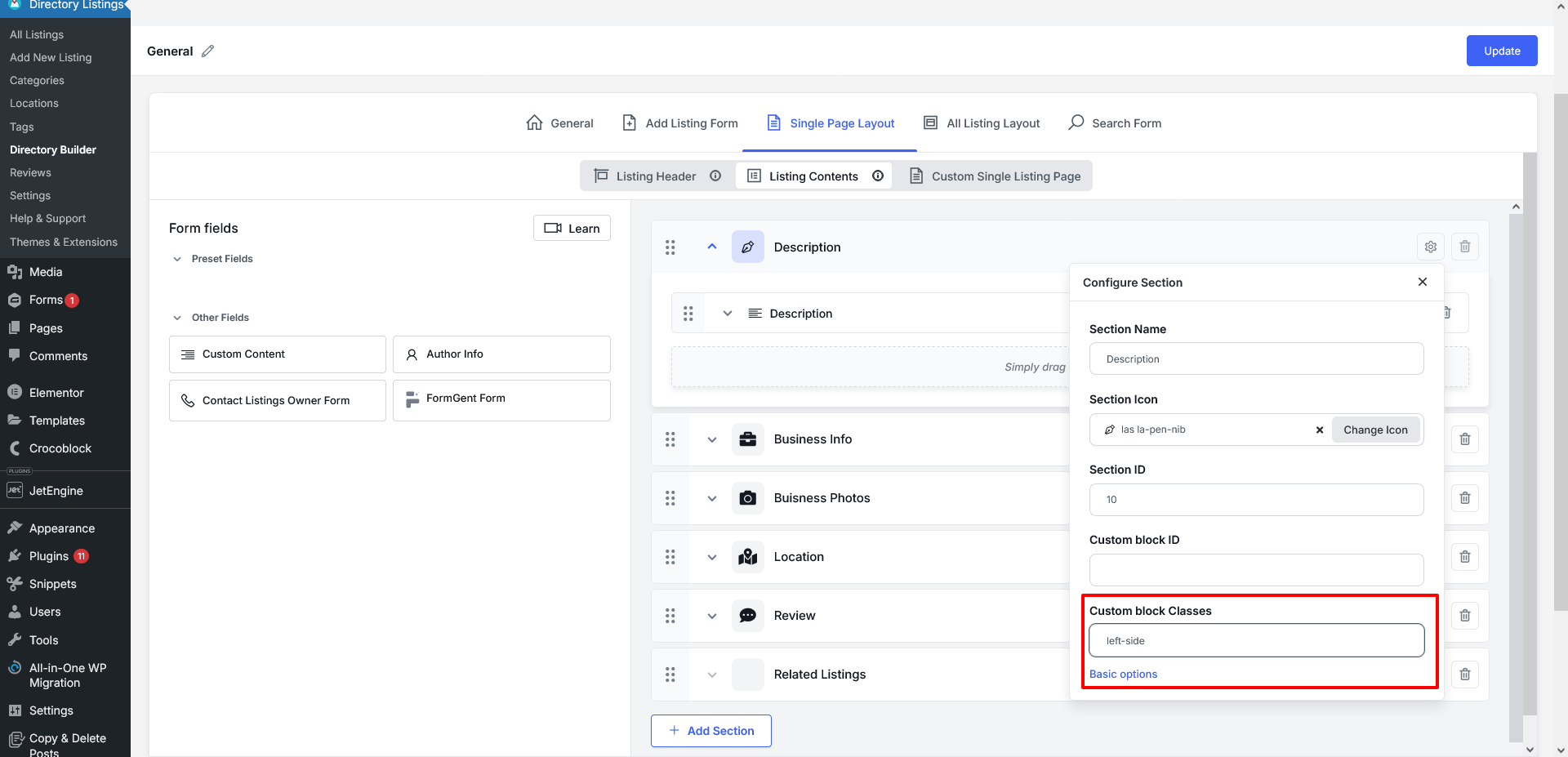
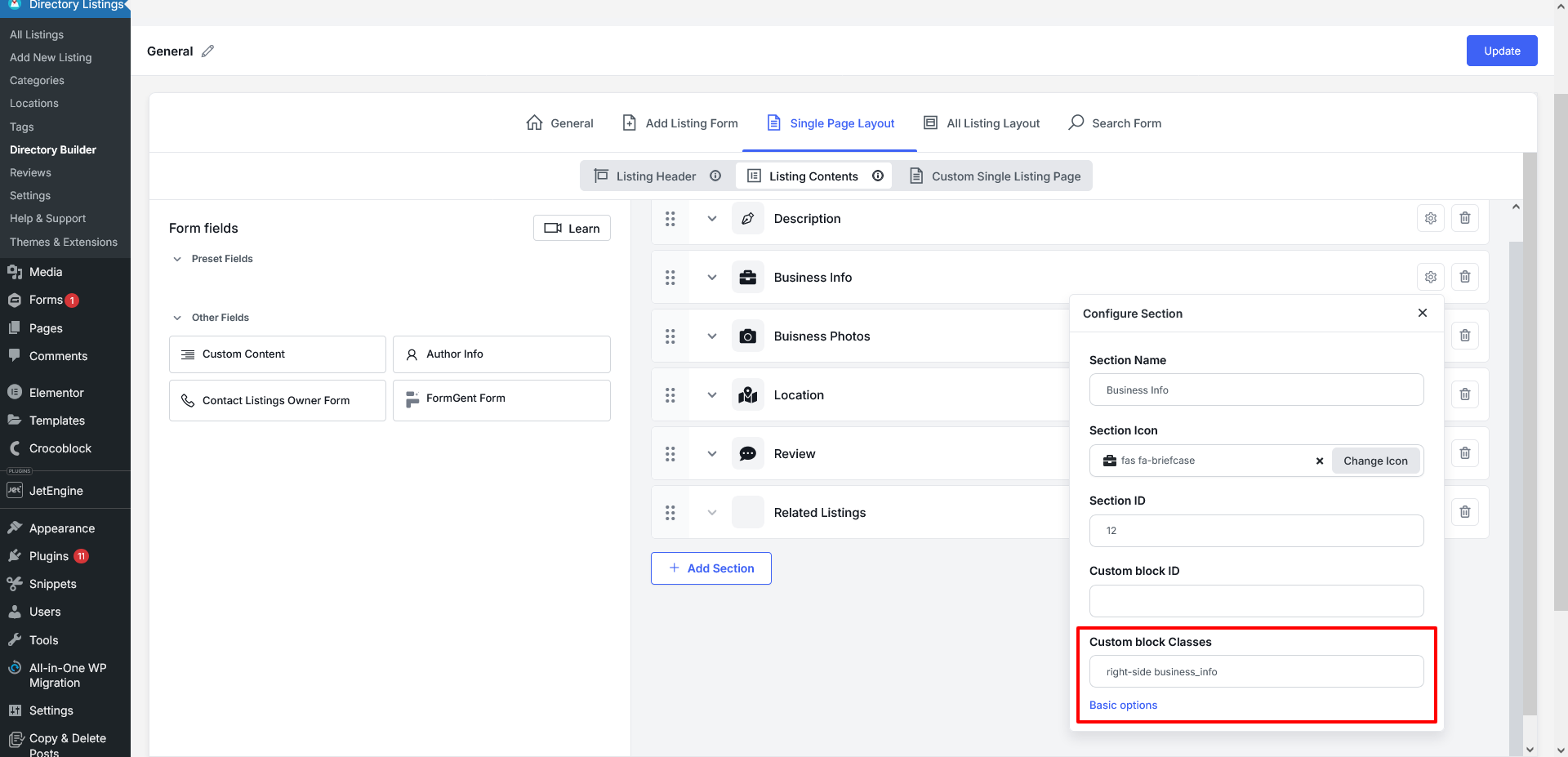
Click a section → open its settings → find Custom Block Classes.

Add one of the following:

Class Name Layout Position
left-side Appears in left/main content section
right-side Appears inside the sidebar

Example:

  • Description → left-side
  • Business Info / Contact Form → right-side

Assign Left or Right Column Placement

Assign Left or Right Column Placement2

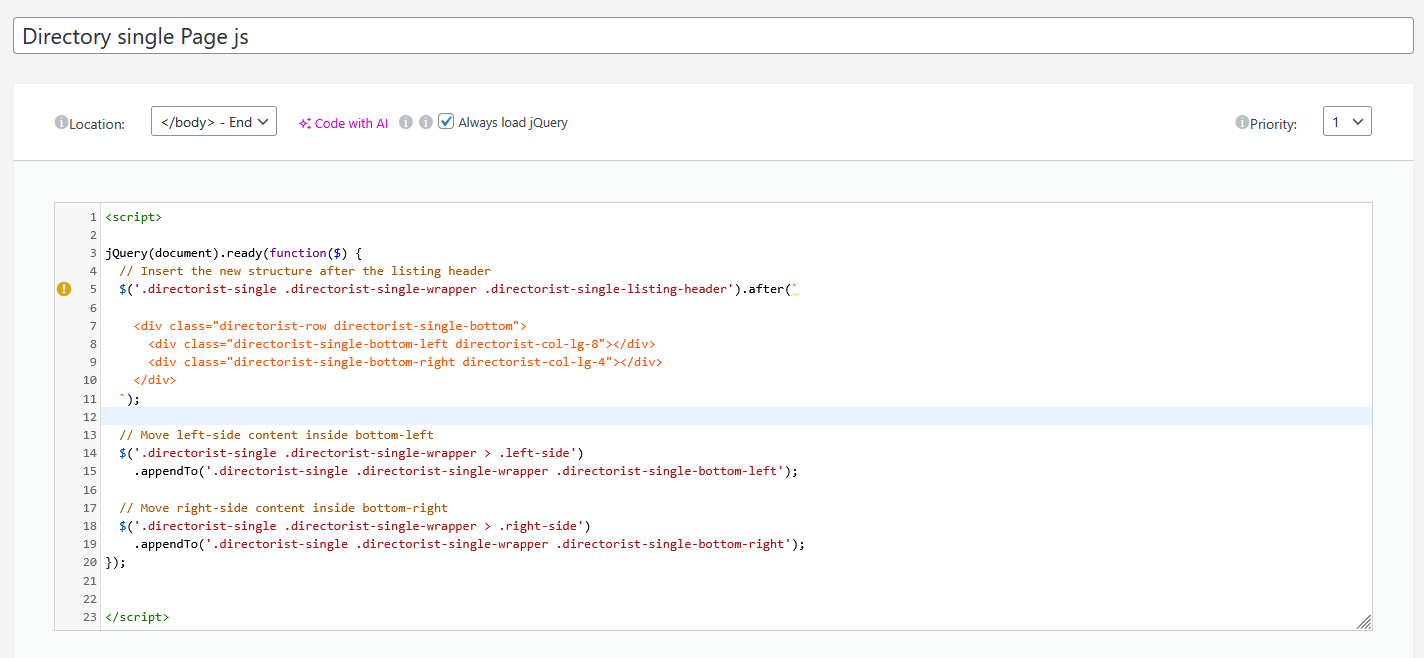
Step 4: Add Custom Elementor JavaScript

Now we’ll use a small script to organize the layout structure.

Go to:

Elementor → Custom Code → Add New

  • Name: Create Directory Single Page JS
  • Location: Header or Footer (recommended Footer)

Paste this script:

<script>
jQuery(document).ready(function($) {

  // Insert new layout row after the listing header
  $('.directorist-single .directorist-single-wrapper .directorist-single-listing-header').after(`
    <div class="directorist-row directorist-single-bottom">
      <div class="directorist-single-bottom-left directorist-col-lg-8"></div>
      <div class="directorist-single-bottom-right directorist-col-lg-4"></div>
    </div>
  `);

  // Move left-side items into left content area
  $('.directorist-single .directorist-single-wrapper > .left-side')
    .appendTo('.directorist-single .directorist-single-wrapper .directorist-single-bottom-left');
  // Move right-side items into sidebar
  $('.directorist-single .directorist-single-wrapper > .right-side')
    .appendTo('.directorist-single .directorist-single-wrapper .directorist-single-bottom-right');
});
</script>

Save and make sure it applies sitewide or only on Directorist single pages (recommended).

Add Custom Elementor JavaScript

Step 5: Style and Customize

Now that the structure is created, you can:

  • Add spacing
  • Add backgrounds
  • Customize typography
  • Style widgets

Make it visually match your directory branding.

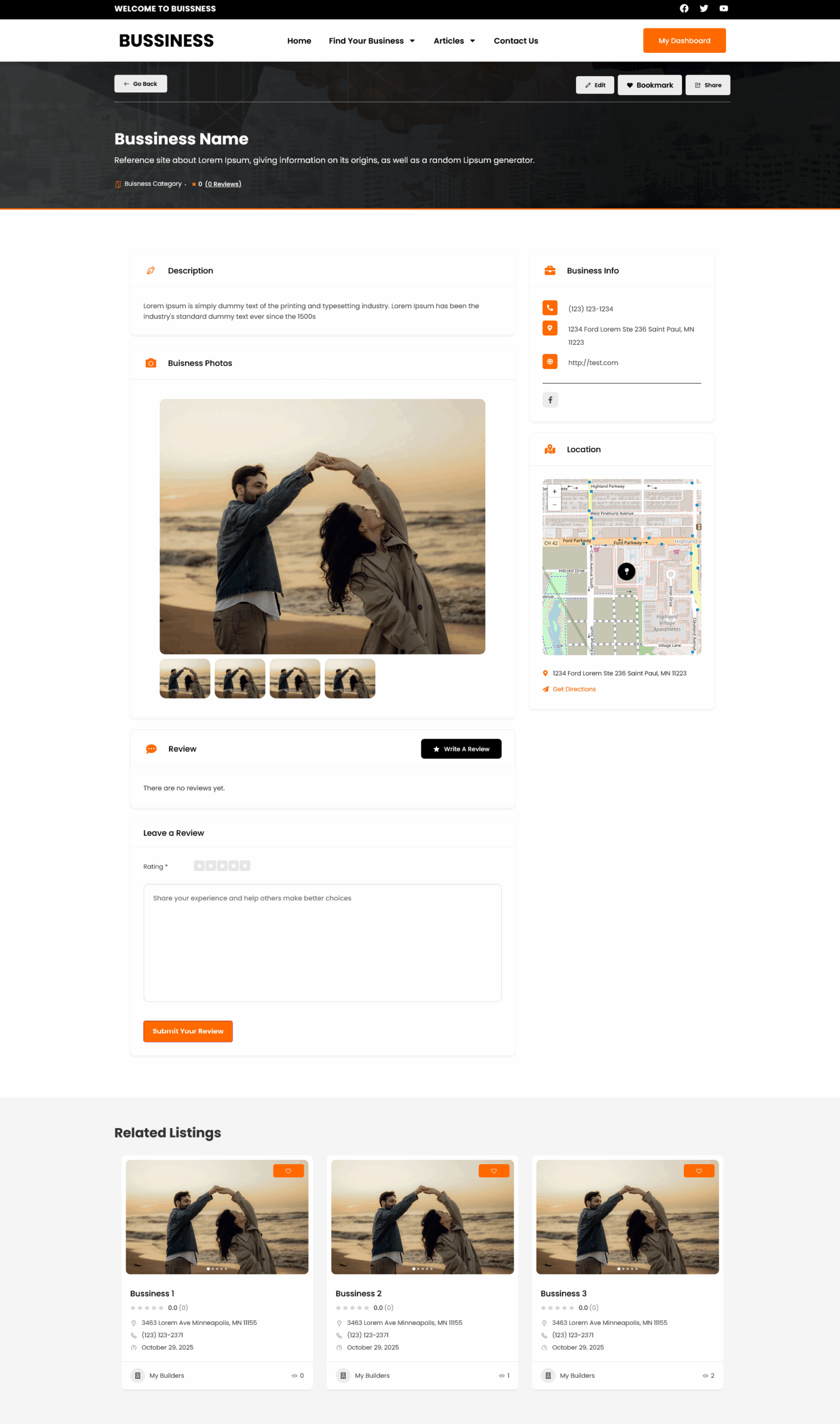
Final Output

You’ll now have a clean, structured two-column layout where:

  • Main business details appear on the left
  • Contact, map, info, and widgets appear on the right sidebar

Final Output

Conclusion

With just a few simple steps and a small JavaScript tweak, you can fully customize the Directorist Single Listing Page layout using Elementor—without editing plugin files or writing a custom template.

This method gives you complete layout control and makes your business directory look more professional and user-friendly.

If you’re building a business directory, custom listing platform, or Elementor-based marketplace, our team can handle the complete project—from data structure and custom templates to dynamic integrations and performance optimization.

You can Book a Free Project Consultation to discuss your requirements, timelines, and how we can deliver a scalable, production-ready solution for your directory website.
Make Search Using Title and Meta Value in Crocoblock with jet smart filters

Implementing an efficient search system is one of the best ways to improve user experience and content accessibility on your WordPress website. If you’re using Crocoblock, you can easily build a search filter that scans post titles and returns accurate results—without writing complex code.
With the right combination of JetSmartFilters, JetEngine, and Elementor, you can create a clean, user-friendly search functionality tailored to your website’s needs.

This guide walks you through each step—from plugin setup to query configuration—so you can successfully implement a title-based search on any page, archive, or listing.

Step 1 — Install and Activate Required Plugins

Make sure the following plugins are installed and active:

  • Elementor Pro — required for theme builder & dynamic layouts
  • JetEngine — creates custom post types, custom fields & listings
  • JetSmartFilters — enables advanced search and filtering options

Once installed, confirm that JetEngine Listings are enabled in Crocoblock settings.

After installing the plugin, you can create a meta box using JetEngine and add meta fields to any post type you want.

Based on the meta field ID from that meta box, we can then create a search query using the meta ID.

Step 2: Create a Search Filter

  1. Go to JetSmartFilter: Navigate to the WordPress Dashboard and go to Smart Filtersunder the JetPlugins section.
  2. Add New Filter: Click on “Add New” to create a new filter.
  3. Choose Filter Type: Select “Search” as the filter type to enable a search bar for entering keywords.
  4. Choose Search by Custom Field: Set the search type to “By Custom Field (from Query Variable).”
  5. Set Query Variable: In the “Query Variable” field, enter a custom variable name, such as p-title, artist_name. This variable will hold the search term.
  6. Assign the Filter to Content: Under the “Filter for” section, select the post type or taxonomy you want to filter.
  7. Save Changes: Click “Publish” to save your new filter.

Step 3: Add Created Search Filter in Archive Page

  1. Open Your Page in Elementor or Gutenberg: Navigate to the page where the filter will be used.
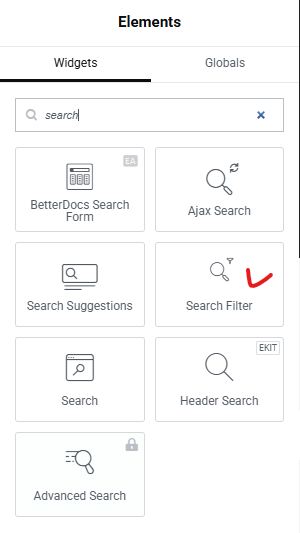
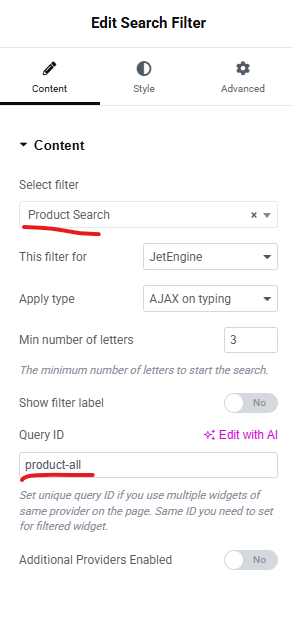
  2. Add the Smart Filter Widget: Drag and drop the Smart Filter widget onto the page.
  3. Link the Filter to the Grid: Connect the filter to the Listing Grid or content display you want to filter.
  4. Style the Filter: Customize the appearance of the filter to match your website’s design.

By leveraging JetSmart Filters and configuring query variables, you can easily implement a powerful title-based search feature on your WordPress site. This setup enhances content discoverability, enabling users to quickly find relevant posts or products. With proper styling and configuration, this feature not only improves functionality but also aligns with your website’s design for a cohesive user experience.
Using JetSmartFilters with Crocoblock to search by title and meta values can significantly improve your site’s usability and accuracy. If you need help implementing advanced WordPress features or custom development, Book a Free Consultation.

How to Create Relationships Between Two Custom Post Types and Display Related Items with Crocoblock

Connecting content types is essential when building dynamic WordPress websites—whether you’re creating a directory, real estate portal, course platform, portfolio site, or any advanced content system. With Crocoblock’s JetEngine, you can easily create relationships between two Custom Post Types (CPTs) and display related data anywhere on your site.

In this guide, you’ll learn exactly how to create CPT relationships, assign related items, and display them using Elementor, Gutenberg, or JetEngine listings.

What Are Relationships in JetEngine?

A relationship defines how two different post types connect to each other. JetEngine supports:

1. One-to-One

Each item from the first CPT relates to exactly one item from the second CPT.

2. One-to-Many

One post can connect to multiple items from another CPT.

3. Many-to-Many

Both CPTs allow multiple connections—useful for complex relational data.

Example:

  • ProjectsTeam Members
  • CoursesInstructors
  • AgentsProperties
  • BooksAuthors

JetEngine makes it easy to build these relations visually, without writing any code.

Step 1 — Create the Custom Post Types

You need two post types:

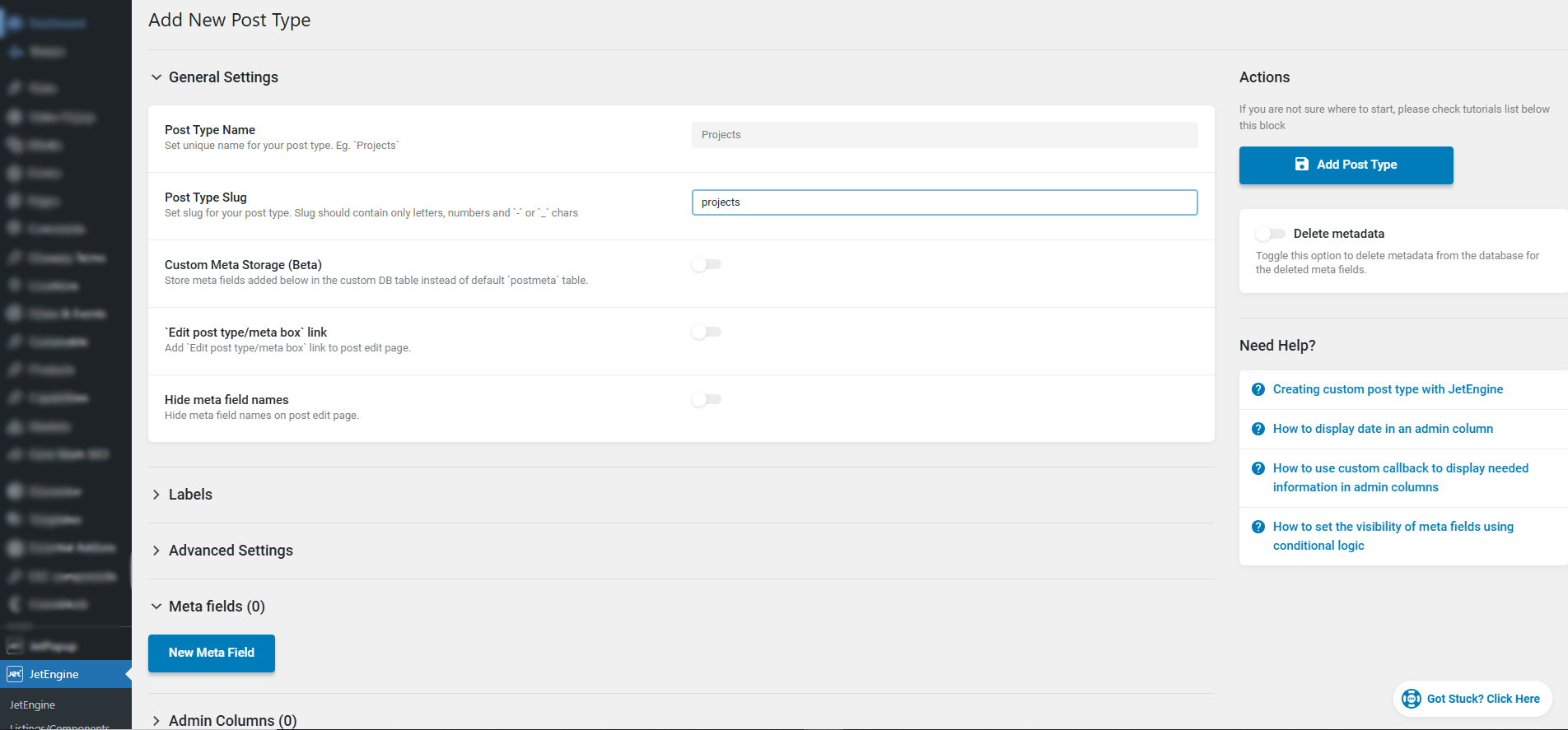
  1. Go to JetEngine → Post Types → Add New
  2. Enter:
    • Post Type Name: Projects
    • Slug: projects
  3. Click Add Post Type
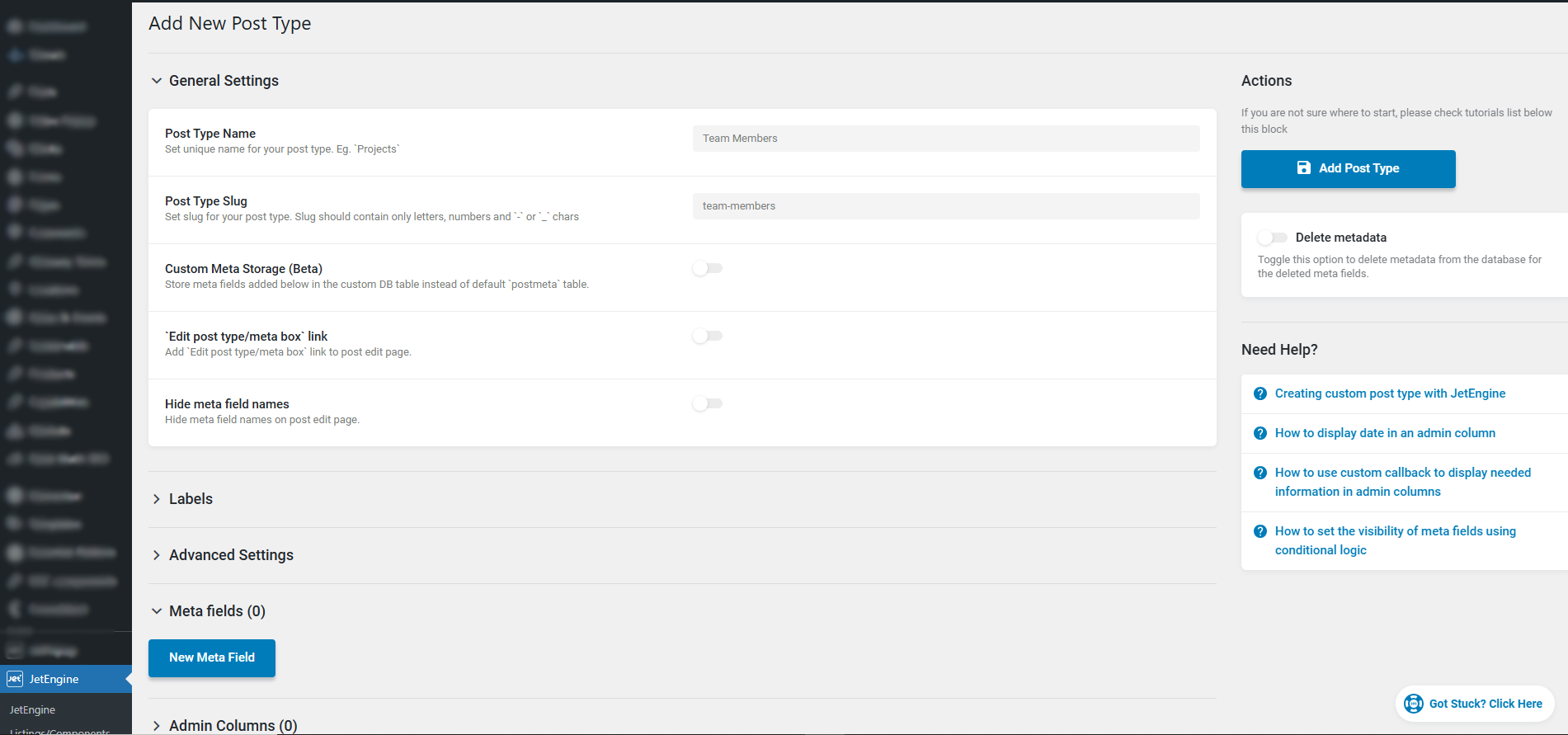
  4. Repeat the same steps to create:
    • Post Type Name: Team Members
    • Slug: team-members

Step 2 — Create the Relationship

Now you will link Projects → Team Members.

Steps:

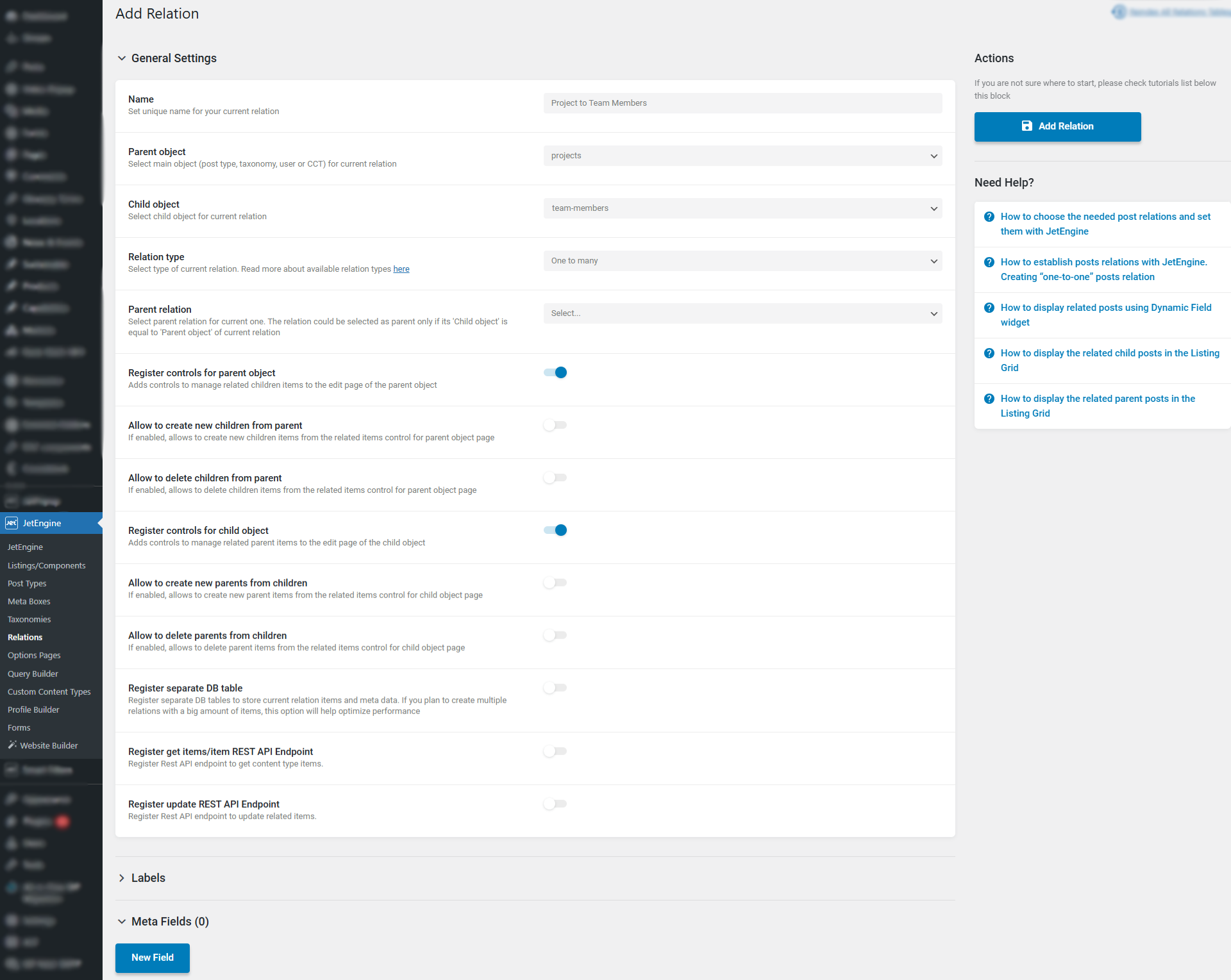
  1. Go to JetEngine → Relations → Add New
  2. Enter a Relationship Name:
    Project to Team Members
  3. Choose:
    • Parent: Projects
    • Child: Team Members
  4. Under Relationship Type, choose:
    One-to-Many (One project has many team members)
  5. Leave other options as default
  6. Click Add Relation

Step 3 — Add Team Members and Projects

Now you will add some content.

Add Team Members:

  1. Go to Team Members → Add New
  2. Add Name, Photo, Role, Description
  3. Click Publish

Add Projects:

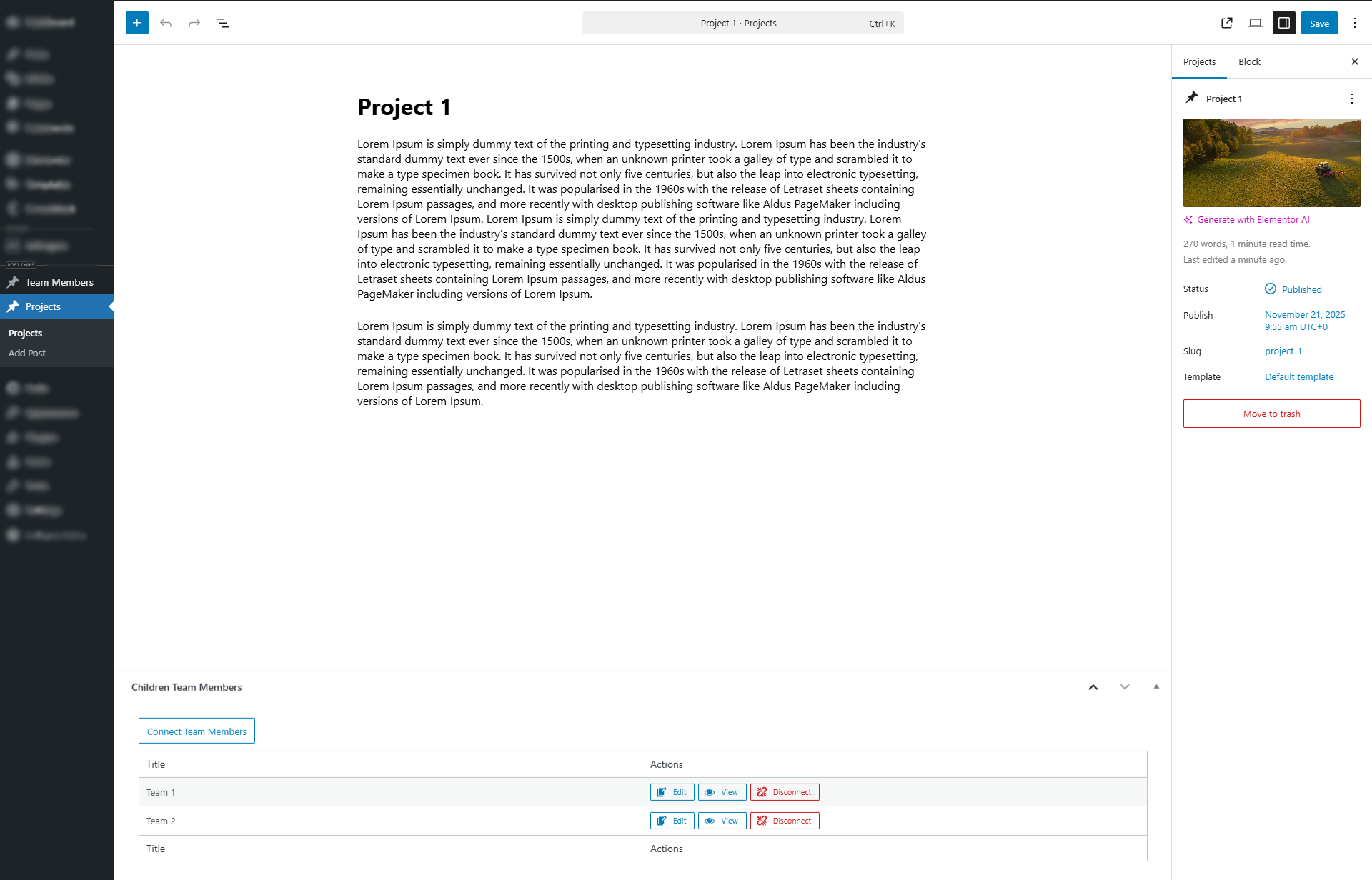
  1. Go to Projects → Add New
  2. Add Project Title, Description, and Featured Image
  3. Scroll down to the Related Team Members box
  4. Select the team members who worked on the project
  5. Click Publish

Step 4 — Create the Team Members Card (Listing Template)

This is the design for each team member shown on the project page.

Steps:

  1. Go to JetEngine → Listings → Add New
  2. Choose:
    • Listing Source: Posts
    • Post Type: Team Members
  3. Design the card:
    • Add Team Member Photo
    • Add Name
    • Add Role
    • Add Description or Link
  4. Click Publish

Step 5 — Display Related Team Members on the Project Page

You will now show the connected Team Members on each single Project page.

Steps (Elementor):

  1. Go to Templates → Theme Builder → Single Project
  2. Edit with Elementor
  3. Drag Listing Grid widget onto the page
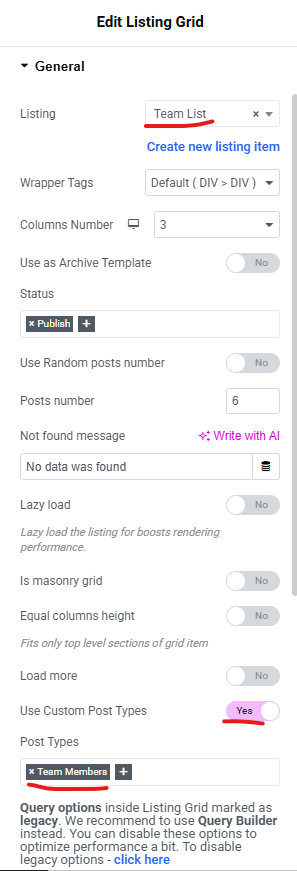
  4. Settings:
    • Listing: Add listing which you created
    • Use Custom post types: Team Members

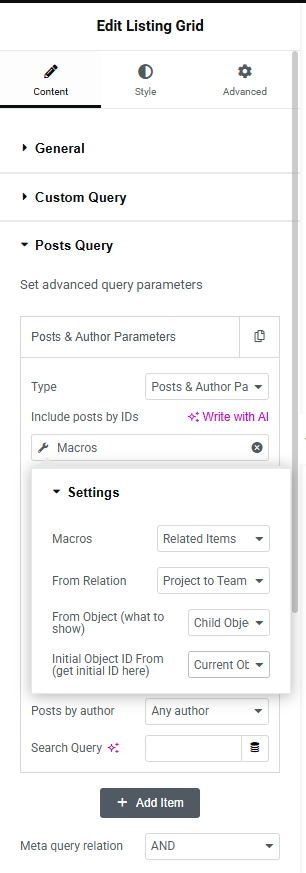
    • Post Query: select Posts & Author Parameters  and use Marcos

  5. Save the template
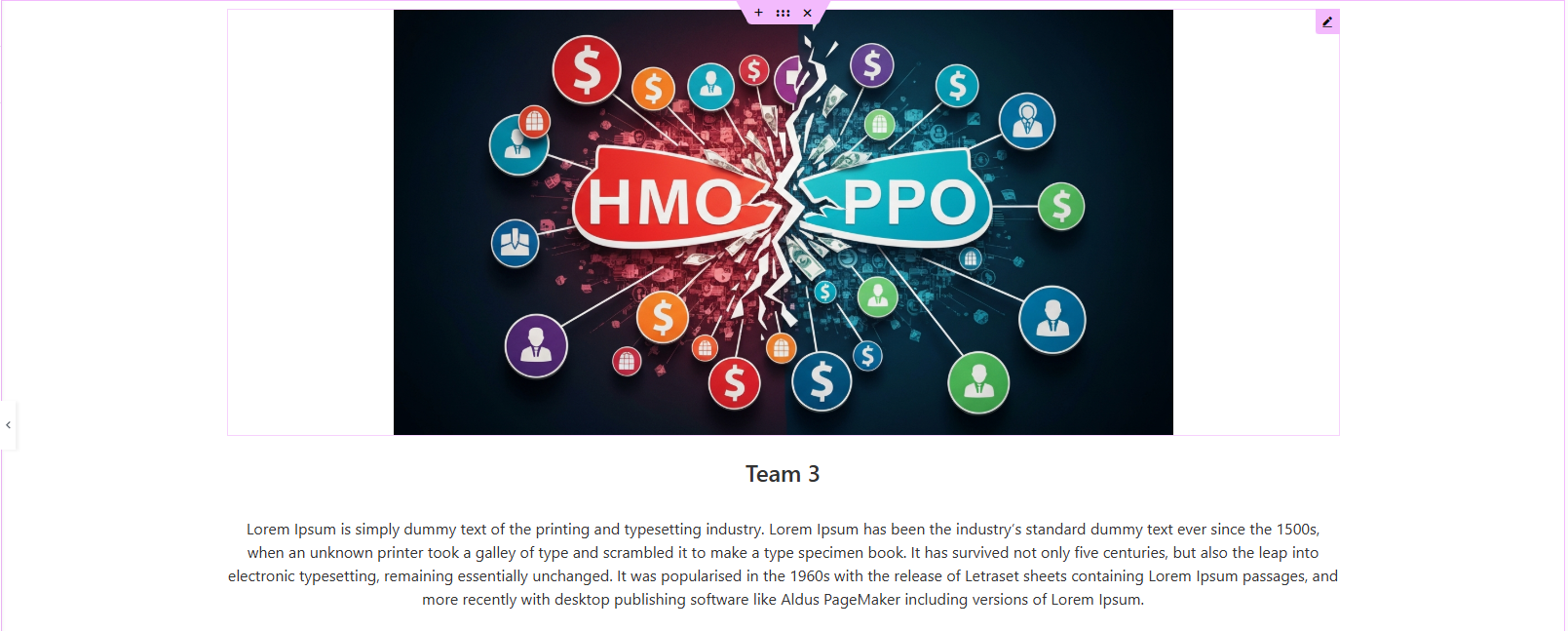
  6. View any Project — you will now see the Team Members listed beautifully.

Conclusion

Setting up relationships between custom post types with Crocoblock helps you build smarter, more dynamic WordPress websites. If you’re planning a new site or want expert development for advanced CPT features, Book a Free Consultation.

How to Create an Accordion Using Repeater Field Data in Crocoblock

How to Create an Accordion Using Repeater Field Data in Crocoblock

With Crocoblock’s JetEngine and JetTabs plugins, you can display repeater field data in a dynamic accordion layout — perfect for showing structured information like FAQs, daily itineraries, or feature lists. This tutorial walks you through the complete process.

Overview

With Crocoblock, you can easily convert Repeater Fields from any page, category, or custom post type into dynamic and well-structured accordion content.

In this article, we’ll provide a brief guide on how to convert Repeater Fields of a Custom Post Type using crocoblock — helping you transform your ACF data into visually appealing, user-friendly, and fully editable accordion sections that integrate seamlessly with your website’s design.

Step 1: Creating Custom Repeater Meta Fields

  • In your WordPress dashboard, go to JetEngine → Post Types and open the Custom Post Type where you want to add the repeater fields.
  • Navigate to the Meta Fields tab and click “New Meta Field.”
  • Fill in the Label and Name/ID fields with appropriate values.
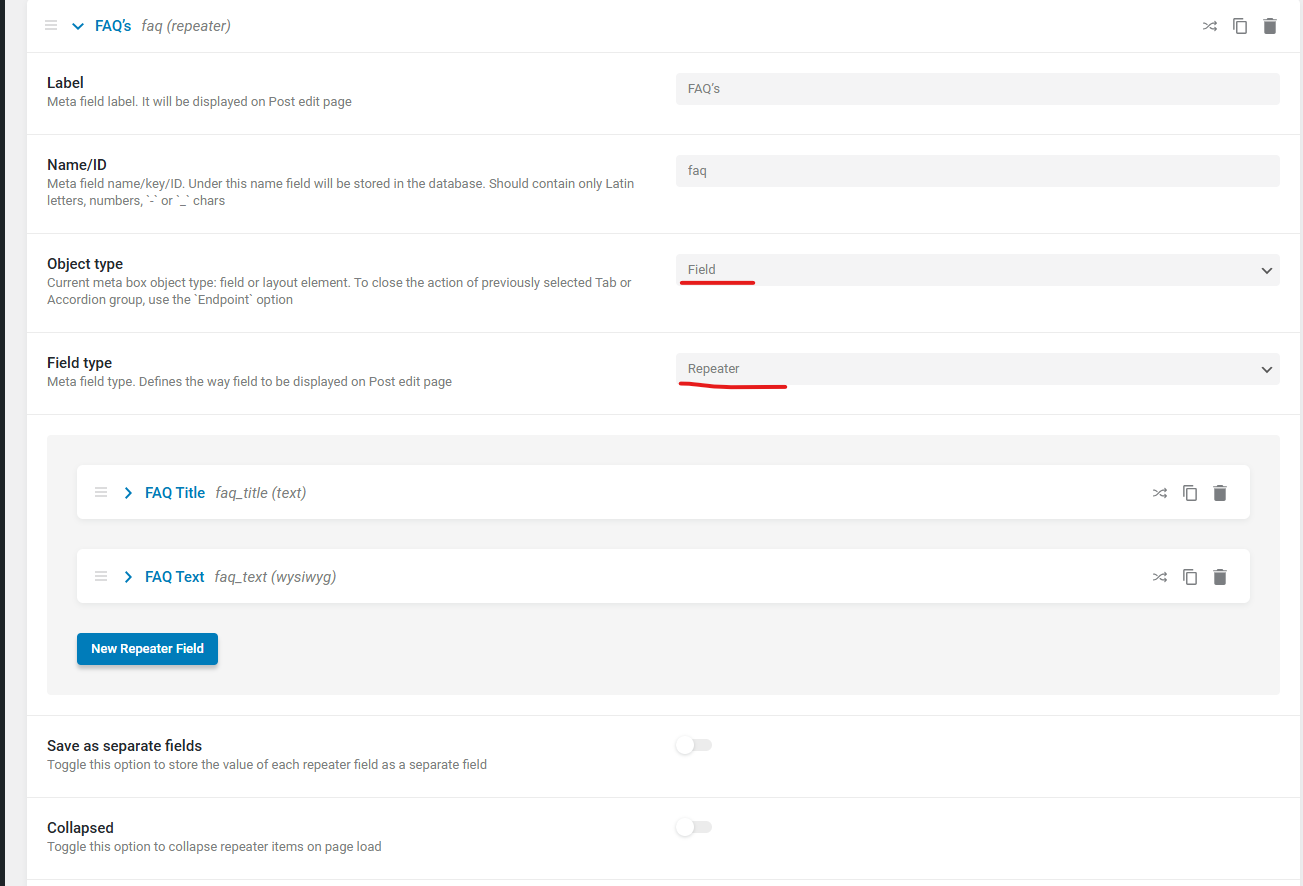
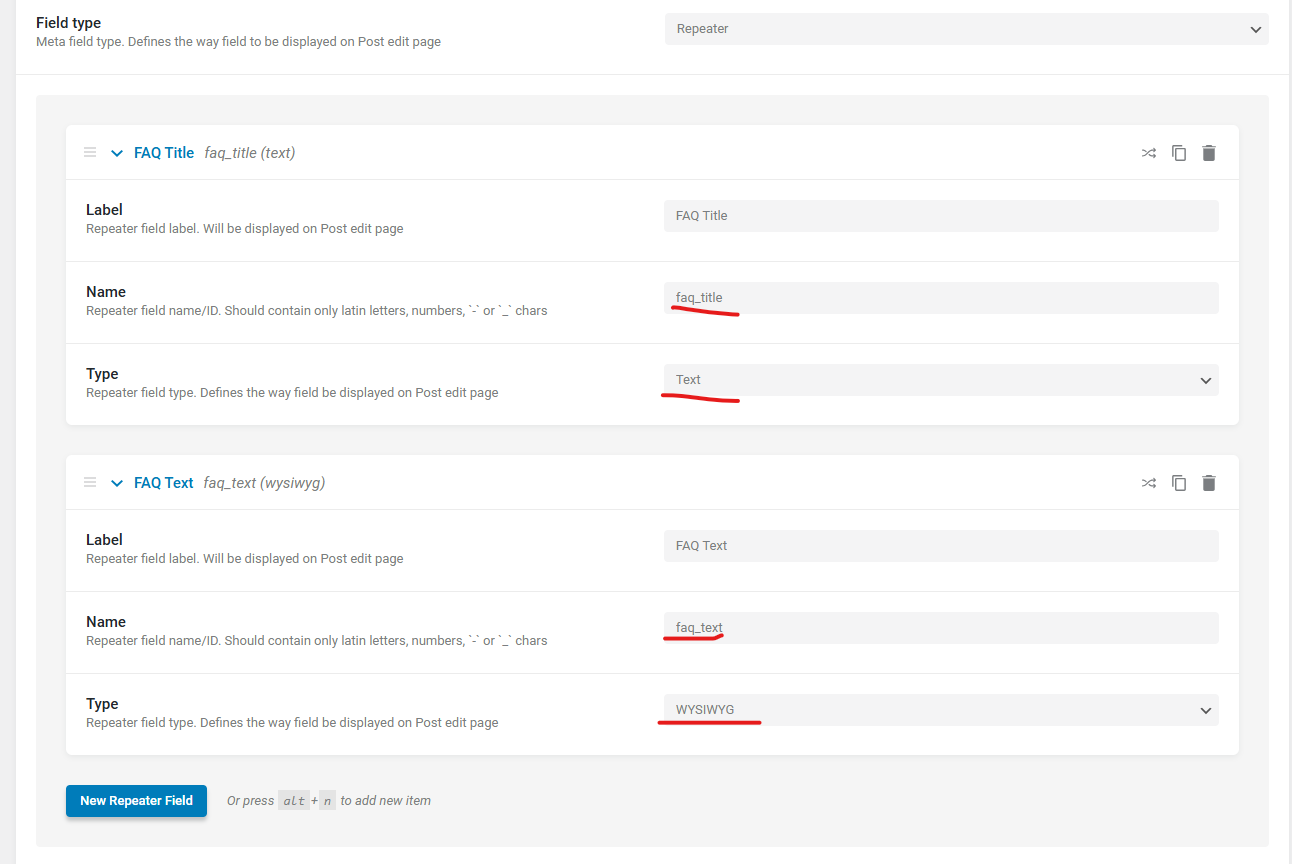
  • Keep the Object Type as “Field” and select “Repeater” as the Field Type.

Step 1: Creating Custom Repeater Meta Fields

  • Inside the repeater, click “New Repeater Field” to add subfields:
    – A Text field for the accordion tab label.
    – A WYSIWYG field for the accordion tab content.

Step 1: Creating Custom Repeater Meta Fields 1

  • Once all fields are added, click “Update Post Type.”

Step 2: Filling the Repeater Fields in Posts

  • Open a post of your selected Custom Post Type.
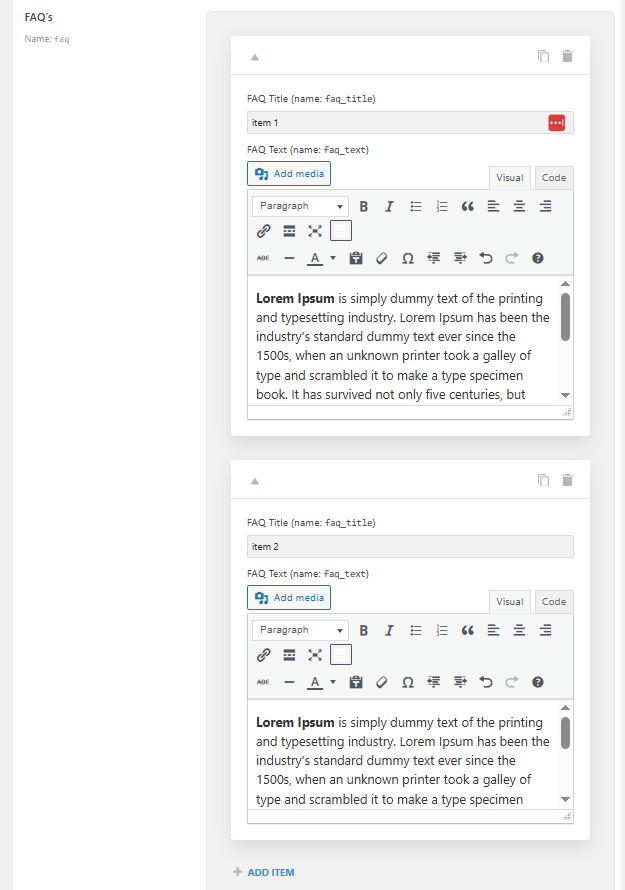
  • Scroll down to the repeater meta fields section and add your data.
  • Each repeater item will represent one accordion tab — add as many as needed (for example, “item 1,” “item 2,” etc.).

Step 2: Filling the Repeater Fields in Posts

  • Click “Update” to save the post.
  • Repeat this process for all posts where you want the accordion to appear.

Step 3: Building a Repeater Query

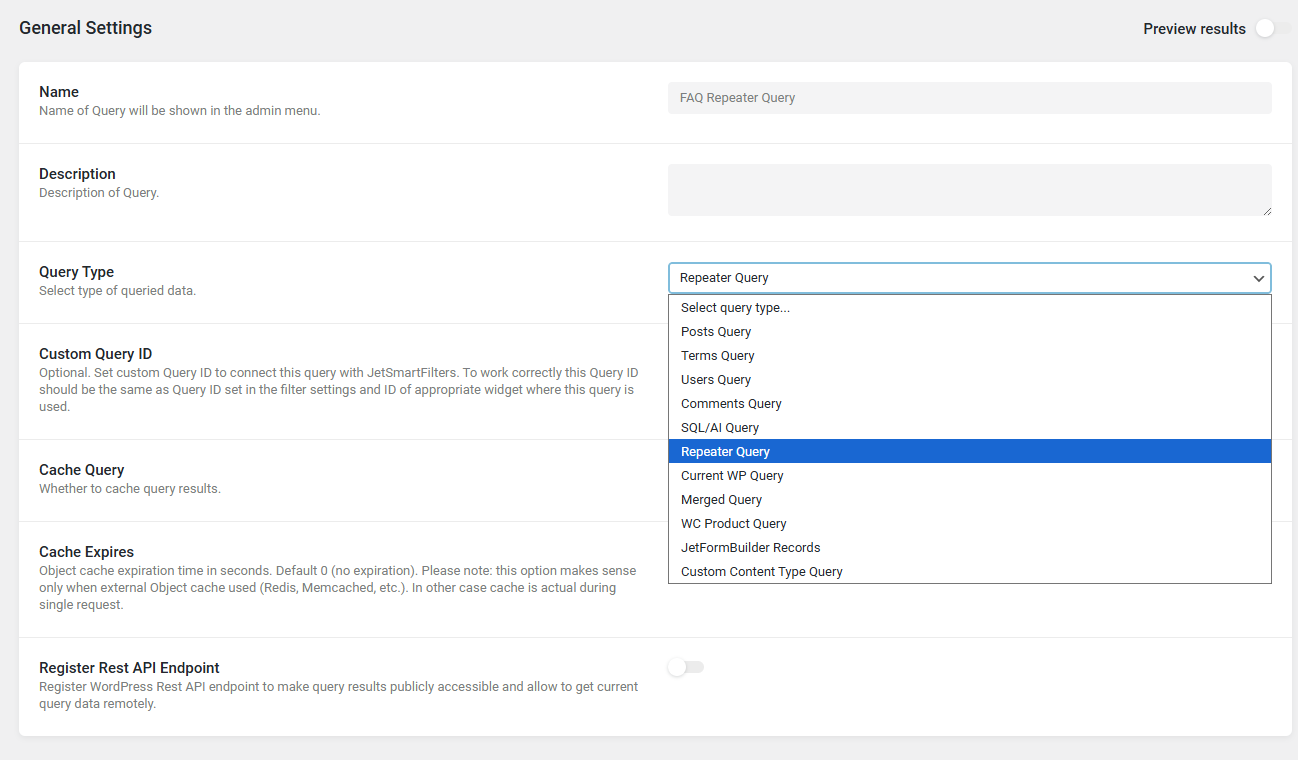
  • Go to JetEngine → Query Builder and click “Add New.”
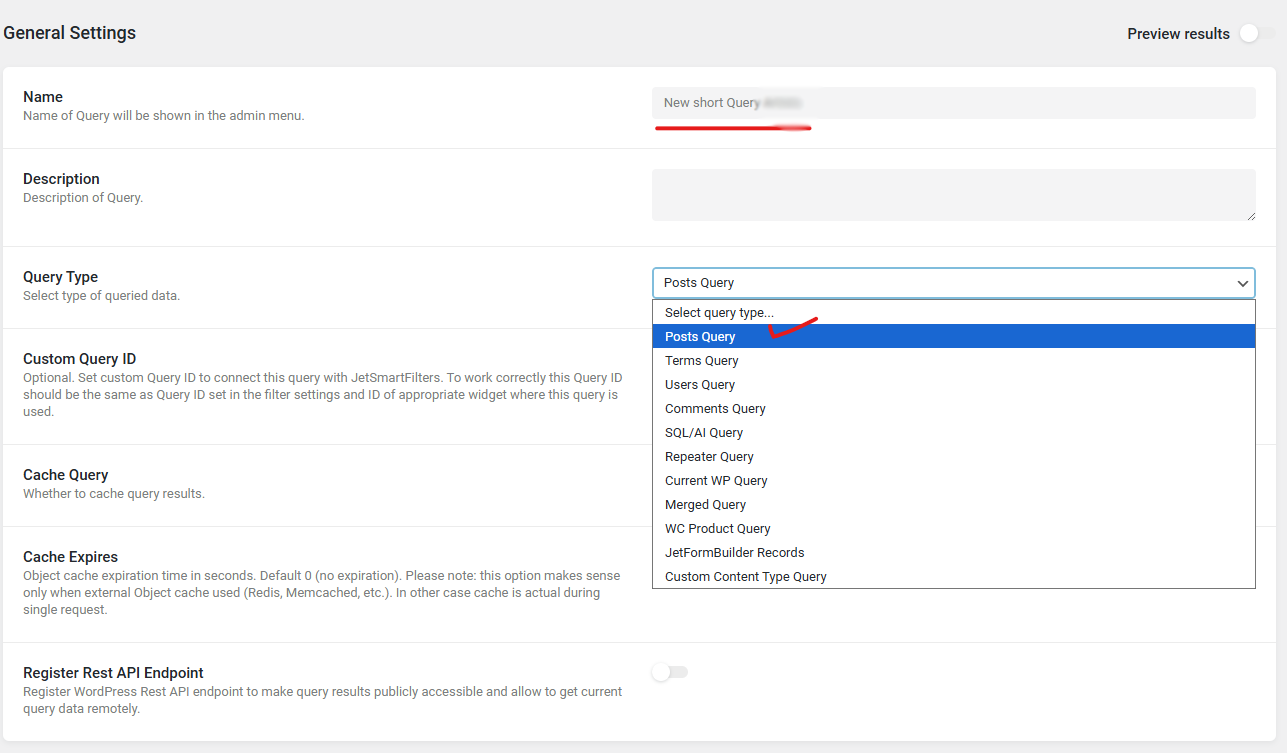
  • Give your query a Name and select “Repeater Query” as the Query Type.

Step 3: Building a Repeater Query

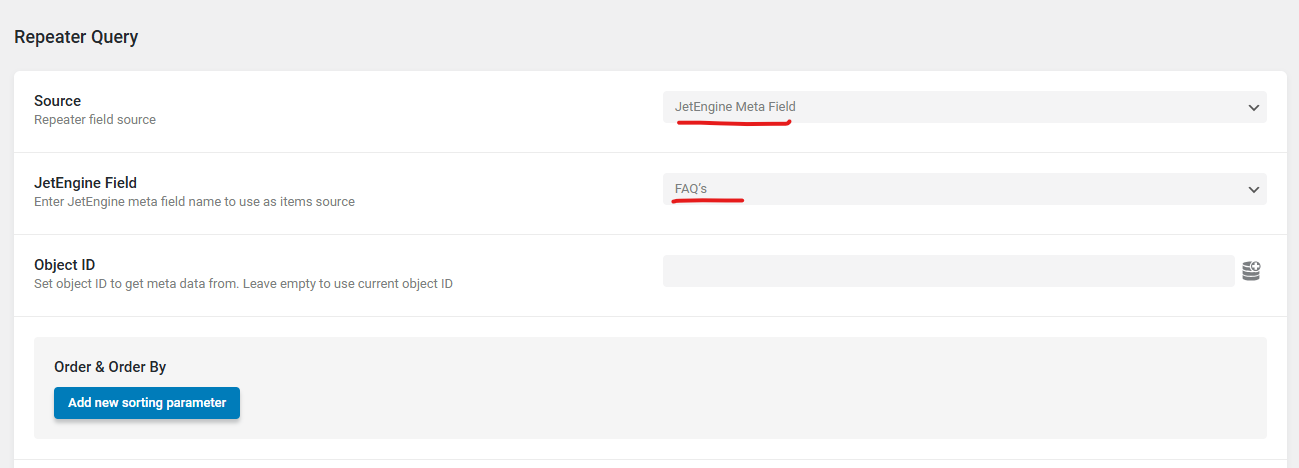
  • In the Repeater Query section:
    – Set Source to “JetEngine Meta Field.”
    – Choose the Repeater Field you created earlier.

Step 3: Building a Repeater Query 1

  • If you are displaying this repeater on a Single Post template, leave the Object ID blank.
    – For static pages, specify the Post ID manually.
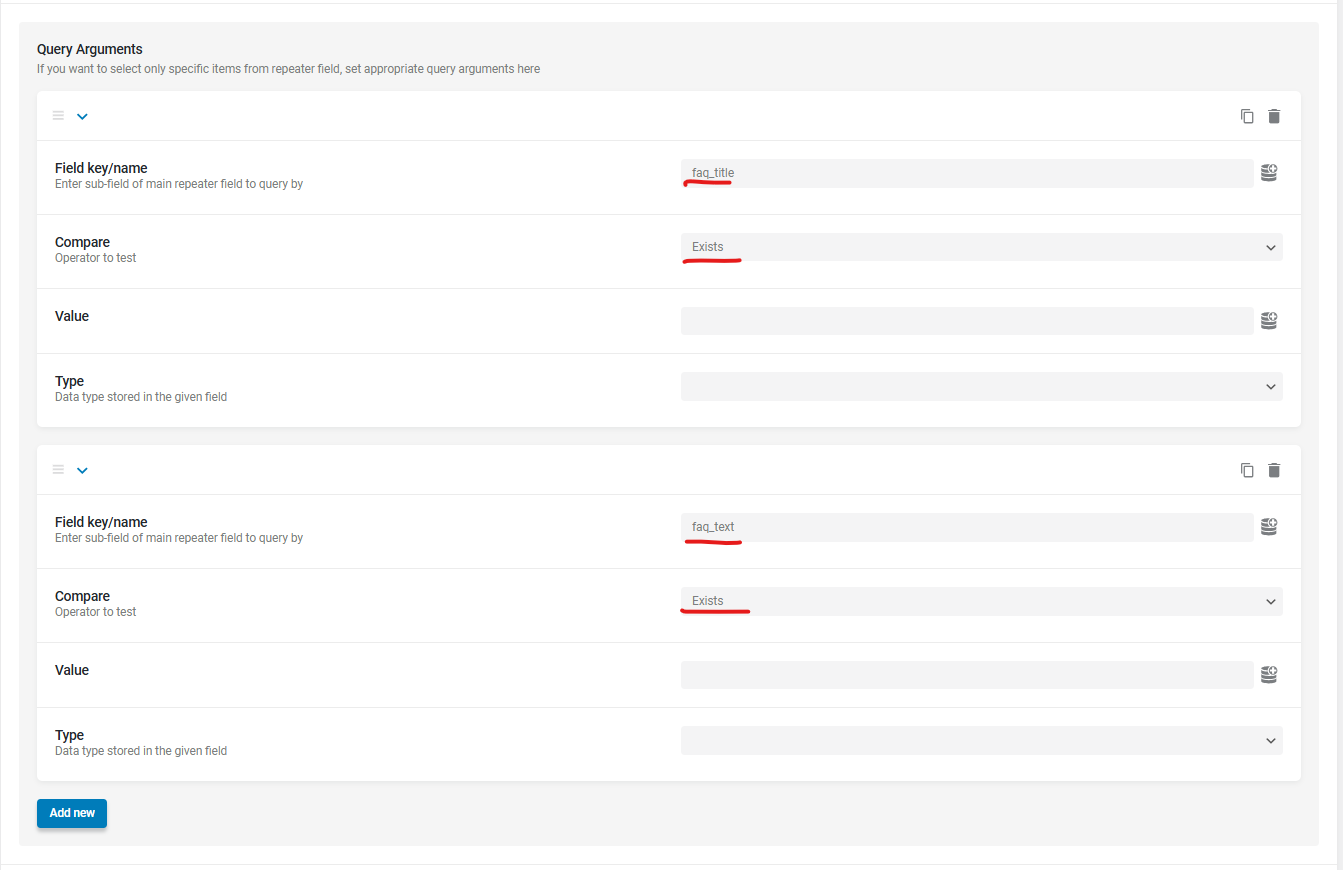
  • (Optional) If your repeater has multiple fields and you only need specific ones, add them in the Query Arguments section:
    – Click “Add new”
    – Enter the field key/name under Field Key/Name
    – Set Compare Operator to “Exists”

Step 3: Building a Repeater Query 2

  • Once done, click “Add Query.”

Step 4: Displaying the Repeater Data in an Accordion

You’ll need JetThemeCore (for building Single templates) and JetTabs (for the Accordion widget).

  • Open your Single Post template in Elementor.
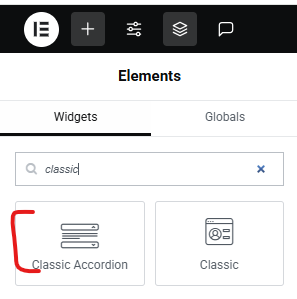
  • Add the Classic Accordion widget (from JetTabs).

Step 4: Displaying the Repeater Data in an Accordion

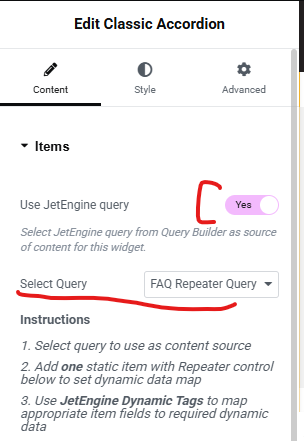
  • Enable “Use JetEngine Query” and select the Repeater Query you just created.

Step 4: Displaying the Repeater Data in an Accordion 1

  • Remove the extra default accordion items, keeping only one.
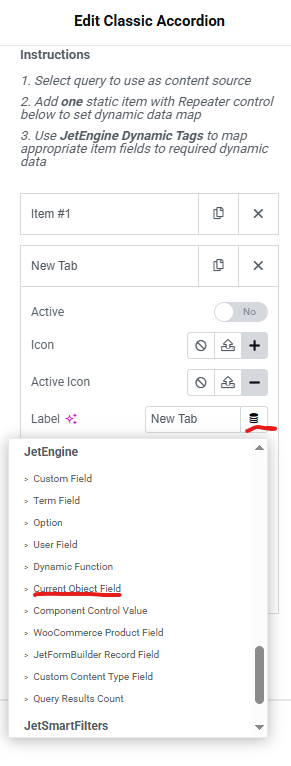
  • In Toggle #1 → Label, click the Dynamic Tags icon → choose Current Object Field.

– Set Field to your repeater’s label field.

Step 4: Displaying the Repeater Data in an Accordion 2

  • In the Content Type section:

– Choose Editor, then click Dynamic Tags again → Current Object Field.
– Set Field to your repeater’s content field (e.g., WYSIWYG).

  • Adjust the styling as you wish, then click Update.
Final Result

On the front end, the Classic Accordion widget will now display dynamic repeater data — each repeater item becomes an accordion tab containing the corresponding label and content.

This method provides a clean and efficient way to showcase structured, repeatable information using JetEngine’s Repeater fields and JetTabs’ Accordion widget — all without writing custom code.
Building dynamic content elements becomes simple when you use Crocoblock tools effectively. If you need expert help with customization or Elementor development, the team at TechnoCrackers is ready to assist.
How to Set Default Product Sorting by Availability (In-Stock → Out-of-Stock) in Crocoblock

If you’re running a WooCommerce store using Crocoblock tools like JetEngine, JetSmartFilters, or JetWooBuilder, you might want your products to display in-stock items first, followed by out-of-stock items.

WooCommerce doesn’t offer this sorting option by default, but with a simple customization, you can easily control the product order and improve your customers’ shopping experience.

In this guide, we’ll explain how to set the default sorting order so that in-stock products appear first across your shop, categories, or archive pages — even when using Crocoblock listings.

Step 1: Install Required Plugins

Ensure the following plugins are installed and activated:

Elementor Pro: Required for theme builder functionality.

JetEngine: From Crocoblock.

Step 2: Create a Custom Query for Sorting

Go to JetEngine Queries:

  • Navigate to the WordPress Dashboard and go to JetEngine > Queries.

Add a New Query:

  • Click on “Add New” and select “Posts Query” as the query type.

Configure Query Settings:

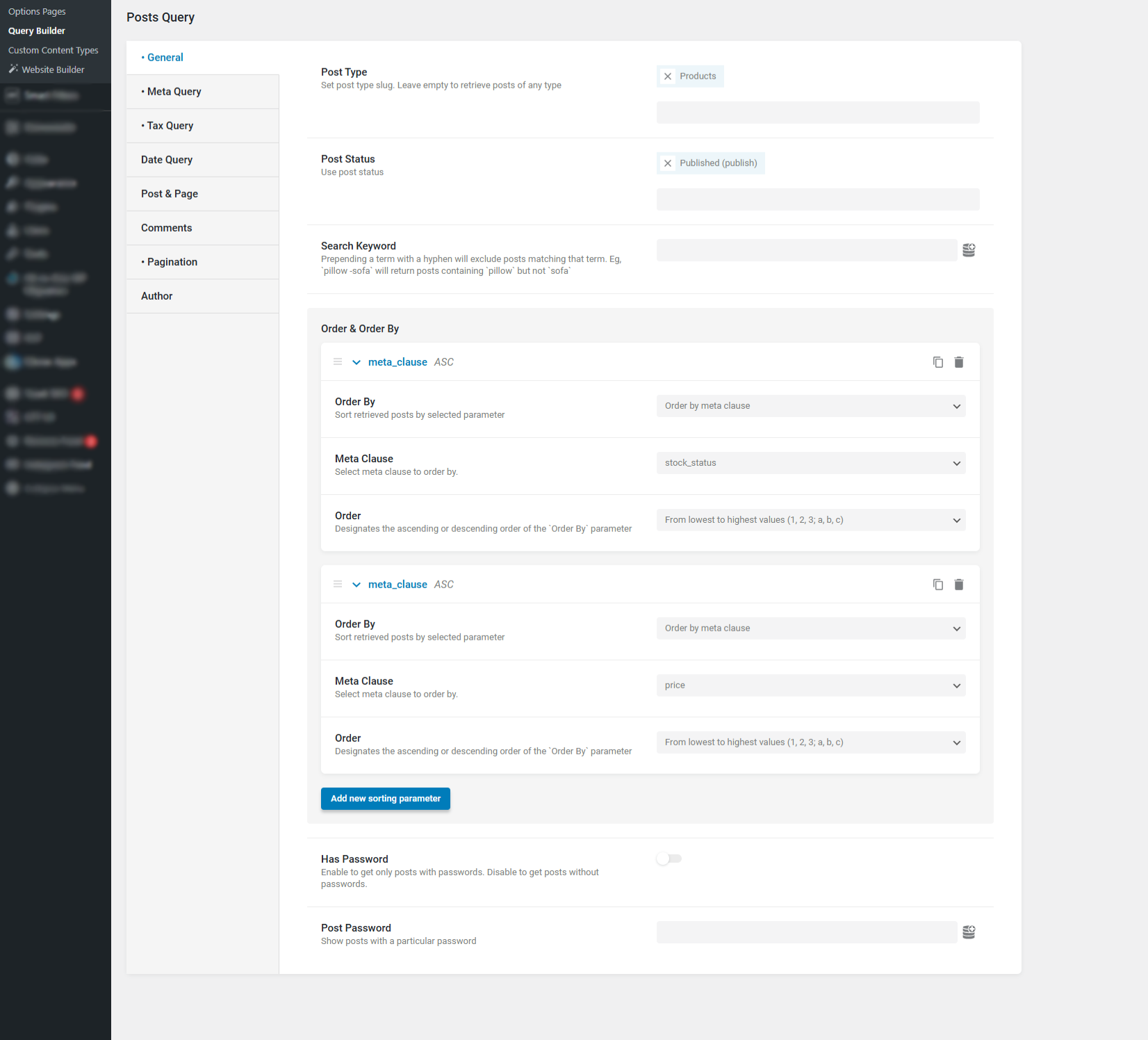
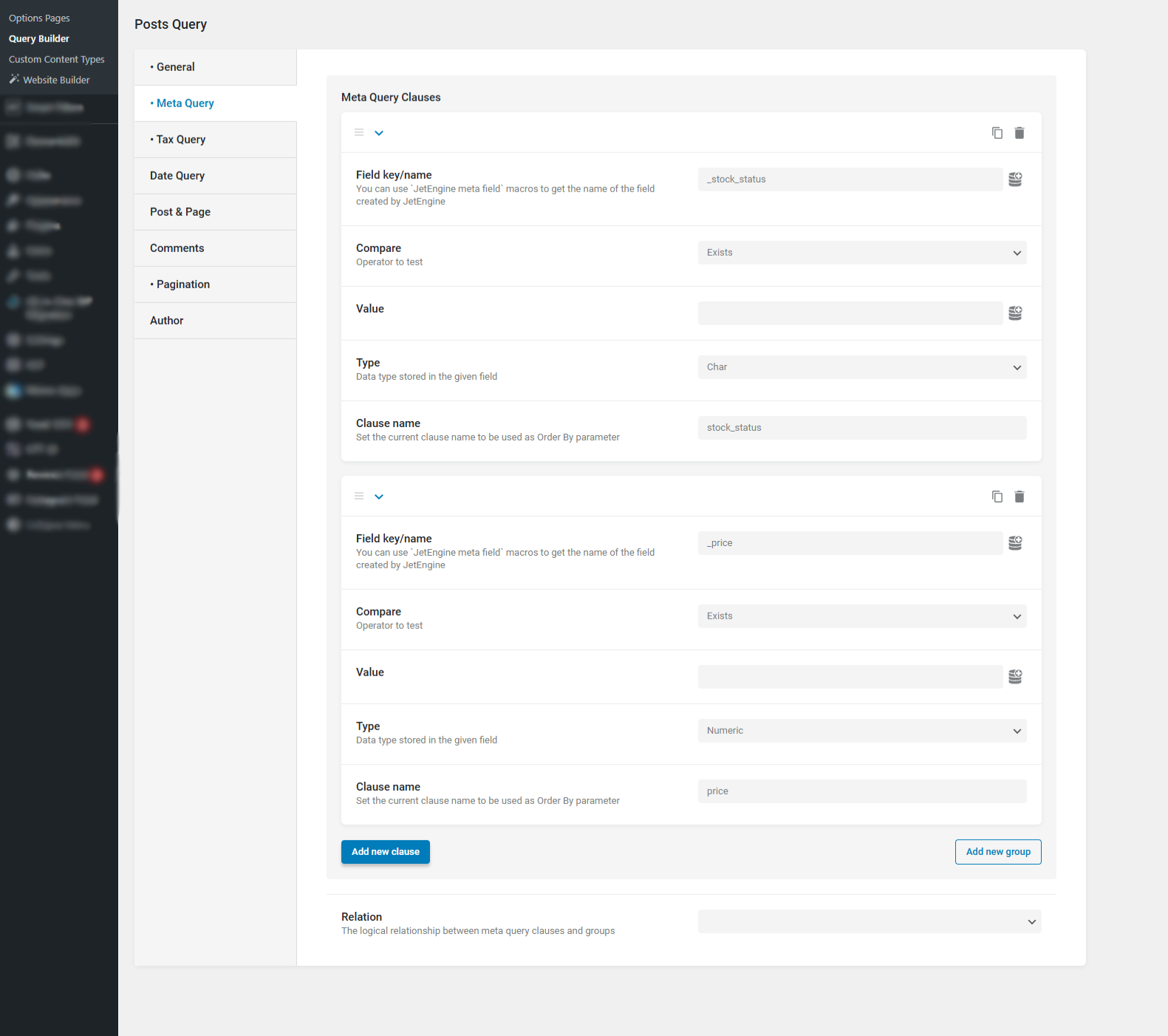
  • Set the Meta Query Clauses in the Meta query.

  • After creating the Meta Query Clauses, go to the General tab, set the Order By option, and assign the Meta Clauses you created.

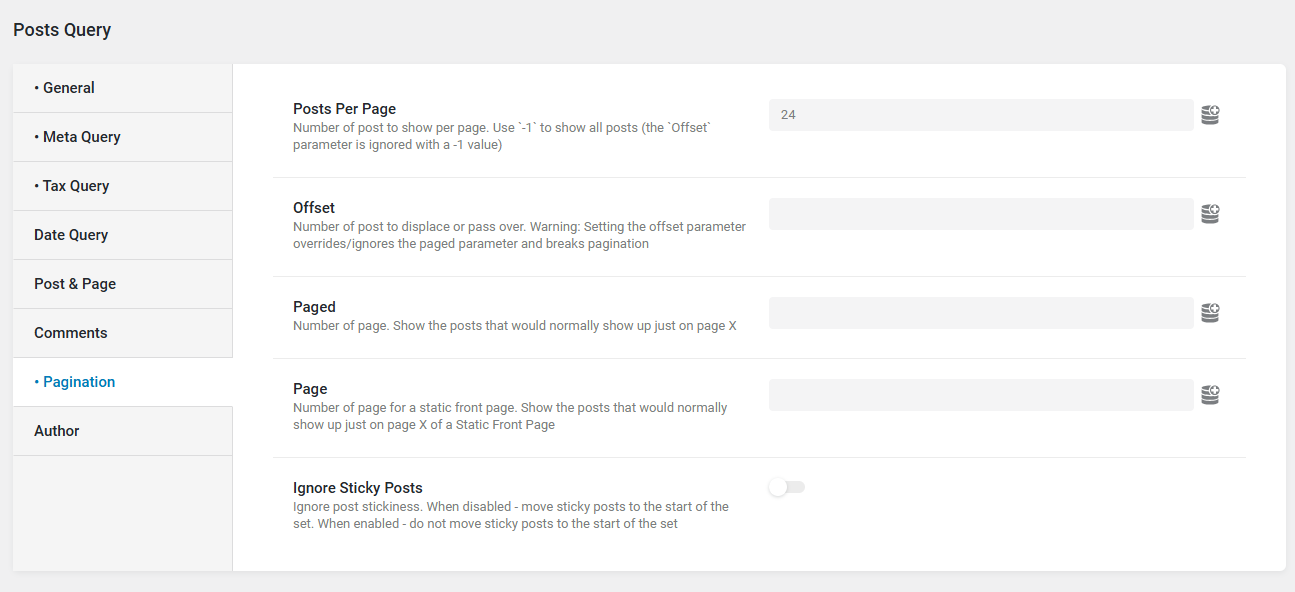
  • After set Posts Per Page limit in Pagination tab in post query Settings.

Update above all setting and then after go to archive page and edit this page

Go to Elementor Template -> Theme Builder

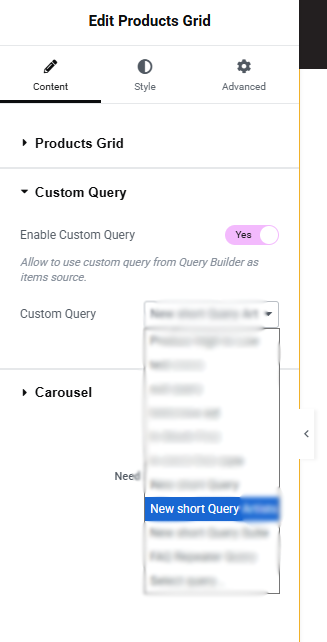
Edit your template and use query in custom query which you created in query builder.

Final Thoughts

Sorting WooCommerce products by stock availability is not a native feature — but with Crocoblock’s flexible system and a small bit of custom code, you can achieve it easily.

By following this guide, you can:

  • Improve your product visibility
  • Create a more user-friendly online store

How to Fix UTF-8 Character Issues When Importing CSV Files in WooCommerce

Fix UTF-8 character issues when importing CSV files in WooCommerce

Do you often face problems where, after importing products from a CSV file, some characters don’t display correctly and instead show up as “?” or strange symbols? Don’t worry — this is a common WooCommerce issue that can be fixed easily. In this guide, we’ll explain why it happens and how to fix UTF-8 character issues during WooCommerce product imports.

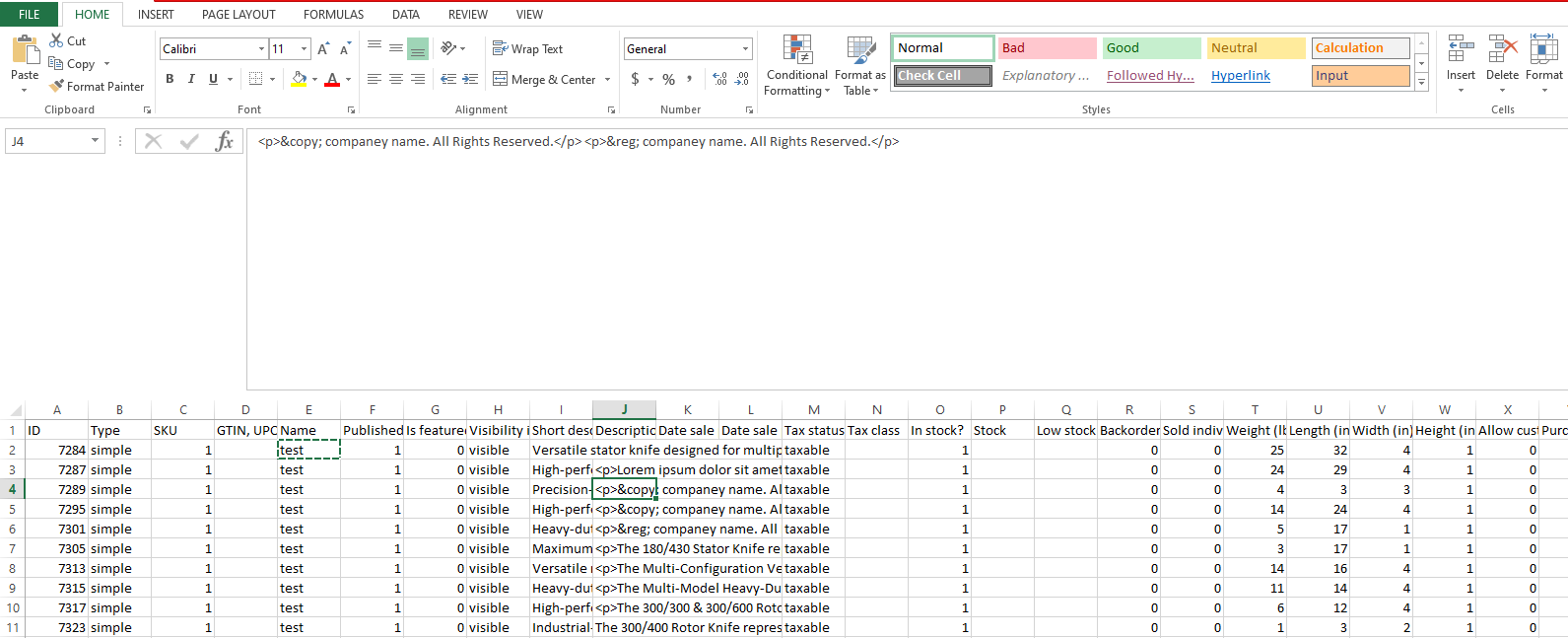
Many times, if you use special characters like ±, ®, ©, °, etc., they appear as “?” after importing. Let’s see why this happens and how to solve it.

Why Do UTF-8 Character Problems Occur?

WooCommerce expects your CSV files to be encoded in UTF-8, which supports special characters, accents, and symbols from most languages.

However, when you create or edit a CSV file in tools like Excel or Google Sheets, it sometimes gets saved in a different encoding format such as ANSI or Windows-1252.

When WooCommerce tries to read that file, it misinterprets those characters and shows weird symbols or question marks instead.

Don’t Worry — Here’s the Solution to Fix UTF-8 Character Issues

There are two easy ways to fix this issue:

Solution 1: Use HTML Entity Codes for Special Characters

utf-8 character

This solution works with any CSV format.

For special characters like ±, ®, ©, or °, use their HTML entity codes in your CSV content:

Symbol HTML Entity Code (paste into CSV)
± &plusmn;
® &reg;
© &copy;
° &deg;

When you import the CSV into WooCommerce, these entities will render properly on the website, ensuring all special symbols display correctly.

Solution 2: Save and Import the CSV File with UTF-8 Encoding

Step 1: Open the CSV File in Google Sheets

  1. Go to Google Sheets → File → Import → Upload your CSV file.
  2. Verify that all characters (like accents and apostrophes) display correctly.
  3. Once confirmed, move to the next step.

Step 2: Download the CSV in UTF-8 Format

In Google Sheets:
– Go to File → Download → Comma-Separated Values (.csv, current sheet).
Google Sheets automatically exports in UTF-8 encoding, which WooCommerce reads perfectly.

If you prefer using Excel:
– Go to Save As → Tools → Web Options → Encoding → Unicode (UTF-8) before saving the file.

Final Step: Import the CSV into WooCommerce

  1. Go to WooCommerce → Products → Import.
  2. Upload your corrected UTF-8 CSV file.
  3. Check that all fields are mapped correctly.
  4. Click Run the Importer.Once the import is complete, check your products — all special characters should now display perfectly.

Fixing UTF-8 character issues in WooCommerce CSV imports doesn’t have to be complicated. By identifying encoding mismatches, saving your CSV files in UTF-8 format, and testing imports carefully, you can ensure your product data displays perfectly every time. Maintaining clean, properly formatted files not only improves accuracy but also saves hours of manual correction.

If you want to explore more WordPress troubleshooting tips, performance guides, and web development insights, visit Technocrackers — your partner in smarter, faster website solutions.

Fixing Slow Queries in WordPress: Optimizing wp_query with Custom Indexes

As a WordPress developer, tackling performance bottlenecks is a critical task. One common challenge arises when WP_Query executes slow queries due to inefficient database indexing. In this blog, we’ll explore diagnosing and resolving such issues with practical steps and screenshots.

Understanding the Problem

By default, WordPress stores metadata in the wp_postmeta table:

meta_id post_id meta_key meta_value

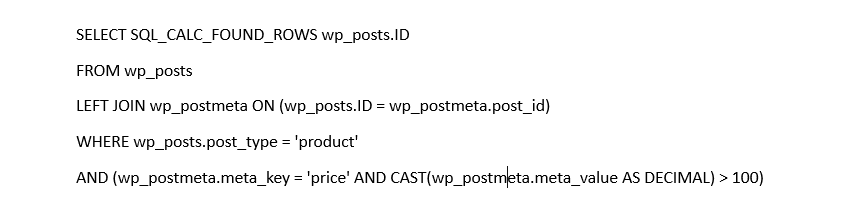
This structure, while flexible, can lead to performance problems in scenarios involving large datasets. Specifically, when meta_query clauses target meta_key and meta_value, it often results in slow database queries.

Step 1: Diagnosing Slow Queries

Install Query Monitor
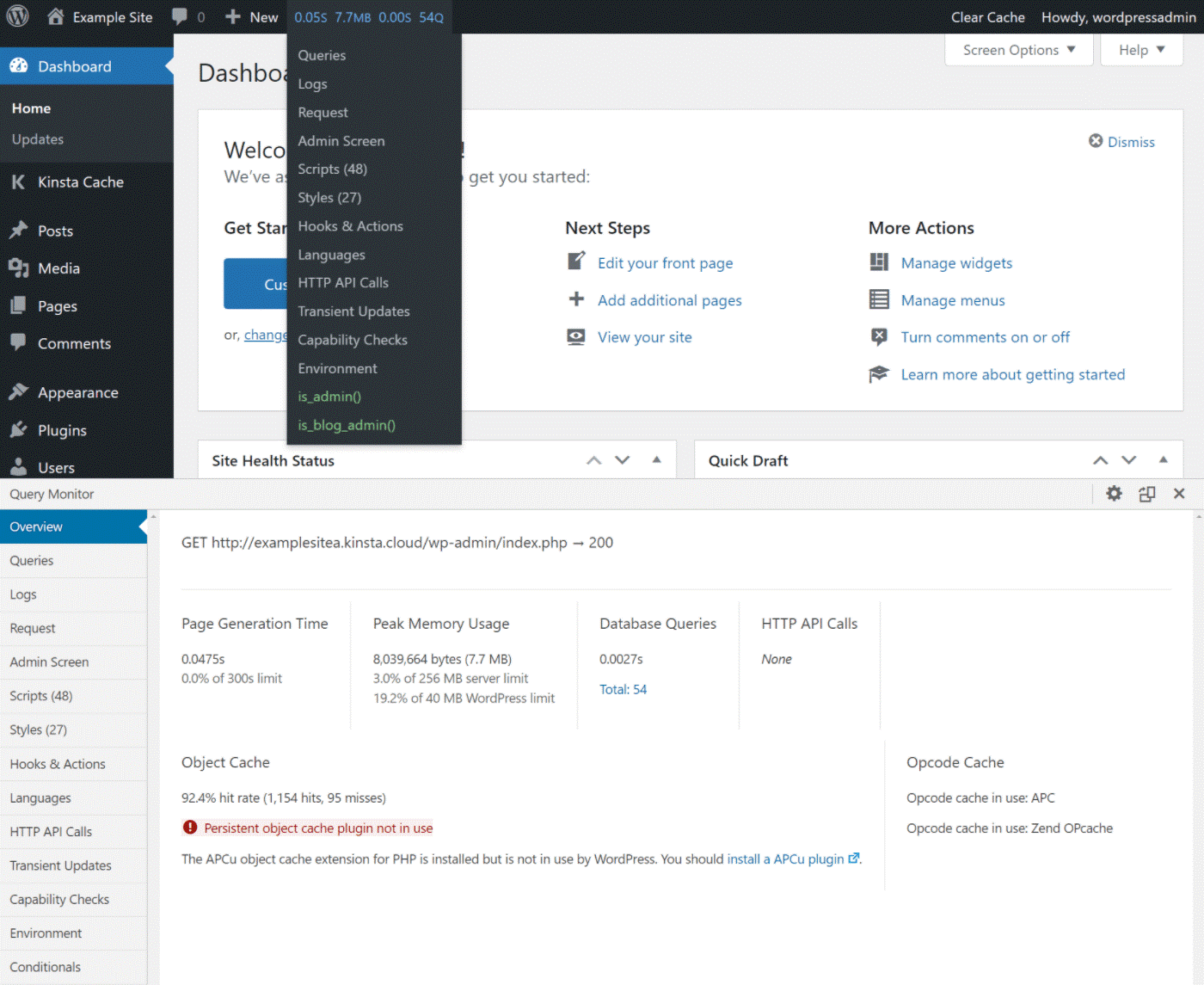
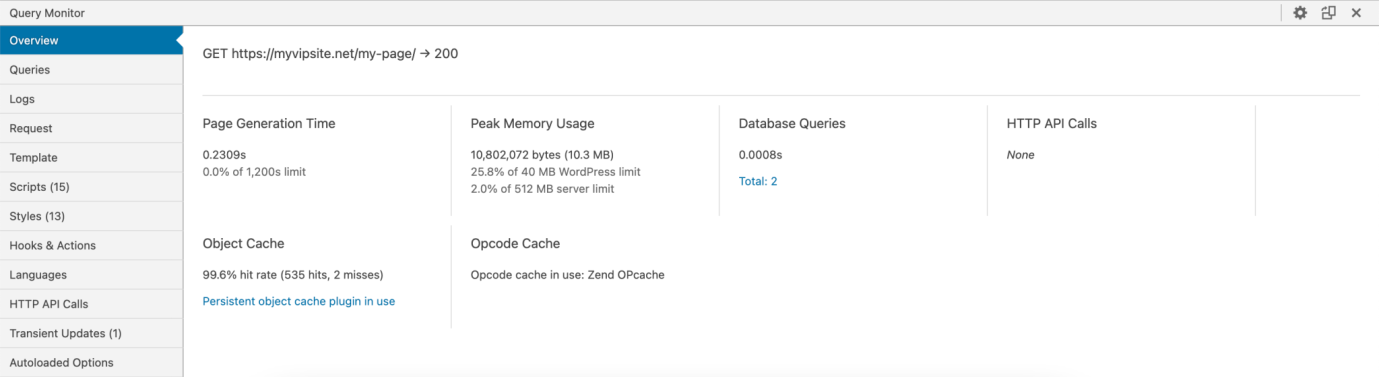
Query Monitor is an essential tool for identifying slow queries. Install and activate the plugin, and then browse the site pages triggering potential slowdowns.
Identify the Slow Query
Query Monitor highlights slow queries, detailing their execution time and SQL.

Step 2: Adding Custom Indexes

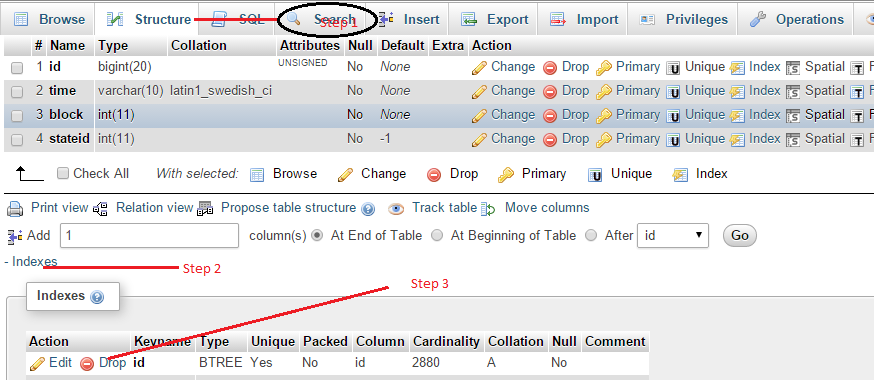
Slow queries typically occur because meta_key and meta_value columns lack proper indexes. Adding indexes significantly improves performance.

Login to phpMyAdmin or MySQL CLI
Access your database management tool and execute the following SQL commands:

ALTER TABLE wp_postmeta
ADD INDEX meta_key_index (meta_key),
ADD INDEX meta_key_value_index (meta_key, meta_value(191));

Verify Indexes
Confirm the indexes have been created using the following SQL query:

SHOW INDEX FROM wp_postmeta;

Step 3: Refactoring Queries [h2]

While indexes improve query performance, you should also optimize WP_Query usage to reduce load on the database.

Refactor Meta Query

Instead of querying meta_key and meta_value for every request, consider caching expensive queries:

$cache_key = 'product_price_query';
$cached_query = get_transient($cache_key);
if (false === $cached_query) {
    $args = [
        'post_type'  => 'product',
        'meta_query' => [
            [
                'key'     => 'price',
                'value'   => 100,
                'compare' => '>',
                'type'    => 'NUMERIC',
            ],
        ],
        'posts_per_page' => 10,
    ];
    $cached_query = new WP_Query($args);
    set_transient($cache_key, $cached_query, HOUR_IN_SECONDS);
}
return $cached_query;

Step 4: Additional Recommendations

  1. Use Profiling Tools
    MySQL Workbench or performance schema can provide additional insights into query execution times.
  2. Optimize Data Storage
    For frequently accessed data, consider moving meta values to custom database tables:
CREATE TABLE wp_product_prices (
    id BIGINT(20) UNSIGNED NOT NULL AUTO_INCREMENT,
    product_id BIGINT(20) UNSIGNED NOT NULL,
    price DECIMAL(10,2) NOT NULL,
    PRIMARY KEY (id),
    KEY product_price_index (product_id, price)
);

Measuring Success

After implementing these changes, measure performance improvements using Query Monitor.

  • Compare the execution time of the original query vs. the optimized query.
  • Track page load speed in tools like GTmetrix or Pingdom.

Slow database queries can severely impact WordPress performance, especially for large-scale sites. By diagnosing the problem, adding indexes, and refactoring your queries, you can significantly improve performance. As developers, adopting these practices ensures scalability and a better user experience.

If you want a high-performing WordPress website that’s engineered the right way from the start, our team at TechnoCrackers can help. Book a Free Consultation today and let’s build a faster, stronger, and more reliable website for your business.

Contact us

Let's Unleash Your Digital Potential Together.

Address

C-605, Ganesh glory 11, Nr. BSNL Office, Jagatpur Road, S.G. Highway, Jagatpur, Ahmedabad, India - 382481.

Phone

INDIA : (091) 8200639242 USA : +1 (310) 868-6009

Limited Time Offer

X

Try a Free 2-Hour Test Task

Experience our quality, speed, and communication on any small WordPress task before you commit. No contract. No cost. No obligation.
[For New Agency Partners]

"*" indicates required fields

Name*