WooCommerce: Empty Cart Redirect

In e-commerce, every interaction with your online store can make or break a sale. One often-overlooked opportunity to enhance the customer experience is how your WooCommerce store handles an empty cart.

Typically, when users land on the cart page and find it empty, they’re met with a simple message—end of the journey. But what if you could turn this dead-end into a strategic opportunity by automatically redirecting users to a more engaging page, like your shop or homepage?

You can keep the shopping momentum by redirecting users from an empty cart to a page featuring ongoing sales, promotions, or new arrivals. This improves the user experience and increases the likelihood of conversions by showcasing products that might catch their eye.

In this blog, we’ll guide you through the steps to implement an automatic redirect from an empty cart page to a URL of your choice. This will ensure your customers are always engaged and ready to explore more of what you offer.

Why Redirect the Empty Cart?

1. Improved User Experience: If a user lands on an empty cart, it’s often a dead end. Redirecting them to your shop or a specific page keeps the shopping flow active.

2. Conversion Optimization: By redirecting to a shop or a special offers page, you can recover a lost sale by encouraging users to continue browsing your products.

3. Professionalism: A seamless shopping experience contributes to a more polished and user-friendly website, which can improve customer satisfaction and loyalty.

How to Redirect an Empty Cart in WooCommerce

You can use a simple snippet of code added to your theme’s functions.php file to achieve this redirection. This method is straightforward and requires no additional plugins.

Step-by-Step Guide

1. Access your theme’s functions.php file: This can usually be done via the WordPress admin dashboard by navigating to Appearance > Theme Editor.

2. Add the following code:

/**
* @snippet Redirect Empty Woo Cart Page
* @author Technocrackers
* @compatible WooCommerce 8
* @authorURI https://technocrackers.com/
*/

add_action( 'template_redirect', 'technocrackers_redirect_empty_cart', 9999 );

function 'technocrackers _redirect_empty_cart() {
if ( is_cart() && WC()->cart->is_empty() ) {
wp_safe_redirect( wc_get_page_permalink( 'shop' ) );
// OR wp_safe_redirect( 'https://example.com' );
exit;
}
}

How It Works

  • Hooking into template_redirect: The template_redirect action is a WordPress hook that fires before the template for the page is loaded. By hooking into this action, we can check the cart’s status and perform a redirect if necessary.
  • Checking if the Cart is Empty: The function is_cart() checks if the current page is the cart page. The WC()->cart->is_empty() method checks if the WooCommerce cart is empty.
  • Redirecting the User: If the cart is empty, wp_safe_redirect() is used to redirect the user safely to the specified page. This could be your shop page, homepage, or any other URL. The exit; statement is used to terminate the script execution immediately after the redirect, ensuring no further code is processed.

Customization Options

You can customize the redirect destination based on your needs:

  • Shop Page Redirect: The example above redirects users to the shop page using wc_get_page_permalink( ‘shop’ ).
  • Custom URL Redirect: If you prefer to redirect users to a custom page, replace the shop URL with any other URL by modifying the wp_safe_redirect() function like so:
    wp_safe_redirect( ‘https://yourcustompage.com’ );

Conclusion

Implementing an automatic redirect from an empty WooCommerce cart page to a more strategic destination is a powerful yet straightforward way to elevate your store’s user experience. By seamlessly guiding users away from potential dead ends and back into the shopping journey, you boost conversion opportunities and create a smoother, more professional online experience.

This lightweight code snippet is easy to implement and fully compatible with WooCommerce 8, making it an invaluable enhancement for any store looking to optimize its customer journey and maximize sales potential.

A simple empty cart redirect can make your WooCommerce store smoother and more conversion-friendly. Need professional WooCommerce or WordPress development? Book a Free Consultation Call.
WooCommerce: Remove “add-to-cart=123” URL Parameter After Add to Cart

Optimizing the user experience is key to driving conversions and ensuring a smooth shopping journey when building a WordPress WooCommerce store. A common challenge developers face is the appearance of the add-to-cart=123 URL parameter after a product is added to the cart. Although this parameter is essential for WooCommerce to process product additions, it can lead to cluttered and less professional-looking URLs.

In this blog post, we’ll explore why the add-to-cart=123 parameter appears, the potential drawbacks of leaving it visible, and how to clean up your URLs by removing it using custom code snippets in your theme’s functions.php file.

Whether you’re a seasoned developer or new to WordPress, our step-by-step guide will make the process easy to follow. Let’s dive into everything you need to know about the “add-to-cart=123” URL and how to refine it for a more polished online store.

Why Does the add-to-cart=123 Parameter Appear?

When a customer clicks the “Add to Cart” button, WooCommerce appends a query string to the URL that includes the add-to-cart parameter and the product ID. This allows WooCommerce to track which product was added and update the cart accordingly.

For example, if you add a product with the ID 123 to the cart, the URL might look like this:

https://yourstore.com/shop?add-to-cart=123

Downsides of the add-to-cart URL Parameter

1. Aesthetics and Professionalism: URLs with query strings look less clean and can be off-putting to users.

2. SEO Implications: While minor, some believe that cleaner URLs are better for SEO, even though most search engines can handle query strings.

3. User Experience: If a user bookmarks or shares a URL with an add-to-cart parameter, it can lead to confusion, as revisiting the link will trigger another “add to cart” action.

Given these potential issues, removing the add-to-cart parameter is often desirable after the product has been successfully added to the cart.

How to Remove the add-to-cart=123 Parameter

We can remove this parameter by using a custom function in your theme’s functions.php file. This code snippet will ensure that after a product is added to the cart, the URL is cleaned by removing the add-to-cart parameter.

Step-by-Step Guide

1. Open your theme’s functions.php file: This can usually be found under Appearance > Theme Editor in your WordPress admin dashboard.
2. Add the following code:

/**
 * @snippet       Remove "add-to-cart" From URL
 * @author        Technocrackers
 * @compatible    WooCommerce 8
 */
 
add_filter( 'woocommerce_add_to_cart_redirect', 'wp_get_referer' );

wp_get_referer is a WordPress function used to retrieve the webpage URL linked to the current one. It tells you where the user came from before landing on the page. This means this will take the user back to the original URL before they are added to the cart, hence removing the “add-to-cart” URL parameter!

3. Save the functions.php file.

Conclusion

Streamlining your WooCommerce URLs by removing the add-to-cart parameter is a simple yet impactful way to elevate the appearance and professionalism of your online store. Adding just a few lines of code to your theme’s functions.php file lets you maintain clean, user-friendly URLs that enhance both the user experience and your store’s overall image.

As always, testing any code changes in a staging environment before implementing them on your live site is crucial. This precaution ensures compatibility and prevents potential disruptions to your customers’ shopping experience.

Simplifying WooCommerce URLs is a simple way to improve store performance and user trust. If you’re planning to upgrade or develop your WooCommerce site, Book a Free Strategy Call.

Top 7 WordPress website maintenance tips

WordPress is a diversified CMS platform in the arena of Content Management Systems. It dominates the CMS area with a staggering 39.6% of the internet in 2021. But even a durable framework like WordPress requires regular wordpress website maintenance services to guarantee that the website runs well.

WordPress is an open-source CMS, which means that any person can use this framework for good or bad reasons, hence, it is even more important to go for WordPress website maintenance for frequent updates to protect your website. So, today we have curated a list of WordPress website maintenance tips that you cannot miss!

Before you run through the maintenance tips, ensure that the website is working just fine and you have taken a backup of it. You don’t want to end up with a ton of problems for the website not working properly or losing out on data if you make any mistake.

The following areas will be covered in a thorough WordPress maintenance routine:

A Backup is must

Even if you aren’t making any modifications to your site right now, this is one of the most important things to accomplish. You may either do it manually by downloading all of the files as well as the database dump and save them somewhere safe, or you can use a WordPress backup plugin to automate the process. The WordPress plugin store contains a large number of both free and commercial plugins. Since most hosting companies provide backup alternatives, you may also use the backup option at the server level–this is something you should verify with your hosting provider about.

Backups provide you the assurance that your site will be fully operational again in the event of a crash or a mistake. It may also assist your new developer in quickly resolving difficulties, particularly if you’re seeking to resolve a defect that you think happened during previous maintenance. Regular backups should aid your new developers in identifying and resolving issues that arose months or years before they took over the project.

Remove Unnecessary Files, Code, and Plugins

It’s normal to forget about files and plugins that are no longer required. This becomes a hassle when the files collect over time as your website’s lifetime progresses. It’s difficult to determine where a file came from and whether it’s being needed by some element of the site if your developer didn’t care about deleting undesirable files that were added over time. This adds to the pain because the site must be retested to ensure that nothing has broken since the suspicious elements were removed.

This may be avoided if the developer who worked on it removes any unnecessary files as soon as possible.

To help you with this task, you can install various plugins like Media Cleaner.

WordPress Updates

Updates to the WordPress software are issued on a regular basis. This covers the core of WordPress as well as any themes or plugins you’ve installed.

These changes must be made to your website in order for it to continue to work correctly. You risk having code conflicts and components of your site getting out-of-date if you don’t apply these updates on a regular basis. This will put your site in danger and hackers could easily break it. It is also possible that the website may not work properly.

When downloading the updates, ensure you follow the sequence of updating WordPress core first, then theme and lastly the plugins. This can help you prevent plugin and theme conflicts, which might cause your entire website to go down.

Optimizing Images on Website

Larger the image resolution, slower the website.

A thumb rule to speed up your website loading time. When it comes to WordPress website performance, image selection and placement is a critical factor. Not every image may be utilised on your website; to ensure that your image is suitable for your purposes, it must be optimised.

An image can be optimised in one of two ways:

  • Manual optimization
  • Invest in a paid plug-in

Check & Moderate Website Comments

This step is more about making an impression in the mind of the visitor. Your visitors will have a negative image of your website if you do not control the comments. They’ll get the impression that the place is neglected and uncared for.

Responding to criticisms in a timely manner is a major step in the right direction. When you react to a visitor’s question, concern, or point of view, you demonstrate that you value their time.

Filtering spam comments is another essential component of comment moderation. And believe me when I say you’ll get a lot of them. It’s critical that they’re flagged as spam and then removed. Nothing is more unattractive than a spam-filled comments area.

Furthermore, if left unchecked, a large number of spam comments might soon accumulate. As a result, the database space is clogged, severely impacting website performance.

Database Optimization

The WordPress database is slim and functions ideally when your website is fresh. Your website reacts and loads more quickly. The database becomes congested and clogged with time.

This happens when you install a plugin or a new theme. Because it updates the database with all of the new data. This can also happen when you uninstall a plugin or a theme. They don’t always get removed as efficiently as you’d like them to. Tables, references, and other data are left behind, clogging up the database.

The database becomes filled with useless tables, and data from removed plugins, themes, saved drafts, pages, and blog posts as time passes. Apart from that, other content that you upload on the website also takes up space in the database. As a result, these unneeded garbage items should be deleted from the database in order for it to continue to operate properly for a long period.

You can take help of WordPress plugins to clean up the database. One of them is WP-Optimize.

Security Scans

This is something that is much too frequently neglected. For our desktops and PCs, we do invest in decent antivirus software. However, when it comes to internet security for our numerous websites, don’t give it much attention. We don’t think it’s important.

We must keep in mind that hackers are constantly looking for new ways to break into your website and steal critical information. They may essentially render your site unusable if they obtain access to it.

It might take months, if not years, to bring your site back to where it was before the attack. Invest your time and resources towards discovering and eradicating malware and/or harmful code that has been introduced.

If due to some reason the search engine has blacklisted, the browsers will display a malware warning for your site. After your site has been restored, it might take some time for the warning to go away. Consider the damage to your reputation and income that such an unanticipated event may do.

Always keep security a priority. For that, you can consider various plugins available on the WordPress plugin store. You can check out MalCare and Wordfence to tighten the security of your WordPress website.

Final Thoughts

WordPress is a powerful content management system that must be updated on a regular basis to keep a website running smoothly. We hope that these WordPress website maintenance tips will help you in doing so. Consider them as a reminder to check your WordPress websites for upgrades and maintenance if you run your business website on WordPress.

We at Technocrackers take utmost care from the beginning of WordPress website development of these points. Hire WordPress developers to help you maintain your WordPress website. We ensure that the health of the website is up and running perfectly always. Talk to us today and get a website-health checkup!

Squarespace VS WordPress: What is the Best Website Builder

The COVID-19 pandemic taught us that “If it’s not online, it’s nowhere!” and that made businesses really think about taking their products and services to the platforms that reach globally irrespective of the shutdown. The businesses started creating their website portals and literally everyone’s alarm rang almost at the same time!

Multiple businesses coming under small cap, the start-ups, the home-grown business ideas, every-single-one started creating their own website. And but-obvious, in order to stand out from the crowd, the website needs to be eye-catching.

The competition no longer remained in the quality of product and services, but the real question came as to how better you showcase your brand. The solution came up to create your own creative as well as attractive website which also has tools that can efficiently handle all of the infrastructure needs and does not require much of the coding language. Well, if you go and search about it, you will get hundreds of options, but WordPress and Squarespace are two of the most popular in the business. So, take a seat and we are going to help you solve this everlasting confusion of which website builder to opt for, by giving you a clear-cut comparison of features, templates, and hosting options for Squarespace Vs WordPress.

WORDPRESS- AN OVERVIEW

WordPress as we all are aware, is a free and an open-source management system (CMS). It is based on PHP and MySQL. It started as a simple blogging system in 2003 but powers more than a quarter of new sites today. It clearly is the choice for nearly a half of the top million sites making it the most popular on the web. Choosing WordPress, you get about 13 years of proven history and with more than 50 million sites globally that are created using the same platform, you know your work is going in the right hands.

SQUARESPACE- AN OVERVIEW

Squarespace is a creative website builder designed to help artists build their own attractive websites and showcase their work, no matter how well versed you know your technical terms, Squarespace gives you a home-like environment. If you are a photographer, artist, and anyone who simply loves design and is willing to make their website look as good as the content you generally show off offline, then we can assume your search very well ends here itself. But let’s say your business is not revolving around high quality images or the website demands loads of textual briefings – you may struggle to use Squarespace’s visual designs at its par.Unlike WordPress, Squarespace gives you 14 days trial period, post-trial period Squarespace plans starts at $12/month

DISCUSSING THE SUBSCRIPTION PLANS IN WORDPRESS VS SQUARESPACE:

WordPress currently is offering four plans: Personal, Premium, Business and eCommerce. The details of each plan is easily available on their official website WordPress.com. There’s also WordPress.org to create a website for free if you have a hosting provider. If you wish to create a website using professional templates and features, select the plan as per your requirements and you’re good to go.

Squarespace as well covers its plans in four pricing tiers: Personal starting at $12/month, it’s ad-free and includes a free domain name for a year. The Business plan costs $12/month. You get marketing features under a business plan. The online Stores Basic $26/month plan and the Advanced tier with $40/month adds Ecommerce features.

HOSTING IN SQUARESPACE VS WORDPRESS:

If simply explained, your WordPress subscription does not include hosting and Squarespace does.

But the supreme benefit while you select to create your website using WordPress is that you can easily download, edit and host the WordPress codebase anytime and from anywhere. Reputable hosts will have a server architecture which is WordPress-ready. None-the-less many will have one-click installation. But an important thing to consider here is that your host’s tech support might not cover WordPress itself, so by any chance you break something while editing, you’re on your own. Whereas on the other-side of the road, Squarespace might not give you availability in each of your hosts’ servers. No matter how time saving and attractive Squarespace codebase is, your host’s server might not be Squarespace ready.

TEMPLATES IN WORDPRESS VS SQUARESPACE:

Squarespace spoils you with dozens of pre-constructed attractive templates. The templates are designed before-hand according to  robust user interface principles. Your subscription plan contains all the pre-made designs and development, hosting and security certificates, everything in one price. But again, the debate comes down to whether or not it is advisable for the businesses which DO NOT deal with imagery or video contents to invest a wholesome amount over Squarespace subscription?

Whereas on the other hand there are literally thousands of WordPress templates, all of them with completely accessible code to let you make any changes you desire. WordPress literally has everything for everyone. If you’re artistic enough, you can easily design your site in a graphic application and then probably can just give it to a developer to program. There are countless designers out there, who offer custom WordPress design services. You’ll get exactly the look and functionality you wish, but it might add up a little to your costs.

DISTINCT FEATURES OF WORDPRESS:

The most unique feature of WordPress is that it gives you the power to run your website the ‘old’ way. No matter what the product or service your brand deals with, you will find everything you’re looking for way too easily. With easy access to CSS and HTML, one can make N number of tweaks until everything is exactly how one had envisioned it to be. If you are good at design or programming or say you have access to cost-effective pros who do, it might very well give you an ace and you can customise your website to behave and do what you want in limitless ways.

DISTINCT FEATURES OF SQUARESPACE:

Squarespace is a comparatively more controlled environment. There is absolutely no need to buy or source designs, extensions, hosting or any other services additionally. You can simply sign up, start building your pages, and deploy your site when you’re satisfied with the result.

But one thing to keep in mind is while using Squarespace you will have no direct access to codes. Meaning you can hardly make changes or make any tweaks in any of their given template or design.

CONCLUDING WORDPRESS VS SQUARESPACE

Given a choice to reserve a dinner table at a restaurant which has multiple cuisines and that avails you to enjoy the evening with your loved ones plus gives you options to make any required changes in the pre-decided menu versus a restaurant that offers delish food but has very limited items listed on the menu in addition to their ‘no changes allowed’ rule. Which one would you like to choose?

Who is not spoilt with the choices? In this analogy, the former restaurant clearly signifies WordPress, with its easy customizable and personalized experience. The latter is just similar to Squarespace. No doubt, Squarespace gives you a ready-menu. You don’t need to brainstorm much. It clearly holds your hand much tighter.

But the ready templates might not deliver you right exactly the way you had envisioned your dream website to look like. It would require some changes to give it the authentic look that your brand promises its customers.

But if you need to work with only the basics like email or social marketing or ecommerce, Squarespace would suffice for your needs and it will definitely be visually striking. But a basic WordPress will have your back just fine if you do not need a host of special or unusual features

Even so you might need to hire a service provider to take care of errands required to run a successful website, there are certain WordPress development firms like Technocrackers that help you hone your business growth with a compact yet elegant website design which fits perfectly fine for your brand.  Contact us today with your WordPress development requirements!

What is the Best Website Builder

The COVID-19 pandemic taught us that “If it’s not online, it’s nowhere!” and that made businesses really think about taking their products and services to the platforms that reach globally irrespective of the shutdown. The businesses started creating their website portals and literally everyone’s alarm rang almost at the same time!

Multiple businesses coming under small cap, the start-ups, the home-grown business ideas, every-single-one started creating their own website. And but-obvious, in order to stand out from the crowd, the website needs to be eye-catching.

The competition no longer remained in the quality of product and services, but the real question came as to how better you showcase your brand. The solution came up to create your own creative as well as attractive website which also has tools that can efficiently handle all of the infrastructure needs and does not require much of the coding language. Well, if you go and search about it, you will get hundreds of options, but WordPress and Squarespace are two of the most popular in the business. So, take a seat and we are going to help you solve this everlasting confusion of which website builder to opt for, by giving you a clear-cut comparison of features, templates, and hosting options for Squarespace Vs WordPress.

WORDPRESS- AN OVERVIEW

WordPress as we all are aware, is a free and an open-source management system (CMS). It is based on PHP and MySQL. It started as a simple blogging system in 2003 but powers more than a quarter of new sites today. It clearly is the choice for nearly a half of the top million sites making it the most popular on the web. Choosing WordPress, you get about 13 years of proven history and with more that 50 million sites globally that are created using the same platform, you know your work is going in the right hands.

SQUARESPACE- AN OVERVIEW

Squarespace is a creative website builder designed to help artists build their own attractive websites and showcase their work, no matter how well versed you know your technical terms, Squarespace gives you a home-like environment. If you are a photographer, artist, and anyone who simply loves design and is willing to make their website look as good as the content you generally show off offline, then we can assume your search very well ends here itself. But let’s say your business is not revolving around high quality images or the website demands loads of textual briefings – you may struggle to use Squarespace’s visual designs at its par.Unlike WordPress, Squarespace gives you 14 days trial period, post-trial period Squarespace plans starts at $12/month

DISCUSSING THE SUBSCRIPTION PLANS IN WORDPRESS VS SQUARESPACE

WordPress currently is offering four plans: Personal, Premium, Business and eCommerce. The details of each plan is easily available on their official website WordPress.com. If you wish to create a website using professional templates and features, select the plan as per your requirements and you’re good to go.

Squarespace as well covers its plans in four pricing tiers: Personal starting at $12/month, it’s ad-free and includes a free domain name for a year. The Business plan costs $12/month. You get marketing features under a business plan. The online Stores Basic $26/month plan and the Advanced tier with $40/month adds Ecommerce features.

HOSTING IN SQUARESPACE VS WORDPRESS

If simply explained, your WordPress subscription does not include hosting and Squarespace does.

But the supreme benefit while you select to create your website using WordPress is that you can easily download, edit and host the WordPress codebase anytime and from anywhere. Reputable hosts will have a server architecture which is WordPress-ready. None-the-less many will have one-click installation. But an important thing to consider here is that your host’s tech support might not cover WordPress itself, so by any chance you break something while editing, you’re on your own. Whereas on the other-side of the road, Squarespace might not give you availability in each of your hosts’ servers. No matter how time saving and attractive Squarespace codebase is, your host’s server might not be Squarespace ready.

TEMPLATES IN WORDPRESS VS SQUARESPACE

Squarespace spoils you with dozens of pre-constructed attractive templates. The templates are designed before-hand according to robust user interface principles. Your subscription plan contains all the pre-made designs and development, hosting and security certificates, everything in one price. But again, the debate comes down to whether or not it is advisable for the businesses which DO NOT deal with imagery or video contents to invest a wholesome amount over Squarespace subscription?

Whereas on the other hand there are literally thousands of WordPress templates, all of them with completely accessible code to let you make any changes you desire. WordPress literally has everything for everyone. If you’re artistic enough, you can easily design your site in a graphic application and then probably can just give it to a developer to program. There are countless designers out there, who offer custom WordPress design services. You’ll get exactly the look and functionality you wish, but it might add up a little to your costs.

DISTINCT FEATURES OF WORDPRESS

The most unique feature of WordPress is that it gives you the power to run your website the ‘old’ way. No matter what the product or service your brand deals with, you will find everything you’re looking for way too easily. With easy access to CSS and HTML, one can make N number of tweaks until everything is exactly how one had envisioned it to be. If you are good at design or programming or say you have access to cost-effective pros who do, it might very well give you an ace and you can customise your website to behave and do what you want in limitless ways.

DISTINCT FEATURES OF SQUARESPACE

Squarespace is a comparatively more controlled environment. There is absolutely no need to buy or source designs, extensions, hosting or any other services additionally. You can simply sign up, start building your pages, and deploy your site when you’re satisfied with the result.

But one thing to keep in mind is while using Squarespace you will have no direct access to codes. Meaning you can hardly make changes or make any tweaks in any of their given template or design.

CONCLUDING WORDPRESS VS SQUARESPACE

Given a choice to reserve a dinner table at a restaurant which has multiple cuisines and that avails you to enjoy the evening with your loved ones plus gives you options to make any required changes in the pre-decided menu versus a restaurant that offers delish food but has very limited items listed on the menu in addition to their ‘no changes allowed’ rule. Which one would you like to choose?

Who is not spoilt with the choices? In this analogy, the former restaurant clearly signifies WordPress, with its easy customizable and personalized experience. The latter is just similar to Squarespace. No doubt, Squarespace gives you a ready-menu. You don’t need to brainstorm much. It clearly holds your hand much tighter.

But the ready templates might not deliver you right exactly the way you had envisioned your dream website to look like. It would require some changes to give it the authentic look that your brand promises its customers.

But if you need to work with only the basics like email or social marketing or ecommerce, Squarespace would suffice for your needs and it will definitely be visually striking. But a basic WordPress will have your back just fine if you do not need a host of special or unusual features

Even so you might need to hire a service provider to take care of errands required to run a successful website, there are certain WordPress development firms like Technocrackers that help you hone your business growth with a compact yet elegant website design which fits perfectly fine for your brand. Contact us today with your WordPress development requirements!

How to Harden Your WordPress Security

A WordPress website is subjected to a variety of hacks. To keep it safe, you must tighten the security of your WordPress website. Otherwise, you risk losing your hard work. In today’s blog, we talk about how to improve WordPress security, how to prevent and handle security concerns in this WordPress security guide today.

WordPress does have basic security defence, but you cannot rely on them completely. Cyber attacks have evolved, so should our WordPress security too!

But why is it so critical to protect your website?

Often you would have noticed that WordPress websites come with a warning of malware infection. What do you do? You do not click on them. This alone will result in a significant reduction in traffic.

However, being deleted from Google will affect your traffic loss significantly. As per a poll, 45% of people noticed search traffic impacted by a hack and 9% of respondents indicated traffic had decreased by up to 75%.  Those are some frightening figures.

Security is even more important if you run an online store or a business website for your organization.

If you own an online business, a notice regarding security vulnerabilities with your WordPress site is likely to drive away a large number of clients. If someone shops on your ecommerce website and their financial information is taken, you can bet that they will alert everyone they know to stay away from it.

So then how can you strengthen WordPress security and keep hackers at bay?

Update WordPress core, themes, and plugins

An outdated component is the most typical cause of a hacked WordPress website. Outdated plugins, themes, and core open the door to a site that could be hacked. These outdated files are traceable and make your site a target for outside intruders if they aren’t updated.

In fact, outdated WordPress plugins were shown to be responsible for 54% of identified WordPress security issues in one study.

It’s simple to keep your WordPress site up to date. If you see an orange notification next to plugins, themes, or a notification to upgrade WordPress in your WordPress dashboard, update right away!

Remove Unused Plugins and Themes

Your WordPress site will require some maintenance over time.

You should go over your themes and plugins as you accumulate them and get rid of the ones you don’t use. Getting rid of needless clutter will certainly speed up your site and eliminate security concerns caused by inactive or old add-ons.

If you’re using WordPress multisite, a plugin like Plugin Activation Status can help you do a plugin audit and find inactive plugins across all of your sites.

Strong Passwords and Usernames

We’re all guilty of employing an easy-to-remember password. However, adopting a simple password, such as one that includes your birth year, makes it easier for hackers to crack the code using brute force automated scripts, which repeatedly attempt to guess your password and username.

Use helpful tools like Strong Password Generator or Strong Random Password Generator to make sure your password is strong and safe.

SSL for WordPress Security

The next critical step toward a more secure site is to enable SSL. All information going to and from your site is encrypted using SSL (Secure Sockets Layer). As a result, the personal information that users give to your website remains private.

Hackers won’t be able to see or intercept the data that users provide on your site if you utilise SSL. SSL creates a secure tunnel that is especially critical when dealing with sensitive data like credit card details, usernames, and passwords.

It’s easy to tell if a website is SSL-certified or not. The URL address of an SSL-certified site will begin with HTTPS, whereas the URL address of a non-SSL-certified site will begin with HTTP.

An SSL certificate ensures that a user’s browser is not only accessing a secure website, but also that the certificate is legitimate and linked to the domain/website that the user requested.

Take regular backups

Even if you follow the security procedures given above (and those listed below), you must always back up your WordPress site.

Backing up your WordPress site is simple, as WordPress explains in these instructions. Alternatively, you can use BackupBuddy, a plugin for WordPress website backups.

If you’d rather not have to worry about it, WP Engine performs daily automated backups for you. That way, if your site is ever lost due to an outside intrusion, you may revert to your previous site.

Don’t reveal your WordPress version

If you put off WordPress upgrades, you should think about masking your WordPress version because it leaves trails, giving hackers important information about your site.

Your WordPress version number will be concealed in three locations:

1. The header’s generator meta tag:

2. Script and style query strings:
subscriptions.css?ver=4.0
3. RSS feeds with a generator tag:
http://wordpress.org/?v=4.0

Add the following code to your functions.php file to remove your WordPress version number from all three areas:

/* Hide WP version strings from scripts and styles
* @return {string} $src
* @filter script_loader_src
* @filter style_loader_src
*/
function fjarrett_remove_wp_version_strings( $src ) {
global $wp_version;
parse_str(parse_url($src, PHP_URL_QUERY), $query);
if ( !empty($query[‘ver’]) && $query[‘ver’] === $wp_version ) {
$src = remove_query_arg(‘ver’, $src);
}
return $src;
}
add_filter( ‘script_loader_src’, ‘fjarrett_remove_wp_version_strings’ );
add_filter( ‘style_loader_src’, ‘fjarrett_remove_wp_version_strings’ );

/* Hide WP version strings from generator meta tag */
function wpmudev_remove_version() {
return ”;
}
add_filter(‘the_generator’, ‘wpmudev_remove_version’);

Additionally, you should erase your readme.html file from your installation because it reveals your version number.

Two-factor Authentication

Enabling two-factor authentication (also known as 2FA) provides an extra layer of security to your login credentials. 2FA verifies your activity on a specific computer by requiring a second piece of information that only you can provide, such as an OTP delivered to your phone or email.

If an intruder logs in using a different device, it will be more difficult for them to steal your information.

Here are some 2FA WordPress plugins to consider:

Google Authenticator

Clef

Rublon 2FA

Limit Login Attempts

There is no limit to how many times a user can guess a password in order to log in to WordPress. This is an issue because persistent hackers will not give up.

For instance, a hacker could use a script to test various password combinations until they crack the code (brute-force assaults).

You should limit login attempts to overcome this problem. Here are some plugins that can be used to limit logins:

Keep a check on incoming attacks

It’s critical to keep track of incoming security assaults so you can see what’s going on inside your WordPress installation over time. Here are a few programmes that might assist you with malware detection:

WP Security Audit Log

Sucuri Security

Using a website malware scan tool to gain insight into what’s going on in your WordPress installation is a smart idea for better security and simpler diagnosis of any faults that may develop. You can also utilise malware detection and removal services like WP Security.

Your WordPress website’s security is of utmost importance. Nobody wants their data to be leaked or misused in a way that could downgrade your brand value online. Hence, these WordPress Security tips will be super useful to you to ensure that your website remains attack-proof at all cost.

Technocrackers is a leading WordPress development company that helps businesses grow online through various WordPress services like WordPress Theme Development, WordPress Integration & Data Migration, WordPress Custom Application and so on. If you think that your WordPress website may be under an attack or needs a security audit, go for our WordPress Maintenance & Support services and we will ensure that each point from the above WordPress security guide is covered for you. Hire WordPress developers at Technocrackers to make a difference!


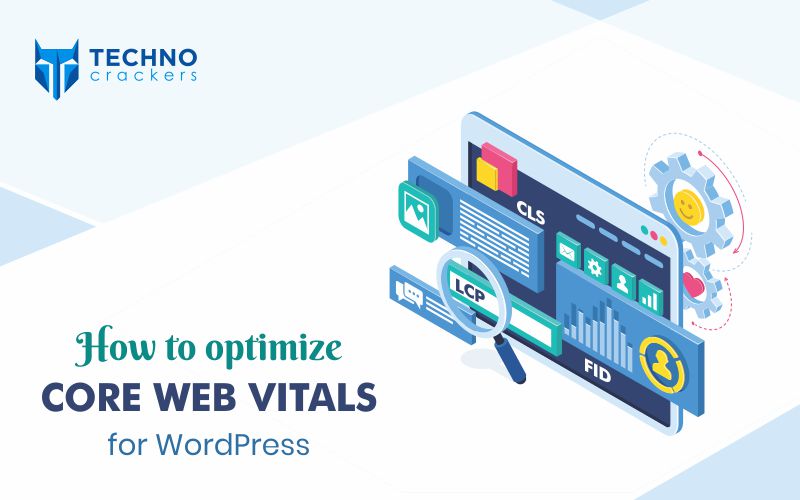
How to Optimize Core Web Vitals for WordPress

How to optimize core web vitals

With the new release of the core web vitals update in May 2021, Google has put out a message for all website owners & SEO professionals that it wants the web-pages to have a strong user experience. This page experience will be used as a key ranking signal.These core web vitals in WordPress will be used with Google’s current page experience signals such as mobile friendliness, secure browsing, HTTPS security, and unwanted interstitial standards to rank websites on SERPs.

What are Core Web Vitals?

Core Web Vitals are a set of three web requirements that Google feels may be used to evaluate the user experience of a web page (UX).

These are the metrics that the website owner should monitor and, if necessary, enhance. Each core vital serves a different part of the user experience. Core Web Vitals were launched earlier and are intended to assess how visitors perceive a page’s speed, responsiveness, and visual stability.

Largest Contentful Paint:

The length of time it takes for a page’s core content to load. A page loads items one by one, step by step. As a result, the most important content at the top of your pages needs to load rapidly. The LCP will be better if it happens sooner. A 2.5 second or quicker LCP measurement is desirable.

First Input Delay:

When a page becomes interactive, the time it takes for it to become interactive. Basically, Google wants to measure how quickly a user engages with your web page. A measurement of less than 100 milliseconds is optimal.

Cumulative Layout Shift:

The number of unexpected visual page content arrangement shifts. An unexpected layout change happens when numerous page resources are loaded dynamically or the DOM components are put on top of existing content. Ads, pictures, videos, typography, and headers, for example, all change size dynamically. A measurement of less than 0.1 is desirable.

Significance of Core Web Vitals

Google aims to give the best user experience over-all. Quality content will always be a priority to rank on search engines, but Google desires to take it a notch higher by introducing the core web vitals.

Content that ranks high for keywords will be filtered through the core web vitals in WordPress to provide the best user experience.

To keep ahead of the competition, you may optimise your pages/sites for the Core Web Vitals.

You’ll need to know how to measure them in order to do so.But before that, let’s understand how the data is bifurcated based on user experience metrics,

Field data, also known as Real User Metrics, is gathered from real users over the course of many months. It depicts the user’s experience when they visit your website. It is the most basic criterion for determining search ranks.

Data from lab tests is taken from your browser’s test settings and analysed to determine what your users could view. It enables website administrators to make beneficial adjustments in the interests of those who rely on it for business.

Core Web Vitals in WordPress Measurement Tools

Google has provided a number of tools that enable website owners to analyse reliable and official Core Web Vitals and other user-centric data. The majority of the tools we’ll cover in this part allow you to evaluate the performance of your website.

Lighthouse

Lighthouse is a Google website auditing tool that assists developers in identifying faults and opportunities to improve a page’s user experience.

It only works in a lab context and offers data on many elements of user experience quality, such as performance and accessibility.

Lighthouse 6.0 adds new web page metrics, auditing criteria, and performance scores with the latest upgrade.

Steps to use Lighthouse.

Step 1: Go to Chrome and open the page.

Step 2: Go to Chrome Developer Tools and open it.

Step 3: Select the “Lighthouse” tab.

You can also install the chrome extension of Lighthouse for quick performance updates.

PageSpeed Insights

For both mobile and desktop versions of a web page, PageSpeed Insights provides lab and field performance statistics. The utility is compatible with the most recent lighthouse version and includes the Core Web Vitals report.

The tools also provide a list of suggestions for improving the page’s experience, which are ranked in order of importance.

How to use PageSpeed Insights?

Step 1: Open PageSpeed Page

Step 2: Input the URL & analyze

Search Console

With the aid of Search Console, you may discover particular pages on your site that are failing key web vitals. The information Search Console provides is derived from actual users. Based on the results, you can then run them on Lighthouse to optimize it further.

Steps to use Search Console:

Step 1: Open Google Search Console

Step 2: Choose your Website

Step 3: Find the ‘Core Web Vitals’ option under “Enhancements” on the left side

Web Vitals extension

The web vitals extension helps the owner/agency to know the core vitals of the website in a single click.

Web.dev

It provides a prioritised list of improvements for a page’s experience as well as instructions on how to improve them.

A step-by-step guide to improve the user experience with the help of Google’s recommended measurement tools:

Step 1: In Search Console, locate the problematic pages.

Step 2: Using PageSpeed Insights to analyse pages

Step 3: Use Lighthouse to get more detailed information about pages.

Step 4: Work with web.dev to set priorities.

Step 5: Resolve your site’s issues.

Optimize Largest Contentful Paint (LCP)

LCP should take no more than 2.5 seconds. Following that, Google no longer considers it to be a positive user experience.

You should optimise the website for the LCP in order to hit the 2.5 second threshold.

The following are the most prevalent reasons of low LCP:

  • Slow Server Response Times
  • Render-blocking JavaScript and CSS
  • Slow Resource Load Times
  • Client-side Rendering

Optimize First Input Delay

FID is great only under 100 milliseconds. According to Google Chrome reports, the delay becomes irritating to the user.

It’s critical to keep FID under 100 milliseconds, and WordPress sites should be optimised to achieve this. The main reason for the poor FID is heavy JavaScript, which may be decreased by optimising the JS.

How to decrease FID?

  • Long tasks should be broken up into smaller chunks.
  • Make sure your page is ready for engagement.
  • Make use of a web worker.
  • Reduce the time it takes for JavaScript to run

Optimize Cumulative Layout Shift

WordPress sites ought to have a CLS value of less than 0.1 for a pleasant user interface.

Layout alterations may be distracting and irritating, causing people to abandon the page. A CLS score of less than one is required; else, the user experience would be poor. You may improve the page’s CLS score by optimising it.

What causes a poor CLS score?

  • Images with no dimensions
  • Dimensionless ads, embeds, and iframes
  • Injection of Dynamic Content

The Conclusion:

It is important that as business owners or as SEO professionals, we understand the roleplay of Core Web Vitals in WordPress websites. Only when we totally get them, we can optimize the website for better visibility on search engines.

At Technocrackers, we provide bespoke WordPress development services that can drastically enhance the growth of your company. Our WordPress developers have years of expertise and are familiar with the changing needs of the market. As a result, we provide competitive, inventive, and custom-made WordPress development services to help you boost your ROI curve. Contact us today to help you boost your presence through WordPress development services.

Why WordPress is great for your e-commerce website

In a digital age like today’s, it is hard to imagine a business without a website. It has become a necessity to create a strong internet presence. Customers wish to reach you with the help of a few clicks; hence, it is critical to make your contact information readily available online. Sure, social media could suffice, but why rely entirely on a platform over which you have no or little grip? A website is essential if you want to stay on top of your game.

Most companies now allow users to purchase items and services straight from their website, in addition to giving information. Customers and business owners alike appreciate how convenient and accessible an online store is.

There are numerous options when it comes to creating an ecommerce website, but as a leading WordPress ecommerce website development company, we do have a soft corner for WordPress. Not just us, but more than 41% of the web prefers WordPress over any other platform. WordPress is an evolving, versatile, and powerful platform that can be customised with plugins and themes to build the ideal e-commerce site. Its large community and widespread availability in the market also make it easy to get ideas and assistance during the development process.

Previously recognised as a top blogging platform, it now has several features outside of the blogosphere. Let’s dive right into it to understand.

It is Plugin Rich

WordPress is a self-sufficient software that includes the majority of features you require to build a fully-functional website. Be that as it may, if you wish to add additional features to the platform, you can rightly do so with the help of plugins. Plugins are little pieces of the software that can be installed on the WordPress panel to add various ecommerce functions.

At the moment, there are about 58,774 plugins on the WordPress platform. Many of these plugins help you create & maintain an online business, while some may assist you with inventory management, managing payment options, customer communication, support, and security. It isn’t necessary that you have to download plugins for each function, there are plugins that can handle many or all of these tasks.

Ecommerce Friendly WordPress Themes

The second most important consideration is the wide theme selection provided by WordPress.

A theme is a software package that sets the appearance and feel of your site, as well as how elements like menus and sidebars function. Your theme is the crux of customer experience since it determines how your site looks to visitors. It also has an impact on their ability to discover information and buy your product or service.

It is smart to select a theme that is either built particularly to support e-commerce requirements or at the very least has all of the design features you’ll want for your online WordPress shop. A theme with a lot of customization possibilities, a completely responsive design, and a user-friendly interface is ideal. Being the best in WordPress ecommerce development, we also recommend choosing a theme that has useful e-commerce plugins.

Whatever option you select, develop a list of features and plugins that you know your shop will require. Then, before making a selection, reflect back to the list with each prospective theme.

Keeps Your Website Safe & Secure

Basic security protocols can help any website, but an e-commerce site would require a more comprehensive security solution. Personal user data and payment transaction records are stored in an online shop, and this information must be kept secure.

WordPress is a content management system that has been around since 2003. It’s evolved through several modifications and has a huge and dedicated community working to improve it. It’s no surprise, then, that the fundamental programme is now extremely safe. Additionally, the development team is still looking for new methods to improve WordPress’ security features in order to guarantee that it remains secure in the future.

While the WordPress framework is quite safe, there is still plenty more you can do to improve security. Thankfully, the WordPress community has built 4 ways through which you can ensure the security of your site and the private details of your clients.

  1. Official updates
  2. Backups
  3. Security plugins
  4. Site activity trackers

You may be certain that your site is as safe as possible if you use WordPress and follow these easy guidelines. If misfortune does strike, though, you’ll be equipped to deal with it.

Backed up With Huge Community Support

So far it is very much evident that WordPress is a strong platform that provides you with all of the possibilities you desire to build an ecommerce website. With all that power, though, comes a level of complication. If WordPress were to be used as a blogging platform, it would be easy to set up; but, when it comes to ecommerce set up, it requires more effort. There are various alternatives and possibilities to consider, and you may come across some technical or conceptual knowledge that you are unaware about.

Fortunately, finding assistance will never be a problem if this occurs. As previously said, WordPress has a large community that is always developing and learning together. There are numerous folks that are eager to assist newcomers. WordPress has a large community of users & developers that are willing to help. When in doubt, google it if you’re experiencing a difficulty or need a solution to a query. Someone will almost certainly have an answer or a useful guide.

A Content Management System that Inspires

Besides the points we’ve covered, another benefit of creating a WordPress Ecommerce Website is that it is being used by a greater percentage of people globally. It’s obvious you won’t like to replicate what’s already used; you’ll want to create something original and unique suited to your own brand. Hence, it’s a good idea to learn and get inspired by the current WordPress websites. Existing WordPress websites might provide you with ideas and act as examples for your own growth. You’d know what you wish to keep and what you do not want on your ecommerce website by looking at different websites.

The Final Verdict

Creating an e-commerce website for your company is a critical first step in entering the enormous internet industry. You’ll want an ecommerce website that looks professional, provides what consumers want, and operates itself as much as possible. This is where WordPress enters the picture. You’ll be unlikely to find a platform that is more adaptable, configurable, and well-supported.

Add a pinch of WordPress Ecommerce Website Development to this by Technocrackers!

A successful combo that guarantees reliability & quick support. Technocrackers is one of the best WordPress Ecommerce Development company that provides WordPress web development, blog creation, custom module/plug-in development, theme customization and CMS development. Hire WordPress developers at Technocrackers that are the best in the industry with up-to-date knowledge, experienced and experts in this field.

Contact us

Let's Unleash Your Digital Potential Together.

Address

C-605, Ganesh glory 11, Nr. BSNL Office, Jagatpur Road, S.G. Highway, Jagatpur, Ahmedabad, India - 382481.

Phone

INDIA : (091) 8200639242 USA : +1 (310) 868-6009

Limited Time Offer

X

Try a Free 2-Hour Test Task

Experience our quality, speed, and communication on any small WordPress task before you commit. No contract. No cost. No obligation.
[For New Agency Partners]

"*" indicates required fields

Name*