




Table of Contents
Creating visually engaging layouts is essential for modern websites, and interactive elements play a big role in capturing user attention. One of the most effective ways to enhance your design is by using gallery card layouts with hover effects. These not only look beautiful but also improve user experience by revealing additional content in a clean and dynamic way.
With Divi 5, building these kinds of interactive layouts has become easier than ever. Thanks to its advanced design system and built-in interaction features, you can create stunning hover effects without writing a single line of code. Whether you’re designing a portfolio, showcasing products, or creating a blog gallery, this approach helps you present content in a more professional and engaging format.
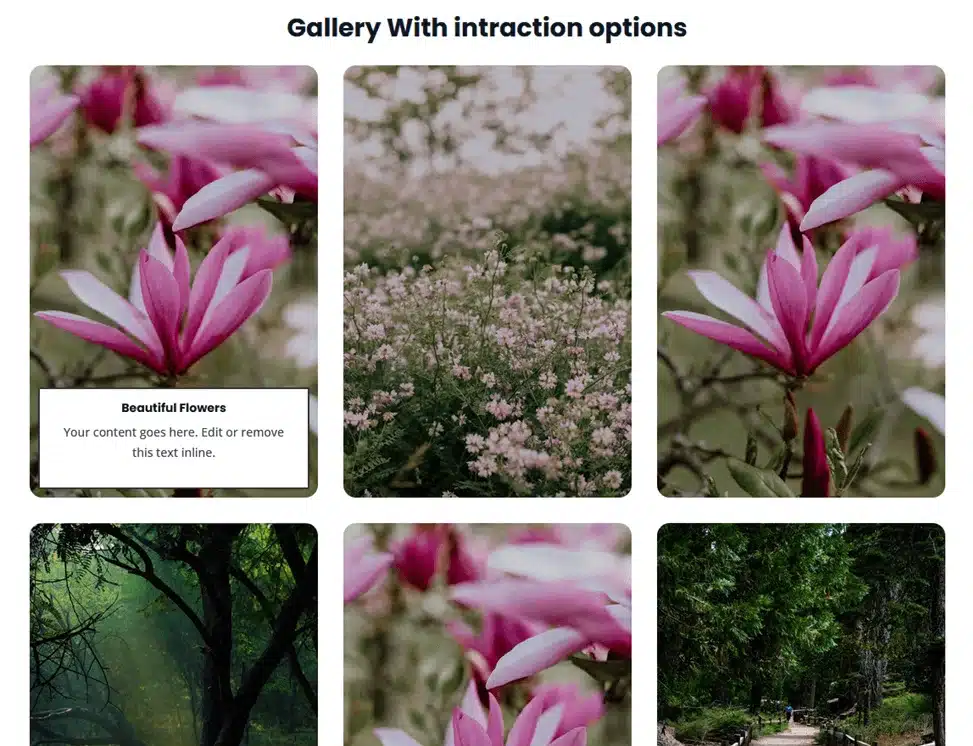
In this step-by-step tutorial, I’ll guide you through the entire process of creating a modern gallery card layout where text smoothly appears when users hover over an image. You’ll learn how to structure your layout, design your cards, and use Divi’s interaction settings to bring everything to life—just like the example shown below.
Step 1: Create Section & Row
Start by adding a new section to your page.
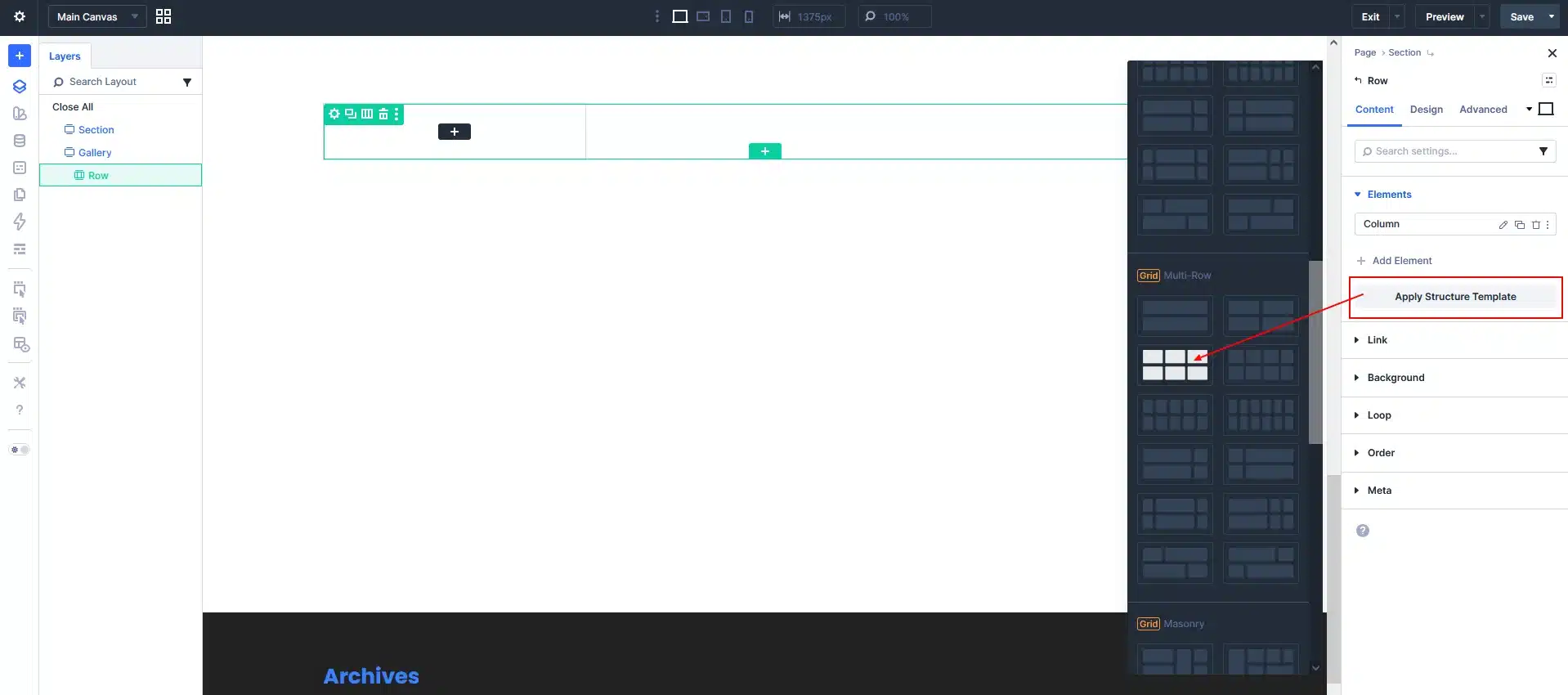
- Add a Row
- Click on Structure
- Go to Elements Tab
- Choose a Grid / Masonry Structure Layout
This will quickly give you a modern gallery-style layout.
Step 2: Add Group Inside Each Column
Now inside each column:
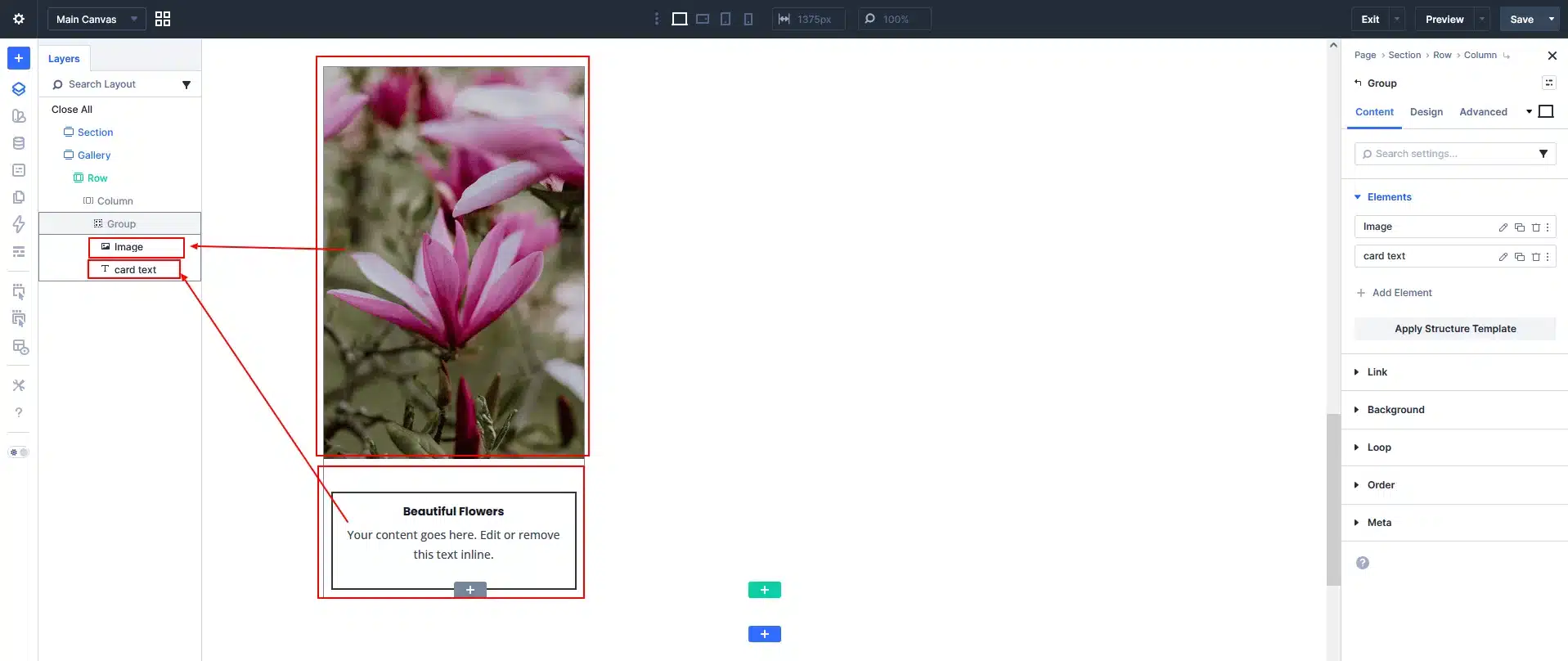
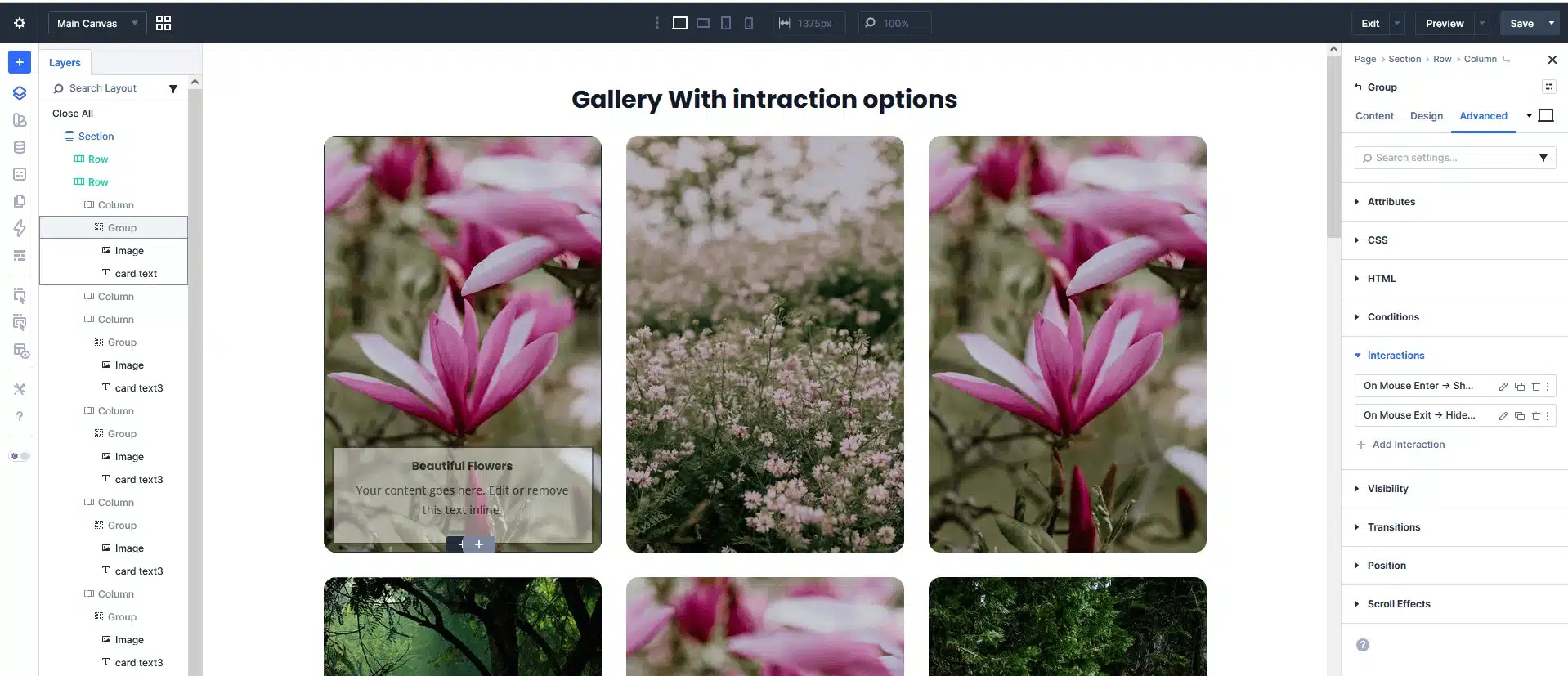
- Add a Group Module
- Inside the group:
- Add an Image Module
- Add a Text Module
The group helps you control hover interactions for both image + text together.
Step 3: Design the Card
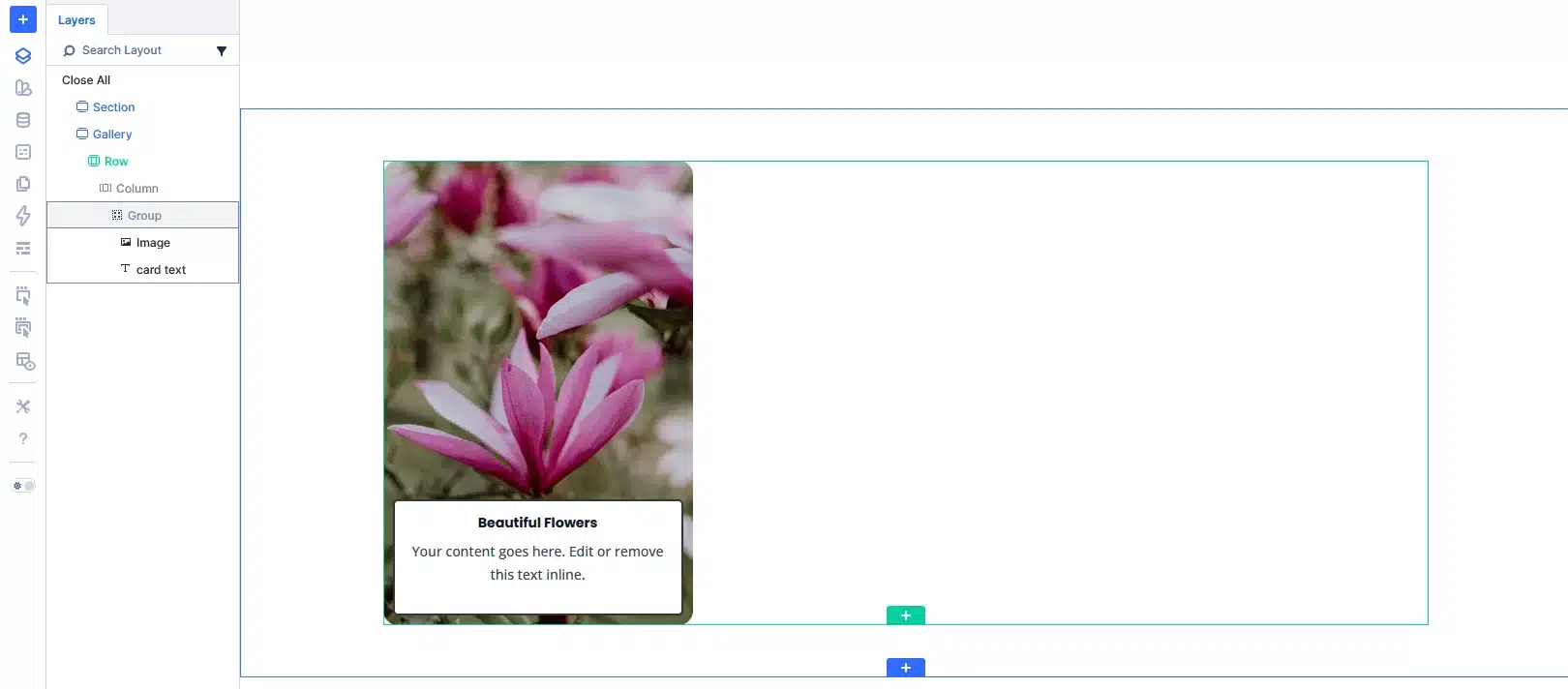
Image Module
- Upload your image
- Add border radius (optional for modern look)
Text Module
- Add title (e.g., Beautiful Flowers)
- Add description text
Style Tips:
- Set background color (light or white)
- Add padding
- Add shadow for card effect
Step 4: Hide Text by Default
Now we hide the text initially:
- Go to Text Module → Visibility
- Disable it (or set opacity to 0)
This ensures text only appears on hover.
Step 5: Add Hover Interaction (Mouse Enter)
Select the Group Module, then:
- Go to Advanced → Interactions
- Click Add Interaction
Set:
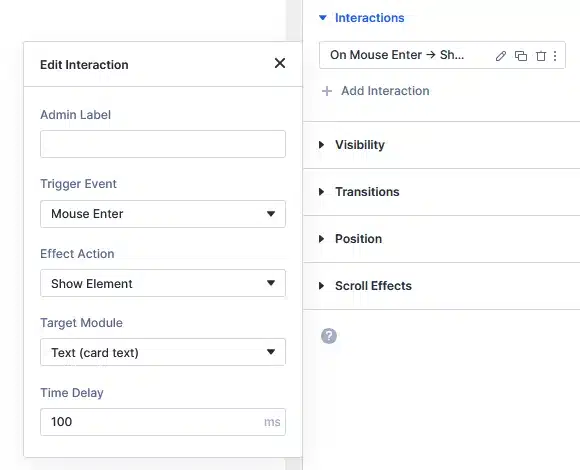
- Trigger Event: Mouse Enter
- Effect Action: Show Element
- Target Module: Text (your card text)
- Time Delay: 100ms
Step 6: Add Hover Exit Interaction
Add another interaction:
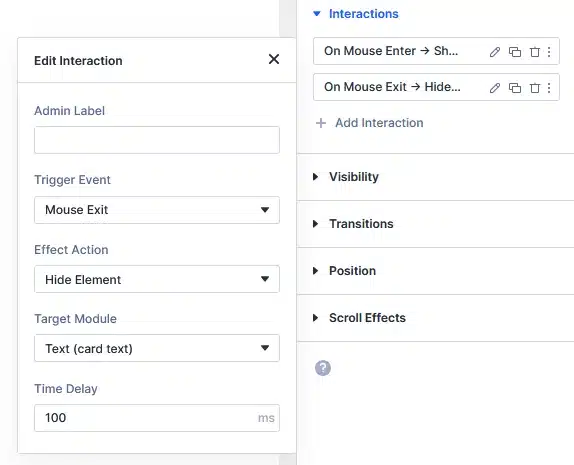
- Trigger Event: Mouse Exit
- Effect Action: Hide Element
- Target Module: Text
- Time Delay: 100ms
Step 7: Duplicate for All Cards
- Duplicate the Group Module across all columns
- Replace images and text content
Final Result
You now have a modern gallery card layout with hover effects, where:
✔ Text appears smoothly on hover
✔ Clean and interactive UI
✔ Fully built using Divi 5 (no custom code)
Pro Tips
- Add transition effects for smoother animation
- Use overlay gradient on images for better text visibility
- Try scale effect on hover for more depth
- Use consistent spacing and typography
Conclusion
Divi 5 makes it incredibly easy to create interactive designs like this without touching code. Using Groups + Interactions, you can build stunning gallery cards that improve user engagement and visual appeal.