





Table of Contents
Do you often face problems where, after importing products from a CSV file, some characters don’t display correctly and instead show up as “?” or strange symbols? Don’t worry — this is a common WooCommerce issue that can be fixed easily. In this guide, we’ll explain why it happens and how to fix UTF-8 character issues during WooCommerce product imports.
Many times, if you use special characters like ±, ®, ©, °, etc., they appear as “?” after importing. Let’s see why this happens and how to solve it.
Why Do UTF-8 Character Problems Occur?
WooCommerce expects your CSV files to be encoded in UTF-8, which supports special characters, accents, and symbols from most languages.
However, when you create or edit a CSV file in tools like Excel or Google Sheets, it sometimes gets saved in a different encoding format such as ANSI or Windows-1252.
When WooCommerce tries to read that file, it misinterprets those characters and shows weird symbols or question marks instead.
Don’t Worry — Here’s the Solution to Fix UTF-8 Character Issues
There are two easy ways to fix this issue:
Solution 1: Use HTML Entity Codes for Special Characters
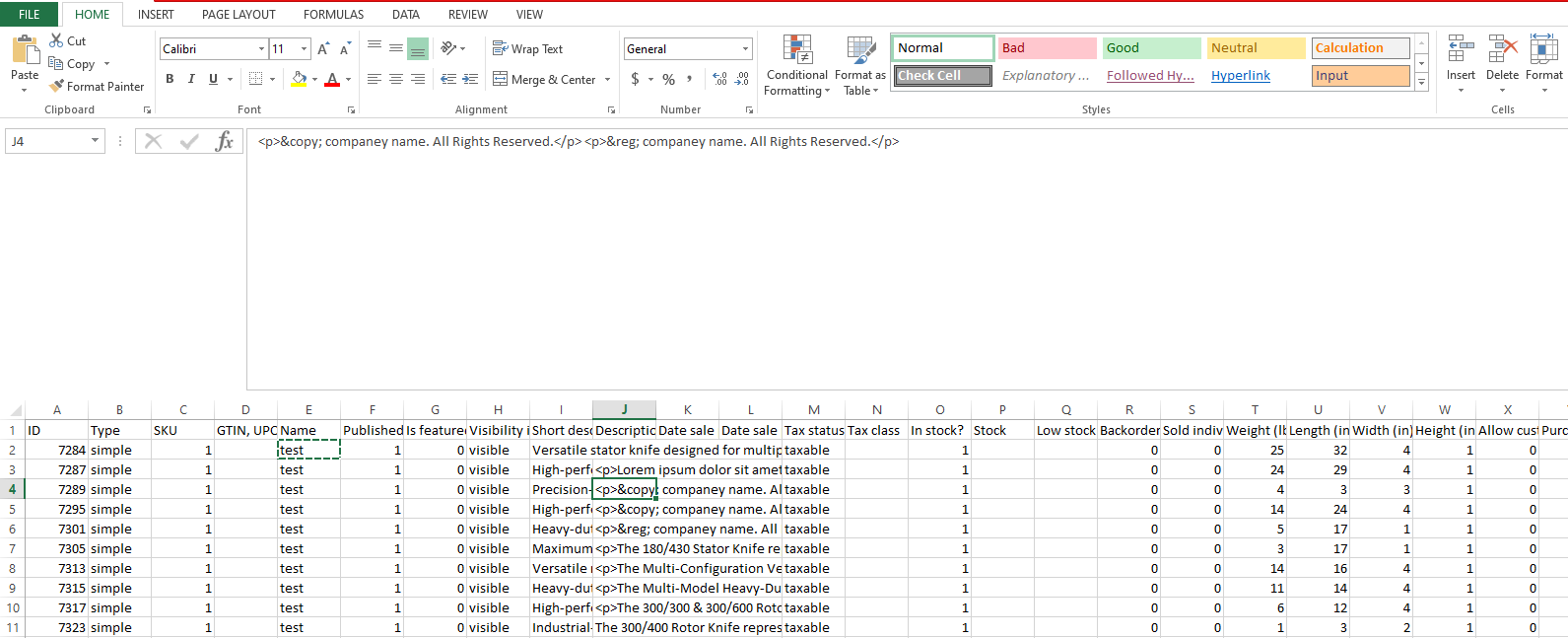
This solution works with any CSV format.
For special characters like ±, ®, ©, or °, use their HTML entity codes in your CSV content:
| Symbol | HTML Entity Code (paste into CSV) |
|---|---|
| ± | ± |
| ® | ® |
| © | © |
| ° | ° |
When you import the CSV into WooCommerce, these entities will render properly on the website, ensuring all special symbols display correctly.
Solution 2: Save and Import the CSV File with UTF-8 Encoding
Step 1: Open the CSV File in Google Sheets
- Go to Google Sheets → File → Import → Upload your CSV file.
- Verify that all characters (like accents and apostrophes) display correctly.
- Once confirmed, move to the next step.
Step 2: Download the CSV in UTF-8 Format
In Google Sheets:
– Go to File → Download → Comma-Separated Values (.csv, current sheet).
Google Sheets automatically exports in UTF-8 encoding, which WooCommerce reads perfectly.
If you prefer using Excel:
– Go to Save As → Tools → Web Options → Encoding → Unicode (UTF-8) before saving the file.
Final Step: Import the CSV into WooCommerce
- Go to WooCommerce → Products → Import.
- Upload your corrected UTF-8 CSV file.
- Check that all fields are mapped correctly.
- Click Run the Importer.Once the import is complete, check your products — all special characters should now display perfectly.
Fixing UTF-8 character issues in WooCommerce CSV imports doesn’t have to be complicated. By identifying encoding mismatches, saving your CSV files in UTF-8 format, and testing imports carefully, you can ensure your product data displays perfectly every time. Maintaining clean, properly formatted files not only improves accuracy but also saves hours of manual correction.
If you want to explore more WordPress troubleshooting tips, performance guides, and web development insights, visit Technocrackers — your partner in smarter, faster website solutions.