Table of Contents
- Why Create a Full Color Palette from One Brand Color?
- Step 1: Open the Divi 5 Variable Manager
- Step 2: Select the Color Palette Generator
- Step 3: Add Your Brand Color
- Step 4: Choose a Palette Type
- Step 5: Adjust the Secondary Color
- Step 6: Choose the Number of Tints, Shades, and Tones
- Step 7: Adjust Color Intensity
- Step 8: Review Your Generated Color Palette
- Step 9: Add the Color Palette to Your Website
- Step 10: Use Your New Colors in Divi
- Use Your Color Palette with Divi 5 Presets
- Final Thoughts
Creating a website usually starts with a brand color. But one color is rarely enough to design an entire website.
You may need lighter colors for backgrounds, darker colors for buttons and hover effects, softer tones for borders, and transparent versions for overlays. Instead of creating all these colors manually, Divi 5 can generate a complete color palette from a single brand color.
Divi 5’s Color Palette Generator lets you enter your primary brand color and automatically creates related colors, including secondary colors, tints, shades, tones, and transparent variations. The generated colors are saved as reusable variables in the Divi Variable Manager. (Elegant Themes)
In this guide, we’ll show you how to turn one brand color into a complete, reusable color palette in Divi 5.
Why Create a Full Color Palette from One Brand Color?
A website needs more than just one color.
For example, your primary brand color might be used for:
- Main buttons
- Links
- Important headings
- Brand accents
But you may also need:
- Lighter tints for backgrounds and cards
- Darker shades for hover and active states
- Muted tones for borders and secondary UI elements
- Transparent colors for overlays and shadows
- A secondary color that works with your primary brand color
Divi 5 can generate these variations automatically instead of making you choose each color manually.
Step 1: Open the Divi 5 Variable Manager
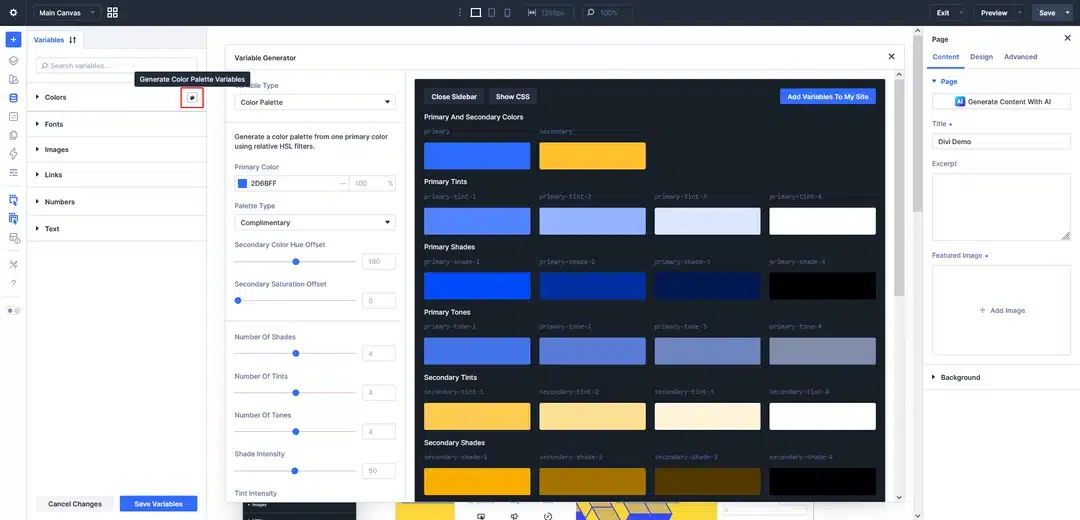
First, open any page using the Divi 5 Visual Builder.
From the left sidebar:
- Open the Variable Manager.
- Find the Colors section.
- Hover over Colors.
- Click Generate Color Palette Variables.
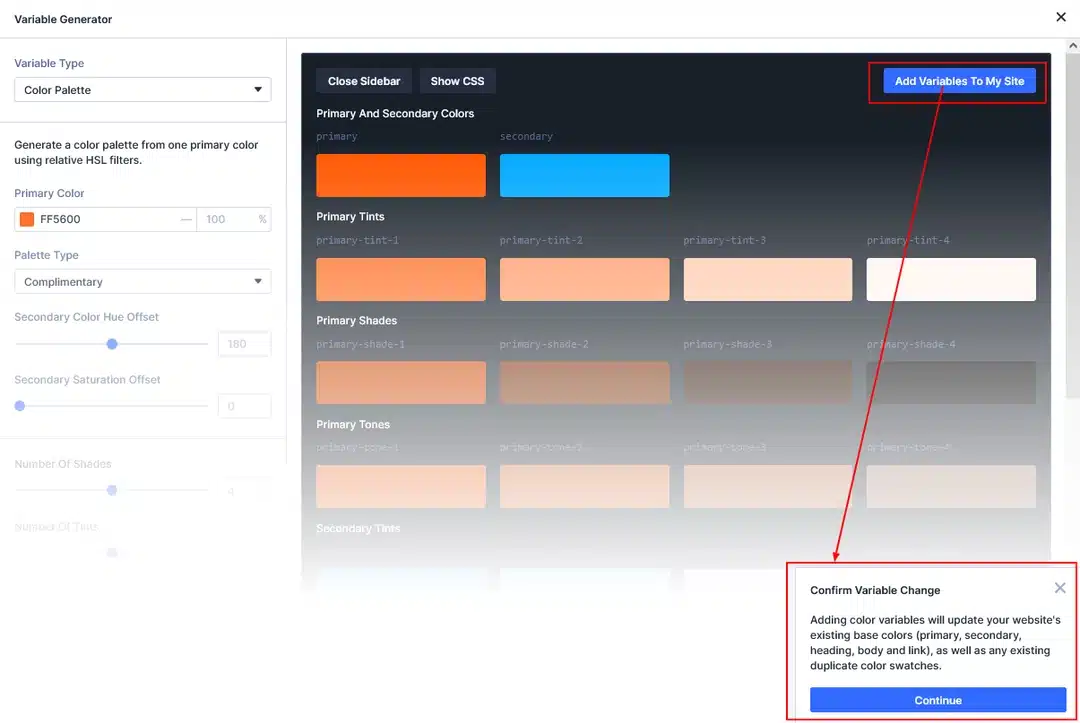
This opens the Color Palette Generator with the settings on the left and a live color preview on the right.
Step 2: Select the Color Palette Generator
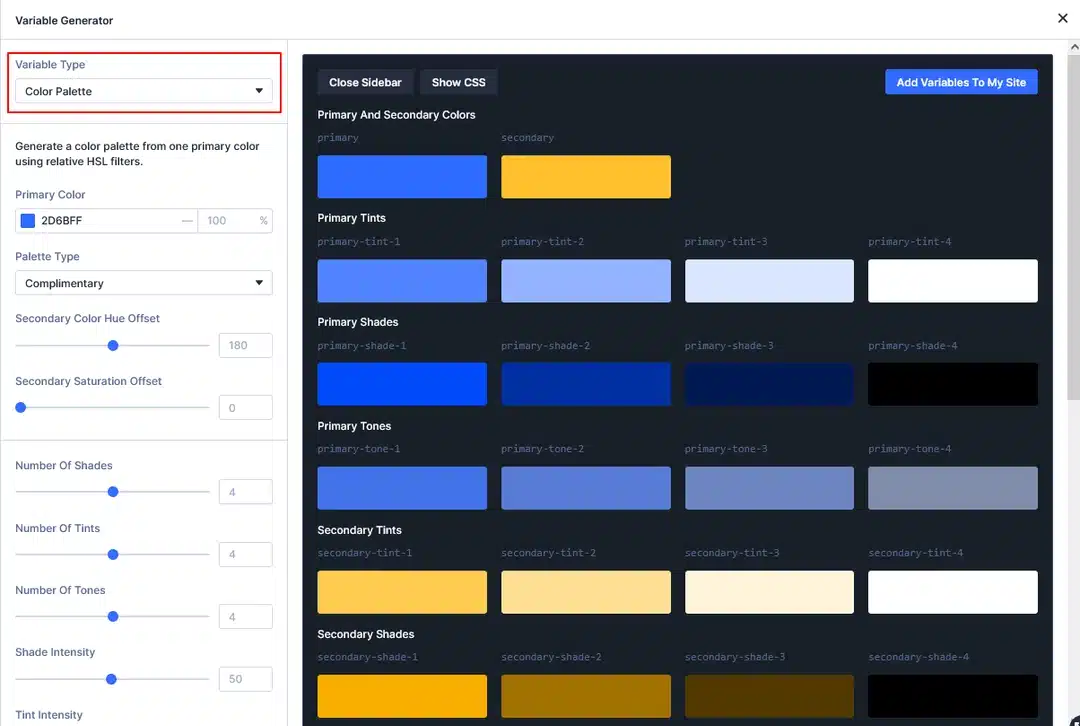
When the Variable Generator opens, make sure the Variable Type is set to:
Color Palette
This option is designed specifically for starting with one primary color and generating a complete supporting palette around it.
Step 3: Add Your Brand Color
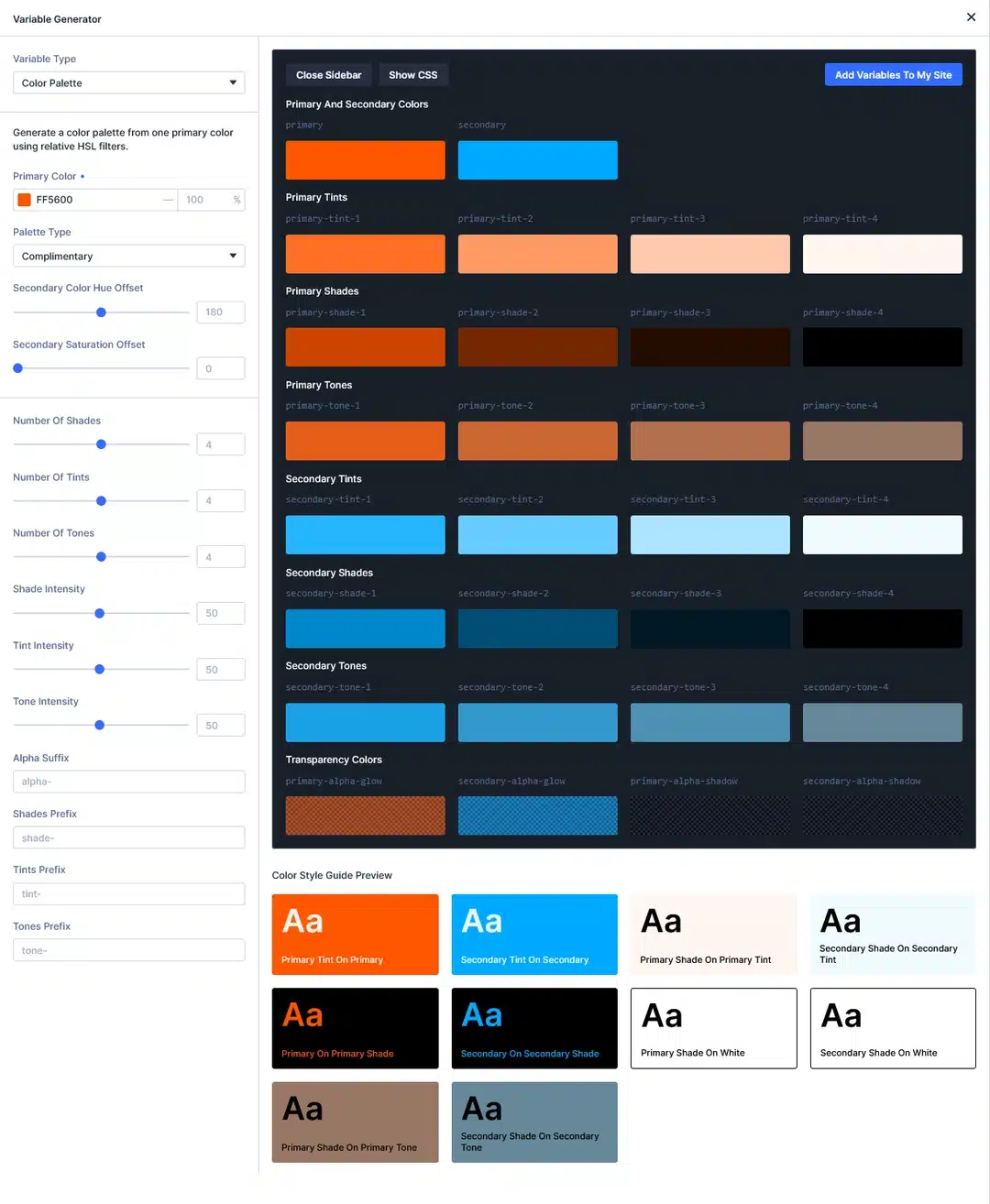
Now enter your main brand color in the Primary Color field.
You can enter the brand’s HEX color value, for example: #ff5600
Divi uses this color as the starting point for generating the rest of the palette.
The preview updates automatically as you change the primary color, so you can see how the palette is being generated.
Tip
Use the actual color from your brand guidelines rather than choosing a similar color manually. This keeps the generated palette connected to your existing brand identity.
Step 4: Choose a Palette Type
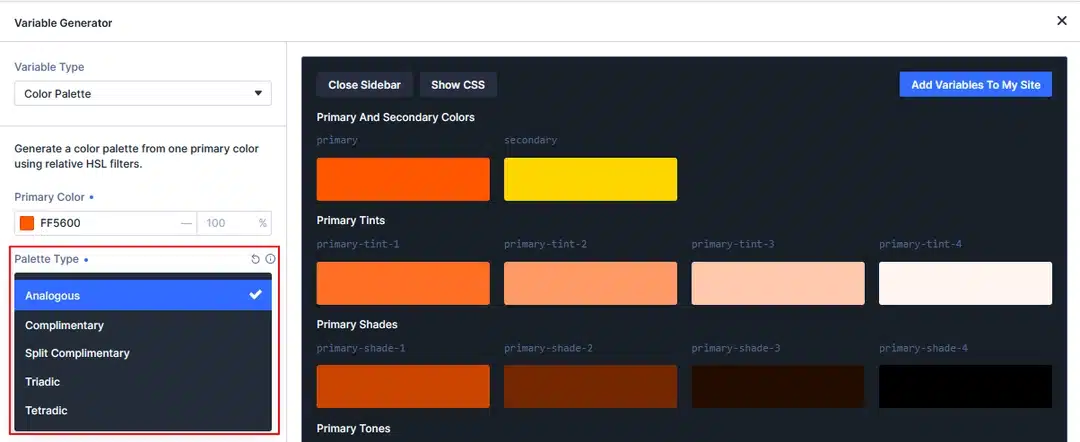
Next, choose a Palette Type.
This controls how Divi creates the secondary color in relation to your primary color.
Depending on your Divi 5 version, you can choose options such as:
- Analogous
- Complementary
- Split Complementary
- Triadic
- Tetradic
Each option creates a different relationship between the primary and secondary colors. For
example:
Complementary creates a secondary color based on the opposite side of the color wheel, while Analogous uses a nearby color for a more closely related palette
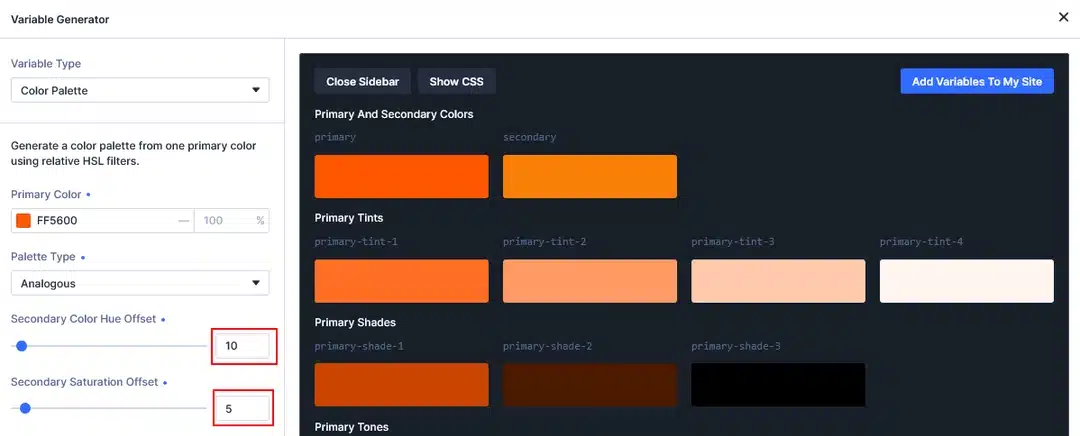
Step 5: Adjust the Secondary Color
After choosing a palette type, you can fine-tune the generated secondary color.
Divi provides controls such as:
Secondary Color Hue Offset
Changes the hue of the secondary color.
Secondary Saturation Offset
Makes the secondary color more or less intense.
You can adjust these settings if the automatically generated secondary color needs a small change to better match your website design.
Step 6: Choose the Number of Tints, Shades, and Tones
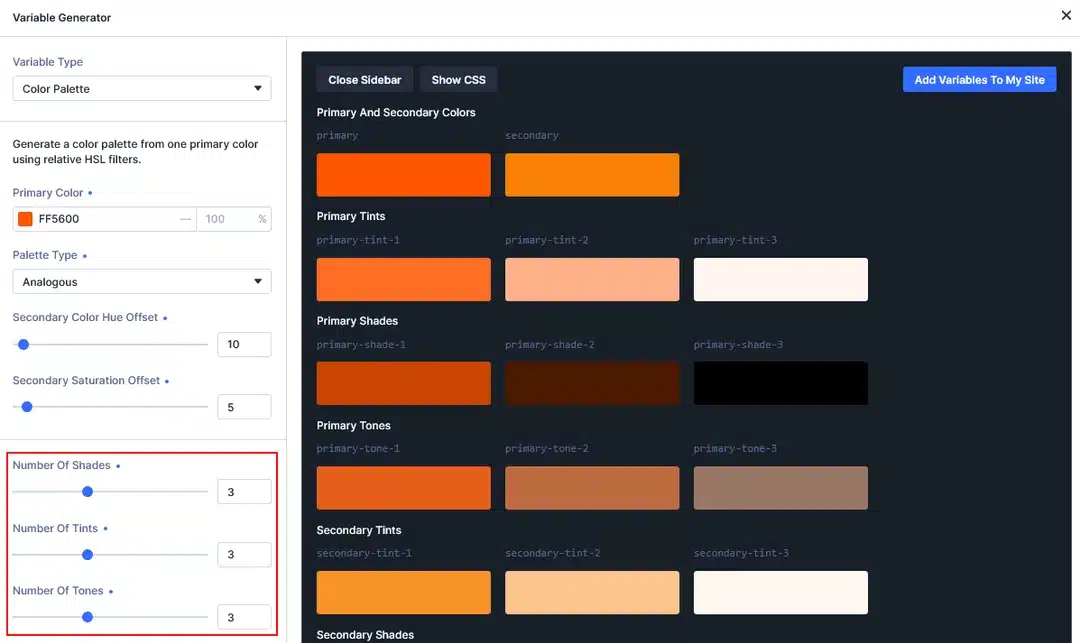
Divi can generate multiple variations of your colors.
You can control how many variations you want using:
- Number of Shades
- Number of Tints
- Number of Tones
Here’s what they mean:
Tints
Tints are lighter versions of your brand color.
They work well for:
- Backgrounds
- Cards
- Callout sections
- Soft design elements
Shades
Shades are darker versions of your brand color.
They can be useful for:
- Buttons
- Hover states
- Active states
- Borders
- Stronger text or accents
Tones
Tones are more muted versions of your brand color.
They can be useful for:
- Borders
- Dividers
- Secondary UI elements
- Less prominent design elements
Divi’s official guide suggests starting with a smaller number of variations, such as two to four, and adding more only when needed.
Step 7: Adjust Color Intensity
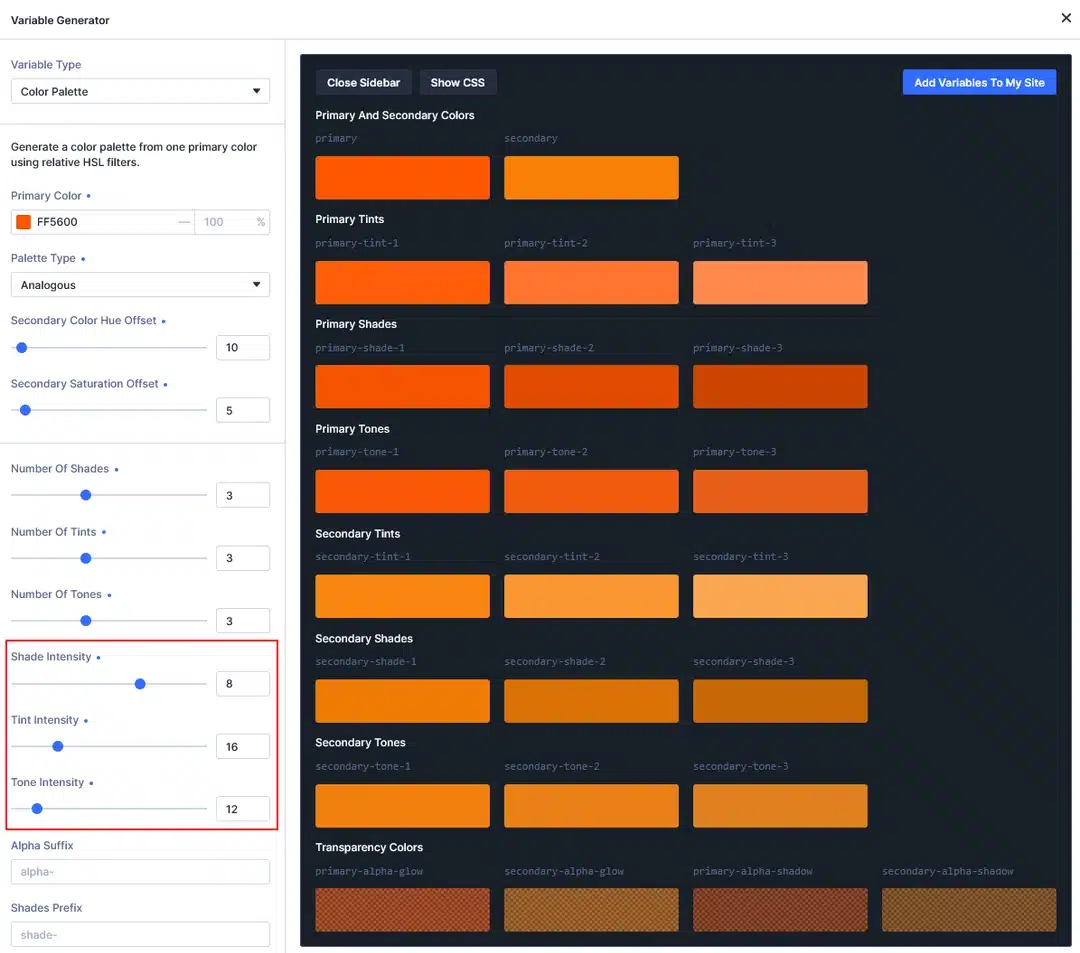
The intensity controls determine how different each generated color will be from the original brand color.
Divi provides controls for:
- Shade Intensity
- Tint Intensity
- Tone Intensity
- Alpha Intensity
For example, increasing Tint Intensity creates lighter tint variations, while increasing Shade Intensity creates darker variations. (Elegant Themes)
You don’t need to use extreme values. Adjust the sliders while watching the live preview until the colors provide enough variation for your design.
Step 8: Review Your Generated Color Palette
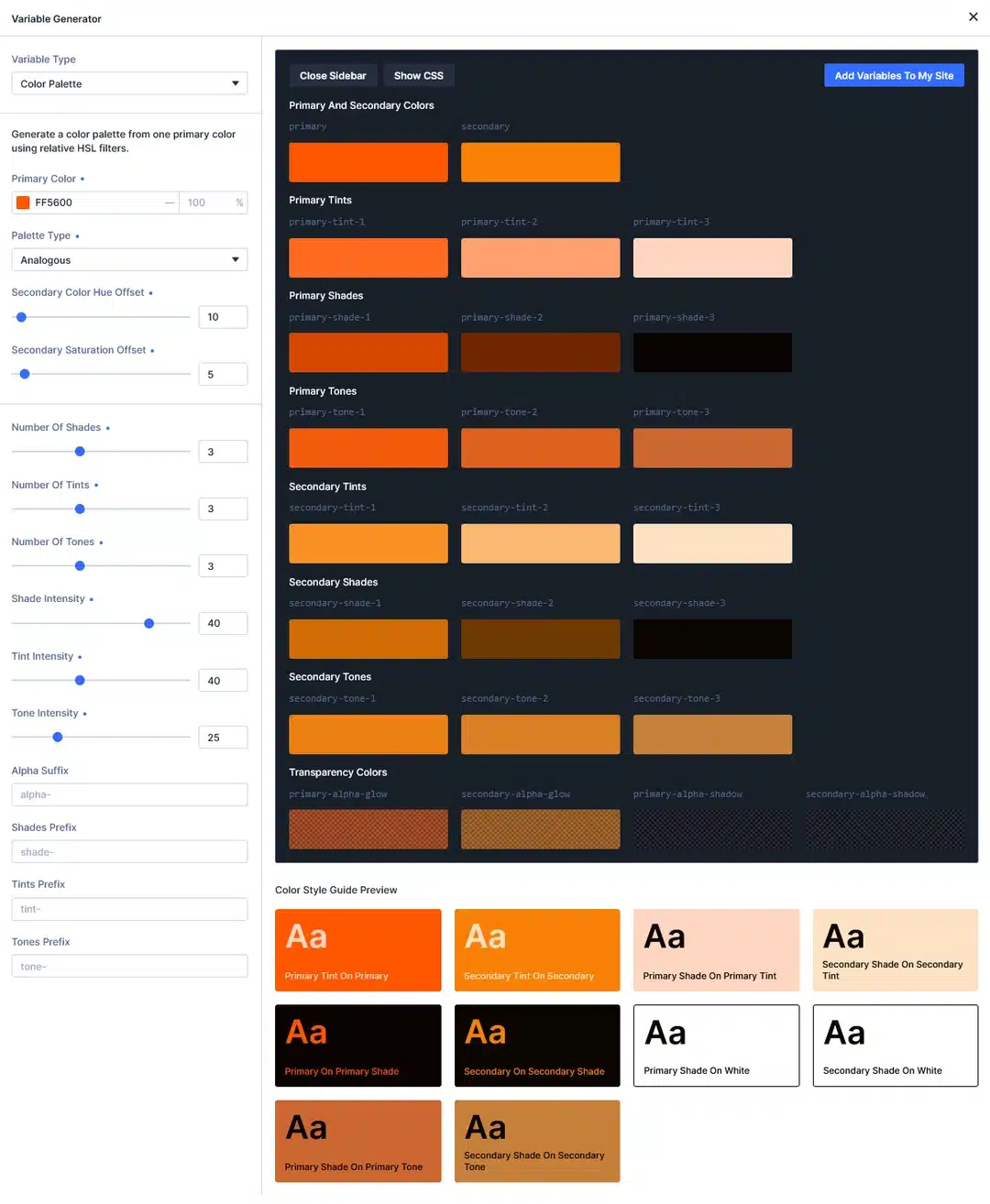
One of the most useful parts of the Color Palette Generator is the live preview.
The preview shows the colors Divi is going to create before you add them to your website.
Depending on your settings, you can see:
- Primary color
- Secondary color
- Primary tints
- Primary shades
- Primary tones
- Secondary tints
- Secondary shades
- Secondary tones
- Transparent variations
This makes it easy to check your palette before saving it.
Check Your Colors Before Saving
Look at the generated colors in the preview and make sure they provide enough contrast and useful variations for your website.
For important elements such as buttons, navigation, forms, and body text, you should also check color contrast before publishing.
Step 9: Add the Color Palette to Your Website
Once you’re happy with the generated colors, click:
Add Variables To My Site
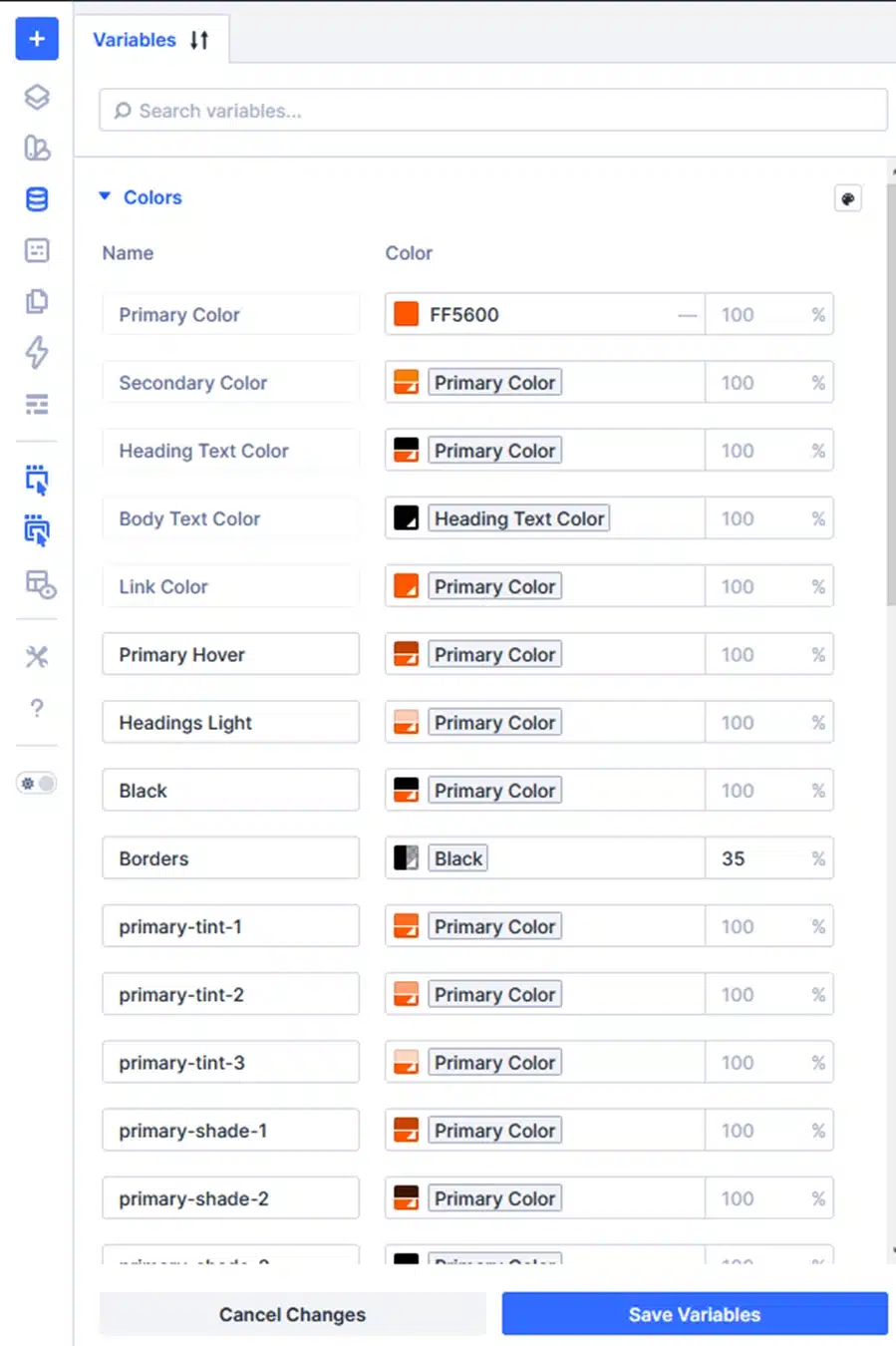
Divi will add the generated colors to the Variable Manager.
The generated variables can then be used throughout your Divi website wherever color variables are supported
You don’t need to copy the generated HEX values one by one.
Divi handles the variables for you.
Step 10: Use Your New Colors in Divi
Now that your palette has been added, you can use the generated colors throughout your website.
You Can view that variables at “
- Open the Variable Manager.
- Open Colors section.
For example:
Buttons
Use your primary color for the normal button and a darker shade for the hover state.
Backgrounds
Use a lighter tint for cards, sections, or callout areas.
Borders
Use a softer tone instead of using the full-strength brand color.
Overlays
Use a transparent version of the brand color over images or backgrounds.
These colors can be applied to backgrounds, text, borders, buttons, gradients, overlays, forms, and other Divi settings that support color variables.
Use Your Color Palette with Divi 5 Presets
The generated colors become even more useful when combined with Divi 5 Presets.
For example, you could create:
- Button Preset → Primary color + darker hover shade
- Card Preset → Light tint background + muted border
- Heading Preset → Brand heading color
- Form Preset → Tone for fields + shade for focus states
This allows you to create reusable design styles instead of manually setting colors for every module
Final Thoughts
Creating a complete color palette doesn’t have to mean manually choosing dozens of HEX colors.
With Divi 5’s Color Palette Generator, you can start with your existing brand color, choose how the supporting colors should relate to it, adjust the variations, preview the results, and add the entire palette to your website as reusable variables
Once your colors are stored as variables, you can use them across Divi modules and combine them with Presets to create a more consistent design system.
Start with your brand color, generate your palette, save the variables, and use them throughout your Divi 5 website.