




Table of Contents
- What Are Divi Presets (and Why They Matter)
- Step-by-Step: Create a Divi Preset
- Step 1: Style any module
- Step 2: Open the Preset menu
- Step 3: Create a preset from current styles
- Step 4: Apply your preset anywhere
- Optional: Make it the default for that module type
- How to Edit & Update Presets (Site-Wide Changes)
- Pro Tips for Speed & Consistency
- When to Use Presets
Divi Preset Elements That Help You Build Websites Easily and Maintain Global Consistency
What Are Divi Presets (and Why They Matter)
A preset is a saved collection of design settings (colors, fonts, spacing, borders, effects, responsive rules, etc.) for a specific Divi element type (e.g., Button module, Text module, a Row, or a Section).
Why this is powerful
- Save time: No more re-applying colors, fonts, and padding on every page.
- Brand consistency: Buttons, headings, cards all look identical everywhere.
- Global updates: Change one preset → the entire site follows.
Step-by-Step: Create a Divi Preset
Tip: Do this early in a project. Define your “design system” (buttons, headings, cards) and turn them into presets before you build pages.
Step 1: Style any module
Open the Visual Builder, add (or edit) a module—e.g., Button or Text—and apply your desired design (colors, fonts, spacing, borders, hover effects, responsive tweaks).

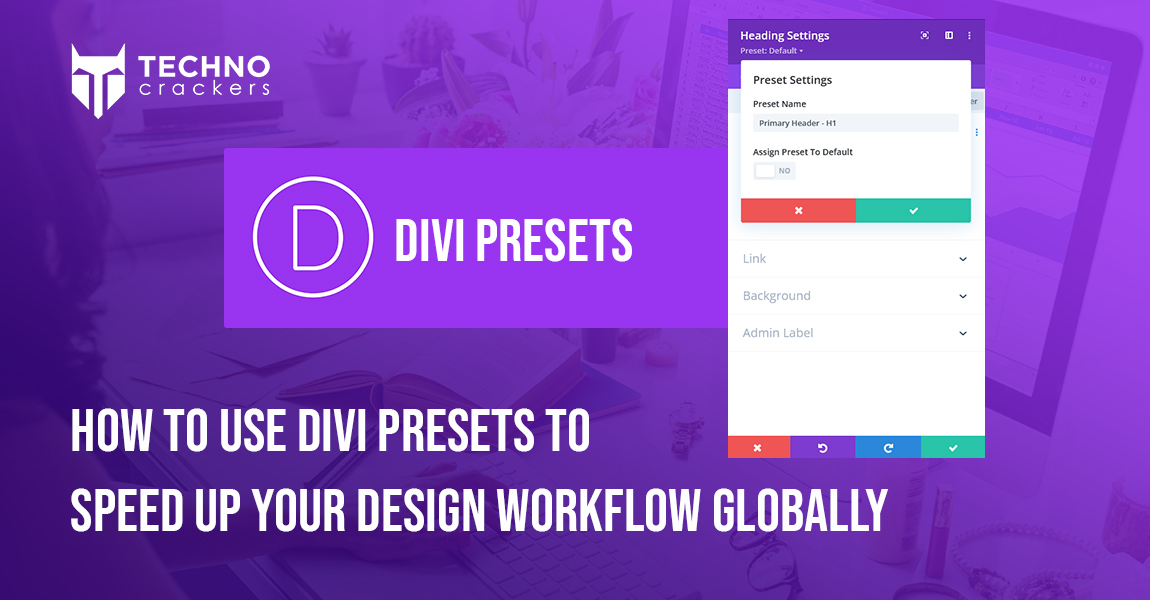
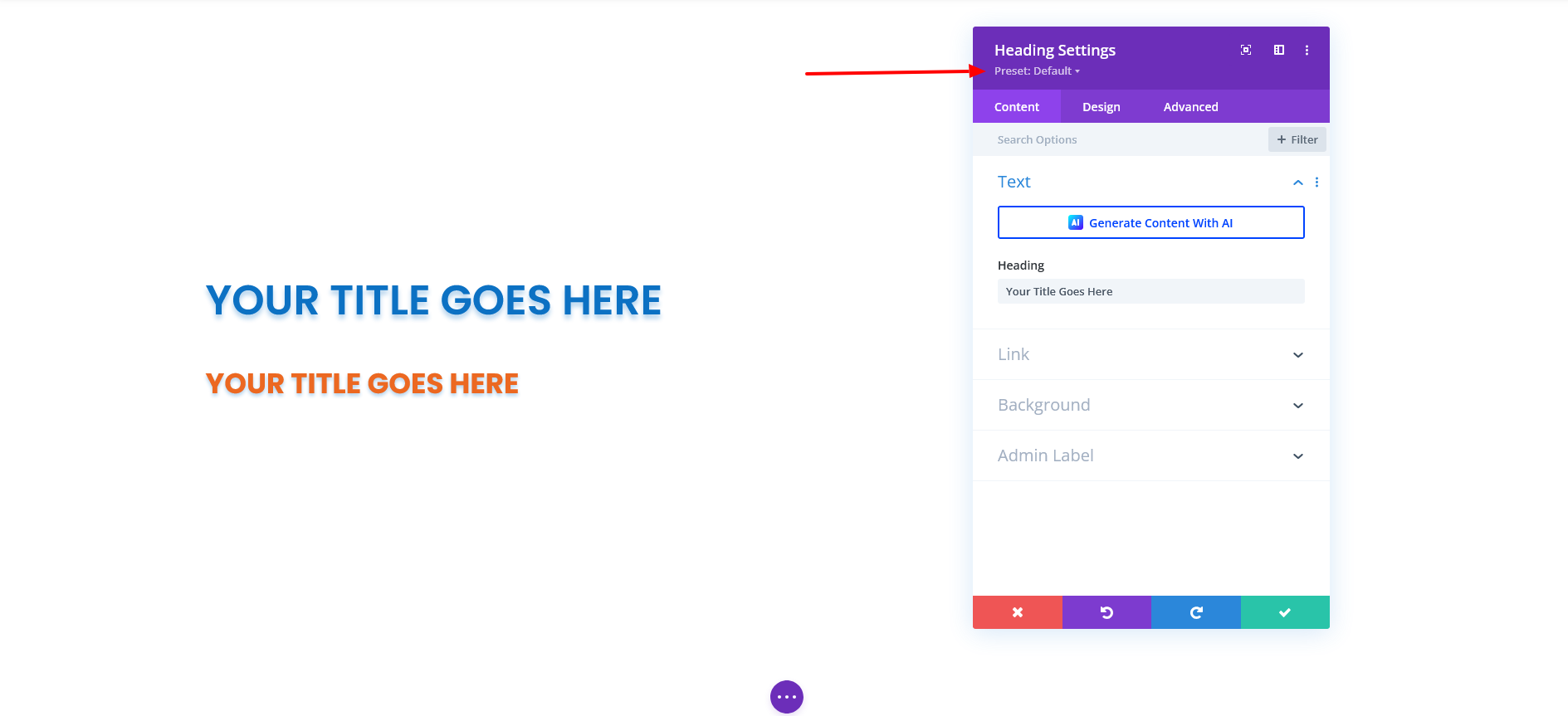
Step 2: Open the Preset menu
At the top of the module settings, click the Preset dropdown (it usually says Default if none is applied).
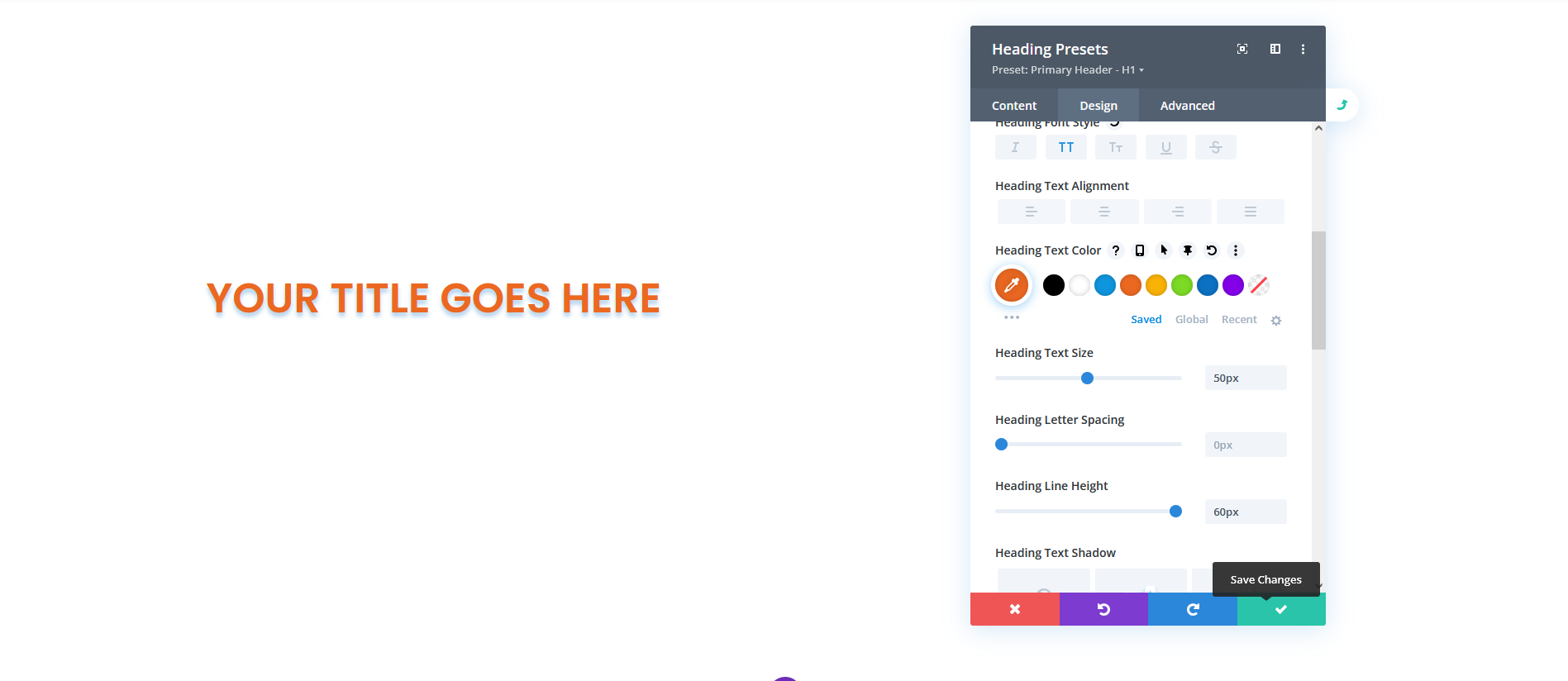
Step 3: Create a preset from current styles
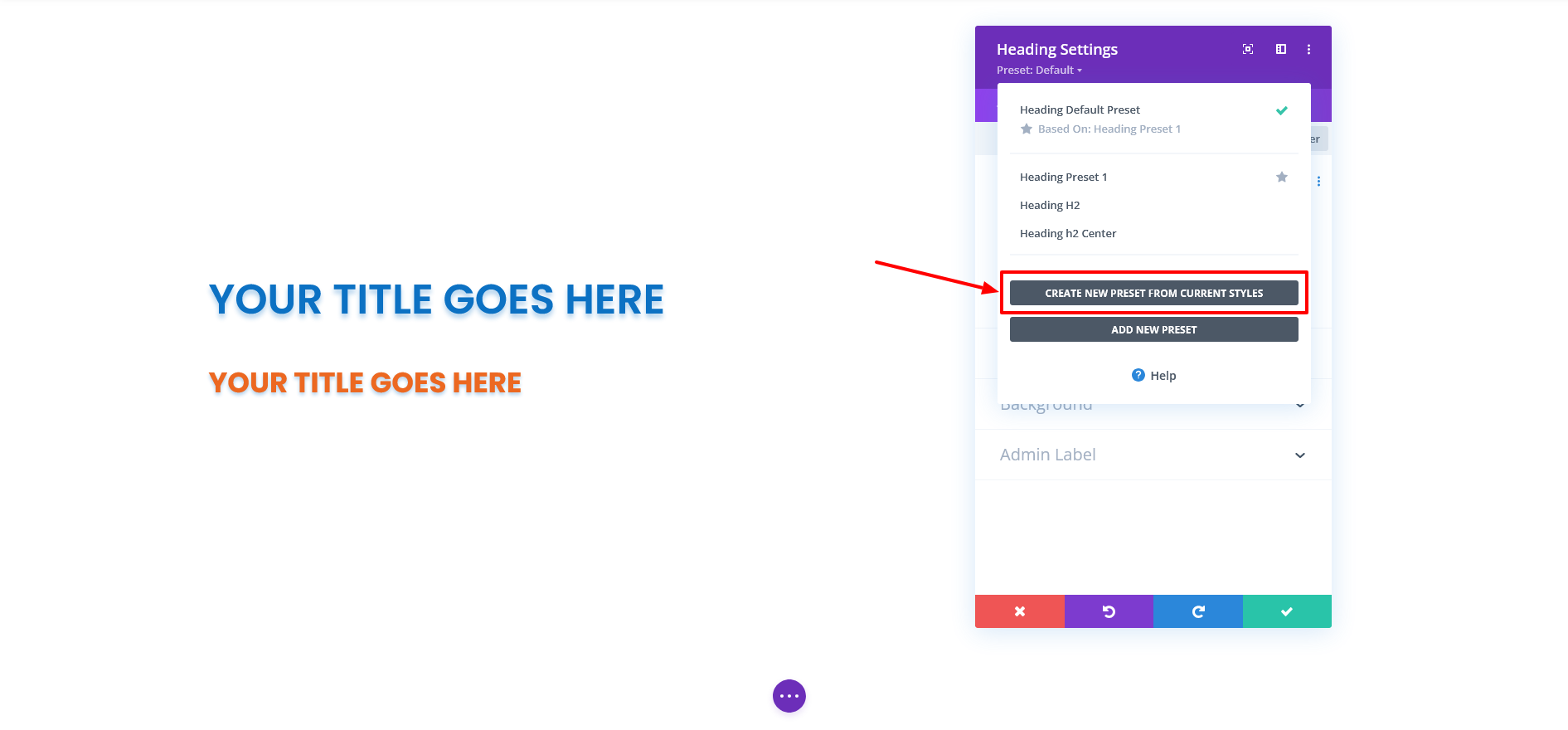
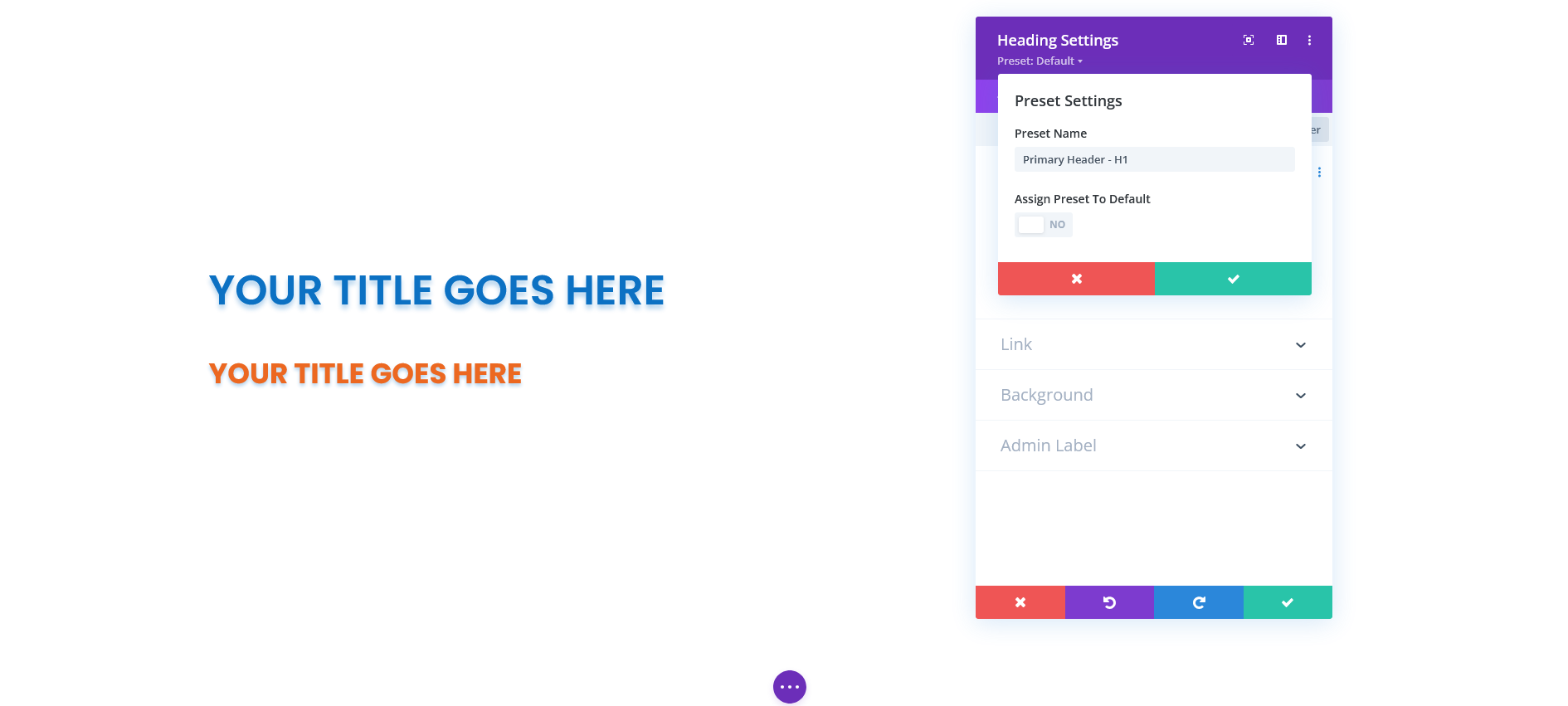
Choose Create New Preset From Current Styles. Name it clearly (e.g., Primary Button – Solid, H2 – Dark). Save.
Step 4: Apply your preset anywhere
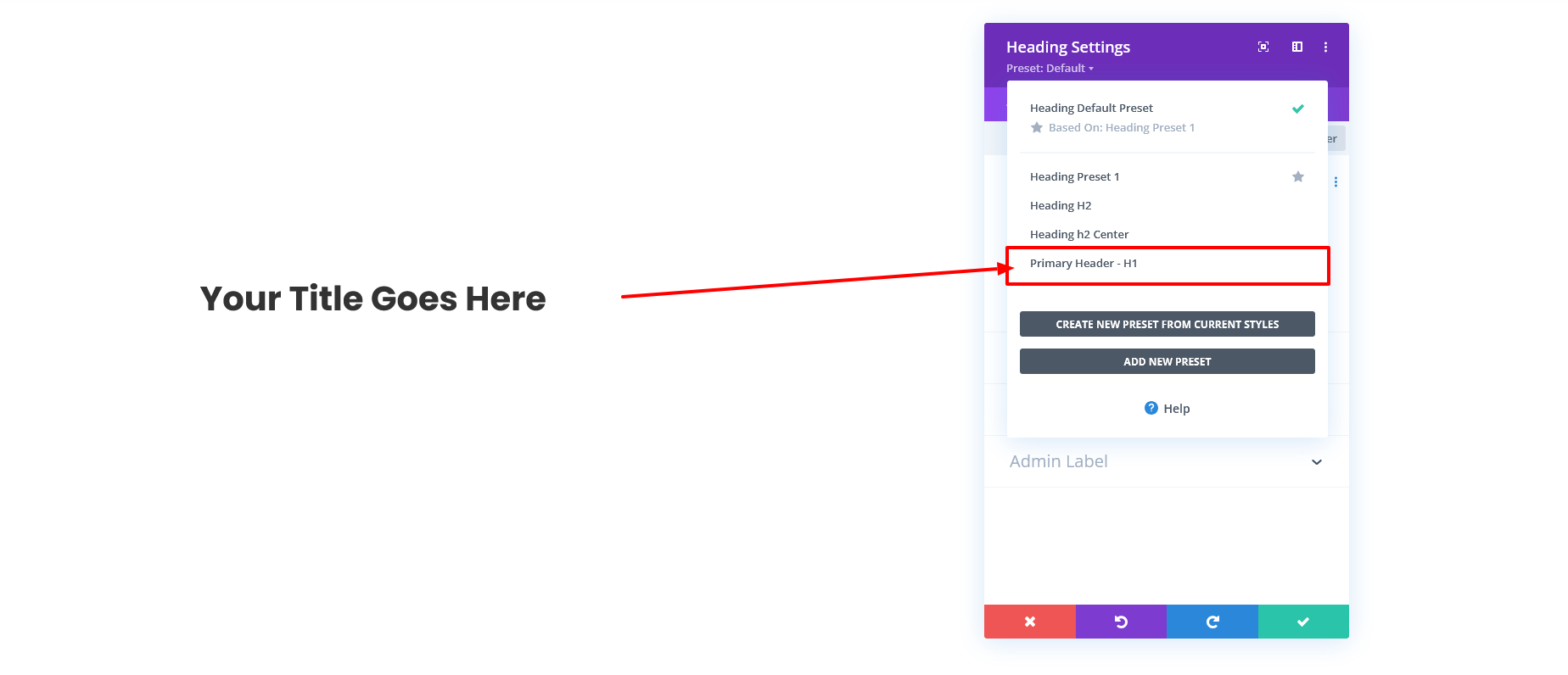
Add the same module type elsewhere → open settings → Preset dropdown → select your preset. The module instantly adopts those styles.
Optional: Make it the default for that module type
In the Preset list, set your preset as Default so all new modules of that type inherit it automatically.
How to Edit & Update Presets (Site-Wide Changes)
- Edit a preset: Open any module that uses it → Preset dropdown → hover the preset → click Edit (pencil icon). Adjust styles and save; every element using it updates site-wide.
- Update preset from a tweaked module: If you changed just one instance and want those edits to become the new preset, use Update Preset With Current Styles (Divi will warn you it’s a global change).


Pro Tips for Speed & Consistency
- Create core presets first: Buttons (Primary/Secondary), Text/Headings (H1–H6), Cards/Blurbs, CTAs, Forms.
- Name presets clearly: e.g.,
Button / Primary / SolidorHeading / H2 / Dark. - Don’t over-create: Too many presets cause confusion. Keep it lean.
- Use defaults smartly: Set a base Default preset, then override only when necessary.
- Bulk apply: Use multi-select or bulk editing to apply a preset to many modules in one go.
- Document your system: Keep a quick style guide for teammates: preset names, when to use them, and examples.
When to Use Presets
Use presets when:
- You repeat layouts or modules across many pages
- You want strict brand/visual consistency
- You expect future design updates and want easy global changes
At Technocrackers, we’ve helped clients worldwide build high-performance websites using Divi presets and best-in-class digital strategies. If you’re ready to elevate your design workflow, reduce repetitive tasks, and deliver faster results, our expert team is here to help. Let us guide you through the setup, customisation, and optimisation process so you can focus on creativity—not complexity.